By using transport rules in Exchange 2013 we can filter, inspect or block any confidential emails that match any specific conditions with the email that matches the transport rule. By using this we would be able to prevent the leakage of the sensitive data in any organization.
Transport rules along with DLP and policy tips can be used to give end users warning informational tips when they try to send any emails which does not abide the company policy.
In-order to achieve this we need to create a transport rule first, and then create a associated DLP policy and then configure policy tips for the same. we will look into how to perform this with a small example.
Below example is a simple rule that helps us to block any emails with attachments that has a character set invoice
Open EAC – Go to Mail Flow – Select Rules
Click on the + sign to create a new rule – Give it a name

We have scope to choose as well. In my example im selecting the option if the recipient is located outside the organization this applies for external users.

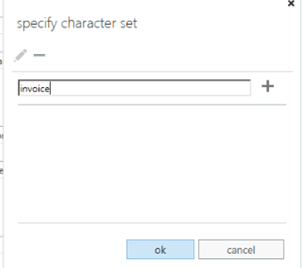
We can apply a condition to this rule. Specify a character set. In my case im specifying name invoice so that all emails which contains character invoice will be sent for review and approval.
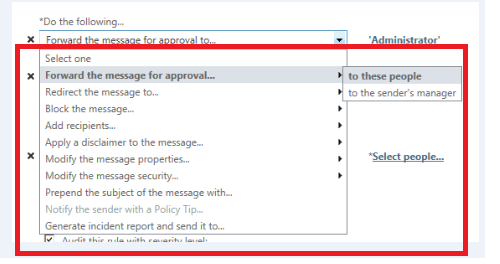
We can take the following action on the message that matches the criteria for invoice. In my case im forwarding the email for approval by administrator.
We can add an exception too by excluding few recipients who are entitled to send those messages or even according to subject or few other parameters as shown below.

We can still enhance this rule and notify end users before they try to send any emails which do not meet the company policy. This task can be accomplished with the help of policy tips.
Policy tips are informative messages displayed to the end users in owa, outlook and owa for devices before they tend to send any offending content in any organization.
They function similar to MailTips where an informational message is given to the user while he/she tries to add any attachment like pdf file which an organization restricts to send through email to external users. By using this users will come to know that this kind of email is not allowed to send and they can abide the rules.
Policy Tips works along with DLP. An associated DLP policy also should be created for the same.
To create Custom DLP Policy
Open EAC – Click Compliance management – Select Data Loss Protection – Select New Custom DLP Policy

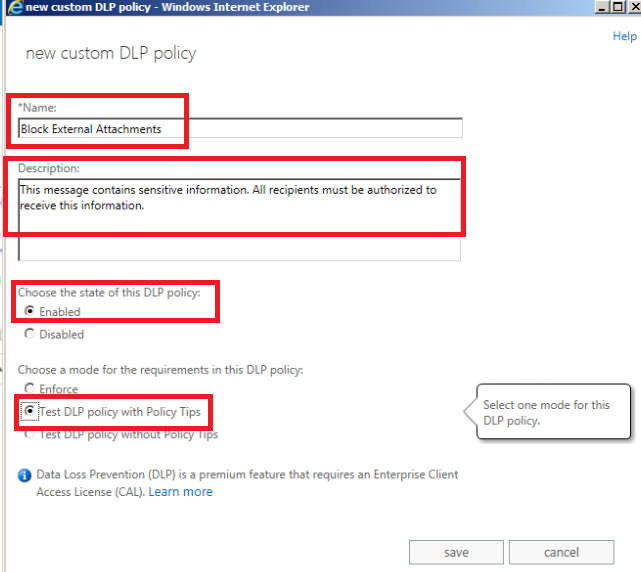
Now give it a name and specify the description.
Select the state to be enabled and choose option Test DLP policy with Policy Tips and click save.
Now Click on the DLP policy created and click edit
Select Rules – You can create a new rule.
im selecting option notify sender when sensitive information is sent outside organization rule in my case.You can create a new rule or an existing one which matches your criteria and click save.

To edit Policy Tips
In-order to do that click edit on the custom created DLP policy and select Manage policy tips
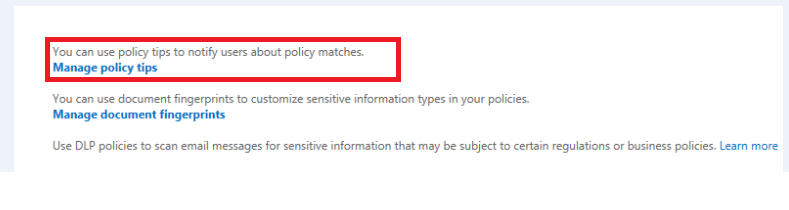
Click on the option notify the sender option .
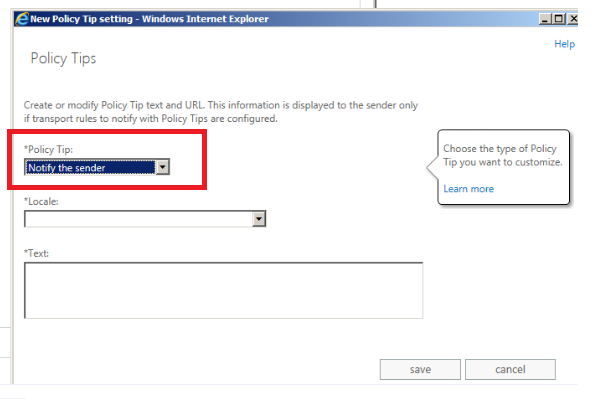
Select the locale language
And specify the text message that needs to be displayed to the end user when he/she tries to send an email which matches our Transport rule, DLP and policy tips.

Below is the example of the policy tip notification.

Note : If you are using policy tip for SSN, Passport Numbers , Credit Card numbers with already existing DLP templates then policy tips will be triggered only for valid passport numbers,credit card numbers and SSN numbers.
Sathish Veerapandian

