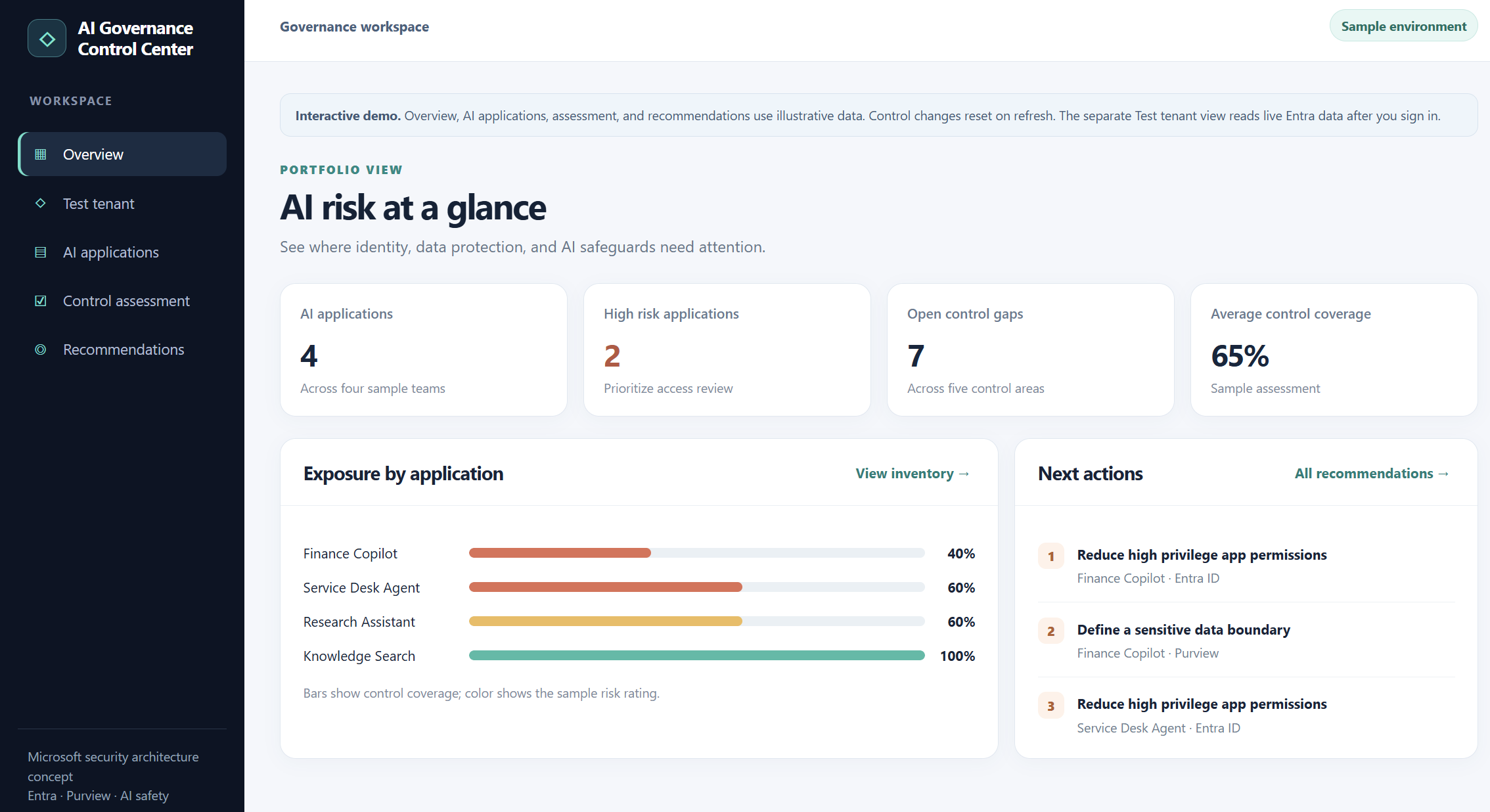
I built a small AI Governance Control Center to explore application inventory, granted permissions, and control assessments. Here is what the working Entra ID integration can show today and what still needs evidence before calling it an AI governance finding.
AI governance becomes difficult when an organization has to answer several questions at once: Which applications and agents exist? What permissions have they been granted? What data can they reach? Which safeguards are actually in place?
I wanted a simple workspace to explore those questions. The result is an AI Governance Control Center prototype with two clearly separated parts: an interactive sample assessment and a live, read only inventory from my test Microsoft Entra ID tenant.
The separation matters. An Entra application inventory is useful evidence about identity and permissions. It does not, on its own, prove that an application is an AI agent, that it accessed confidential data, or that a content safety control is enabled.
What the prototype does today
The sample workspace has an overview, an AI application list, a control assessment, and prioritized recommendations. You can switch illustrative controls on or off and watch the sample coverage score and recommendations change. These records and scores are demonstration data, not findings from my tenant.
The separate Test tenant view signs me into my own Entra tenant and calls Microsoft Graph. It lists enterprise applications, supports searching by application name or client ID, and lets me inspect the application permissions granted to a selected service principal. In my test, the sign-in and inventory retrieval worked against the tenant.
“Illustrative dashboard and control scores; no live risk assessment is implied.”
Passwordless authentication is becoming the new standard for modern identity security.
Windows Hello for Business already replaces passwords with biometrics and PINs but convenience alone doesn’t guarantee strong protection against credential theft.
This is where Windows Hello Enhanced Sign in Security (ESS) comes in.
ESS is a hardened, hardware backed mode of Windows Hello that ensures your authentication keys are protected inside the device’s secure enclave.
Even if malware is running, even if attackers gain local access, ESS prevents credential extraction and replay attacks.
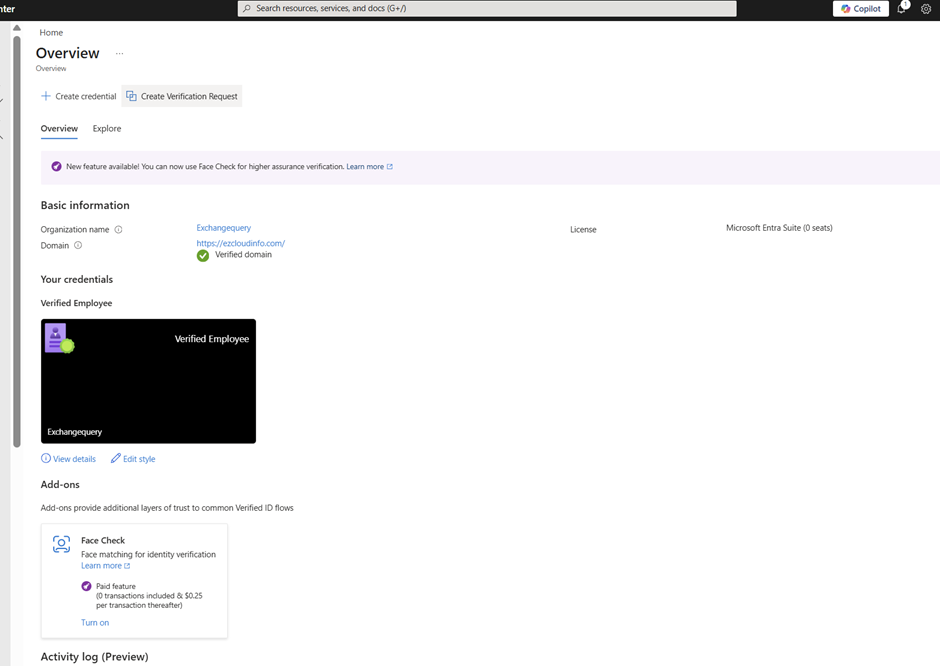
Microsoft Entra Verified ID transforms identity verification by enabling secure, privacy‑preserving, verifiable credentials. Whether you’re implementing Account Recovery (Preview) or integrating a trusted identity verification partner like AU10TIX, the onboarding process requires a few key steps: enabling the provider, provisioning resources, activating the integration, and validating the recovery flow.
This blog walks through the full, end‑to‑end Verified ID setup using AU10TIX as the identity verification provider. You’ll find prerequisites, detailed configuration steps, screenshots, and a summary to help you complete the setup smoothly
Prerequisites
Before you begin, ensure the following:
Verified ID Setup :
You need to have the Verified ID setup properly configured in your tenant first and the foremost thing to do before proceeding to any steps. If this one is not setup then the account recovery (Preview) is not going to work . Especially your domain needs to be a verified domain here.
Also in the Authentication method you must have the Temproary Access Pass Enabled
Modern network access has evolved, and Microsoft Entra Global Secure Access (GSA) is leading the transformation. Whether users are accessing private resources, Microsoft 365 services, or the internet, every request is now routed through an identity aware, Zero Trust-aligned infrastructure. This shift introduces new troubleshooting paradigms and this guide is here to help.
Why Global Secure Access Exists
Global Secure Access combines multiple security layers to deliver robust protection and optimized routing:
Zero Trust enforcement for all traffic
Unified identity, device, and network controls
VPN replacement for private apps
Secure outbound internet access
Optimized Microsoft 365 routing
Traffic Profiles Explained
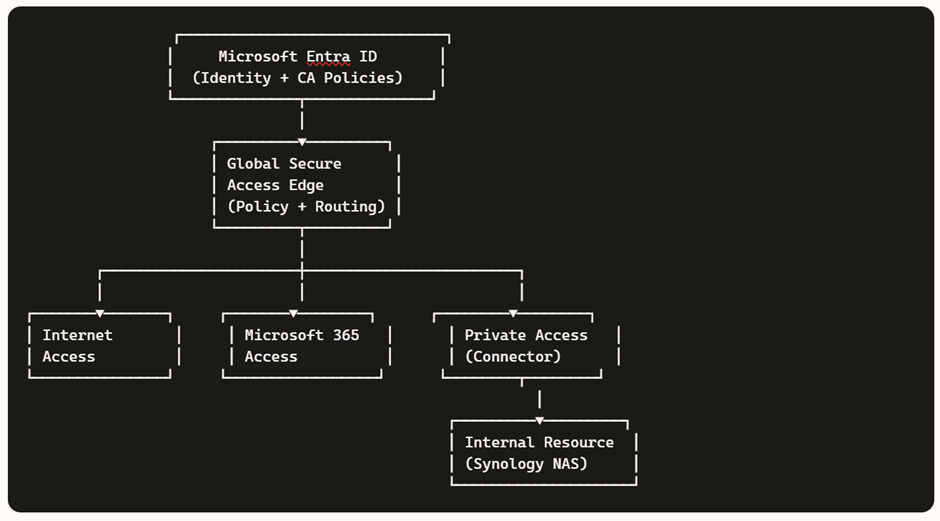
GSA categorizes traffic into three distinct profiles:
Internet Access → Secure outbound browsing
Microsoft 365 Access → Optimized, identity-aware routing
Private Access → Zero Trust access to internal apps
For architectural flow diagrams and examples (e.g., Synology NAS), refer to my previous blog.
In today’s hybrid work environment, secure access to internal resources without relying on traditional VPNs is a key requirement. Microsoft Entra Private Access, part of the Global Secure Access suite, enables Zero Trust-based connectivity to private applications hosted on-premises or in private networks.
In this demo, we’ll walk through setting up a home lab using an Azure tenant, installing the Entra connector, and configuring access to a Synology NAS as a private application—all from a personal laptop and home network.
Before starting, make sure you have:
Microsoft Entra ID tenant with Global Secure Access enabled.
Microsoft Entra Global Secure Access license (Private Access feature).
Windows 11 Pro device (required for advanced networking and policy support).
Device joined to Microsoft Entra ID (Azure AD joined or Hybrid joined).
Intune-managed device for policy enforcement and NRPT configuration.
Administrative access to your Azure tenant and local machine.
Microsoft Entra Connector installer downloaded from the Entra Admin Center.
Global Secure Access Client installer for Windows.
Internal resource (Synology NAS or similar) reachable on your home network.
Internal IP address of the resource (e.g., 10.0.x.x).
Optional DNS setup:
Private DNS zone or hosts file entry for FQDN (e.g., demo.synology.me).
Self-signed certificate (optional) for HTTPS access.
Internet connectivity for connector registration and client sign-in.
Microsoft Cloud Sync is a new solution for achieving your hybrid identity synchronizing contacts, groups, and users with Microsoft Entra ID—is Microsoft Entra Cloud Sync.
Rather than using the Microsoft Entra Connect it makes use of the Microsoft Entra cloud provisioning agent. In this article series we will take a look at the steps to migrate from Entra ID connect to Microsoft cloud sync (After detailed analysis)
We will choose only a Pilot OU on this part to see if the synchronization is getting successful for these Pilot OU.
Below are the benefits of migrating to Cloud Sync:
Config is easily managed from Azure AD portal
Cloud Sync does not require SQL server licensing (Azure AD Connect requires a SQL Server database to store identity data)
It’s a light weight agent no heavy dependencies of need to setup a local DB SQL backend
Deployment complexity & maintenance is fair less
Moving on to resiliency:
Multiple agents can be installed for parallel sync.
Whereas Azure AD connect uses Active & Staging mode to achieve some resiliency.
Regarding performance :
Its capable of performing Sequential Sync
Supports Sync to a single tenant from a multi-forest disconnected AD environments
So the question comes here first like ok this seems to be nice but I already have my environment setup and running in Azure AD connect.
What is the steps to migrate to Microsoft Cloud Sync ?
Below are the steps to do that.
First things first (Lets be very honest here )
Not all environments are capable of moving to Cloud Sync .
So we need to first evaluate any environment before choosing this option.
How do I validate ?
You can use the Microsoft setup tool by navigating to the below url
It’s been quite a while since I blogged, and since I started doing podcasts,this has been reduced a lot.This time I thought to blog something about the cool stuff in the Entra ID feature I explored in the demo and wanted to share about the same.
Today in this blog, let’s take a look at restoring a domain controller running on the Azure virtual machine from the Recovery Services vault. Recovery Services Vault is a feature provided by Microsoft Entra that offers centralized management and protection of data, applications, and workloads. One of the services offered by Recovery Services Vault is it’s backup.
We also talked about the site recovery in the previous video, and if you want to have more information on it, I highly recommend taking a look at it. In the backup part, it allows us to securely backup and recovery our applications in the event of accidental deletion , data corruption, or site failures.
An identity-aware, cloud-based security infrastructure is becoming increasingly necessary for today’s workforce as more and more data and apps move to the cloud. Security Service Edge (SSE) is a new class of network security solutions that is a stand-alone subset of Secure Access Service Edge (SASE).
SASE architecture’s main goal is to provide a seamless and secure user experience while maintaining optimal connectivity.
With Terraform, you can define your Conditional Access policies and configurations as code. This means you describe the desired state of your Azure AD Conditional Access environment in Terraform configuration files, making it version-controlled, repeatable, and easily auditable.
Take a look at this video to see more about this information