Category: Microsoft Teams

  • Create Customized App Package for Azure Bot and publish them in Microsoft Teams

    In the previous article , we had an overview and example of how to start creating Microsoft Azure Bots and integrate with Teams. Furthermore once the bots are integrated with teams ,we would need to create application package for our Azure Bot, so that we can provide better end user experience.

    To interpret further once the azure bot is available to the end users via teams it will not be showing to them as an application (example shown below). Providing them as vanilla format will not be more intriguing to the consumers.

    In Microsoft Teams there is an option to create a customized app package for our azure bots. Once we create and publish them, it will be available for end users in the app section. From Microsoft Teams users can search and install them on their Teams Client.

    (more…)
  • Create Microsoft Azure Bot and Integrate with Microsoft Teams

    As we are heading towards the modern workplace model, we are thriving a lot on reducing the first level of tasks. One of the preferred feasible solution is to create a self-query knowledge base through which the end users can attempt to address their issues on their own before contacting the IT Team. Eventually API integrations with bots can reduce the first level of recurring tasks. Through Microsoft Bot Framework quite a lot of organizations are filling these requirements and increasing the operational excellence values.

    In this article we will focus on how to create a bot in Azure and integrate them with Microsoft Teams.

    In summary Bot usually comprises of three concepts dialog, channels and state. In my point of view dialog play a fundamental role in the Bot Framework. The dialogues will be organized in a natural sequence based on the input from the user it can respond, skip to next answer or even go in a sequential loop. In the back-end the programs will be configured to respond to the dialogues in a consecutive manner. Currently the underlying solution can be via C# , Node.Js or Rest API

    (more…)
  • Teams Upgrade- Important points to consider before teams only toggle mode

    Microsoft is investing and focusing on Teams for the Collaboration platform, Skype for Business have become volatile. We can see every day new features and enhancements are coming on the way for Microsoft Teams. Moreover, Microsoft have provided all the requirements and materials available for transition from Skype for Business to Microsoft Teams. This makes much simpler for any customers to completely move to teams only mode.

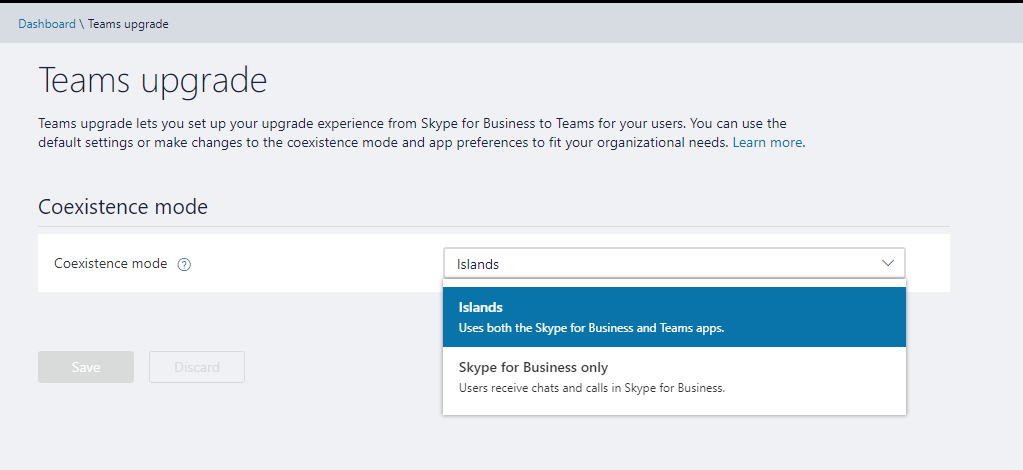
    On a comparison of the road map improvements in Microsoft Teams the features have been enhanced and loads of new functionalities are being added very often. Currently the default configuration of all the tenants will be on Island mode which will make the users to communicate on both Microsoft Teams and Skype for Business. This might create more confusion for the end users to choose which platform to communicate for their daily activities since they are provided with couple of options.

    (more…)
  • Manage Microsoft Teams from Powershell and admin center

    This article outlines the steps to manage Microsoft Teams from powershell and admin center.

    We need to download the Microsoft Teams Module from the powershell Gallery

    Install-Module -Name MicrosoftTeams -RequiredVersion 0.9.0

    PWT

    PWT1

    Verify if the module is installed

    Get-Module MicrosoftTeams -ListAvailable

    FM1

    Connect to Microsoft Teams

    Connect-MicrosoftTeams -Credential $cred

    PWT2

    To view the teams

    Get-Team

    PWT3

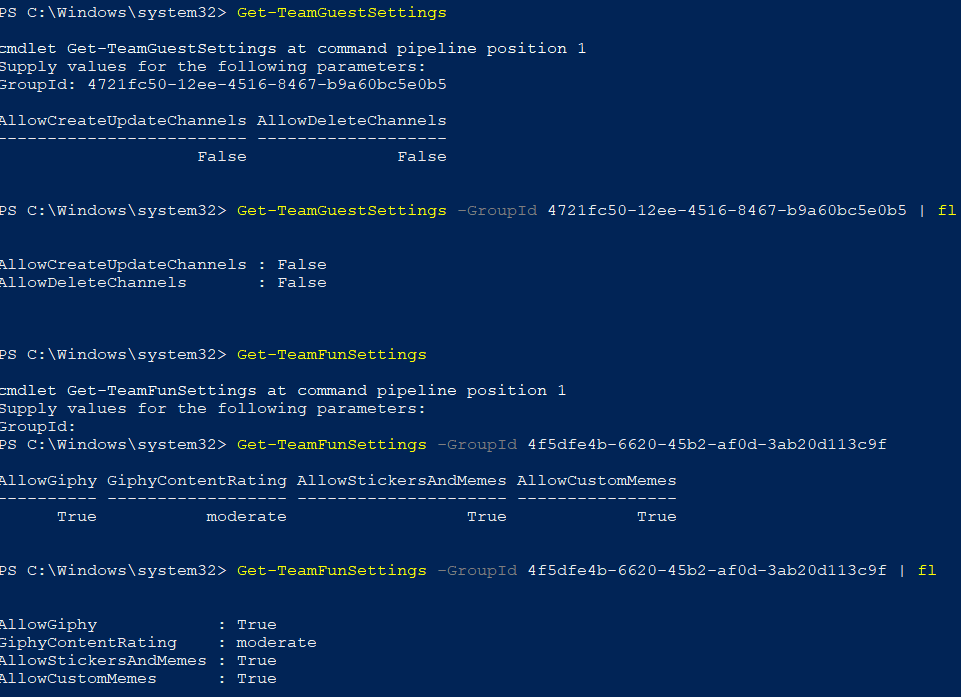
    To view Team Guest Settings and Team Fun settings

    Get-TeamGuestSettings

    Get-TeamFunSettings
    PWT5

    PWT6

    List of team commands available as of now

    Get-Command -Module *teams*

    PWT8

    To create new Team

    New-Team -DisplayName TeamName -Description GiveDescription -AccessType private -AddcreatorasMember:$false


    PWT9

    PWT10

    Unfortunately Add-TeamUser is not available for bulk operation as of now. Microsoft will release them in near future very soon from teams module.

    PWT12

    Bulk adding/removing  the associated group unified group for that team is not populating the users to the Team immediately. The Microsoft Teams PowerShell module is based on Microsoft Graph.This is because of the Microsoft Graph SLA is 24 hours to replicate and synchronize any changes done from azure AD.

    Below command can be used to bulk add the users to associated teams group.

    Import-Csv D:\Teams\Test.csv | % {Add-AzureAdGroupMember -ObjectID mentionobjectid -Refobjectid $_.objectid}

    PWN

    Below command can be used to bulk remove the users to associated teams group.

    Import-Csv D:\Teams\Test.csv | % {Remove-AzureAdGroupMember -ObjectID mentionobjectid -Refobjectid $_.objectid}

    PWN1

    The same action can be performed via unified group as well.

    Import-Csv E:\Teams\T1.csv | % {Add-UnifiedGroupLinks -Identity T1 -LinkType Members -Links $_.userprincipalname}

    FM31

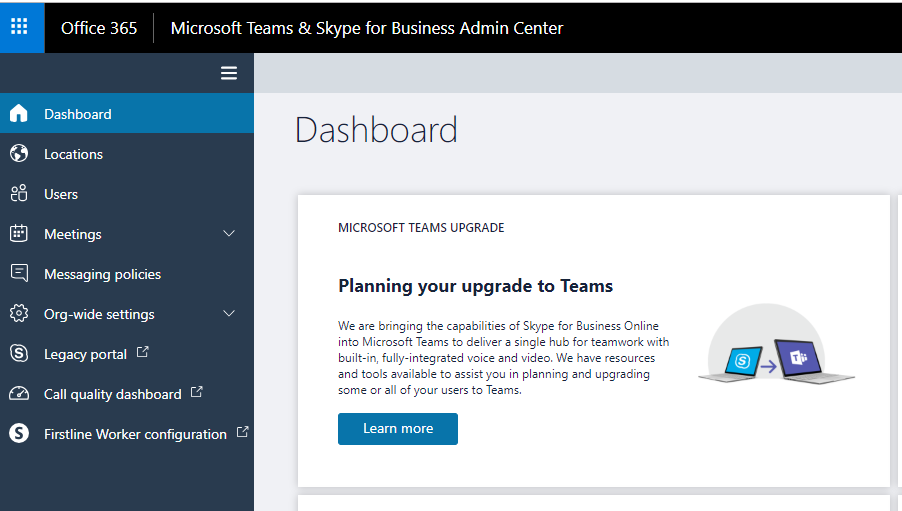
    Now the new admin center for Microsoft Teams and SFB have options to manage MS teams
    Untitled.png

    Adding and updating locations data

    Untitled1

    Following options are available from end users options in MS Teams

    Untitled4

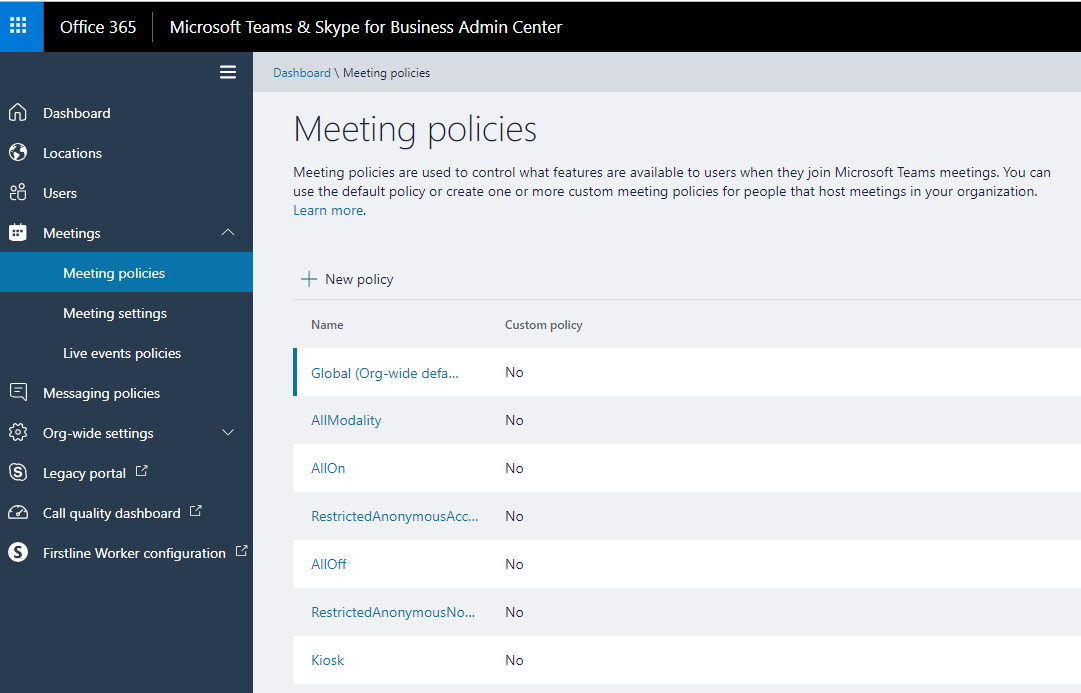
    Following meeting policies to control the features are available
    Untitled6

    Following org wide settings are available

    Untitled7

    Untitled8

    We have the meeting customization settings

    Untitled9

    Option to customize the real time media traffic to online is also available

    Untitled10

    Controlling  the live event policies is present

    Untitled11

    Global user level policies can be enforced

    Untitled12

    Controlling external access

    Untitled13

    We have option to control the guest access settings

    Untitled14

    We have very nice option to have email integration, File sharing option and show organization tab to end users.

    Untitled15

    Skype for business Interop, search and Bots feature can be customized.

    Untitled16

    We have the teams upgrade options which have island mode set by default.
    Untitled17.png

    After this we have the Call quality dashboard and first line worker configuration as a last option. The First line worker configuration will be removed and will not be available after october 2019 according to Microsoft . All these features available in  first line worker configuration are available in MS Teams and customer needs to shift to MS teams.

    Above are the list of administrative options available for Microsoft Teams as of now and they will be definitely changing and adding more new features since Microsoft is more focused on enhancing and bringing new features in Microsoft teams.

    Thanks & Regards
    Sathish Veerapandian

  • Microsoft Teams- Consult before transferring a call & HoloLens Remote assist

    Calling in Teams is powered by Phone System (formerly known as Cloud PBX), the same service in Office 365 that enables PSTN calling capabilities in Skype for Business Online.

    The Phone System feature set for Skype for Business is different from the Phone System feature set for Teams.Also With Direct Connect we can use our existing  PSTN Telephony system through an SBC . To connect the on premise SBC to Microsoft Teams a sip proxy is used to connect to  sip.pstnhub.microsoft.com.

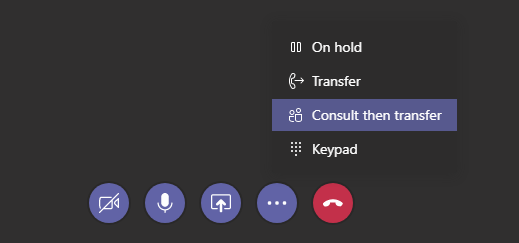
    Microsoft Teams have a new feature consult before transfer.

    By using this option we can help the  wrong callers calling our extension to reach the right person.

    This feature lets you quickly check in with another person via chat or audio call before transferring a call to them

    Anyone with an Enterprise Voice license can do this, not just delegates! To try it, when you’re in a call, click More options (…) > Consult then transfer.

    CBT

    Call someone on a HoloLens –

    Microsoft introduced the remote assist option for HoloLens users via Microsoft Teams.

    Untitled

    By using this option we can collaborate remotely to our Microsoft Teams Colleagues list. In remote assistance they can  perform reality annotations, we can show them  what we see , place arrows, draw lines and share images with our colleagues.

    Prerequisites:

    1. This works from the Teams desktop app from Windows 10 PC.
    2. Need to have the remote assist app installed on the holo lens.