Basically there can be 2 types of relay which will be used in an organization for relaying applications.
1) Internal Relay: Which might be an application which submits emails to exchange and in turn it delivers emails to users mailbox as a daily report, faxes etc.,
2) External Relay: An application might send out fax like invoice, quotation etc., to an external vendor for daily operation purpose.In turn the vendor can also send out some automated emails like daily sales report to user’s mailbox.
In order for both the functionality to work we need to have relay configured on the exchange side
The submission of the relay can happen in 2 ways
1) Anonymous
This relay happens through anonymous connection which means any account within that subnet assigned in the relay connector is authorized to submit emails to the organization.
2) Authenticated
This relay happens only through specific authenticated account by which the emails are submitted to the exchange side from the application, fax etc.,
For the authenticated relay to happen first we need to Create/configure a service account for the applications/copier to use
In this article we will be seeing on how to configure relay permission on Exchange 2013
First open EAC and then click on Mail Flow
Select the required server and then click on + Sign

Type the name of the connector and then select Custom

Click next and now we need to assign the correct subnets and the ip address
Note:This is very important point since giving permission to unknown subnets will make the server to behave as an open relay which is ready to accept spam messages. Ensure that you are giving only to the known subnets which requires relay.
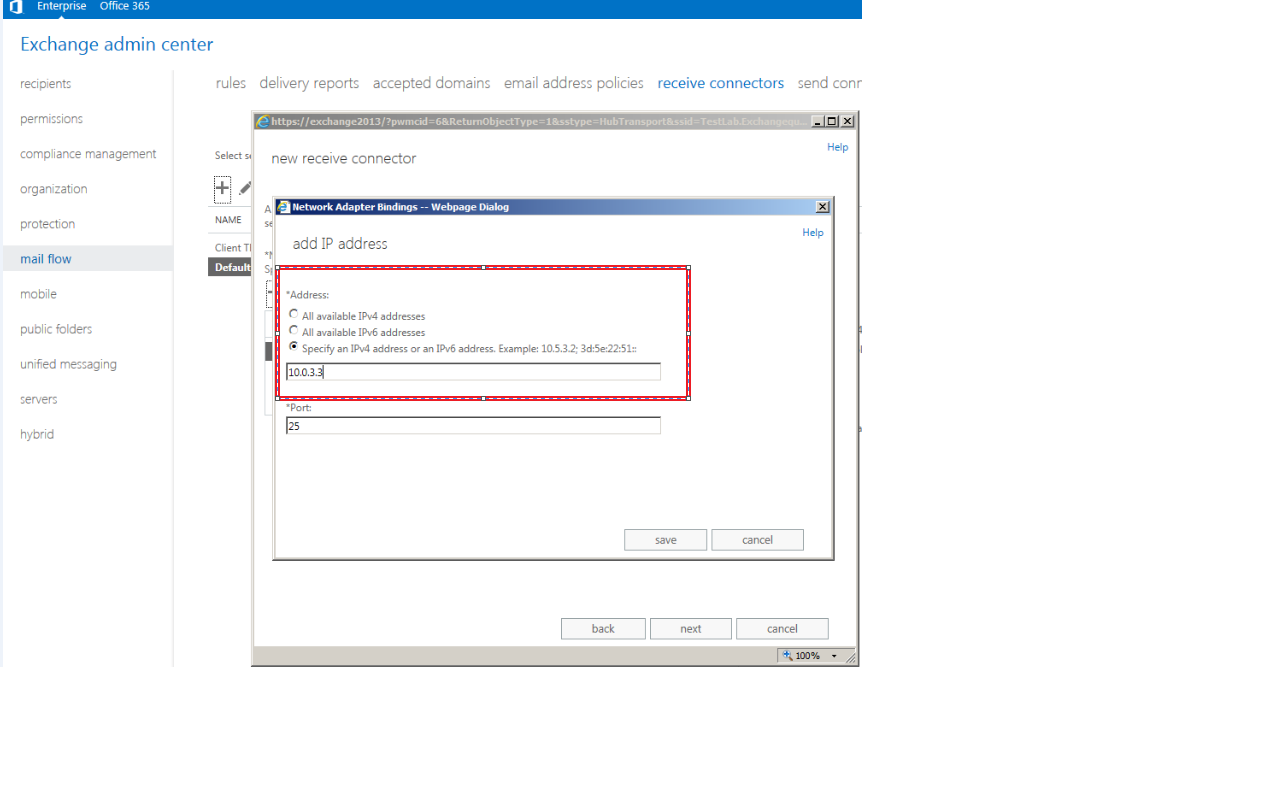
Now add the subnets

Click finish. And now we need to give permission accordingly to the type of relay that we are going to assign to this connector
1) Anonymous
2) Authenticated
First we will look on how to give anonymous permission
Double click or click on edit on the relay connector

Select anonymous users which is under security and click save

Now we need to give required authentication to this anonymous users account for this connector. This can be done in 2 ways
Through Exchange Management Shell
Through ADSI Edit
We will see on how to grant permission through ADSI edit.
Open adsiedit and navigate to below location

Click security and select anonymous logon and click submit messages to any recipient
Note: This permission should be granted only on relay connectors and it should never be granted on default receive connector.

Follow the same steps for authenticated relay except for giving permission to anonymous user account give submit messages to any recipient permission to the associated service account.
Also you can run the below command to grant permission on anonymous account for relay connector alone.
Get-ReceiveConnector “Anonymous Relay” | Add-ADPermission -User “NT AUTHORITY\ANONYMOUS LOGON” -ExtendedRights “Ms-Exch-SMTP-Accept-Any-Recipient”
Sathish Veerapandian


Leave a Reply