A practical guide to protecting sensitive prompts with policy controls
As more organizations introduce Microsoft 365 Copilot Chat, employees are increasingly using conversational AI to solve everyday business problems. An innocent troubleshooting request or a request to summarize a financial transaction can become a security concern when the user includes confidential information in the prompt.
Microsoft Purview Data Loss Prevention (DLP) helps security teams define what types of information should be restricted in supported Copilot prompts. This article explains the business need, the available safeguards, the prerequisites and a practical configuration completed in a demonstration tenant. It also describes how to validate the policy without confusing successful configuration with proven enforcement.
Why organizations need controls for AI prompts
The objective is not to stop employees from using AI. It is to apply the same information protection discipline that organizations already expect across email, files and collaboration tools to the way people interact with AI assistants.
- Financial information: A user includes payment card data in a prompt while preparing a customer summary.
- Cloud credentials: A developer pastes an application secret or a storage access key into a troubleshooting question.
- Governance and compliance: Security teams need a documented approach to protecting regulated or confidential information.
- User awareness: Clear guidance helps employees understand what information belongs in an approved AI workflow.
A meaningful control must do more than exist in a policy list. It should have a defined scope, reliable detection conditions, an appropriate restriction action and evidence that its intended behavior has been tested.
What the Copilot DLP policy protects
Microsoft Purview provides a DLP policy location for Microsoft 365 Copilot and Copilot Chat. One supported approach evaluates the text a user types directly into a Copilot prompt against configured Sensitive Information Types (SITs). A matching rule can restrict Copilot from processing the prompt when enforcement is active.
This is different from the option to restrict external web searches. A web search restriction removes external web grounding for a matching prompt, while a prompt processing restriction prevents Copilot from returning a response to that matching prompt.
| Scenario | Expected policy behavior |
|---|---|
| Typed prompt matches a selected SIT | The configured action can block prompt processing when the policy is enforced. |
| Typed prompt does not match | Copilot can respond, subject to other applicable controls. |
| Policy is in simulation mode | Matching activity can be assessed, but blocking is not enforced. |
| Copilot generates sensitive output | This rule is not a general scanner for every generated response. |
| User directly uploads a file in a prompt | This typed prompt rule does not scan the contents of that upload. |
| Stored files or emails have sensitivity labels | Separate label based policy conditions and eligibility requirements apply. |
Microsoft documents prompt processing restrictions as a preview capability in its current guidance. Feature availability, supported experiences and licensing should therefore be checked in the relevant tenant before planning a broader deployment.
Conceptual architecture
The following diagram shows how the control is intended to behave when a supported typed prompt is evaluated against a relevant DLP rule.
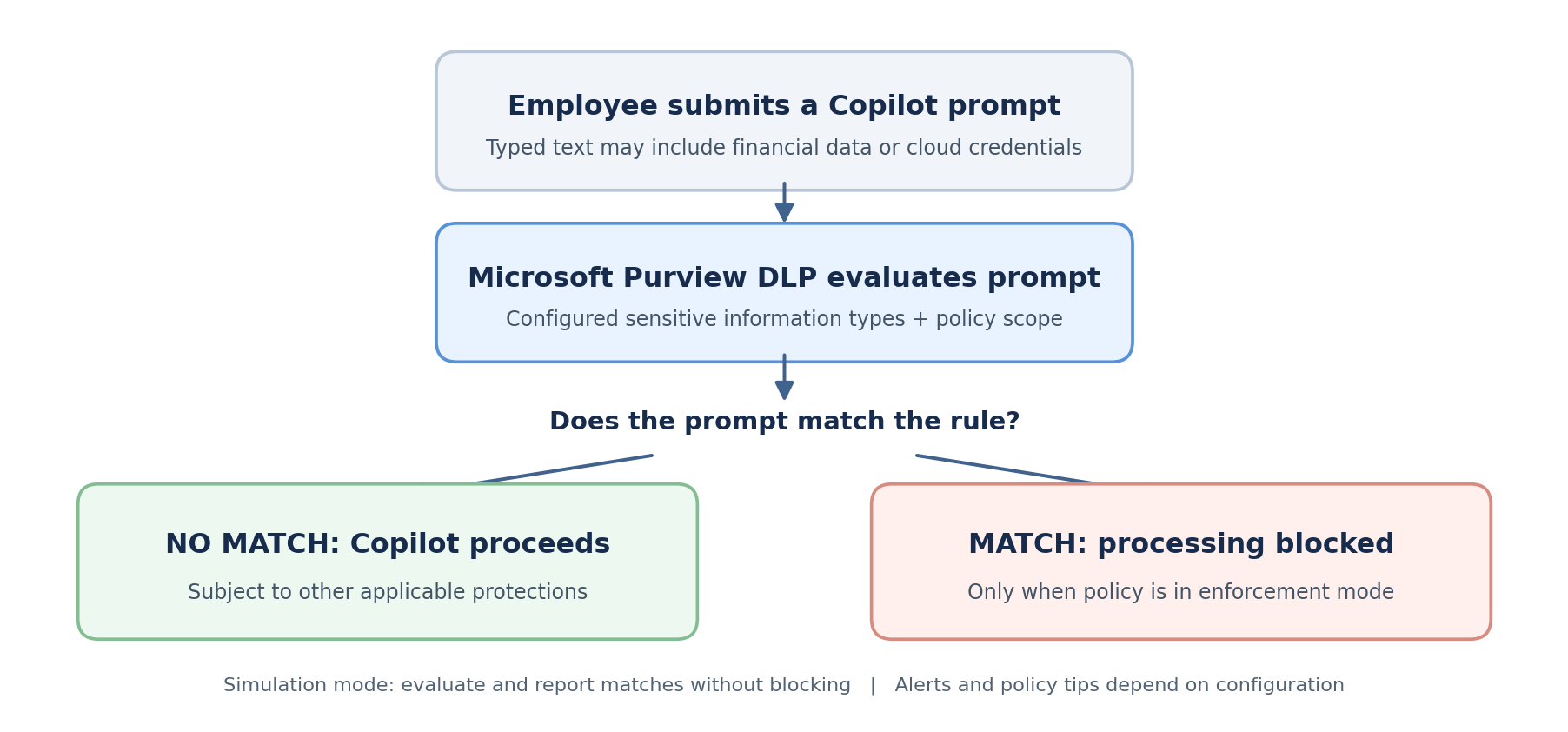
A match alone does not mean an interaction is blocked. The configured action, policy mode, user scope and service synchronization determine the outcome. Administrators can use simulation to review matching activity before enabling enforcement.
Readiness and prerequisites
Before opening the policy wizard, confirm the environment is suitable for testing. A small amount of preparation avoids confusing a detection issue with a licensing or deployment issue.
Tenant access and licensing
Use a Microsoft 365 tenant with access to Microsoft Purview and a supported Microsoft 365 Copilot Chat experience. The precise entitlements differ across prompt protection and other Copilot DLP scenarios. Check current Microsoft licensing guidance and confirm the desired feature in the tenant rather than assuming that a visible option is sufficient evidence of eligibility.
Administrative permissions
Use an appropriately assigned Purview security or DLP administrative role with permission to create and manage policies. Follow the principle of least privilege. A Global Administrator role should not be assigned merely for convenience.
Sensitive information types and test data
Decide which categories matter to the organization before creating the rule. Built in and custom SITs can require specific patterns, contextual keywords, confidence thresholds or validation logic. Use synthetic data for all testing and never submit live customer information or production credentials.
Test scope and monitoring
Select a dedicated test account or a small test group. Confirm access to the policy status, simulation results and DLP alerts. Microsoft documents that updates to the Copilot DLP policy can take up to four hours to become effective, so account for this delay when planning validation.
Creating the Copilot DLP policy
The following screenshots are from the demonstration tenant. The interface may evolve as Microsoft updates the Purview portal. The walkthrough focuses on a custom rule that can restrict processing of sensitive prompt text.
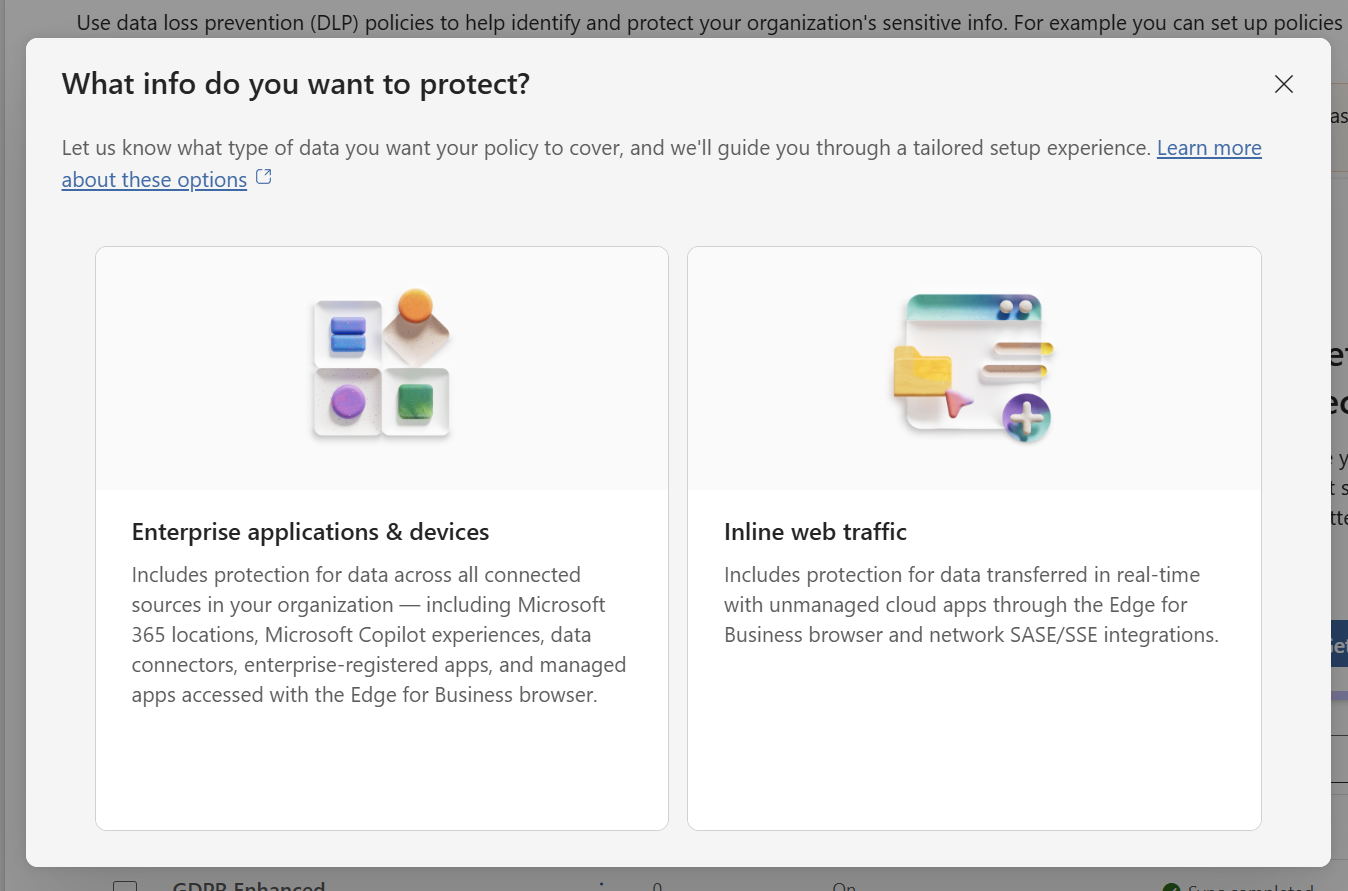
Step 1. Choose the policy experience
Open the Microsoft Purview portal, then navigate to Data Loss Prevention, Policies and Create policy. Choose Enterprise applications & devices and proceed with a Custom policy.
Step 2. Identify the policy
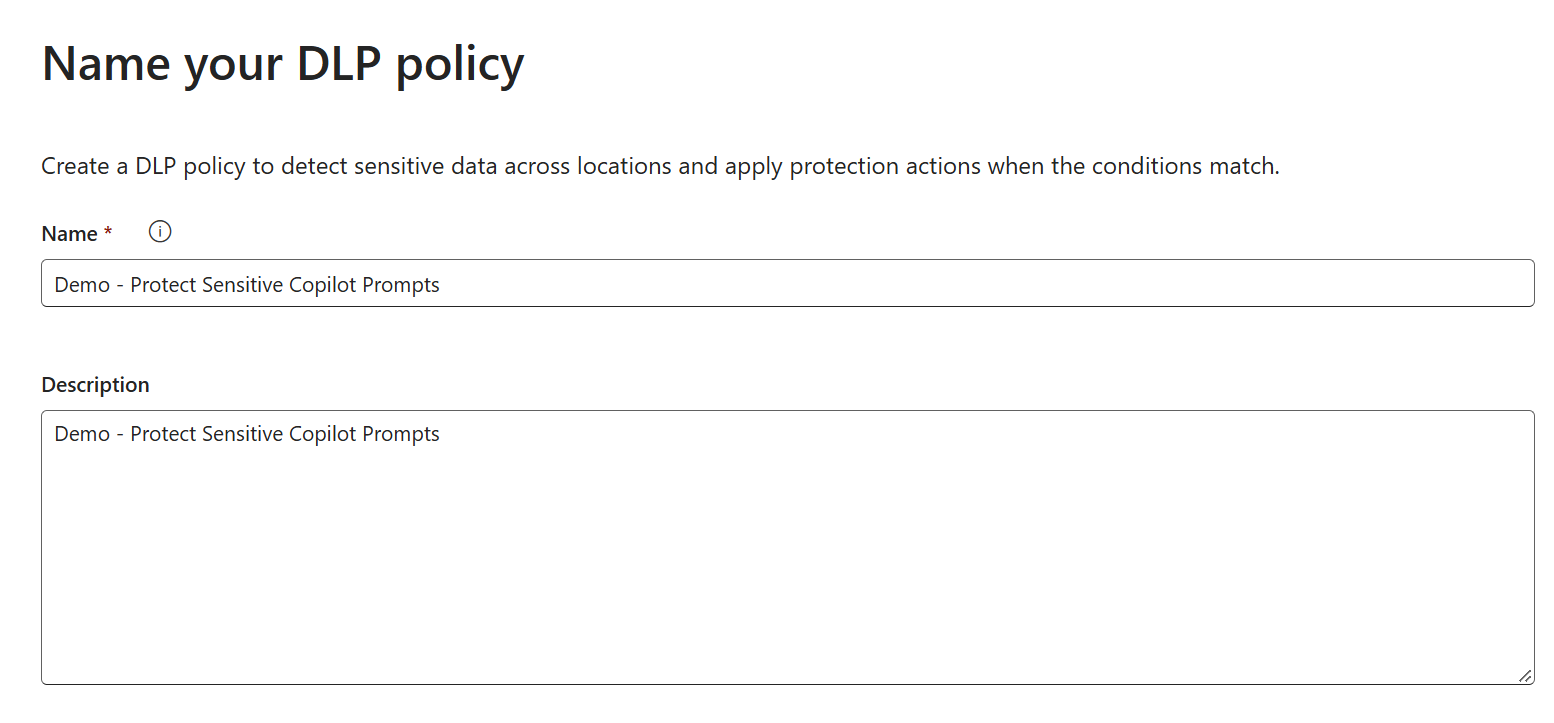
Give the policy a descriptive name and purpose. In this tenant, the demonstration policy is named Demo – Protect Sensitive Copilot Prompts. Clear naming makes it easier to distinguish a lab policy from production policy configurations.
Step 3. Select the Copilot location
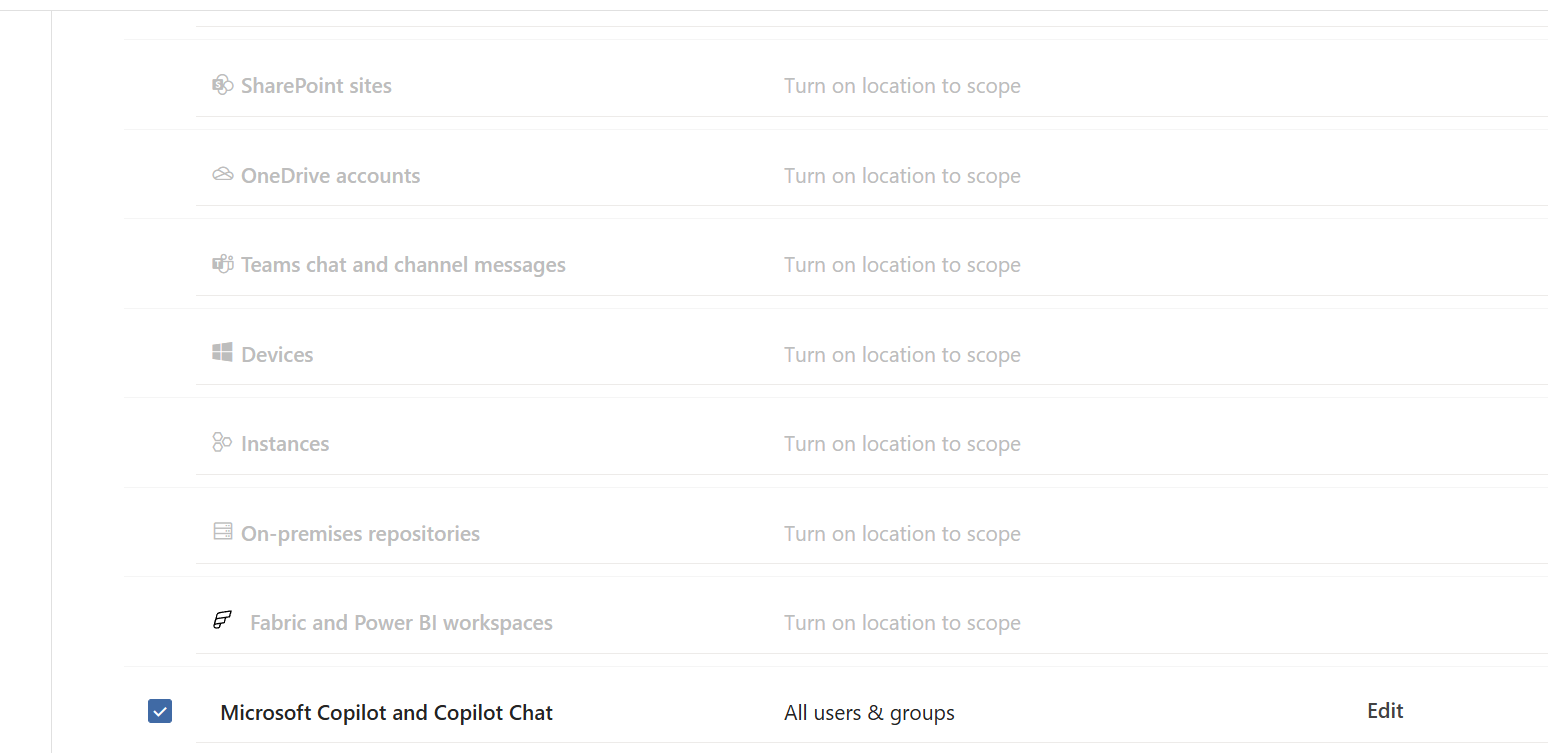
On the Locations page, select Microsoft Copilot and Copilot Chat. This location is offered in the custom policy experience. When it is selected, other DLP locations in that policy are unavailable. Before enforcement, review the included users and groups and narrow the scope to your test account.
Step 4. Define the detection rule
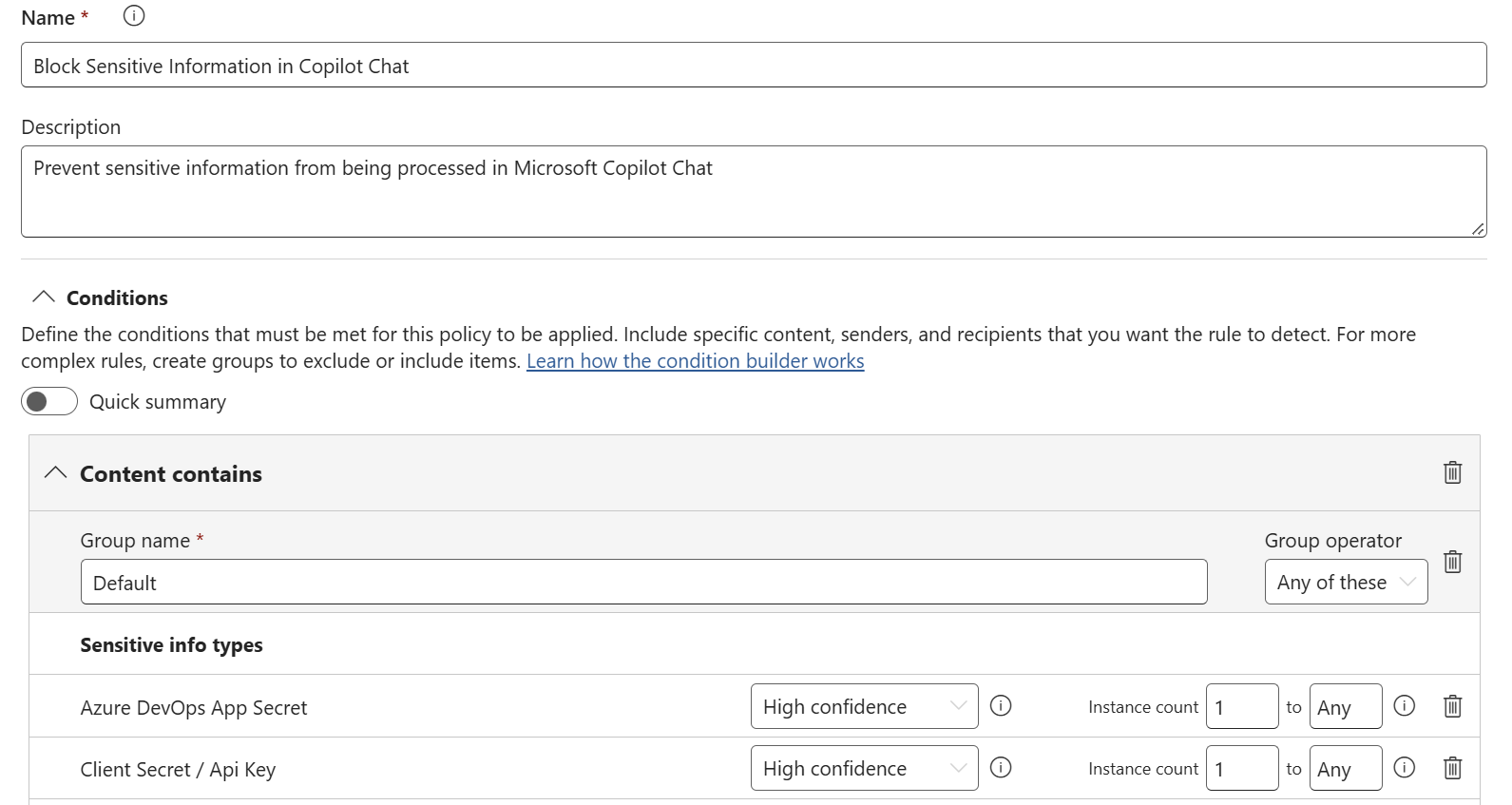
Choose Create or customize advanced DLP rules and create a rule named Block Sensitive Information in Copilot Chat. In the Conditions section, select Content contains and Sensitive info types.
For this demonstration, the selection was reduced to a small group of relevant financial and cloud credential detectors after an earlier broad selection exceeded the rule limit. Keeping the rule focused makes matches easier to interpret and tuning more manageable. The screenshot illustrates part of the selected detectors, including Azure DevOps App Secret and Client Secret / API Key.
Step 5. Configure prompt restrictions
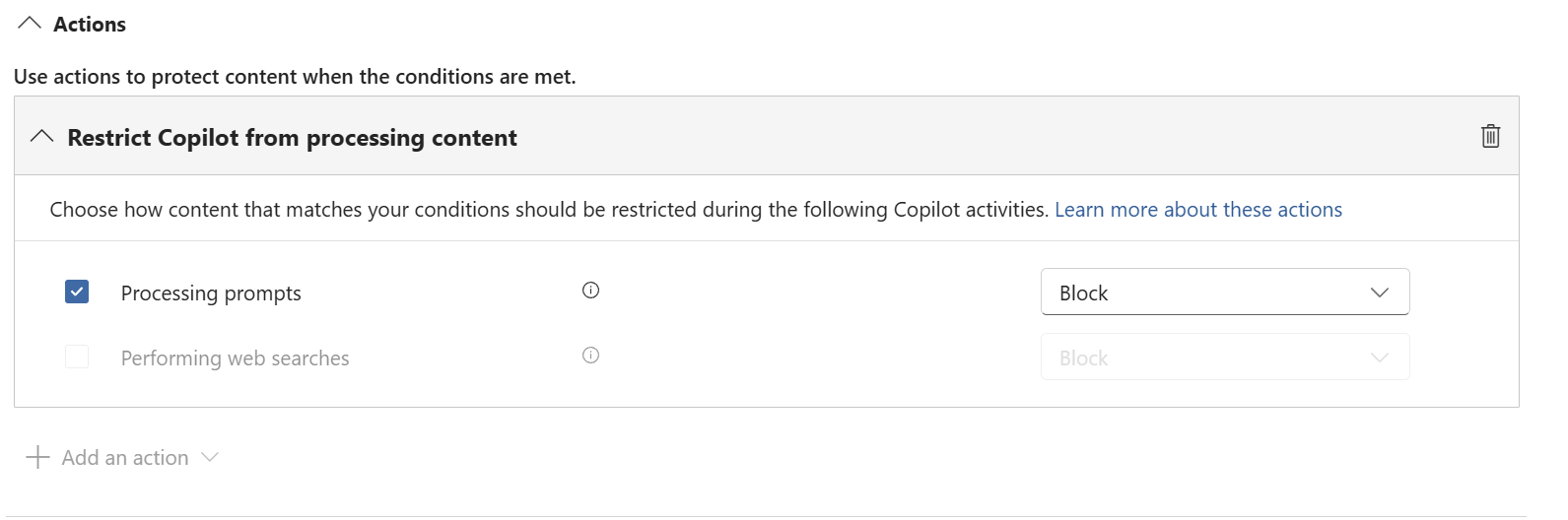
In Actions, choose Restrict Copilot from processing content. Under Processing prompts, select Block. This instructs the service to restrict applicable matching prompts after the policy is enforced. Performing web searches is a separate action and was not selected for this scenario.
Step 6. Add policy guidance
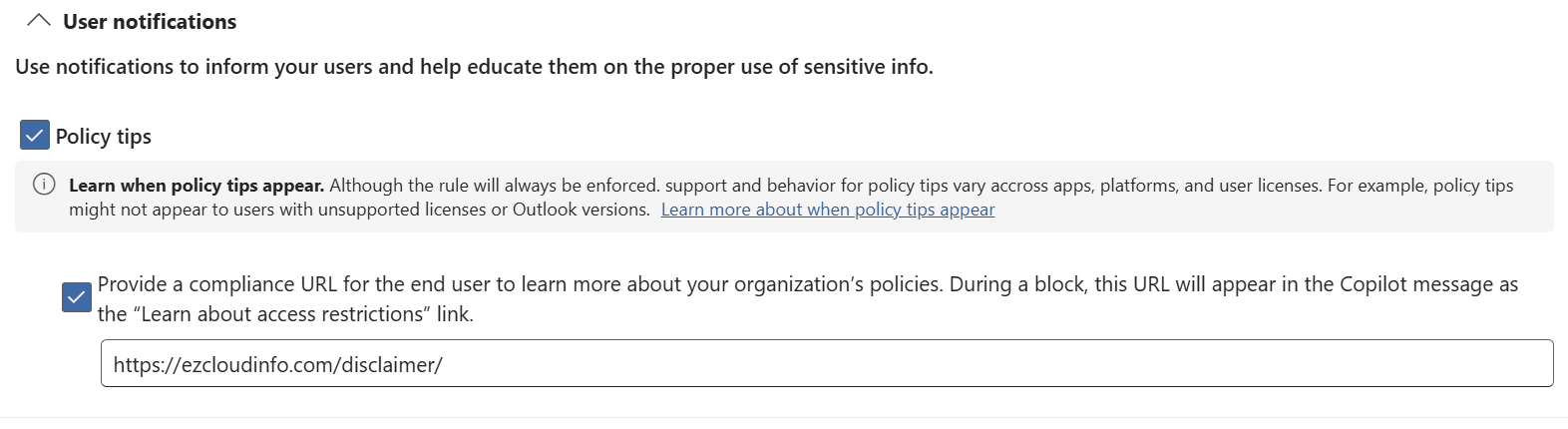
Enable Policy tips where supported. The configuration also includes a compliance URL, which can appear behind the Learn about access restrictions link when a matching interaction is blocked. For demonstration purposes, this tenant uses https://ezcloudinfo.com/disclaimer/.
That disclaimer page is an example destination, not a recommended production policy page. In an organization, the link should lead to an approved AI acceptable use policy or practical data handling guidance. Configuring the link does not change the enforcement action.
Step 7. Configure administrative alerts
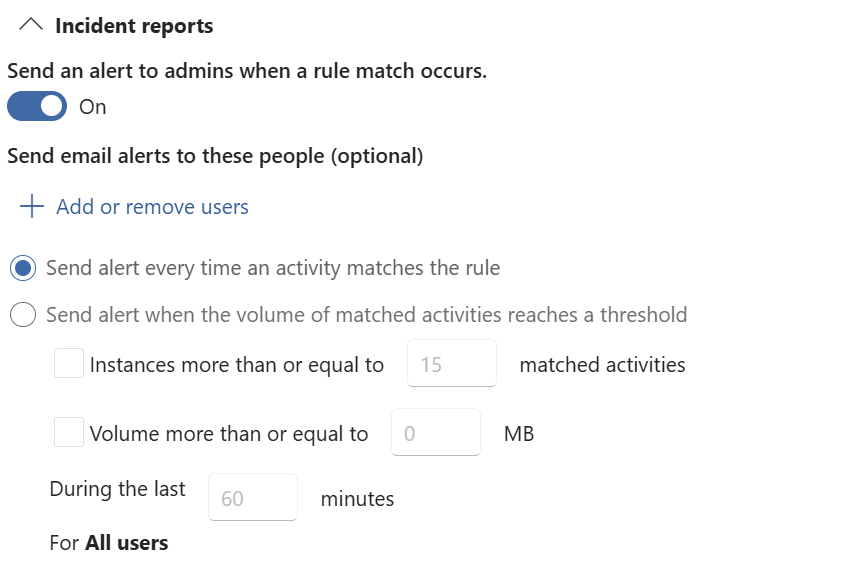
Enable incident reports so administrators can investigate rule matches. The demonstration configuration sends an alert for each matching activity. For production use, confirm appropriate recipients, review expected alert volume and establish an incident handling procedure before widening the deployment.
Step 8. Save and begin in simulation mode
Save the rule, review the complete policy and choose Run the policy in simulation mode. Submit the policy and confirm that the creation workflow finishes successfully. Simulation is the recommended first step because it lets administrators review matching activity without enforcing the configured block.
It is important to be precise about this milestone. Successful policy creation confirms the configuration was accepted. It does not, on its own, demonstrate that a specific sensitive prompt was detected or blocked.
Validating behavior in Copilot Chat
Use a supported standard Microsoft 365 Copilot Chat session for validation. Specialized administrative agents may not have identical behavior. Allow time for the policy to propagate and confirm the testing account is in scope.
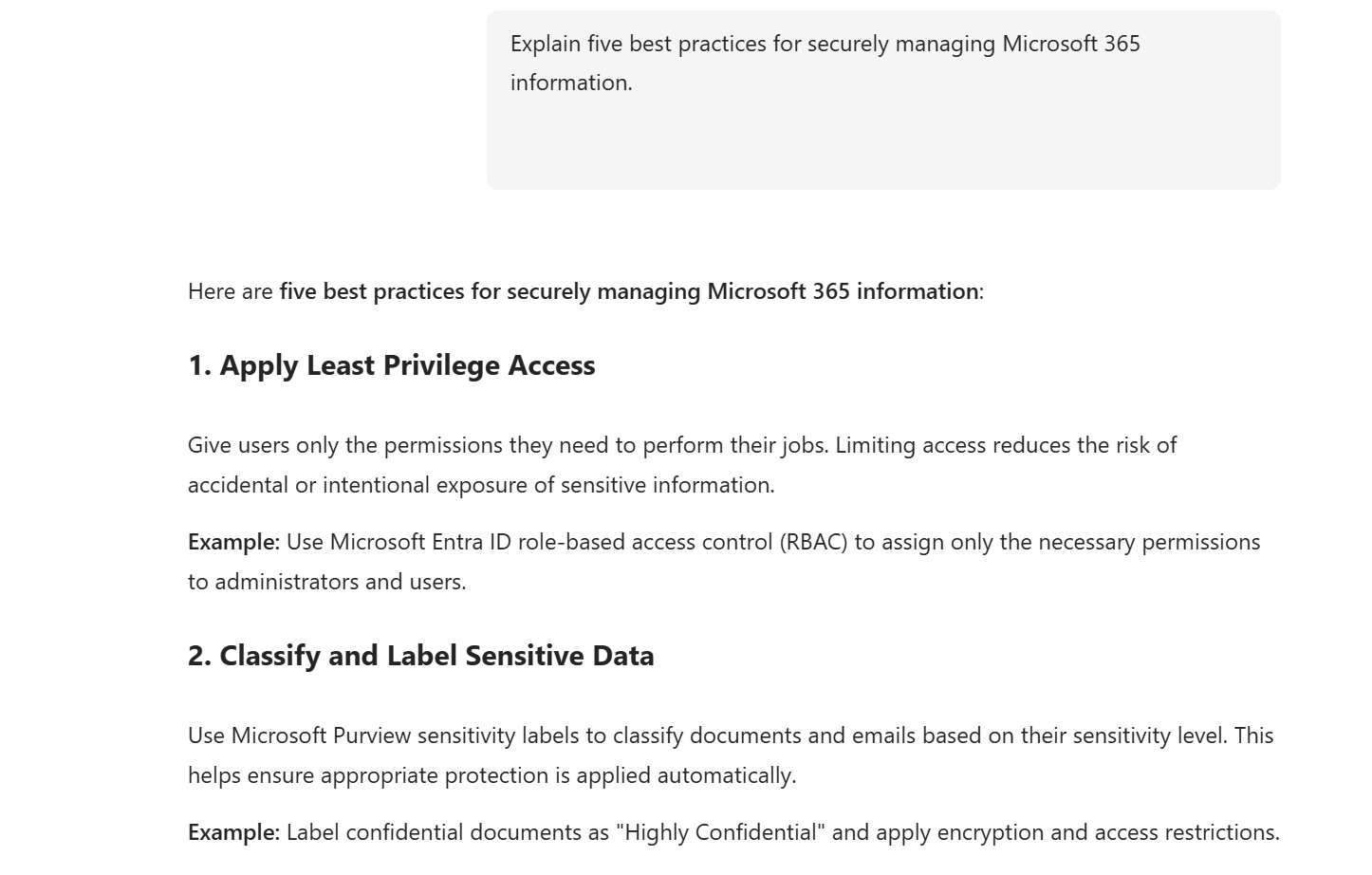
Test 1. Submit a normal prompt
Example: “Explain five best practices for securely managing Microsoft 365 information.”
A prompt without content matching the configured SITs should ordinarily be processed, unless another applicable policy prevents it.
Test 2. Use a synthetic payment card example
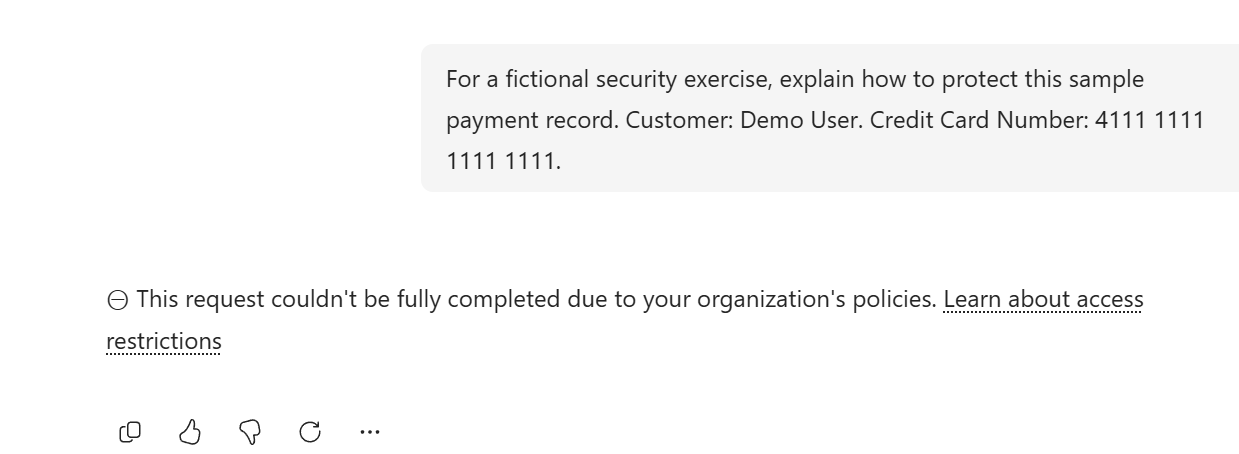
Example: “For a fictional security exercise, explain how to protect this sample payment record. Customer: Demo User. Credit Card Number: 4111 1111 1111 1111.”
The number above is a widely used dummy Visa test number. Its presence does not guarantee that a high confidence SIT condition will match. The detector may also require contextual keywords, pattern validation or other evidence.
| Policy mode | What to validate |
|---|---|
| Simulation | Copilot may respond. Check simulation results or DLP alerts for a recorded match. |
| Enforcement for a test user | A matching supported prompt should be restricted after propagation. Confirm the actual restriction message and administrative evidence. |
After reviewing the policy in simulation mode, I enabled enforcement in my demonstration tenant. When I submitted a prompt containing a synthetic payment card number, Copilot Chat showed a DLP restriction message instead of processing the request. The message included a Learn about access restrictions link, which opened the EzCloudInfo disclaimer page configured for this demonstration. In a production environment, this link should point to the organization’s approved AI usage or data protection policy.
Test 3. Inspect the administrative evidence
- Confirm the policy mode, synchronization state and intended user scope.
- Inspect available simulation results, Activity explorer events or DLP alerts for the relevant rule and test account.
- If no event appears, verify the Copilot experience and whether the synthetic value satisfies the configured detector.
- After observing a reliable match, enable enforcement only for the designated test user and repeat the synthetic prompt.
- Document what the tenant actually shows. Do not claim a confirmed block unless one has been observed.
Once the policy has propagated and a matching activity has been evaluated, administrators can review the related events in Microsoft Purview. The following screenshot illustrates the monitoring information captured during this demonstration.
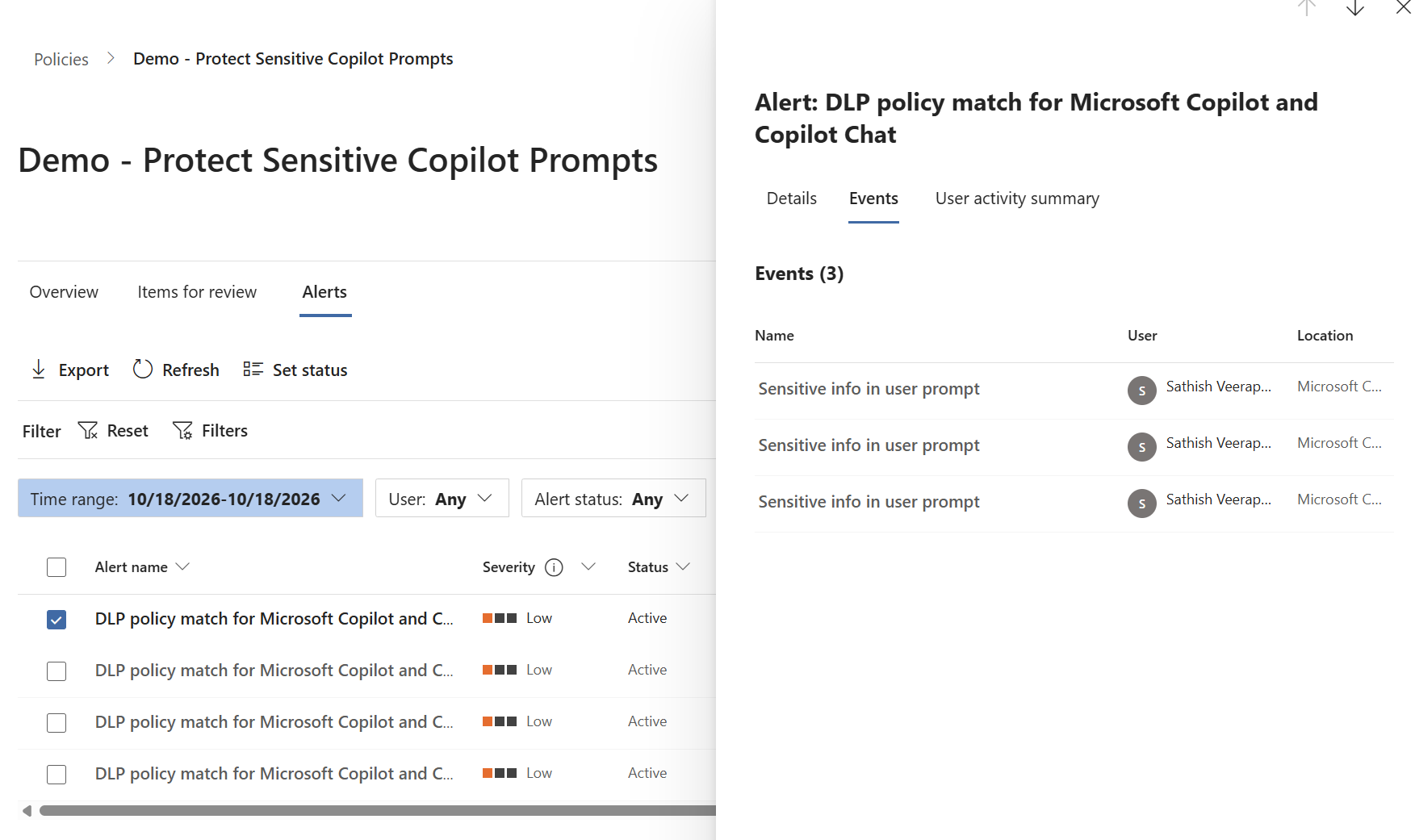
Opening a relevant event provides more context for investigation, including the information exposed by the selected activity and the permissions of the investigating administrator.
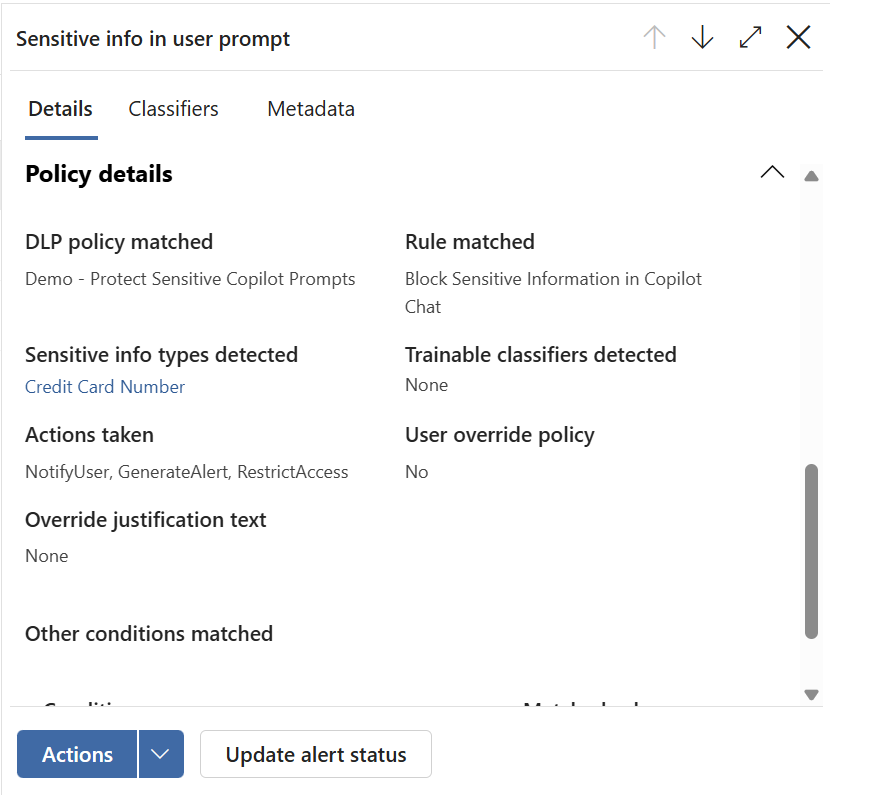
The investigation experience may also offer additional actions for authorized administrators, as shown in the following screenshot. Available options can vary by role and event type.
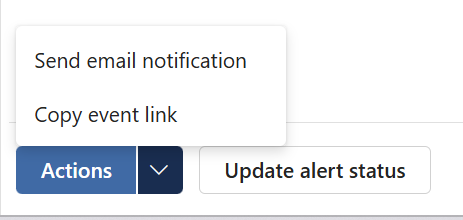
The demonstration therefore covers both the initial policy configuration and an observed restriction after enforcement was enabled. The monitoring screenshots illustrate the associated investigation workflow. Administrators should verify matches and the user scope in their own tenants before widening enforcement.
Operational considerations
- Treat prompt input protection and generated response controls as distinct security concerns. This rule does not independently inspect every answer generated by Copilot.
- Evaluate sensitivity label controls for stored files and emails separately from SIT based typed prompt rules.
- Direct file uploads in a prompt are not scanned by this particular typed text rule. Test other data paths independently.
- Keep detector selection proportional to the business risk and review false positives before expanding enforcement.
- Maintain an owner for alert triage, user guidance and periodic policy reviews.
- Recheck licensing and rollout status because Microsoft continues to update Copilot protection capabilities.
Conclusion
Successful AI adoption requires more than making Copilot available to employees. Security teams also need a practical way to express which types of information should not be submitted in prompts, explain those expectations to users and investigate policy matches.
Microsoft Purview DLP provides a focused control for supported Copilot prompt text. By starting with a small set of relevant sensitive information types, configuring a specific restriction action, testing in simulation and collecting enforcement evidence before wider rollout, organizations can build a measurable safeguard without unnecessarily limiting legitimate AI productivity.
References
- Microsoft Learn: DLP for Microsoft 365 Copilot and Copilot Chat
- Microsoft Learn: Default DLP policy for Copilot
- Microsoft Learn: DLP simulation mode
- Microsoft Learn: DLP alerts
Product capabilities, licensing and interface details reflect the documentation available in October 2026. Screenshots illustrate a demonstration tenant. Production policies should be validated against the organization’s own requirements and current Microsoft guidance.


Leave a Reply