Introduction
Microsoft 365 Copilot helps employees find, summarize, and work with information they are already authorized to access. That productivity benefit also raises an important security question: how can an organization identify potentially risky AI interactions without assuming that every unusual prompt represents malicious intent?
This article explores how Microsoft Purview Insider Risk Management (IRM) can detect and investigate risky AI usage, and how it complements Data Loss Prevention (DLP), audit, and Data Security Posture Management (DSPM) for AI.
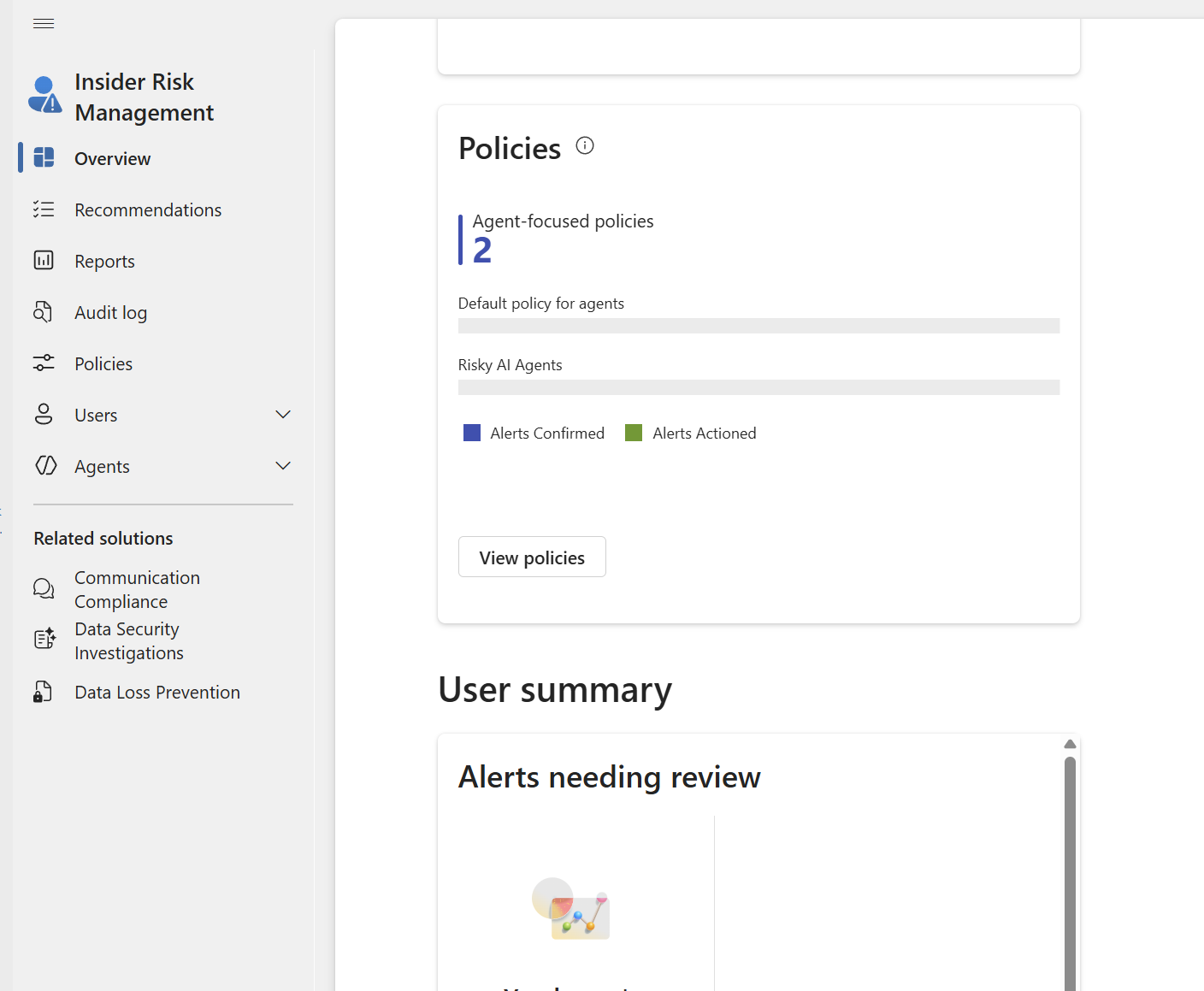
[Figure 1 — Screenshot Placeholder: Insider Risk Management overview]
Why Microsoft 365 Copilot Changes the Risk Conversation
Copilot operates within the user’s effective access permissions; it is not a substitute for fixing excessive permissions or oversharing. But natural language discovery and summarization can make already-accessible information easier to aggregate. For example, a user might request summaries of financial forecasts, customer escalations, sensitive project documents, or security incidents.
Such queries are not inherently suspicious. Investigators need to consider the user’s role, the sensitivity of the information, the interaction’s context, related file activities, and whether the behavior differs from expected work.
Which Purview Capabilities Detect What?
- Insider Risk Management — correlates risk indicators and supports alert triage, cases, and investigations. Its dedicated Risky AI usage policy template is the most relevant starting point for this article.
- DSPM for AI — provides posture insights and recommendations, including a path to configure detection of risky AI interactions.
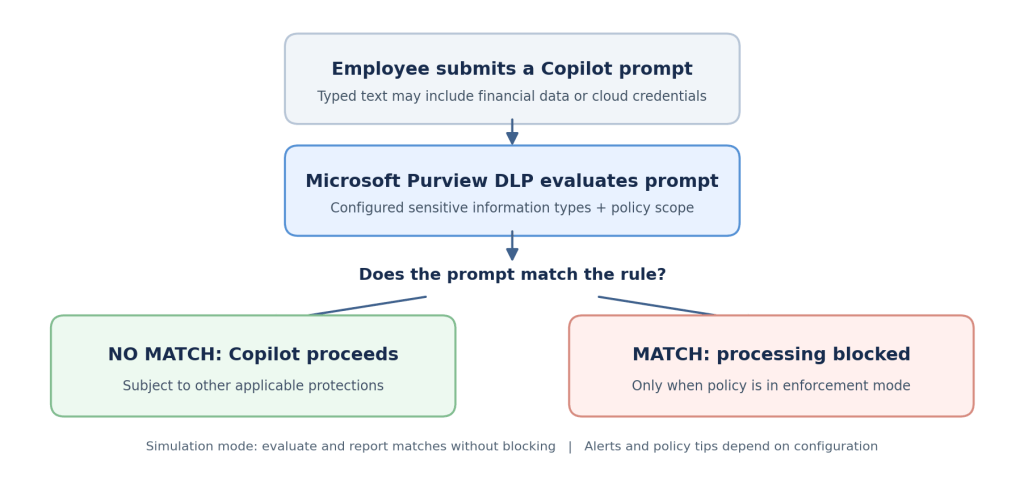
- Data Loss Prevention — helps enforce restrictions involving sensitive information and supported Copilot interactions. DLP policy matches are different from insider-risk alerts.
- Audit and Activity Explorer — help investigate supported AI interaction and data activities, depending on permissions, licensing, and configuration.
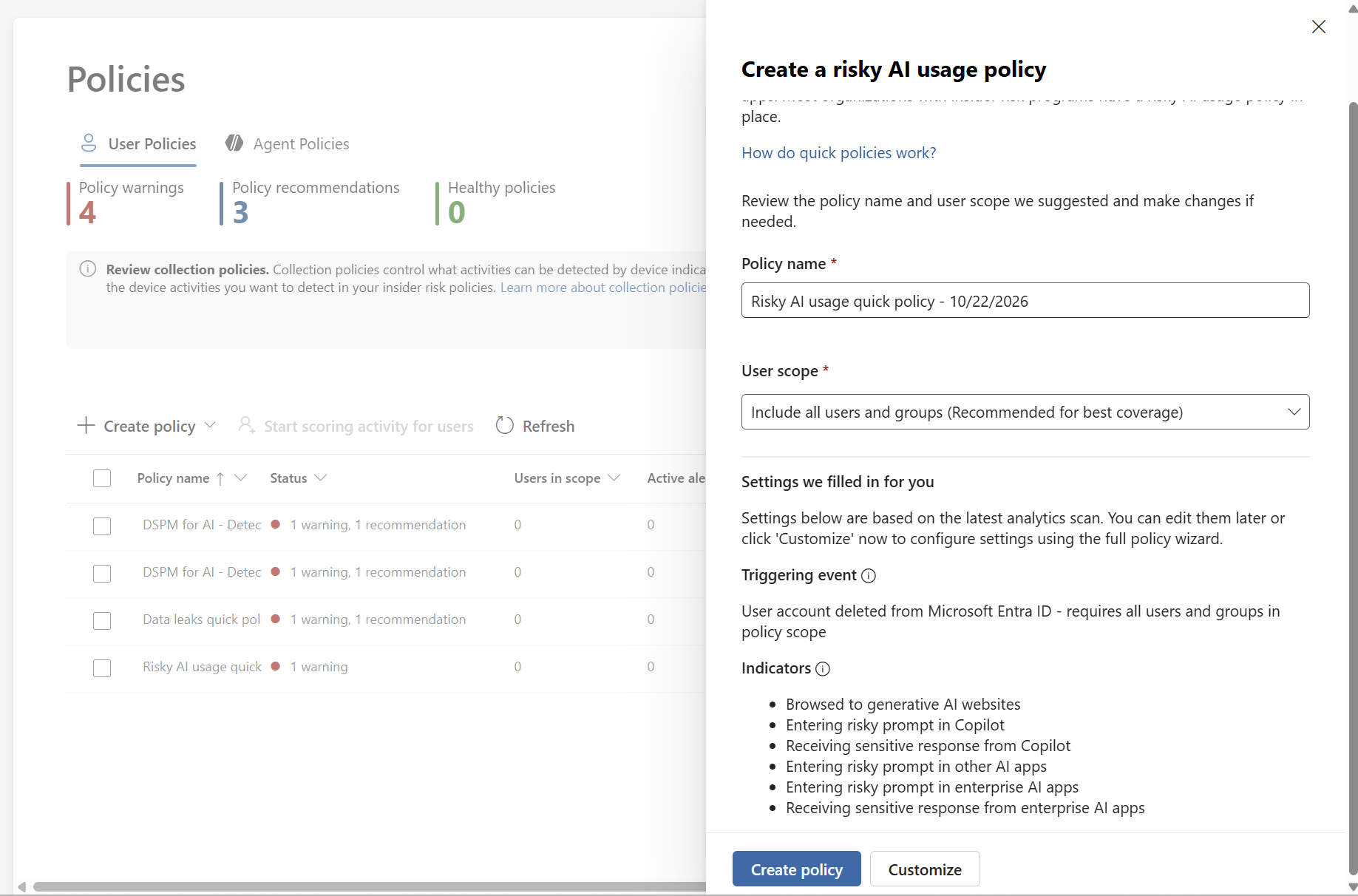
[Figure 2 — Screenshot Placeholder: Risky AI usage policy template]
Configure a Risky AI Usage Policy
1. Confirm that your Microsoft Purview licensing and role assignments support Insider Risk Management and the relevant AI indicators. Available signals vary by workload and license.
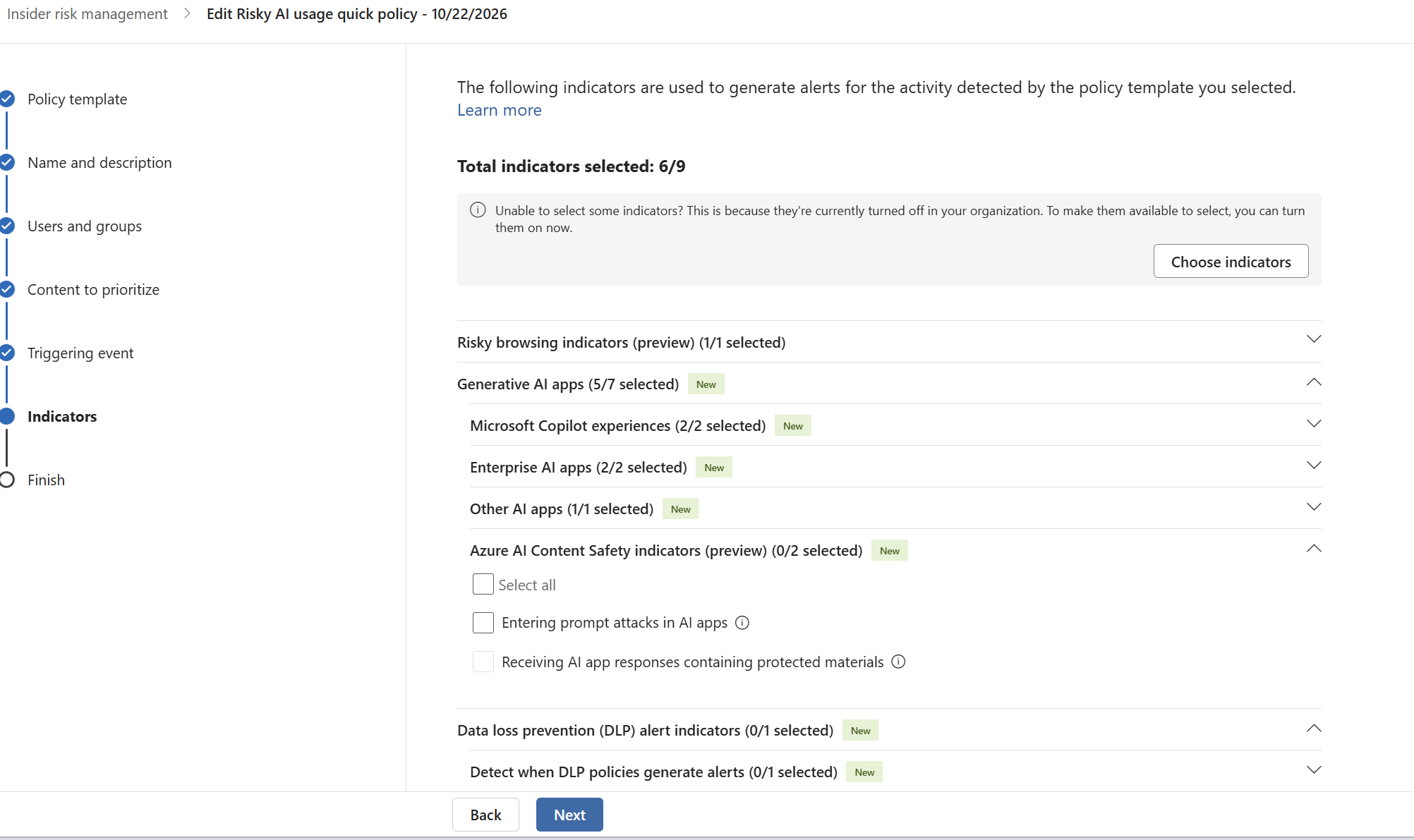
2. In Microsoft Purview, review Insider Risk Management > Settings > Policy indicators. Inspect the Generative AI apps indicators and the available Microsoft Copilot experiences and other app selections. Check any applicable pay as you go billing requirements before enabling non-Microsoft 365 AI data sources.
3. Review the Risky AI usage policy template in Insider Risk Management > Policies. Configure the scope, supported indicators, thresholds, and privacy controls. Microsoft’s documentation lists a browser extension and at least one browsing indicator as prerequisites for this template; validate the current requirements for the signals you intend to monitor.
[Figure 3 — Screenshot Placeholder: Generative AI policy indicators]
4. Start with an authorized pilot group and test using non-production sample data. Document expected activity, what generated an indicator, and whether an alert was actually created. Do not assume that every prompt or file summary automatically generates an alert.
5. Where applicable, use DSPM for AI’s recommendation to detect risky interactions in AI apps, then inspect the related reports and activity explorer once telemetry becomes available.
Four Investigation Scenarios
Scenario 1: Departing employee collecting data
An employee nearing departure reviews confidential project files and downloads unusual volumes of material. IRM can help correlate supported file-exfiltration indicators with configured departure signals. A Copilot interaction alone does not establish data theft: review the file activity, timing, policy triggers, and legitimate job requirements.
Scenario 2: Sensitive or risky Copilot interactions
A user submits prompts containing sensitive information or asks for protected material. The Risky AI usage template and supported generative AI indicators may detect qualifying risky prompts or sensitive responses. Confirm the workload, policy coverage, classifications, and required signals before claiming detection.
Scenario 3: Large scale information aggregation
An employee gathers and summarizes multiple sensitive documents. Investigate related access, sharing, downloads, and any supported AI indicators. The volume of summaries by itself should not be treated as proof of an insider threat.
Scenario 4: Privileged-user activity
Users with broad effective access may be able to retrieve more information through Copilot. Review entitlement hygiene, SharePoint permissions, sensitivity labels, and correlated behavior rather than assuming privileged users are automatically monitored as a special Copilot category.
[Figure 4 — Screenshot Placeholder: Insider Risk Management alerts dashboard]
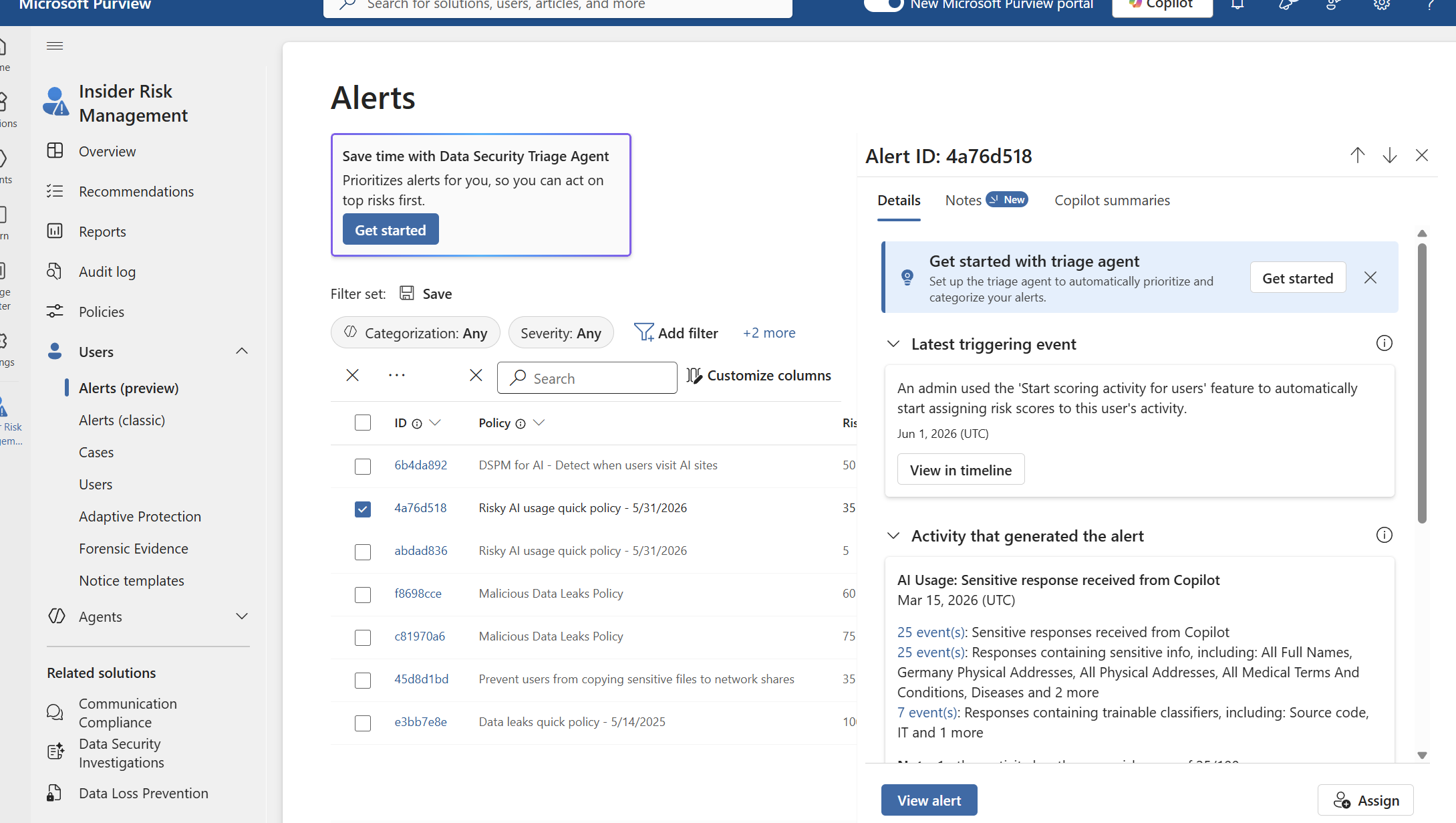
Investigating an Alert in Practice
- Open Microsoft Purview > Insider Risk Management > Alerts and review the applicable policy, severity, trigger, and time window.
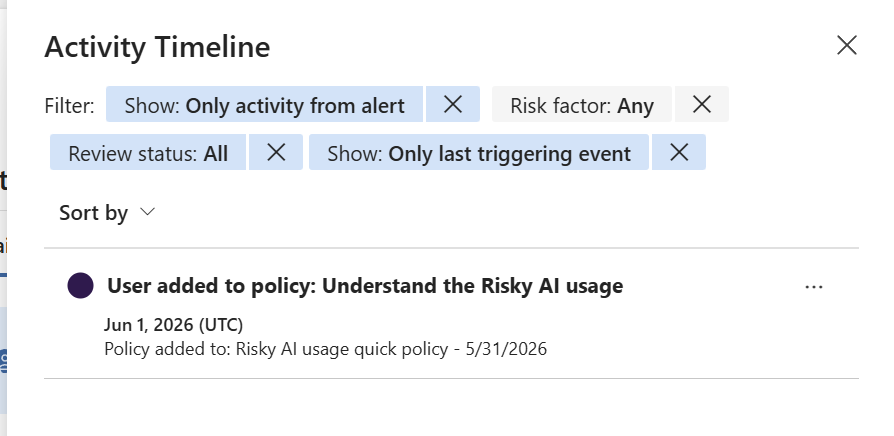
- Open a case where appropriate and inspect the activity timeline and available indicators. Separate directly observed actions from analyst hypotheses.
- Correlate with relevant Audit, DLP, and Activity Explorer events, subject to supported signal coverage and permissions.
- Check the user’s normal business duties and whether the access or AI interaction had a legitimate purpose.
- Escalate using your documented investigation process. Preserve privacy safeguards, role based access, and evidence-handling requirements.
[Figure 5 — Screenshot Placeholder: Alert investigation activity timeline]
Privacy, Limitations, and False Positives
Microsoft describes Insider Risk Management as privacy by design, including pseudonymization by default and role-based access controls. In production, involve legal, privacy, works council, and employee-relations stakeholders as applicable. A prompt is not a conviction; a risk score and alert are leads for proportionate review.
Detection depends on supported services, configured indicators, policy triggers, licensing, and telemetry. Some AI scenarios concern prompts and responses; traditional exfiltration scenarios concern activities such as downloads or external sharing. Be explicit about which evidence comes from which source.
Operational Best Practices
- Pilot first and measure false positives before expanding policy scope.
- Tune indicators and alert thresholds against legitimate workflows.
- Review overshared permissions and sensitivity label coverage separately from monitoring.
- Pair IRM with DLP, DSPM for AI, Audit, and Adaptive Protection where supported.
- Train analysts to document evidence, context, and the reason for escalation.
- Revalidate Microsoft’s current licensing and feature prerequisites before rollout.
Conclusion
Microsoft 365 Copilot can accelerate knowledge work, but it also makes the quality of access governance and insider risk detection more important. Microsoft Purview’s Risky AI usage template offers a targeted way to assess supported AI interactions, while conventional data-leak and departing user policies help examine surrounding file activities. A defensible investigation relies on multiple signals, careful tuning, and human context not on treating every sensitive-sounding prompt as malicious.
Microsoft documentation
- Insider Risk Management policy templates: https://learn.microsoft.com/en-us/purview/insider risk management policy templates
- Configure IRM policy indicators: https://learn.microsoft.com/en-us/purview/insider-risk-management settings policy indicators
- Purview for Microsoft 365 Copilot: https://learn.microsoft.com/en-us/purview/ai-m365-copilot