
Mailbox Migration in cross forest scenarios is always been a difficult , challenging and will definitely vary according to the environment, scenario and requirement basis.
In this article i would like to explain the cross forest migration scenarios using the code two exchange migration tool.
In this example we are trying to migrate the mailbox from source different forest to target different forest using the CodeTwo migration tool.
The source will be Exchange 2010 SP3 and the Target will be Exchange 2013 CU10
Lets see the prerequisites before we start this migration job:
Code two says only network and EWS connectivity is enough. But its better to have all these below things in place before starting the migration so that migration can be completed in the provided timeline.
1.Prepare a healthy network link speed for this migration from source to target.
2.Make sure All the required ports/connectivity are open between source Exchange server\DCs to Target Exchange 2013/and DCs
3.Create a DNS name resolution in source as well as target using conditional forwarders or by using dummy zones
4.Create AD trust between domains Source and target (Not Mandatory required only if you need to migrate Group)
5. Add the Target domain admin in the built in admin group of source domain.
6. Make sure the MRS proxy is enabled for cross forest move in the target or source domain according to your requirement pull or push
Set-WebServicesVirtualDirectory -Identity “Exch1.fabrikam.com\ews (default web site)” -MRSProxyEnabled $true
Perform the above action depending on the mailbox move you are going to Trigger.
7.Change the autodiscover SRV DNS record to point to Target domain
Once the above prerequisites are set in-place we have to download the software and install them
The setup is normal just need to install with the default settings. You need to install the software where the connectivity is reachable for the EWS .
Note:
a) You can install the CodeTwo setup either on the source forest or on the target based on your requirement.( Push migration or Pull Migration)
b) You should to be able to reach the EWS url of the target domain from the server where you are installing them.
Better to install them on the CAS server where you can reach the EWS of the other domain if all the prerequisites are set in place.
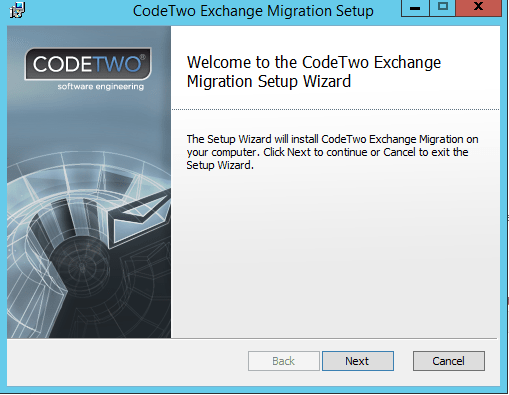
You will get the welcome screen as below
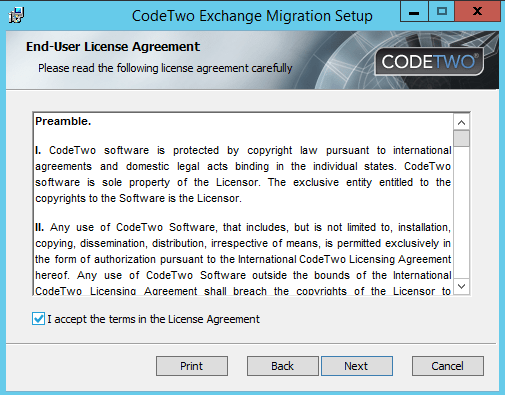
You will run through a normal installation as below
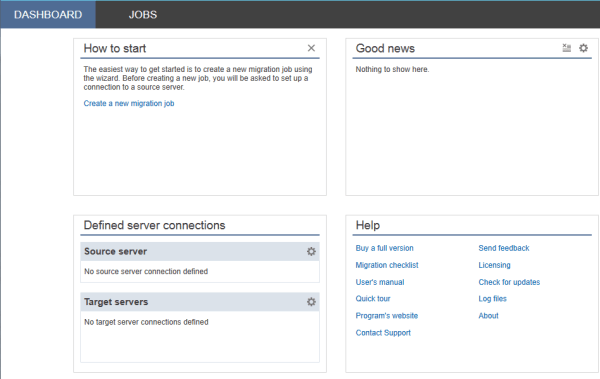
On a successful completion of the installation you will get a below GUI
Now we need to configure the source and the Target domains in the setup
Inorder to perform that do the following steps
Configure the below settings as source where you have installed this application
Go to server connections and select source server
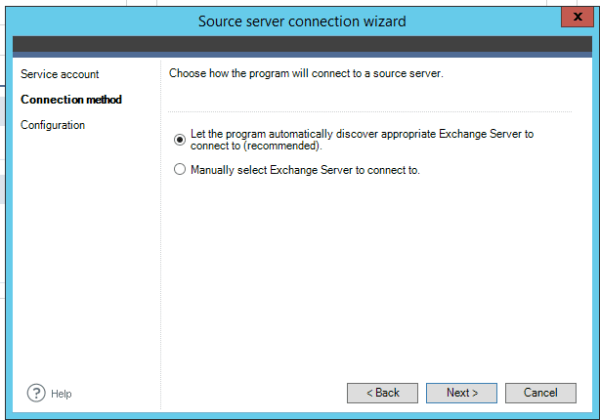
Here we have 2 options to establish a connection
First one will discover the source ews url automatically if its resolvable from the server where this software is installewd.
Second option where we need to manually enter the CAS server FQDN and EWS URL .
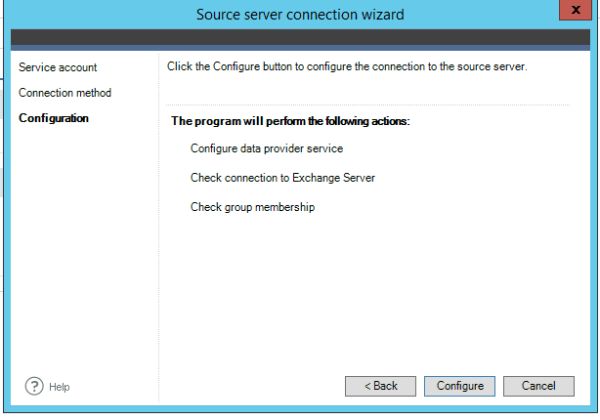
post which we will get the below screen
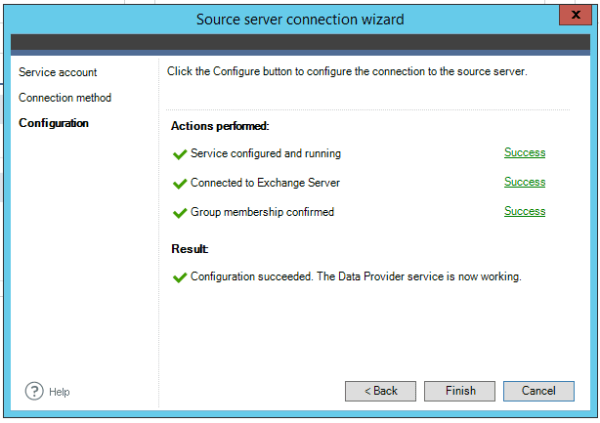
After successful configuration you will get a green signal as below.
The same procedure needs to be followed in the target domain as well .
Need to install the Target server as well
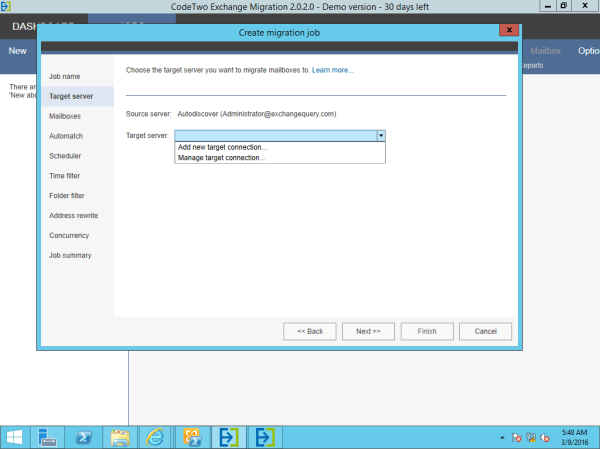
Once after the source and target domains are defined and successful you can create a new Migration Batch.
Good Features which have identified in this application are below
We have an option to choose the migration batch per OU , Users , Group etc..,
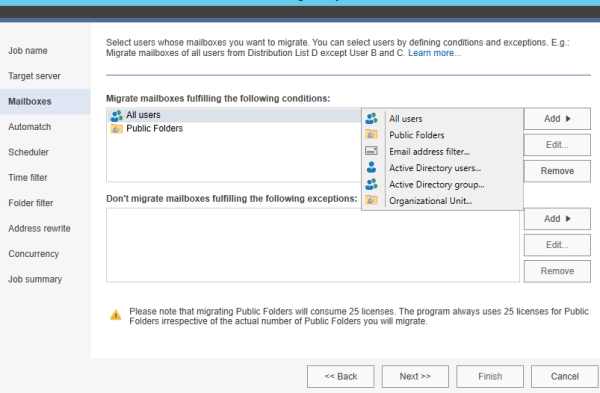
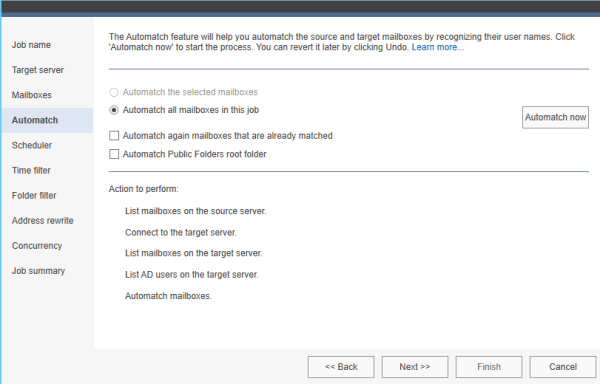
You have an option to auto-match the MEU as well
Note: You have to choose the option Auto-match selected mailboxes only if similar already existing users are present in the target domain on a different OU.
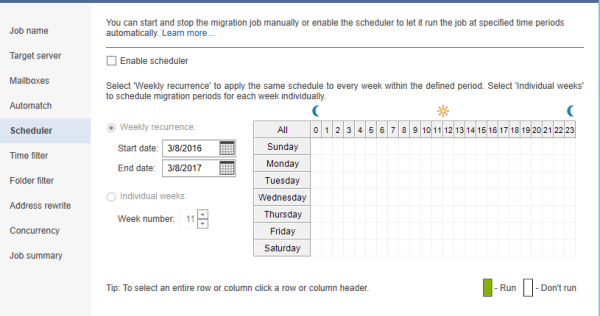
We have an option to schedule the migration as well which is really good.
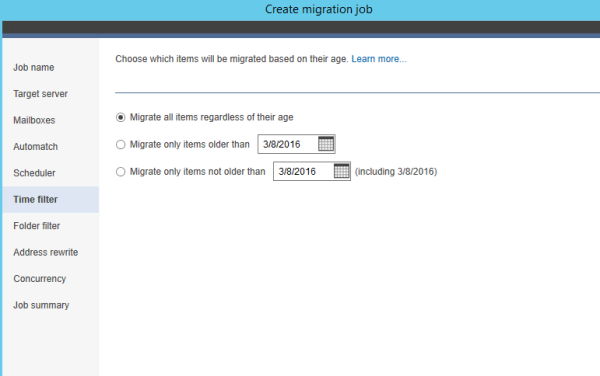
The amazing option which is found really beneficiary is below
This is something great option which will help in planning for a migration where we have a weak n/w bandwidth between the source and the forest. By having this we can very well plan a smooth migration without choking the network bandwidth in these kind of scenarios.
Finally we have an option to choose only the required items to migrate
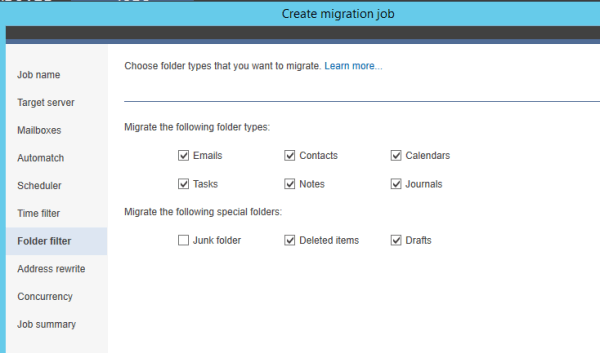
This option is very amazing for scenarios where a company is merging or during acquisition.
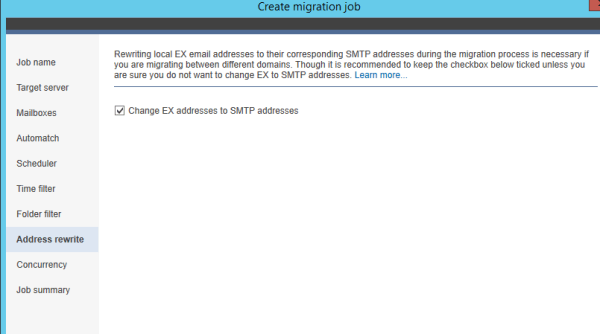
Finally we can view the migration job status in the console as below
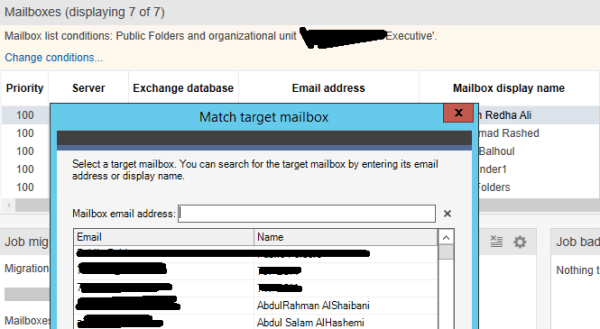
We have an option to manually choose the target mailbox as well.

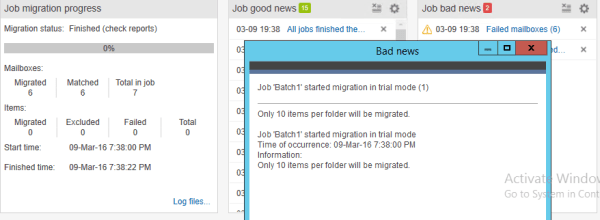
It keeps us posted about the good status and bad status about the migration as well which is very good.
We also have an option to send notifications to admin mailbox about the migration status as well.
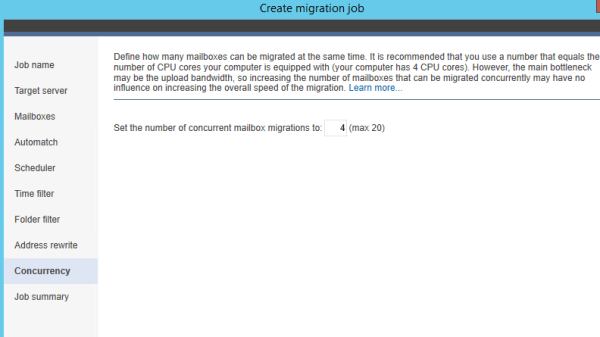
We have an option to set the maximum number of concurrent moves as well
Conclusion:
As per my understanding this CodeTwo software uses an excellent coded API .When configured all the prerequisite for the cross forest migration this works in the background with the EWS and gives us these many options features during the migration.
This makes the migration job very smooth and keeps the admin informed about the migration status.We can customize the cross forest migration based on our requirement by using this tool.Once the migration is done you need to perform the normal procedure of shifting the MX records and you are done.
To get Started with them you can refer more on this CodeTwo Migration
Thanks & Regards
Sathish Veerapandian
MVP – Office Services & Servers

 Tej Pratap
 Ewald Hollestelle
 rsujiraja
 Sathish Veerapandian
 EzCloudInfo