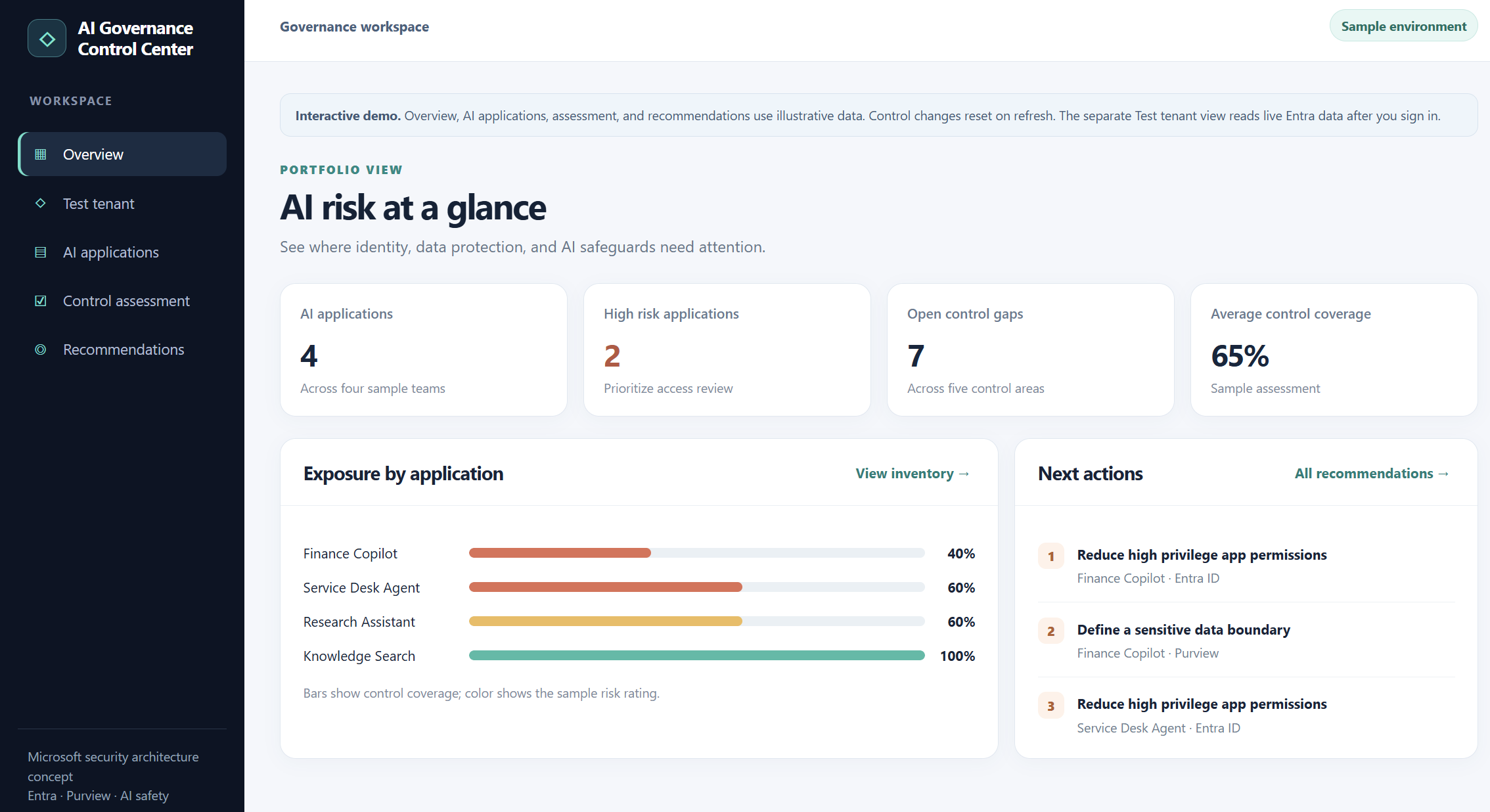
I built a small AI Governance Control Center to explore application inventory, granted permissions, and control assessments. Here is what the working Entra ID integration can show today and what still needs evidence before calling it an AI governance finding.
AI governance becomes difficult when an organization has to answer several questions at once: Which applications and agents exist? What permissions have they been granted? What data can they reach? Which safeguards are actually in place?
I wanted a simple workspace to explore those questions. The result is an AI Governance Control Center prototype with two clearly separated parts: an interactive sample assessment and a live, read only inventory from my test Microsoft Entra ID tenant.
The separation matters. An Entra application inventory is useful evidence about identity and permissions. It does not, on its own, prove that an application is an AI agent, that it accessed confidential data, or that a content safety control is enabled.
What the prototype does today
The sample workspace has an overview, an AI application list, a control assessment, and prioritized recommendations. You can switch illustrative controls on or off and watch the sample coverage score and recommendations change. These records and scores are demonstration data, not findings from my tenant.
The separate Test tenant view signs me into my own Entra tenant and calls Microsoft Graph. It lists enterprise applications, supports searching by application name or client ID, and lets me inspect the application permissions granted to a selected service principal. In my test, the sign-in and inventory retrieval worked against the tenant.
“Illustrative dashboard and control scores; no live risk assessment is implied.”
Cybersecurity has shifted dramatically. Traditional perimeter defenses such as firewalls and VPNs are no longer enough to protect a workforce that operates across devices, networks, and locations. Today, the endpoint the laptop, mobile device, or workstation has become the primary battleground. Attackers target users directly through phishing, malicious scripts, identity compromise, and lateral movement techniques that bypass legacy controls.
This shift is why Endpoint Security is now the foundation of Zero Trust.
Microsoft’s modern security ecosystem Defender for Endpoint, Intune, Entra Conditional Access, Network Protection, Web Content Filtering, Purview DLP, and Entra Internet Access provides a unified, real time defense that protects devices, identities, networks, and data wherever work happens.
In this blog, we explore how these capabilities work together to deliver a layered, Zero Trust aligned endpoint and network security strategy that:
Reduces attack surface through hardened configurations
Detects and blocks malicious behavior directly on the device
Ensures only healthy, compliant devices can access corporate resources
Controls internet and private app access using identity‑aware network filtering
Prevents sensitive data from being copied, shared, or uploaded in unsafe ways
Provides unified visibility across endpoint, network, and data activity
Passwordless authentication is becoming the new standard for modern identity security.
Windows Hello for Business already replaces passwords with biometrics and PINs but convenience alone doesn’t guarantee strong protection against credential theft.
This is where Windows Hello Enhanced Sign in Security (ESS) comes in.
ESS is a hardened, hardware backed mode of Windows Hello that ensures your authentication keys are protected inside the device’s secure enclave.
Even if malware is running, even if attackers gain local access, ESS prevents credential extraction and replay attacks.
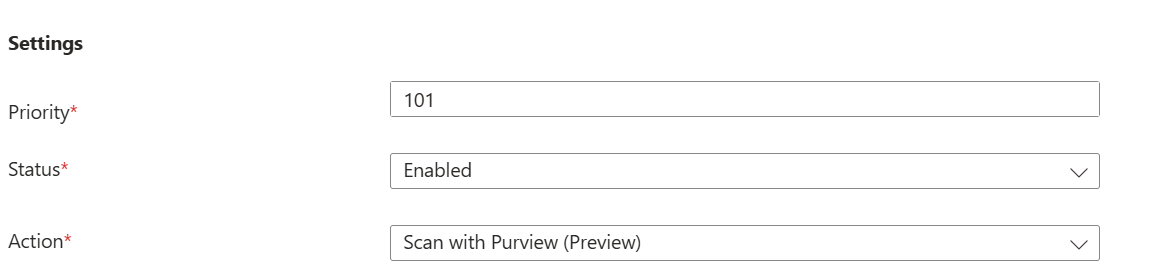
Microsoft Entra’s Secure Web Gateway (SWG) capabilities under Global Secure Access (GSA) are expanding rapidly. One of the newest additions visible in the portal is the “Scan with Purview (Preview)” action inside Content Policies.
This feature represents a major step forward:
Inline, real time file upload scanning using Microsoft Purview’s classification engine directly inside Entra Secure web gateway (SWG). This helps organizations better protect sensitive files in transit.
By integrating Entra Secure Web Gateway with Purview, organizations gain the ability to inspect file transfers at the network layer and enforce DLP rules in real time. This prevents sensitive data from leaving the organization through untrusted cloud apps, regardless of whether the upload happens via a browser, desktop application, API, or add‑in
This feature as it appears today in preview, based entirely on observable behavior in a Microsoft 365 E5 tenant. Because this is a preview feature, some components are still evolving, and full functionality is expected to be available by mid June when the feature reaches General Availability (GA) and when the tenant gets this feature completely enabled.
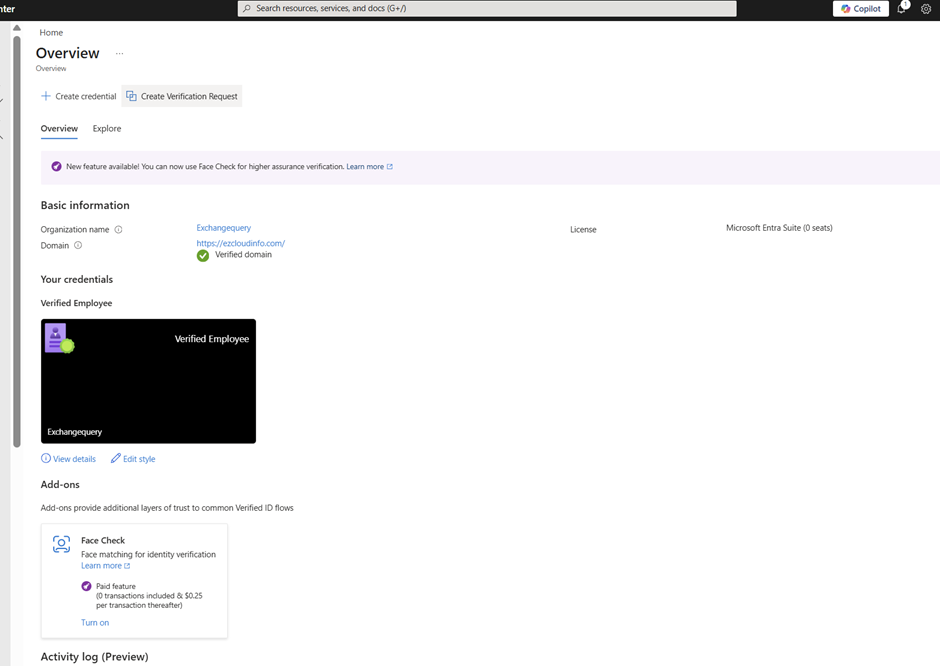
Microsoft Entra Verified ID transforms identity verification by enabling secure, privacy‑preserving, verifiable credentials. Whether you’re implementing Account Recovery (Preview) or integrating a trusted identity verification partner like AU10TIX, the onboarding process requires a few key steps: enabling the provider, provisioning resources, activating the integration, and validating the recovery flow.
This blog walks through the full, end‑to‑end Verified ID setup using AU10TIX as the identity verification provider. You’ll find prerequisites, detailed configuration steps, screenshots, and a summary to help you complete the setup smoothly
Prerequisites
Before you begin, ensure the following:
Verified ID Setup :
You need to have the Verified ID setup properly configured in your tenant first and the foremost thing to do before proceeding to any steps. If this one is not setup then the account recovery (Preview) is not going to work . Especially your domain needs to be a verified domain here.
Also in the Authentication method you must have the Temproary Access Pass Enabled
Modern network access has evolved, and Microsoft Entra Global Secure Access (GSA) is leading the transformation. Whether users are accessing private resources, Microsoft 365 services, or the internet, every request is now routed through an identity aware, Zero Trust-aligned infrastructure. This shift introduces new troubleshooting paradigms and this guide is here to help.
Why Global Secure Access Exists
Global Secure Access combines multiple security layers to deliver robust protection and optimized routing:
Zero Trust enforcement for all traffic
Unified identity, device, and network controls
VPN replacement for private apps
Secure outbound internet access
Optimized Microsoft 365 routing
Traffic Profiles Explained
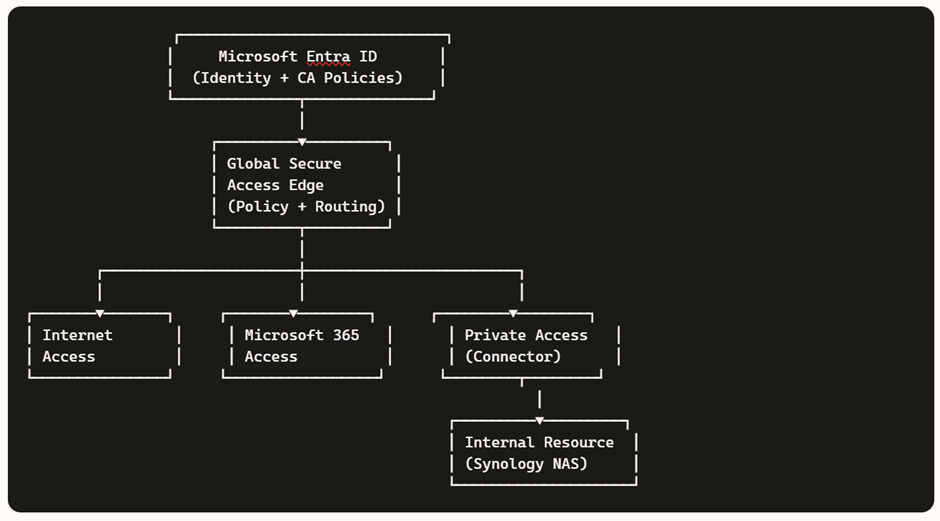
GSA categorizes traffic into three distinct profiles:
Internet Access → Secure outbound browsing
Microsoft 365 Access → Optimized, identity-aware routing
Private Access → Zero Trust access to internal apps
For architectural flow diagrams and examples (e.g., Synology NAS), refer to my previous blog.
In today’s hybrid work environment, secure access to internal resources without relying on traditional VPNs is a key requirement. Microsoft Entra Private Access, part of the Global Secure Access suite, enables Zero Trust-based connectivity to private applications hosted on-premises or in private networks.
In this demo, we’ll walk through setting up a home lab using an Azure tenant, installing the Entra connector, and configuring access to a Synology NAS as a private application—all from a personal laptop and home network.
Before starting, make sure you have:
Microsoft Entra ID tenant with Global Secure Access enabled.
Microsoft Entra Global Secure Access license (Private Access feature).
Windows 11 Pro device (required for advanced networking and policy support).
Device joined to Microsoft Entra ID (Azure AD joined or Hybrid joined).
Intune-managed device for policy enforcement and NRPT configuration.
Administrative access to your Azure tenant and local machine.
Microsoft Entra Connector installer downloaded from the Entra Admin Center.
Global Secure Access Client installer for Windows.
Internal resource (Synology NAS or similar) reachable on your home network.
Internal IP address of the resource (e.g., 10.0.x.x).
Optional DNS setup:
Private DNS zone or hosts file entry for FQDN (e.g., demo.synology.me).
Self-signed certificate (optional) for HTTPS access.
Internet connectivity for connector registration and client sign-in.
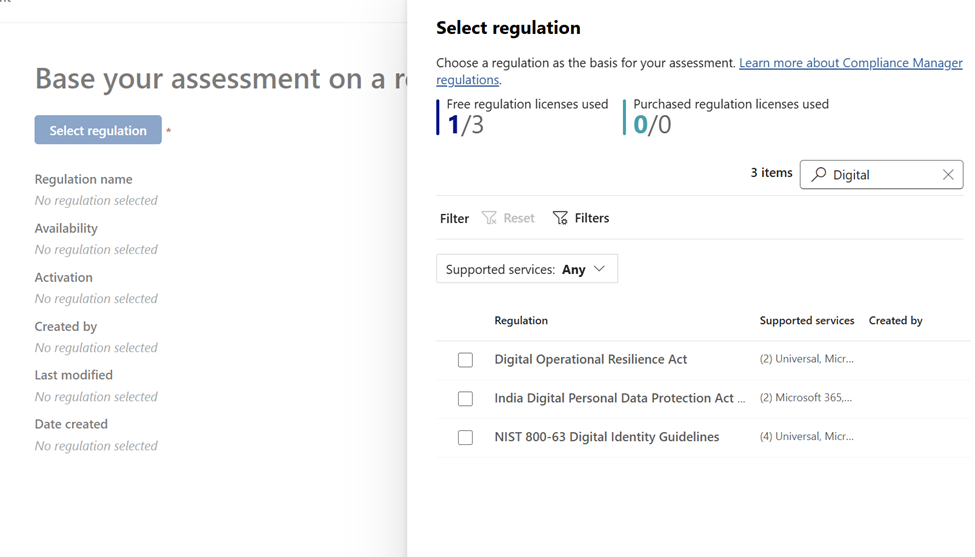
Digital Operational Resilience Act (DORA) is reshaping how EU financial entities manage ICT risk, resilience testing, incident reporting, and third‑party risk. If you run Microsoft 365, Microsoft Purview Compliance Manager gives you a practical way to translate DORA requirements into actions, evidence, and measurable progress. This guide walks through a clean, step‑by‑step implementation flow from setting up a DORA assessment to assigning improvement actions and tracking your score, so you can be audit ready without drowning in spreadsheets.
Why use Microsoft Purview Compliance Manager for DORA ?
Prebuilt assessments: DORA assessment templates map regulatory articles to actionable controls you can assign and track.
Control mapping: Microsoft‑managed baselines and customer‑managed controls provide clarity on shared responsibility.
Improvement actions: Structured tasks with owners, due dates, and recommended steps create accountability.
In today’s enterprise landscape, most applications are accessed through modern browsers like Microsoft Edge and Google Chrome, especially on Windows devices. While these browsers come with built-in security features, organizations must go a step further to enforce consistent and robust browser security policies across all endpoints.
If your organization uses Microsoft Intune, you have powerful tools at your disposal to configure and enforce browser security settings. In this blog, we’ll walk through 10 essential browser security controls you can implement using Intune’s Settings Catalog to enhance protection against web-based threats.
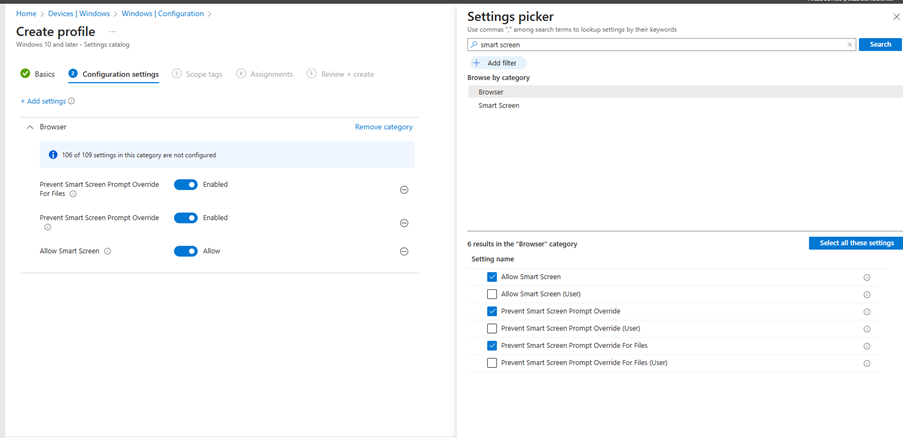
1. Enable Windows Defender SmartScreen
SmartScreen helps protect users from phishing attacks and malicious websites or downloads.
Recommended Settings:
Enable Windows Defender SmartScreen
Don’t allow SmartScreen warning overrides for unverified files
In today’s hybrid work environment, insider threats are becoming increasingly complex. Microsoft Purview’s Adaptive Protection and Insider Risk Management (IRM) offer a dynamic, risk-based approach to protecting sensitive data while enabling SOC teams to investigate and respond to alerts with precision.
This blog provides a step by step walkthrough of how SOC teams can leverage these tools to investigate alerts, assess user behavior, and take appropriate action.
Step 1: Understanding the Adaptive Protection Dashboard
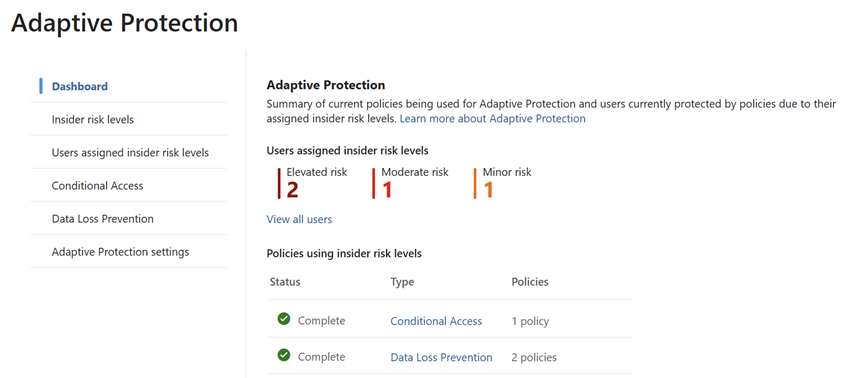
The Adaptive Protection dashboard is the SOC team’s starting point. It provides a bird’s-eye view of user risk levels across the organization, helping analysts prioritize investigations.
Key Elements of the Dashboard:
User Risk Levels:
Elevated Risk: Users exhibiting high-risk behavior that may indicate potential data exfiltration or policy violations.
Moderate Risk: Users with concerning patterns but not yet critical.
Minor Risk: Users with low level anomalies or early warning signs.
Policy Integration:
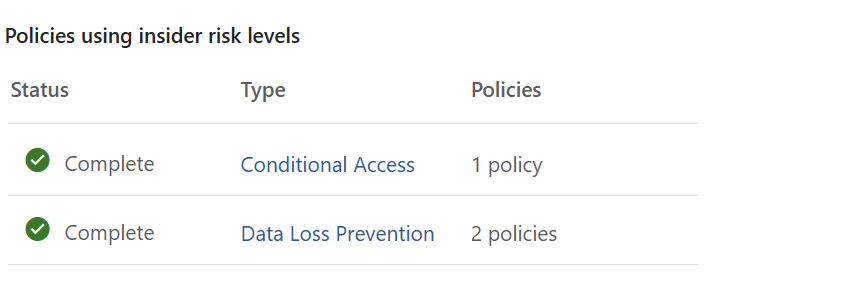
Shows which Insider Risk policies are actively using these risk levels.
Helps correlate user behavior with policy triggers, such as data leakage,