Monthly Archives: January 2014

Moving mailboxes in Exchange 2013

In Exchange 2013 the mailbox move have been improved. It has lot of additional features added in like it gives us the results of the status of move, synched, moved and failed.

The below article will help us in performing mailbox move in Exchange 2013 through EAC.

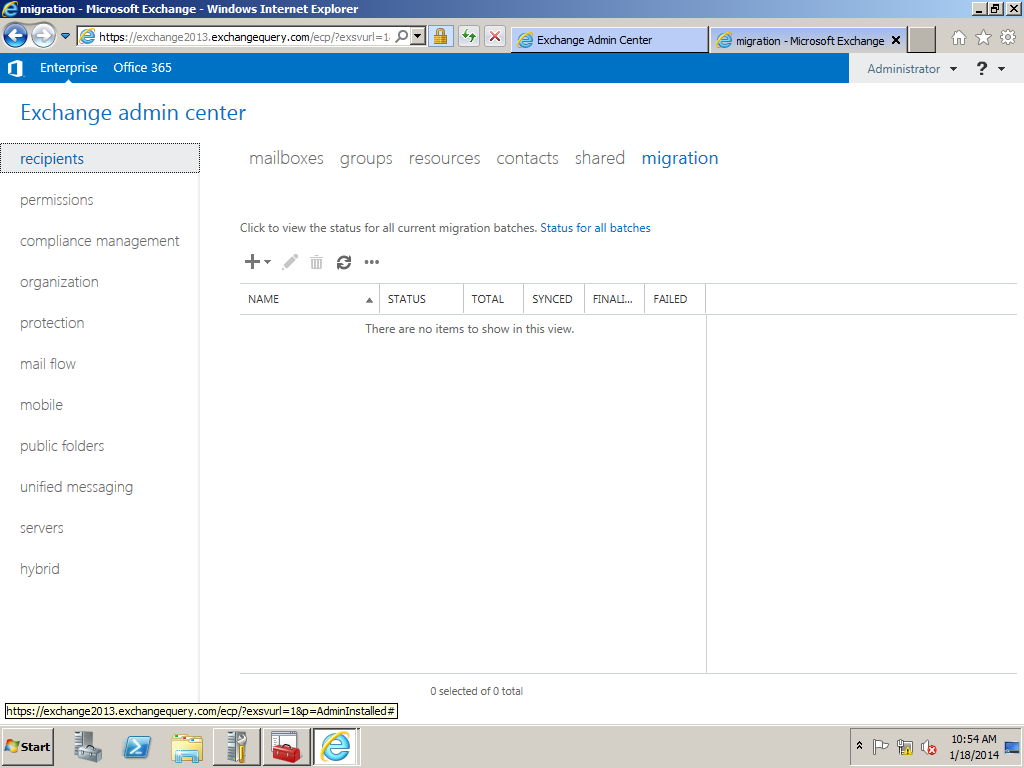
Open EAC select recipients and click on the migration tab
Image

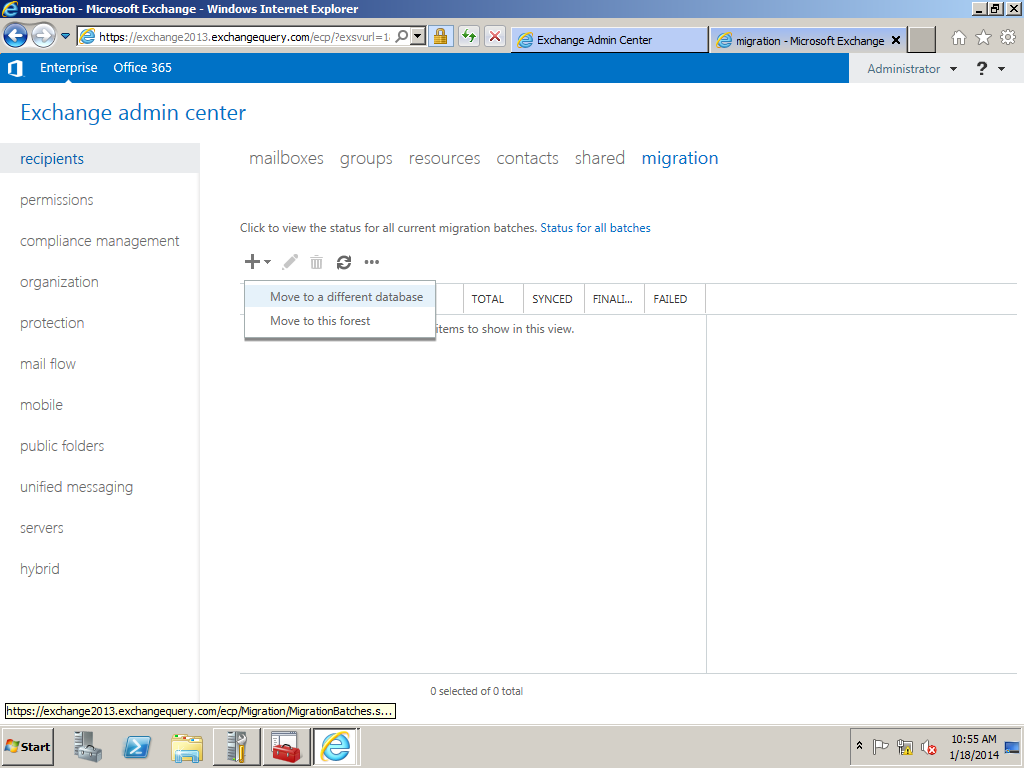
Click on the + sign and select the option move mailbox to a different database. This option can  be selected while we move any mailbox from Exchange 2007,2010 to Exchange 2013.

The second option move to this forest can be performed while performing a cross forest migration.
Image

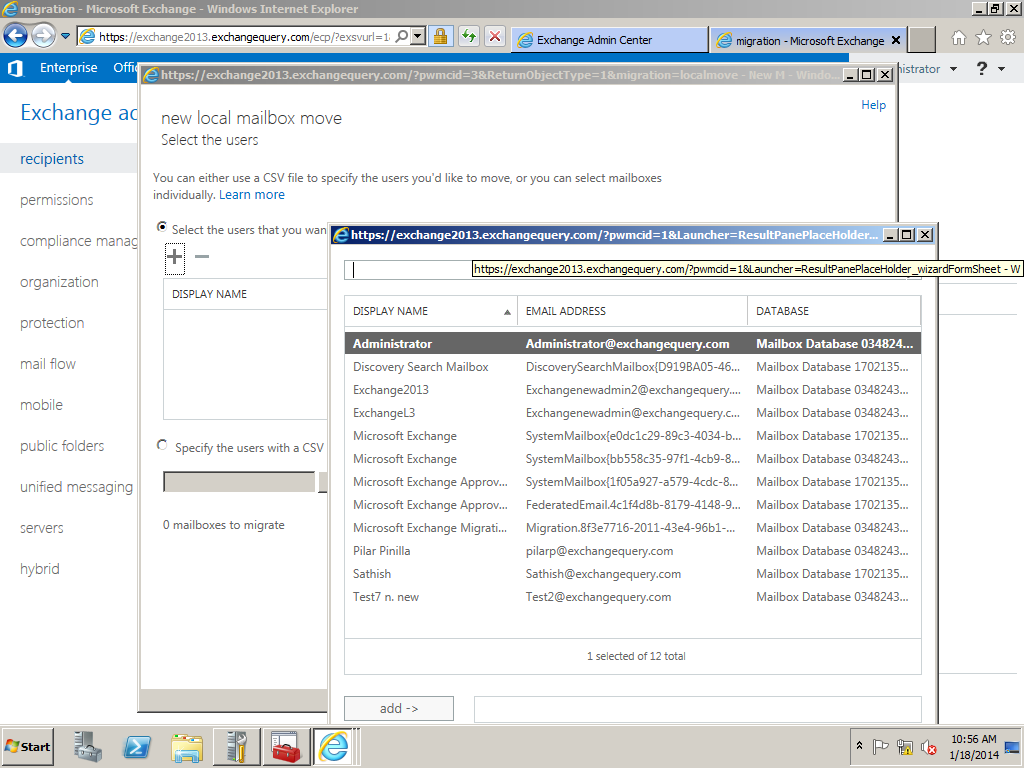
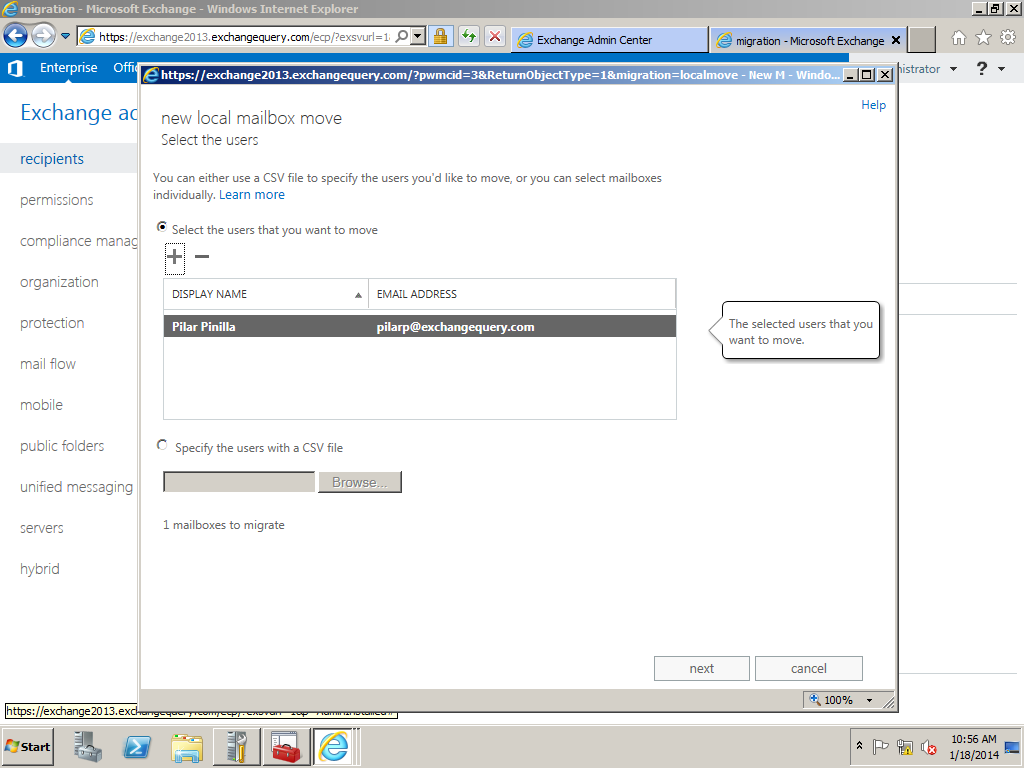
Now we can select the mailboxes that we need to migrate.
Image

Also we have an option in which we can upload the CSV file which contains the users list.
Image

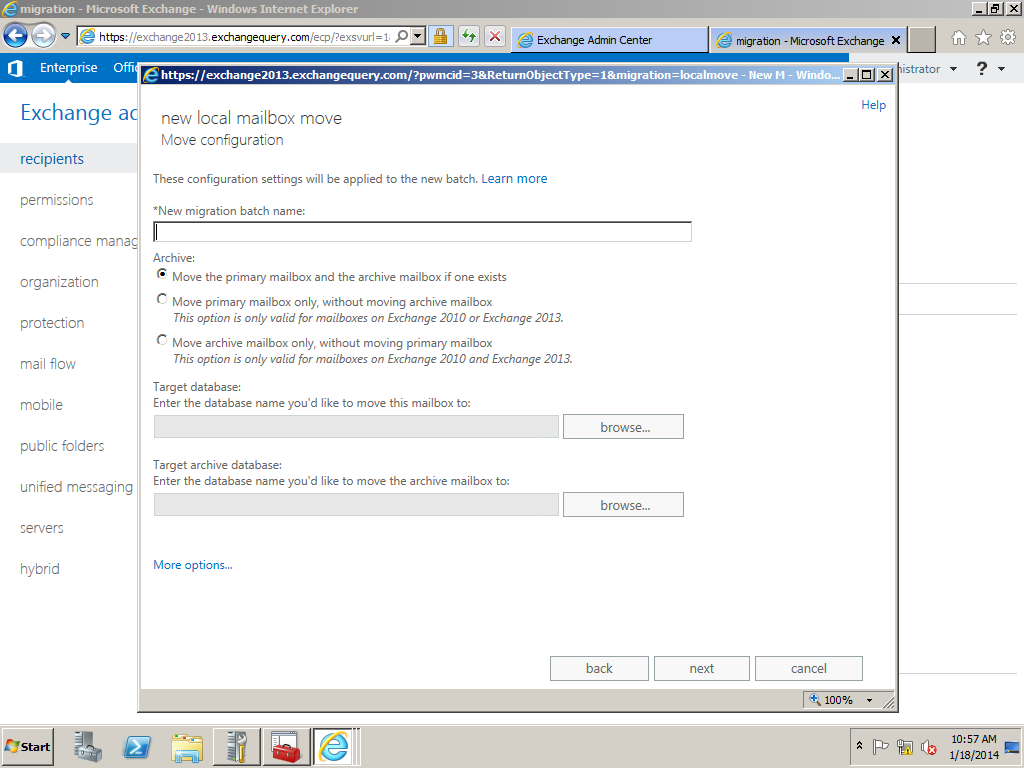
Here we can specify the Migration batch name. We have 3 options where it gives us options to move the primary mailbox and the archive or only the primary according to the requirement.

This is one of the best features which make the admins to migrate both the mailbox and the archive mailbox all at one go.

We need to specify the target database of the mailbox and the archive if specified.
Image

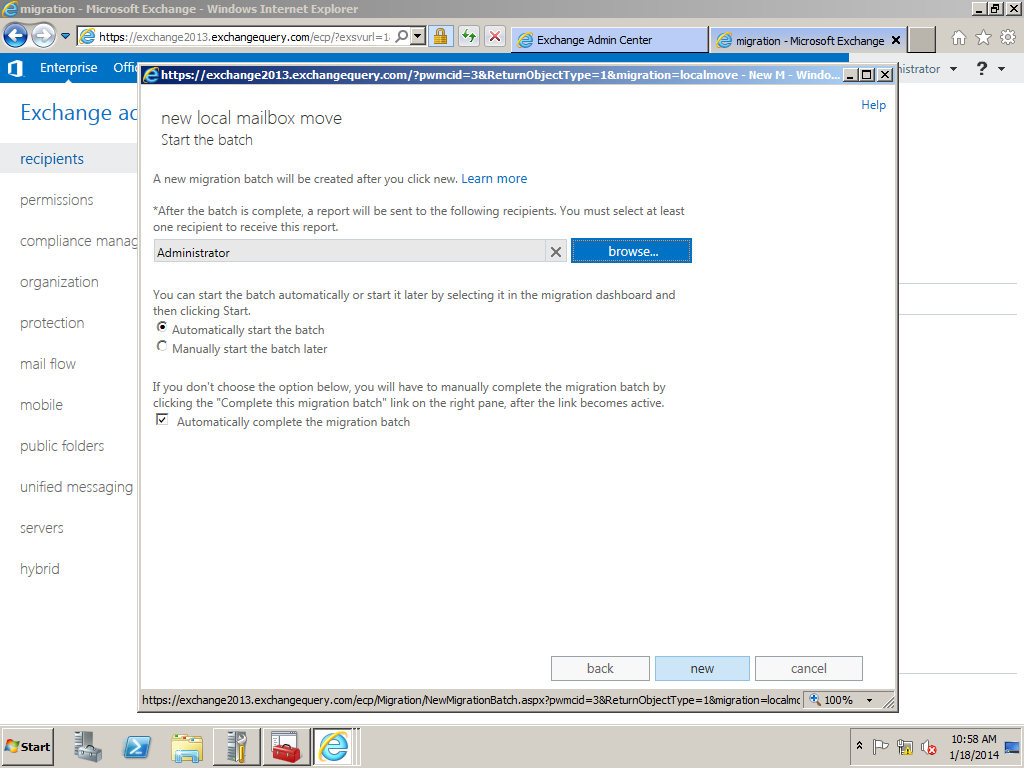
We have an option where the mail can be triggered to admins once the batch is completed.Also we have 2 options like automatically starting the batch and manually starting them as well.
Image

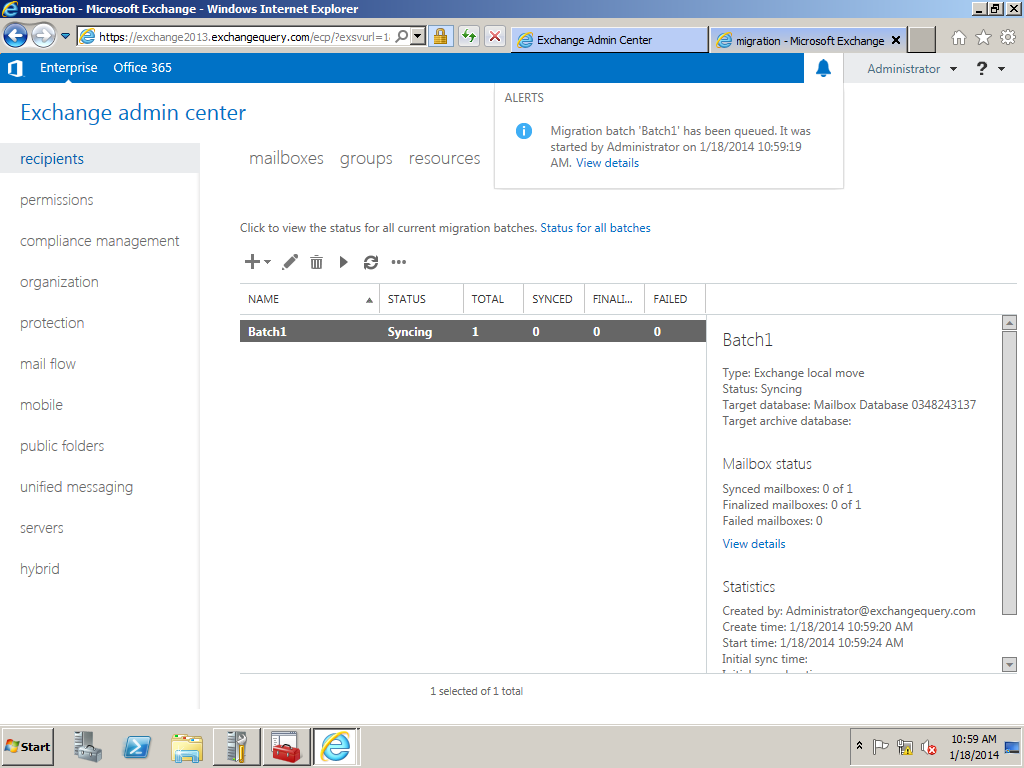
This will be the final output of the result which shows the batch status. Here it gives lot of info which will be very useful while performing the migration.
Image


Configure Malware in Exchange 2013

Microsoft Exchange 2013 has the basic antimalware settings which can be enabled during the installation

By default we have a default malware policy which can be modified according to our needs.But it cannot be deleted.

We can create our our malware policy according to the company needs.

Below are the steps to configure malware in Exchange 2013

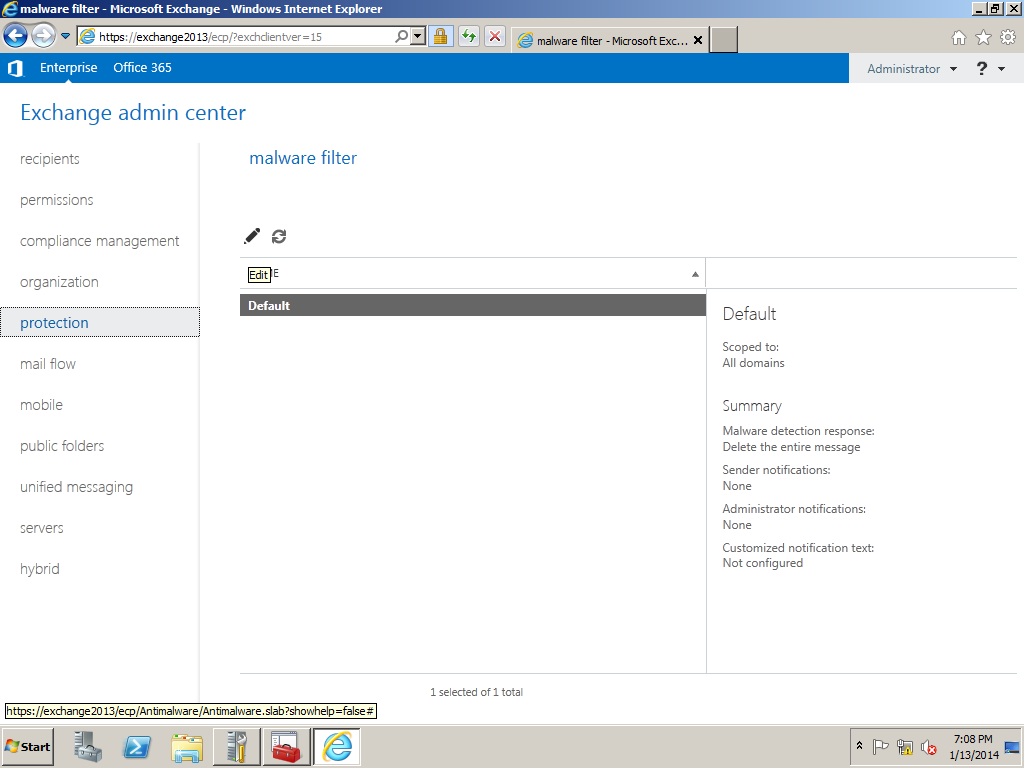
Open EAC – Click on protection and you will get the malware filter tab

Click Edit to edit the default malware policy

Image

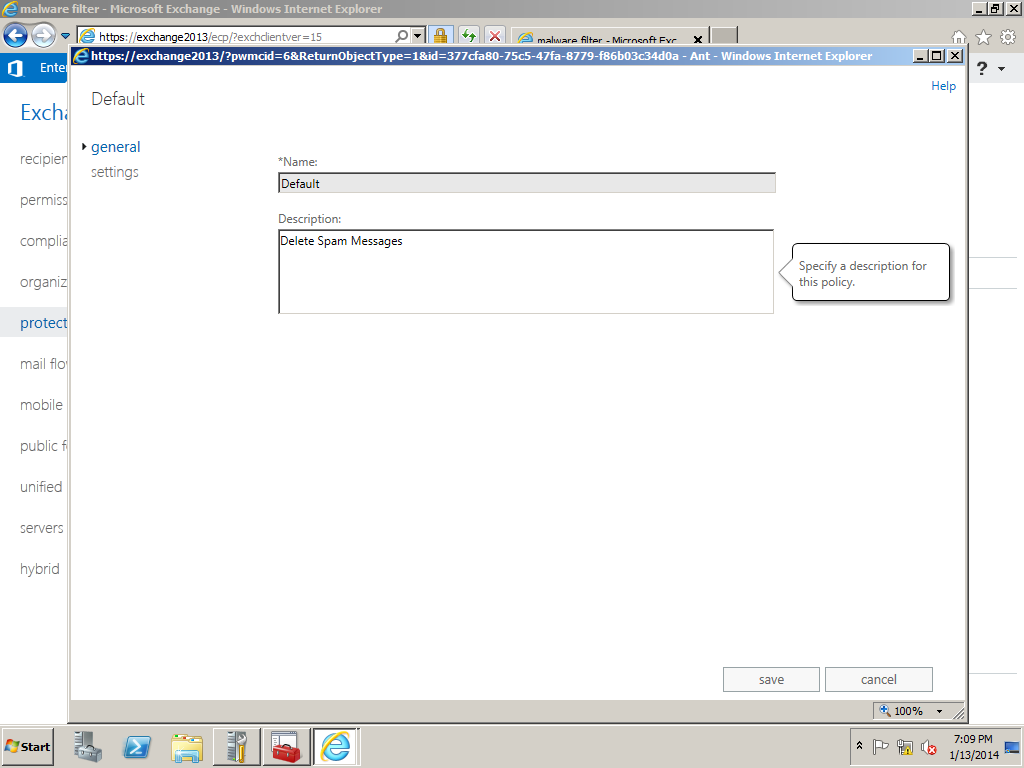
Click on settings and you can give any desired description on our own for this policy

Image


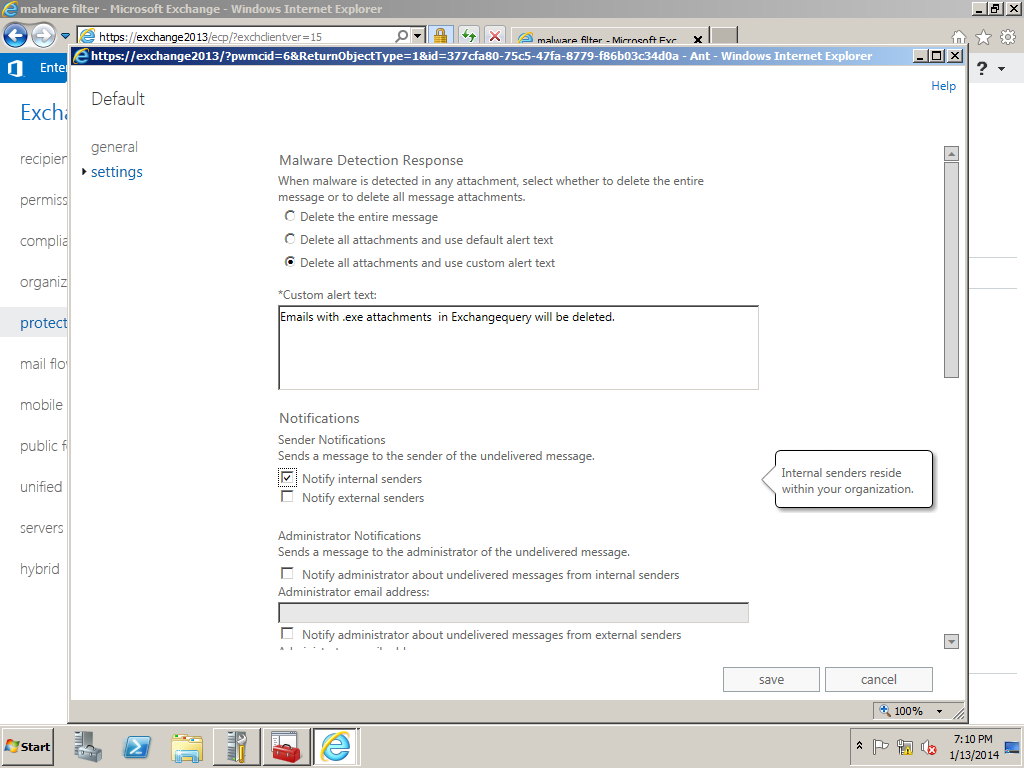
We have malware detection options as shown below and can use any of them .

Also we have options to send messages to the internal/External senders about the NDR

Image

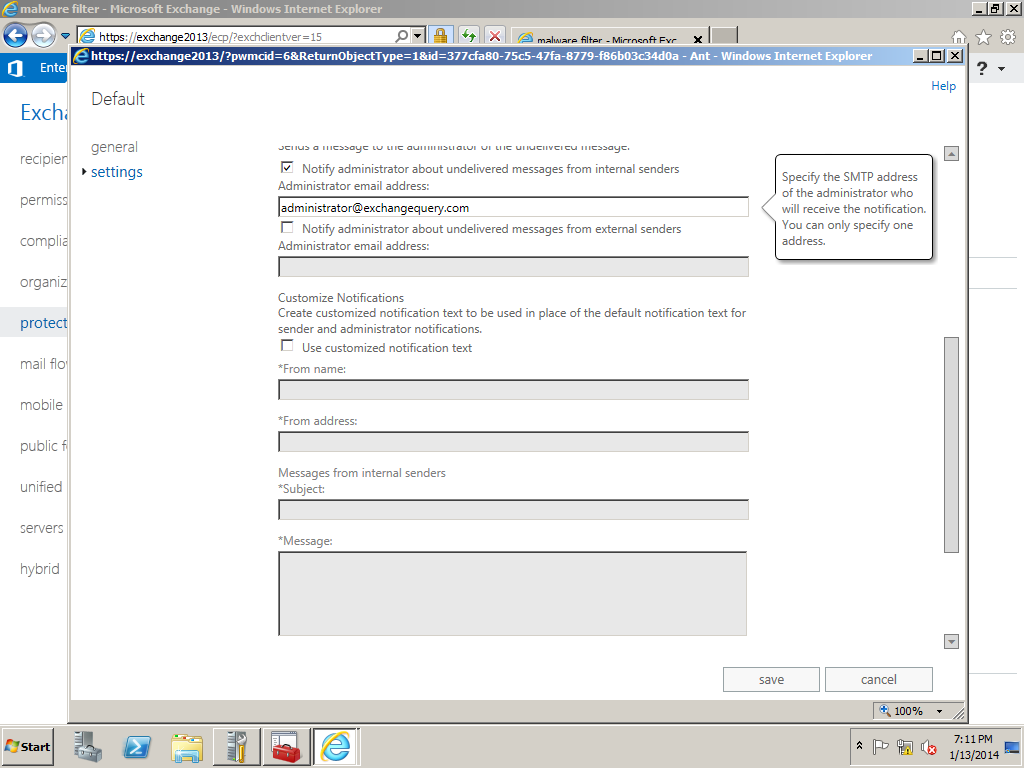
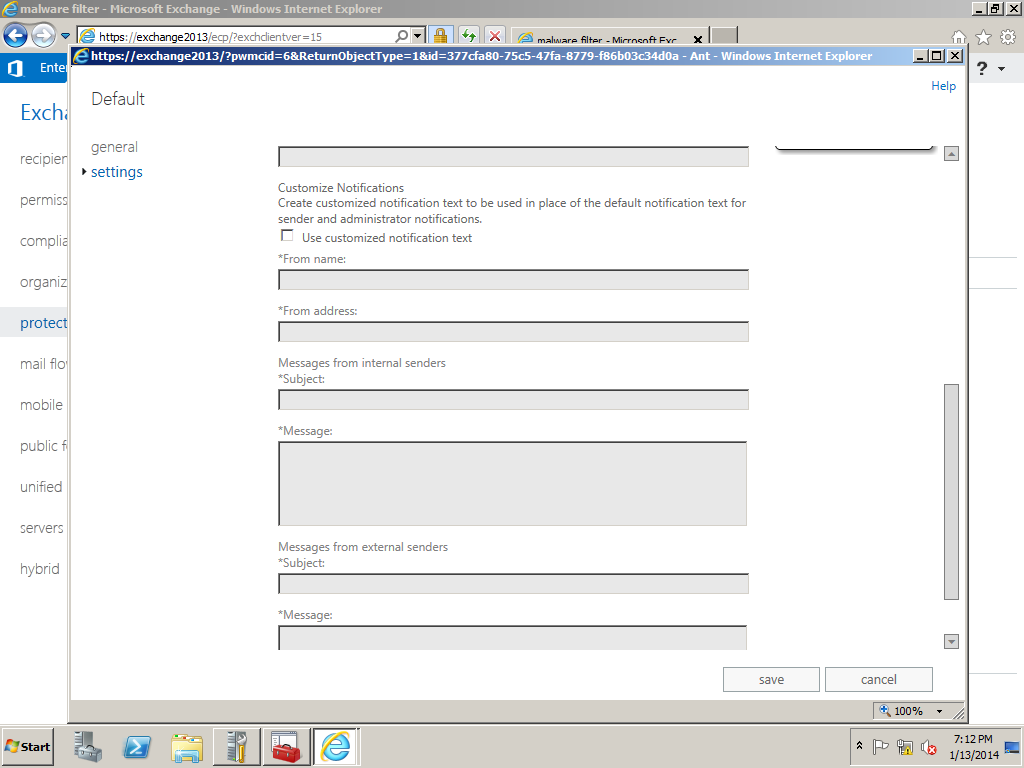
Also we can notify administrator about the spam messages. We can specify customized notification text message as well.

Image


Image


Apps Feature in Exchange 2013

In Exchange 2013 we can see  new feature called apps. By using this users would be able to plug in their required apps in their outlook.

Administrators can decide to enable which app to be published to the outlook client via EAC in Exchange 2013.

By default we have few apps already in Exchange 2013. In addition to that we can download apps from the office.com website for outlook which can be downloaded and pushed from exchange 2013.

Also we can use any third party apps which is compatible with outlook and can be pushed from server end.

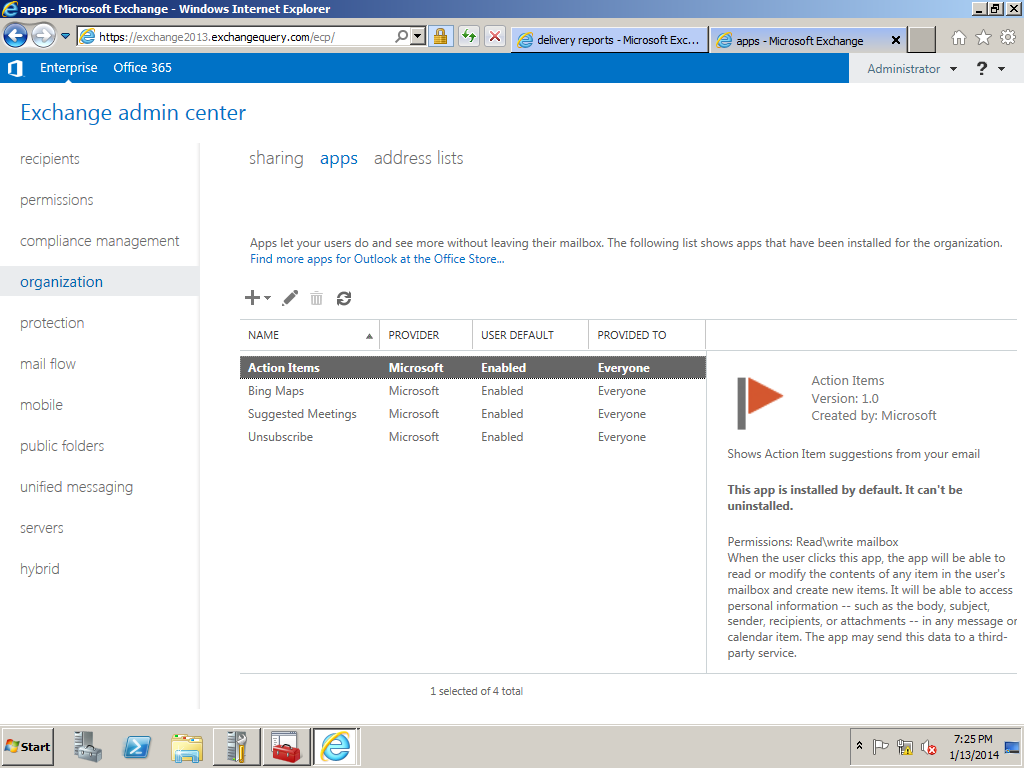
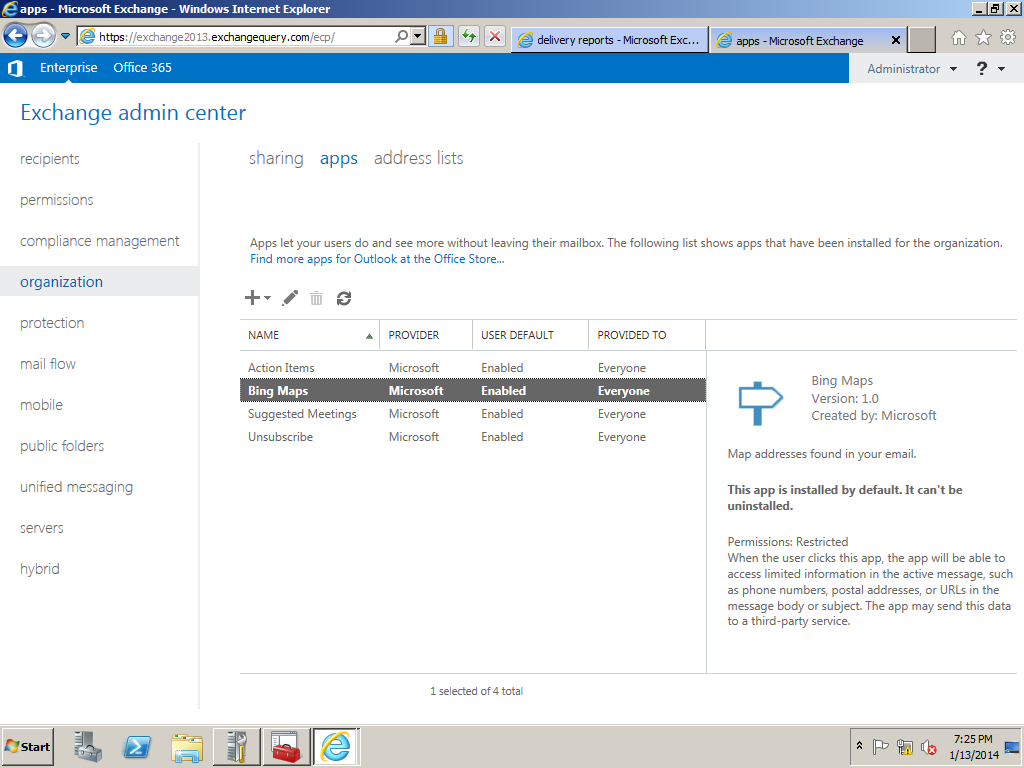
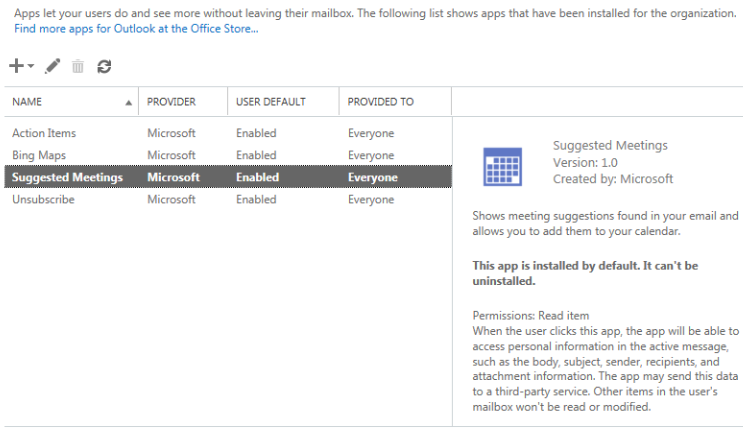
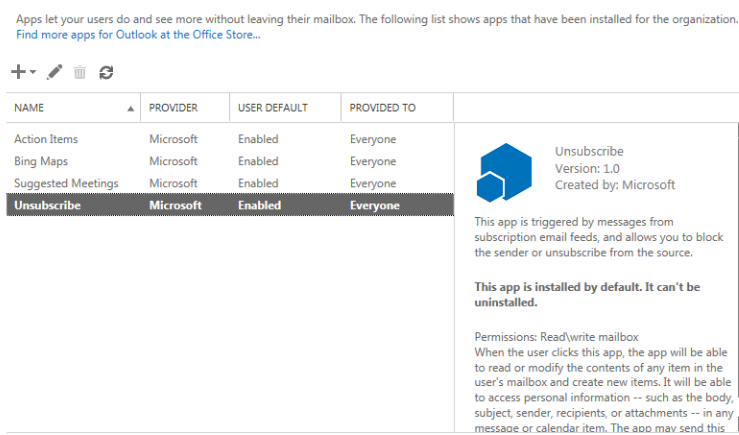
By default we have Action Items, Bing Maps, Suggested Meetings and Everyone. This apps comes under organization under apps tab  in EAC.

You can see the description of each default apps in the below screenshots

Open EAC- Select Organization – and choose apps tab

Select Action Items and its enabled by default.

Image

We can see the default Bing maps enabled

Image

Also Suggested Meetings enabled

Image

Unsubscribe

Image

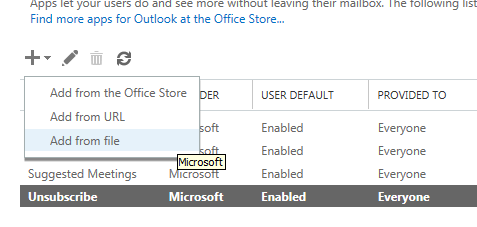
Below are the three options available like add from the office store, any internet url or any executable file.

Image

This is one of the great feature which is introduced in Exchange 2013 and extend the information and functionality of messages and calendar items.

For Example if an email contains  the stree address bing map application offers you the tab through which you can navigate and  identify the location.

Thanks

Sathish Veerapandian

MVP – Exchange Server