Monthly Archives: April 2015

Exchange 2010/2013 Mailbox Quota , Message size planning for end users

In this article i’m giving some best suggestions that can be scoped in-terms of storage  for any new implementation and redesigning of existing environment for Exchange messaging Platform.

There is no such in recommendation of giving a standard best practice for mailbox size, Maximum message size , retention and archive  as it varies according to each every org structure based on Storage , Email flow per day , Server hardware , memory, requirement  etc..,

Before taking up any new implementation its always better to set up scope on the below things

1) Mailbox Size per user.

2) Maximum Size of Message.

3) Retention of Mailbox items.

The first step we will look in planning mailbox size for users
The better way i would suggest is to first collect the daily, weekly and monthly email statistics for the whole environment

These amazing scripts from nuno mota will help you on collecting the statistics which is very useful.

Emails sent per hourhttps://gallery.technet.microsoft.com/office/ec7940c1-be9a-45d5-9ea1-921677fa081c

Emails sent per day and sizehttps://gallery.technet.microsoft.com/office/f2af711e-defd-476d-896e-8053aa964bc5/view/Discussions

Emails sent per week and sizehttps://gallery.technet.microsoft.com/office/Total-Emails-Sent-and-c1daf5e7

Calculate the average size of the emails sent per user on daily basis from the above output

Based on that calculate the mailbox quota that you need to set for all the users .
You need to make sure that all the mailboxes are balanced equally on existing mailbox servers before planning.
Measure the currently allocated disk size in each mailbox server based on the current value and expected value in 1 year.
multiply the value and calculate the growth of expected users in 1 year.
Calculate the current log space , database space and the expected value after 6 months
Always keep a buffer value of 30 percent on the total value of the disk space required to be on the safer side.

Better you can set some exclusions for mailbox quota for  VIP users.When we say VIP users you can better define a policy with the client before taking up the project. Example for executive users the mailbox size will be unlimited and for the number of users and fix a static value for the remaining mailboxes and finalize the agreement. Define these policies clearly before taking up any new project.

Because a poor capacity planning will bring the following causes :

1) Increased storage cost as days passes.
2) More network bandwidth usage between servers and clients since all the users will have their emails stored in their mailbox.
3) Affecting the storage subsystem in terms of I/Ops.
2) Maximum message size

Planning for maximum message size for the whole organization is also very important.

Following things can be impacted of improper message size planning

1) First thing will affect you is mass mailing from the organizations itself (HR,Marketing Team). They will start sending mass mails with large attachments if the message size is not restricted properly.Impact of this will be your hub servers will go down.
Always you need to give a clear note of this part during the planning and make a best practice of sending mass mails after production hours since the normal emails will be affected.

2) It increases the network utilization of messaging system which will create again an impact.

3) If the network is compromised by a hacker then he can utilize the network/system resources by sending emails with large attachments.

4) Also it will be difficult for anti-spam solutions to scan these emails with large attachments and more possibly exclude most of the attachments if they are encrypted with large size and no exclusions set for encrypted attachments in the anti-spam filter.

3) Retention and archive

Planning for retention and archive is very important

Also it would be good if you implement some archiving solution in place for emails older than 10 months so that your primary mailbox will not be loaded always and less load on the exchange server.
When you bring up archive make sure that the retention for the archived items is planned properly (depending upon your client suggestion) as few orgs would like to have emails of more than 5 years since the retention of the archive cannot be restored at any cost unless we have alternative solution in that place.

Planning this part and convincing the client is little bit tough and difficult since the cost is involved more in this factor when they say they want to keep the retention items in archive for ever.

Hope this reading is helpful

Thanks

Sathish Veerapandian

MVP- Exchange Server

Managing Exchange 2010/2013 calendar permissions in Daily operations

Managing calendar permissions in daily operations will be little bit difficult for an admin since there will be more requests coming in for the calendar permissions.

I have collected few scripts which will be useful in managing the calendar requests that are coming in the daily operations.

Use the below command to check the calendar permission for single user

Get-MailboxFolderPermission -Identity mailbox@domain.com:\Calendar | FL


Cal1


To add the calendar permission for single user use the below command

Add-MailboxFolderPermission -Identity newtestuser1:\calendar -User  Usermailbox -Accessrights editor


Cal2


To check the calendar permission for a mailbox for a single user you can see the below command.

Get-MailboxFolderPermission -Identity mailbox@domain.com:\Calendar -User Test2


cal3


To change the default calendar permission for all the mailboxes in entire org you can use the below command.

$all=Get-Mailbox -RecipientTypeDetails UserMailbox

$all | ForEach {Set-MailboxFolderPermission -Identity “$($_.alias):\Calendar” -User default-AccessRights “LimitedDetails”

Final


To change the mailbox access default permission for all the users  for one mailbox you can use the below command

Get-Mailbox -resultsize unlimited | foreach {add-mailboxfolderpermission -identity “$($_.alias):\calendar” -User testuser -Accessrights “editor”}

Cal4


Cal5


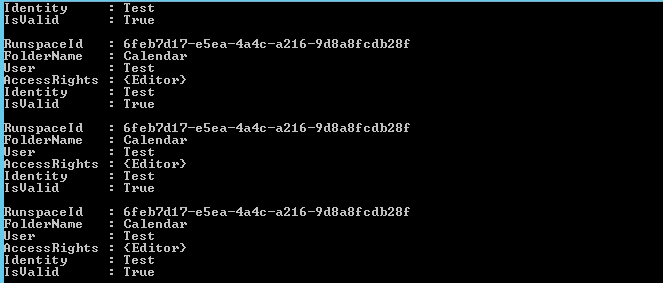
To check the calendar permission for all the users run the below command

ForEach ($Mailbox in (Get-Mailbox -ResultSize Unlimited)) {Get-MailboxFolderPermission -Identity “$($Mailbox.Name):\Calendar” | Select @{n=’Calendar’;e={$Mailbox.Name}},User,AccessRights}

Cal6


To take the calendar permissions for all the users in csv format do the following things

First run the below command to store the value of  all the calendar permission by running the below command

$Results = ForEach ($Mailbox in (Get-Mailbox -ResultSize Unlimited)) {Get-MailboxFolderPermission -Identity “$($Mailbox.Name):\Calendar” | Select @{n=’Calendar’;e={$Mailbox.Name}},User,AccessRights}


Cal8


Take the output in text file by running the below command

$Results | out-file -filepath C:\CalendarPermission.txt

Cal9

Now run the below command to join the string and show the access rights for each user in the csv file

$Results = ForEach ($Mailbox in (Get-Mailbox -ResultSize Unlimited)) { Get-MailboxFolderPermission -Identity “$($Mailbox.Name):\Calendar” | Select @{n=’Mailbox’;e={$Mailbox.Name}},User,@{Name=’AccessRights’;Expression={[string]::join(“;”, ($_.AccessRights))}}

Cal10


Now export the results

$Results | Export-Csv C:\permission8.csv

Cal11

Hope this is helpful

Thanks 

Sathish Veerapandian

MVP – Exchange Server

Skype for Business Client Testing in Lync 2013 on PremiseEnvironment

Microsoft has released Skype for Business Client.  Lync 2013 client will become Skype for Business after April 14, 2015 as part of regular Office monthly updates if performed by the organizations.

This Skype for business client will be working on  Lync 2010 & 2013 on premise registrars servers and Lync Online . But specific server builds are required on Lync Server 2013 and Lync Server 2010 onpremise in order to set client policies

Below are the prerequisites for Lync 2010 & 2013 OnPremise Servers

Minimum server Build for Lync 2013 – Deploy server build 5.0.8308.857 (December, 2014) or later.

Minimum server Build for Lync 2010 – Deploy server build 4.0.7577.710 (February, 2015) or later.

If you have the above build version on your Lync 2013 server you can go ahead and start testing .

But before setting this policy to all the users it is better that if we test this new client in few of the users and then we can deploy them to rest of the users.

Inorder to to that follow the below steps

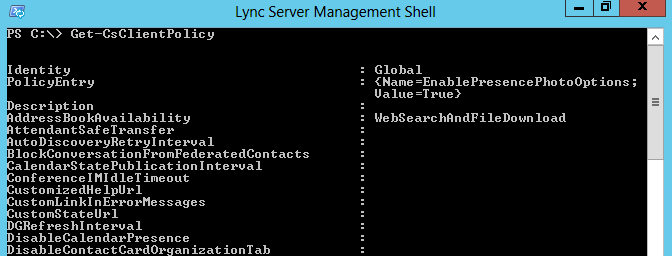
First run Get-CsClientPolicy to check how many policies you have .

True1


If we have any test client policy already you can try with the policy. In most of the cases we might be having only default global policy. It is better not to  play around with this since it will affect all the users if at all there is any issues.

So its better to create a new Client Policy to test this client on the few user accounts.

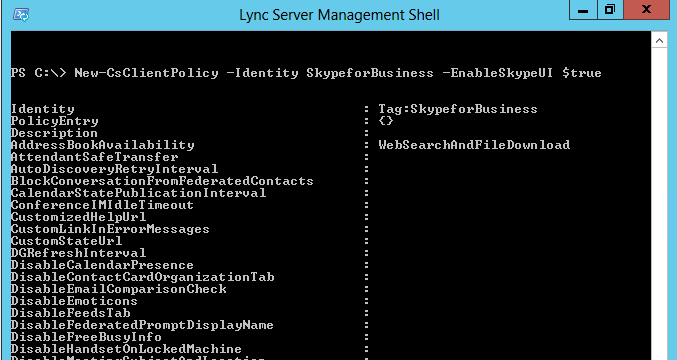
Run the below command to create a test client policy

New-CsClientPolicy -Identity SkypeforBusiness -EnableSkypeUI $True

Untitled32


Run the below command to grant the client policy to the  users for testing this client functionality.


Grant-CsClientPolicy  -Identity username -PolicyName SkypeForBusiness


Untitled33


Once the above is done you can download the Skype for Business client for the test users and start testing the client functionality.

https://www.microsoft.com/en-us/evalcenter/evaluate-skype-for-business

Thanks 

Sathish Veerapandian

MVP – Exchange Server
General troubleshooting steps for inbound/outbound mail flow issues

Mail flow can be stopped for various reasons in a organization. Also it depends entirely on the environment design as there are various factors involved in affecting the mail flow like network, ports , firewall , antivirus , anti-spam , transport agents , directory services , connectors misconfiguration , exchange server services not running up and the list goes on.

Its always better to design the mail flow architecture  in a easy understandable way and also we need to ensure that the SMTP security inbound\outbound is tightened in the perimeter level to make sure no spam emails are circulated.

In this article i have mentioned few basic troubleshooting steps that can be followed during mail flow issues in a environment

This applies for both inbound/outbound mail flow issues

Following things can be done

1) First run EXBPA to check if we get any misconfig errors ( applies only for exchange 2007/2010). You can skip this step if you are running Exchange 2013 and upcoming versions.

2) Go through your event logs on hub transport if its 2010 , Mailbox Server if its 2013 to see if we get any clue (at times it may be a back pressure as well so its better to check logs). Its better to check all the exchange services at this time  and ensure if they are running.

3) Do a telnet from internal to external network and see if everything is fine and also perform telnet test from external domain to your domain.This test will usually help you to identify if there is any SMTP traffic block in your firewall.

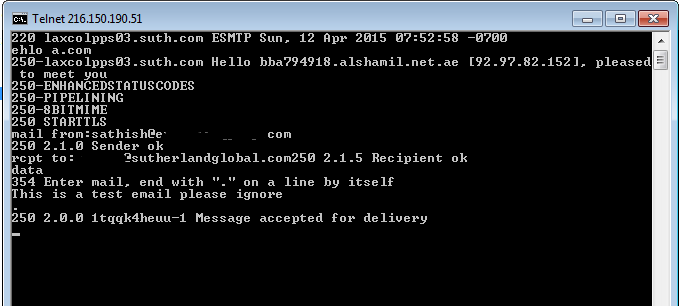
Below is the example of performing a telnet test

Type Telnet domainname orIP 25


Telnet2

Above is an example of successful delivery to the target domain.

4)  Check whether the MX record is valid for the affected domain.

Below is an example of performing mx validation for google.com domain.

Nslookup
5) Enable protocol logging both send and receive connectors and see if you are able to track anything.

6) Check if  the connecting IP is in  blacklist

We need to obtain the following tool to do the check:

If there is a blacklisting, please contact the providers of Blacklist. They will take a look into the reason behind blacklisting and remove the domain from the blacklist for you.
7) Check for NDR message.Enable message tracking for those  nondelivery mails and see if you get where the message gets dropped.This will help you a lot to identify the problem.
8) Analyze  Message header of the NDR to see in which hop the email was dropped.
9) Check the send connector and receive connector config and make sure the settings are correct according to your environment setup.
10) Check your firewall config and make sure port 25 inbound/outbound are open. Also check if there is any  SMTP filtering in your firewall which will be the culprit in most of the cases.
Hope this article is helpful in troubleshooting mail flow issues.
Thanks & Regards 
Sathish Veerapandian
MVP – Exchange Server 
Change your logo on the Lync Web App meeting join page in Lync 2013

In this article we will have a look at changing the default  lync logo in the meeting page.

You can change your Lync  logo 2013 on  lync webapp meeting join page in Lync

In-order to do that please perform the following things

Navigate to the below location

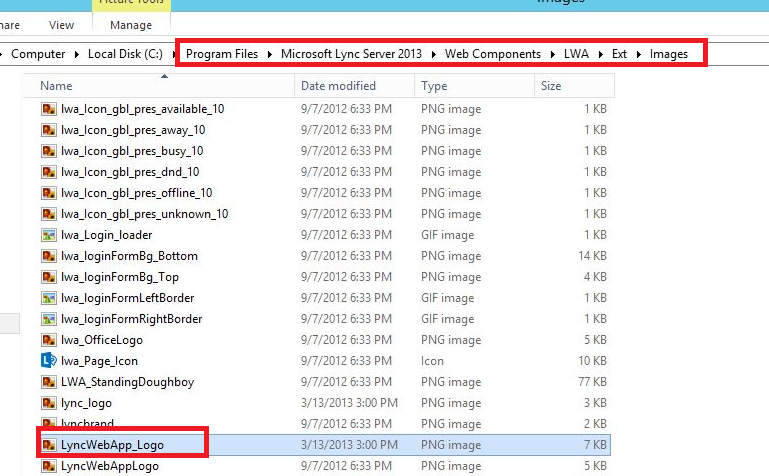
C:\program files\Microsoft Lync Server 2013\Web Components\LWA\Ext\Images\LyncWebApp_logo.png

Change the highlighted below logo to your company logo or the logo wish you keep

LWA1


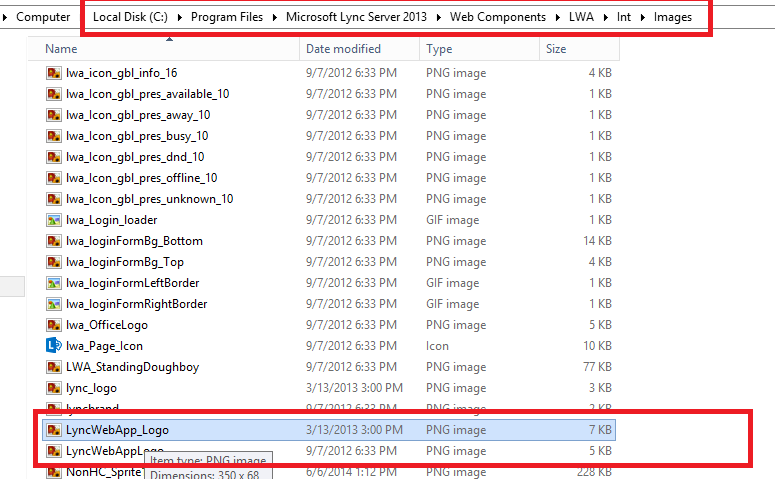
The above one is for external meeting page. If you want to change the meeting page for internal as well you need to navigate to the below location.

C:\program files\Microsoft Lync Server 2013\Web Components\LWA\INT\Images\LyncWebApp_logo.png

LWA2


Note:

There will be another logo below the logo LyncWebApp_logo.png which is LyncWebApplogo.png .This file is  for backup for the original file. So better not to delete them for future use.

The customized  image will get overwritten while upgrading roll-ups or service packs. So its better to change this logo to customized from default during every upgrades.

Thanks 

Sathish Veerapandian

MVP – Exchange Server
Steps to add additional SIP domains in already existing Lync 2013 deployment

In this article we will have a look at the steps to add additional SIP domain in the already existing Lync 2013 deployment.

In short we need to perform the following tasks to add a new SIP domain

1) Add the new SIP domain  in the existing Lync topology.

2) Publish the Topology and install the wizard on all the front end and edge servers.

3) Update your internal certificate with the new SIP domain entry through CA and then assign the new internal CA to the FE servers

4) Create the certificate for the new SIP domain and then install them on the edge servers and on the reverse proxy server .


Steps to add new SIP domain 


1) First we need to add the new SIP domain to our topology

Inorder to do that we need to perform the following task

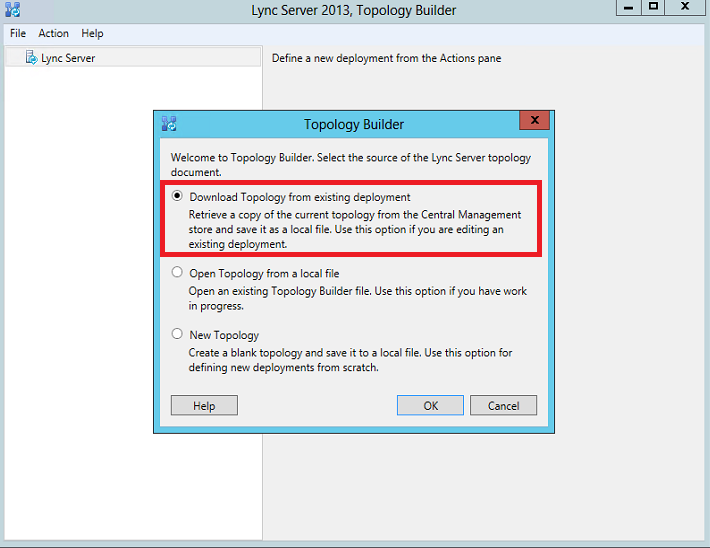
Open the Lync Server Topology Builder

Select download the topology from the existing deployment since we are going to modify the existing topology only


Topo


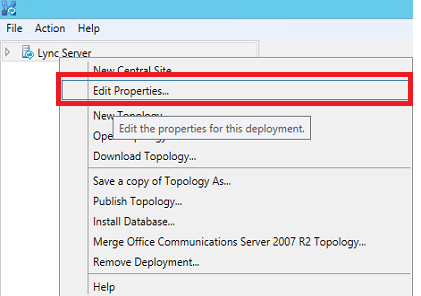
Once the topology builder is open – Right click on the topology and click edit properties


Topo1


Click on add new domain and add the new sub domain.

Topo2


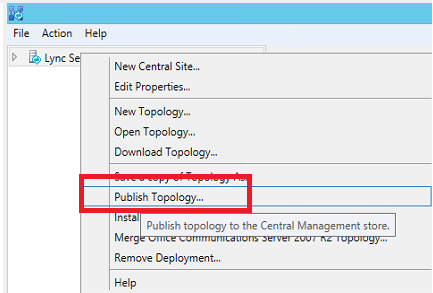
Once done click on publish topology


topo3


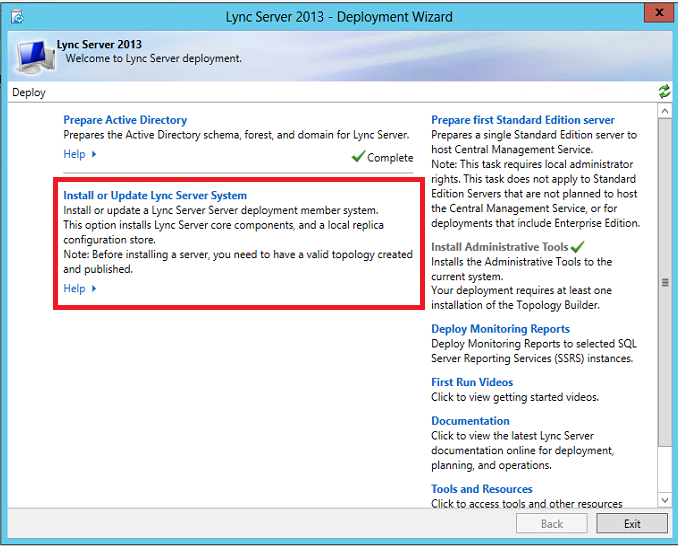
Once it’s done click on the setup and rerun the setup

Topo4


Note : 

We have to rerun the above setup on all the FE servers and the edge servers.


Now we need to create the DNS records

The DNS records must be created in the following order


Port Service Protocol Type Entry Server Request Type
CNAME lyncdiscover.exchangequery.com Add it to your public DNS entry New
A sip.exchangequery.com Point it to your FE server pool
A meet.exchangequery.com Point it to your FE server pool
5061 _sipfederationtls SRV sip.exchangequery.com Should be created on your public DNS
443 _sip sip.exchangequery.com Should be created on your public DNS


Note:

This above creation is only for IM and presence. For dial-in ,Audio/Video respective entries should be created in the DNS.

Now we need to create the certificate for the new SIP domain.

Updating your internal Certificate  with the new SIP domain  through CA and then assign the new internal CA to the FE servers is a normal process so im not explaining that part in this article. But make sure that you run the certificate wizard in the FE server and assign the new updated internal certificate.

For external certificate we can create the certificate through digicert,go daddy etc depending upon with whom you have  bought the public certificates.

In this scenario lets take an example of creating certificate from the digicert.

Download the digicert utility tool for windows.

Create your private key and CSR by using this utility and request certificate from digicert.

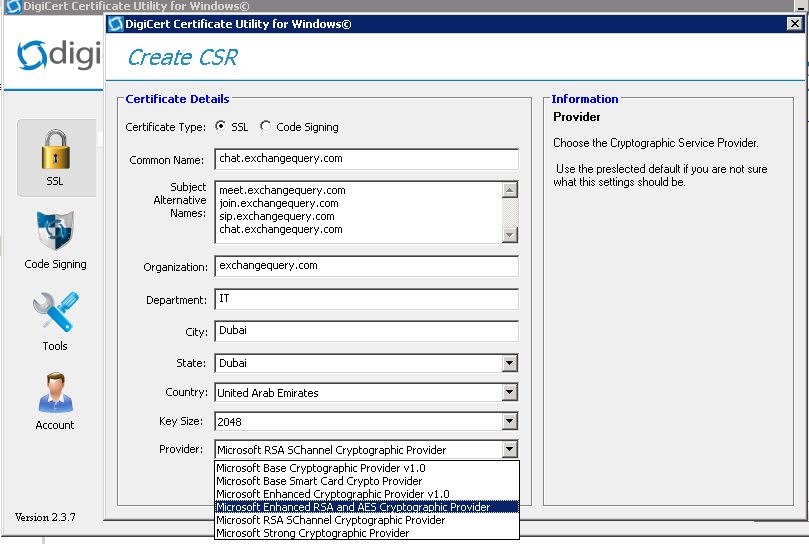
Open digicert and click on create CSR.

Test111


Type in common name and select SSL certificate since we require SSL certificate.

Add all the required SAN’s should be added as shown below.

Choose the provider type


Cer3


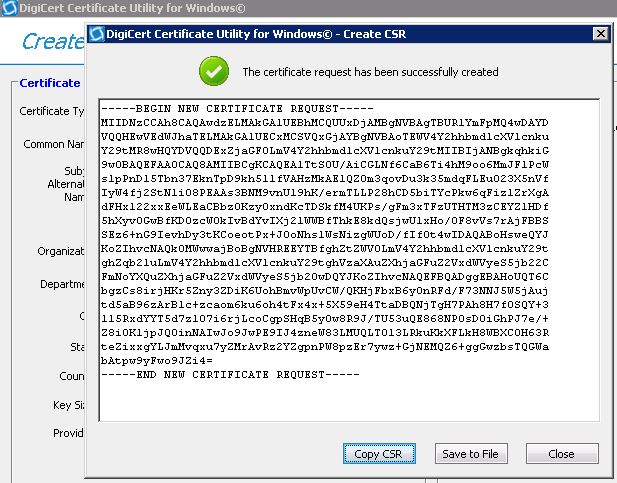
Now after click on create we will get the private CSR key generated for the new SIP domain as below


cer4


Now send this private CSR to digicert for the certificate . Once they issue for this new domain just download this certificate and install them on the edge servers and your reverse proxy servers.

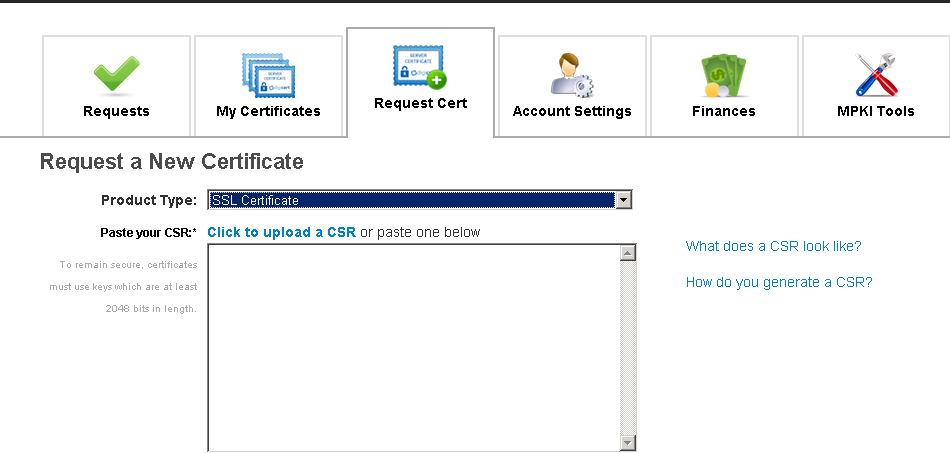
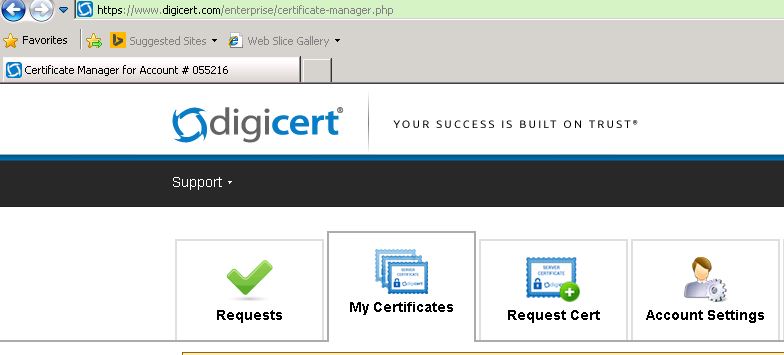
Inorder to do that please log into http://www.digicert.com and log in to your account and click on request certificate.

cer5


Now choose the new SSL certificate type and paste the private CSR request we generated.

Cer6


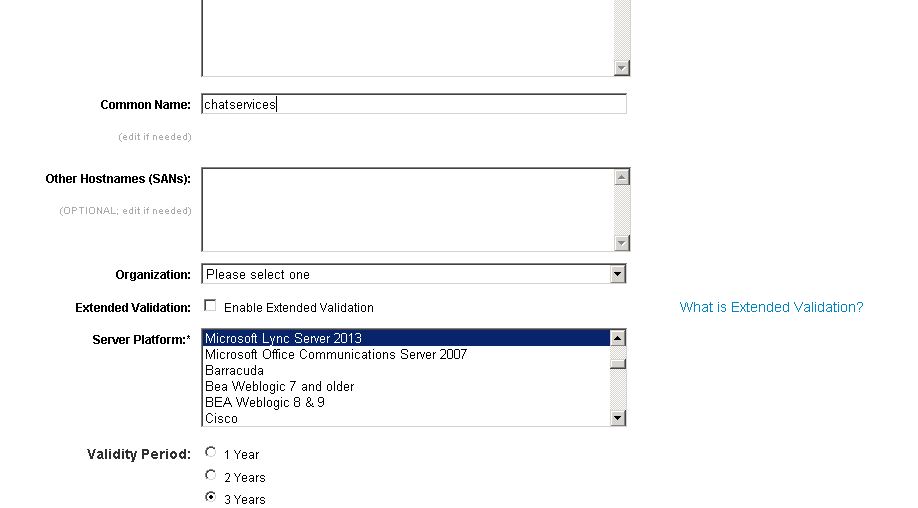
Now type the common name you wish to call the certificate . In our case we need to choose the server platform Lync server 2013 since we need to import this certificate on our edge server.


cer7


After this go to my certificates and download the certificates.Once they issue for this new domain just download this certificate and install them on the edge servers and your reverse proxy servers.

Now import this certificate on the edge servers by using Lync Server Deployment wizard.

Later request this same certificate for your reverse proxy server (F5,Kemp or TMG) on your certificate request and then install them on reverse proxy server for the mobile connectivity.

Now we have successfully added the new domain in our Lync Environment.

Thanks
Sathish Veerapandian

MVP- Exchange Server