
It’s been quite a while since I blogged, and since I started doing podcasts, this has been reduced a lot.This time I thought to blog something about the cool stuff in the Entra ID feature I explored in the demo and wanted to share about the same.
Today in this blog, let’s take a look at restoring a domain controller running on the Azure virtual machine from the Recovery Services vault.
Recovery Services Vault is a feature provided by Microsoft Entra that offers centralized management and protection of data, applications, and workloads.
One of the services offered by Recovery Services Vault is it’s backup.
We also talked about the site recovery in the previous video, and if you want to have more information on it, I highly recommend taking a look at it.
In the backup part, it allows us to securely backup and recovery our applications in the event of accidental deletion , data corruption, or site failures.
And today we will take a deep dive into how Recovery Services Vault can help us in restoring our domain controllers.
Well there are 2 options in Recovery Services Vault
Option 1:
You can use the Azure Site Recovery – Which helps in replicating the clone copy of your config to another location and you can simply activate it when the issue occurs.
Option 2:
You can use the Azure Backup to regularly backup domain controller (If you have your Domain Controller Extended to a Azure VM), configuration allowing you to restore specific files or the entire system if needed
In our example we are going to use the option 2 since we already tested the option 1 and this is a DC VM running on Azure
So first things first – We have to create a Recovery Services Vault (Which I have created already in our case)
Then the next part is create a backup schedule for the DC running in the Azure
I have backed up the DC in the Recovery Services Vault – DefaultBackupVault-westeurope
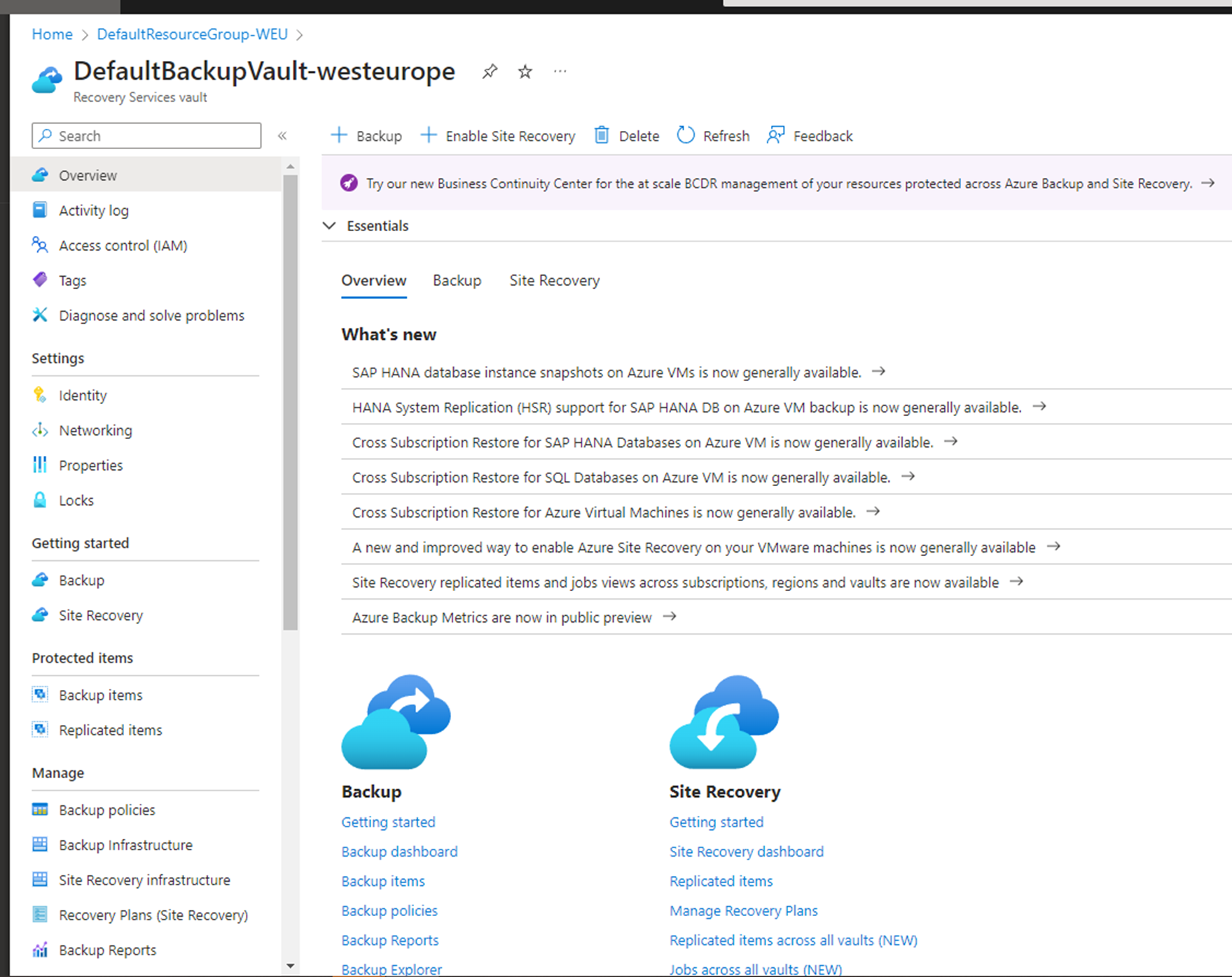
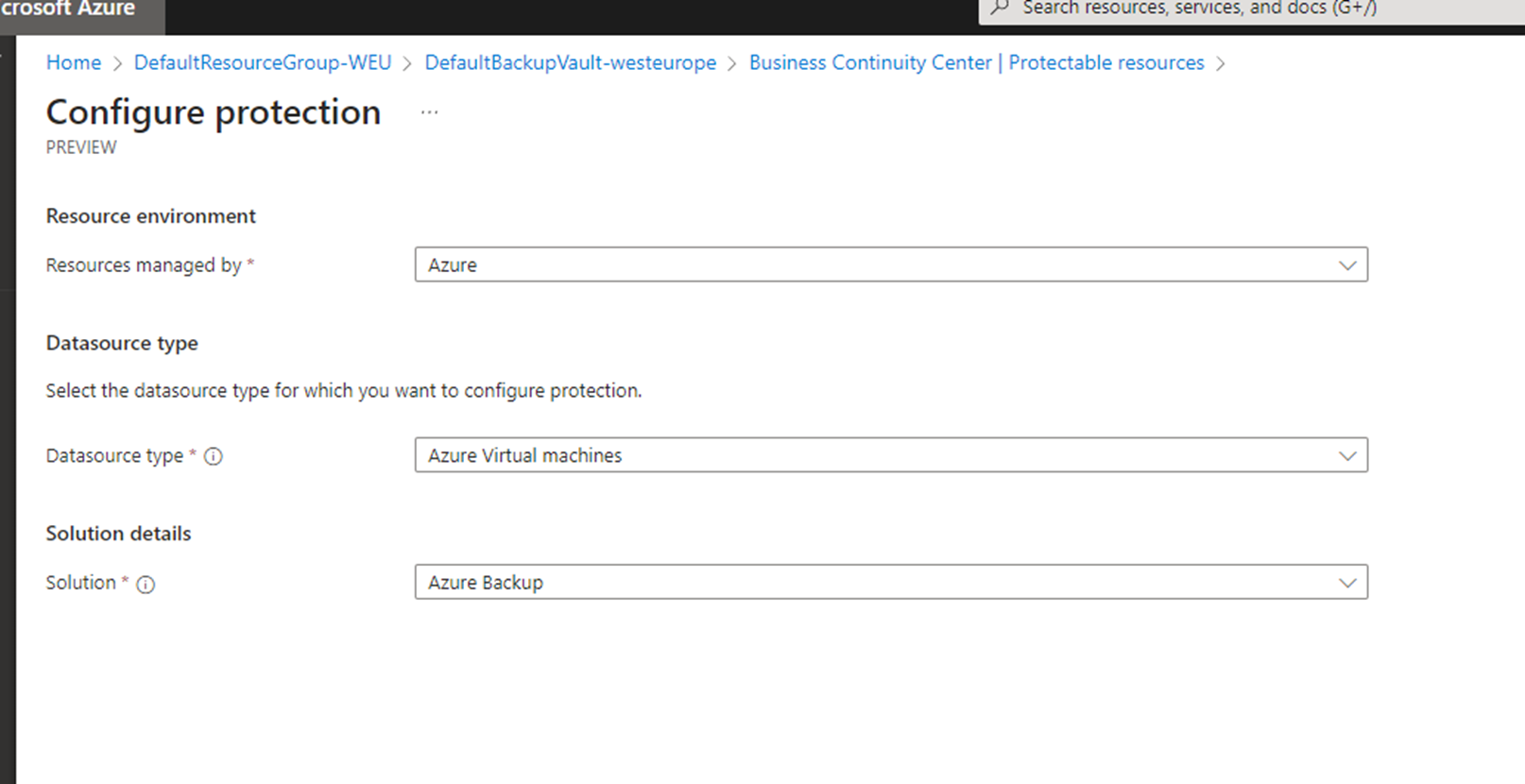
If you are doing in first time make sure you choose the option Backup – Well you can switch to the new Backup Center – And Choose VM that is running as DC after choosing the
Resources Managed by – Azure & Datasource type – Azure Virtual Machines
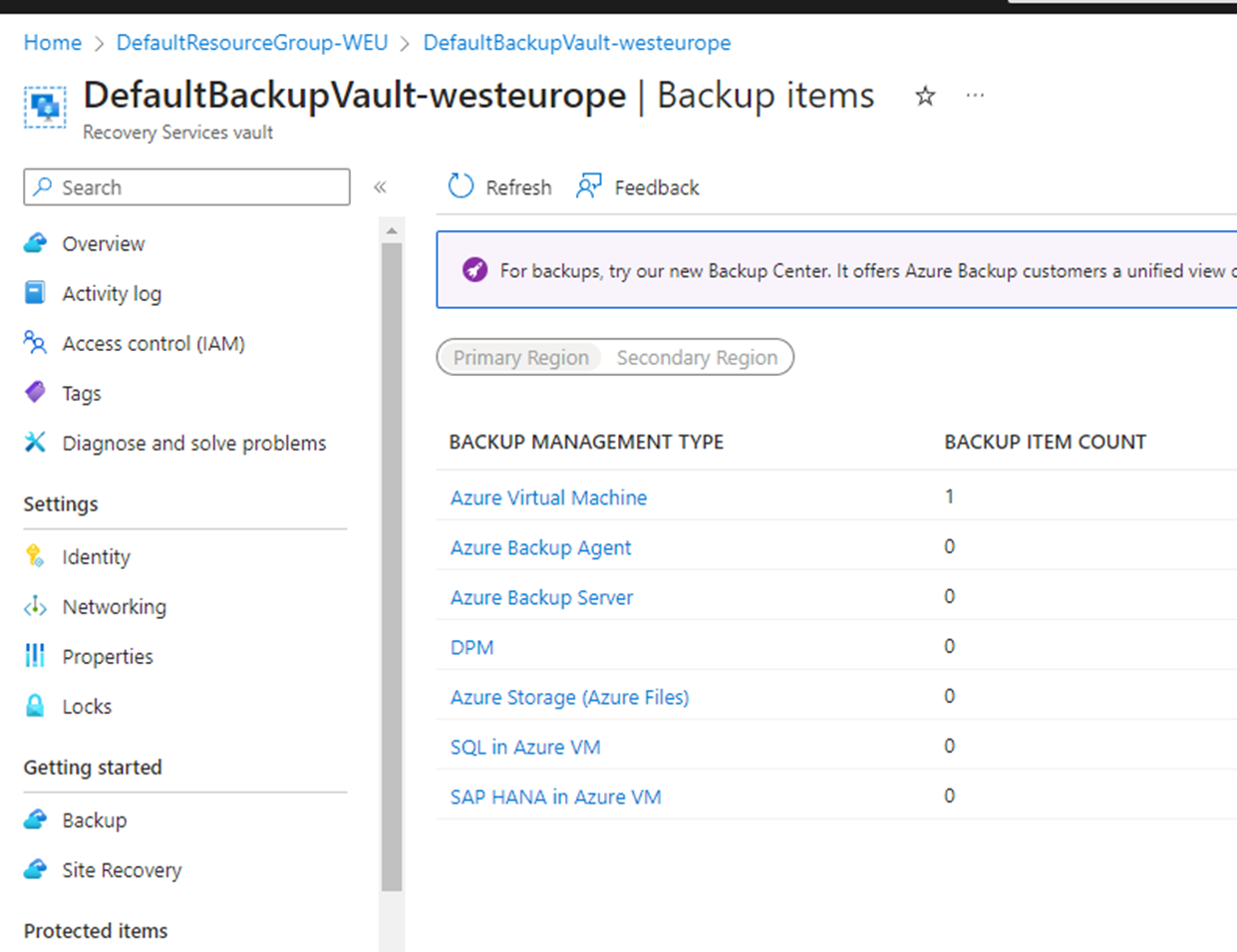
In my case since its already backed up it shows the Azure VM count 1 which is a DC
I think the Azure Backup Agent can well be utilized for any VMs that is running in a Hyper-V
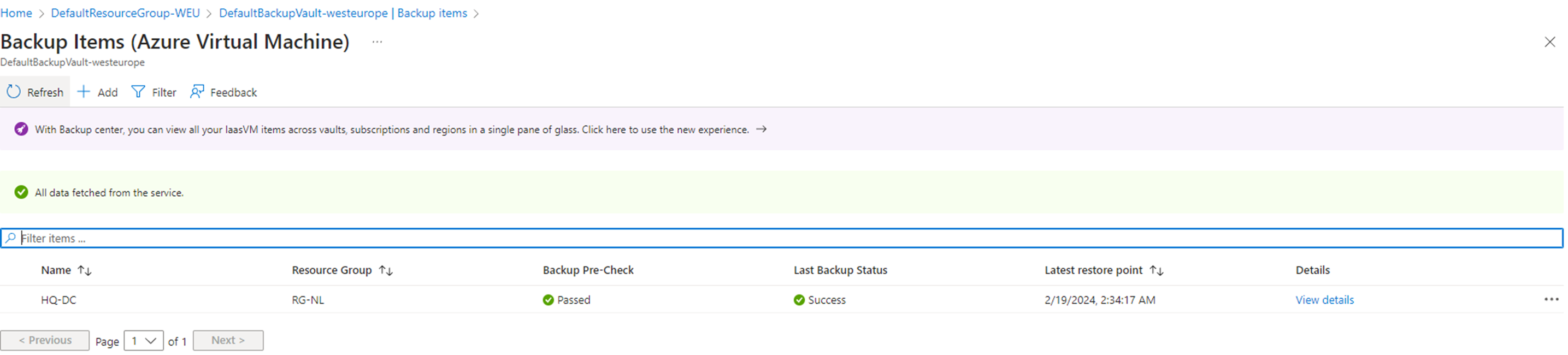
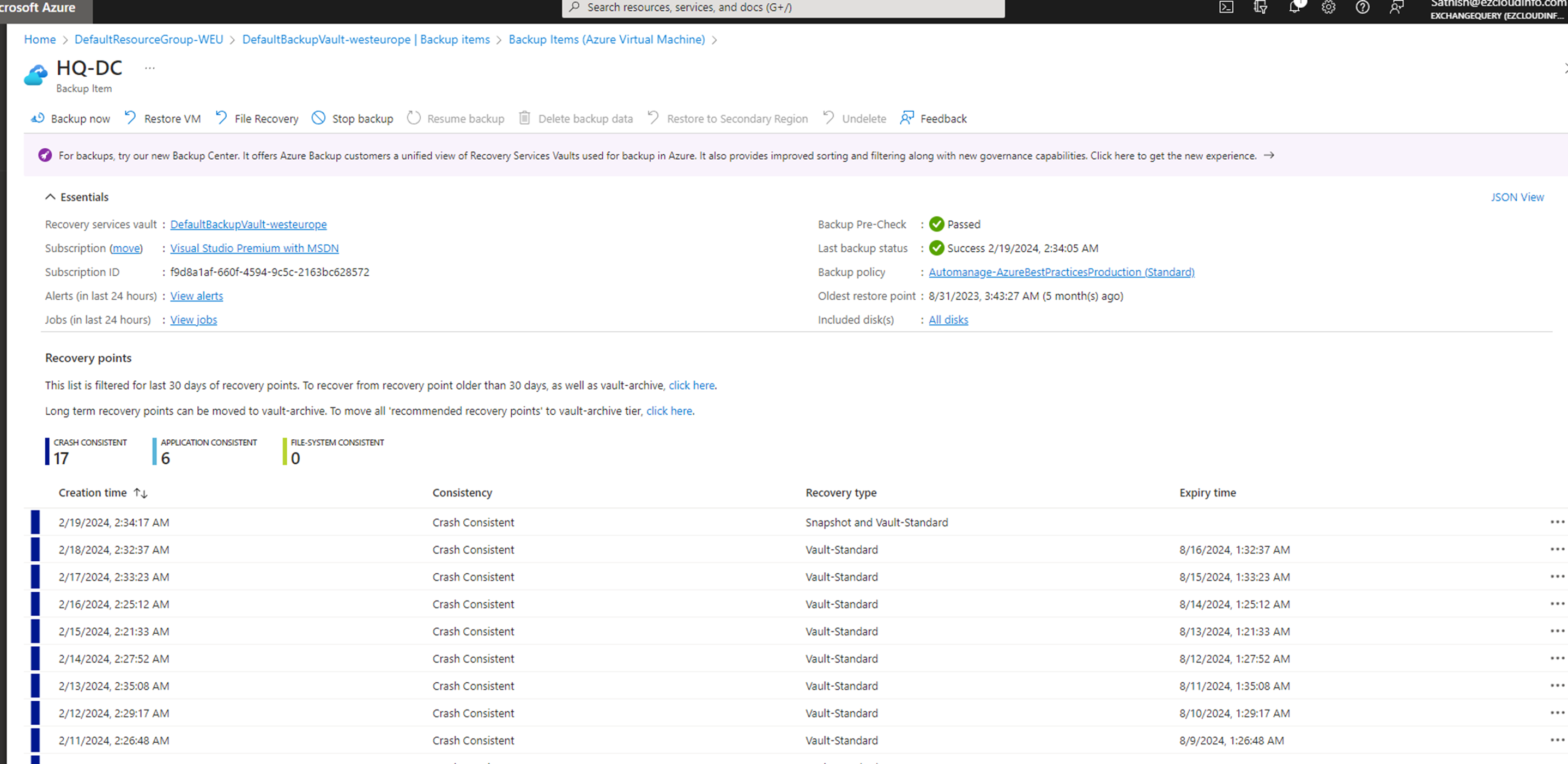
On the next page when clicking through it must show a successful page like below which indicates the Backup Precheck has passed and last backup status is also successful
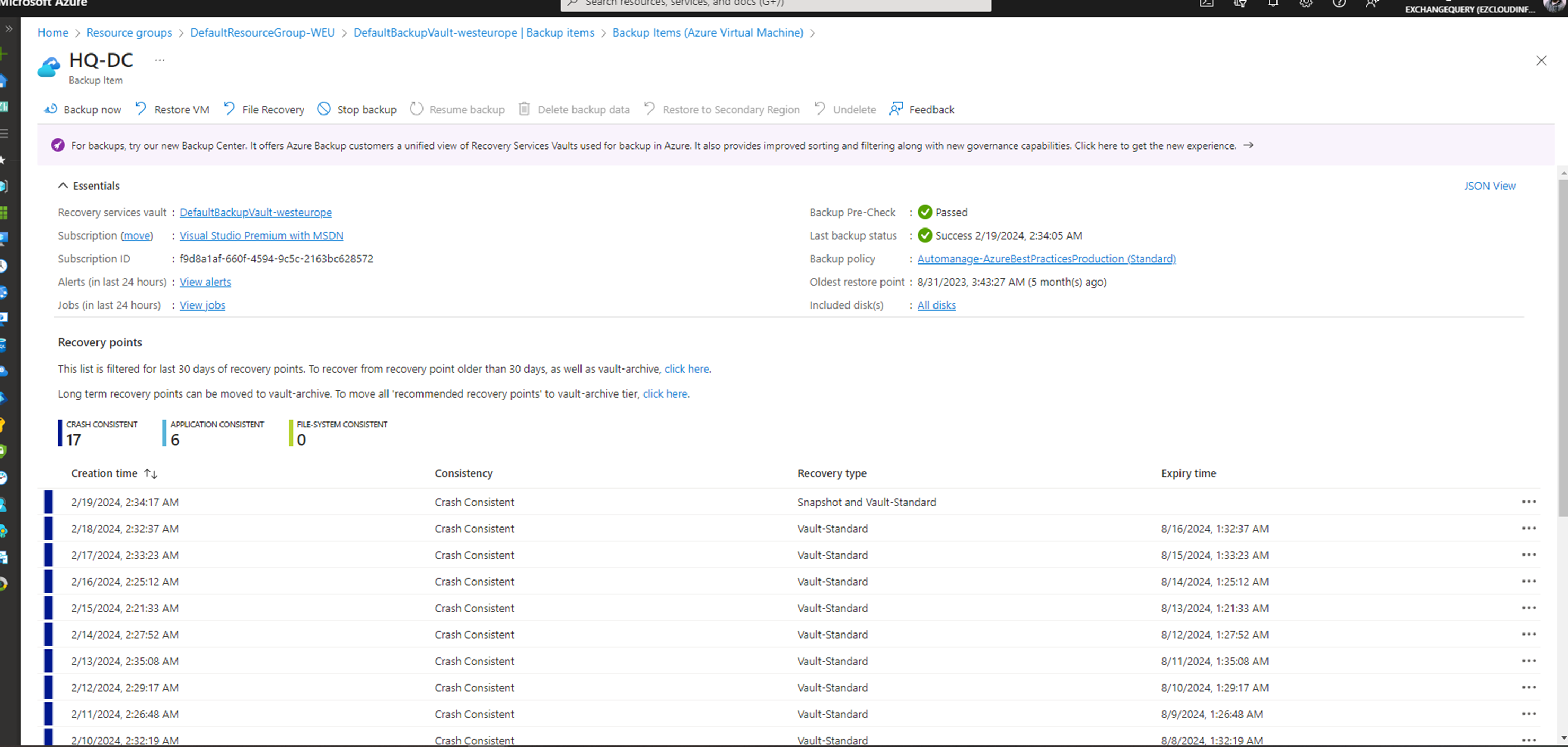
On a click through further I see a clean backup schedules like below (So this shows the recovery points which are older than 30 days)
We could also see the oldest restore point which is 6 months by default
Now having taken a clean backup – (I went ahead and deleted the Domain controller that was running in the Azure)
I made sure that there are no associated resources (Including Vnet, Subnet,disks ,storage,public Ips etc..,)
Now after clearing up the resources in the Resource Group where DC was located now I navigated to the Recovery Services Vault – Clicked on the Restore VM
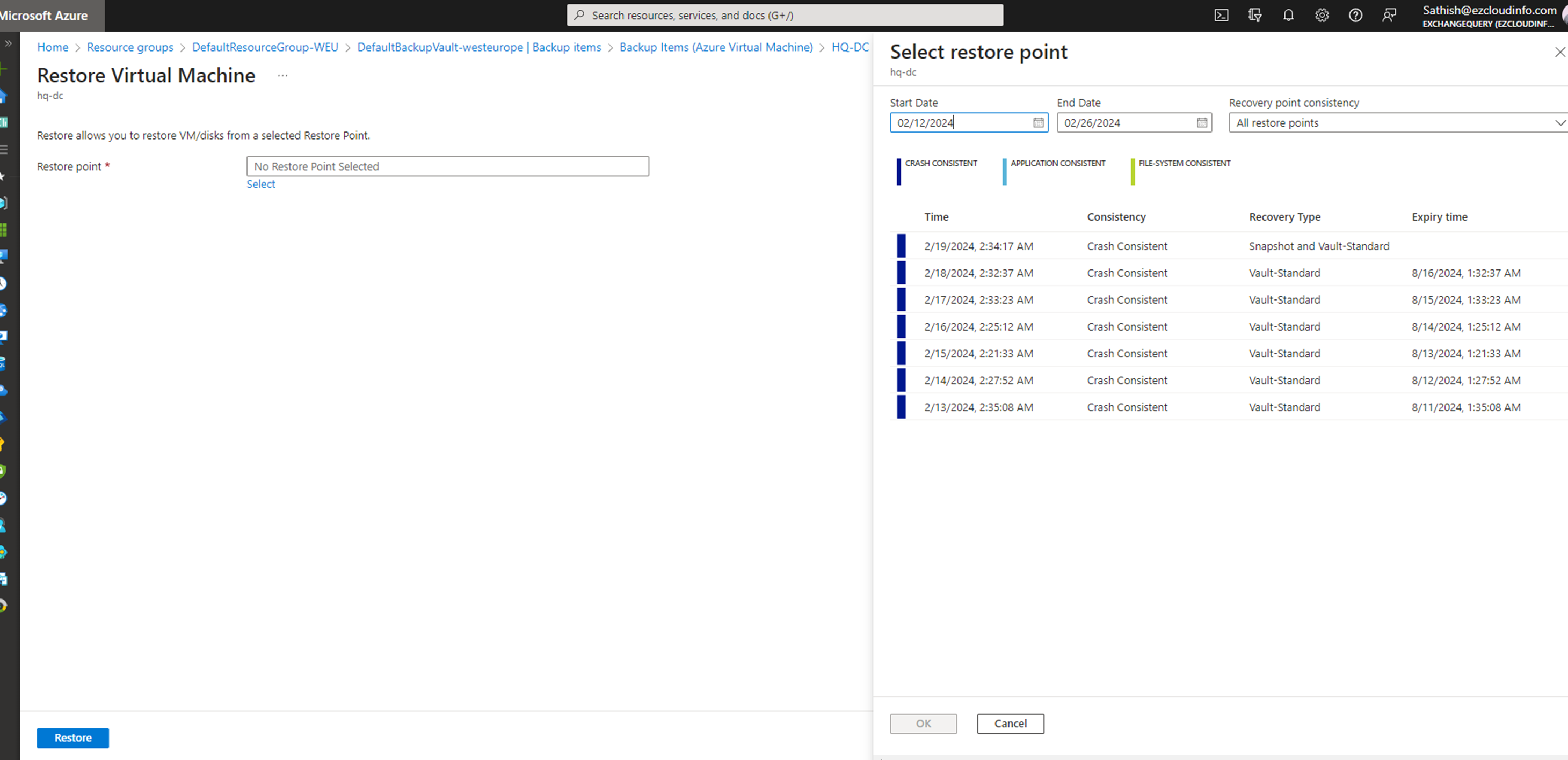
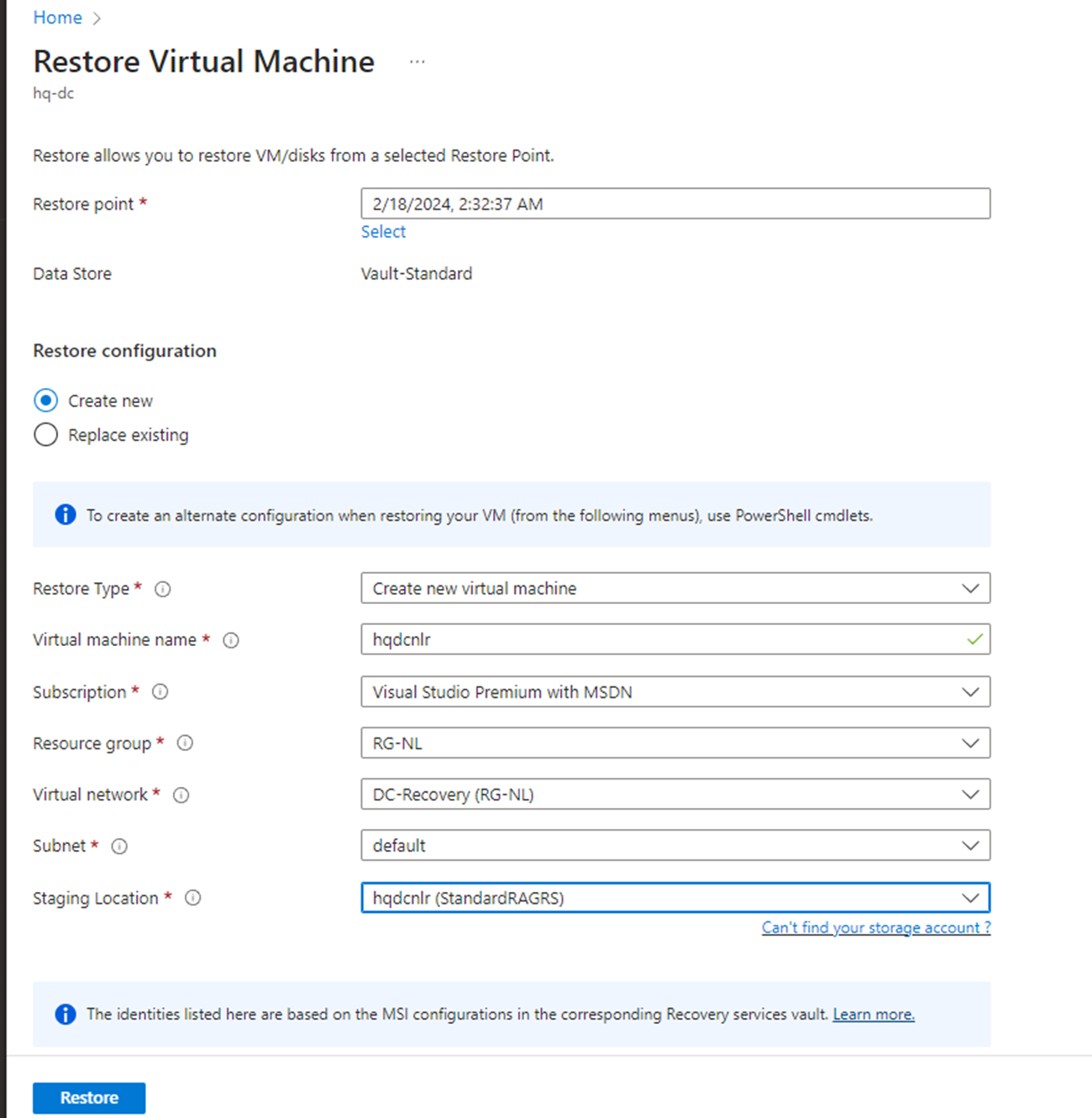
Restore Point – Now we need to choose a restore point from the restore date/time which is appropriate based on the scenario.
In our case we are just selecting the latest restore point because we need to test the behavior

Restore Point – Now we need to choose a restore point from the restore date/time which is appropriate based on the scenario.
In our case we are just selecting the latest restore point because we need to test the behavior
Now in this section we have 2 options in the Restore Configuration
- Create a new – Where it creates a new domain controller in a new environment. Ideal for scenarios where you see the domain controller is infected or to overcome from a ransomware recovery scenario.
- Replace Existing – This scenario is usually you affirm that there is no issues with the current environment being compromised except being the missing data recovered from an healthy backup
In our case we are choosing the first option because we need to see how the restore works in a ransomware affected environment
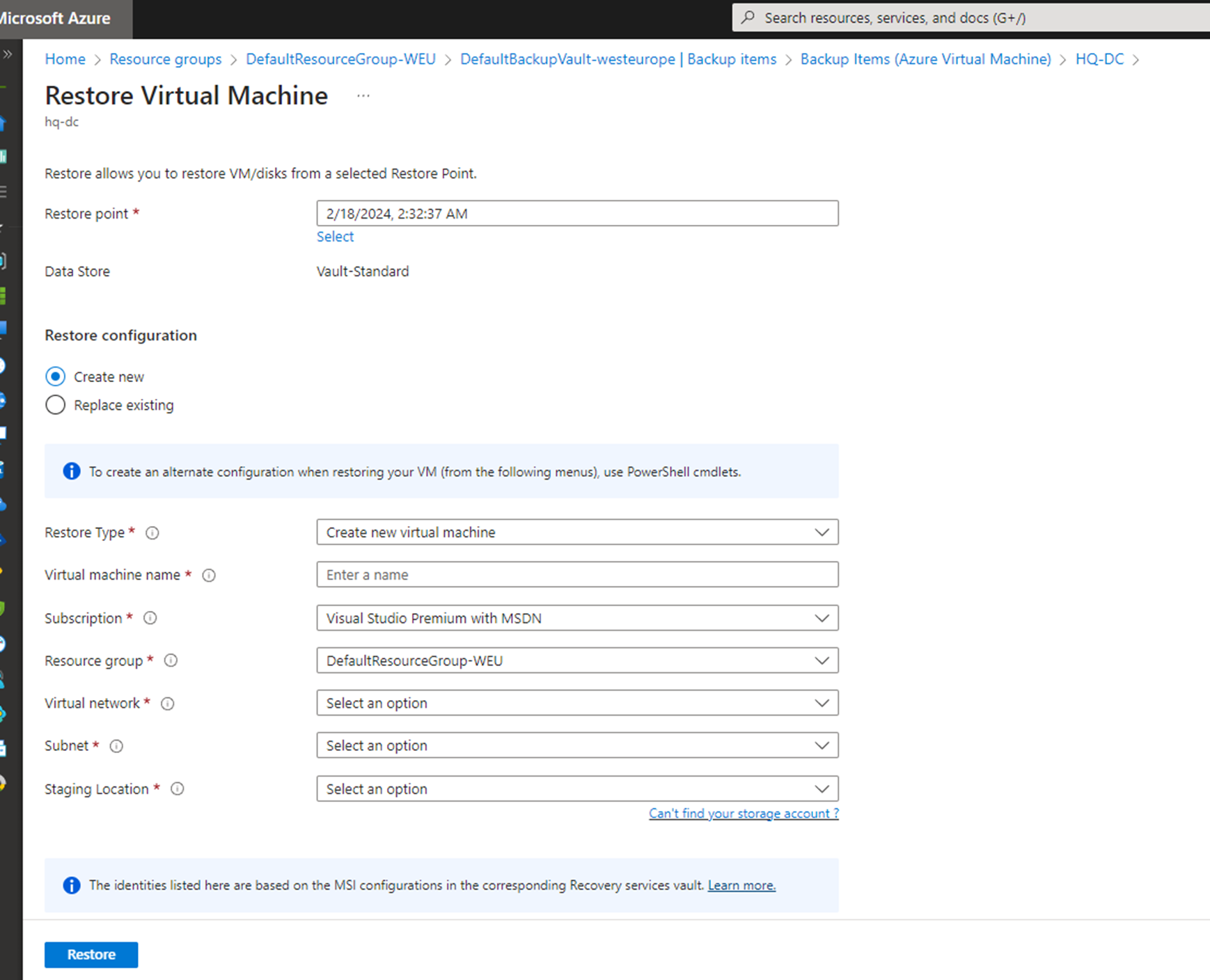
So in order to simulate the restore on a isolated recovery environment I created all new the below things that are required.
Restore Type – New Virtual Machine
Virtual Machine Name – Completely a new VM Name
Subscription –
Resource Group – A new Resource Group created
VNet – A new Vnet Created
Subnet – A new Subnet Created
Staging Location – Basically Storage location also a new one created
Having completed all the above just clicked on restore
Post that we could see that the Restore process have triggered

And the next event gives some positive signs of restore being success

And finally we could see the deployment succeeded

Looking into the restore events we also can see that the successful events of the restore being completed

After a while we could see the DC VM is running

And I was able to login with the same Domain Admin Credentials
Imp: you need to make sure that you are using the old domain admin creds
If you try to reset password the option via Azure Admin portal, it will not work for Domain Controllers.
Also we can see the last up state of the DC is 1 hour after which I logged in when this DC was restored
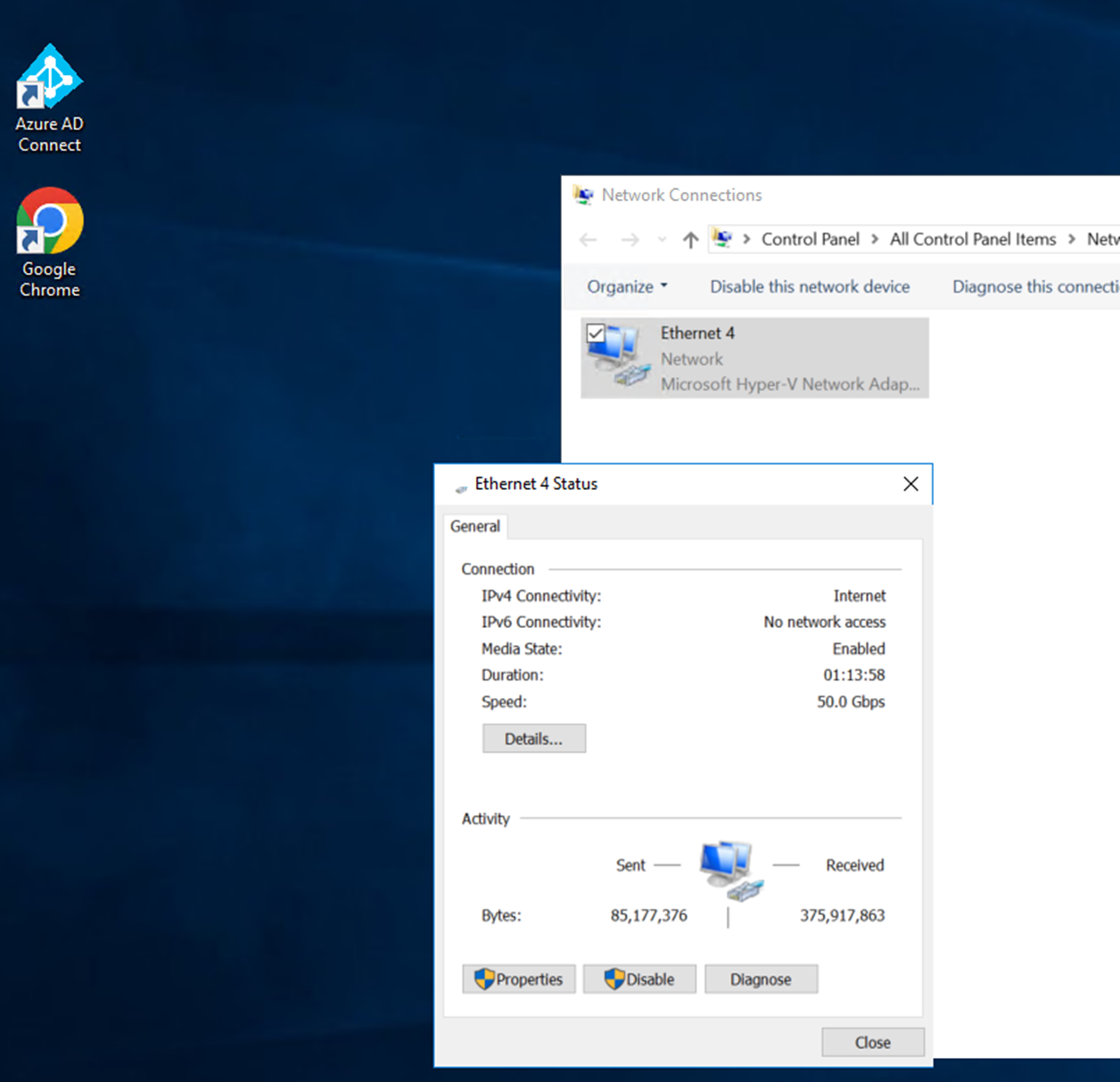
It has drastically improved the restore time for a domain controller from a Native Bare Metal Recovery and overall im quite impressed with the way the Domain controllers are restored in such a fast manner and be operational.
And the Domain Controller is fully functional and operational now.
Yes ofcourse after this there are lot of actions required from the Application/Network side to make sure that they can connect to this new environment.
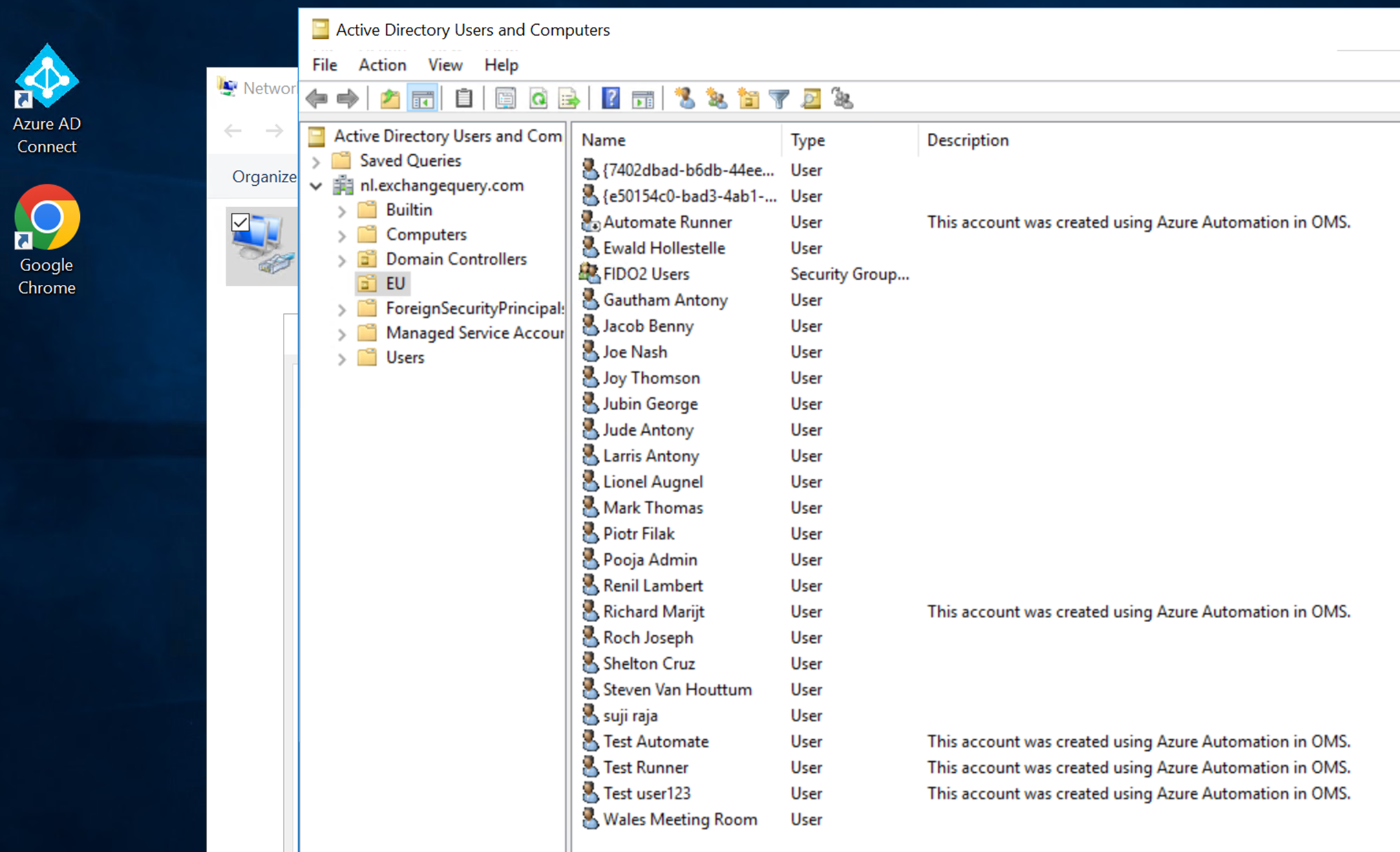
Any organization where they have virtualized their domain controllers can definitely think of utilizing this option, which would drastically save a lot of time restoring the domain controller.
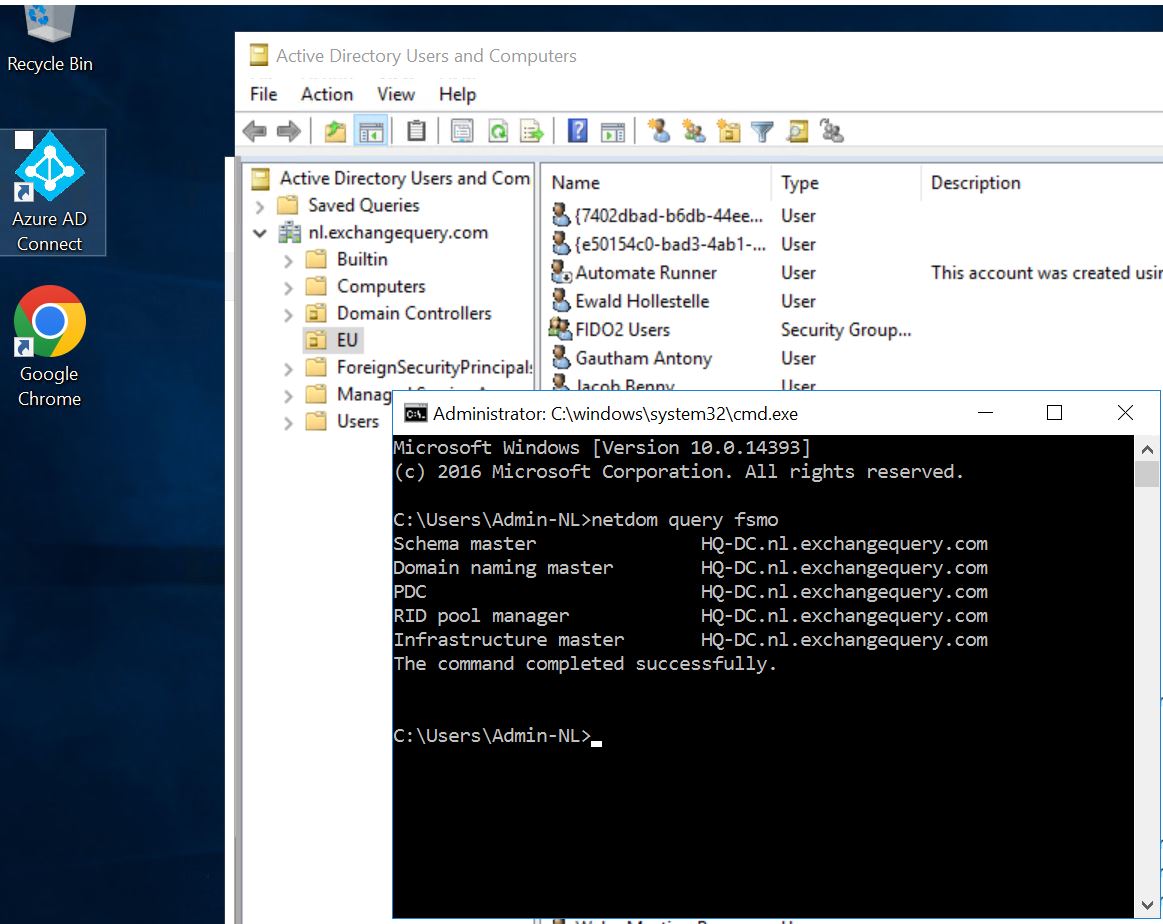
In short, a combination of replication of your DC to Azure Site Recovery or having one Domain Controller extended to Azure and having a backup makes the recovery process simpler.
Its recommended to have at least one Domain Controller per domain running on a VM in Azure, which nowadays many of our customers do. This unlocks the features of Azure Recovery Services Vault to speed up your recovery processes of Active Directory recovery.
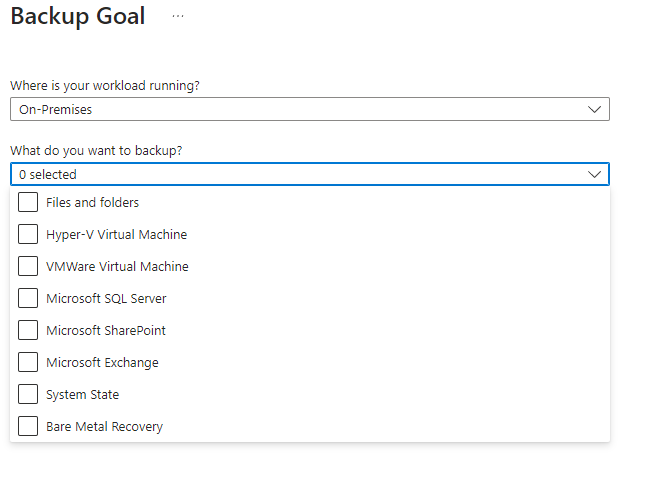
Also it helps in backing up your workloads that are running in the on premises environment. For instance it also supports Bare Metal Recovery for On premise workloads which is a very good option.
Overall Azure Recovery Services Vault provides backup and recovery solutions for domain controllers in Azure. It offers features like backup scheduling , retention policies and the ability to restore the domain controllers to specific points in time. This ensures business continuity and data protection for any critical Active Directory Infrastructure.

 Tej Pratap
 Ewald Hollestelle
 rsujiraja
 Sathish Veerapandian
 EzCloudInfo
Leave a comment