
Monthly Archives: November 2016

Configure SCOM to monitor servers in the DMZ

SCOM requires Mutual Authentication to Trust and Communicate with the agents for Monitoring and reporting.Initially SCOM tries to establish kerberos authentication with the agents. This happens for all internal agents which is joined in the domain.
For the workgroup machines which are in the DMZ network SCOM use the certificate based authentication for secure communication and then it monitors them.

Below are the high level steps:

1)Configure your firewall to pass traffic from DMZ agents(DMZ servers) to SCOM management server’s port 5723 & 5724.
2)Request certificate from all DMZ machines(certificate type must be server authentication & Client Authentication)
3)Request certificate from SCOM machine (certificate type must be server authentication & Client Authentication)
4)Import the server authentication & Client Authentication certificates on the DMZ machines
5)Import the server authentication & Client Authentication certificates on the SCOM 2012
6)Run the MOMCERTIMPORT on all Machines and assign the certificate
7)Approve the DMZ agents in the SCOM Server.

For Publish Certificate request for SCOM  there are 2 types based on the CA we have.

  1. Enterprise CA.
  2. StandAlone CA.

1) Enterprise CA

If we are going to request certificate from Enterprise CA then we need to use Publish a Certificate Template for SCOM through your enterprise CA.

To perform the task  through enterprise CA do the below :
Open Certificate Authority – Navigate to Certificate Templates – And Select Manage
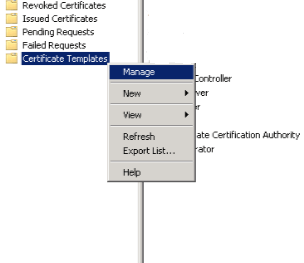
sc1

Right click the Computer Certificate and Click Duplicate
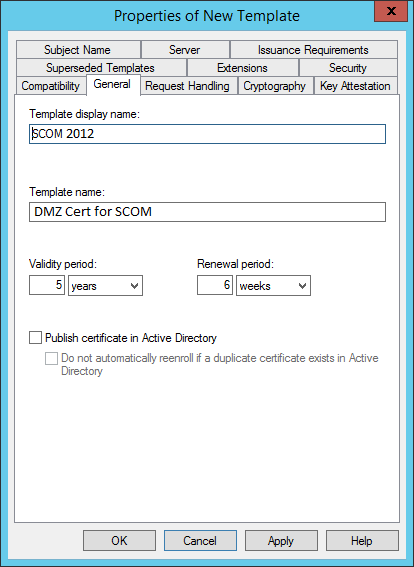
dmzsc

Make sure the option allow private keys to be exported is chosen.
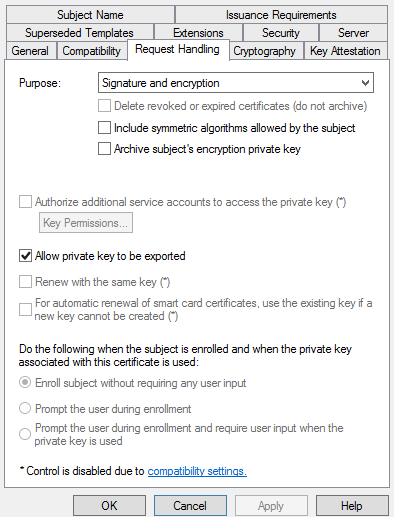
dmzsc

The most important thing that we need to note is that in the extensions it need to have both server and client authentication enabled. This is applicable for both the SCOM and the DMZ hosts throughout the configuration no matter we are requesting them either from Enterprise CA or Stand Alone CA.
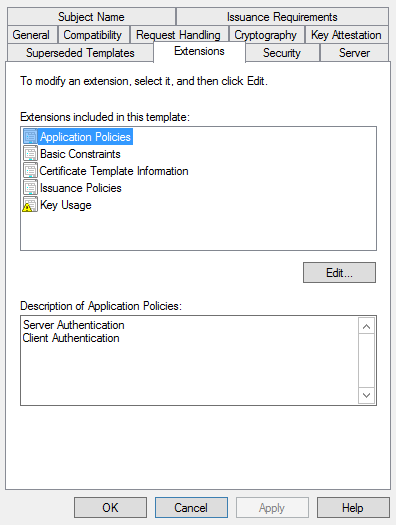
dmzsc

Once the above is completed we can import this duplicate certificate to the SCOM.

2) StandAlone CA:

Below are the steps that needs to be carried over for Stand Alone CA SCOM Certificate Request:

Go to the SCOM 2012 Server

Connect to the computer hosting certificate services

https://ca.exchangequery.com/certsrv
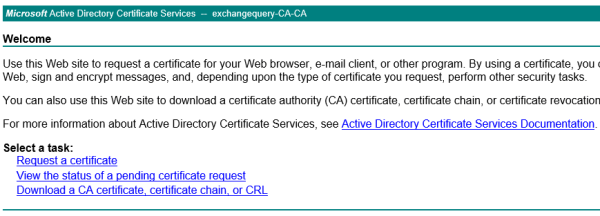
dmzsc

Click request a certificate and submit advance certificate request
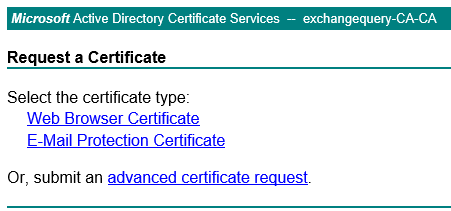
dmzsc

Click create and submit request to this CA

After that we will get confirmation on web access information as below and click yes
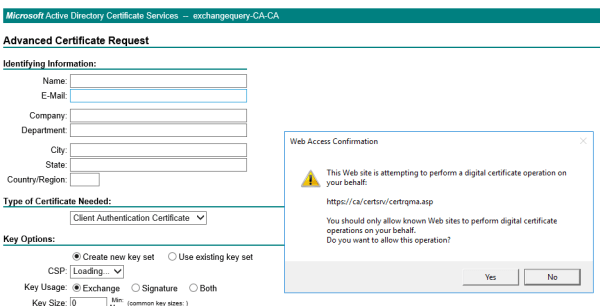
dmzsc

Below are the information that needs to be filled

Name – name of the server requesting the cert.

Type of Certificate – Choose Other

In OID  enter – 1.3.6.1.5.5.7.3.1,1.3.6.1.5.5.7.3.2 (This plays a major role in enhanced key usage)
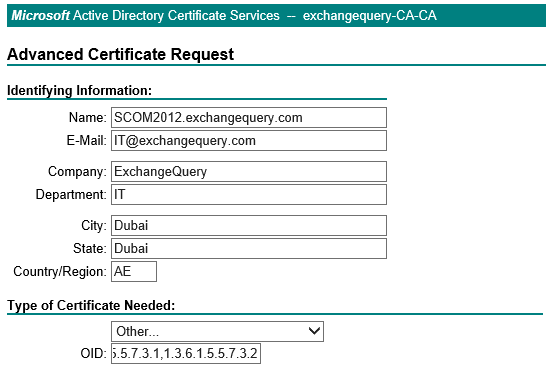
dmzsc

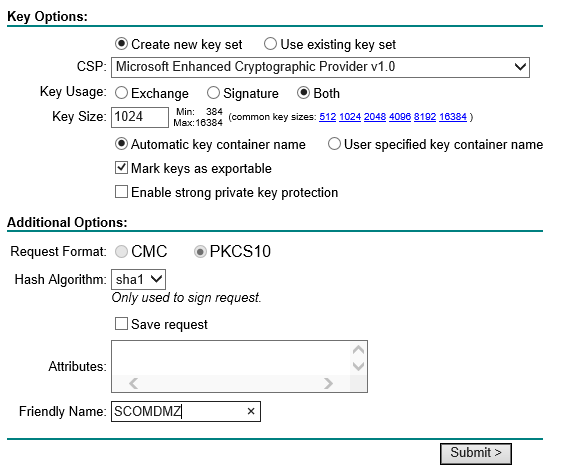
Keyoptions – Select Create new key set

CSP – Select Microsoft Enhanced Cryptographic Provider v1.0

Key Usage – Select Both

Key Size – 1024

Select – Mark Keys as exportable.

Request Format – CMC

Hash Algorithm – SHA1 and give friendly name and submit.
DMZsc.png

Once the CA request is completed from the CA we can go ahead and import them on the SCOM server.

Request certificate for DMZ Servers to be Monitored:

First and the foremost thing is that wecan request the Certificate from internal domain server since most of the times the DMZ servers will not have access to certificate web enrollment services on port 443 to the internal certificate authority server.

So what we can do is generate cert request from one machine in the domain nw and then import them to the DMZ servers.

Perform the same process of submitting the certificate request for all the DMZ servers

Below are the information that needs to be filled

Name – name of the  DMZ server that requires the certificate.

Type of Certificate – Choose Other

In OID  enter – 1.3.6.1.5.5.7.3.1,1.3.6.1.5.5.7.3.2 (This plays a major role in enhanced key usage)

Keyoptions – Select Create new key set

CSP – Select Microsoft Enhanced Cryptographic Provider v1.0

Key Usage – Select Both

Key Size – 1024

Select – Mark Keys as exportable.

Request Format – CMC

Hash Algorithm – SHA1 and give friendly name and submit.

Once the above is done we need to approve the request from the CA and then import them on the server from where we requested the certificate for those DMZ machines.

Now we need to export this certificate from this requested machine and them import them on all DMZ servers which needs to be monitored.

There are multiple ways of doing this. I prefer doing this via Digicert Windows Utility Tool.

Download  the DigiCert Windows utility tool from the below url on the certificate requested machine

https://www.digicert.com/util/

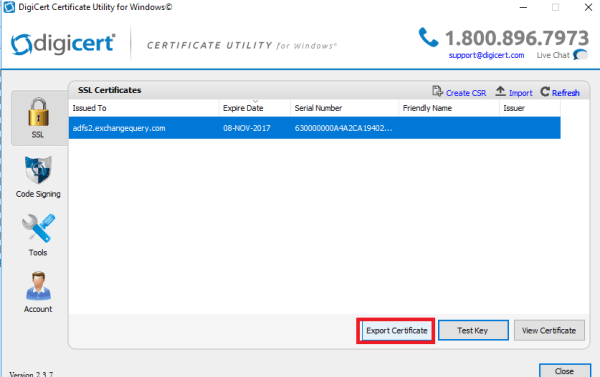
On opening we  can see all the issued SSL certificate which owns the private key on that machine.

Select the DMZ  servers requested certificate and click on export
dmzsc

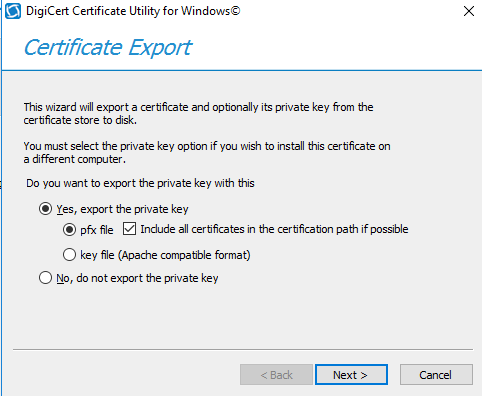
Select the option export the private key and export them with password.
dmzsc

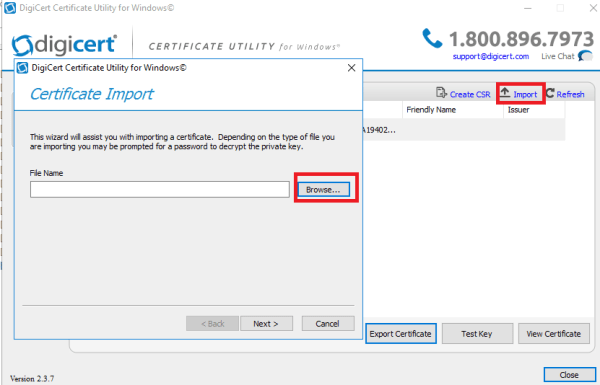
Once the above steps are completed we need to import these certificates on the DMZ servers computer personal store.

We can use the same certificate import wizard like below and import the above certificate on DMZ servers
dmzsc

Now the final step is to run the MOMCERTIMPORT on all Machines and select this certificate and we are done.

This tool MOMCERTIMPORT GUI can be found on SCOM 2012 Installation Media path in below directory

E:\supporttools\AMD64\MOMCERTIMPORT

Make sure the same version of the tool from the setup is copied to all machines

Just run this tool on all machines and we will get a pop up window to confirm the certificate. Please confirm  by choosing our relevant requested certificate on all servers.

After the above is completed wait for some time and these DMZ servers will appear on the Administration – pending in the SCOM server and just we need to approve them and we are done.

Thanks & Regards
Sathish Veerapandian
MVP – Office Servers & Services
Skype for Business Persistent Chat Migration to new Pool

We might come across a scenario where we need to migrate the SFB servers to new pool.
There are few cases where we need to upgrade the hardware from old servers to New High performance servers on which they are running or there might be case where they need to be virtualized from hardware to VM.
This article focuses only on migrating the persistent chat pool from old server to the new server.

Below are the readiness to be completed before starting the Persistent Chat Migration:

1) The new Persistent Chat Pool should be already published in the Topology.
2) The new Persistent Chat nodes should be already added in the new pool and SFB setup Wizard should be completed.
3) Certificates should be already assigned to the new Persistent Chat Pool.
4) Connectivity from the OLD PC pool to the new SQL DB is already established.
5) Connectivity from the new PC pool to the old SQL DB is already Established.
6) Establish a connectivity from the old PC hosts to the new PC hosts

To Start the Migration:

Check your current persistent category,Addin,Policy and configuration.
This can be verified by checking through control panel persistent chat tab or through Shell.

To Check Persistent Chat Category:

Get-CsPersistentChatCategory -PersistentChatPoolFqdn “Pchat.exchangequery.com”
Make a note of the current number persistent chat rooms

To Check the rooms:

Get-CsPersistentChatRoom | select Name

To Check the Disabled rooms:

Get-CsPersistentChatRoom -Disabled:$True

After confirming that these disabled rooms will not be in use we can remove them before we migrate since there is no use of moving these obsolete ones to the new pool.

Get-Cspersistentchatroom -Disabled:$True | Remove-CsPersistentChatRoom

Export the Old Pool Persistent Chat Configuration by Running the below command:

Export-CsPersistentChatData -DBInstance “SQLCL01.Exchangequery.com\SFBDB” -FileName “c:\temp\PChatBckup.zip”

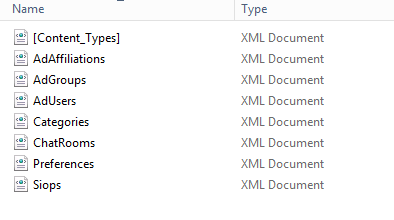
The exported Configuration data will look in XML as below

untitled2

Import Persistent Chat data that we exported to new Skype for Business Pool:

Import-CsPersistentChatData -DBInstance “SQLCL02.Exchangequery.com\SkypeDB” -FileName “c:\temp\PChatBckup.zip”

We will get a confirmation as below before the import and  the progress bar

untitled3

untitled4

Once the above command is done we can see the old PC config data imported in the MGC DB in the SQL.

After the above command is run we can see the chat rooms are duplicated since it created the new instance in the new pool.

Later we can delete them by running the below command:

Get-CsPersistentChatRoom -PersistentChatPoolFqdn “Pchat.exchangequery.com” |Remove-CsPersistentChatRoom

Then remove the persistent chat category:

Get-CsPersistentChatCategory -PersistentChatPoolFqdn “Pchat.exchangequery.com”| remove-cspersistentchatcategory
After this is done go ahead and try logging into the Persistent Chat Enabled User and see the results.

In my case what happened was the connections were still going to the old Persistent Chat Pool

Guess it was because the Old Persistent Chat Pool was First in the Persistent Chat Pools in the list on Topology Builder.
So Went ahead and removed the old persistent chat pool from the Topology , Publised the Topology , rerun the setup on new PCHAT nodes.

After this the new connections were going to the new Persistent Chat pool.
All my Persistent Chat rooms that i was member of was present AS IS and only thing is that the rooms that i was following disappeared from my list.
That was a small thing only and i was able to search those rooms and follow them again.

Thanks & Regards
Sathish Veerapandian
MVP – Office Servers & Services

Active Manager operation failed attempt to copy the last logs from the sourceserver failed

During a fail over DR cases when the Main site is completely not available we need to carry over few steps to activate Exchange Services according to the type of DR setup we have.

Sequential steps needs to be carried over in terms of  restoring the DAG,activating the DB’s on the DR site pointing the exchange DNS records to the DR site ip’s.

Failover scenarios varies according to the namespaces, no of sites in Exchange :

UnBound Name Space- Single name space for all Exchange URL’s for both the main and DR sites which is best recommended.
Bound Name Space – Very complicated and not recommended since we need to use seperate URL’s for Main and DR site.

If we have a three site setup with FSW in third site or if the FSW is placed in the Azure directory in the 3rd site then no manual activation of the database copies on the DR site is required. Only exchange DNS job on the DR site is required.

For detailed information on DAG DR setup i have written a previous blog which can be referred:

https://exchangequery.com/2016/05/04/dag-in-exchange-2016-and-windows-server-2012-r2/

From Exchange 2013 the Dynamic Quorum in the failover cluster adjusts automatically and recalculates the active nodes if its on a sequential shutdown for a two site setup.

During a DR activation in the DR site when the main site is completely not available after rebuilding the DAG cluster on the DR site we might come across the below error for some databases

In my test case it was the below:

Stop-DatabaseAvailablityGroup – for the Main site completed successfully with no errors
Restore-DatabaseAvailabilityGroup – completed successfully except some warnings for one mailbox node on the DR site.

On the server with warning noticed that all the DB’s were in failed state.Tried to mount them and got the below error

An Active Manager operation failed. Error The database action failed. Error: The database was not mounted because its experienced data loss as a result of a switchover or failover, and the attempt to copy the last logs from the sourcserver failed. Please check the event log for more detailed information. Specific error message: Attempt to copy remaing log files failed for database DBNAME. Error: Microsoft.Exchange.Cluster.Replay.AcllUnboundedDatalossDetectedEeption:

By looking into the above message its very interesting to see that the DR site DB’s are trying to reach the Main site copies to the get the information though the DAG cluster is activated on the DR site and the PAM is on the DR.

The below command can be used just in case if the DR copies are not mounted after activating the DR site DAG.

Move-ActiveMailboxDatabase “DBNAME” -ActivateOnServer DRMailboxServer -SkipHealthChecks -SkipActiveCopyChecks -SkipClientExperienceChecks -SkipLagChecks -MountDialOverride:besteffort

So we need to be very clear that this error will not occur normally until and unless there is some data loss for any DB’s during the DAG DR activation.

Usually when we do a Restore-DatabaseAvailabilitygroup on the DR site all the DB’s should be mounted on the DR site.

The above command can be run only if the database copies are in a failed state after DR site activation and if they are not getting  mounted.

Thanks & Regards
Sathish Veerapandian
MVP – Office Servers & Services
