
Till Exchange 2013 we were using the Search-Mailbox to delete any suspicious spam emails circulated in the organization.
From Exchange 2016 there is a new component New-ComplianceSearch introducted for performing this action.
In exchange 2016, New-ComplianceSearch cmdlet was introduced to search and delete messages. There are no limits for the number of mailboxes in a single search when using New-ComplianceSearch. If you use Search-Mailbox, you can only search a maximum of 10,000 mailboxes in a single search.
Still the Search-Mailbox is applicable and working for Exchange 2016 servers as well.
Example to create compliance search:
New-ComplianceSearch -Name “New Phishing Message” -ExchangeLocation “All”

Allowed parameters are few of them but we require these two at-least for better search:
ContentMatchQuery – The ContentMatchQuery parameter specifies a content search filter and uses the KQL – keyword query language syntax
Example :
New-ComplianceSearch -Name “Remove Phishing Message” -ExchangeLocation “All” -ContentMatchQuery “‘virus’ AND ‘your account closure'”
ExchangeLocation – This parameter specifies the location to look for the search
Accepted values are:
Specific Mailbox can be mentioned.
A distribution group can be mentioned.
All – When we specify all it looks for All mailboxes.
Force – After specifying this parameter only the command executed . Not sure why this was the case.
Also there is an option to modify the created one by using Set-ComplianceSearch cmdlet
IMPNote:
When a new compliance search is created a shadow in-place ediscovery search will be created in In-Place eDiscovery & Hold page in the EAC like below.
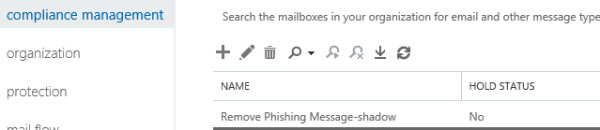
But the status will not be started and we can see this by running Get-MailboxSearch as well.
Microsoft recommends to delete this autocreated shadow In-Place eDiscovery search.
Instead run the Microsoft provided script in New-ComplianceSearch page that will convert an existing compliance search to an In-Place eDiscovery search
So when we run Get-ComplianceSearch we need to see the Compliances that we created
But When we run Get-MailboxSearch We should not see any shadow in-placediscovery which was created f0r them.
In short below will be the procedure:
- Create a new compliance search.
- Remove the shadow in-placediscovery created for the new compliance search.
- Run the script provided in step 3 in this technet article – Compliance Search
- Start the In-Place eDiscovery search – Start-MailboxSearch
- Create an In-Place Hold
- Copy the search results
- Export the search results
- Use New-ComplianceSearchAction -SearchName “Remove Phishing Message” -Purge -PurgeType SoftDelete and delete the message
Tips:
When we run the compliance search ps1 script provided by microsoft we should enter the value of the new compliance we created as below

While creating the inplace hold better to enter the values of all the available fields
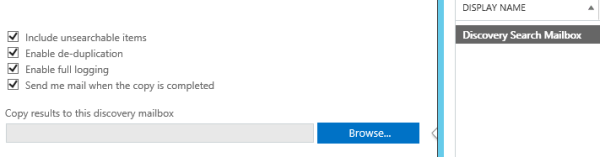
Once the search completed there is an option to preview the search results through delegated admin account.


After that the data can be exported as PST.
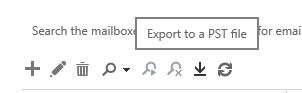
Post that the New-ComplianceSearchAction command should be used to remove the emails.
Note:
- New-ComplianceSearch limits to deleting 10 emails per mailbox at once on a single command, though there is no limits on number of mailboxes to search.
- Search-Mailbox limits to deleting 10000 emails per mailbox on at once on a single command.
- New-MailboxSearch will be depreciated soon on future updates most likely , since this command will no longer be available on Office 365 from July 2017 as per technet source.
Thanks & Regards
Sathish Veerapandian
MVP -Office Servers & Services

 Tej Pratap
 Ewald Hollestelle
 rsujiraja
 Sathish Veerapandian
 EzCloudInfo
Hello! I read your article and I want to delete phishing emails received by all mailbox users. The subject and body of the emails are in Chinese. I referred to https://learn.microsoft.com/en-us/exchange/policy-and-compliance/ediscovery/delete-messages?view=exchserver-2019 for the operation. Below are my execution commands. I found that I couldn’t search for any emails, but if I create a search with the same keywords in EAC’s Compliance management — in-place eDiscovery & Hold, I can find the size and number of these emails. How can I achieve this goal?Delete phishing emails received by all usersCreate a compliance search
New-ComplianceSearch -Name “RemovePhishingMessage” -ExchangeLocation all -ContentMatchQuery ‘subject:”员工补贴政策“‘Start the compliance search
Start-ComplianceSearch -Identity “RemovePhishingMessage”Check the search status
Get-ComplianceSearchIf the search status is “Completed”, proceed with the deletion operation
New-ComplianceSearchAction -SearchName “RemovePhishingMessage” -Purge -PurgeType SoftDeleteCheck the deletion operation status
Get-ComplianceSearchActionRemove the compliance search
Remove-ComplianceSearch “RemovePhishingMessage”
LikeLike