
This article outlines the unplanned failover and fail back for Skype for business. However the DR setup must be provisioned in order for the DR activation to happen.
The deployment must have the below setup :
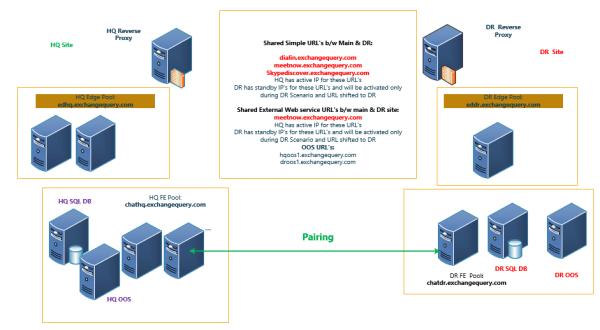
1)Skype for Business HQ Front end, HQ SQL ,HQ OOS will be part of the HQ active directory site.
2) HQ site will have its dedicated Edge server.
3) Skype for Business DR Front end, DR SQL and DR OOS will be part of the DR active directory site.
4) DR site will have its dedicated Edge server.
5) DR front end, edge servers will be in the same Skype for Business Site since the site is a standby site.
6) Synchronous data Replication will be enabled between the HQ FE pool and the DR FE pool .
7) DR sql store information must be published in the topology builder.
8) Associated backup pool must be specified as DR Skype for business FE pool in the topology builder.DR file stores must be published in the topology builder.
9) HQ and DR site edge servers DNS name spaces can be load balanced. DR site must be made unavailable during normal scenario and connections to DR edge must be allowed only during DR scenario.
10) Required communication from HQ to DR FE,SQL should be present for the Pool replication to happen.
Example of DR setup with main site:
Procedure to activate unplanned DR failover:
In case of unplanned failover its a total disaster where the main site will be completely unavailable.
So the CMS (Central Management Store) ,HQ fe pool and HQ edge services will not be accessible during this scenario.
Below steps can be used:
1) Configure in the DNS load balancer and make sure the edge server DNS name spaces are ready to accept connections in the DR site edge server. There are multiple ways to achieve this based on the network setup. As a last resort also we can add simply 2 entries (hq & dr) on the DNS name spaces and stop the DR edge services. We can activate the DR edge services only during the DR scenarios.
2) Activate the CMS
We can try to run the below command to see the CMS status
Invoke-CsManagementServerFailover -Whatif
This command will throw an error because this CMS is not available since it was present in the main site and main site is totally in accessible.

In a normal state when the main site is available in a planned failover the result of the command will be the below

It will let us know the current state of the CMS and the proposed state of the CMS after the failover.
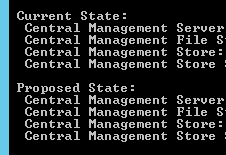
3) In this scenario the CMS needs to be activated forcefully by the below command
Invoke-CsManagementServerFailover -BackupSqlServerFqdn “DRSQLFQDN” –BackupSqlInstaceName “BACKUPDRSQLINSTANCE” –Force:$true

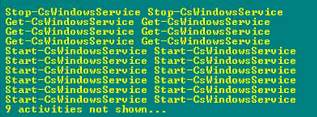
4) Wait for the replication status to be completed:
We can check the replication status by below command
Get-CsManagementStoreReplicationStatus | ft
5) Reconfigure Edge Federation Route via DR edge and publish topology and run the setup on all edge servers.
Enable the federation on DR edge and modify the federation route via DR edge.

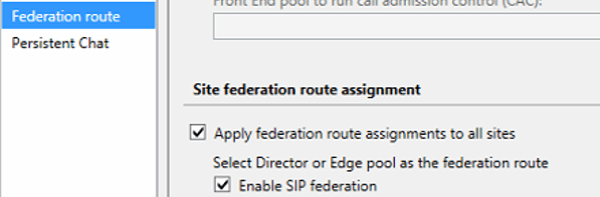
6) Failover the Pool using disaster mode switch.
Invoke-CsPoolFailOver -PoolFqdn “poolfqdn” -Force -DisasterMode

Failback to HQ site:
Once after the main site is back make sure the DNS name spaces are available in the main site
1) Failover the CMS
Invoke-CsManagementServerFailover
Wait for the CMS replication to complete in the main site.
2) Failback the FE pool to the main site.
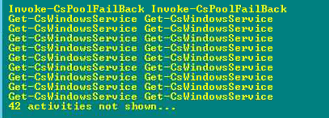
Invoke-CsPoolFailBack -PoolFqdn “poolfqdn”
3) Reconfigure Edge Federation Route and publish topology and run the setup on all edge servers.
Note: The DNS routing and the VOIP component SIP/PSTN integration will vary in each and every deployment .The DR setup and failover needs to be taken into consideration according to these configuration.
Thanks & Regards
Sathish Veerapandian

 Tej Pratap
 Ewald Hollestelle
 rsujiraja
 Sathish Veerapandian
 EzCloudInfo