
Modern network access has evolved, and Microsoft Entra Global Secure Access (GSA) is leading the transformation. Whether users are accessing private resources, Microsoft 365 services, or the internet, every request is now routed through an identity aware, Zero Trust-aligned infrastructure. This shift introduces new troubleshooting paradigms and this guide is here to help.
Why Global Secure Access Exists
Global Secure Access combines multiple security layers to deliver robust protection and optimized routing:
- Zero Trust enforcement for all traffic
- Unified identity, device, and network controls
- VPN replacement for private apps
- Secure outbound internet access
- Optimized Microsoft 365 routing
Traffic Profiles Explained
GSA categorizes traffic into three distinct profiles:
- Internet Access → Secure outbound browsing

- Microsoft 365 Access → Optimized, identity-aware routing

- Private Access → Zero Trust access to internal apps

For architectural flow diagrams and examples (e.g., Synology NAS), refer to my previous blog.
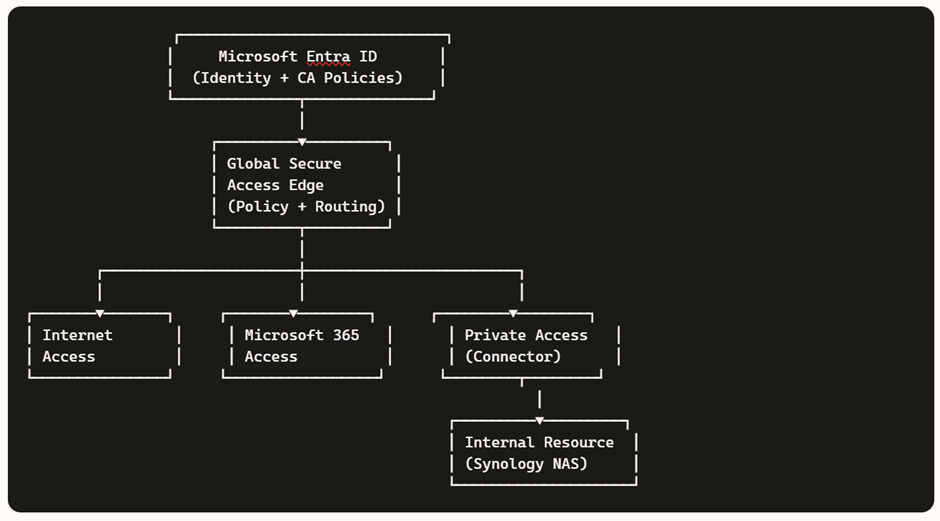
Understanding the GSA Client Traffic Flow
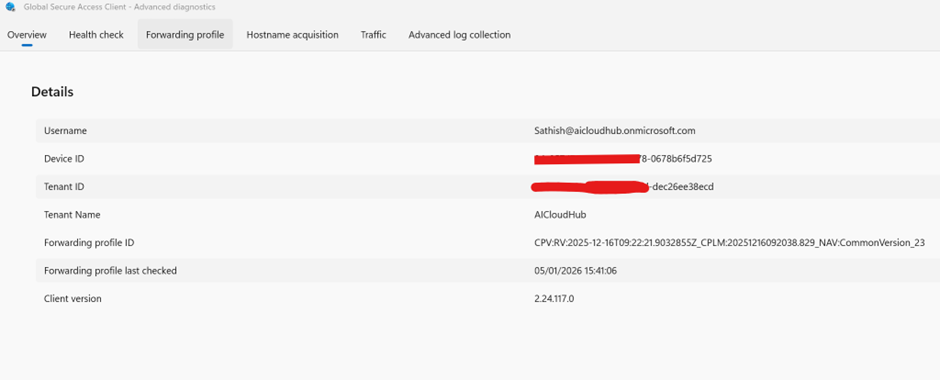
Once the GSA client is active, the first step is to open Advanced Diagnostics. This tool reveals how the client acquires hostnames, routes traffic, and interacts with Microsoft Entra.
Client Status Overview
This tab shows:
- Tenant connection details
- Forwarding profile assignment
- Client version (ensure it’s up to date)
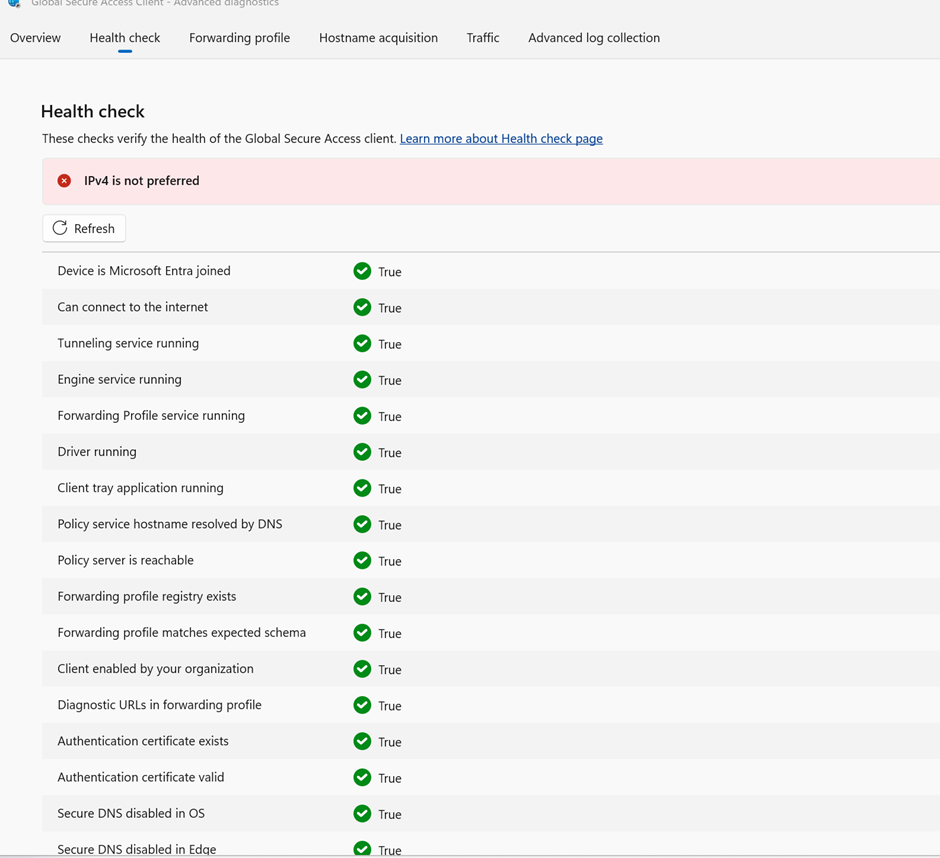
Health Check
A quick sanity check for:
- Service status (tunneling, engine, forwarding)
- DNS resolution and policy server reachability
- Certificate validity and Secure DNS settings
In my demo environment, IPv4 is used, but IPv6 is preferred for production.
Forwarding Profile Tab
This tab reveals the configuration pushed from Microsoft Entra:
- Number of rules received (e.g., 4 rules = correct config)
- Hardcoded Entra rules for identity enforcement
- Connector group assignments and traffic classification
Forwarding profiles are configured in the Traffic Forwarding section of the Entra portal. Each profile (Microsoft 365, Private Access, Internet Access) includes rules with actions: Forward or Bypass.
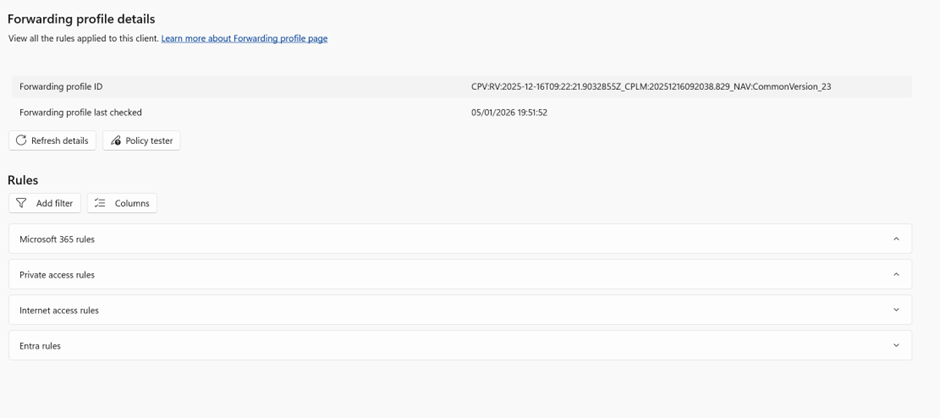
Note: You will see Entra Rules this one is hardcoded on the GSA client for applying the Identity related controls and we will not be able to change them from the Entra Global Secure access Portal.
So now going to Microsoft Global Entra Secure Access Portal there you have the Forwarding profiles where we can configure based on our requirement in the Traffic Forwarding section
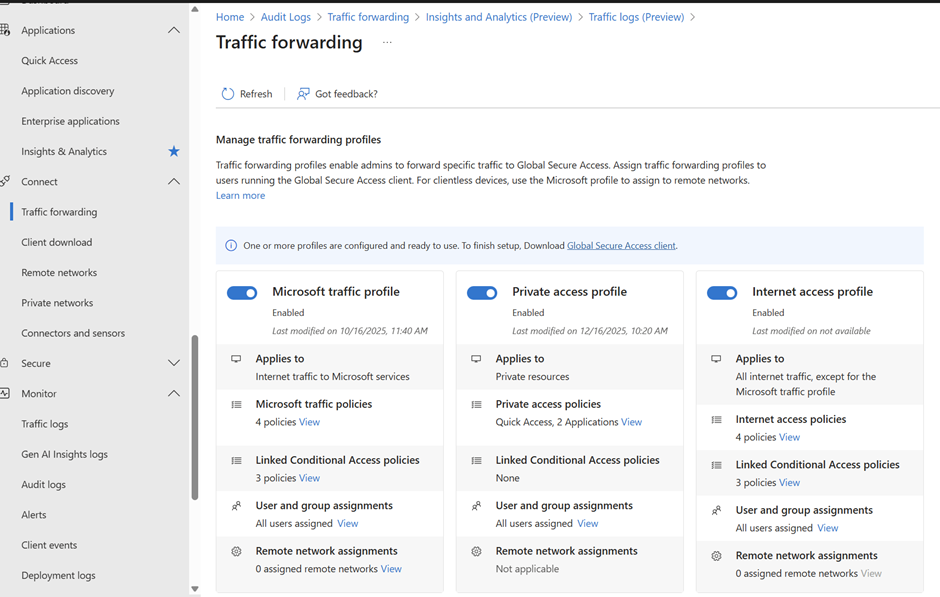
Lets say for example Microsoft Traffic Profile , there are 4 active policies
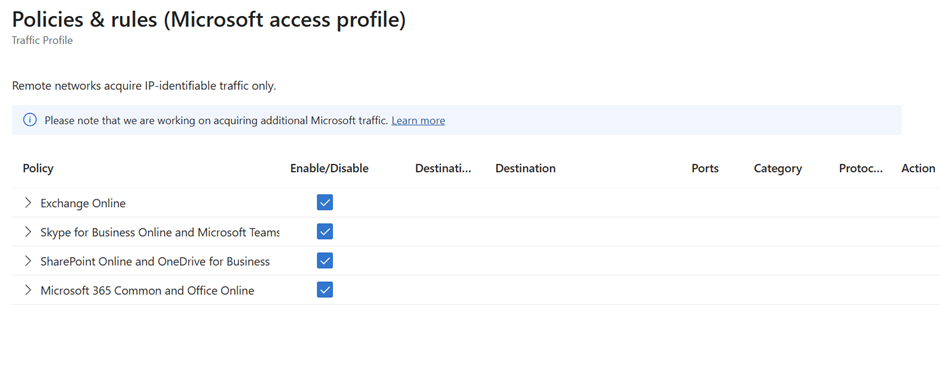
On a further drill down you could see the associated rules
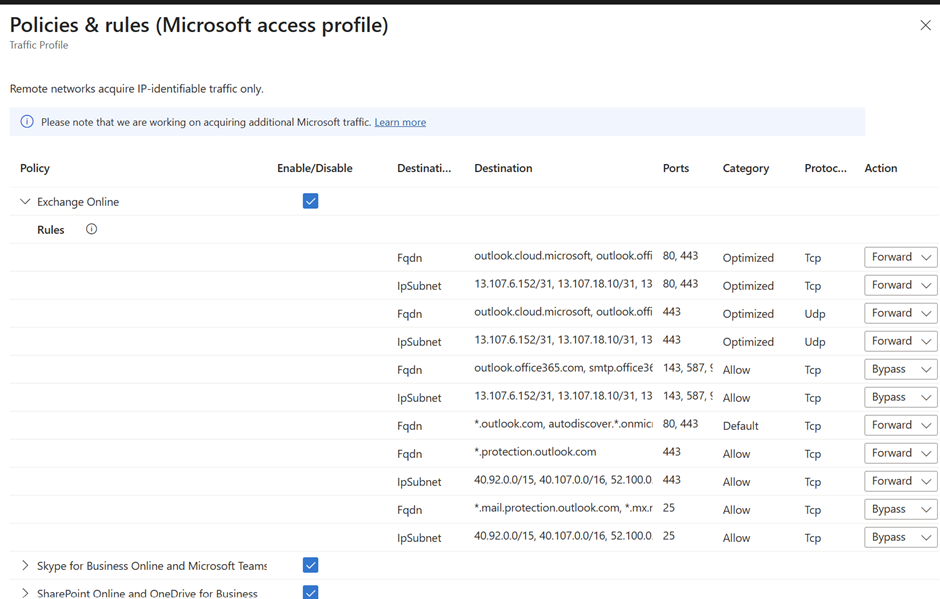
There are only 2 actions either forward or bypass. The actions you set here are basically displayed in the client
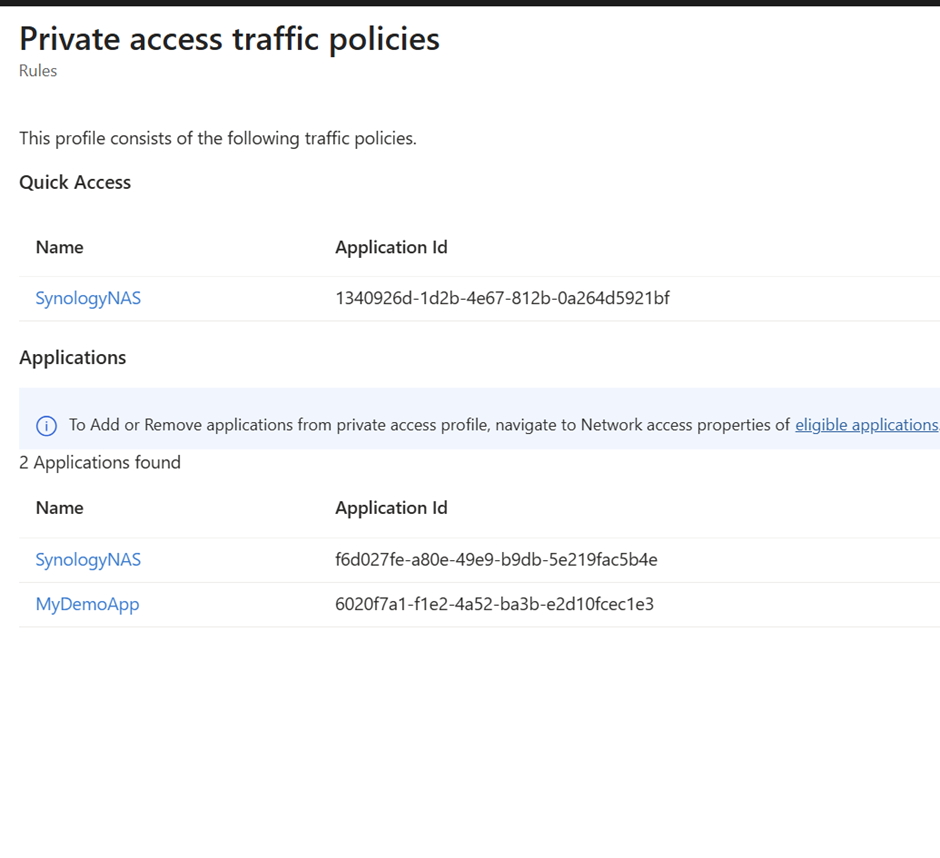
Even the same thing you will notice for Private access profile
In my example its the Synology NAS and a demo app hosted in one of my local laptop. These connections will be routed in private
Even for the internet access policies we have the custom bypass , default bypass , Microsoft traffic bypass , default acquire
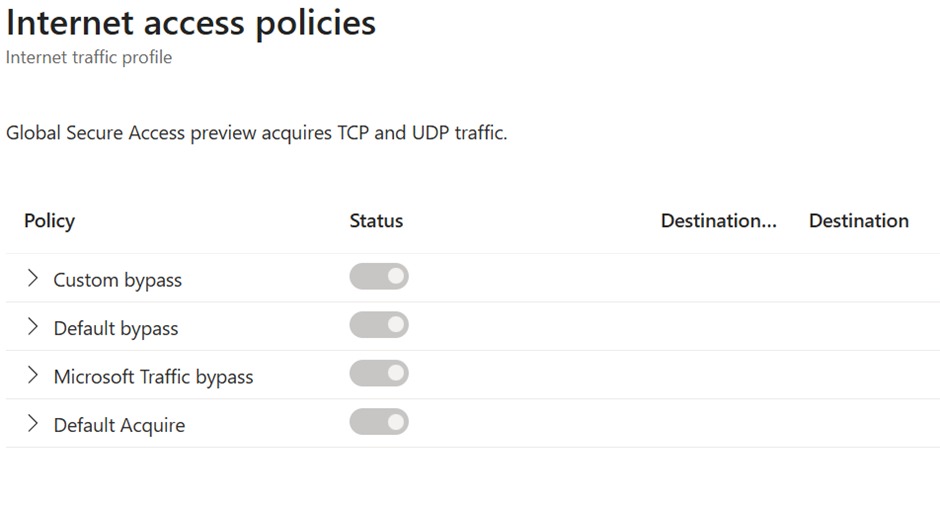
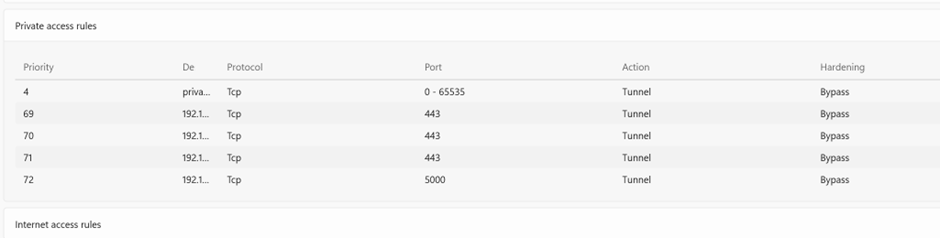
Now coming back to the GSA client , what the settings are applied in the entra Portal and cascaded and reflected in the GSA client as well
For instance im picking only one tab detailed here Private access you could notice my private access profile and the hardening policies are reflected.
Hostname Acquisition Tab
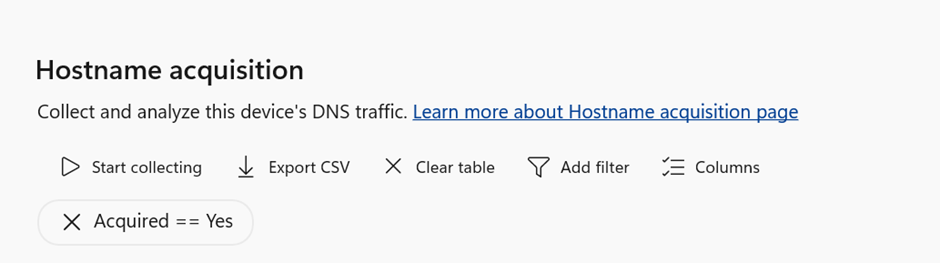
The Hostname Acquisition tab in the GSA client’s Advanced Diagnostics gives you deep visibility into how DNS traffic is being handled. It shows which hostnames the client has intercepted, whether they were successfully acquired, and how they were rewritten for secure routing.
This tab is your DNS truth table it tells you what the client sees, what it rewrites, and what it forwards.
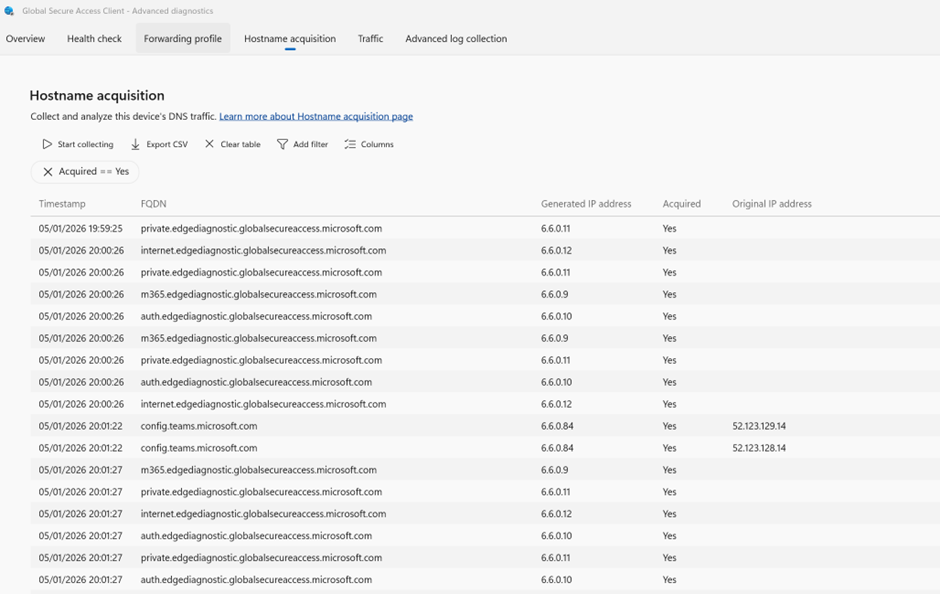
For example private.edgediagnostic.globalsecureaccess.microsoft.com you see them above are part of Microsoft Entra Global Secure Access diagnostics. The “private” label often refers to traffic routed through the Private Access profile, which is used to securely connect to internal resources.
You can clear and restart collection to refresh data based on updated configurations.
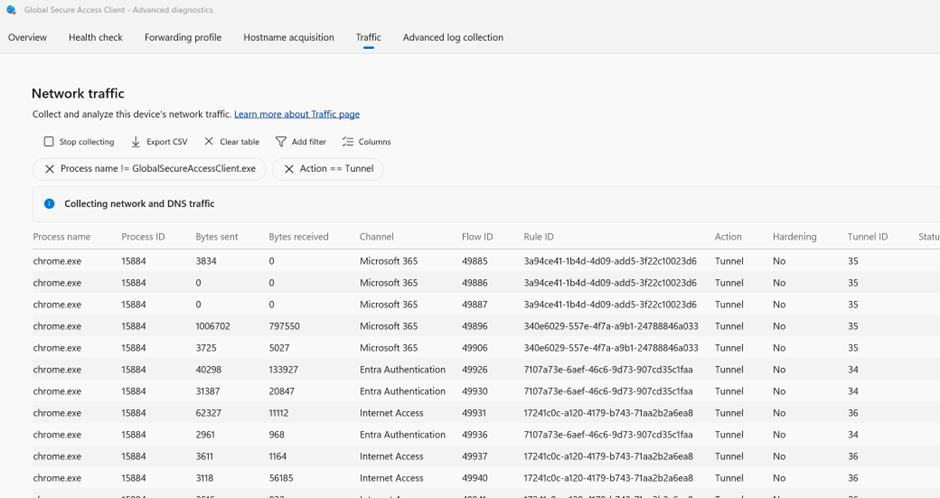
Network Traffic Tab
This is a powerful tool for process-level diagnostics:
- See how apps like Chrome, Teams, Outlook route traffic
- View bytes sent/received, tunnel IDs, and traffic channels
- Identify misrouted flows or missing hardening policies
Advanced Log Collection
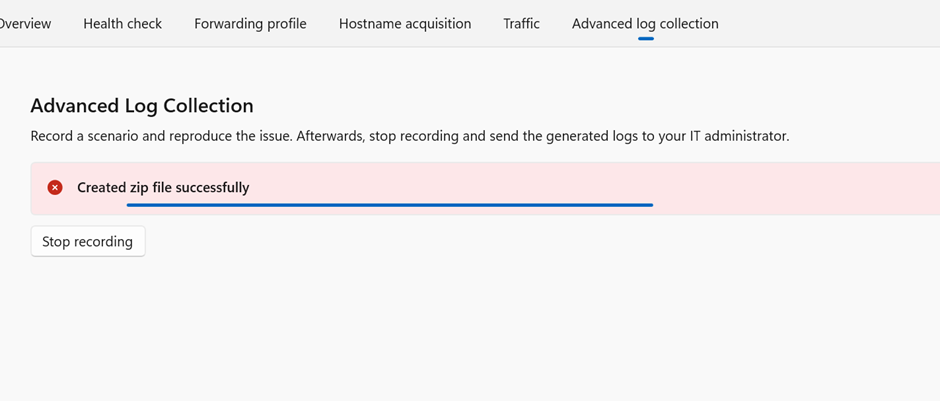
Use this feature to collect verbose logs:
- Captures client, OS, and network activity
- Logs stored at
C:\Program Files\Global Secure Access Client\Logs - Ideal for reproducing and diagnosing complex issues
Admin Portal Diagnostics
Traffic Logs (Preview)
Navigate to: Microsoft Entra Admin Center → Global Secure Access → Insights & Analytics → Traffic Logs (Preview)
Key Metrics:
- All Connections
- Internet Access
- Private Access
- Microsoft 365 Access
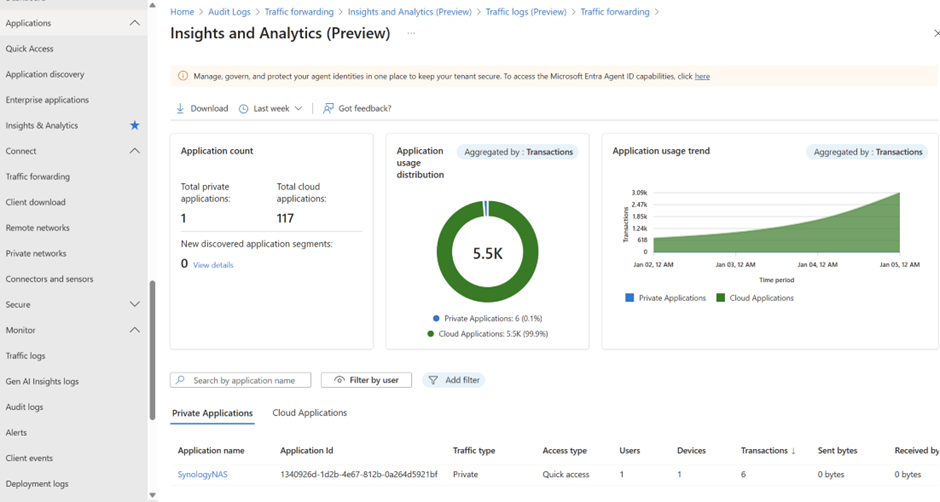
The first thing is you can use the Insights and analytics, im not going to explain anything here. Feel free to watch my Video that explains more about this part.
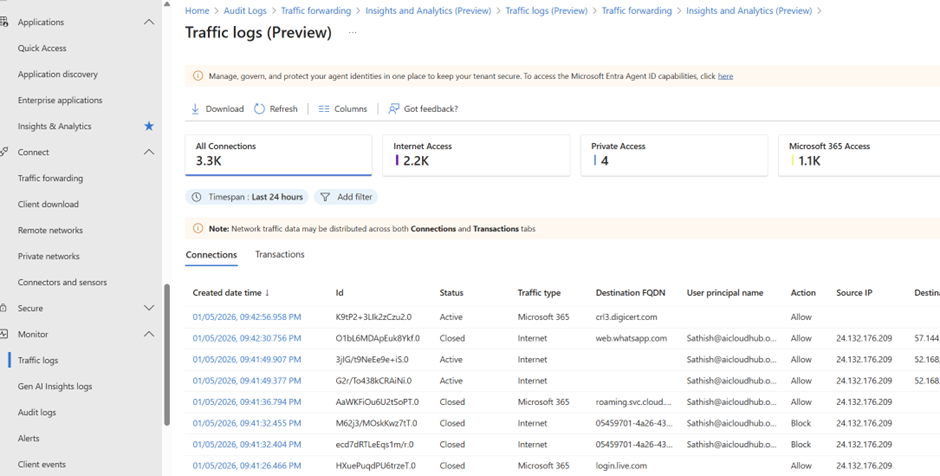
Under the Monitor Traffic logs is the more helpful scenario
Microsoft Entra Admin Center → Global Secure Access → Insights & Analytics → Traffic Logs (Preview)
You’ll see two tabs:
- Connections: Session-level logs
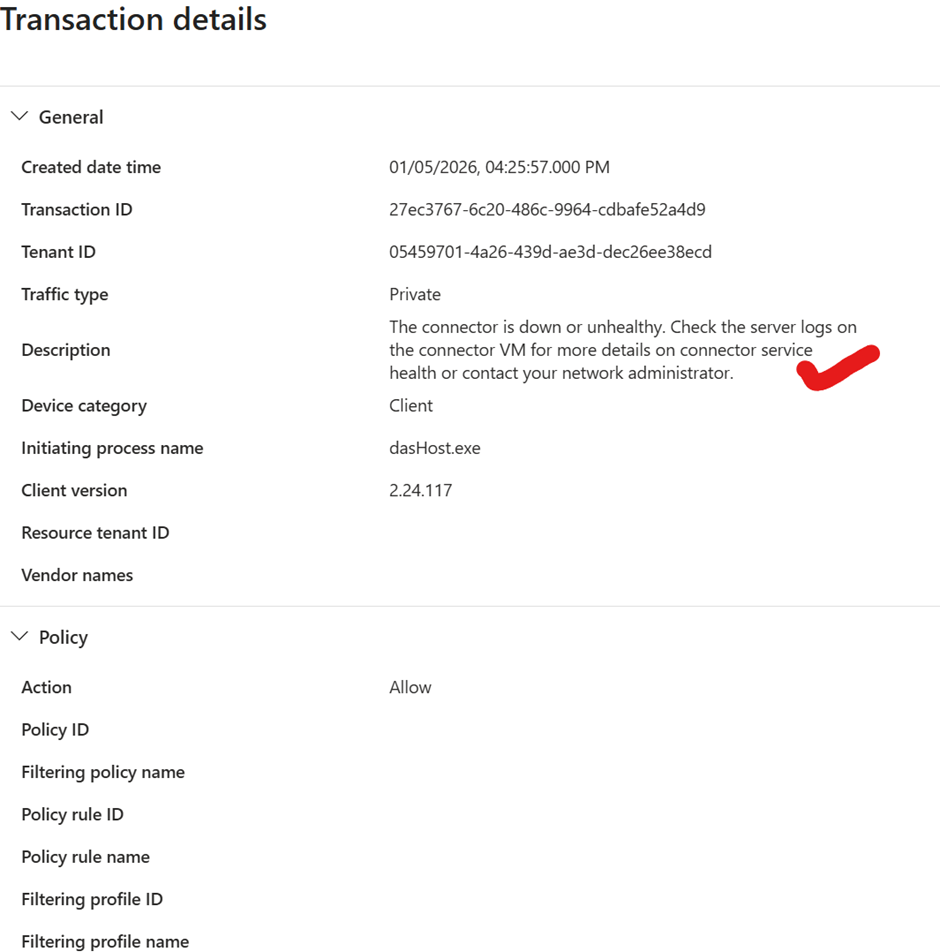
- Transactions: Operation-level logs (e.g., HTTP requests, DNS queries)
Key Metrics at the Top
- All Connections: Total number of traffic sessions
- Internet Access: Sessions routed through the Internet Access profile
- Private Access: Sessions routed through Private Access connectors
- Microsoft 365 Access: Sessions optimized for M365 endpoints
These numbers help you understand traffic distribution across profiles
Connections Tab – Session-Level View
Each row shows:
- Created date time: When the session started
- Status: Active or Closed
- Traffic type: Internet, M365, or Private
- Destination FQDN: The domain being accessed
- User principal name: Who initiated the session
- Action: Allow or Block
- Source IP / Destination IP: Useful for tracing flow
Use this tab to:
- Confirm whether traffic was allowed or blocked
- Identify which profile handled the session
- Trace user activity across services
Transactions Tab – Operation-Level View
This tab (if enabled) shows:
- Individual requests within a session
- HTTP methods, response codes, and latency
- DNS queries and resolution paths
Use this tab to:
- Troubleshoot slow performance or failed requests
- Validate policy enforcement at the request level
- Spot anomalies like repeated retries or blocked subdomains
How to Use Traffic Logs in Troubleshooting
- User can’t access a site? → Check if traffic was blocked or misrouted
- App not optimizing for M365? → Confirm if traffic went through M365 Access
- Private Access app unreachable? → Look for connector routing issues or blocked sessions
- Unexpected internet traffic? → Validate domain classification and policy logic
Correlate traffic logs with Hostname Acquisition and Forwarding Profile tabs in the GSA client. This gives a full picture:
- What DNS was intercepted
- How traffic was classified
- Where it was routed
- Whether it was allowed or blocked
For example Private Access you can further drill down in my case i have stopped my Private secure access Client connector and you will see those details in a moment
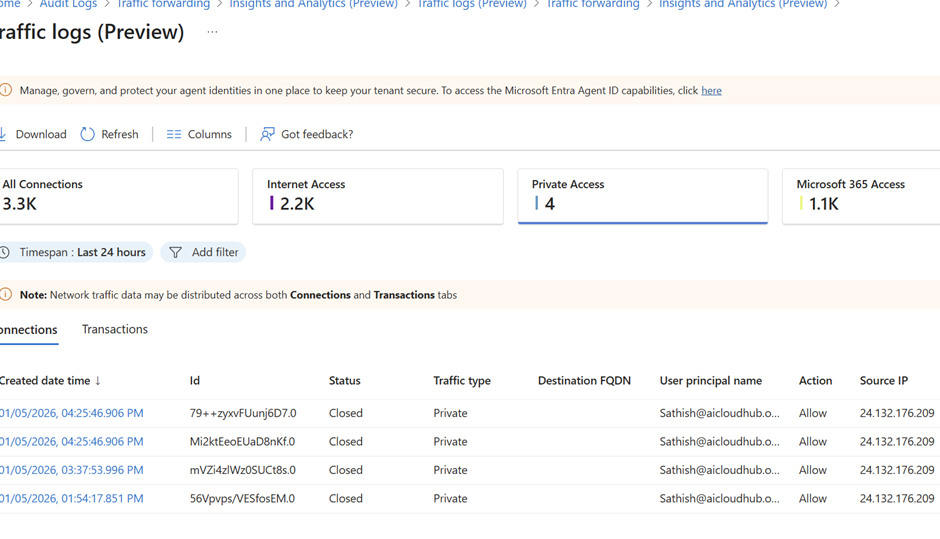
Since i have stopped them you see the associated error message in the logs in the transaction the connector is down or unhealthy.
Whether you’re debugging DNS resolution issues, validating complex policy enforcement, or tracing intricate traffic flows across your network, Microsoft Entra Global Secure Access equips you with comprehensive visibility and granular control. Its advanced diagnostic tools enable real time monitoring of hostname acquisition, traffic classification, and process-level routing, empowering administrators to swiftly identify and resolve network anomalies. With detailed traffic logs and client side insights, you can confidently enforce Zero Trust policies and optimize connectivity for private applications, Microsoft 365 services, and secure internet access.
Stay tuned for more in depth explorations a on my blog and YouTube channel DevOpsInfo, where I break down complex concepts into actionable guidance for IT professionals and enthusiasts alike.
Happy Learning
Tagged: Azure, cloud, Microsoft, Security, technology

 Tej Pratap
 Ewald Hollestelle
 rsujiraja
 Sathish Veerapandian
 EzCloudInfo
Leave a comment