I built a small AI Governance Control Center to explore application inventory, granted permissions, and control assessments. Here is what the working Entra ID integration can show today and what still needs evidence before calling it an AI governance finding.
AI governance becomes difficult when an organization has to answer several questions at once: Which applications and agents exist? What permissions have they been granted? What data can they reach? Which safeguards are actually in place?
I wanted a simple workspace to explore those questions. The result is an AI Governance Control Center prototype with two clearly separated parts: an interactive sample assessment and a live, read only inventory from my test Microsoft Entra ID tenant.
The separation matters. An Entra application inventory is useful evidence about identity and permissions. It does not, on its own, prove that an application is an AI agent, that it accessed confidential data, or that a content safety control is enabled.
What the prototype does today
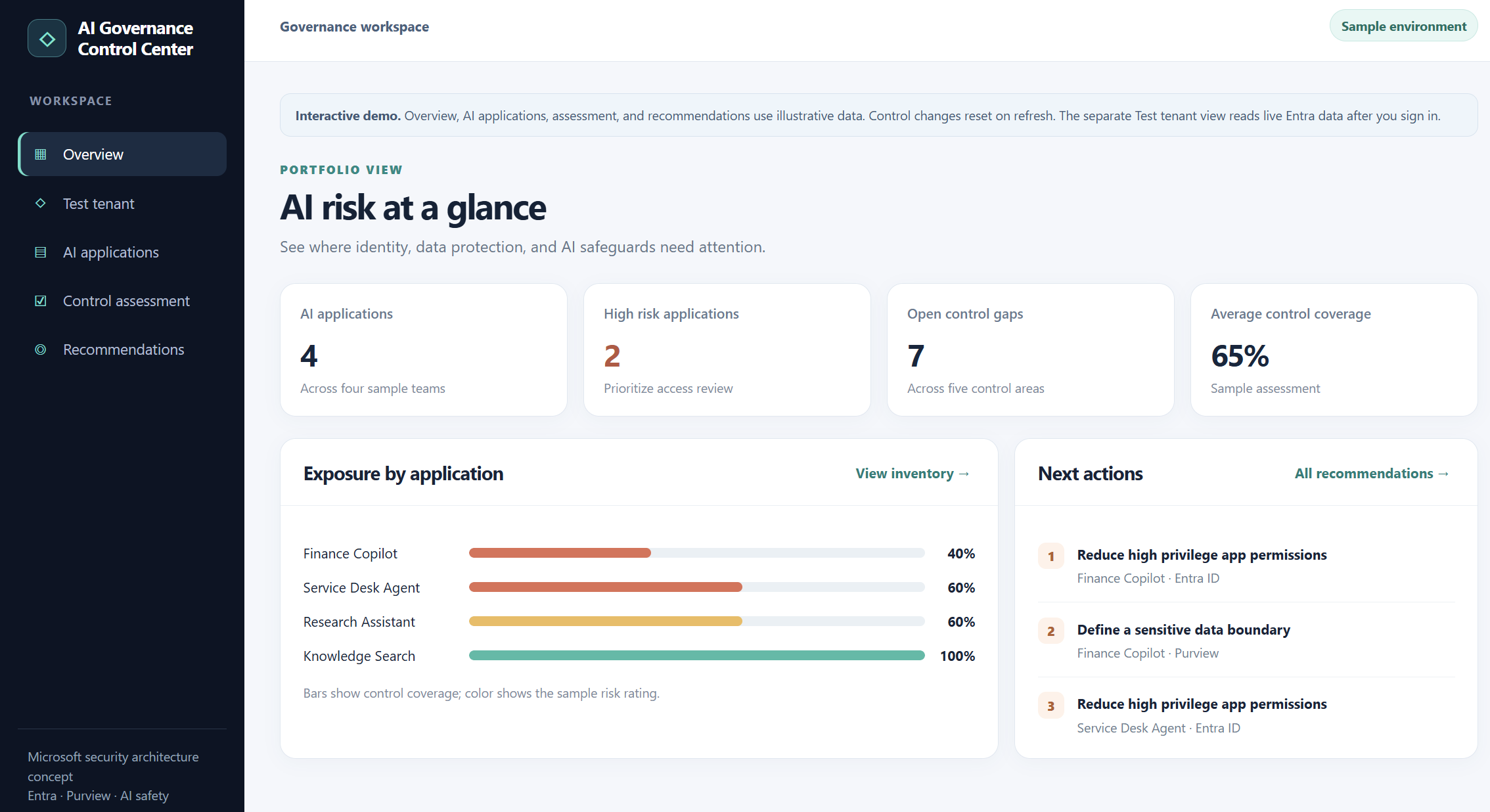
The sample workspace has an overview, an AI application list, a control assessment, and prioritized recommendations. You can switch illustrative controls on or off and watch the sample coverage score and recommendations change. These records and scores are demonstration data, not findings from my tenant.
The separate Test tenant view signs me into my own Entra tenant and calls Microsoft Graph. It lists enterprise applications, supports searching by application name or client ID, and lets me inspect the application permissions granted to a selected service principal. In my test, the sign-in and inventory retrieval worked against the tenant.
“Illustrative dashboard and control scores; no live risk assessment is implied.”
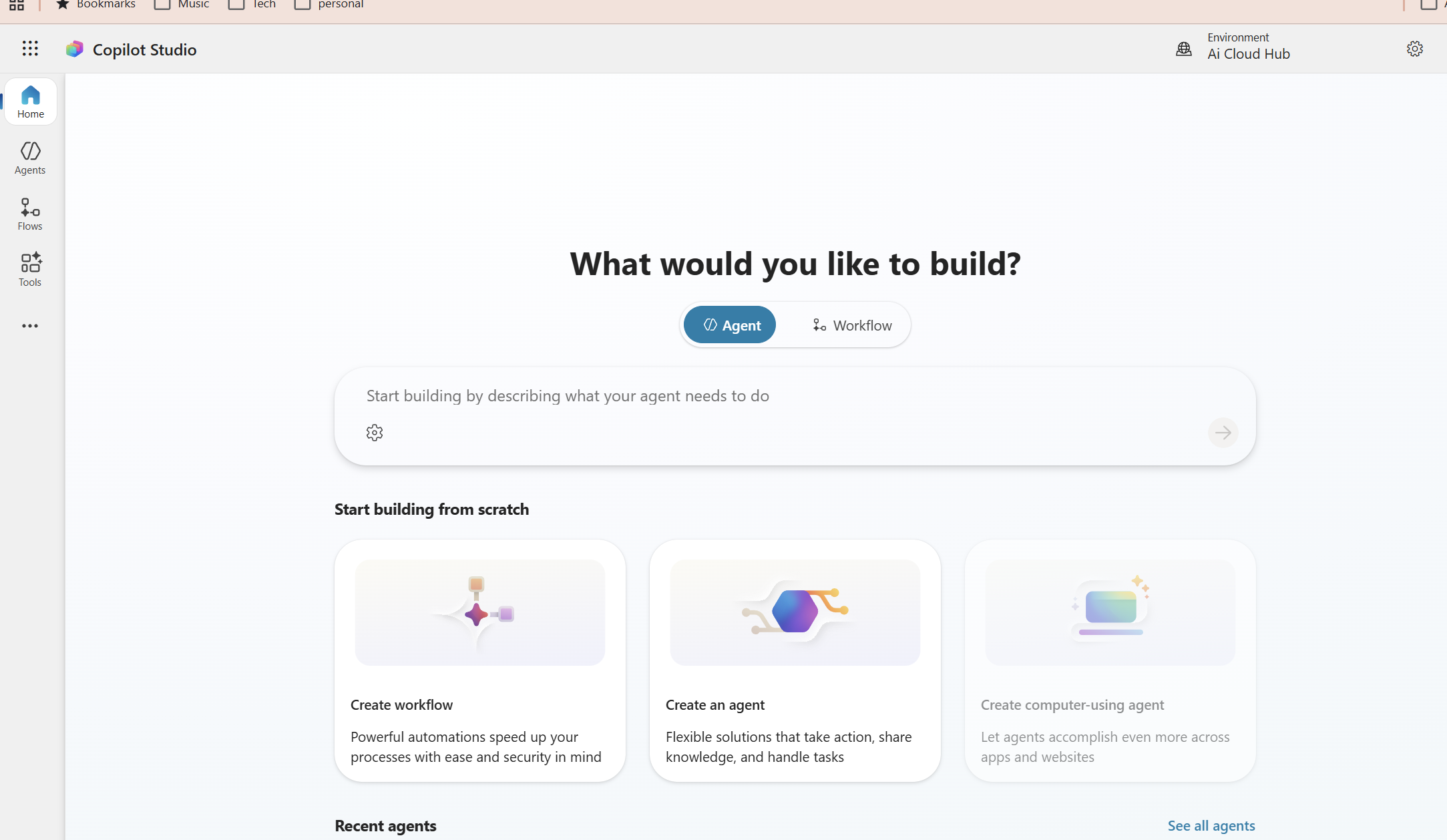
Building industry specific AI agents is now easier than ever with Microsoft 365 Copilot Studio especially when combined with Retrieval Augmented Generation (RAG). In this blog, we’ll walk through how to create a RAG powered Motorcycle Expert AI Agent designed for motorcycle store owners who manage large inventories and need to support both customers and sales representatives.
In this example there is a dealership with 200+ motorcycles and this agent helps streamline customer inquiries, improve product comparisons, and empower your sales team with accurate, data‑driven responses.
This step‑by‑step guide shows you how to:
Design and prepare your motorcycle dataset
Connect SharePoint/OneDrive as your knowledge source
Configure RAG settings inside Copilot Studio
Shape the agent’s persona and behavior
Add comparison logic for models and categories
Enable advanced features like deep reasoning and generative orchestration
Test and publish the agent with proper security and moderation settings
By the end of this tutorial, you’ll have a fully operational Motorcycle Expert AI Agent running inside Microsoft 365 Copilot Chat, Teams, or web capable of answering questions, comparing models, and delivering expert insights using your actual business data.
The agent will:
Answer questions about motorcycles (models, categories, specs, use cases)
Compare models (e.g., “MT07 vs SV650 for commuting?”)
Use your own data (spreadsheets, docs, or SharePoint lists) as its primary knowledge source
Run inside Microsoft 365 Copilot Chat / Teams / web
Microsoft Entra Verified ID transforms identity verification by enabling secure, privacy‑preserving, verifiable credentials. Whether you’re implementing Account Recovery (Preview) or integrating a trusted identity verification partner like AU10TIX, the onboarding process requires a few key steps: enabling the provider, provisioning resources, activating the integration, and validating the recovery flow.
This blog walks through the full, end‑to‑end Verified ID setup using AU10TIX as the identity verification provider. You’ll find prerequisites, detailed configuration steps, screenshots, and a summary to help you complete the setup smoothly
Prerequisites
Before you begin, ensure the following:
Verified ID Setup :
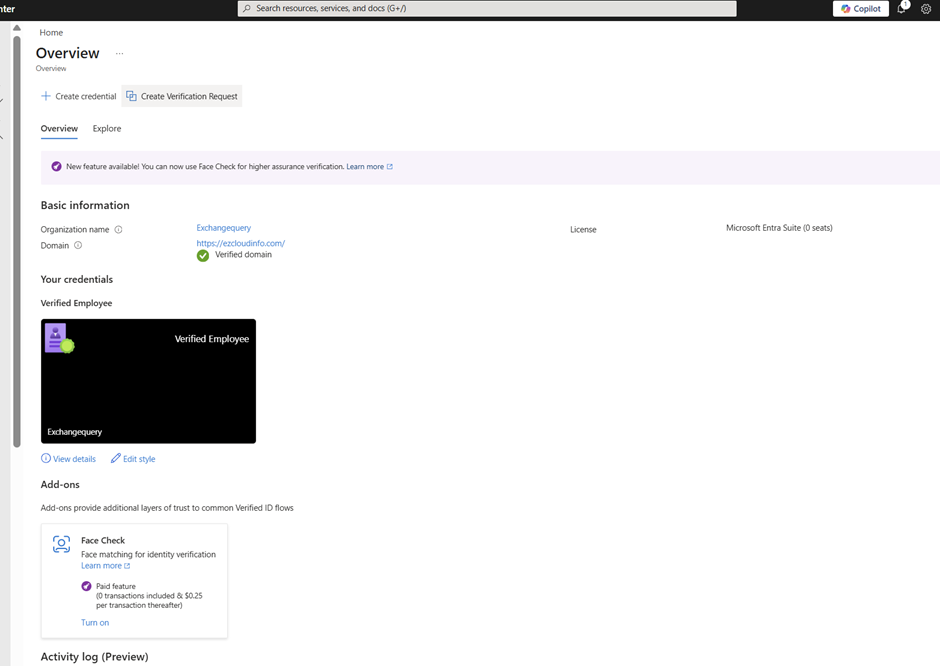
You need to have the Verified ID setup properly configured in your tenant first and the foremost thing to do before proceeding to any steps. If this one is not setup then the account recovery (Preview) is not going to work . Especially your domain needs to be a verified domain here.
Also in the Authentication method you must have the Temproary Access Pass Enabled
Modern network access has evolved, and Microsoft Entra Global Secure Access (GSA) is leading the transformation. Whether users are accessing private resources, Microsoft 365 services, or the internet, every request is now routed through an identity aware, Zero Trust-aligned infrastructure. This shift introduces new troubleshooting paradigms and this guide is here to help.
Why Global Secure Access Exists
Global Secure Access combines multiple security layers to deliver robust protection and optimized routing:
Zero Trust enforcement for all traffic
Unified identity, device, and network controls
VPN replacement for private apps
Secure outbound internet access
Optimized Microsoft 365 routing
Traffic Profiles Explained
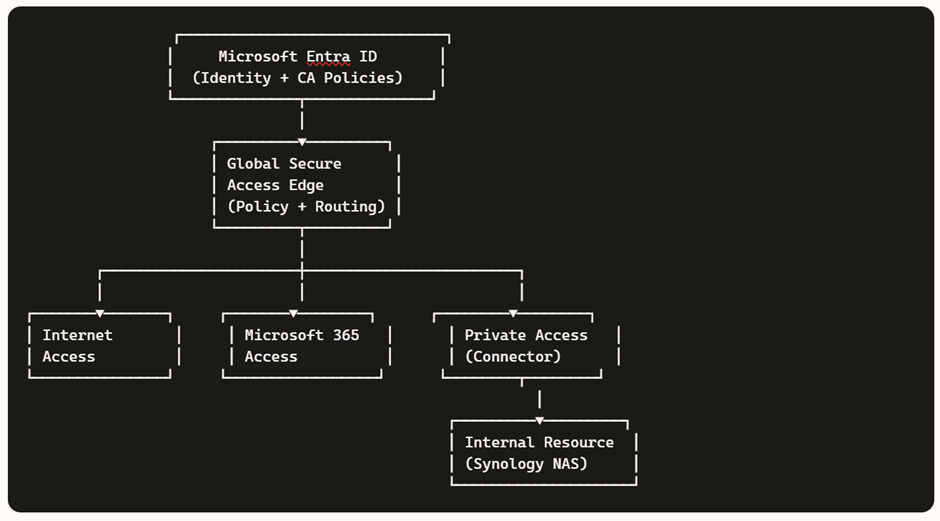
GSA categorizes traffic into three distinct profiles:
Internet Access → Secure outbound browsing
Microsoft 365 Access → Optimized, identity-aware routing
Private Access → Zero Trust access to internal apps
For architectural flow diagrams and examples (e.g., Synology NAS), refer to my previous blog.
In today’s hybrid work environment, secure access to internal resources without relying on traditional VPNs is a key requirement. Microsoft Entra Private Access, part of the Global Secure Access suite, enables Zero Trust-based connectivity to private applications hosted on-premises or in private networks.
In this demo, we’ll walk through setting up a home lab using an Azure tenant, installing the Entra connector, and configuring access to a Synology NAS as a private application—all from a personal laptop and home network.
Before starting, make sure you have:
Microsoft Entra ID tenant with Global Secure Access enabled.
Microsoft Entra Global Secure Access license (Private Access feature).
Windows 11 Pro device (required for advanced networking and policy support).
Device joined to Microsoft Entra ID (Azure AD joined or Hybrid joined).
Intune-managed device for policy enforcement and NRPT configuration.
Administrative access to your Azure tenant and local machine.
Microsoft Entra Connector installer downloaded from the Entra Admin Center.
Global Secure Access Client installer for Windows.
Internal resource (Synology NAS or similar) reachable on your home network.
Internal IP address of the resource (e.g., 10.0.x.x).
Optional DNS setup:
Private DNS zone or hosts file entry for FQDN (e.g., demo.synology.me).
Self-signed certificate (optional) for HTTPS access.
Internet connectivity for connector registration and client sign-in.
As organizations lean into AI assistants and autonomous workflows, one challenge keeps coming up in every SOC and IAM conversation: agent sprawl. Agents show up in multiple teams and builder platforms, and before you know it, you’ve got non‑human actors touching sensitive data without a clear inventory, lifecycle, or policy boundary.
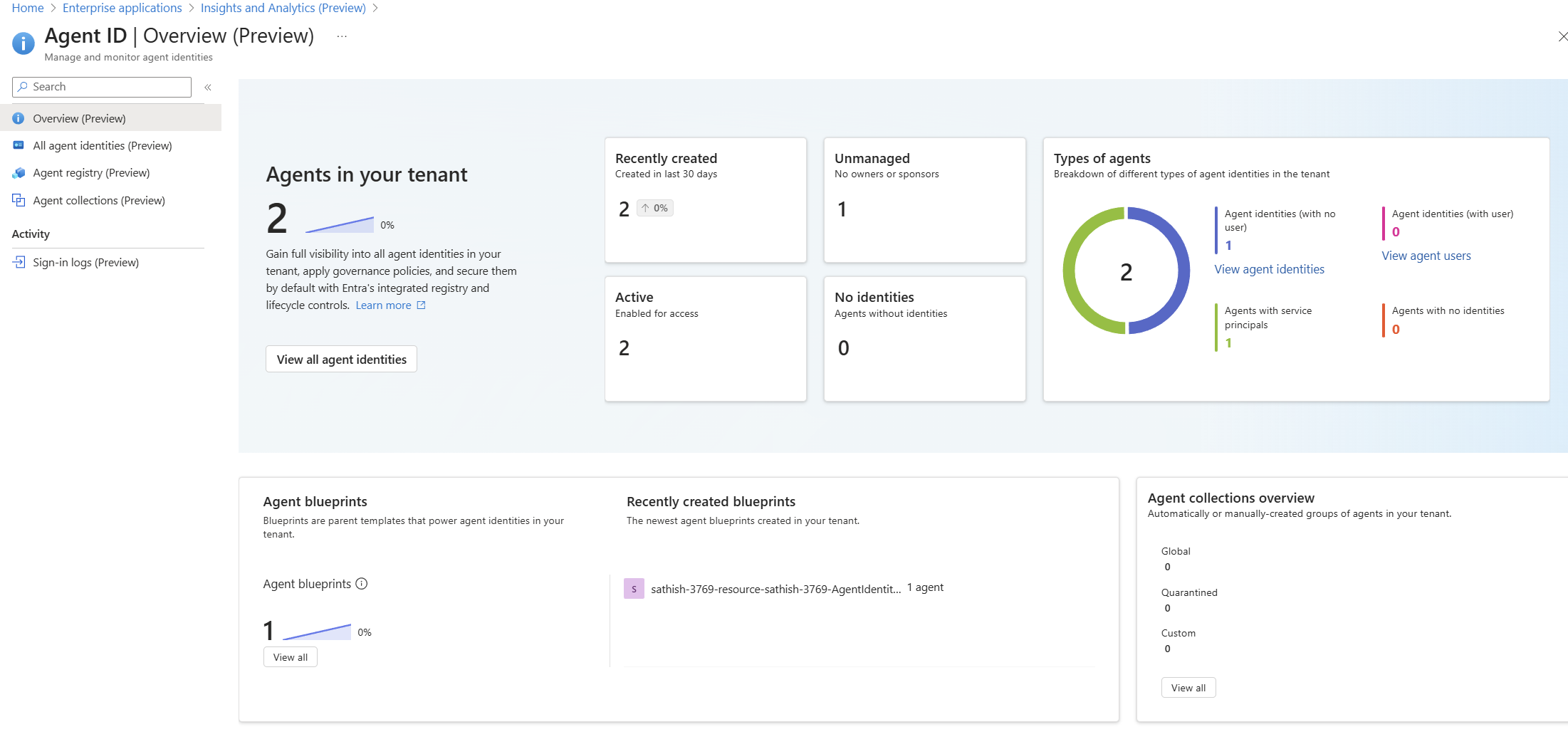
Microsoft Entra Agent ID and the Agent Registry (Preview) are designed to solve exactly that bringing identities, governance, and Zero Trust controls to AI agents, so you can securely discover, organize, and manage them easily in your directory.
What Agent Registry Adds (and Why You’ll Care)
Agent Registry is an Microsoft Entra integrated metadata repository that gives you a unified view of agents built on Microsoft platforms (e.g., Copilot Studio, Azure AI Foundry) and those from other ecosystems. It separates operational records (Agent Instances) from discoverability metadata (Agent Card Manifests) and introduces Collections to govern which agents can discover and collaborate with each other. Think discovery before access a crucial shift for reducing exposure.
A Quick Look at the Tenant Experience
Agent ID Overview (Preview) dashboard showing agent counts, status, types, and blueprints: high-level posture of agents, identities, blueprints, and collections
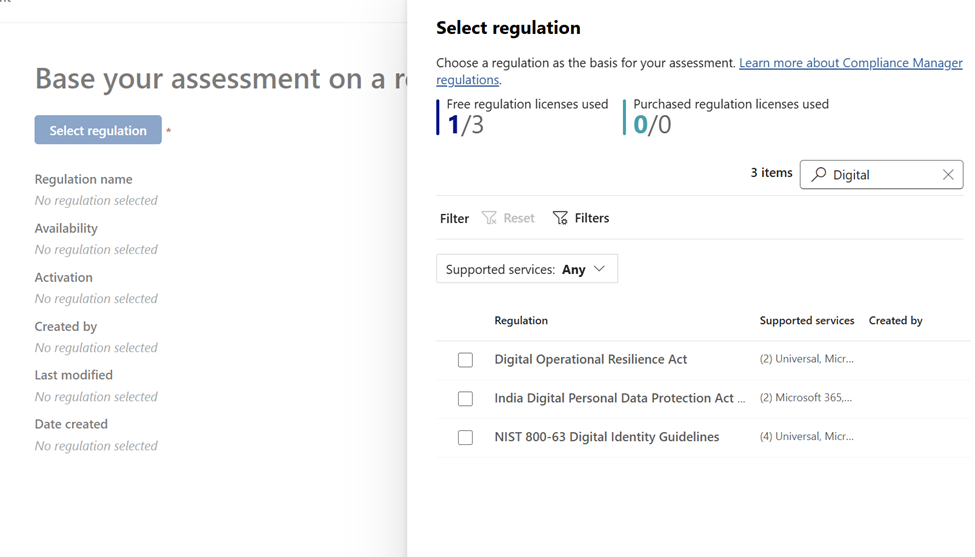
Digital Operational Resilience Act (DORA) is reshaping how EU financial entities manage ICT risk, resilience testing, incident reporting, and third‑party risk. If you run Microsoft 365, Microsoft Purview Compliance Manager gives you a practical way to translate DORA requirements into actions, evidence, and measurable progress. This guide walks through a clean, step‑by‑step implementation flow from setting up a DORA assessment to assigning improvement actions and tracking your score, so you can be audit ready without drowning in spreadsheets.
Why use Microsoft Purview Compliance Manager for DORA ?
Prebuilt assessments: DORA assessment templates map regulatory articles to actionable controls you can assign and track.
Control mapping: Microsoft‑managed baselines and customer‑managed controls provide clarity on shared responsibility.
Improvement actions: Structured tasks with owners, due dates, and recommended steps create accountability.
In today’s enterprise landscape, most applications are accessed through modern browsers like Microsoft Edge and Google Chrome, especially on Windows devices. While these browsers come with built-in security features, organizations must go a step further to enforce consistent and robust browser security policies across all endpoints.
If your organization uses Microsoft Intune, you have powerful tools at your disposal to configure and enforce browser security settings. In this blog, we’ll walk through 10 essential browser security controls you can implement using Intune’s Settings Catalog to enhance protection against web-based threats.
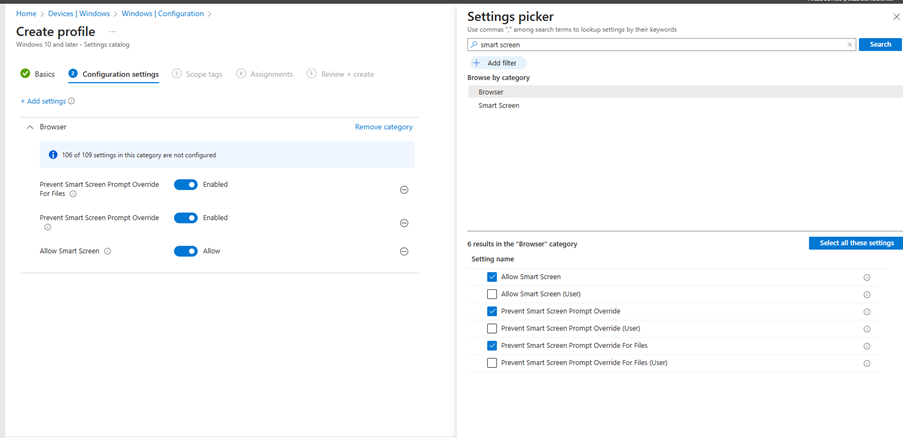
1. Enable Windows Defender SmartScreen
SmartScreen helps protect users from phishing attacks and malicious websites or downloads.
Recommended Settings:
Enable Windows Defender SmartScreen
Don’t allow SmartScreen warning overrides for unverified files
Azure AI Agent Service allows you to create, deploy, and manage AI agents that can perform various tasks. This service leverages powerful AI models to enable agents to perform a wide range of tasks, from answering queries to automating complex workflows. With its user-friendly interface and robust infrastructure, Azure AI Agent Service makes it easy for developers to build intelligent agents that can enhance applications and improve productivity.
This guide will walk you through the steps to set up and run your first agent with the help of Azure AI agent service.
Prerequisites:
An Azure subscription.
You need a GitHub Account.
Basic knowledge of PowerShell and Python.
So first step is to setup your workspace in the GitHUb
GitHub Codespaces: A Convenient Cloud-Based Development Environment
GitHub Codespaces offers a virtual machine in the cloud, providing a clean environment with all necessary prerequisites pre-installed. This makes it incredibly easy to set up and run your code, even on a standard laptop without high-end specifications.
Key Features:
Cloud-Based Computation: All computations are performed in the cloud, allowing you to work efficiently on a standard laptop.
Easy Setup: Setting up Codespaces is straightforward and quick, making it accessible for developers of all levels.