Author Archives: Sathish Veerapandian

Steps to setup a new mobile device mailbox policy in exchange 2013

Exchange 2013 has introduced Mobile device mailbox policy which is more useful interms of managing active sync enabled users for managing passwords,specifying the minimum passwords length globally,mandatory special characters to be included and  setting up a device wipeout  after few number of failed password attempts.


The exchange active sync mailbox policies can be created via exchange administration center (EAC) or Exchange management shell (EMS).

Its better  and easier to create active sync mailbox policy via EAC and then add few more features extra by using EMS.


Below are the screenshots for creating device mailbox policy via EAC

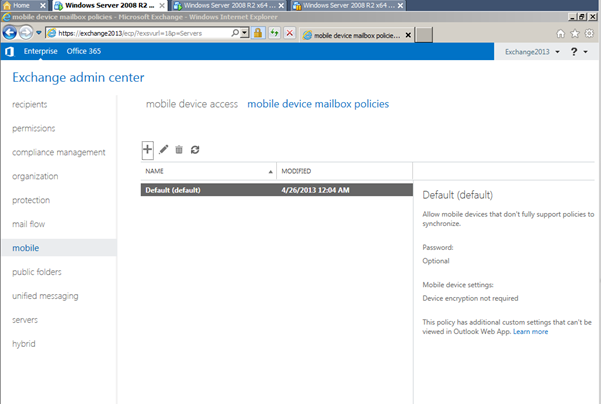
1)Open Exchange Admin Center and click on the mobile option

Image


2)You can see the default mailbox policy which is configured automatically during  the installation

3)Click on the add button to configure a new mailbox policy which opens up  the below screenshot

Image


4)You can set the required parameters such as password length,number of sign-in failures which will be effected according to the policy you set globally or for few specific groups


Image


5) Also you have few additional parameters added like password relogin after idle time out,password recycle count in as shown in the below screenshot

Image


Once  we click on save activesync policy will be created.

After this creation to manage the active sync policy its better to use Exchange Management Shell since it has few more parameters which would be helpful and more efficient by using Set-ActiveSyncMailboxPolicy parameters

References : http://technet.microsoft.com/en-us/library/bb123756(v=exchg.150).aspx


Quick Reference for Managing Public Folders in Exchange 2010

Below are the few commands which will be Helpful and can be a quick reference for managing the public folders through Exchange Management Shell
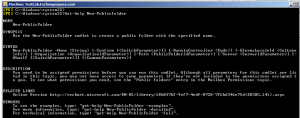
Public helpFollowing command will provide all the parameters for New-Publicfolder Cmdlet which is use to create new public folder.

Get-help New-Publicfolder

You can use the New-PublicFolder cmdlet to create a new public folder with the specified name

New-PublicFolder -Name [-Path ] [-Server ]
EXAMPLE
New-PublicFolder -Name Marketing
New-PublicFolder -Name Marketing -Path Legal\Cases -Server Server2

Use the Get-PublicFolder cmdlet to retrieve the attributes of a public folder or a set of public folders

Get-PublicFolder [-Identity ] [-Server ]
Get-PublicFolder [-Identity ] -GetChildren [-ResultSize ] [-Server ]
Get-PublicFolder [-Identity ] -Recurse [-ResultSize ] [-Server ]

EXAMPLE
Get-PublicFolder
Get-PublicFolder -Identity \NON_IPM_SUBTREE -Recurse | Format-List Name
Get-PublicFolder -Identity
Get-PublicFolder -Identity “\Legal\Documents\Pending Litigation”
Get-PublicFolder -Identity “\Legal\Documents\Pending Litigation” -Recurse
Get-PublicFolder -Identity “\Legal\Documents\Pending Litigation” -Recurse -ResultSize Unlimited
Get-publicfolder “\” -recurse -server

• The first example uses the Get-PublicFolder command without parameters to return the root public folder object (IPM_SUBTREE).
• The second example returns the names of all the system folders (which are not shown by default), starting at the system folder root (\NON_IPM_SUBTREE).
• The third example returns the public folder with the specified long-term entry identifier.
• The fourth example returns the Pending Litigation public folder from \Legal\Documents\.
• The fifth example returns the Pending Litigation public folder from \Legal\Documents\ and up to 9,999 public folders under the Pending Litigation public folder.
• The sixth example returns the Pending Litigation public folder from \Legal\Documents\ and all the public folders under it, without a limit on the number returned.
• The seventh example returns the hierarchy of all IPM_SUBTREE folders on the server SERVER1

Use the Set-PublicFolder cmdlet to set the attributes of public folders
USAGE
Set-PublicFolder -Identity [-AgeLimit ] [-HiddenFromAddressListsEnabled ] [-MaxItemSize ] [-Name ] [-PerUserReadStateEnabled ] [-PostStorageQuota ] [-Replicas ] [-ReplicationSchedule ] [-RetainDeletedItemsFor ] [-Server ] [-StorageQuota ] [-UseDatabaseAgeDefaults ] [-UseDatabaseQuotaDefaults ] [-UseDatabaseReplicationSchedule ] [-UseDatabaseRetentionDefaults ]

Set-PublicFolder -Identity [-AgeLimit ] [-HiddenFromAddressListsEnabled ] [-LocalReplicaAgeLimit ] [-MaxItemSize ] [-Name ] [-PerUserReadStateEnabled ] [-PostStorageQuota ] [-Replicas ] [-ReplicationSchedule ] [-RetainDeletedItemsFor ] [-Server ] [-StorageQuota ] [-UseDatabaseAgeDefaults ] [-UseDatabaseQuotaDefaults ] [-UseDatabaseReplicationSchedule ] [-UseDatabaseRetentionDefaults ]

Set-PublicFolder [-AgeLimit ] [-HiddenFromAddressListsEnabled ] [-Instance ] [-MaxItemSize ] [-Name ] [-PerUserReadStateEnabled ] [-PostStorageQuota ] [-Replicas ] [-ReplicationSchedule ] [-RetainDeletedItemsFor ] [-Server ] [-StorageQuota ] [-UseDatabaseAgeDefaults ] [-UseDatabaseQuotaDefaults ] [-UseDatabaseReplicationSchedule ] [-UseDatabaseRetentionDefaults ]

EXAMPLES
Set-PublicFolder “\Customer Service Requests” -UseDatabaseReplicationSchedule $false
Set-PublicFolder “\Customer Service Requests” -ReplicationSchedule Always
Set-PublicFolder \MyPublicFolder -ReplicationSchedule “Saturday.12:00 AM-Monday.12:00 AM”

• In the first example, the Set-PublicFolder command is used to change a public folder so that it does not use the database default replication schedule.
• In the second example, the Set-PublicFolder command is used to set the replication schedule to Always.
In the third example, the Set-PublicFolder command is used to set the folder to replicate only on weekends

Use the Remove-PublicFolder cmdlet to remove an existing public folder.

USAGE
Remove-PublicFolder -Identity [-Recurse ] [-Server ]

EXAMPLES
Remove-PublicFolder -Identity “\Test\Directory\My Public Folder”
Remove-PublicFolder –Identity “\Test” -recurse

• First example deletes the public folder named My Public Folder from the \Test\Directory tree. Please note that if there will be any sub-folder under My Public Folder then it will give you error saying that ” The folder ‘My Public Folder’ has subfolders, so it cannot be deleted”
• In Second example it will delete the Test folder and all subfolders under Test folder.

Use the Enable-MailPublicFolder cmdlet to mail-enable public folders. This is asynchronous operation and it may take several minutes before the public folder is actually mail enabled. The task will return before operation is complete.

USAGE
Enable-MailPublicFolder -Identity [-HiddenFromAddressListsEnabled ] [-Server ]

EXAMPLES
Enable-MailPublicFolder “\My Public Folder”

• In this example, the Enable-MailPublicFolder command is used to mail-enable the public folder that has the name My Public Folder.

Use the Disable-MailPublicFolder cmdlet to mail-disable a public folder.

USAGE
Disable-MailPublicFolder -Identity [-Server ]

EXAMPLES
Disable-MailPublicFolder -Identity “My Public Folder”

• This example mail-disables a public folder that is called My Public Folder.

Get-MailPublicFolder | Format-List

• This example returns all mail-enabled public folders if total number of public folders are less then 10000 otherwise it will display up to 10000 public folders. In this example, the output of the Get-MailPublicFolder command is piped to the Format-List command so that all the available information is displayed in the result.
Use the Update-PublicFolder cmdlet to start content synchronization of a public folder.

USAGE
Update-PublicFolder -Identity -Server

EXAMPLES
Update-PublicFolder “\Legal\Cases\My Public Folder” -Server “My Server”

Get-PublicFolder “\Legal\Cases\My Public Folder” | Update-PublicFolder -Server “My Server”

• These examples show two ways to start content replication of the public folder named My Public Folder in the \Legal\Cases path from the server named My Server to all of the servers on the replication list for My Public Folder.

– Force hierarchy replication

Use the Update-PublicFolderHierarchy cmdlet to start content synchronization of the public folder hierarchy.
Get-MailboxServer -Identity Server1 | Update-PublicFolderHierarchy

• This example pipes the output of the Get-MailboxServer command to the Update-PublicFolderHierarchy command to start content replication of the public folder hierarchy from Server1 to Mailbox servers with a public folder store.

Use the Add-PublicFolderAdministrativePermission cmdlet to add administrative permissions to a public folder or a public folder hierarchy.

USAGE
Add-PublicFolderAdministrativePermission -Identity -AccessRights -User [-Deny ] [-InheritanceType ] [-Server ]

Add-PublicFolderAdministrativePermission -Identity -Owner [-Server ]

Add-PublicFolderAdministrativePermission [-Identity ] -Instance [-AccessRights ] [-Deny ] [-InheritanceType ] [-Server ] [-User ]

EXAMPLES
Add-PublicFolderAdministrativePermission -User Chris -Identity \MyPublicFolder -AccessRights ViewInformationStore
Add-PublicFolderAdministrativePermission -User Chris -Identity \MyPublicFolder -AccessRights ViewInformationStore –Deny

• In the first example, a user named Chris is given the ViewInformationStore permission on the public folder named MyPublicFolder.
• In the second example, the Deny parameter is added to the command in the first example, which denies the user named Chris the ViewInformationStore permission.

The AccessRights parameter specifies the rights that are being added. Valid values include:
• None
• ModifyPublicFolderACL
• ModifyPublicFolderAdminACL
• ModifyPublicFolderDeletedItemRetention
• ModifyPublicFolderExpiry
• ModifyPublicFolderQuotas
• ModifyPublicFolderReplicaList
• AdministerInformationStore
• ViewInformationStore
• AllStoreRights
• AllExtendedRights

Use the Remove-PublicFolderAdministrativePermission cmdlet to remove administrative permissions for a public folder or a public folder hierarchy.

USAGE
Remove-PublicFolderAdministrativePermission -Identity -AccessRights -User [-Deny ] [-InheritanceType ] [-Server ]

Remove-PublicFolderAdministrativePermission [-Identity ] -Instance [-AccessRights ] [-Deny ] [-InheritanceType ] [-Server ] [-User ]

EXAMPLES
Remove-PublicFolderAdministrativePermission -User Chris -Identity \MyPublicFolder -AccessRights ViewInformationStore

• In the example, the ViewInformationStore permission is removed from a user named Chris on the public folder named MyPublicFolder.

Use the Get-PublicFolderAdministrativePermission cmdlet to get the administrative permissions for a public folder or a public folder hierarchy.

USAGE
Get-PublicFolderAdministrativePermission -Identity [-Server ] [-User ]

Get-PublicFolderAdministrativePermission -Identity [-Owner ] [-Server ]

EXAMPLES
Get-PublicFolderAdministrativePermission -Identity “\My Public Folder”
Get-PublicFolderAdministrativePermission -Identity “\My Public Folder” -User Chris -Server “My Server” | Format-List
Get-PublicFolderAdministrativePermission -Identity “\My Public Folder” –Owner

• In the first example, the Get-PublicFolderAdministrativePermission command is used to retrieve the access rights for all users of the public folder named My Public Folder.
• In the second example, the Get-PublicFolderAdministrativePermission command is used to retrieve the administrative permissions for the public folder named My Public Folder, for the user named Chris, on the server named My Server. In this example, the output of the Get-PublicFolderAdministrativePermission command is piped to the Format-List command so that all the available information is displayed in the result.
• In the third example, the Get-PublicFolderAdministrativePermission command is used to determine the owner of the public folder named My Public Folder.

Steps to Troubleshoot Offline Address Book – Exchange 2010 & Exchange 2003 mixed environment

Things  To be checked before you proceed with troubleshooting  – ?

      What type of clients are used – Outlook 2003, Outlook 2007 or Outlook 2010

      Have the OAB files been replicated from Mailbox Server(OAB GenServer) to Client   Access Server.

      Does the organization contain at the least one Oab-VirtualDirectory.

      Is the OAB set for web distribution?

      Any recent changes on the environment or any updates or patches installed.

      How many users are affected and the mode of occurrence?


TROUBLESHOOTING

Check if Autodiscover Service is working fine in Outlook 2007 & Outlook 2010  because misconfiguration of Autodiscover could cause the OAB to fail downloading.


Steps to check – check the test email auto configuration on outlook client

Also another  way to check this is to see if users are able to modify OOF Assistant settings in Outlook 2007 0r 2010 .

If the problem is with Outlook 2003 then proceed with linear troubleshooting for OAB in legacy Exchange

For Outlook 2010 check if the OabVirtualDirectory is present.

To verify, open Exchange Management Shell and enter the following cmdlet. This
will return all of the OAB Virtual Directories found.

Get-OabVirtualDirectory

If the cmdlet doesn’t return any OAB virtual directories, then there is a problem
and you will need to create an OAB Virtual Directory using the
New-OabVirtualDirectory task.

Verify if there are any OABs setup for Web Distribution.

Do the following:
a. Open the Exchange Management Console.
b. Expand the Organizational Container.
c. Click on the Mailbox Container.
d. In the middle MMC pane, click on the ‘Offline Address Book’ tab.
e. If there are any Offline Address Books setup for Web distribution, they
will be identified as such under the Distribution Mechanism column as Web-Based.

The following location on the Client Access Server can be checked to see if the
Offline Address Book files have been replicated:

C:\Program Files\Microsoft\Exchange Server\Client access\OAB

This is the local cache for the Client Access server and any Offline Address Book
files that need to be updated will be updated here.

Permissions should also be checked. If any of the default permissions are locked
or are missing, the Offline Address Book files might not be replicated.

The following permissions that are installed on this directory are as follows:

Anonymous access disabled
Integrated Windows Authentication Enabled
Read Permission Enabled
Write permission disabled
Directory Browsing Disabled
Script source access disabled
Log Visits Enabled
Index this resource disabled
Execute permissions set to None

If you suspect that you are having a OAB Generation problem, turn up Diagnostic
Logging through the Exchange Management Shell.

On the Exchange 2010 mailbox server, open Exchange Management Shell and
enter the following cmdlet:

Set-EventLogLevel “MSExchangeSA\OAL Generator” -Level Expert

After you hit enter you will not see any output that indicates that the
logging level has been set.

However, you can verify the level using the following cmdlet:

Get-EventLogLevel “MSExchangeSA\OAL Generator”

Next, type Update-OfflineAddressBook -Identity “Default Offline Address
List”.
This will generate the Default Offline Address List.

Review the application event log on the mailbox server.

Another method for troubleshooting OAB failures is to use the tracing built into
ExTRA


  • Exchange 2010 OAB
    ================

    Analyze current configuration
    ——————————————–

    1. Use Exchange Management Console
    2. Expand Server Configuration and select Mailbox
    3. Right-click the server in the list of servers and click Properties
    4. Select the Client Settings tab
    a. Check specified Offline Address Book configuration
    b. Check Distribution methods (Web and/or public folders)

    Public folder distribution
    OAB 4.0, 3a, 2.0

    Web folder distribution
    OAB 4.0

    Public folder distribution
    ———————————-

    Use MFCMAPI to inspect the public folders housing the OAB data

    1. Public Root
    2. NON_IPM_SUBTREE
    3. OFFLINE ADDRESS BOOK
    4. DN for OAB (for example, /o=Fourthcoffee/cn=addrlists/cn=oabs/cn=Default Offline
    Address List)
    5. Double-click any of the following folders to see the messages within:

    OAB version 2
    OAB version 3a
    OAB version 4

    Web distribution
    ————————-

    1. use Exchange Management Console
    2. Expand Server Configuration
    3. Select Client Access
    4. Select the CAS server in top pane
    5. Select the “Offline Addresss Book Distribution” tab in the bottom pane
    6. Right-click the listed OAB and click Properties

    a. On the General tab look at the Polling Interval value. This is the value used
    by the File Replication Service to determine how often to replicate the OAB files
    to the distribution point.
    b. On the URLs tab look at the Internal URL and External URL values to see if
    they are appropriately configured (We should know the correct values)

    7. check the OAB generation share:

    \Program files\Microsoft\Exchange Server\ExchangeOAB

    Do you see a folder with a {guid} that matches the {guid} in the OAB URL shown
    in Outlook (Test E-mail AutoConfiguration)?

    8. Check the web distribution folder:

    \Program files\Microsoft\Exchange Server\ClientAccess\OAB\{guid}

    a. Does this {guid} match the {guid} in the share listed in step 7
    b. If not, what is the number of minutes specified for the Polling Interval? Is
    the File Replication Service running?

    c. check the Event log on the generation server

    Source: MSExchangeFDS
    Category: FileReplication

    Steps to generate a new Web distribution OAB
    ————————————————————————-

    1. In Exchange Management Console go to Organization Configuration – Mailbox
    2. Click “New Offline Address Book”
    a. Name = E2010 Web OAB
    b. OAB generation server = <E2010 mailbox server>
    c. Enable Web-based distribution
    Vdir = OAB (Default web site) CLT-E2k10
    d. Enable public folder distribution
    3. Right-click the newly created OAB and click Update
    4. Check the \program files\microsoft\exchange server\ExchangeOAB folder

    <result> you should see the {guid} subfolder just generated. This data will need to
    be replicated to the CAS server

    5. On the CAS server check \program files\microsoft\exchange
    server\clientaccess\OAB for web distribution

    <result> the files probably won’t be replicated here just yet.

6. Select Server Configuration – Mailbox

       Examine Mailbox Database properties

       Go to the Client settings tab

       Offline Address Book = <name of your new OAB> (browse if necessary)

7. Select Server Configuration – Client Access

       Select your CAS server in the top pane

       Select the “Offline Address Book Distribution” tab

       Right-click OAB (Default Web Site) and click Properties

       On the General tab check the Polling interval (set it temporarily low to
force FRS replication of the OAB files)

       On the URLs tab validate the Internal URL and external URL (for example,
the Intenal URL would just be https://cas_server/ )

8. Wait a minute or two (or whatever time you specified for the Polling
Interval)
9. On the CAS server, re-check \program files\microsoft\exchange
server\clientaccess\OAB for web distribution

<result> the files should now be in the distribution point on the CAS server

10. To force a regen of the autodiscover settings run iisreset (or just wait)

NOTE: Don’t run iisreset on a production server.

11. Start Outlook 2007 or 2010 with a cached mode profile.
12. Check the OAB URL in the Test Email AutoConfiguration dialog

<result> the URL should point to the the URL specified above plus /OAB/{guid}. For
example, https://server/OAB/d15381e6-ce14-4949-a147-2681e656744a/

Outlook 2010 OAB Analysis
======================

Troubleshooting
————————–

1. Check the Sync Issues folder

       Check the different Synchronization Log messages (with a red exclamation
point icon)

       Check for an error in the message under “Microsoft Exchange offline address
book”

2. Check the Olkdisc.log file (in the %temp% folder) for the listed OAB URL
3. Inspect the OAB URL with the Test E-mail AutoConfiguration tool

      Start Outlook

      Press CTRL, right-click the Outlook icon in the system tray and then click
Test E-mail AutoConfiguration

      Clear the two “Guessmart” checkboxes and click Test
Inspect the value for “OAB URL”

– If you using public folders for the OAB then this will say “Public
folder”

– If you are using Web distribution for the OAB this this will list the full URL to the OAB files. For example, https://server/oab/{guid}


Steps to troubleshoot on messages stuck in local delivery queue in exchange 2003

Here are the few troubleshooting steps which will be helpful during messages stuck in local delivery queue


Open up the queue viewer and check for last error information in the local delivery queue


Open  the event viewer and look for event id 2080 and check for GC and DC availability


Increase  the Diagnostics logging for the following keys in the registry for Dsaccess

General

Cache

Topology

Config

Ldap


Restart the system attendant service and check  if we could find any relevant ids

Check  with the directory access tab on ESM   and see if DC and GC are listed


Finally you can go ahead and hard code the exchange server to listen on a particular DC if nothing works.


Note:Changes in registry should be made properly and correctly else it might make the exchange server not to listen to DC’s


Added the following registry keys.

 HKEY_LOCAL_MACHINE\System\CurrentControlSet\Services\MSExchangeADAccess\Profiles\Default\UserDC1

IsGC = REG_DWORD 0x0

Hostname = REG_SZ <DC Name>


HKEY_LOCAL_MACHINE\System\CurrentControlSet\Services\MSExchangeADAccess\Profiles\Default\UserGC1

IsGC = REG_DWORD 0x1

Hostname = REG_SZ <DC Name>


HKEY_LOCAL_MACHINE\System\CurrentControlSet\Services\MSExchangeADAccess\Instance0

ConfigDCHostName = REG_SZ <DC Name


Troubleshooting Inbound Mail Flow in Exchange Server 2003

Lets begin with a basic overview of inbound mail flow in exchange server 2003  

Inbound mail flow is comprised of all messages received by the SMTP virtual server and destined for a recipient on the local server running Exchange Server 2003.

The following information provides you with answers to the most frequently asked questions about inbound mail flow.

 What is the basic process for inbound mail flow?

Inbound mail flows through an Exchange Server deployment in the following manner:

  1. The sending SMTP server queries Domain Name System (DNS) to locate the mail exchanger (MX) resource record of the recipient’s SMTP mail server. This MX record resolves to a corresponding host (A) record that resolves the IP address of the recipient’s SMTP mail server.
  2. The sending SMTP server initiates a conversation on the recipient’s SMTP server (using port 25). On an Exchange Server gateway, the recipient’s SMTP server is the SMTP virtual server on the Exchange server that is configured to accept inbound mail.
  3. If the message is destined for a recipient of its SMTP mail domain, the SMTP server accepts the inbound message, as defined by recipient policies. For more information about defining recipient policies, see the following Microsoft Knowledge Base articles:
  1. When the message is accepted, the message is persisted in the \Queue folder on the Exchange server. The SMTP virtual server submits the message to the Advanced Queuing Engine, which then submits the message to the message categorizer. For more information about the Advanced Queuing Engine, see the following Microsoft Knowledge Base articles:
  1. The message categorizer validates the recipients of the message, checks for proper recipient attributes, applies limits and restrictions, flags the message for local delivery, and then returns the message to the Advanced Queuing Engine.
  2. The Advanced Queuing Engine submits the message to the Local Delivery queue.
  3. The Exchange store receives the message from the Local Delivery queue.
  4. Mail messages are delivered to the client (for example Outlook, Outlook Express, or Outlook Web Access).

 What are the minimum requirements for inbound mail flow?

The following are the minimum requirements for inbound mail flow:

  • Exchange Server must have access to the Internet on port 25. This access should not be blocked by firewalls or other network settings. Anonymous connections should be allowed.
  • The Exchange Server SMTP virtual server should be configured to use the default settings. For more information about configuring the Exchange Server SMTP virtual server, see Microsoft Knowledge Base article 266686, How to Configure a SMTP Virtual Server Part 1.
  • The public mail exchanger (MX) resource record configured on your public DNS service should be accessible to all other Internet domains. The MX record should point to the Exchange server and must be identified before messages can be sent or received.
  • Recipient policies must be configured and applied correctly. Recipient policies will stamp the SMTP virtual server and the recipient’s mailbox with the correct e-mail address.

 How can I identify the scope of a problem?

Mail flow problems are often identified as mail not being delivered to or received by the client. The causes of specific problems can vary—for example, a queue may be backing up or mail may be returned as non-deliverable. Finding the answers to the following questions can help you identify the scope of a problem in your Exchange Server organization:

  • Does this affect some or all Exchange Server users? If only some users are affected, do they share a common variable? For example, are they using the same client application or are they all sharing the same local Exchange server?
  • Does this affect one or multiple Exchange servers? If multiple Exchange servers are affected, are core Windows Server components (such as DNS) configured properly for Exchange Server?
  • Does this affect multiple users on multiple Exchange servers? Are all SMTP domains hosted by your Exchange server affected? Are all users affected?
  • When did the problem begin? Did it begin when you first noticed the problem or has it existed unnoticed for some time?
  • If you are currently experiencing a problem with a particular feature or technology of Exchange Server, has this feature or technology ever worked in your deployment? If yes, when did it stop working? When is the last time you knew it was working properly?
  • What has changed? If this worked previously and is not working now, something changed. Did you move one or more mailboxes? Create one or more new users? Did a router fail? Is a service not running? Are any queues backed up?
  • What version of Exchange Server are you running? Are any service packs or updates applied? If yes, are they applied to all of the same-version servers in your organization?
  • Are you running any third-party software, such as anti-virus software? Did you perform any customizations that use event-sinks such as custom anti-virus filtering?
  • Are Windows Server components such as DNS, Active Directory, IIS, and SMTP functioning correctly? Are the services associated with Windows Server (and required by Exchange Server) running? For information about the services required for Exchange Server, see “Appendix B: Services That Are Used by Exchange Server” in the Exchange Server 2003 Administration Guide.
  • Is the MX record on the Exchange server configured properly? For information about MX records, see Microsoft Knowledge Base article 203204, How to obtain Internet Mail Exchanger records with the Nslookup.exe Utility.
  • Are recipient policies configured properly? For information about configuring recipient policies, see “Configuring Recipient Policies” in “Chapter 7: Connecting to the Internet” of the Exchange Server 2003 Transport and Routing Guide.
  • Are users able to send messages?
  • Are users able to receive messages?

 What can I do if all users are affected by an inbound mail flow problem?

In a scenario where all users are affected by an inbound mail flow problem, consider the following:

  • Firewall   Do you have a firewall? Have there been any changes to the firewall? If you have made recent changes, load a previously-saved, good configuration. Restart the firewall or firewall services. If the Message Screener component of Internet Security and Acceleration (ISA) Server is enabled, verify that message screening is configured correctly. Is TCP port 25 open on the firewall? (Port 25 must be open for Exchange Server mail flow to work properly.) Does mail function correctly behind the firewall?
  • Internet Domains   Can Internet domains send messages to you? If all external domains are unable to send mail, verify the MX record on the Exchange server and that the IP address associated with the MX record is the IP address of the Exchange server or the firewall. If some domains cannot send mail, are you getting non-delivery reports (NDRs)? Is the SMTP connector configured properly? For more information about verifying that domains can send mail, see Microsoft Knowledge Base article 153119, Telnet to Port 25 to Test SMTP Communication.
  • Domains Hosted by Exchange Server   Are all domains affected? If yes, check the recipient policy and verify that the Exchange server is authoritative for all of the hosted domains. Is port 25 open on the firewall? Check to see if any senders are receiving NDRs. If some domains are affected, does the recipient policy indicate that the Exchange Server organization is authoritative for the affected domain? Has any recipient filtering been configured that would prevent mail from reaching the affected domain?
  • Receiving Mail   If you have been able to receive mail and are now experiencing problems, try to identify when the problem began. What changes are associated with the problem? New software? New configuration? New users? Is the problem intermittent? If yes, is there a pattern? Does the problem occur when associated with specific services, components, or third-party applications? If not, check the MX records, verify that port 25 is configured properly, and that the IP address for the Exchange server can be recognized from another machine in the network.

 What can I do if only some users are affected by an inbound mail flow problem?

In a scenario where only some users are affected by an inbound mail flow problem, consider the following:

  • Services   The following Exchange Server services must be running in order for inbound mail to function properly:
  • Microsoft Exchange System Attendant
  • Microsoft Exchange Information Store
  • Microsoft Exchange Routing Engine
  • Simple Mail Transfer Protocol (SMTP)

If any of these services are stopped, restart them. Next, check the event log to identify why the service was stopped.

  • Queues   Are messages getting stuck in queues? For more information, see the question “What queues should I monitor?” later in this article.
  • Client   Frequently, when only a few users on the same Exchange server are experiencing similar problems, client software can be the cause. If this is the case, verify that users can send mail to themselves (or to any other users on the same server) using the client software normally available to them.
  • Administrative Options   Have administrators configured any restrictions on the particular group of users? Is there a size limit on inbound messages? Is there a storage limit on a particular user’s mailbox? Can the affected users receive mail from any domain or is it specific to one domain? Use message tracking and send mail to that user and follow the path it takes through your Exchange Server organization.

 What queues should I monitor?

Messages will pass through the following queues during inbound mail flow. If problems exist with the queues, messages may not be delivered. Consider using Queue Viewer in Exchange System Manager to monitor the status and state of the following queues:

  • Messages Pending Submission   Also called the pre-submission queue. This queue contains messages accepted by the SMTP service. Messages in this queue have not yet been processed by the message categorizer. If messages are accumulating in this queue, it may indicate a performance problem on the Exchange server, or it may indicate a problem with an event sink (such as custom SMTP processing code for anti-virus screening).
  • Messages Awaiting Directory Lookup   Also called the pre-categorization queue. This queue contains messages that have passed through the pre-submission queue and are waiting to be processed by the message categorizer. Messages will accumulate in this queue when the message categorizer is unable to process messages. Reasons the message categorizer may be unable to process messages include the following:
  • The message categorizer may not be able to access the global catalog to attain recipient information.
  • The global catalog lookup may be performing slowly.
  • If this is a front-end server, the required mailbox store may be disabled on a front-end server.
  • Messages are sent by previous versions of Microsoft Outlook (such as Outlook 2000)
  • A message is sent to a user’s mailbox while the mailbox is being moved
  • The user does not yet have a mailbox and no master account security ID (SID) exists for the user
  • SMTP message routing is configured in a way that causes a message to loop (looping messages are moved to this queue)
  • The Microsoft Exchange Information Store service is unavailable or not running
  • A mailbox store is not mounted,
  • Issues exist with the IMAIL Exchange store component.
  • Local Delivery   Contains messages destined for recipient mailboxes that reside on the local Exchange 2003 server. Messages can accumulate in this queue if the Microsoft Exchange Information Store service is not accepting messages or if it has a performance problem.
  • Messages Queued for Deferred Delivery   Contains messages that are queued for later delivery. Reasons that messages will be placed in this queue include the following:
  • DSN Messages Pending Submission   Contains delivery status notifications that are waiting to be rendered by Exchange Server. For example, NDRs are delivery status notifications. Reasons that messages will accumulate in this queue include the following:
  • Failed Message Retry   Contains messages that failed queue submission. Messages can fail for several reasons, including if the message is corrupted or if system resources are low. If messages appear in this queue, review your server configuration to determine whether you have non-Microsoft programs or event sinks installed (such as virus scanners) that can interfere with message queuing. If the system is responding slowly, use Windows Task Manager to identify processes with system resources. Restarting Internet Information Services (IIS) may solve the problem temporarily and allow you more time to identify the root cause of the problem.

For more information about using Queue Viewer, see Microsoft Knowledge Base article 823489, How to use Queue Viewer to troubleshoot mail flow issues in Exchange Server 2003.


Explanation on Global and universal Distribution List/Group

In Exchange 2000 and 2003, Microsoft recommends that all distribution groups used for email are Universal groups, not Domain Local or Global groups.  This has been our recommendation for many years, as configurations outside of this can result in abnormal mail flow (as you have seen) or lost email.  A quote from this Knowledge Base Article# 839949:

Only universal group memberships are replicated across all domains to all global catalog servers in the forest.  Microsoft always recommends using universal distribution groups for mail distribution in a multi-domain environment.


Now some further explanations as to why this is a problem:


In short, Exchange is simply delivering the mail to the users that it is told should receive it.  Please understand that Exchange knows nothing about the members of the DL, it counts on the GC to provide this information.  The (basic) process looks like this:

– Mail is sent to a distribution list from the mail client of choice.

– Exchange Categorizes the message, and in the process needs to lookup the members of the DL.

– Exchange sends an LDAP query to a GC, the GC looks up the DL name, checks the membership, and responds to Exchange with 20 recipients.

– Exchange delivers successfully to all 20 recipients.  Looks good, the process worked.


Now in the example above, let’s say the DL actually contained 100 recipients, instead of 20.  But because Exchange delivers based off what the GC tells us, and it only knows about 20 users, Exchange is acting as designed.  We cannot NDR the message or throw an error, or notify anyone there was a problem, because we simply weren’t told by the GC that the message was ever intended for those additional 80 people.  But in the example, the reason the DL is missing 80 people from the membership because the recipients are spread across multiple domains, and global or domain local memberships are not replicated to all GC’s.   As we know, only universal groups and their members are replicated across the organization to all GC’s.  This is the reason only Universal Groups are recommended and supported for mail flow.


It is also important to note that Exchange first queries any GC in its AD Site (not domain).  Remember that GC’s from different domains can be kept in the same AD Site, which I presume is the case in your environment.  If we cannot contact a GC in the local site, we will then go out-of-site.  Group memberships as noted above, however, are kept per domain.  So when Exchange is looking for a GC, it is quite possible for Exchange to pick alternate GC’s in its AD Site, each containing memberships for different domains.  Again, this is another reason Universal Groups are recommended.


Also, as you are planning for a migration, please be aware that in Exchange 2007/2010, only Universal mail enabled Distribution Lists can be created.  This is a direct response to the issues many customers including yourself have seen with the legacy (E2k/E2k3) versions of the product.  Once Exchange 2007/2010 is in your environment, it is required that all DL’s and users/mailboxes/etc are created either from the E2k7 Shell or Management Console (and not in AD Users/Computers as in E2k/3).  This prevents any new global/domain local groups being used for mailflow so that moving forward we work away from this being an issue.  While you are still in a mixed environment where E2k3 and E2k7 are running simultaneously, existing Domain Local/Global groups will still be used, just understand this falls under all of the same caveats as above and the possibility for lost mail still exists and should be accounted for and is therefore not recommended.

All other versions of Exchange (E2K7/E2010/E2013) are hard-coded to Universal groups only, and we would not recommend anything that might negatively affect your future migration.

Unable to open Exchange 2010 EMC and EMS

Hi All,

 I have tried to create the document for EMC not opening issue it contain major steps which we take to fix the issue. All the steps are along with screen shots hope this will help.

 Make sure all the prerequisite are installed while installing CAS role: Exchange 2010 Prerequisites

 Follow the Link Troubleshooting Exchange 2010 Management Tools startup issues

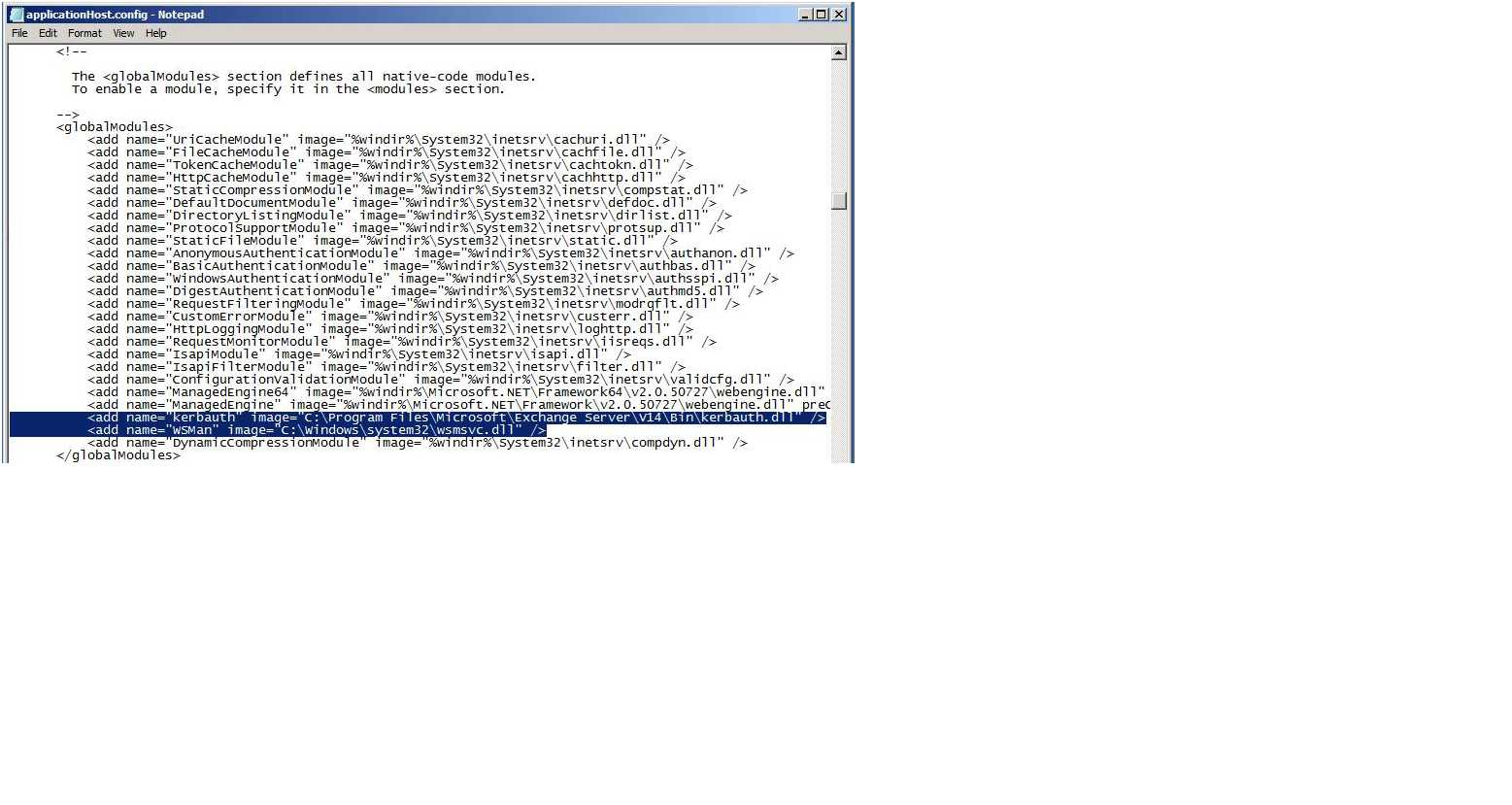
     Check following entries in applicationhost.config file under GlobalModules (c:\windows\system32\inetsrv\config) Note: Path is subject to Installation in the environment.


  1. ImageIf any of the entry is missing add it in applicationhost.cofig file below is the path:

NOTE: path for kerbauth depend on the installation folder of Exchange also make a copy of original file as a backup.

 <add name=”kerbauth” image=”C:\Program Files\Microsoft\Exchange Server\V14\Bin\kerbauth.dll” />

            <add name=”WSMan” image=”C:\Windows\system32\wsmsvc.dll” />

 Once you add above entry restart the IISADMIN service using services console and run IISRESET.

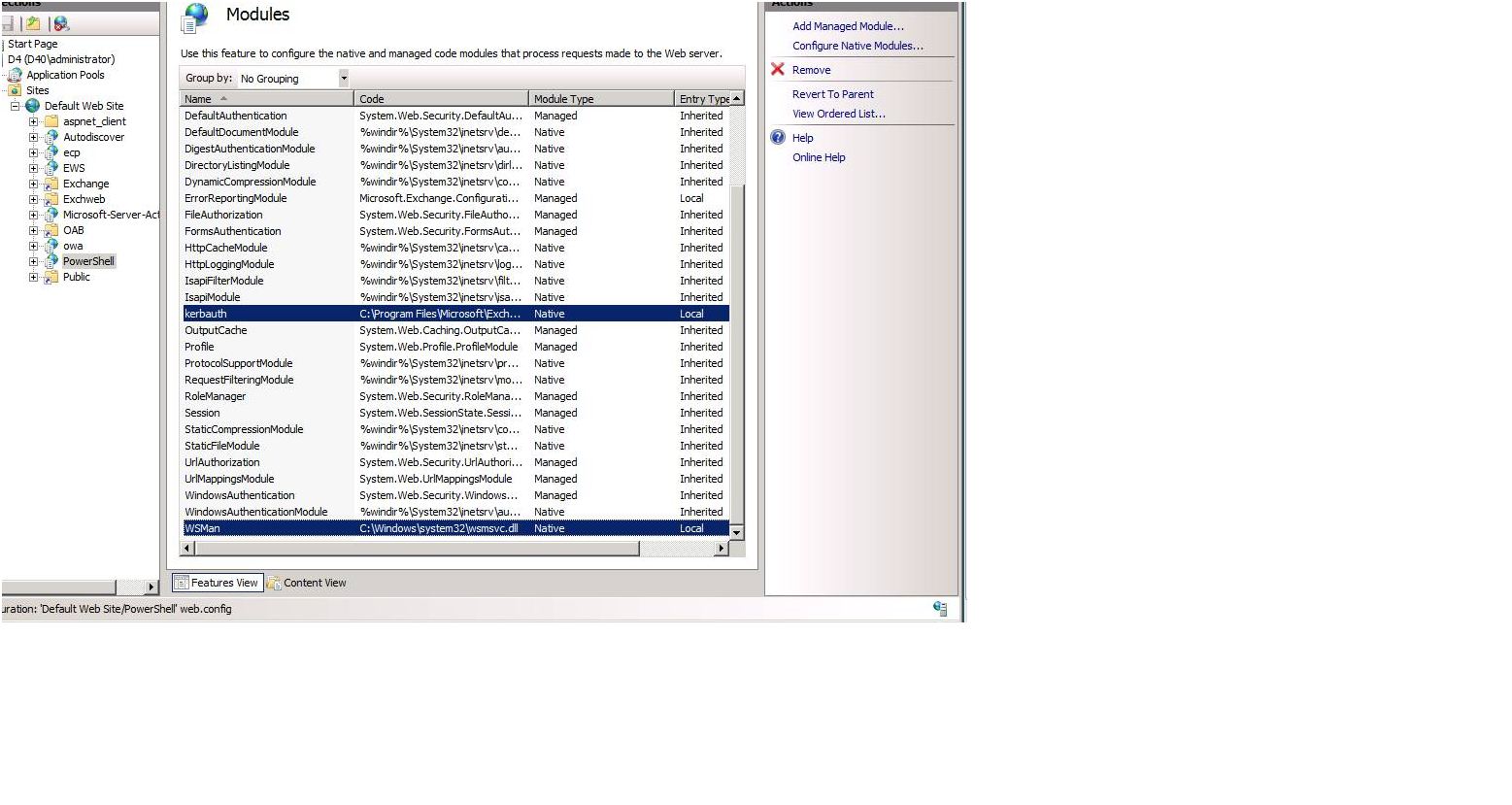
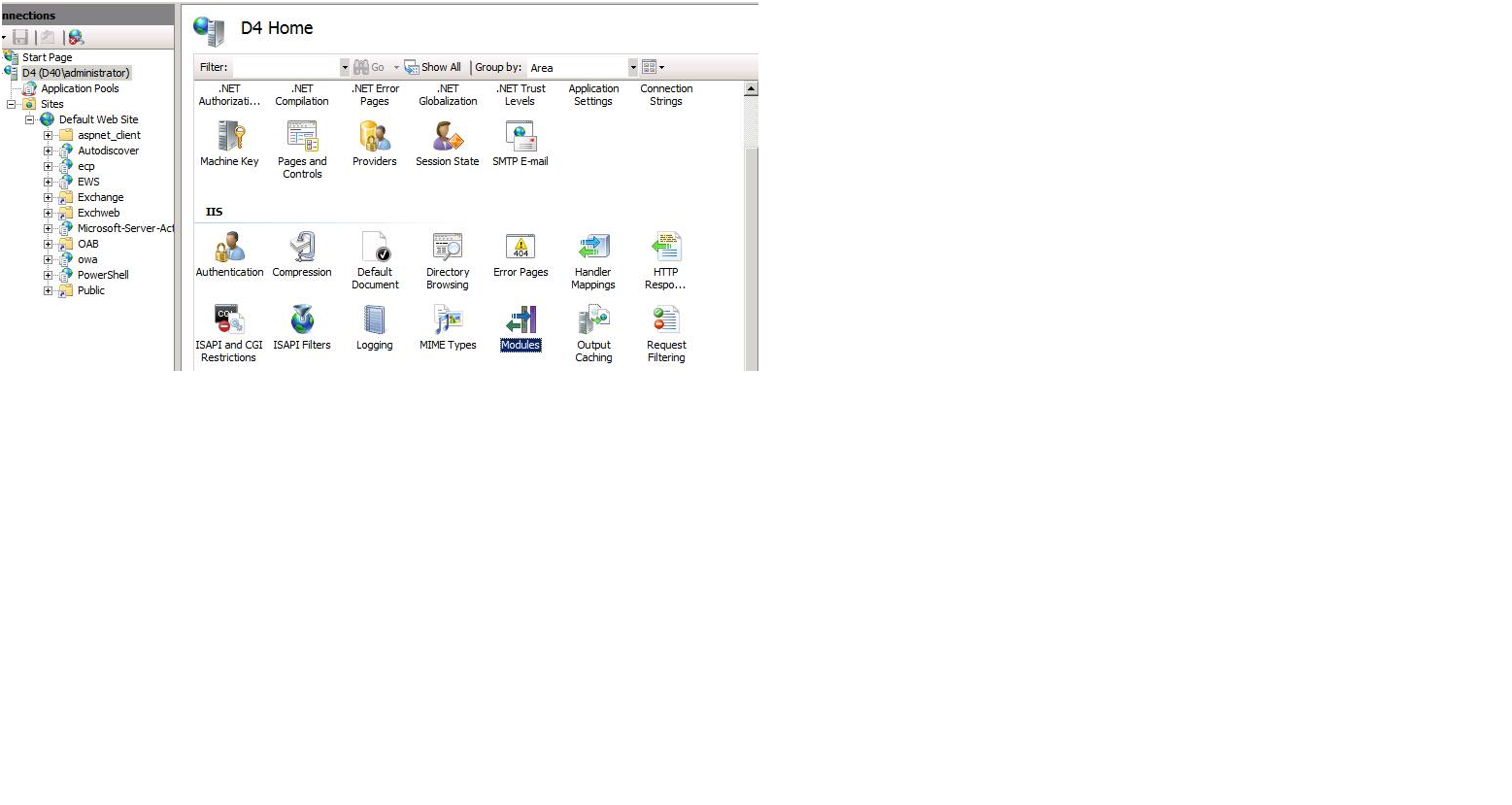
 Now open up the IISMANAGER and goto (Default Web Site->PowerShell->Modules) and click on Configure Native Modules… under Actions right side.

ImageNow try to browse the PowerShell from iis Manager and by default you will get:

ImageOpen the Configure native modules…. And click on Register add both kebauth+WSMan manually.

Go to (Default Web Site->PowerShell->Modules) and click on Configure Native Modules… under Actions right sideOnce you add above in the powershell module go back to server modules select kerbauth+WSMan and click remove.

Try open the EMC and if you do not get above response or you are still unable to open the EMC

   Replace the web.config file for the PowerShell with the default file attached to the email as I have taken the backup of Web.config file of PowerShell and the whole config folder (c:\windows\system32\inetsrv\config). Note: PLEASE take the backup of original file before making any changes/replacing file.


A small and interesting info on Memory Utilization by Information Store in Exchange 2007 & Exchange 2010

A small and interesting info on Memory Utilization by Information Store in E12 & E14.

The Information Store’s default minimum database cache size for E12 is 512MB (for machines with at least 2GB RAM) and there is no default maximum cache size, meaning
ESE will grow the cache to consume almost all the RAM on the machine if there is no other memory pressure on the system. If memory pressure occurs (such as say due
to new applications starting) ESE will appropriately shrink the size of the database cache.

Understanding Exchange Server 2007 I/O improvements from 64 bit

Going 64-bit with Microsoft Exchange Server 2007

Processor and memory configurations for Exchange Server 2007 Server Roles

Exchange 2007 Processor and Memory Recommendations

“A 64-bit Windows Server running the 64-bit version of Exchange 2007 substantially increases the virtual address space, and allows Exchange to increase its database
cache, reduce database read I/O, and enable up to 50 databases per server.”

Also as a rule of thumb, we recommend the following page file size
RAM 8GB, MIN=RAM+10MB, only go to 1.5x if VM problems continue.

Summary:
=========
Exchange 2007 removed the limitation on the ESE database memory cache. As a result, the memory utilization of the store.exe process can be much greater than
with Exchange 2003.

More Information:
==============
With Exchange 2003, the store process was bound to a certain memory cache limit. The upper bounds of this limit was typically set at around 900mb. This could be
increased further to aid in recovery, but for normal day-to-day operations, the limit was right around 900mb. This was due to the virtual memory limitations with
a 32-bit Operating System, which limited virtual address space to 4GB. The default settings allocated 2gb virtual address space for kernel mode, or the Operating
System, and the other 2gb for application mode, which was used by applications such as Exchange. The /3GB switch could be added to the boot.ini file to change this
default allocation to 1gb for kernel mode, and 3gb for application mode.

indicates how the maximum database cache size could be modified with Exchange 2003, and shows what the recommended values
are. The default value for a server with the /3GB switch set is 896mb, and the maximum recommended value is 1.2gb.

With Exchange 2007 and the 64-bit architecture, this limit on database cache size is no longer present, so the store process is no longer bound to that 900mb limit.
Currently, the default minimum cache size for Exchange 2007 is 512MB (for machines with at least 2GB RAM), and there is no maximum value set, which means that ESE
(store.exe) will grow the cache to consume almost all available RAM on the server IF there is no other memory pressure on the system. This much larger database
cache size results in greatly reduced disk I/O, and is preferred anyways, as reading information from memory is much much faster than reading information from
disk. If memory pressure occurs, as when other applications request/require memory, ESE will appropriately shrink the size of the database cache.

For example, if the server contains 16gb physical memory, if there is no other memory pressure, one could expect that the store.exe process will grow to use up to
14gb memory (16gb minus 2gb allocated to Kernel mode).

This value can be manually adjusted by modifying the following attribute on the properties of the Information Store object, however it is not recommended to do
so.
msExchESEParamCacheSizeMax

How to modify the default database cache size:

To modify msExchESEParamCacheSizeMax:

1. Start ADSI Edit.
2. Open the following object:
Configuration/Services/Microsoft Exchange/Your organization/Administrative
Groups/Your administrative group/Servers/Server name/Information Store
3. Right-click Information Store, and then click Properties.
4. Under the list of Attributes, scroll down and select msExchESEParamCacheSizeMax.

5. Click the Edit button, then type the number of 8 kilobyte (KB) pages that you want to set the maximum cache size to.

For example. 1GB cache equates to 1048576 (1024 * 1024). Divide the cache that you want to set by 8kb to determine the value to enter. In this case, 1048576 divided
by 8 is 131072.

If you wanted to set the cache size to 16GB, the value would be 2097152 (16777216 divided by 8).

Note The msExchESEParamCacheSizeMax parameter controls the ESE buffer size. Its value is expressed as a page count, and must be set to an exact multiple of 8192
for maximum efficiency. If this value is not met, the cache size is rounded up to the next 32-MB boundary when virtual memory is allocated. If this value is
incorrectly set, memory may be wasted.

6. Quit ADSI Edit, and then restart the Microsoft Exchange Information Store
service.

Note : Its recommended to do this settings only after testing in a lab environment.

Issue: Unable to send mails from IMAP/SMTP clients.

Recently i came across an issue with unable to send emails externally to our domain from IMAP/SMTP clients and found an solution for the same

Hope this would be helpful for others if similar issue occurs

Issue: Unable to send mails from IMAP/SMTP clients.
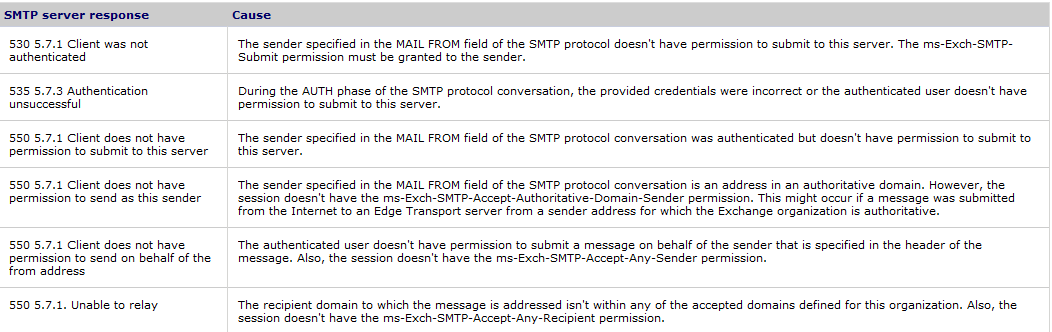
Error: 5.7.1 The client does not have permission to send as this sender.
Resolution: The sender specified in the MAIL FROM field of the SMTP protocol conversation is an address in an authoritative domain.
However, the session doesn’t have the ms-Exch-SMTP-Accept-Authoritative-Domain-Sender permission. This might occur if a message was submitted from the Internet to an Edge Transport server from a sender address for which the Exchange organization is authoritative
 Shell Command#
Get-ReceiveConnector “Default SERVER01” | Add-ADPermission -User “NT AUTHORITY\ANONYMOUS LOGON” -ExtendedRights “ms-Exch-SMTP-Accept-Authoritative-Domain”
Get-ReceiveConnector “Default SERVER01” | Add-ADPermission -User “NT AUTHORITY\AUTHENTICATED USERS” -ExtendedRights “ms-Exch-SMTP-Accept-Authoritative-Domain”

A related article which talks about the permission and error:

Exchange 2007 Transport Permissions Model
http://technet.microsoft.com/en-us/library/aa997170(EXCHG.80).aspx

5.7.1

BUG in Forefront security for exchange 2010

Symptoms:

• We will not be able to receive emails from internet and a genuine senders will get the following NDR;
• #550 5.7.1 :67.215.65.132:Client host 131.107.10.4 UnknownDNSName; Mail from IP banned. To request removal from this list please forward this message to delist.forefront@messaging.microsoft.com
• You may get the following Event id as well in the Application log;

Log Name: Application
Source: Microsoft Forefront Protection
Date: 9/7/2010 3:18:07 PM
Event ID: 2098
Task Category: General
Level: Error
Keywords: Classic
User: N/A
Computer: EMAIL.hsh1.com
Description:
The DNS Block list lookup domain blocklist.messaging.microsoft.com could not be contacted. This will prevent DNS Block list lookups. Please verify your network connectivity.

Cause:

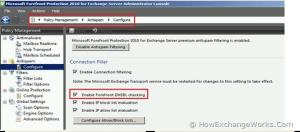
FSE  connection filtering  DNSBL checking.

forefront

Fix:

• Go for Rollup 1 or disable FSE connection filtering;

• Description of Hotfix Rollup 1 for Microsoft Forefront Protection for Exchange
http://support.microsoft.com/kb/2181692/en-us