Monthly Archives: August 2014

Install and Configure Lync 2013 server standard edition

In this article we will look at steps to install Lync 2013 server standard edition.

Before we deploy Lync server in environment it’s always mandatory to do a proper planning for the enterprise voice features as there are more factors involved in connecting to the mediation server and need to be designed and planned accordingly.

To install Standard edition front end server we need to plan the below things mandatory

Readiness for Enterprise voice

If we are planning for enterprise voice it’s better to check few things before we install front end server.

By default the mediation server is collocated with the front end server in standard edition. But this needs to be considered and deployed separately or collocated according to our enterprise voice plan.

In Lync 2013 standard edition we can choose to deploy mediation servers separately based on our requirements.

Below are the types of enterprise plan that are available and we need to plan accordingly


SIP trunking – For SIP trunk there is separate Standalone mediation servers required because the mediation servers acts as a proxy for all the Lync 2013 clients and transcodes media whenever required. So a dedicated server is required to handle this traffic as we do not have a dedicated pstn or a pbx.

Direct SIP trunk with PSTN – If you have Direct SIP trunk with PSTN gateway then separate mediation servers is not required since they are capable of receiving traffic from any pool and capable of DNS load balancing across the pools.


Ip-PBX or SBC – We don’t need to have a separate mediation server as long as the below conditions are met for IP-PBX or SBC

If IP-PBX or SBC is intelligent and can receive traffic from mediation server and route the traffic to the mediation server.

IP-PBX should not support media bypass and it should be able to do the media processing by its own by relieving the mediation server from media processing.

Also it’s always better to run the Microsoft Lync server 2013 planning tool to see if the front end server along with the mediation server can handle the load. If it does not then it is best recommended deploying a separate pool and separate mediation server.

Readiness for SQL

By default, the SQL Server Express back-end database is collocated on the Standard Edition server. You cannot move it to a separate computer.

SQL Standard/Enterprise is not supported with Lync 2013 Standard Edition pools. If you use a separate SQL Standard/Enterprise instance, you can deploy only Lync Enterprise edition.


Readiness for Active Directory Services

Domain Functional Level – Minimum should be at least Windows server 2003.

Forest Functional level – Minimum should be at least windows server 2003.


Install prerequisites on the front end server

In this article we will look at how to install Lync 2013 on Windows server 2008 R2 server.

Following prerequisites must be installed on the FE server


Microsoft .NET Framework 4.5

Remote Server Administration Tools (RSAT)

Microsoft Visual C++ 11 Redistributable

Windows powershell 3.0

HTTP Activation

WCF Activation

Windows Installler 4.5

Microsoft Silver light 5

Run the below commands for installing the below features

Import-Module ServerManager

Add-WindowsFeature Web-Server, Web-Static-Content, Web-Default-Doc, Web-Scripting-Tools, Web-Windows-Auth, Web-Asp-Net, Web-Log-Libraries, Web-Http-Tracing, Web-Stat-Compression, Web-Default-Doc, Web-ISAPI-Ext, Web-ISAPI-Filter, Web-Http-Errors, Web-Http-Logging, Web-Net-Ext, Web-Client-Auth, Web-Filtering, Web-Mgmt-Console, Web-Asp-Net45, Web-Net-Ext45, Web-Dyn-Compression, Web-Mgmt-Console, Desktop-Experience

Once the above installation is done ensure that you have joined this server in the domain and  logged in as domain admin.

Note : Admin User account must be a member of domain, enterprise and schema admins for the installation.

Run the setup from the CD

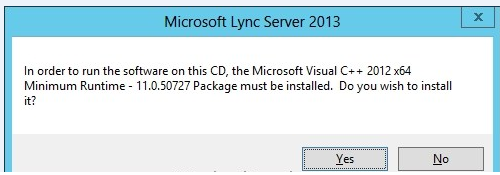
You will be prompted to install the Microsoft visual C++ as sql is installed on front end standard  server by default
 

Lync11


Choose the installation location and click install.

lync1


Click accept on the license agreement to proceed with the installation.

lync2


Once the installation is completed we will have 2 new programs installed in the task bar.

  • Lync server management shell.
  • Lync server deployment wizard.


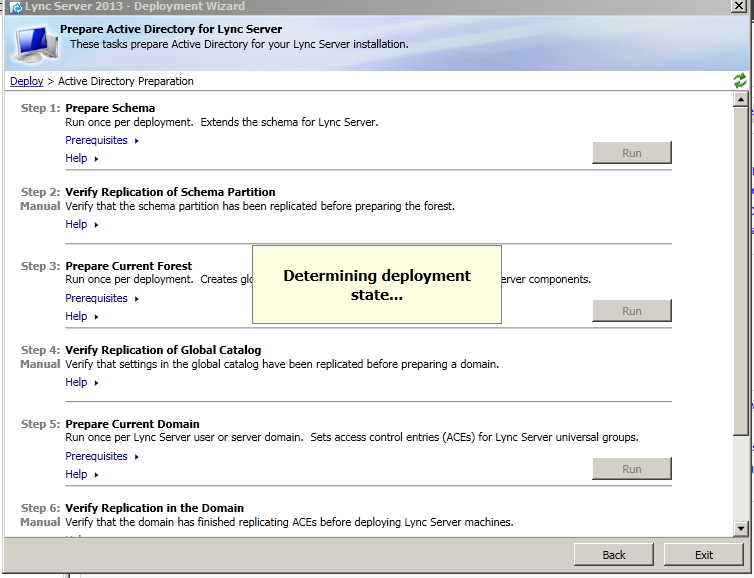
Now open Lync deployment wizard. It determines the deployment state once we open.
 

lync3


Click on prepare schema

lync4


Click on finish once completed.

Click on Prepare forest and click on finish once done

lync5


Click on Prepare domain and click on finish once done
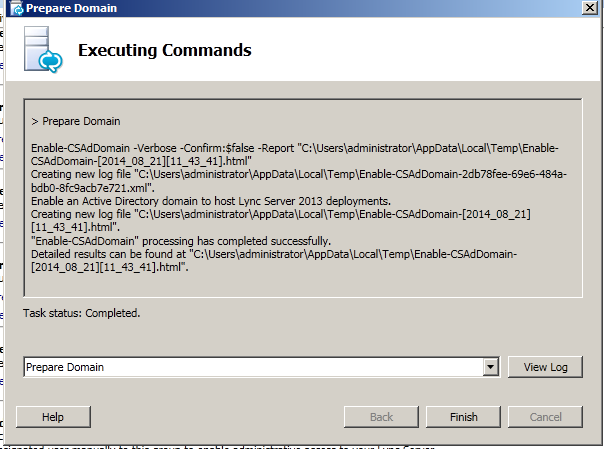
lync6


Once prepare domain done open lync deployment wizard again and click on prepare standard edition server.

Once we have done the above things we can see the below groups created
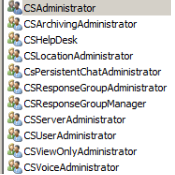
lync7


Now we need to add users to provide administrative access to the Lync Server Control Panel.

Add users in CS Administrator group who requires access to Lync Server Control Panel.

lync8


Now create SRV record for automatic sign on for the Lync clients.

Create Record: (screenshot below)

  • Service should be :  _sipinternaltls
  • Protocol should be :  _tcp
  • Port number:  5061
  • Host: point to your FQDN to your Front-End Server or Pool
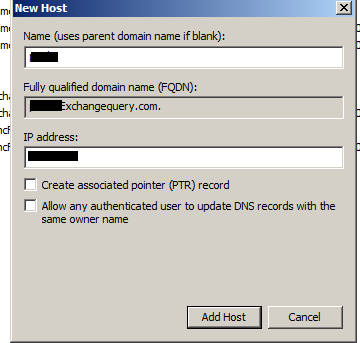
lync9


Now go back to the deployment wizard and install Lync administrative tools. Once after you install  you will see a new option called Lync server topology builder.

Open Lync   Server topology builder and select new topology.

lync10


Now define the SIP domain for the users to log in

lync14


Every Lync server front end pool must be deployed in a site. So specify the site and you can also mention multiple sites later..

lync16


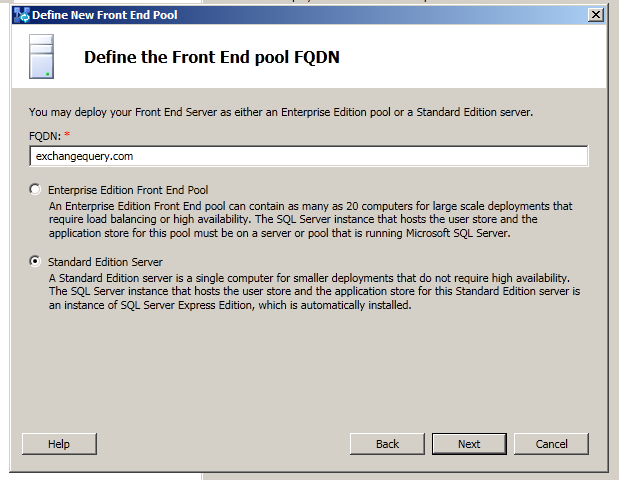
Now define the front end pool fqdn

lync14


Now select the features that we need to enable. IM and presence is enabled by default. Select the additional features according to your design. Select collocate mediation server if you need to install mediation server along with FE pool.
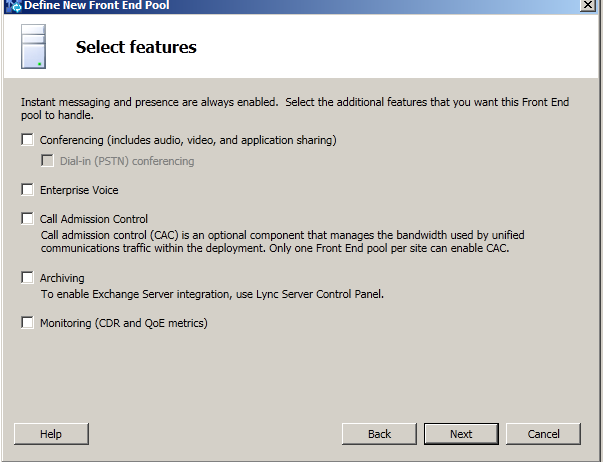
lync15


Just click default settings on the sql server store as we are installing standard edition.

For define file store alone we need to manually specify the installation path as it wont create the path automatically. We need to create a share folder and grant access to users

RTCHS Universal Services

RTC Component Universal Services

RTC Universal Server Admins

RTC Universal Config Replicato

Now click on Finish

Now open Topology builder and click on publish to publish the topology


lync17


Once the publishing wizard is completed click install or update lync server system to complete the installation successfully.

We are done with installing the Front end server collocated along with mediation server.

You can later install monitoring and archiving server separately.

Cheers

Sathish Veerapandian

Exchange Mailbox Folder Permission Script

One of the important task of the Exchange admin to assign the folder permission to the delegates, When new delegates added to the generic mailbox and Resource mailboxes. If the mailboxes has multiple folders and sub folders its time consuming process. The script simplifies the task and eliminates the manual errors

Browse to the folder and run the ps1 file, the initial screen looks below and select the option based on your action


***************************************************************************

<#
.SYNOPSIS

Add mailbox folder permission to the delegates for user and resource mailboxes

.DESCRIPTION

Important task of the Exchange admin to assign the folder permission to the delegates
when new delegates added to the generic mailbox and Resource mailboxes.
the script simplify the task and eliminate the manual errors

#>

Write-host ”

Assign Mailbox folder Permission
——————————–

1.Assign Folder permission to Single folder

2.Assign Folder Permission to All folders(includes user created,default,recoverable mailbox folders)

3.Assign Folder permission only to the default folders(inbox,calendar,….)

4.Assign Folder permission only to the user created folders

5.Exit ” -ForeGround “Cyan”

$option = Read-host “Choose the Option”

switch ($option)
{

1 {

$Mailbox = Read-Host “Enter Mailbox ID ”

$Folder = Read-Host “Enter the FOLDER NAME ( Examplles : Inbox,calendar…)”

$delegate = Read-Host “Enter Delegate ID ”

$Permission = Read-Host “Enter Type of Permission(Author, Editor, Owner, Reviewer, none)”

$foldername = $Mailbox + “:\” + $folder

If ($folder -ne “”)

{
Add-MailboxFolderPermission $foldername -User $delegate -AccessRights $Permission -confirm:$true

}

Else

{ Write-Host ” Please Enter Folder name ” -ForeGround “red”}

;break

}

2
{

$Mailbox = Read-Host “Enter Mailbox ID”

$delegate = Read-Host “Enter Delegate ID ”

$Permission = Read-Host “Enter Type of Permission(Author, Editor, Owner, Reviewer, none)”

$AllFolders = Get-MailboxFolderStatistics $Mailbox | Where { $_.FolderPath.ToLower().StartsWith(“/“) -eq $True }

ForEach($folder in $AllFolders)

{

$foldername = $Mailbox + “:” + $folder.FolderPath.Replace(“/”,”\”)
Add-MailboxFolderPermission $foldername -User $delegate -AccessRights $Permission -confirm:$true

}
;Break}
3 {

$Mailbox = Read-Host “Enter Mailbox ID”

$delegate = Read-Host “Enter Delegate ID ”

$Permission = Read-Host “Enter Type of Permission(Author, Editor, Owner, Reviewer, none)”

$Default = Get-MailboxFolderStatistics $mailbox | ?{$_.foldertype -ne “user created” -and $_.foldertype -ne “Recoverableitemsroot” -and $_.foldertype -ne “RecoverableItemsDeletions” -and $_.foldertype -ne “RecoverableItemspurges” -and $_.foldertype -ne “RecoverableItemsversions” -and $_.foldertype -ne “syncissues” -and $_.foldertype -ne “conflicts” -and $_.foldertype -ne “localfailures” -and $_.foldertype -ne “serverfailures” -and $_.foldertype -ne “RssSubscription” -and $_.foldertype -ne “JunkEmail” -and $_.foldertype -ne “CommunicatorHistory” -and $_.foldertype -ne “conversationactions”}

ForEach($folder in $default)

{

$foldername = $Mailbox + “:” + $folder.FolderPath.Replace(“/”,”\”)
Add-MailboxFolderPermission $foldername -User $delegate -AccessRights $Permission -confirm:$true
}

;break}

4 {

$Mailbox = Read-Host “Enter Mailbox ID”

$delegate = Read-Host “Enter Delegate ID ”

$Permission = Read-Host “Enter Type of Permission(Author, Editor, Owner, Reviewer, none)”

$Default = Get-MailboxFolderStatistics $mailbox | ?{$_.foldertype -eq “user created”}

ForEach($folder in $default)

{

$foldername = $Mailbox + “:” + $folder.FolderPath.Replace(“/”,”\”)
Add-MailboxFolderPermission $foldername -User $delegate -AccessRights $Permission -confirm:$true

}

;break}

5 {

}
}

************************************************************************

copy above code and save it as ps1 as extension(addmailboxfolderperm.ps1)


Custom Transport rules in Exchange 2013

By using transport rules in Exchange 2013  we can filter, inspect or block any confidential emails that match any specific conditions with the email that matches the transport rule. By using this we would be able to prevent the leakage of the sensitive data in any organization.

Transport rules along with DLP and policy tips can be used to give end users warning informational tips when they try to send any emails which does not abide the company policy.

In-order to achieve this we need to create a transport rule first, and then create a associated DLP policy and then configure policy tips for the same. we will look into how to perform this with a small example.

Below example is a simple rule that helps us to block any emails with attachments that has a character set invoice

Open EAC – Go to Mail Flow – Select Rules

Click on the + sign to create a new rule – Give it a name

pic1


We have scope to choose as well. In my example im selecting the option if the recipient is located outside the organization this applies for external users.


pic2


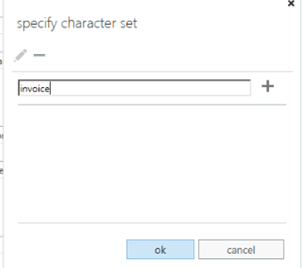
We can apply a condition to this rule. Specify a character set. In my case im specifying name invoice so that all emails which contains character invoice will be sent for review and approval.


pic3


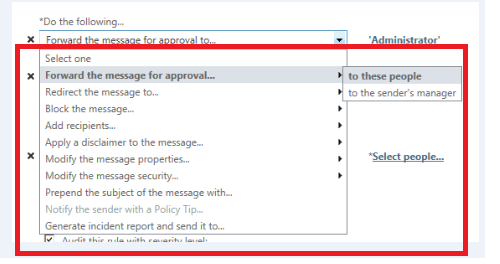
We can take the following action on the message that matches the criteria for invoice. In my case im forwarding the email for approval by administrator.


pic4


We can add an exception too by excluding few recipients who are entitled to send those messages or even according to subject or few other parameters as shown below.


pic5


We can still enhance this rule and notify end users before they try to send any emails which do not meet the company policy. This task can be accomplished with the help of policy tips.

Policy tips are informative messages displayed to the end users in owa, outlook and owa for devices before they tend to send any offending content in any organization.

They function similar to MailTips where an informational message is given to the user while he/she tries to add any attachment like pdf file which an organization restricts to send through email to external users. By using this users will come to know that this kind of email is not allowed to send and they can abide the rules.


Policy Tips works along with DLP. An associated DLP policy also should be created for the same.

To create Custom DLP Policy

Open EAC – Click Compliance management – Select Data Loss Protection – Select New Custom DLP Policy


DLP1


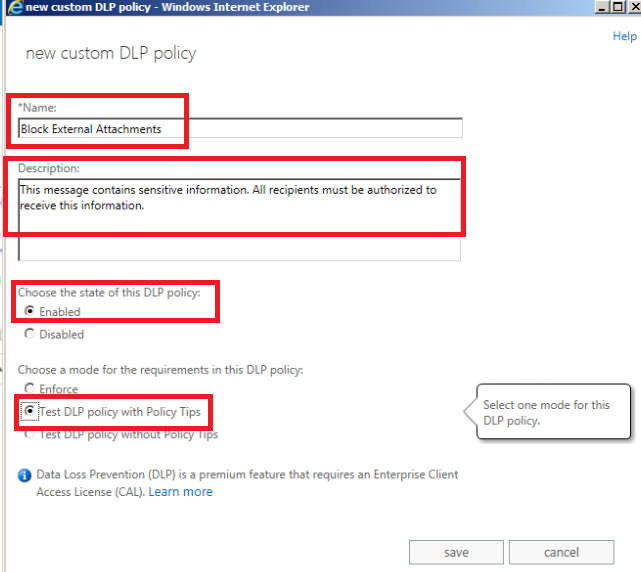
Now give it a name and specify the description.

Select the state to be enabled and choose option Test DLP policy with Policy Tips and click save.


DLP2


Now Click on the DLP policy created and click edit

Select Rules – You can create a new rule.

im selecting option notify sender when sensitive information is sent outside organization rule in my case.You can create a new rule or an existing one which matches your criteria and click save.


DLP3


To edit Policy Tips

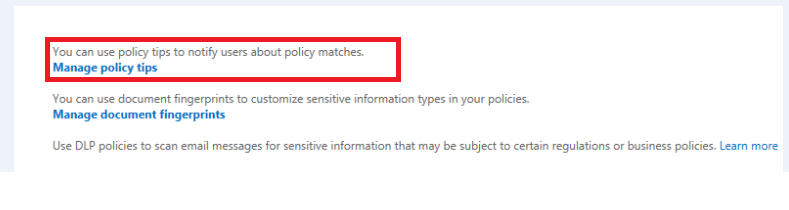
In-order to do that  click edit on the custom created DLP policy and select Manage policy tips


DLP4

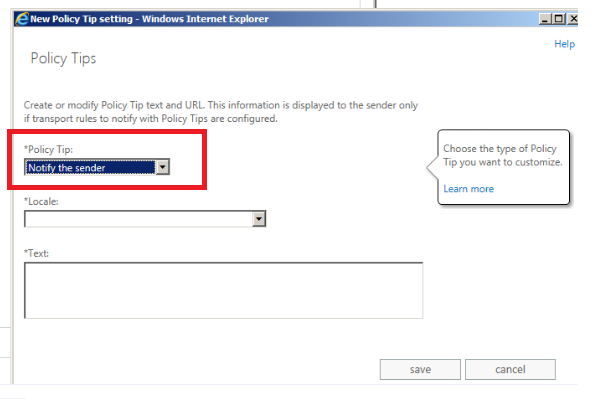
Click on the option notify the sender option .


pic6


Select the locale language

And specify the text message  that needs to be displayed to the end user when he/she tries to send an email which matches our Transport rule, DLP and policy tips.


pic7


Below is the example of the policy tip notification.


DLP5

Note : If you are using policy tip for SSN, Passport Numbers , Credit Card numbers with already existing DLP templates then policy tips will be triggered only  for valid passport numbers,credit card numbers and SSN numbers.

Sathish Veerapandian
Steps to configure IRMS in Exchange 2013

Information Rights Management Service IRMS is an inbuilt Messaging policy feature which is available from Exchange 2013. This inbuilt Messaging policy works along with transport rule to secure all the sensitive email transits that is happening in our organization.

By Using IRMS we will be able to inspect any sensitive email content with help of transport rules, encrypt them and then provide secure access only  to the required users.

IRM agents are built in transport agents. But however when we run Get-TransportAgent we will not be able to see the IRM agents visible. Because most of the inbuilt transport agents that come along with the installation are not visible in Get-TransportAgent and they are unmanageable from PowerShell.

IRMS works with the help of ADRMS and informational protected technology which is introduced from Windows Server 2008. ADRMS uses extensible rights markup language (XrML) type certificates to certify users and computers. We need to have AD RMS installed to use this IRM functionality.


By Using IRM following actions can be taken

  1. We can restrict confidential email to be sent only to the right recipients and other recipients can be blocked.
  2. Prevent forwarding a confidential message to other recipients.
  3. Prevent Copying and pasting a confidential message
  4. Prevent printing a confidential Message


This IRM requires Licensing to work along with ADRMS.When we enable IRM pre-Licensing is enabled by default.

There is a prelicensing agent which acts on the categorizer on the mailbox server in the transport service which attaches a prelicensing in OnRoutedMessage to IRM- protected messages.

So by this prelicensing which is issued by default by the ADRMS to the IRM protected messages end users will be able to access these emails through Outlook in online/offline mode and as well as through OWA, Active sync devices as well.By doing this the client does not need to send a request to the ADRMS for license to access these emails each and every time.


IRM works in the following clients

Manually by Outlook users – By using IRM functionality in Outlook. (This is a client side IRM from outlook and no IRM transport rule from server is triggered in this scenario)

Manually by Outlook Web App users – By using Web-Ready Document Viewing.( This is a client side IRM from outlook and no IRM transport rule from server  is triggered in this scenario)

Manually by Windows Mobile and Exchange ActiveSync device – This requires users to connect their supported Windows Mobile devices to a computer and activate them for IRM (This is a client side IRM from outlook and no IRM transport rule from server is triggered in this scenario)

Automatically on Mailbox servers – Works with the help of Transport Protection Rules from server.


Note:

A message which is already IRM protected by any of the client type like Outlook, OWA or Activesync will not be again IRM protected by Transport protection rules since its already protected. IRM purely works with the help of ADRMS encryption so all the client side IRM protection will already be processed if a user tries to use IRM functionality from Outlook or OWA.


IRMS works in the categorizer Mailbox Transport service in the following ways:


RMS Decryption agent – Decrypts the messages to provide access to transport agents for inspection.

Transport Rules agent – An associated IRM transport rule inspects the email and marks the email as IRM protected email and notifies RMS encryption agent

RMS Encryption agent – Identifies the IRM marked messages by transport rule and then encrypts them for protection.

Prelicensing agent – Attaches a prelicensing to this message in OnRoutedMessage to IRM- protected messages by AD RMS cluster.

Journal Report Decryption agent– Decrypts only irm messages with journal reports.


Now let’s see how to enable IRM in Exchange 2013.

Prerequisites to use IRM in Exchange 2013

1) We need to have ADRMS installed in our Environment

 Note: We need to have IRMS installed separately on a server. It should not be installed on a server  where we have Exchange installed.

Follow the below steps for ADRMS installation.

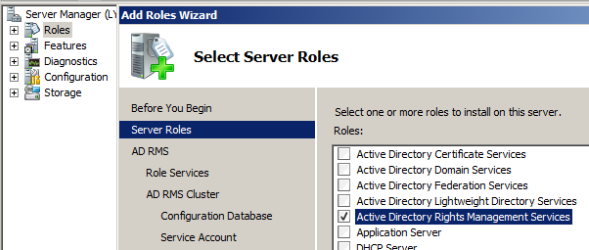
Open server manager. Go to roles and select ADRMS.


1


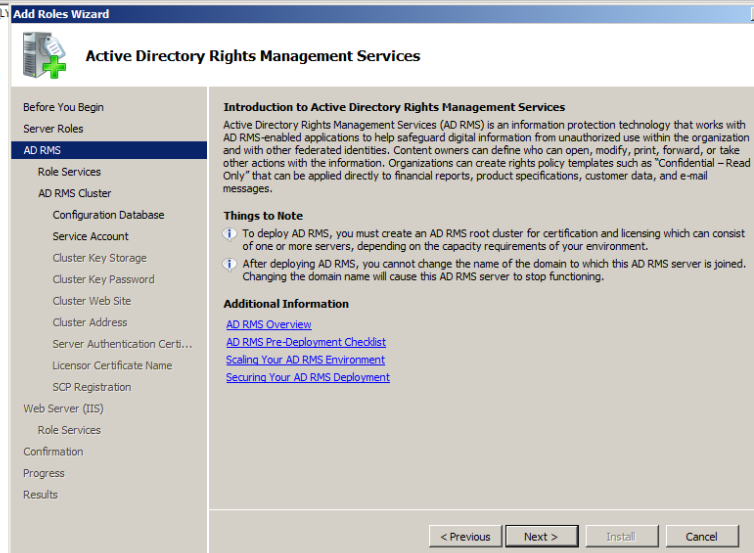
Click next

2


Select federation support as well if you wish to extend ADRMS to federated partners.

3


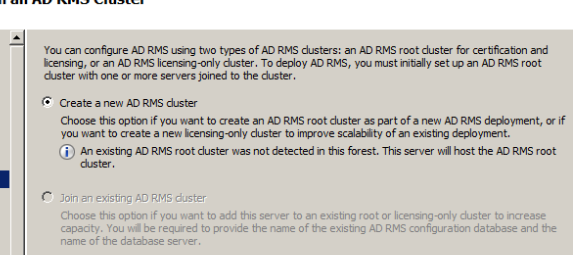
Click create new AD RMS cluster

4


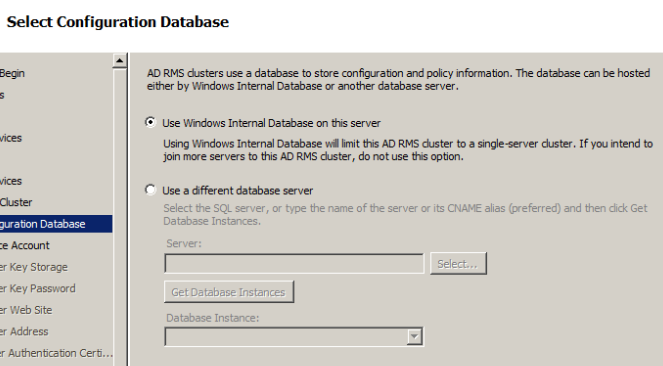
Choose a location to store configuration database

5


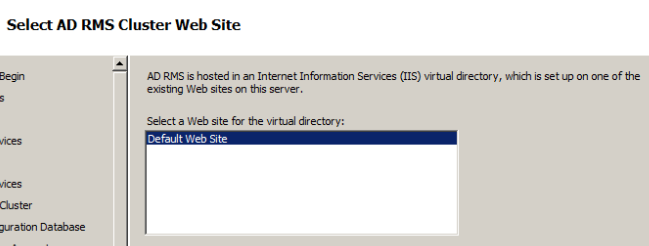
Default website is selected automatically

6


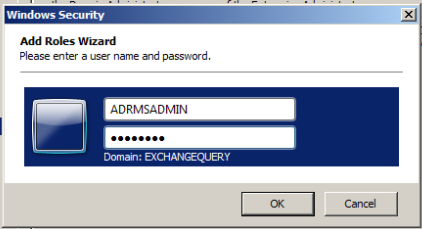
We need to create a separate service account to manage ADRMS

7


Specify the internal address to be used for ADRMS.


8


Choose server authentication certificate

9


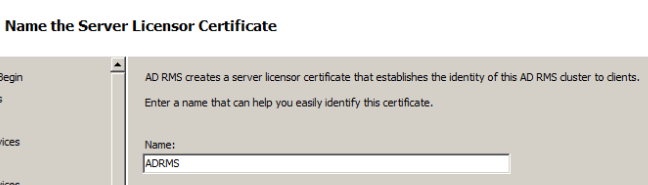
Provide a server licensor certificate which helps to identify the clients

10


Just navigate through the wizard it’s pretty much easy and complete the installation of ADRMS role.

11


Note: By default Exchange 2013 IRM features support Microsoft Office file formats. We can extend IRM protection to other file formats by deploying custom protector.

If you need to support additional files then you will need to import custom protector in ADRMS.

For custom protectors refer http://msdn.microsoft.com/en-us/library/office/bb802693(v=office.14).aspx


2) Grant access to Exchange servers to use ADRMS for IRM. Perform the following task.

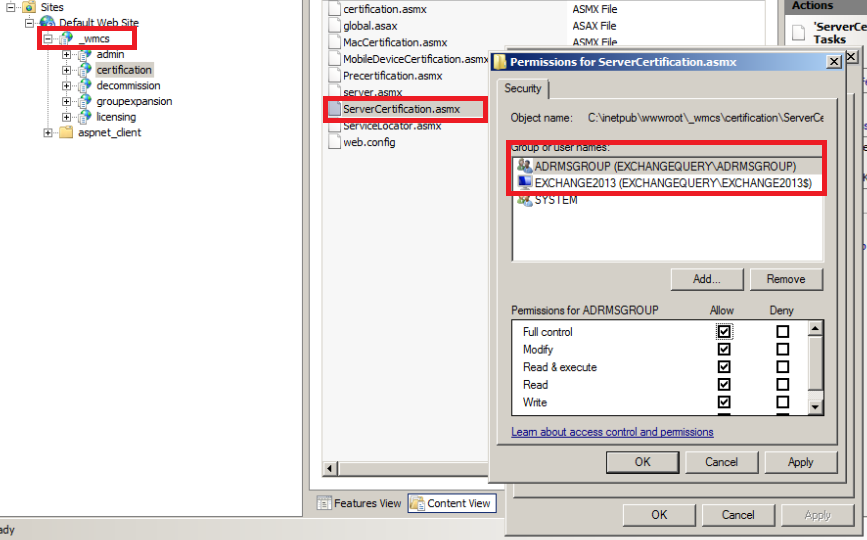
Open IIS – open default Website – Click _wmcs – Select Certification

Switch to content view – right click on servercertification.asmx and click edit permissions ensure that Exchange servers are listed as shown below.

Note:  This setting on IIS should be checked on the server where we have installed ADRMS. _wmcs directory will be visible only after we install ADRMS.

12


3) We need to create a dedicated security group for encryption and decryption of these messages by super admins

Perform the following task

Create a dedicated super user group to be used in AD users and Computers.

Open ADRMS – in security policies select super users and ensure super user functionality is enabled. If not add this user to the group.

4) Run the below commandlets to enable IRM.


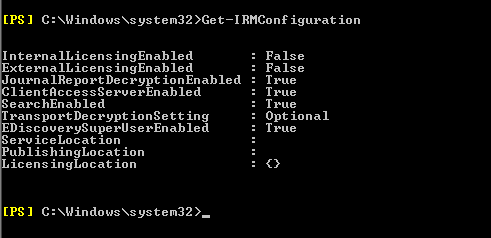
First check the IRM settings by running the below command.

Get-IRM configuration.

13


To enable on CAS –   Set-IRMConfiguration -ClientAccessServerEnabled $true

To Enable for OWA –   Set-OWAMailboxPolicy –Identity Default -IRMEnabled $true

For Multimailbox IRM search –   Set-IRMConfiguration -SearchEnabled $true

For Licensing Internally –   Set-IRMConfiguration –InternalLicensingEnabled $true

For Licensing External users –   Set-IRMConfiguration –ExternalLicensingEnabled $true


5) Create an associated transport rule for IRM for mailbox side IRM.

Note: Before creating transport security rules we need to have RMS templates loaded from the ADRMS to use in this rule. To identify the set of RMS template from ADRMS run the below command.

Get-RMSTemplate | format-list

Open EAC – Select Mail flow and select – Rules

Select Apply Rights protection to Messages


14


Use the Select RMS template dialog box to select a template.

Add any exception if we need to use any exception for few senders.

Below is an example of adding an exception for Administrator. IF  any IRM message which matches the  Template chosen in IRM for Admin then we can set exception to forward the message to his manager for approval.

15


Clicks save and we are done.


Below is an example by using Do not forward template in ADRMS. The Outlook and owa users while composing this message by organizer will receive this type of information as shown below.

s0

Also  we can use Test-IRMConfiguration commandlets to check the IRM functionality for a user

Below is an example for testing IRM config for user Adam sent emails.

Test-IRMConfiguration -Sender adams@contoso.com

References: http://technet.microsoft.com/en-us/library/dd638140(v=exchg.150).aspx

http://technet.microsoft.com/enus/library/dd298166(v=exchg.150).aspx

http://technet.microsoft.com/enus/library/bb125012(v=exchg.150).aspx

http://technet.microsoft.com/en-us/library/dd979798(v=exchg.150).aspx

Sathish Veerapandian
Customized system messages to users in different languages in Exchange 2013

In this article let’s have a look at customizing system messages (Warning mailbox limit, ProhibitSendMailbox, DSN) to users in different languages.

Let’s take an example if we have users who are using mailboxes across different regions in multiple geographical locations. In this scenario users will be having different languages as default according to their region. For example user might have his default language as French and some might have default language as English.

In these scenarios we can customize this system message according to different region so that the users will be getting the system generated emails according to their regional language.

Let’s take a scenario of customizing system messages for French users as well as English users who are residing in different locations.

So we need to deliver DSN,Quota Messages in English for SetA users and in French for SetB users. By this way SetA users gets the DSN in English and SetB users gets DSN in French.

In-order to accomplish this task we need to create a new customized quota message. We need to run the below commands.


First we need to set the language property of the user mailbox according to his region. In order to accomplish this we need to run the below commands

For French users – Set-Mailbox – identity “user” -languages “FR-CA”

For English users – Set-Mailbox – identity “user” -languages “EN-US”

1) Warning Messages

For French users

New-SystemMessage –QuotaMessageType WarningMailbox -Language FR –Text “type French text here”

S1

For English users

New-SystemMessage –QuotaMessageType WarningMailbox -Language EN–Text “Watch out! Your mailbox has reached its maximum capacity


2) Prohibit Send mailbox:

New-SystemMessage –QuotaMessageType ProhibitSendMailbox –Language EN –Text ““type english text here”

New-SystemMessage –QuotaMessageType ProhibitSendMailbox –Language FR –Text “type French text here”


3) Prohibit Send receive mailbox:

New-SystemMessage –QuotaMessageType ProhibitSendReceiveMailbox –Language FR –Text ““type French text here”

New-SystemMessage –QuotaMessageType ProhibitSendReceiveMailbox –Language EN –Text “Watch out! Your mailbox has reached its maximum capacity”

S2


4) For DSN’s we can use the below command

New-SystemMessage -DsnCode 5.3.2 -Language En -Internal $true -Text “Any English TEXTMessage”

New-SystemMessage -DsnCode 5.3.2 -Language FR -Internal $true -Text “Any French TEXTMessage”

Once after we have made the above changes users will be able to receive system messages according to their MailboxRegionalConfiguration settings.


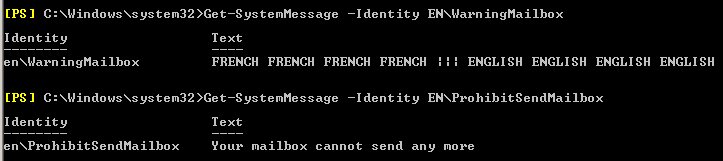
To view the system messages we can use the below commandlets:

To view the language for user – Get-MailboxRegionalConfiguration –Identity username

For Warning – Get-SystemMessage -Identity EN\WarningMailbox

For prohibit Send – Get-SystemMessage -Identity EN\ProhibitSendMailbox

For prohibit SendReceive – Get-SystemMessage -Identity EN\ProhibitSendReceiveMailbox

S3

To modify system messages:

Set-SystemMessage -Identity EN\WarningMailbox -Text “Your mailbox is becoming too large.”

Set-SystemMessage -Identity EN\ProhibitSendMailbox -Text “Your mailbox can not send nor receive any more …”

Set-SystemMessage -Identity EN\ProhibitSendReceiveMailbox -Text “Your mailbox can not send nor receive any more …

To remove any customized system message you can use the below command

Remove-SystemMessage -Identity EN\WarningMailbox.

Refer more:

http://technet.microsoft.com/en-us/library/bb310757(EXCHG.80).aspx

http://technet.microsoft.com/en-us/library/aa998878(v=exchg.150).aspx

Sathish Veerapandian