
Microsoft Cloud Sync is a new solution for achieving your hybrid identity synchronizing contacts, groups, and users with Microsoft Entra ID—is Microsoft Entra Cloud Sync.
Rather than using the Microsoft Entra Connect it makes use of the Microsoft Entra cloud provisioning agent. In this article series we will take a look at the steps to migrate from Entra ID connect to Microsoft cloud sync (After detailed analysis)
We will choose only a Pilot OU on this part to see if the synchronization is getting successful for these Pilot OU.
Below are the benefits of migrating to Cloud Sync:
- Config is easily managed from Azure AD portal
- Cloud Sync does not require SQL server licensing (Azure AD Connect requires a SQL Server database to store identity data)
- It’s a light weight agent no heavy dependencies of need to setup a local DB SQL backend
- Deployment complexity & maintenance is fair less
Moving on to resiliency:
- Multiple agents can be installed for parallel sync.
- Whereas Azure AD connect uses Active & Staging mode to achieve some resiliency.
Regarding performance :
- Its capable of performing Sequential Sync
- Supports Sync to a single tenant from a multi-forest disconnected AD environments
So the question comes here first like ok this seems to be nice but I already have my environment setup and running in Azure AD connect.
What is the steps to migrate to Microsoft Cloud Sync ?
Below are the steps to do that.
First things first (Lets be very honest here )
Not all environments are capable of moving to Cloud Sync .
So we need to first evaluate any environment before choosing this option.
How do I validate ?
You can use the Microsoft setup tool by navigating to the below url
https://setup.cloud.microsoft/entra/add-or-sync-users-to-microsoft-entra-id

In short 3 main blockers can be :
- If you environment is having objects more than 150 k and synchronizing them to the cloud then Microsoft Entra Cloud Sync is not an option for you.
- If you have Microsoft Entra ID hybrid joined devices then it’s a big no.(But I will still recommend to move Entra ID joined devices as you can utilize Intune, Microsoft Defender features in a better way.)
- Does not support Pass Through Authentication.
For more information please take a look a the comparision table here
So here based on the selection you can decide if your organization is capable enough of moving to the Microsoft Entra Cloud Sync.
Keep in mind if you are falling in the last 4 option then this feature is not for your environment.
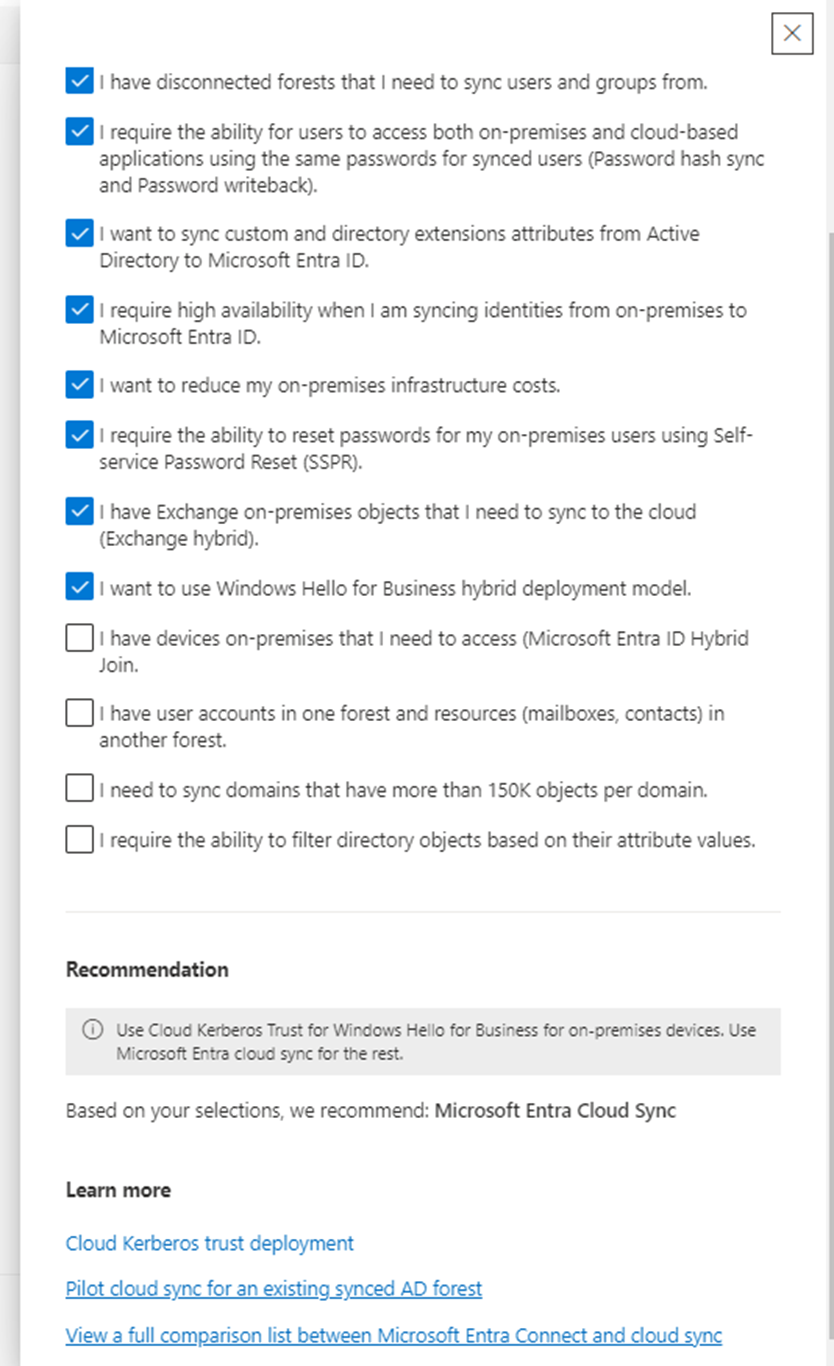
So here in the next screen we are presented with the option.
Usually it’s the 3rd option in 99 percent of the cases where we need continuous sync.
If you are lucky enough to fall in the first 2 options then its going to be a piece of cake project for you 😊

So having selected and falling in the scenario that your environment is capable enough of moving to cloud sync there are some prerequisites that needs to be met before moving further.
Here are the prerequisites:
- An on-premises server for the provisioning agent with Windows 2016 or later. Installing the agent on a domain controller is supported. (Identify a domain-joined host server running Windows Server 2016 or greater with a minimum of 4-GB RAM and .NET 4.7.1+ runtime.)
- You can multiple active agents installed and running (This is cool rite to have sequential sync and better HA).
- The PowerShell execution policy on the local server must be set to Undefined or Remote Signed. (Set-ExecutionPolicy Remotesigned)
- If there’s a firewall between your servers and Microsoft Entra ID, see Firewall and proxy requirements below.
- Enable TLS 1.2 for secure communication.
- Ensure that you’re running Microsoft Entra Connect Sync version 1.4.32.0 or later and installed using the express settings.(You can check this on your AAD health agent log in location C:\ProgramData\AADConnect)
I have listed most of the prerequisites that comes in my mind. If anything is missed excuse me 😊
First thing is Export Microsoft Entra Connect settings
Open AAD connect – Select view or export current configuration

And then choose the export default export location is C:\ProgramData\AADConnect
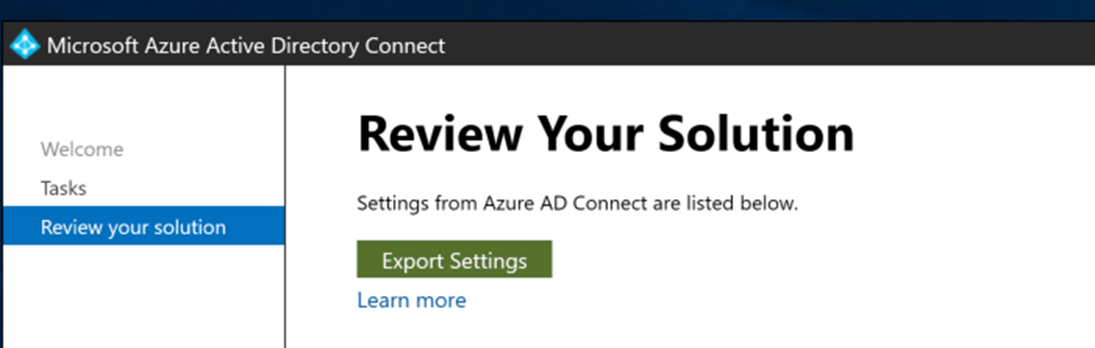
Then you have to stop the sync scheduler with below two commands
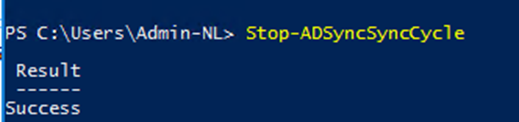

Post that you need to create Custom Inbound and outbound rules for Users, Groups & Article as per this link
Now the next step is to install the cloud provisioning agent on the new server that you have prepared in your environment.
Below are the steps:
Navigate to azure portal and download the Microsoft Entra Provisioning Agent from this location

Installation is straight forward
More imp: Login as domain admin with the required permission to perform this task
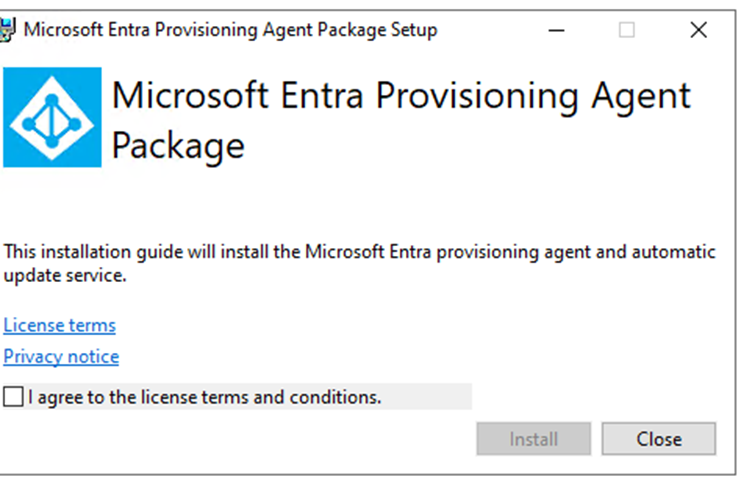
On the Select Extension screen, select HR-driven provisioning (Workday and SuccessFactors) / Microsoft Entra Connect cloud sync and click Next. I believe the option 2 is for a sync from Entra ID to an On premise Application

Here this step suggest to choose option 1(since we are synching objects from local AD to Entra ID)
Later will be challenged with Domain Admin Credentials for creating the GSMA account.

In the next step you’d be prompted with the domain that you’ve synched and wanted to sync

Upon confirming we would get the required GMSA account configured plus registering this agent and restarting them.

At last after successful provisioning we get the below message

After this when we navigate to the Entra ID portal we can see the agent active as below

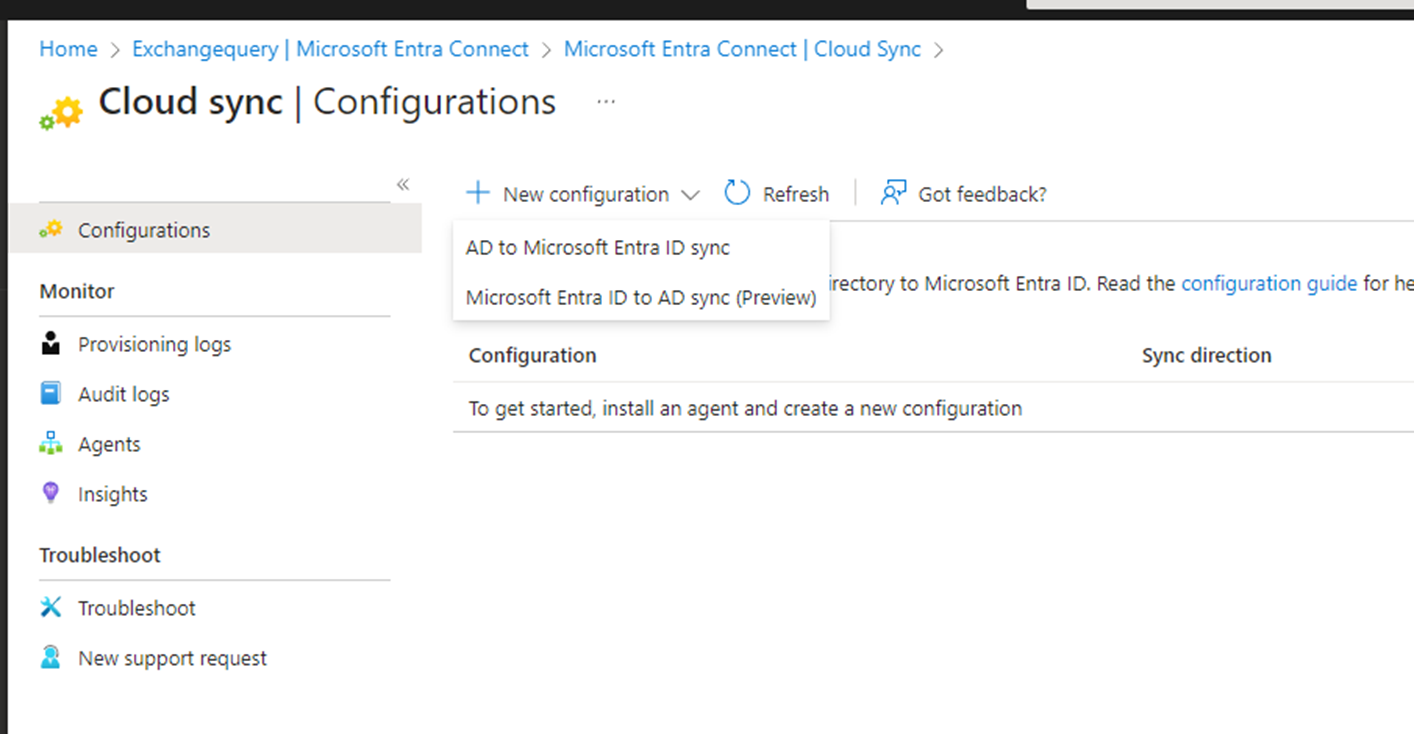
Post that install an agent and start the configuration as below
AD to Microsoft Entra ID sync
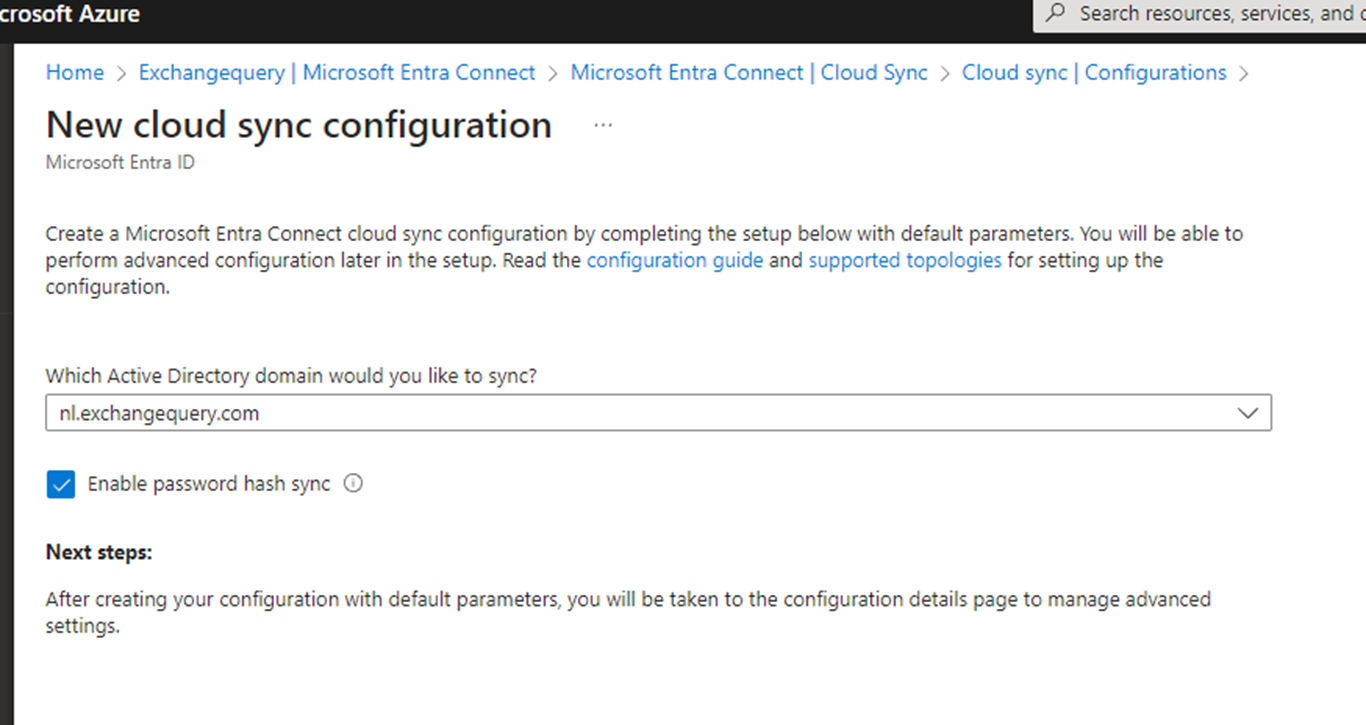
Choose your domain and enable PHS if you have enabled password hash synchronization in your organization.
Post configuration you need to configure the below settings – Scoping,Attribute Mapping & Expression builder

Example for Scoping OU

Post this the status sync will be disabled which is good for verification
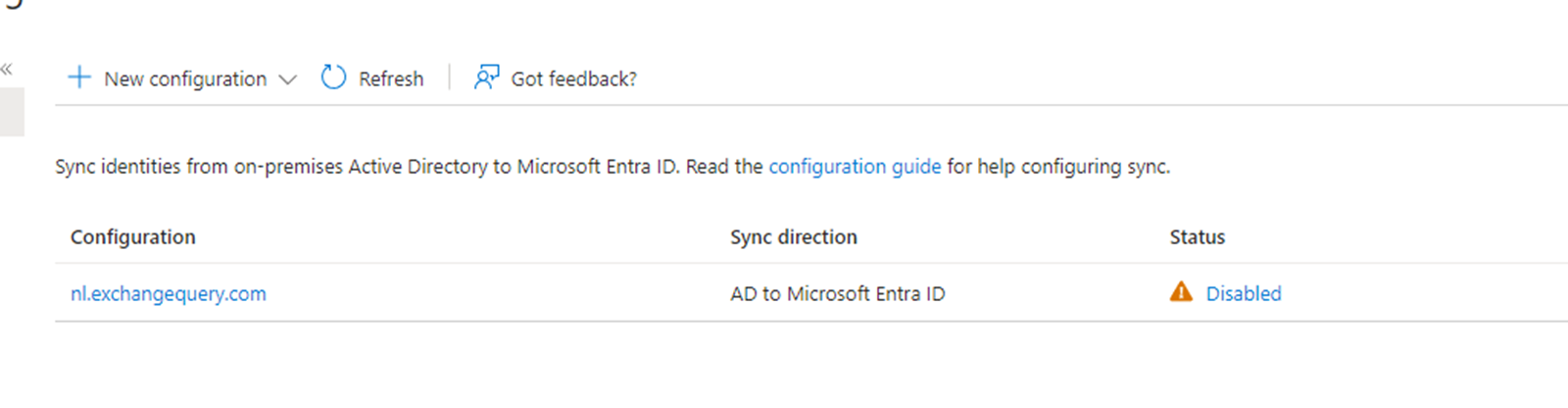
After verification you can go to the Azure AD connect server and start the sync
On the server that is running Microsoft Entra Connect Sync open PowerShell with Administrative Privileges.
Run Stop-ADSyncSyncCycle. Hit Enter.
Run Set-ADSyncScheduler -SyncCycleEnabled $false.
Finally after a successful configuration we can see the Sync from AD to Microsoft Entra ID to be successful.

With this we will stop the part 1 of this post as we do not want to have a more lengthy blog. I will post one more blog series on this part to see how the logging part and how are the pilot users showing up in the Entra ID portal. So in short to summarize the pilot rollout for testing the Entra ID cloud sync in an environment which has Entra ID connect the initial configuration is successful for OU pilot as expected. More we will see in on the next blog and hear more from Microsoft on how to completely move to cloud sync agents.
Regards
Sathish Veerapandian

 Tej Pratap
 Ewald Hollestelle
 rsujiraja
 Sathish Veerapandian
 EzCloudInfo
Leave a comment