Author Archives: Sathish Veerapandian

Lync 2010/2013 Migration to another domain

When we plan for migration of lync servers from one domain to another few factors needs to be kept in mind and considered. In this article i have mentioned few best practices that can be followed during these kind of scenarios.

Below are some tips that can be used during the migration :

The first and the foremost thing that you will need to do is to bring up the Lync Infrastructure in the new Forest.

Meanwhile when you plan for migrating AD user accounts from the source domain  you can created linked lync accounts in the resource forest. Make sure EWS ,Auto discover everything is setup correctly.

AD user accounts not residing in the target would authenticate via edge . Later after the first logon password cache entry is made. End users wouldn’t be prompted for the password,since edge server allows communication with federated companies.

Then Use DBIMPEXP in Source domain where lync 2010 is running to export their contacts to the new forest.

What is DBimpExp ?

Its an inbuilt Microsoft utility for Lync server 2010 located in C:\Program Files\Common Files\Microsoft Lync Server 2010\Support on the Lync Front End Server.
By using this utility we would be able to connect to the lync SQL DB exporting the XML files which contains (users contact lists and conference directories).

Its located in the folder C:\Program Files\Common Files\Microsoft Lync Server 2010\Support

Below is the example

dbimpexp.exe /sqlserver:”lync-sql.sip.exchangequery.com\LYNC” /hrxmlfile:”C:\test.xml”

Store2

You need to navigate to the above location to access this utility and this command is for enterprise edition server.

After you export these XML config’s you cannot import directly to Lync 2013 or SFB since the import-csuserdata will not accept this direct xml format and will accept only these datas in ZIP format.

From lync 2013 this dbimpexp.exe utility has been depreciated and replaced with the importcsuser data cmdlets. So you wouldn’t be able to find this utility in Lync2013 and SFB.

We need to Use Import-Csuserdata commandlet to import the contacts.

So after exporting the config information from lync 2010 you will need to convert these values by running the below commands

First run the below commands to convert the xml type exported file to *.zip format.

Convert-CsUserData -InputFile “C:\test.xml” -OutputFile “C:\_Install\Restore\test.zip” -TargetVersion Current

Later run the below command to import the data in the target forest containing Lync 2013 or later version.

Import-CsUserData -PoolFQDN “LyncPool.Domain.com” -FileName “C:\_Install\Restore\test.zip”


During the final cut-over date you can break the linked accounts (source account) by clearing “msRTCSIP-OriginatorSID” attribute and enabling the target account.

Basically what you need to do is move the SID from the user forest into the msRTCSIPOriginatorSId for each lync enabled user in the resource forest.


Below are the things that we need  to consider for federation :
To make sure there is no issues happening with your federated partners you have to tell  them to change  Lync Edge access IP and FQDN to the new Forest values in their end.

But practically if you have more number of federated partners then it might take some time to make these changes on their end.

As a work around for a while you can configure the below settings and keep them for a while until your partners change the federation values to the new one.

Below is an Example :

To make sure there is no issues happening with your federated partners after migration

Basically changing from oldsip.company.com to newsip.company.com  would break federation.

Go back and reissue your certificate on the Lync 2013 Edge and add oldsip.company.com entry.
This will work because Federation isn’t dependent on the name you pick in topology builder. It’s  just that the SRV record goes to a server with a corresponding matching name.

For example if source domain SIP  oldsip.company.com points to  IP  10.0.0.1 and your target SIP is newsip.company.com on the IP 10.0.0.2.

For a temporary fix you can create oldsip.company.com and point it to 10.0.0.2 . This will be working if you have a valid certificate in place for the oldsip.company.com and that certificate present on the new  target domain  lync edge server.

Note: 

These steps will not apply for all the migrations as each and every migration varies according to every domain setup, config, DNS setup,Trust relationship, Enterprise voice plan , SIP trunk, SIP config, PBX,etc. So according to those configuration based on your environment planning needs to be done properly .There are few tips which can be helpful during these kind of migration scenarios.

Thanks 

Sathish Veerapandian

MVP – Exchange Server

After upgrade to Skype4Business incoming calls to phones might not show the caller ID

After upgrade to Skype4Business incoming calls to phones might not show the original  caller ID (Might be hidden or unknown)

This is a small misconfiguration which we might have left out during the upgrade.

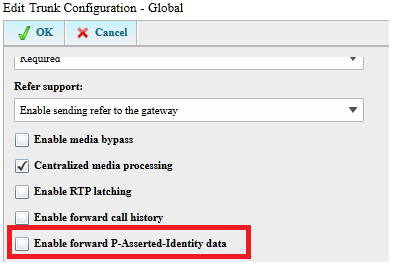
This is due to a value called Forward PAI which might be set to false

What is this Forward PAI ?

Its a value that  sends the  P-Asserted-Identity (PAI) header  along with the call. This P-Asserted-Identity (PAI) will have headers through which it will verify the original  identity of the caller.

When the call is being processed by the SIP network, a P-Asserted-Identity header will be part of all SIP messages for that complete call transaction (i.e. INVITE, ACK, BYE).

In-order to check this value in your settings you can run the below command

Get-CstrunkConfiguration

I just ran Get-CsTrunkConfiguration | Fl “*Forward*” to filter the appropriate value

LYNC

In my case it was set to false. You have to set this value to True

Run the below command to set this value to true

Set-CsTrunkConfiguration -Identity Site:ExchangeQuery  ForwardPAI $True


You can enable this value through edit trunk configuration settings through control panel  also

ee


I just explored the other below options as well and thought of adding them up in this blog itself .Below are them


Enable Media by Pass :

If we enable this option bypass will be attempted for all PSTN calls. You can enable this if there is a full connectivity strength between clients and PSTN gateways.Typically by enabling this option we can minimize the number of Mediation Servers deployed.This improves the voice quality by reducing the latency since the number of hops gets reduced.

Centralized Media Processing :

By enabling this Media bypass can improve voice quality by reducing latency, needless translation, possibility of packet loss, and the number of points of potential failure.Enabling Centralized Media Processing is a useful feature in that it allows the CircuitID Gateway to handle as much of the SIP responsibility as possible.

Enable forward call history: If we enable this value then all the call history information will be forwarded through the SIP trunk.

Enable RTP latching: Indicates whether or not the SIP trunks support RTP latching. RTP latching is a technology that enables RTP/RTCP connectivity through a NAT (network address translator) device or firewall.

Enable forward call history: Indicates whether call history information will be forwarded through the trunk.

Note:

All of the above will not be standard configuration setting in all deployments.For each UI setting in the Trunk Configuration we need to understand and plan accordingly to your PSTN connectivity , SIP configuration and your current Lync setup.

Hope this is useful

Thanks

Sathish Veerapandian

MVP – Exchange Server

Troubleshoot Outlook Connectivity issues in Exchange 2013

In earlier versions of exchange prior to Exchange 2013 troubleshooting outlook connectivity issues should be classified into  categories according to the versions of exchange type of connections that we have configured in our environment.

Now lets see a small summary of Outlook connections from Exchange 2007 :

1) In Exchange 2007 though the other  client connections was handled by Client Access server but still the MAPI connections were established directly to the mailbox server.


2) In Exchange 2010 all the client connections including RPC went through the Client Access Server since the new service RPC client access service was introduced .

3) From Exchange 2013 we do not have the direct RPC over TCP connections at all and all connections should come only through RPC over HTTPS (Outlook Anywhere) or MAPI over HTTP if we have Exchange 2013 SP1 with outlook 2013 SP1  and mapi over http enabled.

I have collected few steps which will be useful if we come across these kind of scenarios in our environment :

Below are the things that can be checked during troubleshooting outlook connectivity issues in Exchange 2013 :

1) Check if you have MAPI over http or RPC over http enabled in your organization.

If you have MAPI enabled then please run the command Get-MapiVirtualDirectory and check the Mapi internal and external URL

MAPI1

Now run the command to check if MAPIhttp is enabled .By default it will be disabled and we need to enable them.

MAPI2


Now lets look into troubleshooting Outlook connectivity issues in both the scenarios:

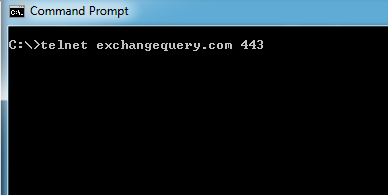
Telnet from the affected Workstation to your outlook anywhere external URL and  ensure that the Outlook Anywhere URL is accessible on port 443.

Below is an example

Telnet


Telnet1


Check the Outlook Anywhere authentication settings.By default it should be NTLM or it can be NTLM & Basic Authentication settings

Get-OutlookAnywhere | fl Externalclientauthenticationmethod,internalclientauthenticationmethod

OA11

If Outlook anywhere is not accessible from a particular network or site then most likely the issue could be on their network side.
Probably you can check if Outlook anywhere URL is reachable from their side . Ping the Outlook Anywhere URL from any of the affected workstations and see the results.
Also you can check if there are any recent changes in their network ,on their proxy servers.
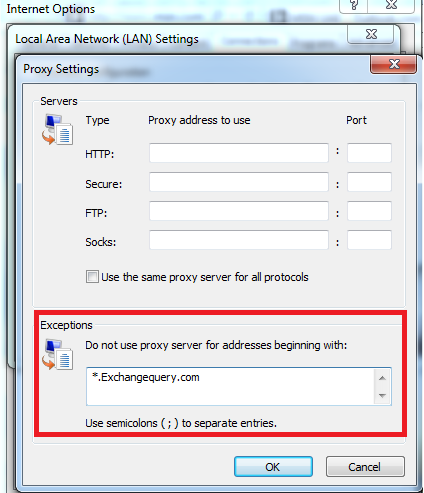
If the affected site is routing their internet connections through the proxy site then you can test the connectivity by excluding your outlook anywhere url in the proxy exclusions as below

Proxy

By doing this it will provide a direct connectivity to your site . Most likely these kind of issues might occur due to proxy connections.


If its happening only for a single or few sets of users possibly check the MAPIBlockOutlookRpcHttp settings for that affected user by running the below  command

Get-CASMailbox mailboxname | fl MAPIBlockOutlookRpcHttp

MAPI112

so this value should be set to false for the outlook anywhere to work. If this value is set to true then you have to set this value to false.

Ensure that the outlook anywhere hostnames are correct and they are added in your public certificates

You can use the below command to check the host names

get-outlookanywhere |fl *hostname

hs

If its for all users you can run outlookrpcselftestprobe on the affected mailbox server by running the below command

Test-OutlookConnectivity -ProbeIdentity "OutlookRpcSelfTestProbe"

Check if the RPC can connect to store’s port by using RPC ping utility test by runnig the below command

RpcPing –t ncacn_http –s ExchangeMBXServer -o RpcProxy=RpcProxyServer -P “user,domain,password” -I “user,domain,password” -H 1 –F 3 –a connect –u 10 –v 3 –e 6001

If it returns as following: Completed 1 calls in 60 ms 16 T/S or 60.000 ms/T, it means the RPC Ping Utility test succeeds.

You can also use EXRCA and see the results

https://testconnectivity.microsoft.com/

Steps to perform the EXRCA tests :

  1. On the ExRCA website, under Microsoft Office Outlook Connectivity Tests, select Outlook connectivity, and then select Next at the bottom of the page.
  2. Enter the required information on the next screen, including email address, domain and user name, and password.
  3. Choose whether to use Autodiscover to detect server settings or to manually specify server settings.
  4. Accept the disclaimer, enter the verification code, and then select Verify.
  5. Select Perform Test.

Though there are more factors that can block the outlook anywhere connections in Exchange 2013 above troubleshooting steps can be helpful in some cases.

Hope this article is helpful.

Thanks 

Sathish Veerapandian

MVP – Exchange Server
Setup federation only to specific domains in Lync 2013

There is an option in Lync2013 where we can enabled federation only to selected domains.
We can set this option where only these domains will be able to contact us .

In-order to do that perform the following steps

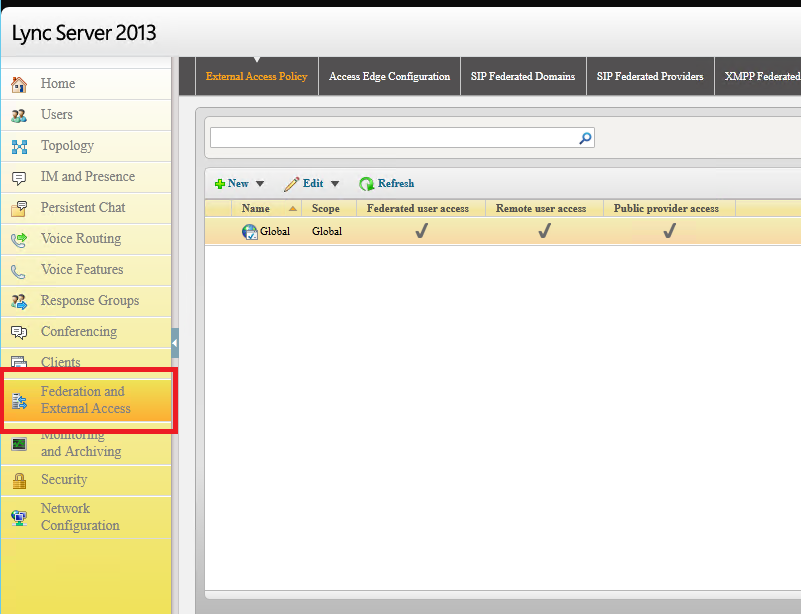
Open Lync Control Panel select “Federation & External Access”

FA1


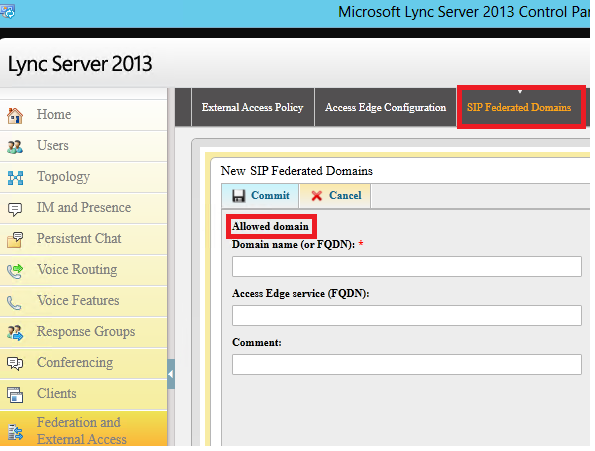
Navigate to SIP federated domains

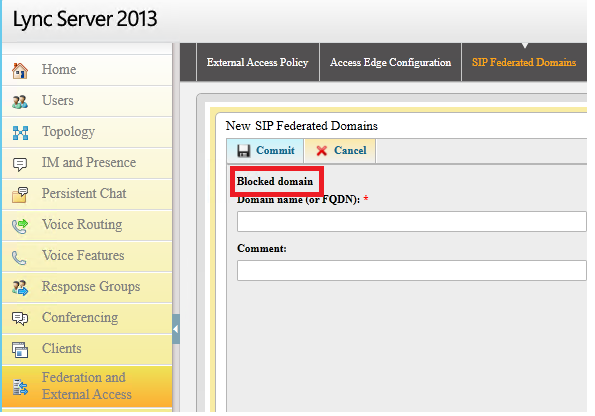
Here we have two options to allow specific domains and also we can block Specific domains.

Inorder to allow specific domains . Select Allow domains and add the domains that you want to have.

FA2


In-order to block the domains add the domains select block the domains and block them

FA3

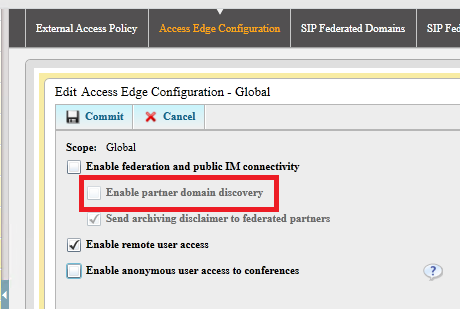
Also you need to keep in mind that if you want to have federation only with specific domains then you need to make sure that Enable Partner Domain Discovery option is unchecked which disables open federation.

FA4


Note :

By default, if you enable federation, it won’t allow other domains to connect to you except the domain that you add in Hosting Provider and Public IM Provider, Allowed Partner Domain and Federated Domains.

So you need to plan accordingly based upon your requirement.

Hope this article is helpful.

Thanks 
Sathish Veerapandian

MVP – Exchange Server

 

Quick Tip – Analyzing logs in Lync server 2013

In this article we will have a look at the Centralized Logging Service (CLS)  and csclslogging feature in Lync 2013.

These both logging features will help us to identify any issues in the pool.

These 2 features are available only from Lync 2013

First lets have a look at the Centralized Logging Service (CLS)

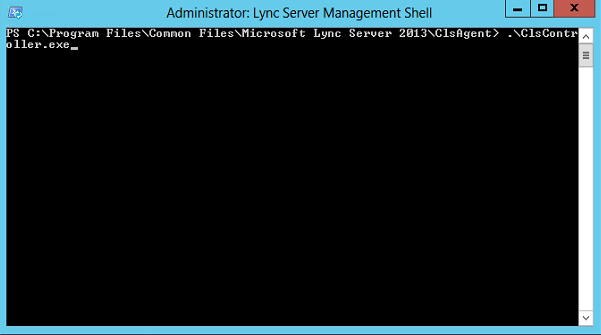
This is located in the directory

C:\Program Files\Common Files\Microsoft Lync Server 2013\ClsAgent


CLS


Below are the commands that can help you out to identify an issue through clscontroller

ClsController.exe -start –scenario <scenario> –pools <pool fqdn>
ClsController.exe -stop –scenario <scenario> –pools <pool fqdn>
ClsController.exe -flush –pools <pool fqdn>
ClsController.exe -search –pools <pool fqdn> –components <component> –loglevel <loglevel>
Below are the supported scenarios
AlwaysOn, MediaConnectivity, ApplicationSharing, AudioVideoConferencingIssue, HybridVoice, IncomingAndOutgoingCall, VoiceMail, IMAndPresence, AddressBook, DeviceUpdate, LYSSAndUCS, CLS, SP, WAC, UserReplicator, HostedMigration, MonitoringAndArchiving, LILRLegacy, LILRLYSS, MeetingJoin, RGS, CPS, XMPP and CAA.

Note : This ClsController.exe is present only in the RTM release and later microsoft came up with this powershell based  control which is CsClsLogging

CsClsLogging :

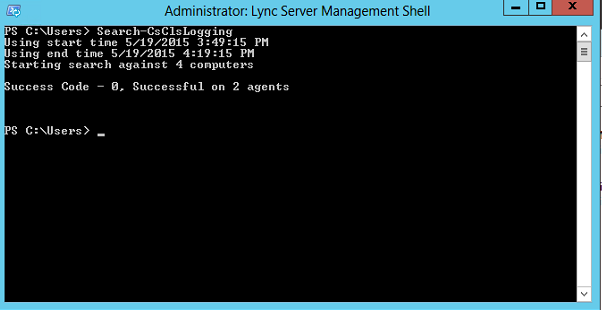
The Search-CsClsLogging cmdlet provides a command line option for searching the log files generated by the centralized logging service. Lync administrators can analyze the issue with the cmdlet.

1

You can run run Search-CsClsLogging cmdlet with start time and end time

2


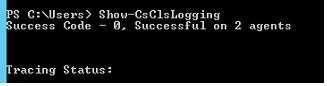
You can use show-cslogging to check the current status of the centralised logging service

323


The following inputs are supported

Search-CsClsLogging
Show-CsClsLogging
Start-CsClsLogging
Stop-CsClsLogging
Sync-CsClsLogging


There is a service responsible for this operation which is called Lync Server Centralized Logging Service Agent.

66


So make sure that this service is running else we will face issues in running these commands.

Thanks
Sathish Veerapandian

Exchange 2013 Unable to access ECP Encounter “500 Unexpected Error”

Today i faced an issue in accessing ecp  through an admin delegated account and got the below error. I thought of writing up a blog with few general checklists that can be performed if we come across this kind of issues.

ECP

Below are the troubleshooting  steps that can be performed in this order if we come across  issues with accessing the ECP virtual directory.

1) Check if there is any issue with the XAML file type

Find the file located in

C:\Program Files\Microsoft\Exchange Server\V15\ClientAccess\ecp\DDI\RemoteDomains.XAML

XAML

If you have any staging servers with the same version where it is working just copy this XML file or if you could find this file from the setup just replace with the existing one do an iis reset and see the results

2) Check on the Application Pools to view whether OWA and ECP Application Pool is running on .NET Framework v4.0. It maybe the incompletely or corrupted installation of Framework that causes this error.

APP

You might come across the above if you recently made any recent upgrade or its a new fresh installation.

If that’s the case try to run the following command as Administrator:

%windir%\Microsoft.NET\Framework\v4.0.30319\aspnet_regiis.exe -i

Change the MSExchangeECPAppPool from .NET Framework from v4.0 to v2.0. Then restart IIS and check the results.

XAML2

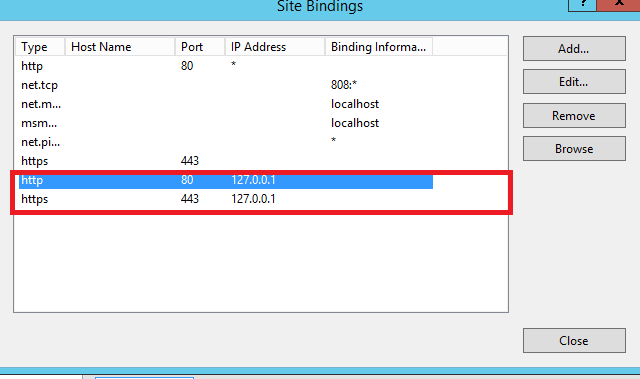
3) Check the bindings of the default website to confirm to Microsoft recommended settings:

({http port 80 *}{http port 80 127.0.0.1}
{https port 443 *}{https port 443 127.0.0.1})

XAML3

4) If none of the above steps works try recreating the ecpvirtualdirectory and see the results

 In EMS, please run the following command:

Remove-Ecpvirtualdirectory –Identity “CAS\Autodiscover (xxxxx)”

New-Ecpvirtualdirectory –Identity “CAS\Autodiscover (xxxxx)”

There are more cases where even recreating the ECP virtual directory or any virtual directory will still cause this same error 500 unexpected error

This is because of the stale entries present in the ecp objects as well as in the IIS metabase.

If recreating corresponding affected VD doesn’t help you then  try the below steps

Remove the newly created ECP virtual directory

Remove-Ecpvirtualdirectory –Identity “CAS\ECP(xxxxx)”

5)  Remove the ecp objects in AD container

a. Open ADSIEDIT.msc, locate:

Configuration–>CN=Services–>CN=Microsoft Exchange–>CN=Organization–>CN=Administrative Groups–>CN=Exchange Administrative Groups–>CN=Servers–>CN=Exchange–>CN=Protocols–>CN=HTTP

b. In the right pane, please check whether the CN=ECP(xxx) is present. If its present you can remove it.

XAML4

6. Delete the autodsicover in metabase

a. Download the IIS 6.0 Resource Kit Tools from the following link:

http://www.microsoft.com/downloads/en/details.aspx?FamilyID=56fc92ee-a71a-4c73-b628-ade629c89499&displaylang=en

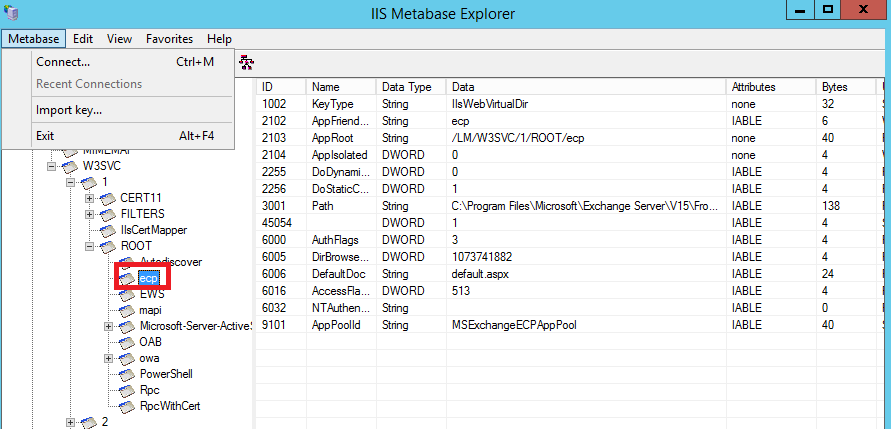
b. Install it on the CAS server. Open the “Metabase Explorer” (Open it in elevated mode)

c. Locate: Exchange -> LM -> W3SVC -> 1 -> ROOT.

XAML5
d. Check if you are able to find ECP virtual directory  is present, if so, remove it.

7. After that, try recreating the ECP virtual directory and see the results

New-Ecpvirtualdirectory –Identity “CAS\Autodiscover (xxxxx)”

Most likely after following the above troubleshooting steps the affected ECP VD should start working. You can also follow the same troubleshooting steps if in case  you are getting the same error in accessing the OWA,EAC ,Autodiscover and PowerShell Virtual Directories.

Hope this article is helpful

Thanks 

Sathish Veerapandian

MVP – Exchange Server

Lost and Stolen Active Sync enabled Devices and procedure to handle them in EAS environment

Today mobile devices comes up in different flavours , versions , operating systems , hardwares etc,..This creates a big security hole in terms of managing the Active Sync devices enabled on these devices.

If we plan up to bring a MDM solution then lots of study on the product needs to be done since it comes up with different platforms , console, management, vendors , licenses , team to handle and finally cost factor in terms of resources and hardware is also considered.

So planning for managing this mobile devices is very much important.

In this article lets have a look at the best procedure to handle the lost and stolen active sync enabled devices.

There are many best practices to be followed in the web and i have mentioned few points that can be taken.


Note : – This point is applicable only of we have EAS enabled devices without any MDM and EMM integration.

If a user lost/stolen his EAS enabled device below procedure can be handled


First Run the below command to check what are all the EAS devices associated with the users account

Get-ActiveSyncDevice -Mailbox “email address” | select Name

ACSPNG


Run the command Get-ActiveSyncDeviceStatistics -Mailbox “Email Address” to see the last sync time of the device

ACSPNG1

If the user changes his password as soon as the device is lost then there is no way that the device can be authenticated , synced with his mailbox and will not receive the remote wipe command.

So it is better to leave the victim’s password unchanged so the sync attempt is successful and the device gets wiped


Run the below command to send you a notification email when the device is wiped out


Clear-ActiveSyncDevice -Identity Name -NotificationEmailAddresses administrator@domain.com


Note :

EAS doesn’t have the option to delete only the emails and the remote wipe command deletes the entire data present on the phone. Its better to inform the user before  you perform this action to ensure that he will be losing all of his data present on the device.

Also you can make use of the log parser tool along with this excellent script which will give you detailed information on Active sync devices in which you can see the last connection attempts made if any

http://blogs.technet.com/b/exchange/archive/2012/01/31/a-script-to-troubleshoot-issues-with-exchange-activesync.aspx

Thanks 

Sathish Veerapandian

Exchange 2010/2013 Mailbox Quota , Message size planning for end users

In this article i’m giving some best suggestions that can be scoped in-terms of storage  for any new implementation and redesigning of existing environment for Exchange messaging Platform.

There is no such in recommendation of giving a standard best practice for mailbox size, Maximum message size , retention and archive  as it varies according to each every org structure based on Storage , Email flow per day , Server hardware , memory, requirement  etc..,

Before taking up any new implementation its always better to set up scope on the below things

1) Mailbox Size per user.

2) Maximum Size of Message.

3) Retention of Mailbox items.

The first step we will look in planning mailbox size for users
The better way i would suggest is to first collect the daily, weekly and monthly email statistics for the whole environment

These amazing scripts from nuno mota will help you on collecting the statistics which is very useful.

Emails sent per hourhttps://gallery.technet.microsoft.com/office/ec7940c1-be9a-45d5-9ea1-921677fa081c

Emails sent per day and sizehttps://gallery.technet.microsoft.com/office/f2af711e-defd-476d-896e-8053aa964bc5/view/Discussions

Emails sent per week and sizehttps://gallery.technet.microsoft.com/office/Total-Emails-Sent-and-c1daf5e7

Calculate the average size of the emails sent per user on daily basis from the above output

Based on that calculate the mailbox quota that you need to set for all the users .
You need to make sure that all the mailboxes are balanced equally on existing mailbox servers before planning.
Measure the currently allocated disk size in each mailbox server based on the current value and expected value in 1 year.
multiply the value and calculate the growth of expected users in 1 year.
Calculate the current log space , database space and the expected value after 6 months
Always keep a buffer value of 30 percent on the total value of the disk space required to be on the safer side.

Better you can set some exclusions for mailbox quota for  VIP users.When we say VIP users you can better define a policy with the client before taking up the project. Example for executive users the mailbox size will be unlimited and for the number of users and fix a static value for the remaining mailboxes and finalize the agreement. Define these policies clearly before taking up any new project.

Because a poor capacity planning will bring the following causes :

1) Increased storage cost as days passes.
2) More network bandwidth usage between servers and clients since all the users will have their emails stored in their mailbox.
3) Affecting the storage subsystem in terms of I/Ops.
2) Maximum message size

Planning for maximum message size for the whole organization is also very important.

Following things can be impacted of improper message size planning

1) First thing will affect you is mass mailing from the organizations itself (HR,Marketing Team). They will start sending mass mails with large attachments if the message size is not restricted properly.Impact of this will be your hub servers will go down.
Always you need to give a clear note of this part during the planning and make a best practice of sending mass mails after production hours since the normal emails will be affected.

2) It increases the network utilization of messaging system which will create again an impact.

3) If the network is compromised by a hacker then he can utilize the network/system resources by sending emails with large attachments.

4) Also it will be difficult for anti-spam solutions to scan these emails with large attachments and more possibly exclude most of the attachments if they are encrypted with large size and no exclusions set for encrypted attachments in the anti-spam filter.

3) Retention and archive

Planning for retention and archive is very important

Also it would be good if you implement some archiving solution in place for emails older than 10 months so that your primary mailbox will not be loaded always and less load on the exchange server.
When you bring up archive make sure that the retention for the archived items is planned properly (depending upon your client suggestion) as few orgs would like to have emails of more than 5 years since the retention of the archive cannot be restored at any cost unless we have alternative solution in that place.

Planning this part and convincing the client is little bit tough and difficult since the cost is involved more in this factor when they say they want to keep the retention items in archive for ever.

Hope this reading is helpful

Thanks

Sathish Veerapandian

MVP- Exchange Server

Managing Exchange 2010/2013 calendar permissions in Daily operations

Managing calendar permissions in daily operations will be little bit difficult for an admin since there will be more requests coming in for the calendar permissions.

I have collected few scripts which will be useful in managing the calendar requests that are coming in the daily operations.

Use the below command to check the calendar permission for single user

Get-MailboxFolderPermission -Identity mailbox@domain.com:\Calendar | FL


Cal1


To add the calendar permission for single user use the below command

Add-MailboxFolderPermission -Identity newtestuser1:\calendar -User  Usermailbox -Accessrights editor


Cal2


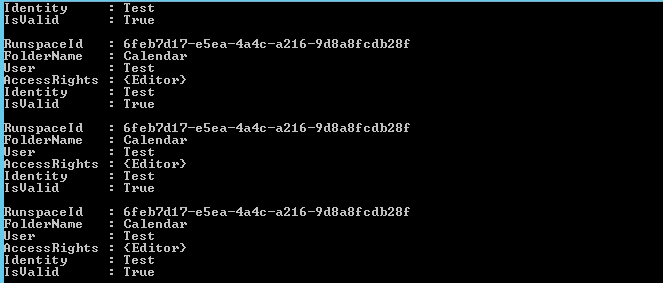
To check the calendar permission for a mailbox for a single user you can see the below command.

Get-MailboxFolderPermission -Identity mailbox@domain.com:\Calendar -User Test2


cal3


To change the default calendar permission for all the mailboxes in entire org you can use the below command.

$all=Get-Mailbox -RecipientTypeDetails UserMailbox

$all | ForEach {Set-MailboxFolderPermission -Identity “$($_.alias):\Calendar” -User default-AccessRights “LimitedDetails”

Final


To change the mailbox access default permission for all the users  for one mailbox you can use the below command

Get-Mailbox -resultsize unlimited | foreach {add-mailboxfolderpermission -identity “$($_.alias):\calendar” -User testuser -Accessrights “editor”}

Cal4


Cal5


To check the calendar permission for all the users run the below command

ForEach ($Mailbox in (Get-Mailbox -ResultSize Unlimited)) {Get-MailboxFolderPermission -Identity “$($Mailbox.Name):\Calendar” | Select @{n=’Calendar’;e={$Mailbox.Name}},User,AccessRights}

Cal6


To take the calendar permissions for all the users in csv format do the following things

First run the below command to store the value of  all the calendar permission by running the below command

$Results = ForEach ($Mailbox in (Get-Mailbox -ResultSize Unlimited)) {Get-MailboxFolderPermission -Identity “$($Mailbox.Name):\Calendar” | Select @{n=’Calendar’;e={$Mailbox.Name}},User,AccessRights}


Cal8


Take the output in text file by running the below command

$Results | out-file -filepath C:\CalendarPermission.txt

Cal9

Now run the below command to join the string and show the access rights for each user in the csv file

$Results = ForEach ($Mailbox in (Get-Mailbox -ResultSize Unlimited)) { Get-MailboxFolderPermission -Identity “$($Mailbox.Name):\Calendar” | Select @{n=’Mailbox’;e={$Mailbox.Name}},User,@{Name=’AccessRights’;Expression={[string]::join(“;”, ($_.AccessRights))}}

Cal10


Now export the results

$Results | Export-Csv C:\permission8.csv

Cal11

Hope this is helpful

Thanks 

Sathish Veerapandian

MVP – Exchange Server
Skype for Business Client Testing in Lync 2013 on PremiseEnvironment

Microsoft has released Skype for Business Client.  Lync 2013 client will become Skype for Business after April 14, 2015 as part of regular Office monthly updates if performed by the organizations.

This Skype for business client will be working on  Lync 2010 & 2013 on premise registrars servers and Lync Online . But specific server builds are required on Lync Server 2013 and Lync Server 2010 onpremise in order to set client policies

Below are the prerequisites for Lync 2010 & 2013 OnPremise Servers

Minimum server Build for Lync 2013 – Deploy server build 5.0.8308.857 (December, 2014) or later.
Minimum server Build for Lync 2010 – Deploy server build 4.0.7577.710 (February, 2015) or later.


If you have the above build version on your Lync 2013 server you can go ahead and start testing .

But before setting this policy to all the users it is better that if we test this new client in few of the users and then we can deploy them to rest of the users.

Inorder to to that follow the below steps

First run Get-CsClientPolicy to check how many policies you have .

True1


If we have any test client policy already you can try with the policy. In most of the cases we might be having only default global policy. It is better not to  play around with this since it will affect all the users if at all there is any issues.

So its better to create a new Client Policy to test this client on the few user accounts.

Run the below command to create a test client policy

New-CsClientPolicy -Identity SkypeforBusiness -EnableSkypeUI $True

Untitled32


Run the below command to grant the client policy to the  users for testing this client functionality.


Grant-CsClientPolicy  -Identity username -PolicyName SkypeForBusiness


Untitled33


Once the above is done you can download the Skype for Business client for the test users and start testing the client functionality.

https://www.microsoft.com/en-us/evalcenter/evaluate-skype-for-business

Thanks 

Sathish Veerapandian

MVP – Exchange Server