Category Archives: Microsoft 365

Navigating DORA with Microsoft Purview: A compliance blueprint for Microsoft 365

Digital Operational Resilience Act (DORA) is reshaping how EU financial entities manage ICT risk, resilience testing, incident reporting, and third‑party risk. If you run Microsoft 365, Microsoft Purview Compliance Manager gives you a practical way to translate DORA requirements into actions, evidence, and measurable progress. This guide walks through a clean, step‑by‑step implementation flow from setting up a DORA assessment to assigning improvement actions and tracking your score, so you can be audit ready without drowning in spreadsheets.

Why use Microsoft Purview Compliance Manager for DORA ?

  • Prebuilt assessments: DORA assessment templates map regulatory articles to actionable controls you can assign and track.
  • Control mapping: Microsoft‑managed baselines and customer‑managed controls provide clarity on shared responsibility.
  • Improvement actions: Structured tasks with owners, due dates, and recommended steps create accountability.
  • Evidence management: Centralized artifacts (documents, links, screenshots) simplify audit preparation.
  • Real‑time scoring: Compliance scores help prioritize high‑risk gaps and demonstrate progress.

Prerequisites and approach

  • Access: Ensure you have appropriate roles in Microsoft Purview (e.g., Compliance Manager Admin or similar).
  • Scope: Decide which services to cover first; start with Microsoft 365 for a focused rollout.
  • Vanilla setup: Use a fresh assessment group to avoid inherited noise and control drift.

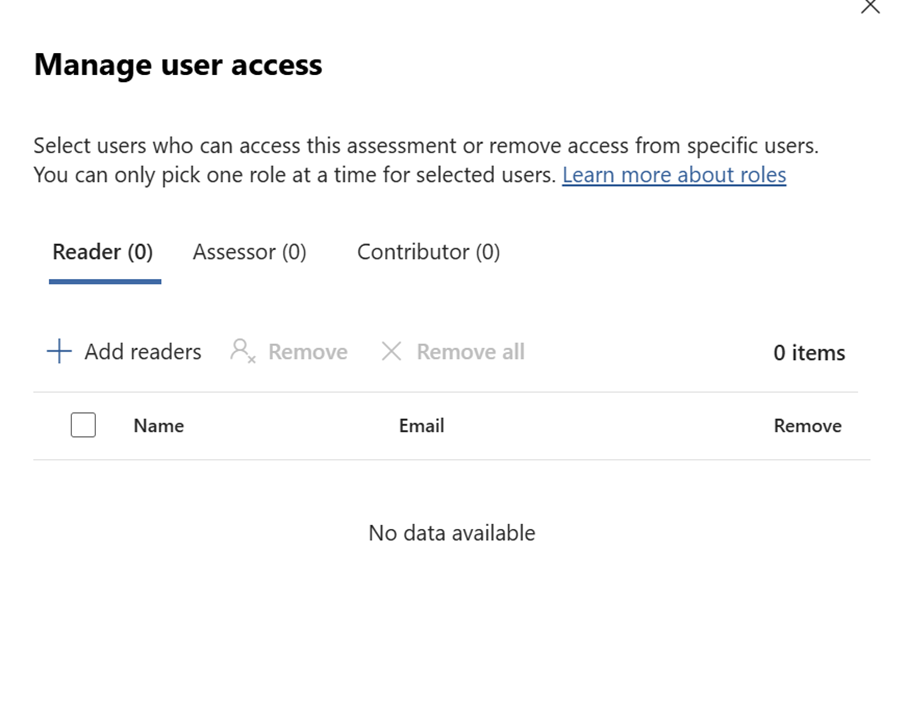
Quick Tip

Can also use the default user access options available from the Assesment option in the Compliance Manager Portal
Step‑by‑step setup in Compliance Manager

Create and configure your DORA assessment

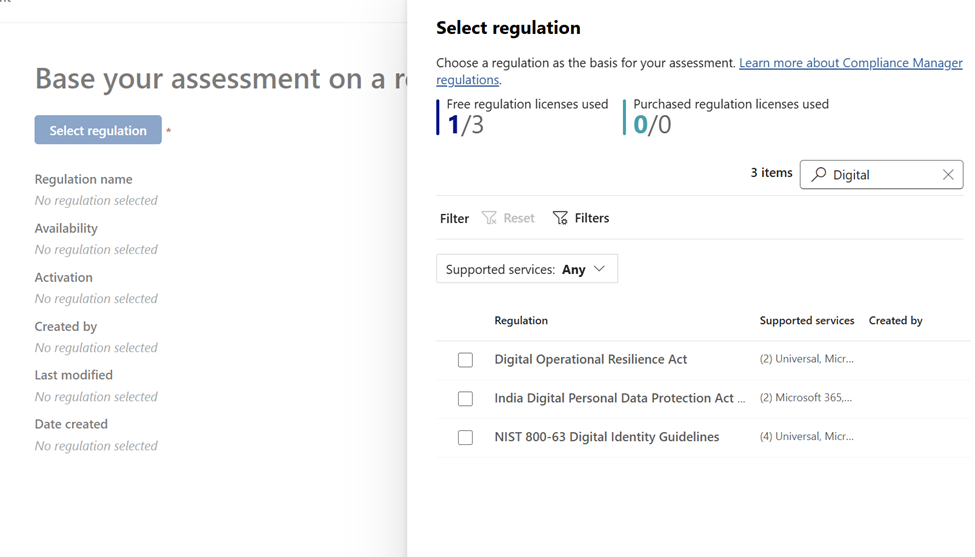
  • Open Purview: Go to Microsoft Purview portal → Compliance Manager – Navigate to assessment – Select Regulation
  • Find templates: Search for “Digital” under assessment templates. (I was not able to find with DORA :))
Continue reading

Deep Dive into Microsoft Purview Adaptive Protection: A SOC Team’s Guide to Investigating Insider Risk Alerts in Adaptive Protection

In today’s hybrid work environment, insider threats are becoming increasingly complex. Microsoft Purview’s Adaptive Protection and Insider Risk Management (IRM) offer a dynamic, risk-based approach to protecting sensitive data while enabling SOC teams to investigate and respond to alerts with precision.

This blog provides a step by step walkthrough of how SOC teams can leverage these tools to investigate alerts, assess user behavior, and take appropriate action.

Step 1: Understanding the Adaptive Protection Dashboard

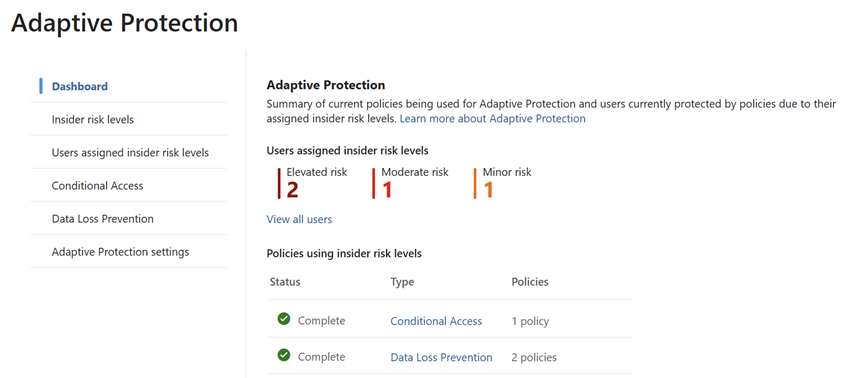
The Adaptive Protection dashboard is the SOC team’s starting point. It provides a bird’s-eye view of user risk levels across the organization, helping analysts prioritize investigations.

Key Elements of the Dashboard:

  • User Risk Levels:
    • Elevated Risk: Users exhibiting high-risk behavior that may indicate potential data exfiltration or policy violations.
    • Moderate Risk: Users with concerning patterns but not yet critical.
    • Minor Risk: Users with low level anomalies or early warning signs.
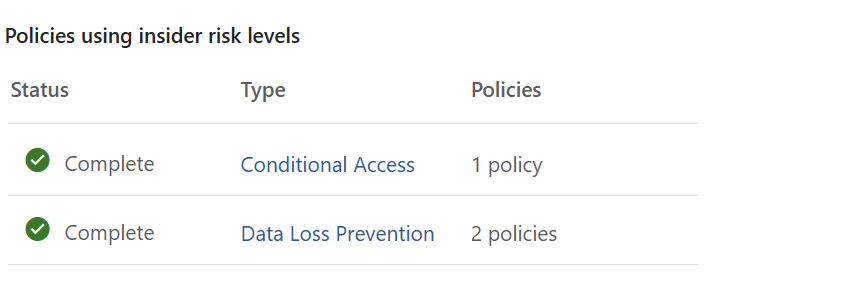
  • Policy Integration:
    • Shows which Insider Risk policies are actively using these risk levels.
    • Helps correlate user behavior with policy triggers, such as data leakage,
    • Security violations, or unusual access patterns.
Continue reading

SOC Analyst Guide: Investigating Insider Risk Alerts in Microsoft Purview

This blog post provides a comprehensive guide for SOC analysts to investigate and respond to alerts generated by Microsoft Purview’s Insider Risk Management and Adaptive Protection. It outlines step-by-step workflows for accessing alerts, triaging incidents, analyzing user behavior, managing cases, and leveraging Microsoft Defender integration.

The guide also includes best practices and suggested screenshots to help SOC teams effectively mitigate insider threats and maintain organizational security.

Introduction

Microsoft Purview’s Insider Risk Management (IRM) and Adaptive Protection empower SOC teams to detect and respond to insider threats dynamically. This guide walks through how SOC analysts can triage, investigate, and respond to alerts generated by these systems.

Part 1: Investigating Insider Risk Management Alerts

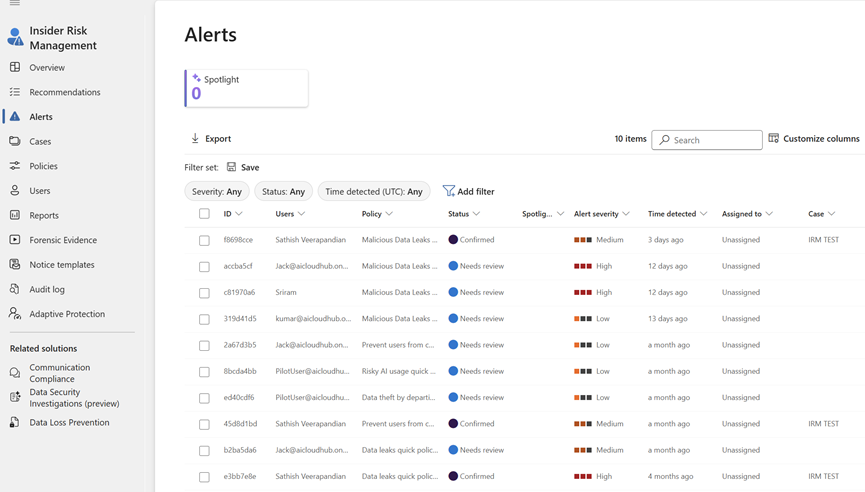
1. Access the Alerts Dashboard

Go to: Microsoft Purview Portal > Insider Risk Management > Alerts

Continue reading

Make use of Microsoft Copilot for sales to boost your sales productivity

This video explains the key challenges faced by sales team in any organization and discover how Microsoft copilot together with copilot for sales can streamline the sales experience and increase the productivity of sales.

Regards
Sathish Veerapandian

Tips and tricks to secure Microsoft 365

If you are using any of Microsoft’s business plans, you are likely to be targeted by hackers. The following guide will help you boost the security of your organization. This guide will help you meet the goals outlined in the handbook by Harvard Kennedy School Cybersecurity Campaign.

If you have Microsoft Business Premium, you can set up security by following the guide in Microsoft’s Library: Microsoft 365 for Smaller Businesses and Campaigns. The guidelines here were outlined in partnership with Microsoft’s Defending Democracy team. The guide protects small business customers against cyber threats.

It is crucial that you determine your Microsoft 365 Secure Score in Microsoft’s 365 security center. There is a centralized dashboard from where you can improve the security of your Microsoft 365 apps, data, devices, identities, and infrastructure. You gain points for installing the recommended security features and addressing recommendations with third-party software or application. Here are ways you can secure Microsoft 365.

1. Set Up Multi-Factor Authentication

Multi-factor authentication is the easiest and most effective way of boosting the security of your firm. Logging in to multi-factor authentication entails typing a code sent to your phone so you can access Microsoft 365. This is also known as 2-step verification. This move prevents hackers from accessing your account if they know your password.

To add the 2-step verification to your Microsoft account, you need to add a setting that requires you to log in with multi-factor authentication. After making this change, you will be prompted to set up your phone for 2-factor authentication the next time you are logged in.

2. Create Awareness

The Harvard Kennedy School Cybersecurity Campaign handbook provides further guidance on how to promote security awareness in your organization. This includes training users on how to spot phishing attacks.

Microsoft also recommends users to use strong passwords, protect their devices, and enable the security features on their Windows 10 and Mac PCs. Users are also required to protect their email accounts.

Continue reading