
In today’s hybrid work environment, insider threats are becoming increasingly complex. Microsoft Purview’s Adaptive Protection and Insider Risk Management (IRM) offer a dynamic, risk-based approach to protecting sensitive data while enabling SOC teams to investigate and respond to alerts with precision.
This blog provides a step by step walkthrough of how SOC teams can leverage these tools to investigate alerts, assess user behavior, and take appropriate action.
Step 1: Understanding the Adaptive Protection Dashboard
The Adaptive Protection dashboard is the SOC team’s starting point. It provides a bird’s-eye view of user risk levels across the organization, helping analysts prioritize investigations.
Key Elements of the Dashboard:
- User Risk Levels:
- Elevated Risk: Users exhibiting high-risk behavior that may indicate potential data exfiltration or policy violations.
- Moderate Risk: Users with concerning patterns but not yet critical.
- Minor Risk: Users with low level anomalies or early warning signs.
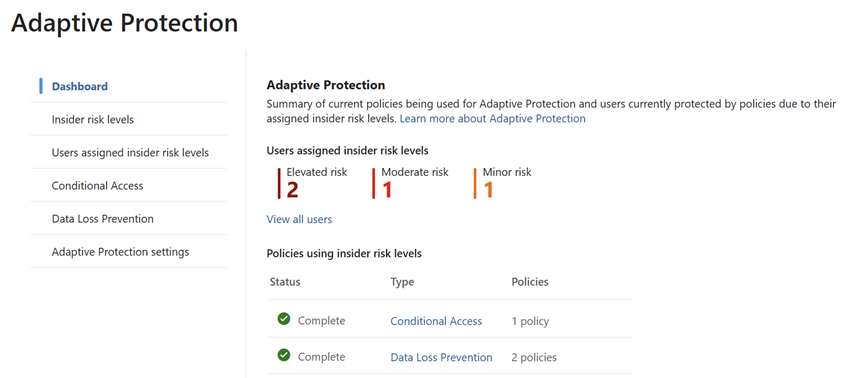
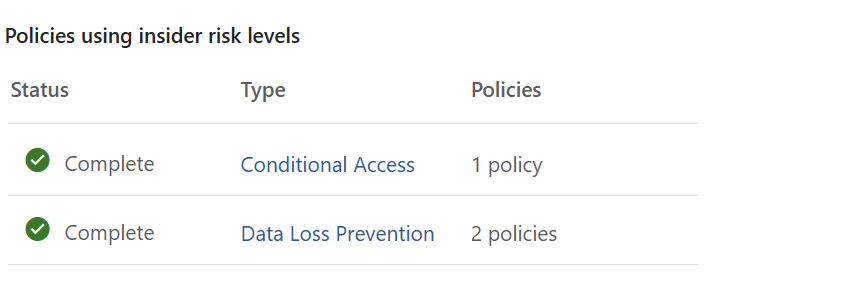
- Policy Integration:
- Shows which Insider Risk policies are actively using these risk levels.
- Helps correlate user behavior with policy triggers, such as data leakage,
- Security violations, or unusual access patterns.
Step 2: Investigating Users with Elevated Risk
Clicking on “Users assigned insider risk levels” opens a detailed list of users flagged with elevated risk. This is where the investigation begins.
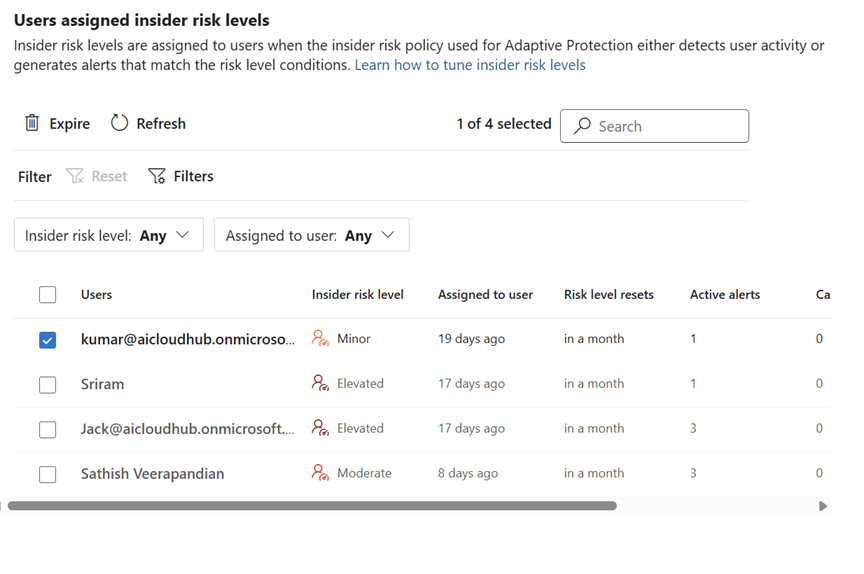
User Investigation Interface
Each user profile includes three key tabs:

User Profile Tab
This tab provides a snapshot of the user’s identity and risk posture:
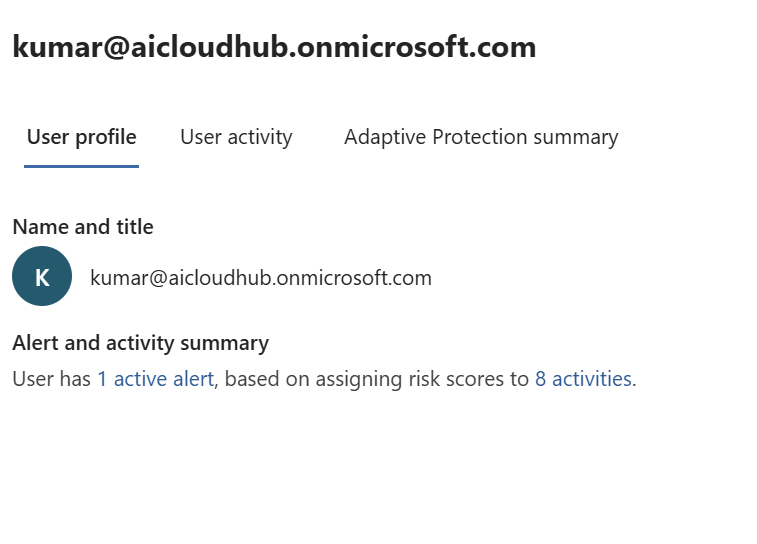
- Active Alerts:
- Lists all current alerts associated with the user.
- Includes alert severity, triggered policy, and timestamp.
- Risk Scores:
- A numerical score indicating the user’s risk level.
- Helps prioritize which users require immediate attention.

SOC Tip: Clicking on an alert redirects to the IRM Alert Section, where analysts can:
- View detailed alert metadata.
- Understand which policy was triggered.
- See the timeline of events leading to the alert.
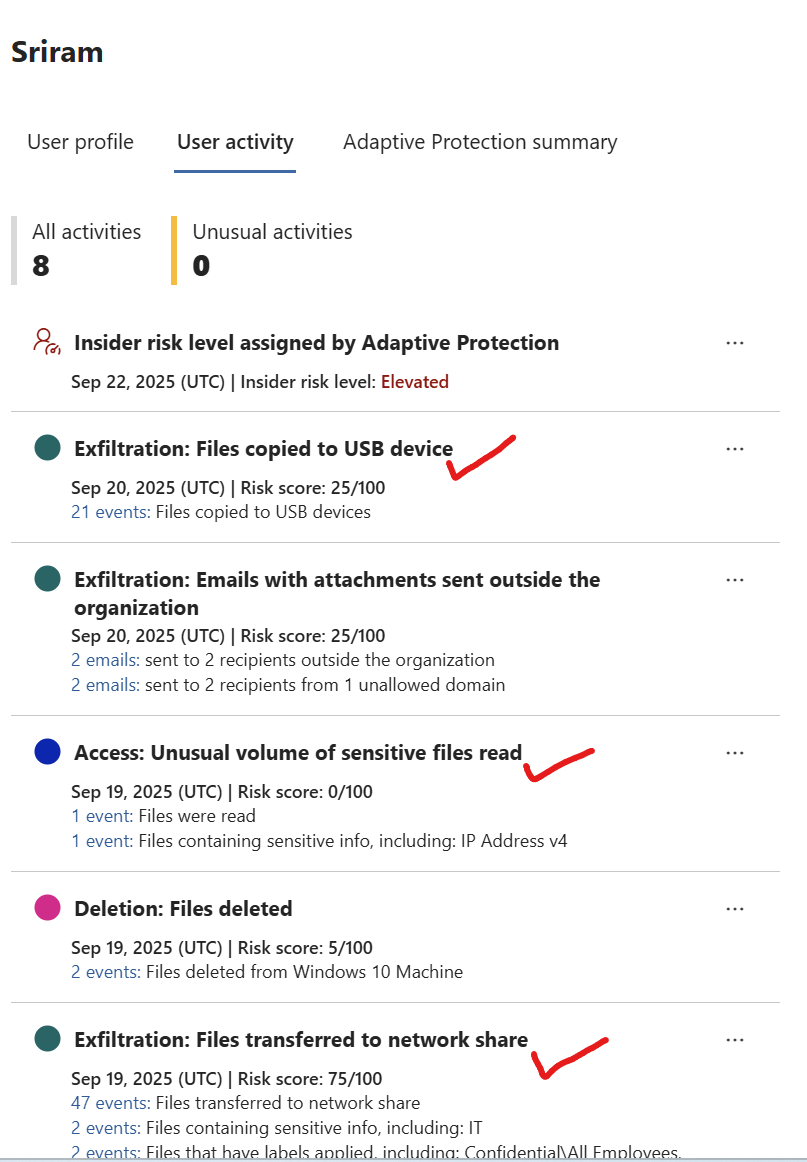
User Activity Tab
This tab provides a granular view of the user’s actions across Microsoft 365 and other integrated platforms.
- Activity Types:
- File downloads, email forwarding, USB usage, external sharing, etc.
- Categorized by risk type (e.g., data theft, sabotage, policy violation).
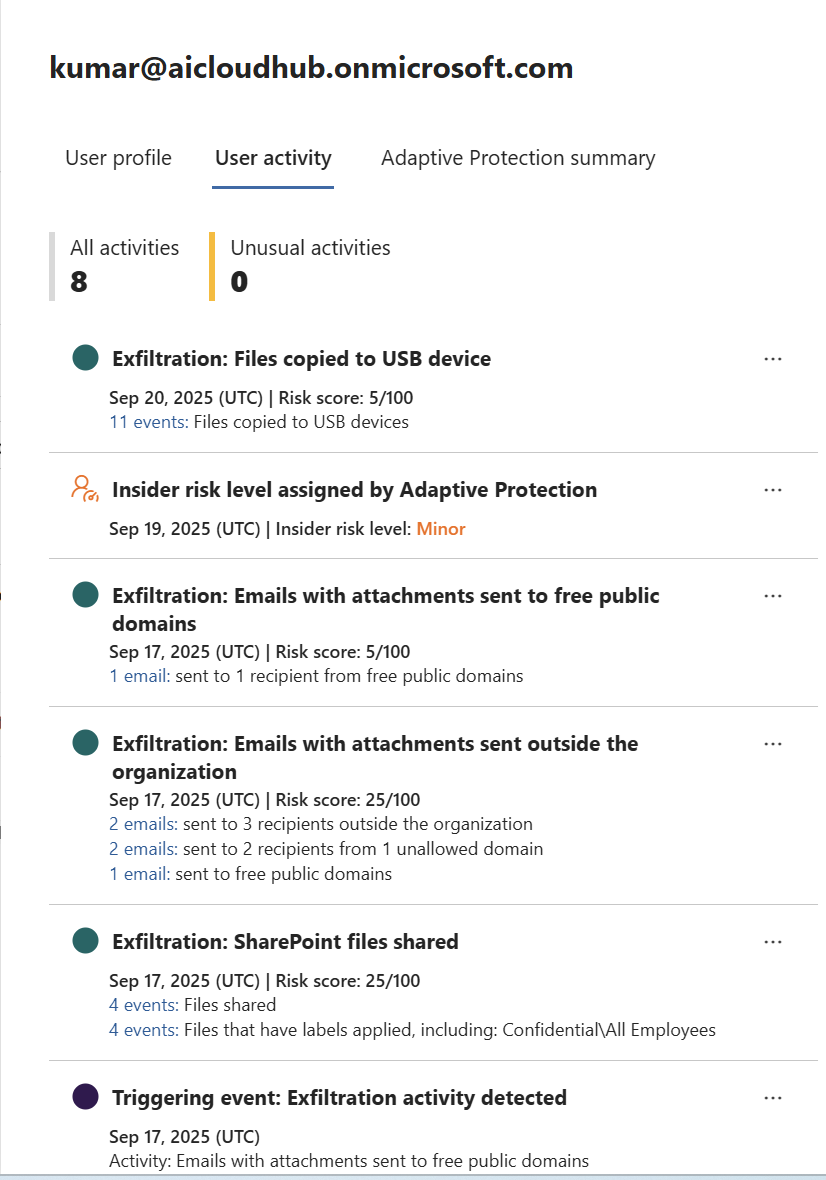
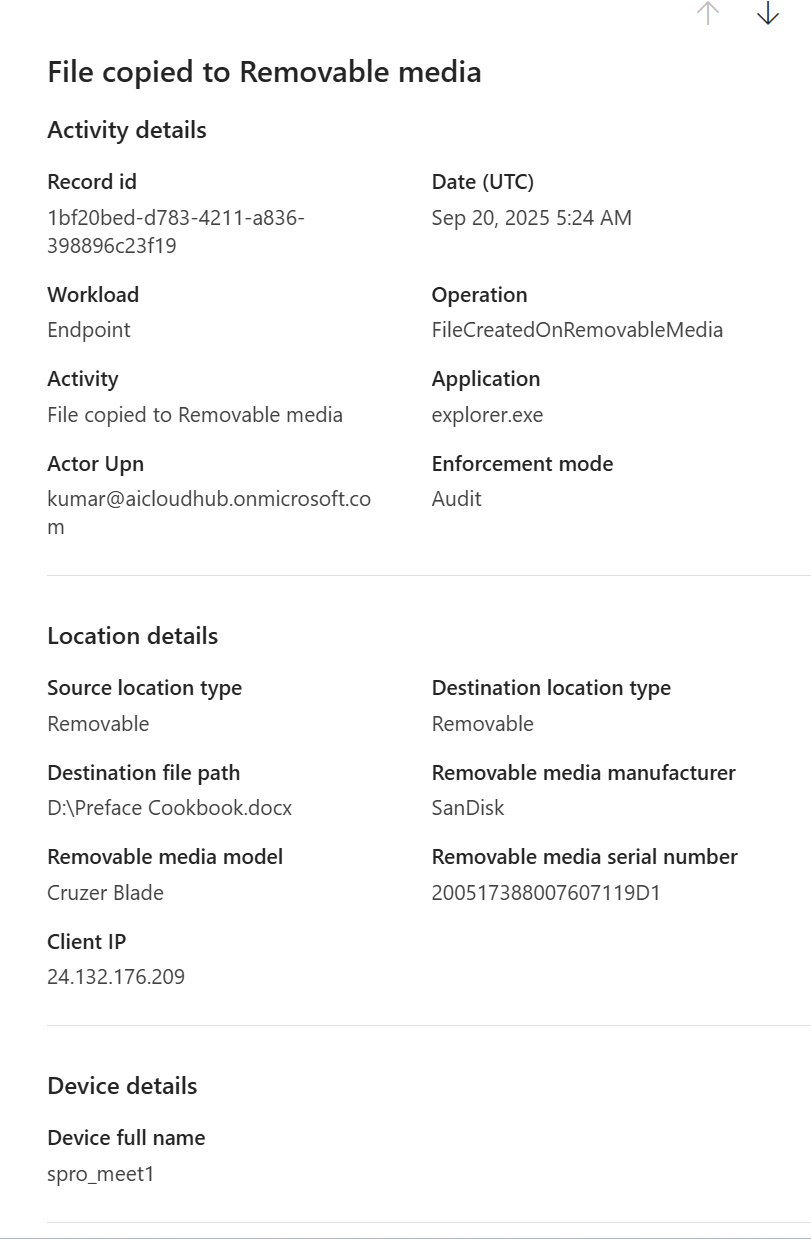
- Event Drill-down:
- Clicking on an event reveals:
- Timestamp
- Device used
- IP address or location
- File names or resources accessed
- Clicking on an event reveals:
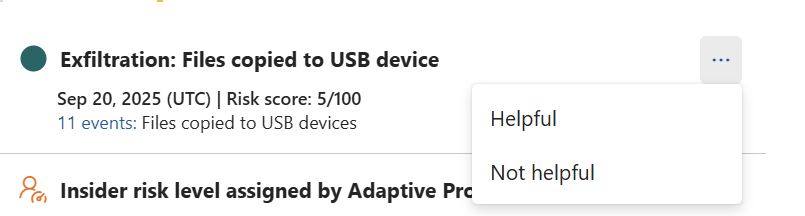
We also have a feedback option for every alert that has been generated which would definitely help in improving the product
SOC Tip: Use this tab to reconstruct the user’s behavior and identify anomalies such as:
- Accessing sensitive files outside business hours
- Forwarding confidential emails to personal accounts
- Using removable media in restricted environments
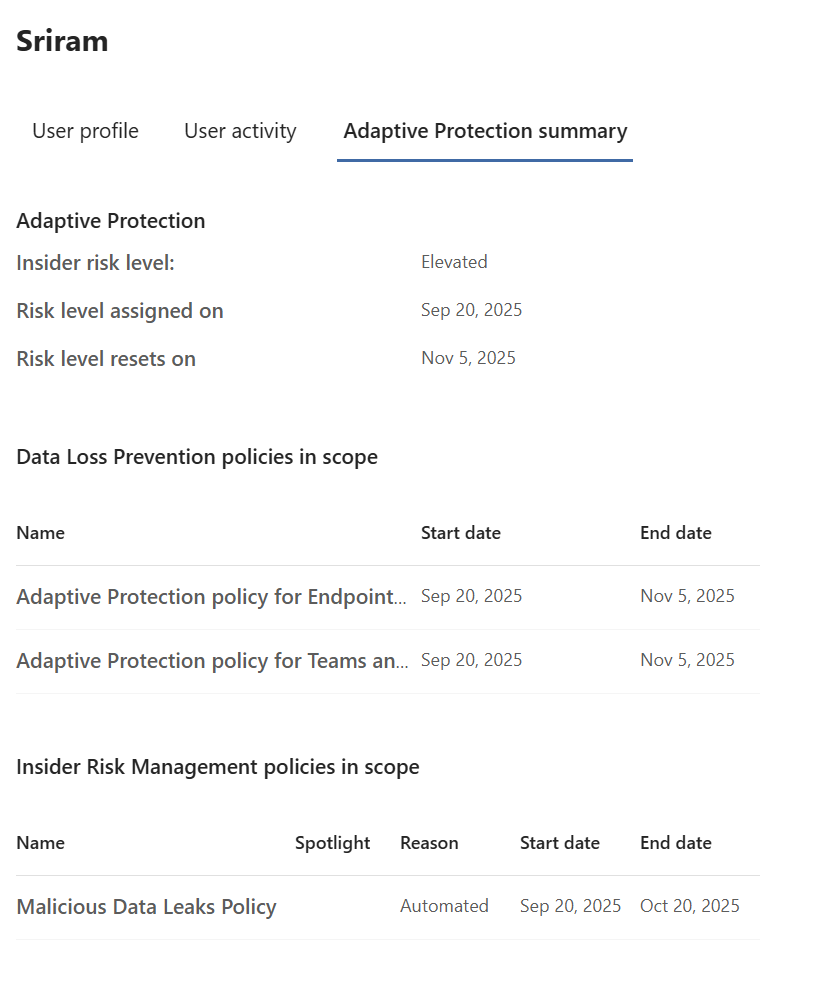
Adaptive Protection Summary Tab
This tab provides contextual insights into why the user was assigned a specific risk level.
- Risk Level Justification:
- Explains the behavioral patterns that led to the elevated risk.
- Includes historical data and policy impact.
- Policy Impact:
- Shows how the risk level influenced other Microsoft Purview features:
- Data Loss Prevention (DLP): Automatic restrictions on file sharing or downloads.
- Communication Compliance: Monitoring of Teams, email, and Yammer messages.
- Access Restrictions: Conditional access or session controls.
- Shows how the risk level influenced other Microsoft Purview features:
- Historical Trends:
- Graphs showing changes in risk level over time.
- Useful for identifying whether the user’s behavior is improving or deteriorating.

SOC Tip: This tab helps SOC teams understand the broader context and determine whether the alert is part of a larger pattern or an isolated incident.
Step 3: SOC Team Actions and Investigation Tools
Microsoft Purview provides several tools to help SOC teams manage alerts efficiently:
Filtering Options
- By Risk Level: Focus on elevated or moderate risk users.
- By Assigned Analyst: Track who is investigating which alert.
- By Policy Type: Filter alerts based on insider risk policies (e.g., data theft, security violations).
Alert Management Actions
- Expire Alerts: Useful for false positives or outdated alerts or if your team has already addressed them.
- Assign to Team Members: Enables collaborative investigation and workload distribution.
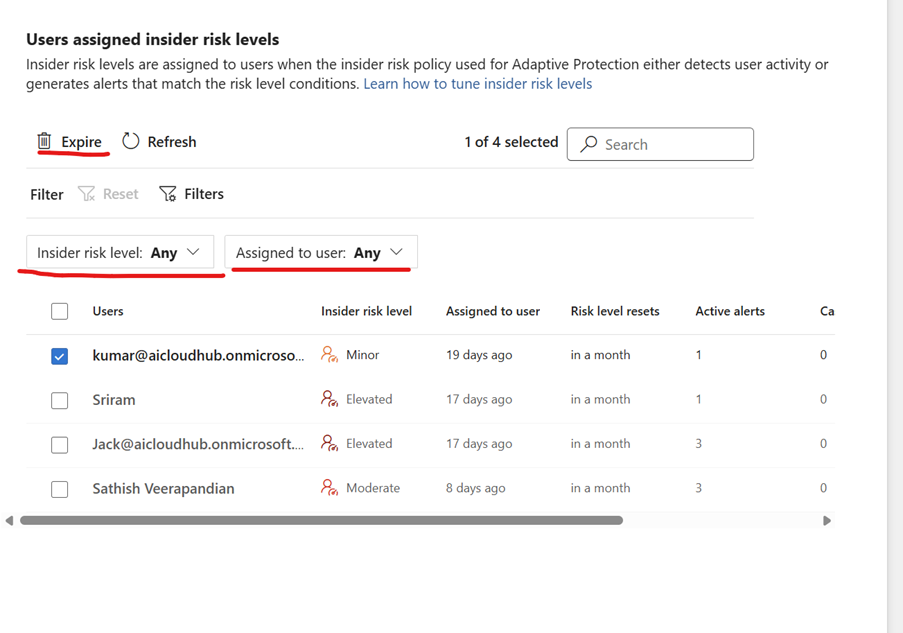
SOC Tip: Use these tools to streamline triage, reduce alert fatigue, and ensure timely resolution.
Real-World Use Case: Investigating a Data Theft Alert
Let’s walk through a typical scenario:
- Dashboard flags a user with Elevated Risk.

- SOC analyst clicks on the user and opens the User Profile tab.

- Analyst navigates to the User Activity tab and confirms the potential data leak activities
Files copied to USB device, Unusual volume of sensitive files and files transferred to NW share
The Adaptive Protection Summary tab shows the user’s risk level increased since when the Risk level was assigned, associated DLP and IRM policies in Scope
SOC team can further investigate the alert and dismiss them based on the analysis if its a false positive or dismiss them after it has been addressed.
Conclusion
Microsoft Purview Adaptive Protection empowers SOC teams with context rich, behavior driven insights to detect and respond to insider threats. By combining risk scoring, activity tracking, and policy enforcement, SOC teams can:
- Prioritize investigations based on real-time risk
- Understand the full context of user behavior
- Take informed and timely remediation actions
By default, Microsoft Purview is configured to automatically expire the user’s risk level once the alert is dismissed or the case is resolved. Conditional Access policies that blocked login or app access are automatically removed after the risk is lowered.
Regards
Sathish Veerapandian
Tagged: AI, artificial-intelligence, cybersecurity, Security, technology

 Tej Pratap
 Ewald Hollestelle
 rsujiraja
 Sathish Veerapandian
 EzCloudInfo
Leave a comment