Category Archives: Microsoft Teams

Microsoft Teams – Deploy Information barrier policies for your organization.

Information barrier policies is an another security enhancement feature in Microsoft Teams. With this new component it helps the organization to enforce policies which prevents the communication between specific group of people. This is primarily helpful and beneficial for the organizations who are into manufacturing and production units where they would need to adhere certain industry standards and guidelines usually to avoid conflicts of interest.

Before we actually move into deploying the information barrier policies segmentation of the users needs to be done.Ideally the business requirement which falls into compliance category to prevent communications between groups of users in Microsoft Teams. For example a person from Marketing Team cannot make a call,send instant messages or share his desktop to Research department. It can be vice versa or its is only one direction. All the sets of users needs to be identified because this contributes to the number of the segments that we are going to create for this policy to prevent the communication between them.

Continue reading

Microsoft Teams – Utilize the AzureADMSGroupLifecyclePolicy command to manage the teams group life cycle

With the Azure active directory powershell commandlets, we could control the lifecycle of office365 groups.Ideally when any office365 group is created for an action of creating a team in the backend it creates the azure ad group.With the Azure commandlets we have options to control the lifecycle of the office365 groups automatically.

Let’s say we ‘ve created Team for a partner project which completes in 1 year time period, we have got an option to expire this team in 1 year time during the team creation.This keeps the access reviews of the Microsoft Teams intact and ensures that only required persons have access to the company corporate data.

The default setting is unlimited days as it should be for most of the scenarios.

Firstly we need to connect to azuread module from the powershell. Since we do not have any group life cycle policy the value remains empty.

Continue reading

Microsoft Teams – Notify security administrator when a new team is created by the end users

Microsoft Teams is being used as a most preferred method of communication platform by many organizations. By default in office 365 the group creation is enabled for end users which will allow them to create public and private groups. Few organizations are having the group creation disabled on the organization level for larger scale companies and have users request for creating the teams using a request form which will run through a automation process in the background with help of azure automation accounts ,Microsoft flow or few other mechanisms.

But few organizations are really interested in allowing the users to create the Office 365 groups once their workloads are migrated to office 365. This is primarily to increase the adoption rate of Office 365 workloads Microsoft Teams and SharePoint online.

We have more options available in Office 365 cloud app security. By leveraging these options we can better secure the Office 365 suite of products which in turn controls the Data loss prevention, security compliance, information governance and threat management for the entire organization.

Through Cloud App Security –

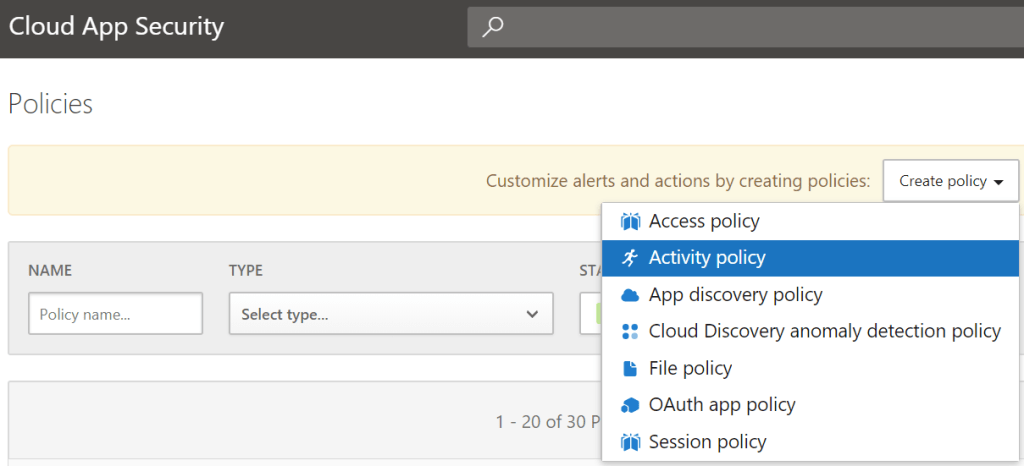
Navigate to Cloud App Security – https://portal.cloudappsecurity.com

Select and create Activity Policy

Do not choose any policy templates – select policy severity – category as per classification – Have selected compliance in below example.

Continue reading

Review and Remove inactive guest users from Microsoft Teams through Identity Governance – Access reviews

When an office 365 group is created, we have options to collaborate with public partner accounts .As a result of this People outside organization can see and have access to office365 public groups contents when they are been invited as guests.

When we have allowed the end users to create the office 365 groups and invite the external partners to collaborate,over a period of time the groups left unattended without the access reviews. There is a high possibility of an user having access to the sensitive documents which they don’t need them anymore.

In order to alleviate these security issues , we can influence the Microsoft Azure Identity Governance – Access reviews

With the access reviews created for office365 groups , we can let the group owners review their office 365 public group guests present on them and take necessary action based on the requirement.

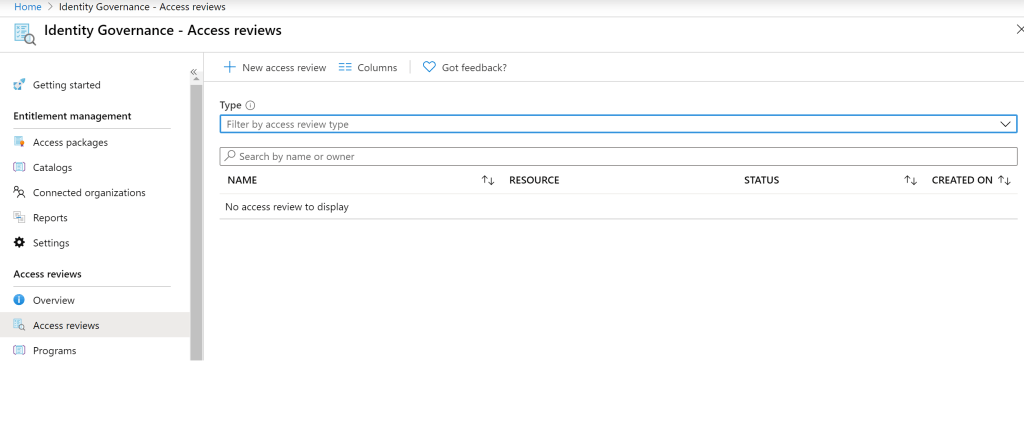
In order to create access review navigate to azure portal – Identity Governance – Access reviews – Click on access review – Select New access review.

Now we can create them with name ,description , start date and frequency of how often the access reviews needs to take place for the office365 groups.

Continue reading

Microsoft Teams – Enable data loss prevention,ATP safe attachments,retention of files and conversations

Security is considered one of the success factor for any implementations.With Office 365 security and compliance there are lot of options to enforce the security across Office 365 suite of products.We can enforce DLP on Microsoft Teams based on our requirement. ATP can be turned on for all file upload activities in Microsoft Teams. The best part is that now we do have option to enable retention as lesser as 1 day in Microsoft teams channel messages and chats.

Microsoft Data Loss Prevention have been protecting sensitive information across all Office365 platforms. The easiest part is that we already have more custom built-in templates which will be easier for us to create,test,evaluate the results and finally create one for the production.

DLP Policy in Teams:

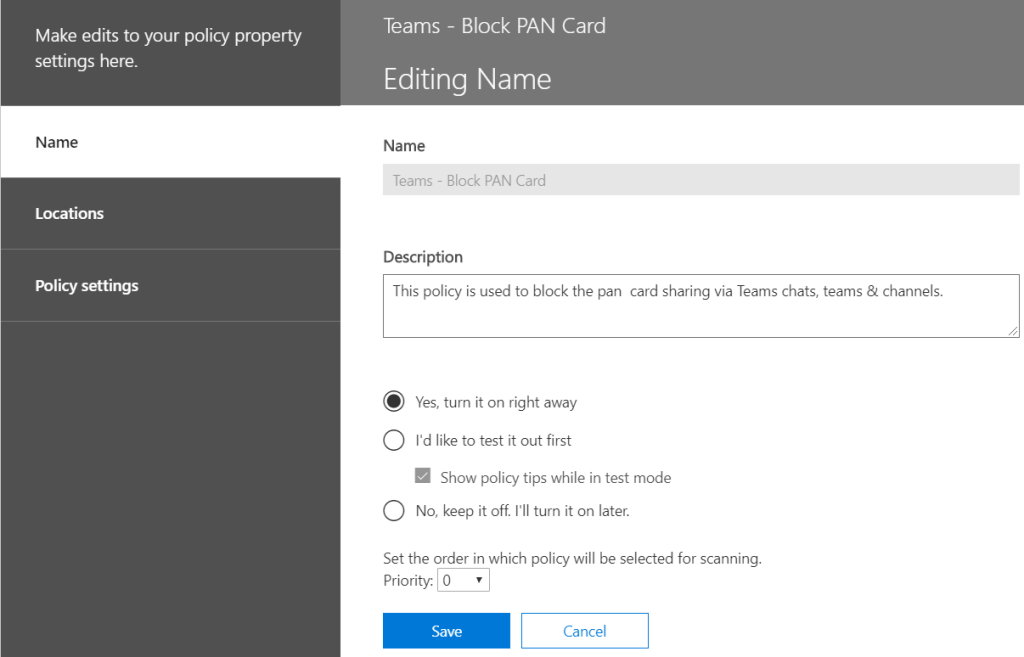
To create a dedicated DLP policy for Teams navigate to security and compliance center – Create a new policy.

In our example we are creating a new policy which will block the sharing of PAN card number via teams channels and chats.

Continue reading

Microsoft Teams – Enforce Multifactor Authentication on guest accounts

Post the ignite sessions last month on Microsoft Teams, we have enhancements on security perspective that can be enabled which adds extra protection in any organization.

Inviting the external guest users to the teams channel have been a welcoming option for all of us which increases the communication between them and surges the productivity. However, there are few security guidelines that needs to be followed to ensure that our data is always secure even when they are shared outside the boundary. For instance, a guest account getting compromised where he is a member of a finance team will become a major security incident in any organization.

This article outlines the steps that can be carried over to enhance the security on Microsoft Teams guest accounts by enforcing the multi factor authentication.

Below are the steps to enforce the MFA on guest accounts:

First create a dynamic distribution group and target the guest account

Login to Azure AD Tenant with Admin privilege’s- Go to Groups – Create new group – make them security – membership type make them dynamic.

Continue reading

Loads of exciting new features announced for Microsoft Teams on ignite 2019

With Microsoft ignite sessions that happened last week there are lots of new end users functionalities, meeting room enhancements and better enhanced administration facilities were announced for Microsoft Teams. Below are the summary of the features .

Watch out more from the Ignite Session videos.

End user functionalities –
1)Ability to create Private Channels – Secure Private channels can be created and shared only with few audiences.This eliminates the need of creating multiple teams for secure communication. We can further restrict the Private Channels creation and visibility from the admin center.
2)Multi window experience between the chats – Ability to chat with multiple people at the same time and switch windows which was much requested feature in the user voice.
3)New Tasks experience in Teams – Helps better tracking of the tasks and have great option to view the stats on charts, schedule, boards and filter.
4)Yammer app in Teams – Allows to jump in yammer communities.Beneficiary especially on larger organizations and useful for employees to join and collaborate in a bigger communities and keep upto date on the new content.
5)Outlook addin for Teams – With the new addin it makes easier for sending the content of the email with all the context body and attachments. Sharing from channels have also been seamless.
6)Background Blur to the next level- We can add customize background blur with our custom images and change the background experience either to show as sitting on a beach or in a hotel etc.,
7)Turn on live captions – It makes easier to follow up on the team meetings. This is a live voice to text translation and helps especially in broadcast meetings as well.

Continue reading

Readiness and steps to Configure Direct Routing in Microsoft Teams

Earlier to enable enterprise voice with calling plan on skype for business online we would need to install cloud connector locally on a virtual machines as a separate appliance which requires complex configuration for integrating with the certified session border controllers.

Now Microsoft have made it easier to configure them with direct routing where we do not need to deploy the cloud connector agent locally in the on-premise systems.

When paired with Microsoft Calling plans or direct routing with local ISP calling plan, they provide a full enterprise experience for office 365 users in Teams on a global scale. With Direct Routing we can Connect Existing Telephony Infrastructure to MS teams with the help of  local session border controllers. A SIP connection is created between the cloud call controllers and our local session border controllers.

In this article we will look at the options , readiness and steps  to Enable users for Direct Routing from the Microsoft office 365 perspective.

Readiness for Direct Routing:

Decide on Session Border Controller (Self or hosted SBC):

Session border controller connects Teams call to PSTN next hop or to the configured sip trunk with the local ISP. Here we have two options either to have own session border controllers on premise or to have this functionality hosted to a managed service provider who will host the session border controller for your organization to perform the SIP proxy and the PSTN routing for Microsoft Teams.

Make sure to select the supported session border controllers by Microsoft to configure direct routing in Microsoft Teams.

Figure out licenses based on deployment: Decide on media bypass Configuration

We need to figure out licenses on Microsoft office 365 to utilize the full enterprise functionality of Microsoft Teams.

Option1: Full Microsoft License

In this case no direct routing is required unless there is coexistence required with existing telephony system because we will be having the full calling plan with Microsoft and will utilize the Microsoft call controller, PSTN, Media controllers and Media processor.

Continue reading

Microsoft Teams – Side load 3rd party & custom built apps in Microsoft Teams pane

With all the more new improvements in Microsoft Teams,we have more alternatives to modify the end user client choices from the application perspective to get access to the most frequently used applications from Microsoft Teams.

The Custom built in-house applications can be effectively side-stacked in Microsoft Teams which makes the end users to adequately use these applications.

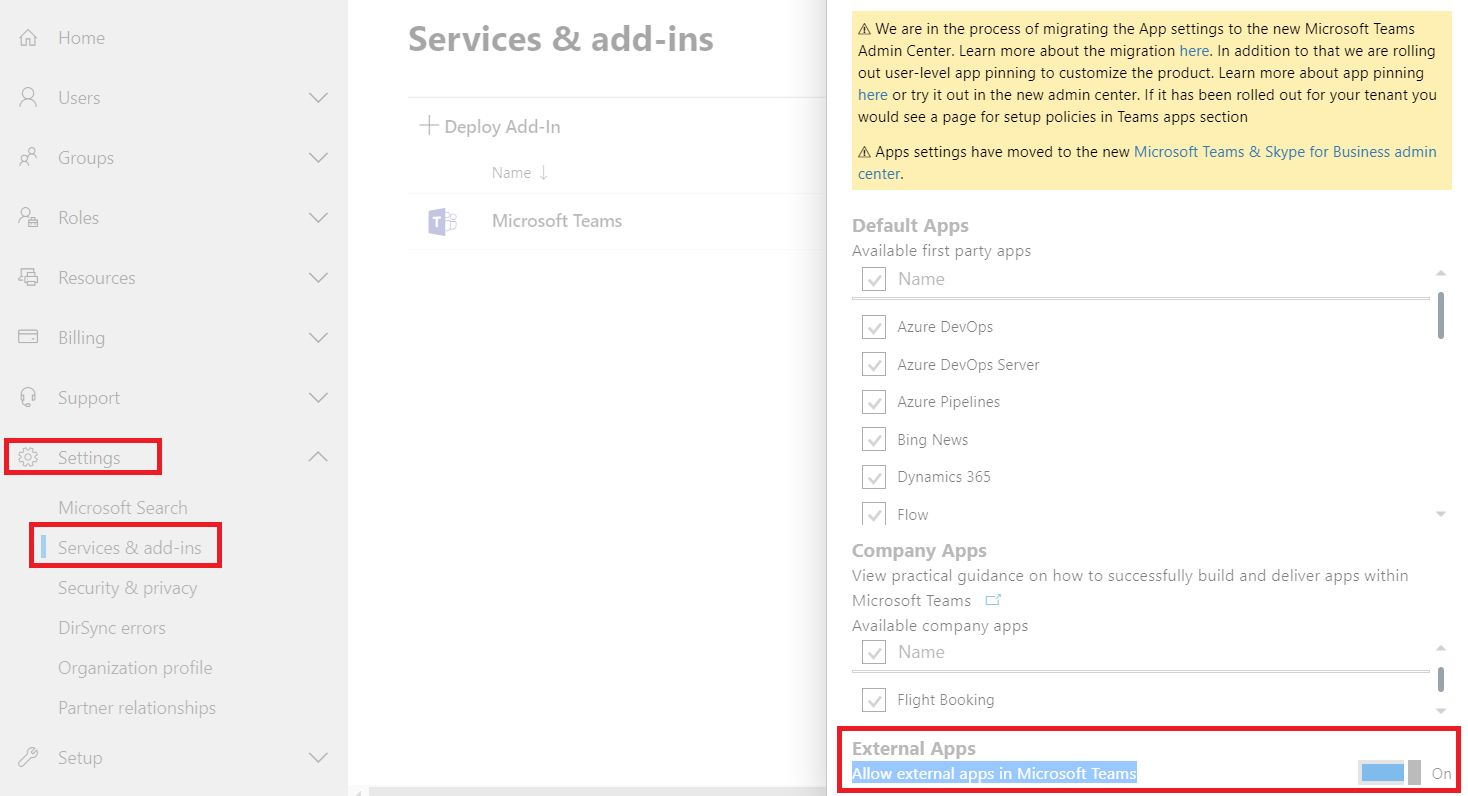
To start utilizing these options login to Office 365 admin portal and verify if the teams side loading options are migrated to Teams admin portal.

Once logged in navigate to settings – services & addins – search for Microsoft Teams – And see if external apps in turned on.

In below case in this tenant these configurations have been migrated to Microsoft Teams admin portal and hence these settings are greyed out. This will be the case for almost every office 365 tenants.

Continue reading

Microsoft Teams – Manage External and Guest Access communication for users

Microsoft Teams becoming an unrivaled communication platform its been adopted by most of the corporate organizations right from small, medium and large scale businesses.

Teams adoption rate have been thriving a lot and there are organizations managing their daily operations and projects completely via better organized Teams and channels.

In this article we will have an overview and the options available to expose Microsoft Teams for communication to the external network and other office 365 organizations.

As an initial prerequisite we must ensure that all the Office 365 URL and IP Ranges are allowed.

Login to Microsoft Teams Admin center portal here we have 2 options.

  1. External Access
  2. Guest Access

For external access the screenshot is pretty much explanatory. The best way is to add only the allowed domains which would block the other external organizations.

Continue reading