Script to generate office 365 groups created on last 30 days

By default it is enabled for users to create the office365 groups. There are few organizations where they do not need to restrict this group creation because these groups are heavily influenced on utilizing the office365 services Sharepoint,Yammer, Microsoft Teams, PowerBI , Outlook, Planner and Road Map which in turn might decline the office 365 user adoption rate.

The below script can be used to run in task scheduler on a monthly basis for reviewing the Office 365 groups which have been created in last 30 days and will email us the report.

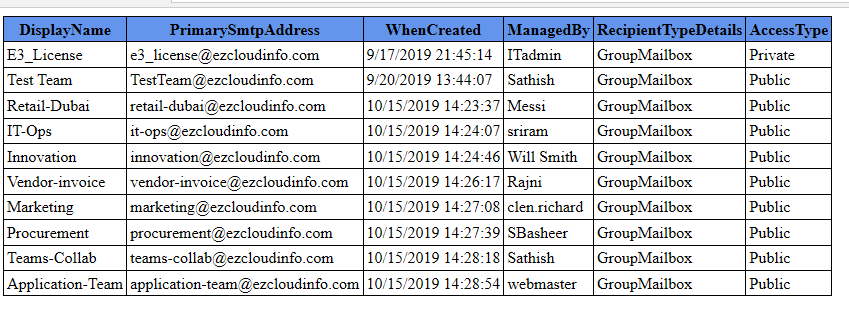
Below is the sample output of the script which will provide us the below details.

Continue reading

Configure Exchange Online to reject emails that fail DMARC validation with organizations having policy of reject

By default Office 365 DMARC validation for internet emails that fails for policy P=Reject will make the email to land in junk folder of the recipient mailbox. Microsoft 365 will treat DMARC policies of quarantine and reject in the same way, which means that if the sender’s DMARC policy is set to reject or quarantine, the emails that fail DMARC will be sent to the junk folder of the recipient mailbox which is by design as of now and can be found in the Microsoft Article.

Microsoft believes that the main agenda of doing this is to ensure that any legitimate emails which misses in DMARC alignment shouldn’t be lost and its better either to quarantine them or to get them delivered recipient’s junk mail folder. There are few cases wherein few organizations would still need the DMARC policy to be stringent due to their security regulations.

Microsoft validates DMARC and overrides the failure with a header value for a domain whose DMARC TXT record has a policy of p=reject oreject. Instead of deleting or rejecting the message, Office 365 marks the message as spam.

To test it further we are publishing SPF, DKIM and DMARC record for the domain ezcloudinfo.com as below:

Continue reading

Readiness and steps to Configure Direct Routing in Microsoft Teams

Earlier to enable enterprise voice with calling plan on skype for business online we would need to install cloud connector locally on a virtual machines as a separate appliance which requires complex configuration for integrating with the certified session border controllers.

Now Microsoft have made it easier to configure them with direct routing where we do not need to deploy the cloud connector agent locally in the on-premise systems.

When paired with Microsoft Calling plans or direct routing with local ISP calling plan, they provide a full enterprise experience for office 365 users in Teams on a global scale. With Direct Routing we can Connect Existing Telephony Infrastructure to MS teams with the help of  local session border controllers. A SIP connection is created between the cloud call controllers and our local session border controllers.

In this article we will look at the options , readiness and steps  to Enable users for Direct Routing from the Microsoft office 365 perspective.

Readiness for Direct Routing:

Decide on Session Border Controller (Self or hosted SBC):

Session border controller connects Teams call to PSTN next hop or to the configured sip trunk with the local ISP. Here we have two options either to have own session border controllers on premise or to have this functionality hosted to a managed service provider who will host the session border controller for your organization to perform the SIP proxy and the PSTN routing for Microsoft Teams.

Make sure to select the supported session border controllers by Microsoft to configure direct routing in Microsoft Teams.

Figure out licenses based on deployment: Decide on media bypass Configuration

We need to figure out licenses on Microsoft office 365 to utilize the full enterprise functionality of Microsoft Teams.

Option1: Full Microsoft License

In this case no direct routing is required unless there is coexistence required with existing telephony system because we will be having the full calling plan with Microsoft and will utilize the Microsoft call controller, PSTN, Media controllers and Media processor.

Continue reading

Script to offboard resigned employee in a hybrid environment

The below script can be used in off-boarding below tasks for a resigned employees as a bulk operation.

This script will help in below actions for Exchange online and AD tasks to be removed in a Exchange hybrid environment:

  1. Convert exchange online mailbox to shared Mailbox.
  2. Disable the Mailbox protocols – OWA,ActiveSync, POP, IMAP, MAPI & OWA for devices.
  3. Hide the user from GAL.
  4. Remove the user from respective licenses E3,E5,EMS E3 & EMS E5 Licenses.
  5. Cancel all the calendar future meetings.
  6. Remove the user account from all groups.
  7. Set the account expiry of the AD account.
  8. Remove the IP Phone Attribute.
  9. Remove the manager field.
  10. Set out of office.
Continue reading

Migrate onpremise SQL DB to the Azure SQL Database

Azure dataplatform also provides Azure SQL database as a relational database as a service PAAS which is fully managed by Microsoft.This helps the developers to build their apps very quickly and removes the overhead of database administration.

There are few methods to migrate an on premise SQL database to Azure SQL Database and in this article we will have a look at migrating them with two options.

1) Using BACPAC export and import.

2) Data Migration Assistant.

Using BACPAC export and import:

With BACPAC export and import firstly we need to export the SQL database from the on premise SQL instance as a data tier application.

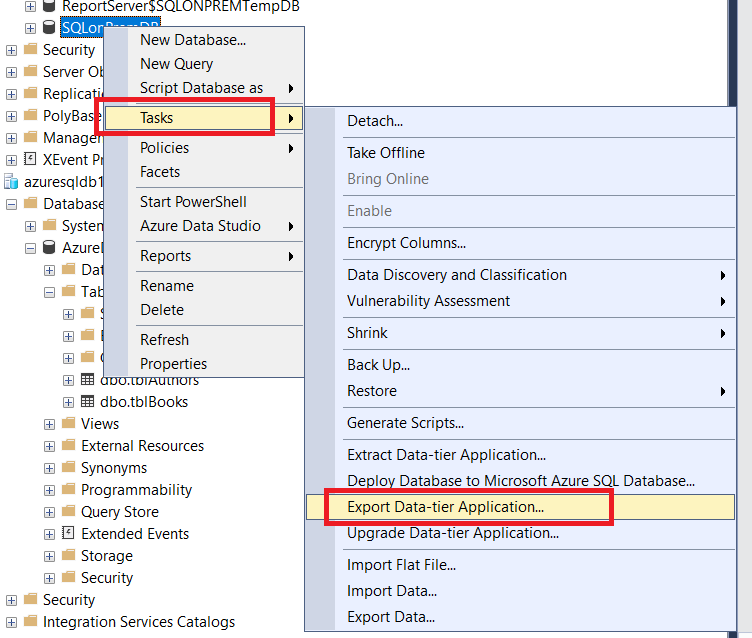
To export – Open SQL Management Studio – Right Click on the desired database and click on tasks – select export data tier application.

Continue reading

Microsoft Azure – Copy VHDs, between storage accounts in managed and unmanaged disks

The most common tasks that we might be receiving in Azure is to copy the blobs between the storage accounts. This article outlines the steps involved in copying the VHDs between managed and unmanaged disks

Copying the VHDs from unmanaged disks to a new storage account is pretty simple and we have two options copying via AzCopy or use Storage explorer

Option 1: Using Az Copy

Step 1: Get the VHD URL – 

Navigate to storage account – Choose the Associated VM SG account – Click on Blobs – Select the container name – Choose Properties – Copy the URL 

Continue reading

Microsoft Teams – Side load 3rd party & custom built apps in Microsoft Teams pane

With all the more new improvements in Microsoft Teams,we have more alternatives to modify the end user client choices from the application perspective to get access to the most frequently used applications from Microsoft Teams.

The Custom built in-house applications can be effectively side-stacked in Microsoft Teams which makes the end users to adequately use these applications.

To start utilizing these options login to Office 365 admin portal and verify if the teams side loading options are migrated to Teams admin portal.

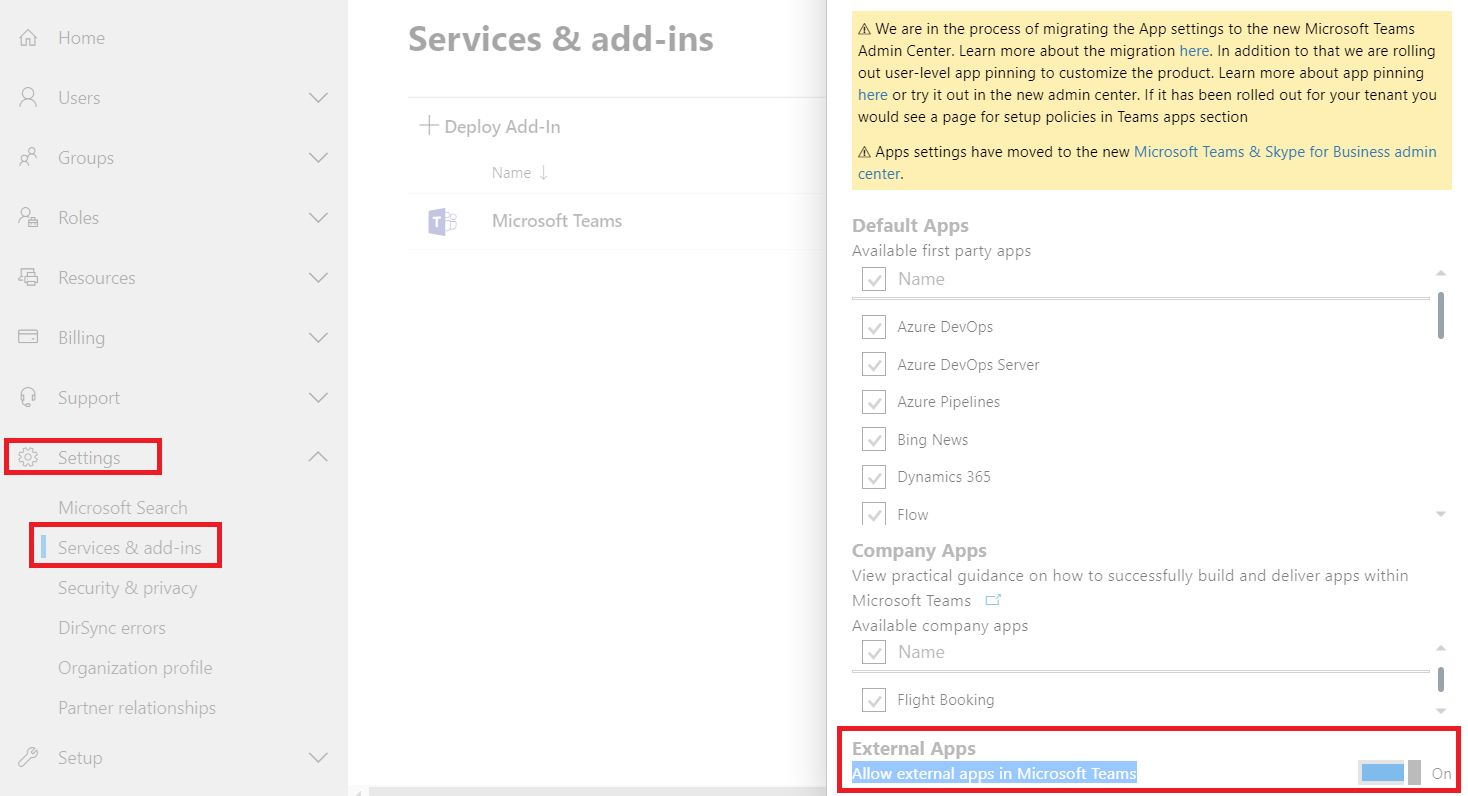
Once logged in navigate to settings – services & addins – search for Microsoft Teams – And see if external apps in turned on.

In below case in this tenant these configurations have been migrated to Microsoft Teams admin portal and hence these settings are greyed out. This will be the case for almost every office 365 tenants.

Continue reading

Overview of DNS services in Microsoft Azure

Like different DNS hosting suppliers, we have DNS facilitating choice both private and public in Microsoft Azure.We have Azure Provided DNS, Bring your own DNS and use Azure private DNS which is in review starting at now.

Azure Provided DNS: (Azure-provided name resolution)

With Azure provided DNS the deployment is a lot simpler, and no complex setup is required from our side.They come up with highly available model and they can be used with in conjunction with our DNS. There are few caveats in this model which is the DNS suffix can’t be changed since they are auto created and given from Azure. DNS Query Traffic is throttled for each VM’s which might need to be taken into consideration for intensive web applications. Thus Wins and Net Bios are likewise not Supported. At last, manual registration of DNS records isn’t supported.

Continue reading

SharePoint Online – Enable External collaboration through B2B extranet Sites

On every business operations its crucial to sanction external partners,vendors to collaborate on their quotidian operations. Withal there are cases wherein only business to business collaboration like sharing between two organization is required and remains a vital factor to their business.

To felicitate a classical external collaboration site it was always bit challenging for administrators from SharePoint on premise workloads. Extensive orchestrating is required in terms of provisioning hardware or VM resource, security hardening and getting the access on the firewalls etc..,

With Office 365 B2B there are much more easier ways to roll out this feature to business with no additional server provisioning, no certificate requirement and simple administration. This magnificently reduces the traditional deployment costs. By default we get secure sharing, seamless collaboration and we have much detailed governance and audit reporting.

Continue reading

Microsoft Teams – Manage External and Guest Access communication for users

Microsoft Teams becoming an unrivaled communication platform its been adopted by most of the corporate organizations right from small, medium and large scale businesses.

Teams adoption rate have been thriving a lot and there are organizations managing their daily operations and projects completely via better organized Teams and channels.

In this article we will have an overview and the options available to expose Microsoft Teams for communication to the external network and other office 365 organizations.

As an initial prerequisite we must ensure that all the Office 365 URL and IP Ranges are allowed.

Login to Microsoft Teams Admin center portal here we have 2 options.

  1. External Access
  2. Guest Access

For external access the screenshot is pretty much explanatory. The best way is to add only the allowed domains which would block the other external organizations.

Continue reading