Exploring Power BI for Office 365

PowerBI is a new business intelligent offering feature from Microsoft which enables to work, collaborate and gain insights of their excel data  through office 365.
By having this option enabled all the users would be able to easily access their data inside and outside their organization and share the data in a secure way. Also amazing visualizations can be created for their excel data and can be accessed anywhere even from the mobile devices

To know more about this feature kindly read this blog – https://blogs.office.com/2013/07/08/what-powers-power-bi-in-office-365/


Here i will explain few features about the power BI features

You can go here and create a power BI trial account for 60 days

https://powerbi.microsoft.com/?WT.mc_id=Old_Site

Note: For Office 365 account holders to complete signup, sign in with your Office 365 user ID and password.

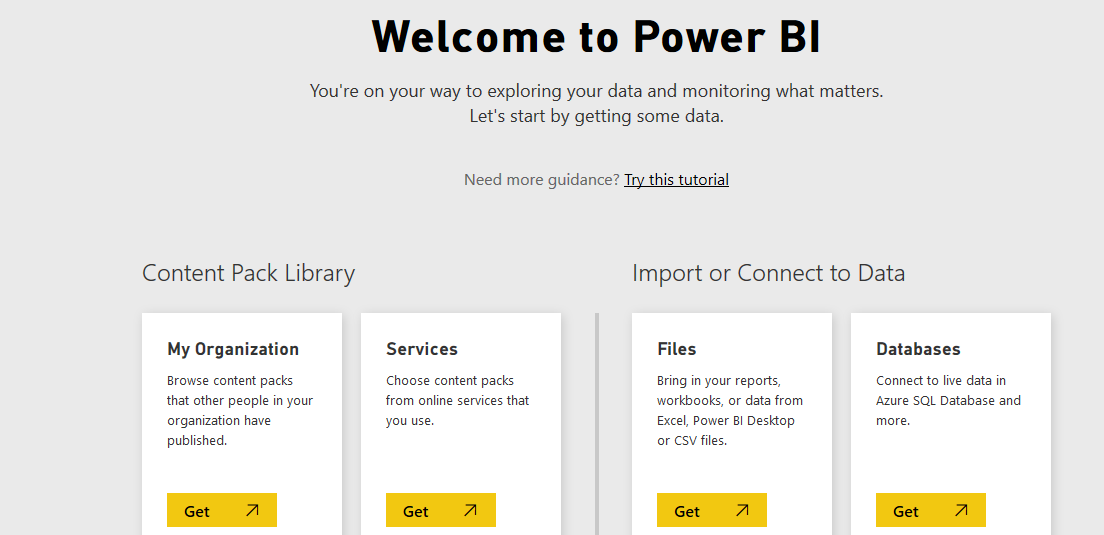
Once after you create a test account we get the below screen.

Power BI

You can create content pack

This content pack is nothing but we are creating a dedicated groups who can have access to these data. So basically we  can create multiple content packs and assign users to different content packs.

Power BI1

When we choose the first option my organization we can select only users in our organization who are members, groups in office 365.

Power BI2


When we choose the other option services for creating content pack we can choose any one of the below online services that you have and create content packs modify,share and collaborate excel data.

This option will be good and easy when we work with partners, vendors to share the data by this option.

powerBI7


So now after creating the content packs we need the data that can be shared among the groups we are member.

Here we have two below options to import our data from our local system or connect to the live datas.

csvPBI

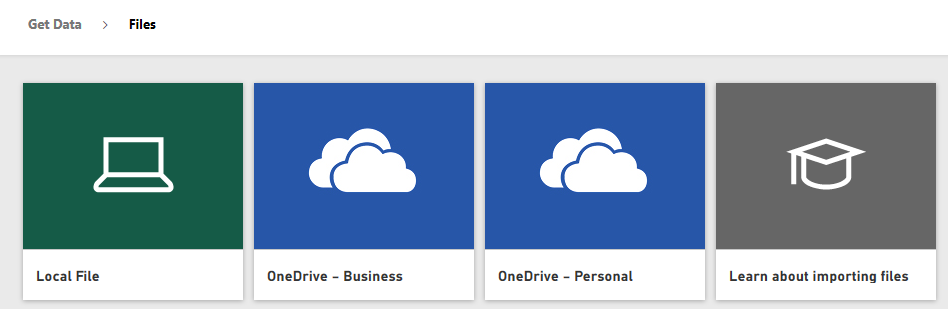
Below are the options that we get when using the first option . Connecting to one drive and getting the data is also very good option.

PowerBI8

When we select the second option to connect to online DB’s we have all the below options

PowerBI9

Also we can create a separate group work-spaces as below and share the data separately.

PowerBI01

Finally you can prepare a data sets as below share it within your work-spaces and access them from any where and from any devices which is amazing feature.

DSA


By using this feature you can stay connected with your reports and data wherever you are which is a great feature.Power BI pro will cost $9.99 per user per month and offers 10 GB of storage, Active-Directory-controlled collaboration and data privileges, live access to on-premises Microsoft SQL Server instances. Another amazing feature is mobility is supported for accessing these services.

Thanks

Sathish Veerapandian

Migrating Exchange 2010\2013 services from TMG to F5 Big IP

As we all know TMG was such a great fantastic and a fabulous product which was serving good for most of the external published web services. I know most of us are really worried about the reason of discontinuing this awesome product. So now people are moving towards alternatives for replacing TMG.

Among the few good alternatives F5 load balancer  is one of the great product. Recently i had a chance to involve and work in this project which was lead by messaging expert and network specialist.

I would like to share few experience that i gained and things that we need to consider during this migration.

In the TMG we had the option to publish any sites , setting up and controlling the authentication delegation , application settings  and we can set a secure way to access these url’s through this reverse proxy.

I still really feel bad for the reason ISA & TMG being abandoned by Microsoft as deploying exchange, lync  in a environment was equally working in ISA,TMG implementation for most of the deployments.

From F5 Big IP you need to use the IAPP template for the versions of the exchange that you are running currently from the F5 support website.

You can download the latest IAPP for Exchange  template from the link

https://support.f5.com/kb/en-us/solutions/public/13000/400/sol13497.html

I’m not going to explain more on this IAPP templates of importing them on the LTM and how to configure the settings since in this blog i’m going to explain the best practices that we can follow for Exchange 2010 &  2013.

For people who would like to explore more on this they can always explore the virtual ITM trial version on the below link and publish exchange services via this

https://www.f5.com/trial/big-ip-ltm-virtual-edition.php

Just download them and install it on any VM to test this functionality.

Below are the things that we need to consider in this migration :

1) Choose your type of SSL method

Decide what type of SSL encryption that you are going to use.

SSL offload

If you are going to use SSL offload then all the  certificate decryption part will happen in the F5 itself. Then connections from the F5 to the CAS will go in un encrypted way.

Benefits of doing this :

Your CAS will not have the load of performing the SSL decryption.

Disadvantages :

There are possibilities of application layer attacks by doing this method since the connection from the n/w to the app layer goes in a un encrypted way.

SSL bridging :

If you are going to use this method then the SSL decryption will happen in the F5 and inturn it will re encrypt and send the connections encrypted to the CAS servers.

Benefits of doing this :

Double layer SSL connections check is done in the n/w layer by the F5 and the CAS servers.

Disadvantages : If you are using less number of CAS servers then the load on them might be increased which is happens in less scenarios.
I cannot recommend any on this because its you ultimately who needs to evaluate your network structure , performance and extra layer of security that is wrapped up in your environment.

But my best recommendation is always to stick on SSL bridging.

2) Prepare your SSL certificates for Exchange services

For doing any of the above activities you would need to have an SSL certificate for the BIGIP to offload and performing the decryption , encryption part. So get an SSL certificate and install it on the BIGIP system.

You need to  configure your Client Access servers to support SSL offloading, you must first follow the Microsoft documentation. See

http://social.technet.microsoft.com/wiki/contents/articles/how-to-configure-ssl-offloading-in-exchange-2010.aspx

3) If you are using  the new MAPI over HTTP transport protocol  in Exchange 2013 there is a little bit challenge. This new service is not yet included in the iApp template, so you must manually configure the BIG-IP system to support it.

4) As a part of testing in your migration don’t ever direct the external  exchange traffic from TMG to  F5 and then the CAS and later remove TMG.


Below are the reasons:
a) TMG uses ARP requests to prevent switch port flooding in unicast NLB.

b) F5 extracts only the MAC address from the ethernet adapter instead of ARP requests. Since the TMG will mask the MAC address of the hosts F5 will not get the info what it requires.

5) Certificates that you obtain with multiple names must be only in SAN (Subject
Alternative Name) format, not SNI (Server Name Indication) format.

6) Enable TCP request Pooling on the Iapp template

TCP request queuing provides the ability to queue connection requests that exceed the capacity of connections. You can choose this option if its a small deployment with one CAS server.

Basically if the TCP connections exceeds the capacity of the pool it holds the connections instead of dropping the connections.

7) Secure EAC access for Exchange 2013 only

Configure settings in iapp to restrict EAC access by group membership.Select this option if you want to restrict EAC access to the Organization Management group.

The BIG-IP APM module queries Active Directory group membership for the user making the
request to EAC. If the user is not a member of the Organization Management group, the BIG-IP APM policy denies access

8) Choose your authentication for OWA

Use the BIG-IP APM module to provide secure access and proxied authentication (pre-authentication) for
HTTP-based Client Access services: Outlook Web App, Outlook Anywhere, ActiveSync, and Auto-discover). The BIG-IP APM
presents a login page to end users that takes the place of the forms-based login page normally presented by Outlook Web App.

If you have configured the FBA in the CAS VD then you no need to configure this authentication in F5 because users will be prompted for doube authentication one in F5 and other in CAS VD which will be painful. I always prefer to do this part on CAS VD and leave the reverse proxy setting as such.

9) You can configure the health checks for the owa, outlook web app,outlook anywhere in the F5.YOu need to specify how often the system checks the health of the CAS servers. The default recommended value is 30 seconds. You can configure this to monitor all these services.

10 ) Decide and perform the migration

After performing and deciding all the above factors you need to plan for the migration of the services from TMG to F5 . Perform the following steps

a) Arrange a Test PAT ip for auto-discover, Outlook Anywhere and webmail from your Network team
Configure the rules in the iapp template to listen on these IP’s

b) Choose few set of users add host entries of auto-discover , Outlook Anywhere and webmail in their PC’s
c) Monitor and test the connectivity for couple of weeks.
d) If the connectivity tests are successful on a fine day shift the original IP’s of all the exchange services and stop all the TMG services.

The above are few guide lines which might help in migrating the exchange services from TMG to F5

Hope this helps

Sathish Veerapandian

MVP – Exchange Server

Warning all persistent chat servers are down

I recently went through this above error while implementing persistent chat . To fix this error we went around circles and finally we were able to fix this permanently.

There is no single problem that can bring this error.There are so many factors that can cause this persistent chat functionality to break.

In this article i’m going to write up few factors that can cause this functionality to be broken.

Below is the error message that you will be getting when you try to enable PC functionality


PCe


Following below factors can cause the above issue:

1. Issue with SQL database connectivity:

First check  that  SQL database for the persistent chat has been created successfully. If you get             any warnings  related to SQL when you publish the topology for  persistent chat then you shouldn’t         proceed with the setup. Connect to the associated instance  from your SQL back end DB and check         if the DB is created for the newly introduced PC role. If you don’t see anything then you need to             first fix this issue.

Note: Also make sure the below configurations are set correctly on the FE,PC and SQL back-end         database server for a successful SQL DB creation.

a) Make sure the port number 1433 is open between PC role server and the back end SQL. You can            telnet to port 1433 vice versa from SQL back end to PC and check the connectivity.

b) You need to have the network discovery and enable file and printer sharing option to be turned              on in both the servers in-order for the connectivity vice versa.

c) Make sure that you have the sa(super admin) rights on the SQL instance or the server where you           are trying to create the DB for this new server.

2.  Once you publish the persistent chat server from the topology builder you need to run the lync                 deployment wizard .

ldw

Just run the first two steps alone to install the PC component roles and update them.

3. You can run the below command to set the persistent chat servers . Although this is not a                   mandatory step but at times even this can cause this problem.So its better to run this command             from Lync management shell.

Set-CsPErsistentChatActiveServer NAME -ActiveServers @{Add=”NAME_OF_PC_SERVER”} -v

4. Make sure you have the latest Cumulative Updates installed on the PC server. In my case this was   the issue. So as a thumb rule its always better to look for the latest CU’s in the persistent chat               server. Also make sure that the persistent chat services are running fine in the PC servers.

5. Final step is to go back to your Topology Builder ,delete the Chat Pool and rebuild it if none of the     above works.

Delete the chat pool that you have created from the topology builder.Then go to your deployment wizard and run install or update server system and setup or remove lync server components.

Following the above troubleshooting steps will most likely bring up the persistent chat channels in a environment.

Hope this helps

Thanks

Sathish Veerapandian

Technology Evangelist

New enhanced and exiting features in Windows 10

Recently i just explored the Microsoft new operating system Windows 10 and would like to share few exiting things that i noticed.

For the people who would like to explore Windows 10 there are 2 options to do that

There is upgrade option available for users having windows 7 and Windows 8  Follow the below tech-net link to reserve your upgrade

https://www.microsoft.com/en-us/windows/windows-10-upgrade

If its a new PC or if you like a fresh installation then, Download the free 90 day trial of  Windows10  enterprise and install them on your PC.

https://www.microsoft.com/en-us/evalcenter/evaluate-windows-10-enterprise


Below are the list of good features identified on the product :

Improvements in the Command Prompt :

We now have native cut and paste shortcuts in the the Windows command prompt which is easier. I think this should be the same in next version of  Windows server as well.

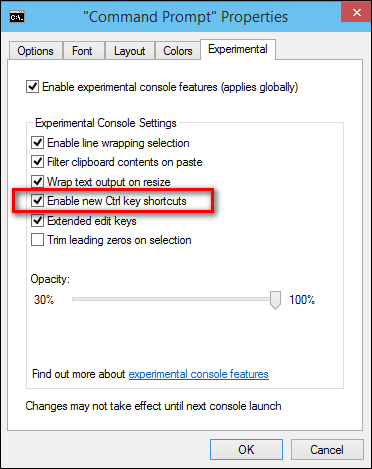
Also we have the experimental tab which gives us more cool new features.

441

There is one more new option called enable new CRTL key shortcuts. By doing this we get more new extra command key shortcuts.

Start Menu is back

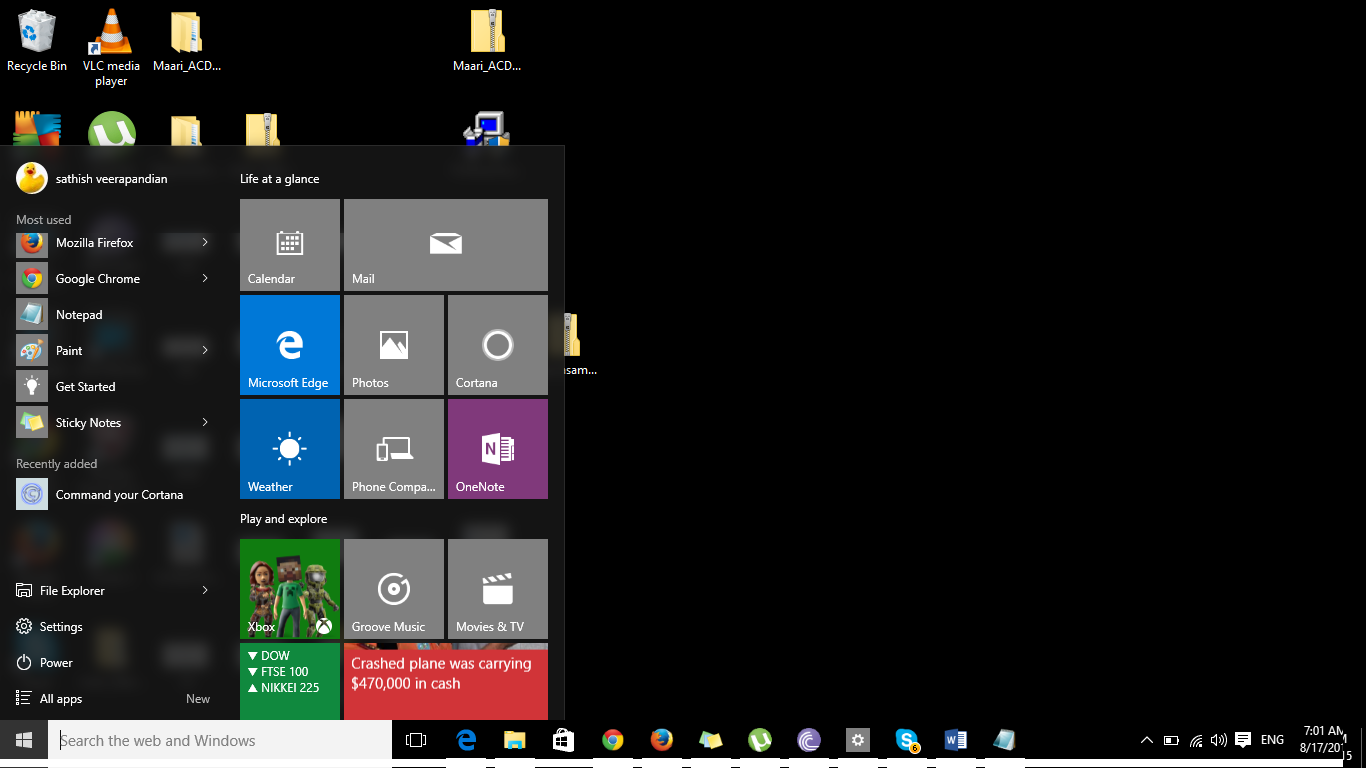
For  Windows 8 pessimists who were claiming about the start menu nonavailability Microsoft has brought this back great !!

Start

The Cortona Command :

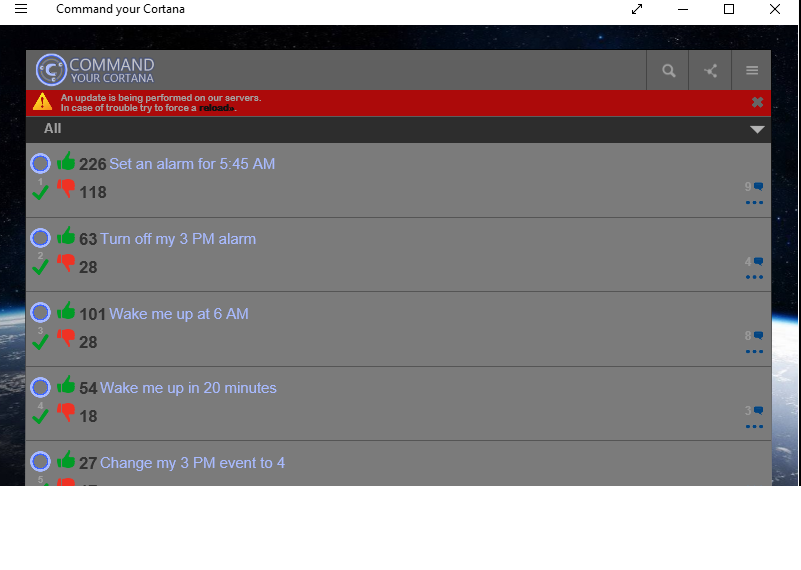
New Amazing feature Cortona on Desktops,Laptops and Tablets

Microsoft has brought a new feature called Cortona from this version. By using this application you can use the Windows 10 software by voice controlled digital assistant.

By using this feature you will be able to search files , open notepad by commanding your PC through voice.

Few samples of Cortona

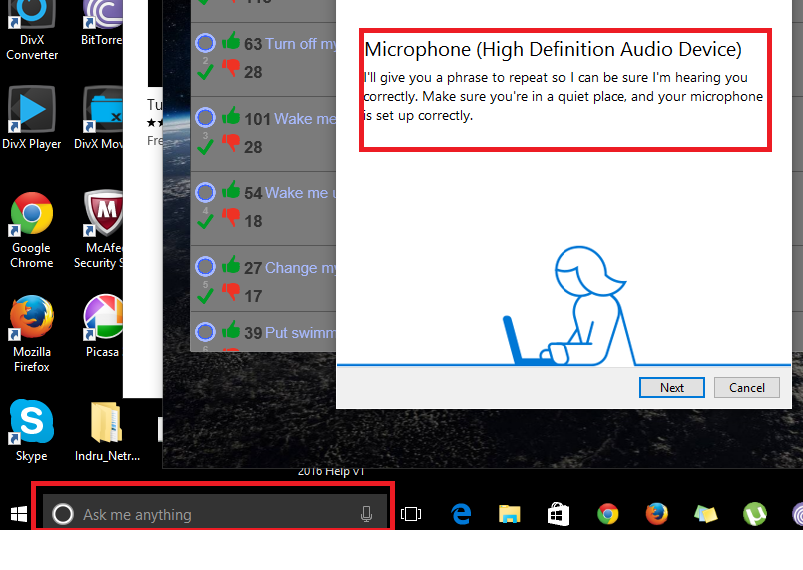
After you download this application from the windows store you get a option called ask me anything with the microphone option as below. Initially you have to set up microphone definition as below for this functionality to work.

Cortona1

Cortona

New Microsoft Edge Browser:

Microsoft new edge browser is really good. The reading layout is appealing especially while looking lengthy articles. Also it includes PDF support.

New option make a web note is very good

Edge1

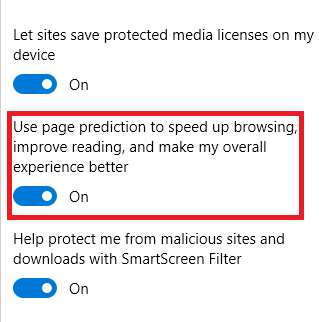
A new option called page prediction which is good

Cortona2

By having this option enabled the browser will predict and load the page ahead and instantaneous response of the page will be given. These predictions are been done based upon Microsoft  understanding browsing patterns like end users browsing habits

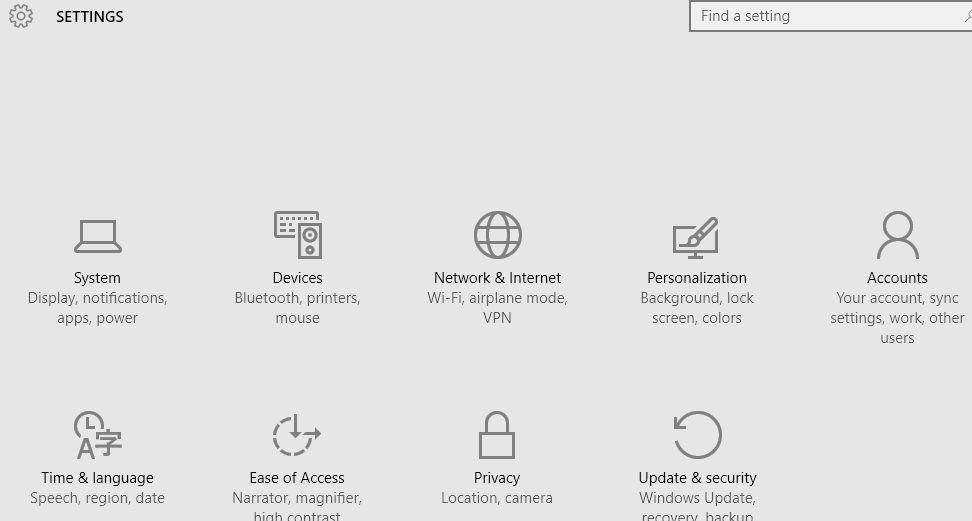
Now all the system settings can be controlled from one place which is more convenient for us

YTR

New Quick Search History :

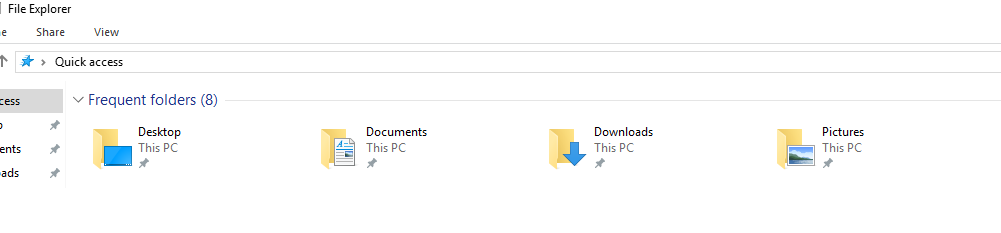
File explorer has a new option with more frequent files used

398

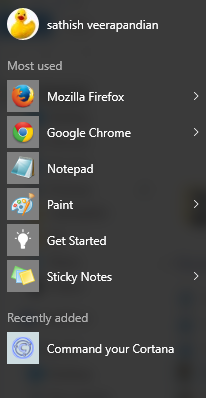
It has this same option in the start menu as well

987

Make multiple virtual desktops:

Now we have an option to create multiple virtual desktops.

D1

By using this option the frequent use of ALT TAB key for switching between the apps can be minimized.

Now we have an option to switch multiple virtual desktops. So we can open as many applications in each of these virtual desktops provided if we have good enough volatile memory.


Enhanced new Photo App:

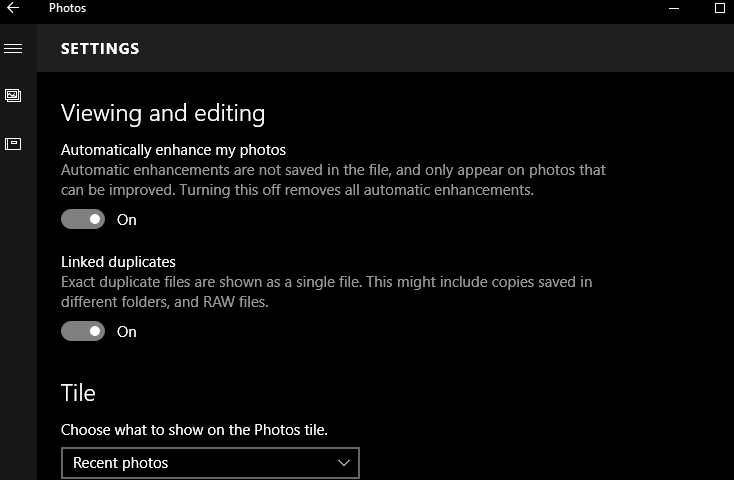
Automatically enhance my photos:

By selecting this option it enhances the saved photos.

This photo app will automatically enhance the saved pictures like colour , contrast , brightness ,etc

Note: The changes are not not saved to the original file. You can revert them by switching off this option.

pj2


Also it organizes and creates album. It has features to edit and enhance.

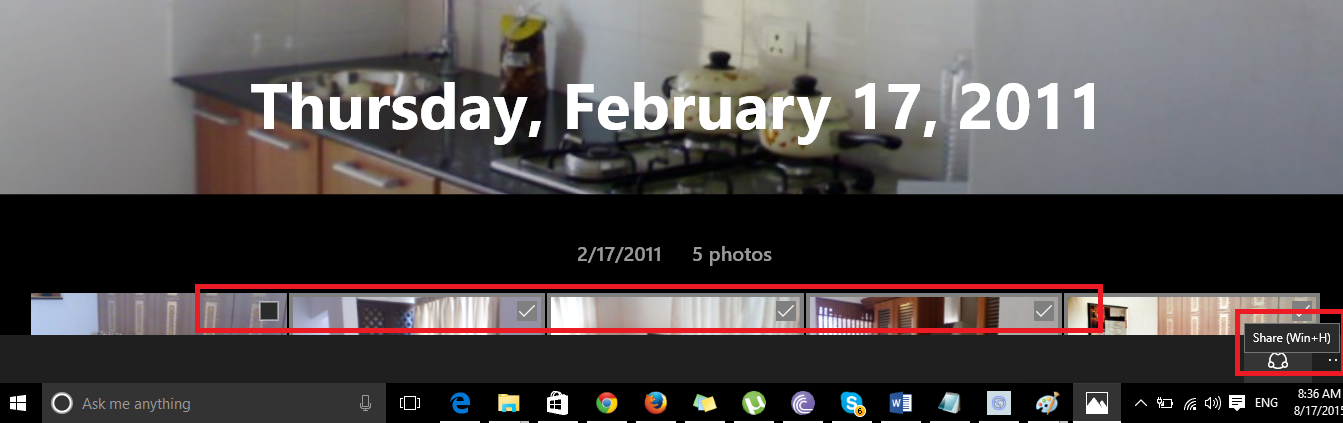
We can also select multiple pics and share them via mail,twitter, facebook , dropbox which is very nice.

9873

Still to explore more on this new version of operating system. It appears to have more features enhanced from the previous version.

Still require more help now we can always ask the Cortona application which will be able to help us further.

Thanks

Sathish Veerapandian


Checking Exchange 2016 Office 365 best practice Analyzer

Like the same in Exchange 2013 SP1 and later versions we have the same Office 365 best practice analyzer tool available in Exchange 2016 as well.

Because prior to Exchange 2013 SP1 we used to login to the office 365 admin tenant ID and download this from the Tools tab which wasn’t that much easier

O365


Now they made it easier for admins to be available from the tools tab at the bottom of the EAC. Its the same in Exchange 2016 as well.

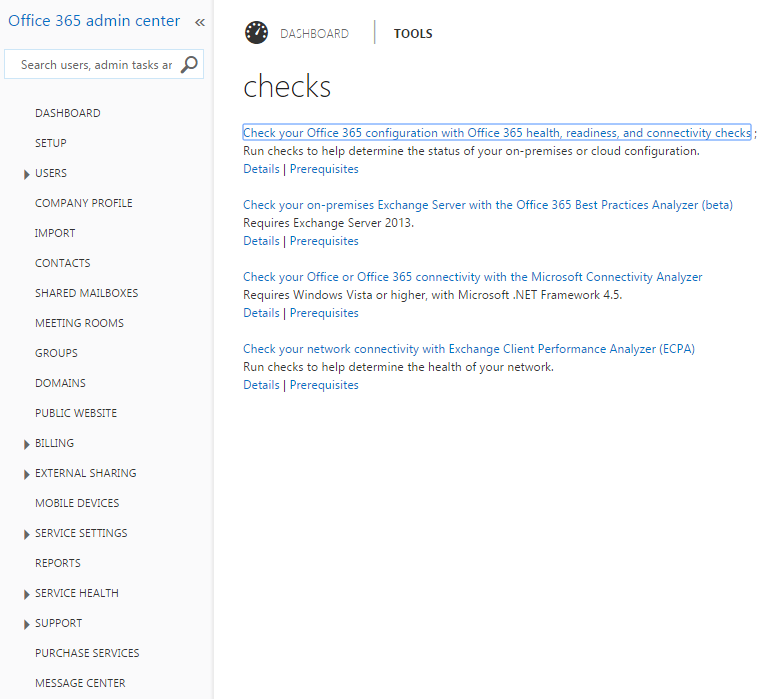
In-order to access the tool just navigate to the tools option and you can see the prerequisites as well which you can go through

E168


But you can see it says exchange 2013 but still it works fine with collecting the required details and checking the readiness. This one will show as Exchange 2016 once the RTM is out.

32


Also its not mandatory to have all these ready since this system will navigate through and install all the missing components as and when required.

When you select the best practice analyzer it takes us to the below option and downloads the tool at the first time only.

213


Just accept the license agreement.All steps are the same as it was in Exchange 2013 SP1 and later


E162


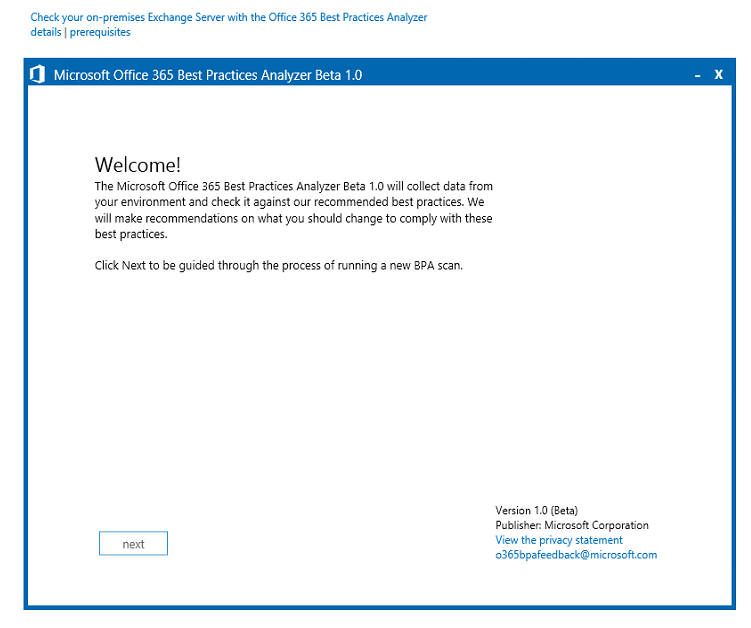
You get the welcome page as below

E163


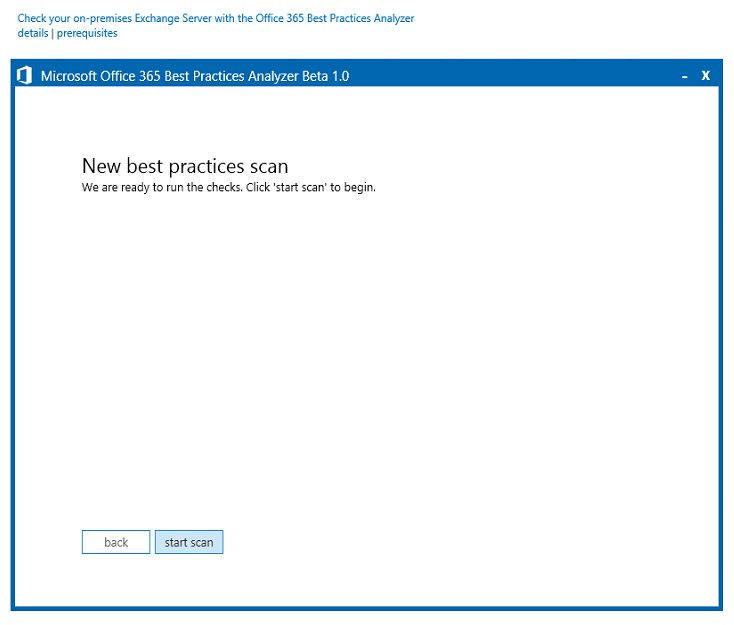
Click to start the scan


E164


You will be prompted to enter your office 365 Admin Tenant ID,.

In this you have 2 options

If you want to run the prerequisite check to be done only on the  on-premise then click cancel

If you want to run the prerequisite check to be done on both on-premise and Office365 then click ok


E165


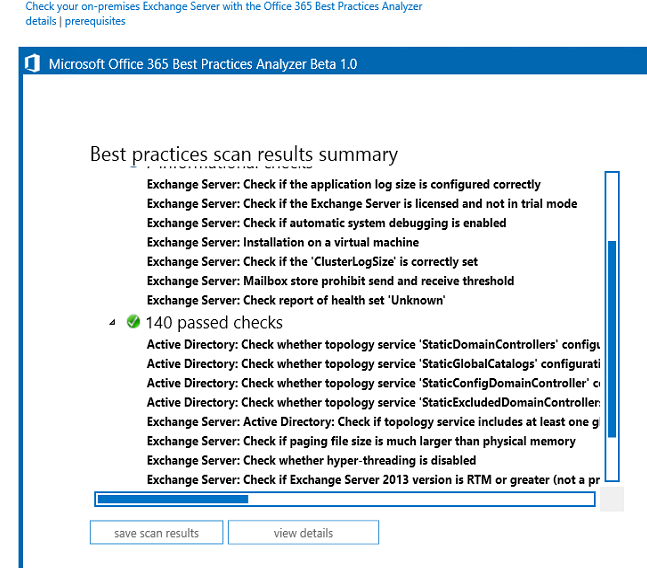
Once the scan is completed you will be getting the summary results as below.


E166


This makes the jobs of many admins easier by having this option in the EAC in on premise when doing a hybrid integration with Office 365.

Make sure that you have internet connectivity from the server where you are running this tool in-order to authenticate with Office 365 credentials if you want to check the hybrid readiness on your office 365 as well as on-premise.

The Office 365 Best Practices Analyzer Tool can be used for organizations with:

Exchange Server 2013 SP1 and later on-premises only.
Exchange Server 2013 SP1 and later hybrid configuration.

Thanks

Sathish Veerapandian

Configure SSL certificate in Exchange server 2016

In this article we will have a look at the steps to configure SSL certificates in Exchange 2016 post installation.

If you have exchange 2016 in exchange 2013 coexistence you wouldn’t need to worry about this part. Because the already configured Exchange 2013 CAS server will have the capability to up proxy the requests to Exchange 2016 servers and you can stay relaxed for a while until the you decide to remove the exchange 2013 .

But if you have them in Exchange 2010 coexistence then you will need to move all of your external URL’s and place your SSL certificates into the Exchange 2016 servers.

Now we will have a look at how to place an  SSL certificate request in Exchange 2016 and complete them using a third party CA.

The configuration is the same as exchange 2013 and the only change  is the for internet facing CAS server will be now  internet facing mailbox server.

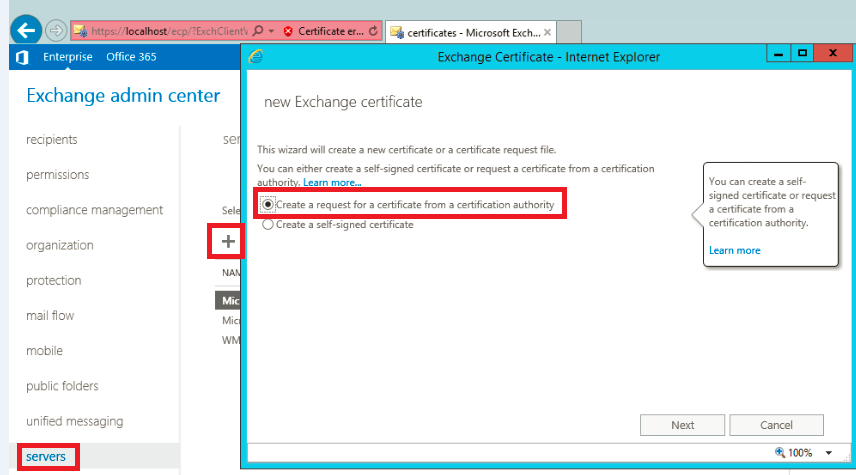
In-order to perform this action open EAC – click servers – and select certificates

C1

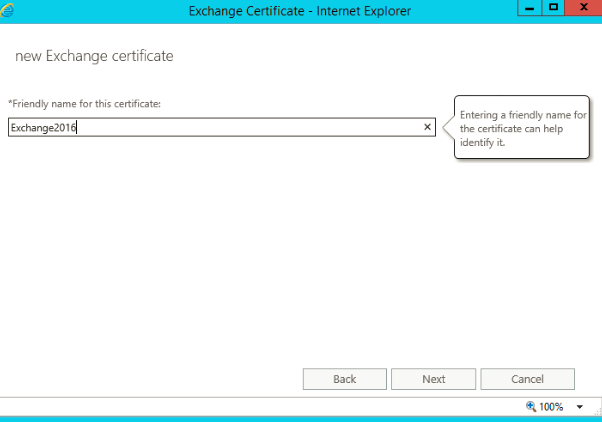
Give it a friendly name as below

Tets

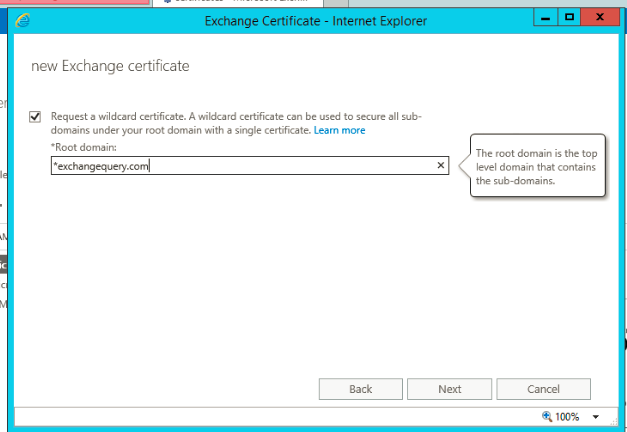
Enter the domain name

If you are going to use wild card you can select the wild card certificate option.

Using wild card will cover your root domain and additional it covers one subdomain .

In my case i’m using wild card since its a lab and i’m using a complimentary subscription provided by digicert through MVP program.so in my case it would cover mail.exchangequery.com, Autodiscover.exchangequery.com, owa.exchangequery.com etc.,

C3

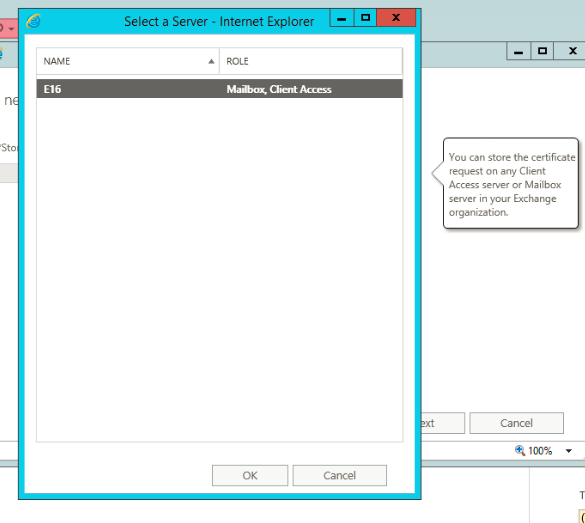
After this completes just click on next and choose one internet facing mailbox server in Exchange 2016

C4

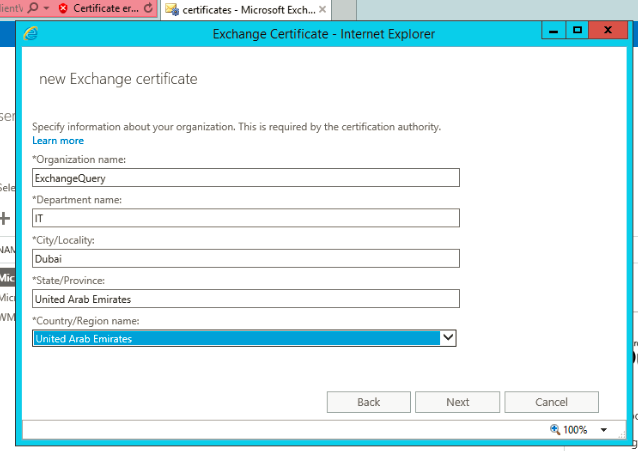
Fill the required information as below

C5

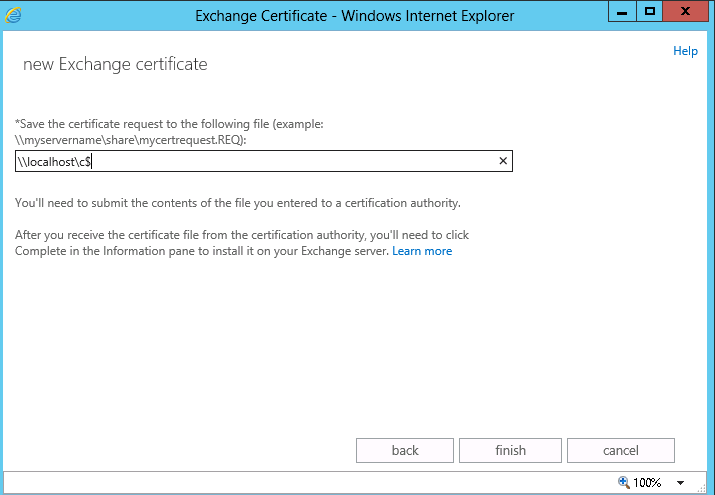
place a location to save the private key as below

33

You can see the cert request generated as below in the location you mentioned

C6

After the above task is completed  you can see the certificate request in pending state in the certificates tab as below

Now we can submit this request to a third party CA and get a new SSL certificate for your domain.

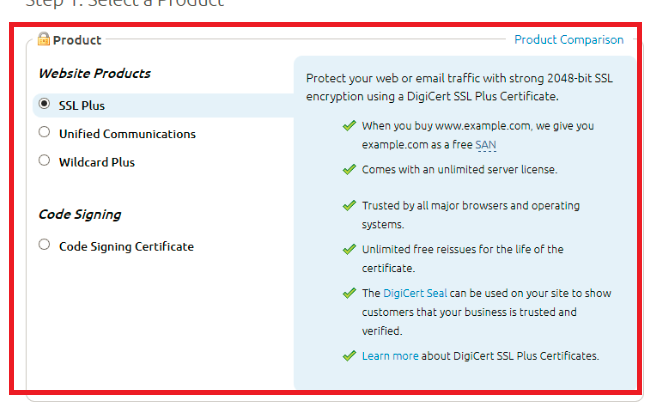
There are so many good providers but i recommend digicert as i have seen their support to be very prompt and all together provide a competitive pricing

C7

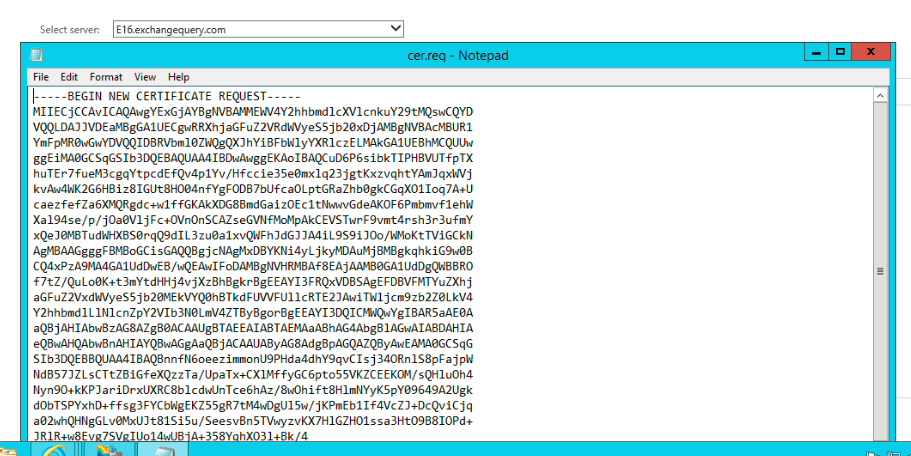
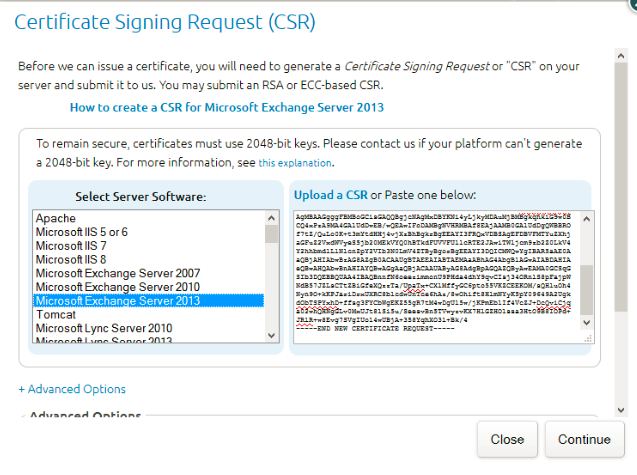
Now copy paste the CSR request we generated in Exchange 2016 as below .Now you can select the server software as exchange 2013 and with that it would be working until they add exchange 2016.

s3

Once you get the SSL certificate from the certificate provider now we need to complete this request by importing them into the Exchange 2016 internet facing  server.

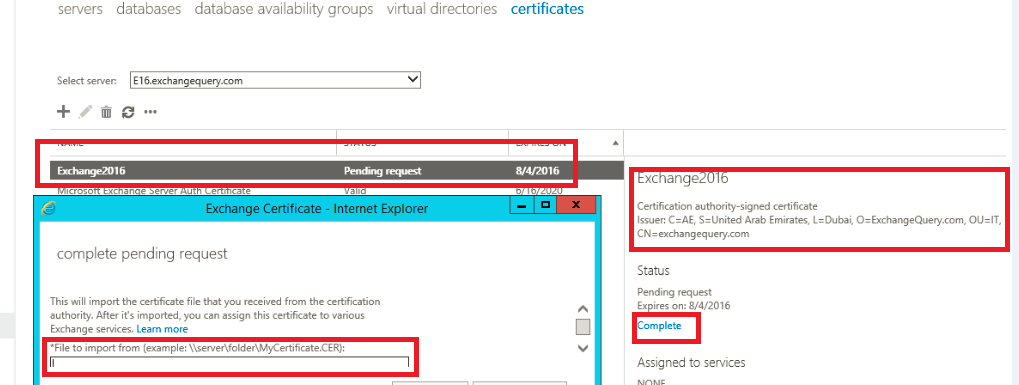
You can see the certificate that we requested in pending state as below

Final

So click on complete and you will get a pop up window to import the SSL certificate.

Just import the certificate that you got from the certificate provider and then complete the request.

Now we have successfully completed the SSL certificate request in Exchange 2016

Thanks 

Sathish Veerapandian 

MVP – Exchange Server 
Configure Exchange 2016 with exchange 2010 coexistence

In this article we are going to look into few things that we need to consider for coexistence of Exchange server 2016 with Exchange 2010.

Below are the things that we need to think for Outlook Anywhere, OWA, Active Sync , EWS , ECP

For Outlook Anywhere Coexistence

In Exchange 2010 – 

Enable Outlook Any-where on exchange 2010 servers

Set the IIS authentication to BASIC + NTLM in Exchange 2010

In Exchange 2016 –

If you are doing SSL offload then perform the below

Direct the connections to the exchange 2016 from your firewall.

Note: If you are having exchange 2013 then don’t need to make any changes since exchange 2016 supports up-version of proxy with exchange 2013 . i.e exchange 2016 can accept the connections from exchange 2013 CAS server. Unfortunately we don’t have this functionality  with exchange 2010 coexistence.

Perform the below settings in exchange 2016

Open EAC – select outlook anywhere


432


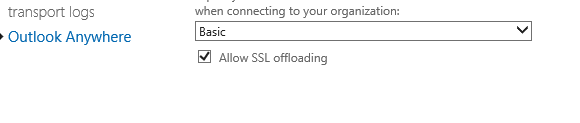
Select Basic Authentication

876

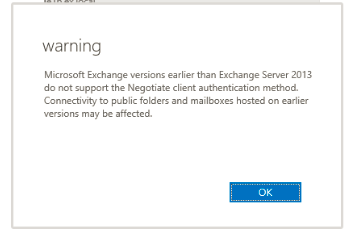
If you don’t select basic then you will get  the below  warning message with NTLM . You don’t need to worry if you are doing this in exchange 2013 coexistence,but for exchange 2010 it should be only basic.

36


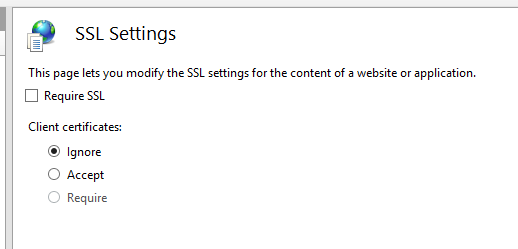
Uncheck require SSL in all of the virtual directories if  you are doing SSL offload for all of the services

369


789

Exchange 2016  Active Sync  virtual directories  can proxy to 2010 end point without any issues.


Its similar for OAB , OWA and other virutal directories.


All the above settings is for one site with exchange 2010 coexistence.

If its the same site it does proxy the 2010 users requests straight to 2010 CAS server.

If you have a different site then 2 scenarios comes into picture according to your setup

If its is a non internet facing site with the same URL’s then it does a proxy to CAS server for all the requests of that site.

If it is a internet facing external site with external url then it does a redirect to that URL.

I have the same setup in my lab setup with single AD site  and so far all setting seems to be working fine.

More to explore on the configuration , features and coexistence. Will keep you posted !!

Thanks

Sathish Veerapandian

MVP – Exchange Server

Install Exchange 2016 in Exchange 2010 Coexistence

In this article lets have a look at installing exchange 2016 in exchange 2010 coexistence.

Before proceeding with the installation i would like to give a small summary and features of exchange 2016 not a detailed one  since there are good articles on the new features of exchange 2016 written by senior MVP’s.

Below are new features of the product :- 

One Mailbox role with all the functionality

The mailbox server in exchange 2016 hosts all the components – Client Access protocols, Transport service, Mailbox databases, and Unified Messaging.

The main reason of this design is to simplify the architecture, reducing the hardware dependency by running on a healthy CPU power which is less expensive, and easier way to isolate any issues if we come across.

Edge transport role is coming with RTM

Considering the legacy RPC technology all Outlook connections will be MAPI over HTTP.

Note:
By default this is not enabled if you are installing on Exchange 2010/2013 coexistence and you can enabled them.
But if you have this already enabled in Exchange 2013 then it will be enabled.
If you are installing only exchange 2016 then its enabled mapi over http as a default

For further information on the architecture you can go through the below excellent  series from MVP Prabhat and tech-net

Exchange Server 2016: All You Need Part 1

Exchange Server 2016: All You Need to know Part 2

Exchange Server 2016: All You Need to know Part 3

http://blogs.technet.com/b/exchange/archive/2015/07/22/announcing-exchange-server-2016-preview.aspx

Now lets go through the installation part

Readiness to be prepared for Exchange 2016 in Exchange 2010 environment :-

. Exchange 2010 SP3 with RU9 should be updated  ,  for all Exchange 2010 servers.

· At least one Windows Server 2008 or higher Global Catalog in each AD site with Exchange installed

· At least one writable Domain Controller in each AD site with Exchange Servers installed (It can be a GC.)

· AD Forest must be Windows Server 2008 Forest Functional Level or higher

· Coexists with Exchange 2010 SP3 RU9 and Exchange 2013 CU7 *may be increased by RTM*

· Outlook for Windows – 2010 or later

· Outlook for Mac – 2011 or later

If you wish to enable mapi/http then you must have atleast outlook 2013 SP1 or later.


Operating System Prerequisites:

· Windows Server 2012 R2 64-bit Standard or Datacenter editions

· .NET framework 4.5.2.

· Windows Management Framework 4.0 .

· Unified Communications Managed API (UCMA) 4.0

 (DNS) namespaces:

Following types are supported

Contiguous

Noncontiguous

Single label domains

Disjoint
IPv6 support:

In Exchange 2016, IPv6 is supported only when IPv4 is also installed and enabled. In the n\w if IPV6 enabled then it will take IPv6 addresses.

Hardware Requirements :

Processor : x64 architecture-based computer with Intel processor that supports Intel 64 architecture
Memory :
For Mailbox – 8 GB Minimum recommended

Page File – minimum and maximum must be set to physical RAM plus 10 MB

Disk Space – Better to have 50 GB on the drive on which we install the exchange binaries.


Install the prerequisites on the  Exchange 2016 server : ( Applies for Windows server 2012R2)

.NET Framework 4.5.2

Click here to download http://www.microsoft.com/en-us/download/details.aspx?id=42642

Microsoft Unified Communications Managed API 4.0, Core Runtime 64-bit.

Click here to download http://go.microsoft.com/fwlink/p/?linkId=258269

install the below features

Install-WindowsFeature RSAT-ADDS

Install-WindowsFeature AS-HTTP-Activation, Desktop-Experience, NET-Framework-45-Features, RPC-over-HTTP-proxy, RSAT-Clustering, RSAT-Clustering-CmdInterface, RSAT-Clustering-Mgmt, RSAT-Clustering-PowerShell, Web-Mgmt-Console, WAS-Process-Model, Web-Asp-Net45, Web-Basic-Auth, Web-Client-Auth, Web-Digest-Auth, Web-Dir-Browsing, Web-Dyn-Compression, Web-Http-Errors, Web-Http-Logging, Web-Http-Redirect, Web-Http-Tracing, Web-ISAPI-Ext, Web-ISAPI-Filter, Web-Lgcy-Mgmt-Console, Web-Metabase, Web-Mgmt-Console, Web-Mgmt-Service, Web-Net-Ext45, Web-Request-Monitor, Web-Server, Web-Stat-Compression, Web-Static-Content, Web-Windows-Auth, Web-WMI, Windows-Identity-Foundation


Download the Setup - 

http://www.microsoft.com/en-us/download/details.aspx?id=48210 

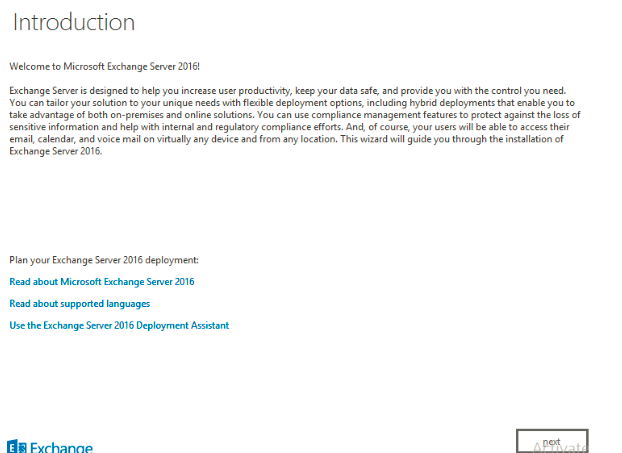
Once the setup is downloaded just open the setup.exe file which will bring you to below screen


M1


M2


Installation is pretty much straight forward and it remains the same as exchange 2013

M3

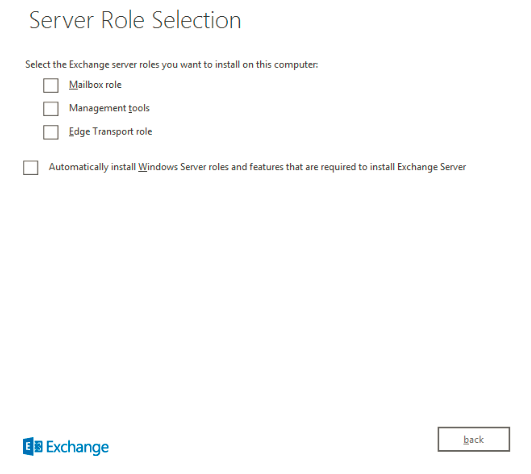
The only change we see here is the role selection part without the CAS role 
Select mailbox role and proceed next

M4

We have the same option as we had in Exchange 2013

M5

It goes through the readiness checks and 15 setup progress one by one same as Exchange 2013 and the setup will finish with the below screen

3211


Once the setup completes you get the EAC console like below

Test11

You can check the coexistence 
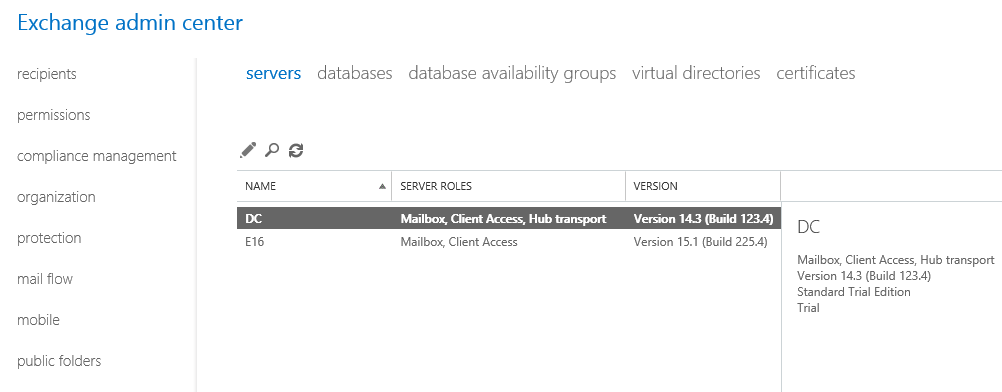
Exchange 2010 and Exchange 2016 version 15.1

432

And we are done with installing Exchange 2016 in Exchange 2010 coexistence.
In future as we get more updates from Microsoft on Exchange 2016 we will explore more on this product.

Thanks
Sathish Veerapandian
MVP - Exchange Server


Custom address list for Unified Messaging and update speech grammar file in Exchange 2013

In this article lets have a look at few important things that we need to consider before enabling Unified Messaging feature for the end users.

When the Unified Messaging server feature is enabled it requires a grammar file to provide voice user interface (VUI) that uses Automatic Speech Recognition (ASR). It updates the  grammar for  the  UM enabled users through global address list based on the speech grammar filters , languages that are configured.

Its better to create a custom address list for the UM auto attendant and allow callers to send voice messages only to this custom address list.

There are few benefits of doing this.

1) You add only the users who require UM enabled on this custom address list.

2) You create the custom address list only with the mailbox users so that the contacts present in the address list will be excluded.

Now lets have a look at how to accomplish this task.

Run the below command to create a custom address list for the Unified Messaging.

New-Addresslist -Name UMVoice -IncludedRecipients MailboxUsers

AL1


IMP: For a grammar file to be generated for a distribution list, the distribution list must not be hidden.

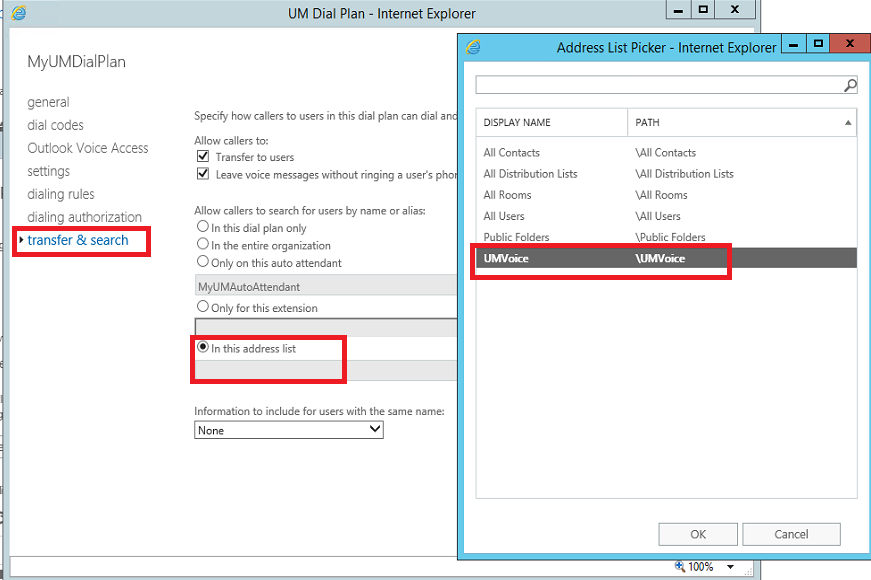
Later scope the UMAutoAttendant only for this custom address list created as below.

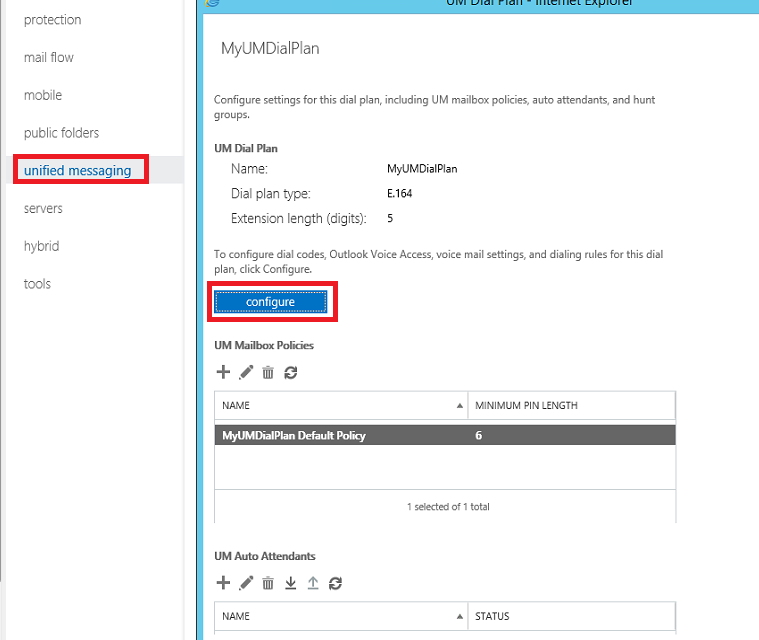
Open EAC – Navigate to Unified Messaging –

UM2


Select the Transfer & Search option  and choose only the address list which was created for UM .You can add only the users for whom you have UM feature enabled.

UM3

You can run the below command as well to accomplish this task

Set-UMAutoAttendant -Identity MyUMAutoAttendant -ContactScope UMVoice

By this way you can exclude the contacts.

Exchange Unified messaging role gets the Speech inputs from users to perform directory look-ups. Then it looks the display name of  the UM enabled user in the GAL and then inserts into the speech grammar.

When the Display Names had periods then the speech inputs might not be recognized properly at times in Exchange 2010 UM servers.

You can run the below command to rectify this issue for exchange 2010:

Set-Csuser -Identity sathish@exchangequery.com -PhoneticDisplayName ‘Sathish Ravi’

After performing the above you need to ran Galgrammargenerator.exe/GGG.exe

For Exchange 2010 run this command – Galgrammargenerator.exe -d MyUMDialPlan

For Exchange 2013 as there is no commands to perform this action.

For Exchange 2013 the GAL speech grammar file is stored in the arbitration mailbox and then later downloaded to all Mailbox servers in that Exchange organization.

By default, the Mailbox Assistant runs every 24 hours. You can adjust the frequency by using the Set-MailboxServer -ManagedFolderWorkCycle assistant cmdlet and change the frequency.

But the better way to address this is to just restart the Microsoft Exchange Mailbox Assistants after you create a new dial plan and leave the generation cycle as such to 24 hours.So when we restart t all the GAL speech grammar files will be updated.

Thanks 
Sathish Veerapandian

MVP – Exchange Server


Configure Office Web apps server for exchange,Skype for Business and sharepoint

In this article we will have a look at how to enable the Office Web Apps server functionality on Exchange, Lync2013, Skype for Business and share point

Before going further you need to know the below

What is the benefits of Office Web Apps Server ?
Will i loose anything if i go ahead without having OWApps Server?
Here is your answer!!

Office Web Apps Server is a new Office server that delivers browser-based version of Word, PowerPoint, Excel and One-note .
Office Web Apps Server is not only for PPT sharing in Lync Server.
You should install an OWA 2013 server. If you want to share PowerPoint Presentations in conferences.
This OWA server not only serves Lync or SFB.
OWA 2013 Server can be used by Lync 2013,SFB, SharePoint 2013 and Exchange 2013.
By doing this users can use a rich user interface to preview and modify the attachment online through OWA, Sharepoint intranet/internet sites and during the lync conferences.
The reason to use it is that Microsoft has outsourced the rendering of PowerPoints etc. to the Office 2013 Web Apps Server.

So you can watch PowerPoints in conferences from each common desktop web browser if you don’t have a Lync 2013 Client and MS office installed on your OS.

Without a Office Web Apps server, you could not share any Powerpoint with a Lync 2013 client.

You could only use desktopsharing to show the PPT, Word, excel which will be tedious.

So lets see how to enable OWA functionality on exchange,lync and sharepoint

I’m not going to explain how to install WAC server since there are more number of articles in the internet on the same.
So in this article we will have a look at how to enable this functionality on Exchange,Lync and SharePoint after you install the Office Web Apps farm in your environment.
Also we will have a look at the ports,firewalls and certificate requirements for the same.

For Exchange: 

Run the below commands

Set-OrganizationConfig –WACDiscoveryEndPoint http://<wac server>/hosting/discovery

Capture

You can run the below command after that and confirm that WACDiscoveryEndPoint value is populated

Get-OrganizationConfig | Format-List WACDiscoveryEndPoint

Then you need to run the below commands for the owa vdir to render documents via Office web app
Set-Owavirtualdirectory -WacViewingOnPublicComputersEnabled $True -WacViewingOnPrivateComputersEnabled $true –identity <OWA virtual directory identity>

Then run the below command to check if its enabled

Get-OwaVirtualDirectory “<OWA virtual directory identity” | Format-List Name,WacViewing*

You can use the below command to force the owa vdir to render via Office web app.
Set-Owavirtualdirectory -ForceWacViewingFirstOnPublicComputers $true -ForceWacViewingFirstOnPrivateComputers $true –identity <OWA virtual directory identity>

For Sharepoint :

Run the below commands
New-SPWOPIBinding -ServerName “office1.contoso.com”

$config = (get-spsecuritytokenserviceconfig)
$config.allowoauthoverhttp = $true
$config.update()

Set-SPWOPIZone –zone “external-https”

For Lync 2013/Skype for Business :

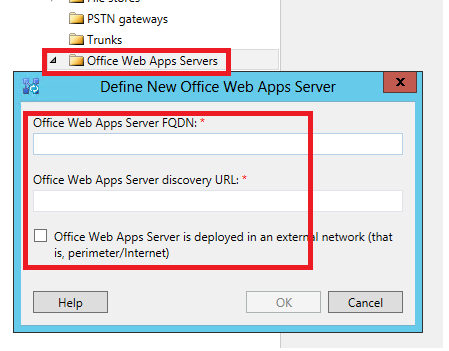
Just use the FQDN published under “InternalURL” when configuring Office Web Apps Server through the Topology Builder

321

No need to use the external FQDN which you have mentioned in the OWA’s server. It will work with the internal FQDN of the OWA’s server.

Once you publish this on the lync/sfb then you are done with this part.

Certificate requirements and DNS config :

DNS Config:

For Office Web Apps server  to work externally  External URL needs to be published and the request needs to be forwarded to the Internal server. So we need to perform the below things in-order to achieve that functionality.

Office web apps has 2 URL s. one internal and other external. The external one should have a DNS A record in public DNS just like Lync external web services and should be published over a reverse proxy. You need to  have a dedicated public IP for this as it use 443 and can’t use the one of Lync external web services.
Make sure the web Clients (usually web browsers) need to be able to make requests to the farm. These are normal HTTP/HTTPS requests on port 80 or 443 respectively.
Machines in the Office Web Apps farm initiate requests to  that particular service on the file host (e.g., SharePoint,Exchange). These requests are also HTTP/HTTPS on port 80 or 443. This is
how the Office Web Apps machines operate on the files they are rendering or editing.
At times file hosts occasionally need to request information directly from the Office Web Apps Server farm through the load balancer. These requests are also HTTP/HTTPS requests on port 80 or 443.

So there is no special config required for you on the firewall apart from port 80 and 443 traffic to the office web apps farm.
All the machines which are in the Office Web Apps Server farm will  communicate with each other via port 809. The reason behind this is because these machines are treated on a private network so  that no
other machines can join the farm or listen in on traffic they receive. So make sure you have the port 809 reachable b/w the owa servers and the firewall turned off in the windows machine of these web apps server.

Certificate Requirements :
Since the OWA’s server has 2 URL s. one internal and other external.
Have an internal certificate for internal communications.
Get a public certificate from public provider for your external published url.
Basically you need to put the public certificate on your reverse proxy server and leave your private certificate on the office web app server.
By doing this the external requests will be decrypted in the reverse proxy with the public certificate .

There is no need to place the public certificate on the OWAS server since for internal FQDN’s its doesn’t require a public key.

Hope this helps

Thanks

Sathish Veerapandian

MVP – Exchange Server