RBAC error – Disable-Mailbox isn’t within your current write scopes can’t perform save operation

I just recently ran into this problem and thought of sharing this which might be helpful to others in similar situations.

I just created a RBAC  Role group and a write scope for a group of admins to create and mange mailboxes in few mailbox databases.

All the role group was created successfully and role entries seems to be working fine without any issues except for the disable-mailbox and enable-mailbox.

So when the assigned role admins were able to create, modify , remove mailboxes, mail universal distribution groups , mail contacts , mail universal security groups , dynamic distribution groups but they weren’t able to enable or disable any of the objects on their own.

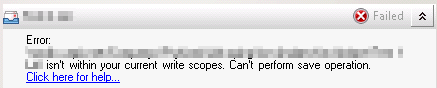
When they tried to enable  or disable any mailboxes  that they get the below error


RBAC_no_Enable-Mailbox_error


I ran the command Get-ManagementScope Scopename | Fl to see the recipient filter types

I was able to see the recipient type user mailbox, mail enabled contacts, mail contacts , mail universal security groups  and dynamic distribution.

But still it was not working.

later i identified the problem. Enable-Mailbox and Disable-Mailbox will remove only the exchange attributes from the user account and leaves the user account and the mailbox in the retention.

For this functionality to work we will need to have AD permission for the user in the RBAC to perform this operation.

So we need to add the recipient filter  (recipientType -eq ‘user’ ) which will grant AD permission to the desired RBAC custom group which will grant permissions to those RBAC admins.

So i have added list of possible entries below that would be helpful for the help-desk team since by running only the above will remove the other permissions.

So for helpdesk to manage the normal daily operations the below entries will be sufficient along with  (recipientType -eq ‘user’ ) added.

Set-ManagementScope “ENTER THE RBAC GROUP” -RecipientRestrictionFilter {(RecipientType -eq ‘usermailbox’) -or (recipientType -eq ‘user’) -or (recipientType -eq ‘mailuser’) -or (recipienttype -eq ‘mailcontact’) -or (recipienttype -eq ‘mailuniversaldistributiongroup’) -or (recipienttype -eq ‘mailuniversalsecuritygroup’)}


Once after the above i was successfully able to come out of the error 🙂

Thanks 

Sathish Veerapandian

MVP – Exchange Server 


Quick bites – Things to consider during cross forest migration from Exchange 2010 to 2013

In this article we will look at the readiness to be done during cross forest migration from exchange 2010 to 2013.

There are multiple ways to perform this and this is again one of the best practices that can be followed.
The first and the foremost thing is that we need to ensure that DNS is setup properly vice versa between the source and the target forest.

Steps to ensure for DNS setup:
1) Check if you have the same root DNS for both of the forest DNS namespaces. Make sure that the root zone contains delegations for each of the DNS namespaces.
Also, update the root hints of all DNS servers.
To Update root hints on the DNS server follow this article –  http://go.microsoft.com/fwlink/?LinkId=92717
If there is no shared root DNS server for both of the forests and the root DNS servers for each forest DNS namespace are running a Windows Server operating system, configure DNS conditional forwarders in each DNS namespace to route queries for names in the other namespace.
To Configure DNS server forwarders follow this article http://go.microsoft.com/fwlink/?LinkId=92718
IMP :  If there is no shared root DNS server and the root DNS servers for each forest DNS namespace are not running a Windows Server operating system, configure DNS secondary zones as well in each DNS namespace to route queries for names in the other namespace.
To Add a secondary server for an existing zone follow this article http://go.microsoft.com/fwlink/?LinkId=92719

After above steps are done validate the DNS configuration through nslookup . You can follow the below article as well if you are having doubt in verifying through NSLOOKUP

https://technet.microsoft.com/en-us/library/977fa8ed-ec71-4d39-9f9e-9facd5a61364
Create a new forest trust:

2. Create a forest trust
a. Use account which belongs to Domain Admins or Enterprise Admins of domain. Open Active Directory Domains and Trusts on a DC of domain. To open Active Directory Domains and Trusts, click Start , click Administrative Tools , and then click Active Directory Domains and Trusts .
To open Active Directory Domains and Trusts in Windows Server® 2012, click Start , type domain.msc .
b. In the console tree, right-click the domain that you want to administer, and then click Properties .
c. On the Trusts tab, click New trust , and then click Next .
d. On the Trust Name page, type the Domain Name System (DNS) name (or NetBIOS name) of the domain, and then click Next .
e. On the Trust Type page, click Forest trust , and then click Next .
f. On the Direction of Trust page, do one of the following:
o To create a two-way, forest trust, click Two-way .
Users in this forest and users in the specified forest will be able to access resources in either forest.
o To create a one-way, outgoing forest trust, click One-way:outgoing .
Users in this forest will not be able to access any resources in the specified forest.
g. Continue to follow the instructions in the wizard.

Validate the created trust.


Once the above is completed you can run prepare new request by following the below article

https://technet.microsoft.com/en-us/library/ee861103%28v=exchg.150%29.aspx

Once prepare move request is completed run the new move request

Also set the move request large item limit to minimum to 50 so that large mailboxes move will not create an issue during migration by running the below command

Get-MoveRequest | Set-MoveRequest -LargeItemLimit 50
Rollback Plan if in case of anything went wrong:

Delete trust accordingly. To perform this procedure, you must be a member of the Domain Admins group or the Enterprise Admins group in Active Directory Domain Services (AD DS), or you must have been delegated the appropriate authority.
To remove a trust using the Windows interface
1. Open Active Directory Domains and Trusts. To open Active Directory Domains and Trusts, click Start , click Administrative Tools , and then click Active Directory Domains and Trusts .
To open Active Directory Domains and Trusts in Windows Server® 2012, click Start , type domain.msc .
2. In the console tree, right-click the domain that contains the trust that you want to remove, and then click Properties .
3. On the Trusts tab, under either Domains trusted by this domain (outgoing trusts) or Domains that trust this domain (incoming trusts) , click the trust to be removed, and then click Remove .
4. Do one of the following, and then click OK :
o Click No, remove the trust from the local domain only .
If you select this option, we recommend that you repeat this procedure for the reciprocal domain.
o Click Yes, remove the trust from both the local domain and the other domain .
If you select this option, you must type a user account and password with administrative credentials for the reciprocal domain.

Also you can follow the below excellent write up about cross forest migration by exchange server MVP Prabhat Nigam

http://msexchangeguru.com/2013/11/03/e2013crossforestmigration/

Thanks & Regards

Sathish Veerapandian

MVP – Exchange Server

Back Pressure in Exchange in 2013

Back-pressure is used to monitor resources like hard disk space , availability of memory and version buckets to give an advance notification to the administrator before the email server is totally down.This feature was introduced from Exchange 2007. The concept of back-pressure in Exchange 2013 is the same as it was in Exchange 2010.
Basically high level of hard drive space utilization is calculated by using the following formula in Exchange 2013:
100 * (hard disk size – fixed constant) / hard drive size
The value of fixed constant is 500 megabytes (MB)

A list of changes that are made to the message queue database is kept in memory until those changes can be committed to a transaction log. Then the list is committed to the message queue database itself. These outstanding message queue database transactions that are kept in memory are known as version buckets.

If normal level isn’t reached for the entire version bucket history depth, then edgetransport.exe config file is coded to take the following actions:

1) Reject incoming messages from other Exchange servers ( could be internal exchange servers as well as external exchange servers)- initially

2) Reject message submissions from mailbox databases by the Mailbox Transport Submission service on Mailbox servers – End users sent email received from their respective databases to transport submission service will be rejected. Which means that these messages will not reach till the categorizer level and all the messages will be rejected at the precategorizer level itself.
3) Reject incoming messages from non-Exchange servers – Could be notes,zimbra etc.,
4) Reject message submissions from Pickup and Replay directories – Messages from applications dropped in the pickup directory

Similarly following event logs will be logged in the affected server:

Event log entry for an increase in any resource utilization level
Event Type: Error
Event Source: MSExchangeTransport
Event Category: Resource Manager
Event ID: 15004
Description: Resource pressure increased from Previous Utilization Level to Current Utilization Level.

Event log entry for a decrease in any resource utilization level

Event Type: Information

Event Source: MSExchangeTransport

Event Category: Resource Manager
Event ID: 15005
Description: Resource pressure decreased from Previous Utilization Level to Current Utilization Level.
Event log entry for critically low available disk space
Event Type: Error
Event Source: MSExchangeTransport
Event Category: Resource Manager
Event ID: 15006
Description: The Microsoft Exchange Transport service is rejecting messages because available disk space is below the configured threshold. Administrative action may be required to free disk space for the service to continue operations.
Event log entry for critically low available memory
Event Type: Error
Event Source: MSExchangeTransport
Event Category: Resource Manager
Event ID: 15007
Description: The Microsoft Exchange Transport service is rejecting message submissions because the service continues to consume more memory than the configured threshold. This may require that this service be restarted to continue normal operation.

So the above event logs will help you to identifying the back-pressure on the affected server

Solution:

Use the Command Prompt to move the existing queue database and transaction logs to a new location.
In a Command prompt window, open the EdgeTransport.exe.config file in Notepad by running the following command:

Notepad %ExchangeInstallPath%Bin\EdgeTransport.exe.config

Change the drive letter in which you wish to have the new location by changing in the below add key values

<add key=”QueueDatabasePath” value=”D:\Queue\QueueDB” />
<add key=”QueueDatabaseLoggingPath” value=”D:\Queue\QueueLogs” />

Thanks 

Sathish Veerapandian

MVP – Exchange Server

Quick Bites – Deploy Edge server in Exchange 2010/2013 coexistence scenarios

If you deploy Exchange 2013 servers in your Exchange 2010 organization and you have external mailflow configured to pass emails through exchange 2013 Edge Transport servers, you should configure subscription for Exchange 2013 edge servers to your existing Exchange 2010 hub servers.

You can subscribe an edge server in a site to multiple HUB servers if it is(Exchange 2007/2010) and CAS & Mailbox Combined together if it is Exchange 2013 servers.

You can subscribe a 2007/2010 edge to 2013 Exchange CAS & HUB combined servers. This can be done vice versa as well.

You can import the Edge Subscription file and run EdgeSync on a standalone Exchange 2013 Mailbox server, or on a server where the Mailbox server and the Client Access server are installed on the same computer.

Note :

You can’t import the Edge Subscription file or run EdgeSync only on a standalone Exchange 2013 Client Access server.
You cannot subscribe an edge servers to multiple site since edge servers are bounded to site specific and can be subscribed to multiple mailbox & CAS servers in a single site

Make sure you open the below ports on the firewall

Inbound traffic:
SMTP – TCP port 25 (from Internet)
SMTP – TCP port 25 (from Edge server to Hub server on internal network)
Outbound traffic:
SMTP – TCP/UDP port 25 (from Edge to Internet)
SMTP – TCP/UDP port 25 (from Hub to Edge server)

Very IMP : Do not open the below mentioned ports on perimeter firewall. These ports should be open only on intranet firewall.

LDAP for Edge Sync – TCP port 50389 (from Mailbox to Edge server) Secure LDAP for Edge Sync – TCP port 50636 (from Mailbox to Edge server).

Thanks
Sathish Veerapandian

MVP – Exchange Server

Microsoft Exchange Search Host Controller service terminated unexpectedly

We might notice that Microsoft Exchange Search Host Controller service is crashing intermittently after a database failover and trying to start by its own but never succeeds.

When we look in to the application log we will get the following event logs

The Microsoft Exchange Search Host Controller service terminated unexpectedly.  It has done this 1 time(s).  The following corrective action will be taken in 60000 milliseconds: Restart the service

  1. Faulting application name: hostcontrollerservice.exe, version: 15.0.4454.1006, time stamp: 0x50d08ef5
    Faulting module name: KERNELBASE.dll, version: 6.2.9200.16384, time stamp: 0x5010ab2d
    Exception code: 0xe0434352
    Fault offset: 0x00000000000189cc
    Faulting process id: 0x73f0
    Faulting application start time: 0x01d0348c64230ae1
    Faulting application path: C:\Program Files\Microsoft\Exchange Server\V15\Bin\Search\Ceres\HostController\hostcontrollerservice.exe
    Faulting module path: C:\Windows\system32\KERNELBASE.dll
    Report Id: a5eb039b-a07f-11e4-9438-00155d0aca05
    Faulting package full name:
    Faulting package-relative application ID:


What is the main functionality of this Microsoft Exchange Search Host Controller service?

It connects with exchange mailbox databases and creates content indexes for each databases.

This content indexes helps in the eDiscovery search.This eDiscovery search uses the content indexes for search query that are done in the entire organization.


What things will be affected if the Microsoft Exchange Search Host Controller service is stopped?

1) We will not be able to perform  eDiscovery search in the entire organization.


2) And also mailbox database in a DAG will not automatically failover if the content index is not healthy and it shows as failed and suspended.

However we would be able to perform a manual failover through EMS with the switch -SkipClientExperienceChecks with a bad content index state as a work around.

Things to check:

I would recommend to have to have latest updates installed on all Exchange servers.

Disable all the AV and third party agents running on the affected server, try starting the host controller service and see the results.

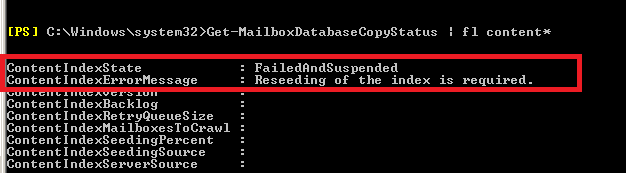
Run the below command to check the content index status of the database

content

If you get the above error rebuilding the content index will help to start the host controller service

However  if you identify the content index state to be failed and suspended for only one database then you can use the below command to reseed the content index catalog only for that database .


Update-MailboxDatabaseCopy -Identity DBname\MBXservername  -CatalogOnly

To rebuild the whole content index of affected mailbox server perform the below task

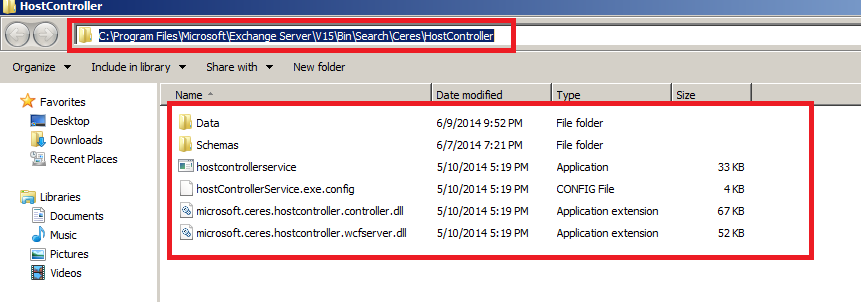
Log on to the affected server and navigate to the below location where you have host controller files


<C:\Program Files\Microsoft\Exchange Server\V15\Bin\Search\Ceres\HostController

hostcontroller.old

Set the host controller service and Microsoft exchange search to disabled and stopped state

Rename the folder hostcontroller to hostcontroller.old    and start the host controller service this time it should most probably start the service without any issues

Once the service starts it will build new content indexes for the mailbox databases on the affected server.

Also Refer : http://social.technet.microsoft.com/wiki/contents/articles/29640.microsoft-exchange-search-host-controller-service-terminated-unexpectedly.aspx

Thanks

Sathish Veerapandian

MVP – Exchange Server

Quick Bites – Lync Mediation Server concurrent voice call handling capacity

What would be the maximum number of concurrent Voice calls that  can handle  take from a single mediation server?

1) Standalone mediation server.

2) Collocated with FE server.

It depends on the number of servers configured  in the pool

The Number of Video conferencing, voice calls that can be hosted on the number of servers depends on what other conferences like IM, desktop sharing is used in the organization as well.

Here is the calculation for video conferencing to be hosted on Front End Server.

This from the TechNet article – Scenario-Based Capacity Planning-

http://technet.microsoft.com/en-us/library/gg615029.aspx.


Can we use DNS Load Balancing for Mediation Server collocated with existing FE servers?

You must deploy DNS load balancing to support Mediation Server pools that have multiple Mediation Servers.

For details, see the Using DNS Load Balancing on Mediation Server Pools section of DNS Load Balancing in the Planning documentation.

http://technet.microsoft.com/en-us/library/gg398634.aspx


Mediation servers should use only DNS load balancing according to Microsoft recommendation:

http://technet.microsoft.com/en-us/library/gg398391.aspx

If you want to deploy multiple Mediation Servers in the pool in order to provide high availability, then select multiple computers pool option.

Thanks 

Sathish Veerapandian

MVP – Exchange Server 

Modify Connectors to Send/Receive Internet Mails on different port through your spam filtering/ISP provider

We can Modify Connectors for Receiving Internet Mail on different port apart from port 25 through your spam filtering/ISP provider.

This step applies to Exchange 2007/2010/2013. It is always a best practice to have this kind of setup so the spammers will not be able to intrude in our network and perform a directory harvest attack,reverse NDR attack etc.., and we can prevent spam emails circulating  in our environment.

Perform the  following thing to achieve this task.

1) Create a dedicated receive connector for your ISP/Spam filtering provider domain.

2) Add only to your (ISP/Spam filtering provider)   subnet and IP ranges. Note : You need to remove the default subnet range. Specify the ip ranges of only your Spam filtering provider or ISP provider

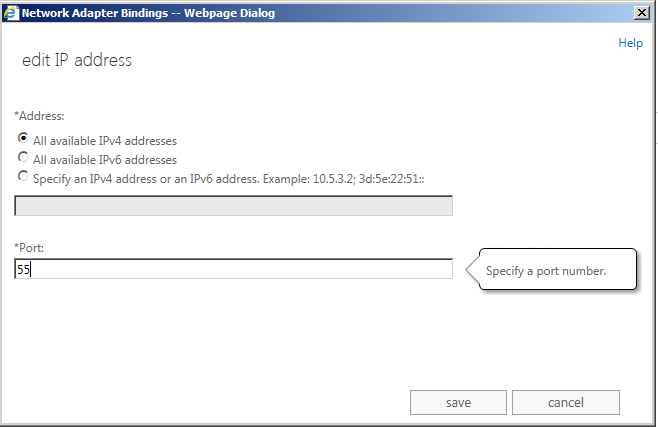
3) Change the port to your desired number on which you need to receive emails from them.

Hub1

4) Disable the default receive connector since it’s not required anymore.

So the mail-flow for inbound will be in the following type

Inbound

From Internet – Mails comes to your ISP/smart host – ISP delivers emails to your firewall on different port – then it comes to exchange server

For sending emails to the internet it would be very easy

Just create a send connector and smart host it to your (ISP/spam-filtering provider) IP address so that all the internet emails would be delivered to desired port to your (ISP/spam-filtering provider).

Outbound  From Exchange – Email goes to your (ISP/Spam filtering provider) on a different port – Mail gets delivered to the internet user on standard port 25

Make sure that all the port numbers that you have configured to send/receive emails through your Spam filtering provider have been opened both inbound and outbound on your corporate and perimeter firewall.

Also refer – http://social.technet.microsoft.com/wiki/contents/articles/29577.modifying-connectors-for-sendingreceiving-internet-mails-on-different-port-apart-from-port-25-through-your-spam-filteringisp-provider.aspx

Thanks 
Sathish Veerapandian

Error – “Something went wrong” in both OWA and ECP

After applying updates on Exchange 2013 environment we might come across the below symptom  from end users while accessing OWA

User can use outlook to send/receive emails normally, but when the user try to login OWA, a “something went wrong” screen with the following information appears:


owa

An unexpected error occurred and your request couldn’t be handled.

X-OWA-Error: System.NullReferenceException

X-OWA-Version: 15.0.775.32

X-FEServer: {2013 CAS server}

X-BEServer: {2013 Mailbox server}

Date: **

1) Rebuilding OWA/ECP virtual directories will not help

2) Playing with owa authentication settings will not help

3) Re-installing exchange server also will not help at times


While looking into the event logs you can find the below log with the description


ev

Description        :
Event code: 3005
Event message: An unhandled exception has occurred.
Event time: 8/30/2013 11:02:13 AM
Event time (UTC): 8/30/2013 4:02:13 PM
Event ID: f959d55d927a45f8b3b69051bbd62038
Event sequence: 2
Event occurrence: 1
Event detail code: 0

Application information:
Application domain: /LM/W3SVC/2/ROOT/owa-1-130223042171473642
Trust level: Full
Application Virtual Path: /owa
Application Path: C:\Program Files\Microsoft\Exchange Server\V15\ClientAccess\owa\
Machine name: EXC2013CAS

Process information:
Process ID: 13764
Process name: w3wp.exe
Account name: NT AUTHORITY\SYSTEM

Exception information:
Exception type: NullReferenceException
Exception message: Object reference not set to an instance of an object.
at Microsoft.Exchange.Clients.Common.Canary15.Init(Byte[] userContextIdBinary, Byte[] timeStampBinary, String logonUniqueKey, Byte[] hashBinary, String logData)
at Microsoft.Exchange.Clients.Common.Canary15..ctor(String logonUniqueKey)
at Microsoft.Exchange.Clients.Common.Canary15Cookie.TryCreateFromHttpCookie(HttpCookie cookie, String logonUniqueKey, Canary15Profile profile)
at Microsoft.Exchange.Clients.Common.Canary15Cookie.TryCreateFromHttpContext(HttpContext httpContext, String logOnUniqueKey, Canary15Profile profile)
at Microsoft.Exchange.Clients.Owa2.Server.Core.OwaRequestHandler.InternalOnPostAuthorizeRequest(Object sender)
at Microsoft.Exchange.Clients.Owa2.Server.Core.OwaRequestHandler.OnPostAuthorizeRequest(Object sender, EventArgs e)
at System.Web.HttpApplication.SyncEventExecutionStep.System.Web.HttpApplication.IExecutionStep.Execute()
at System.Web.HttpApplication.ExecuteStep(IExecutionStep step, Boolean& completedSynchronously)

Request information:
Request URL: https://localhost:444/owa/logoff.owa
Request path: /owa/logoff.owa
User host address: 127.0.0.1
User: CORJESU\SM_cab26786a5604c759
Is authenticated: True
Authentication Type: Kerberos
Thread account name: NT AUTHORITY\SYSTEM

Thread information:
Thread ID: 12
Thread account name: NT AUTHORITY\SYSTEM
Is impersonating: False
Stack trace:    at Microsoft.Exchange.Clients.Common.Canary15.Init(Byte[] userContextIdBinary, Byte[] timeStampBinary, String logonUniqueKey, Byte[] hashBinary, String logData)
at Microsoft.Exchange.Clients.Common.Canary15..ctor(String logonUniqueKey)
at Microsoft.Exchange.Clients.Common.Canary15Cookie.TryCreateFromHttpCookie(HttpCookie cookie, String logonUniqueKey, Canary15Profile profile)
at Microsoft.Exchange.Clients.Common.Canary15Cookie.TryCreateFromHttpContext(HttpContext httpContext, String logOnUniqueKey, Canary15Profile profile)
at Microsoft.Exchange.Clients.Owa2.Server.Core.OwaRequestHandler.InternalOnPostAuthorizeRequest(Object sender)
at Microsoft.Exchange.Clients.Owa2.Server.Core.OwaRequestHandler.OnPostAuthorizeRequest(Object sender, EventArgs e)
at System.Web.HttpApplication.SyncEventExecutionStep.System.Web.HttpApplication.IExecutionStep.Execute()
at System.Web.HttpApplication.ExecuteStep(IExecutionStep step, Boolean& completedSynchronously)


By looking into the event viewer we can see this is related to Active Directory Cache error related with CAS server for a value called Canary Data

What is this Canary Data ?
Basically Canary Data is an attribute that is created during the first exchange 2013 schema preparation.

It creates 4 attributes while schema preparation or it may be even just one attriubute

msExchCanaryData0
msExchCanaryData1
msExchCanaryData2
msExchCanaryData3

Why do we need this Canary Data ?

It is a secret token that exchanges between the clients and the server for services OWA,ECP and other exchange web services.

So these values gets stored in the cookie collection of the clients browser.

So for any owa,ECP,EWS requests from clients the browser sends the GUID value that is stored in the cache and compares it with the GUID that is in the URL (server).
If they dont match then the request from the client is considered as malicious and blocked
Also an event regarding the same is logged with the originating IP address.

Below is the solution to fix this type of issue :


1) Open ADSI Edit
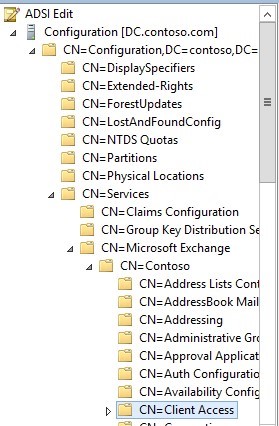
ADS

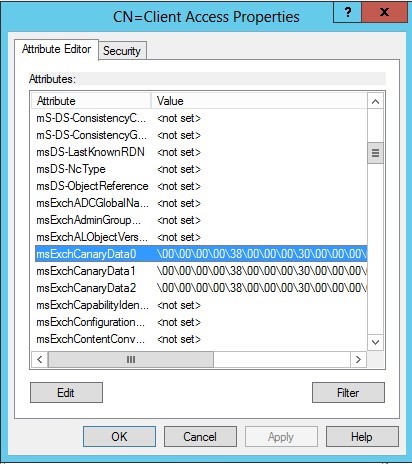
2) Right click 【CN=Client Access】and click properties, scroll down to look for values

【msExchCanaryData0】

【msExchCanaryData1】

【msExchCanaryData2】

【msExchCanaryData3】

parameter, as below:

ADS2


3) Take a backup to be safe and clear all these values to not set as shown below
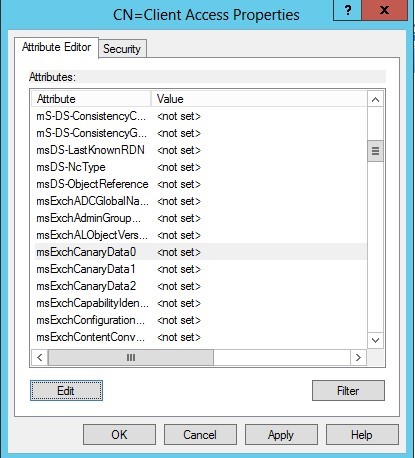
ADS3

4.Open IIS Manager on your CAS server, go to 【Application Pools】, right click 【MSExchangeOWAAppPool】 and click Recycling
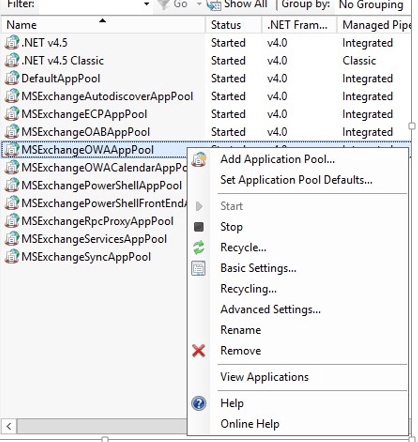
 

ADS4


After doing the above its better to restart Mailbox and CAS server and this issue will be resolved.

Also Refer –

http://social.technet.microsoft.com/wiki/contents/articles/29433.error-something-went-wrong-in-both-owa-and-ecp.aspx

Thanks

Sathish Veerapandian

MVP – Exchange Server

Trace emails sent with BCC option by end users

At times we might run into a situation where we need to track the emails for users sent in BCC field.

I have created few troubleshooting steps that can be helpful during these scenarios

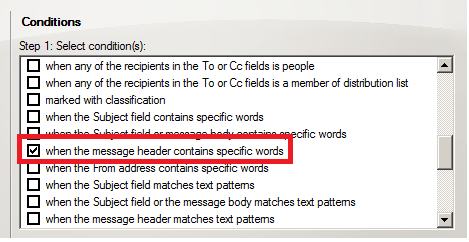
Below is the steps to create a transport rule for tracing emails with BCC option sent from users

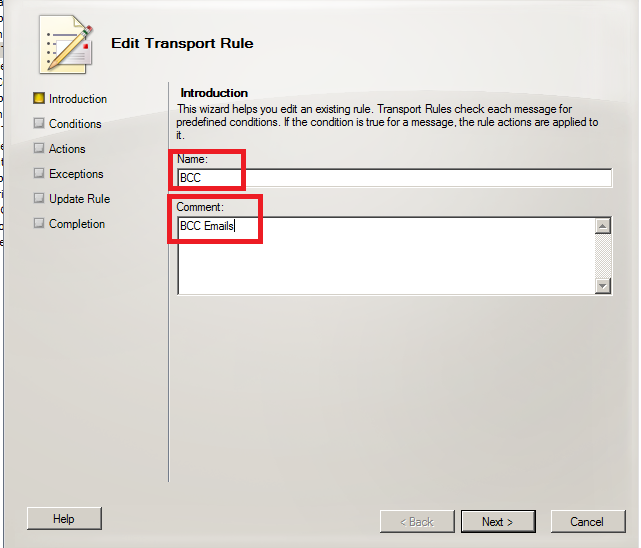
Create a new Transport Rule with Name and comment

BCC

Choose the below option as shown below

bcc1

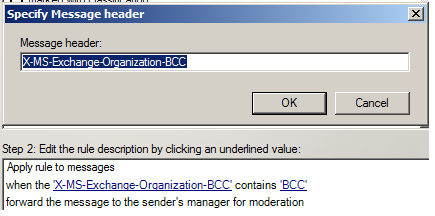
Specify header as

If the message:’X-MS-Exchange-Organization-BCC’ header matches the following patterns

bcc2

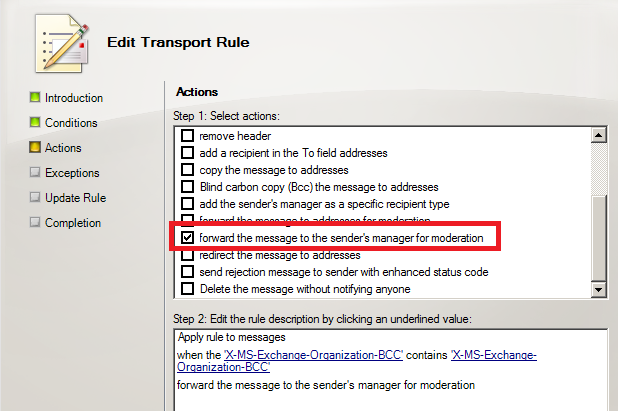
Take the following actions: Forward the message  to the sender’s manager for moderation

bcc4

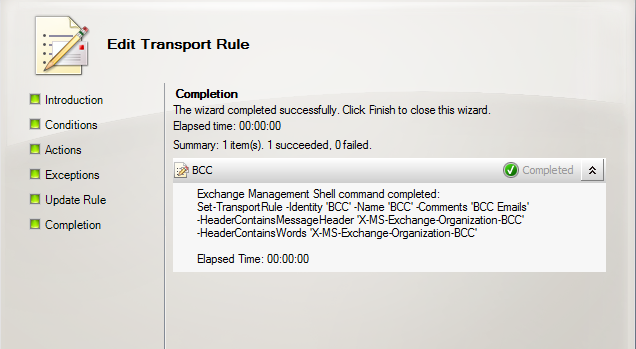
Click on finish

bcc5

Also we can use the message tracking logs to track the emails sent by end users with BCC option

Below is an example for tracing the emails with BCC in Message Tracking logs

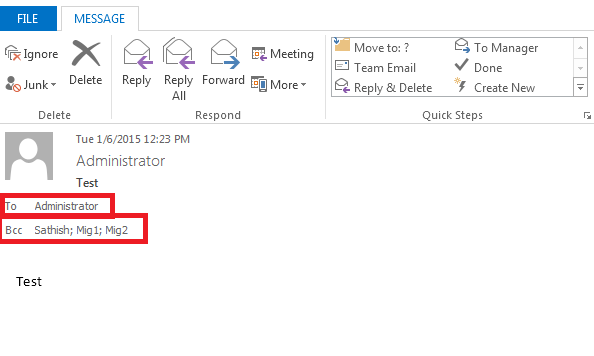
I have sent a test email with BCC with the below users as shown below

BCC6

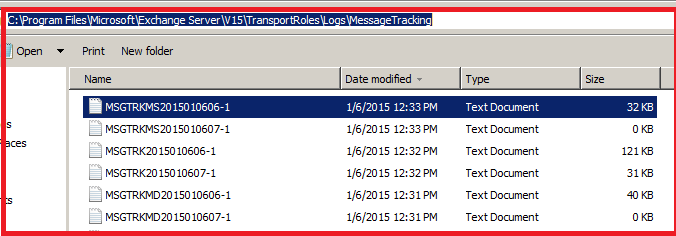
Navigate to the below location to get the message tracking logs.

bcc7

Copy the logs from the below location.  Possibly the logs during the time period when you want to trace the emails sent with BCC.

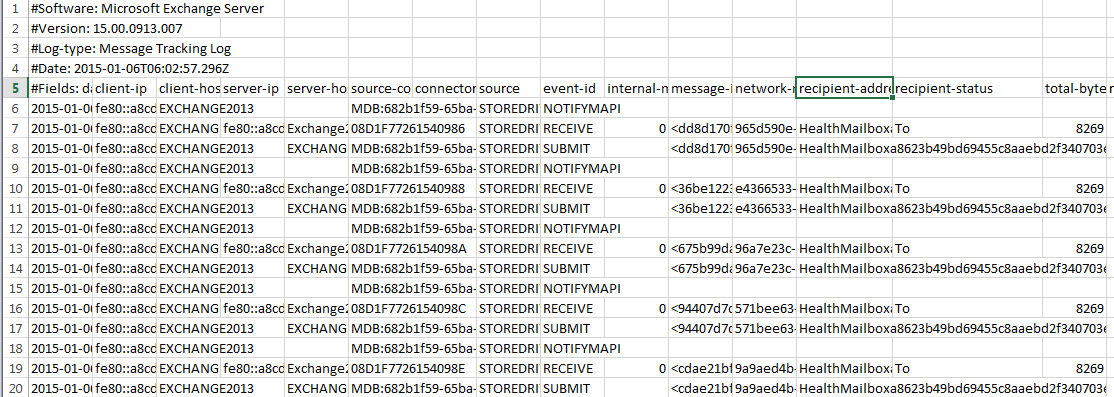
Now copy and paste them in a excel sheet as shown below

bcc8

Now we need to look into recipient address and recipient status value as shown below

bcc9

Now having a closer look into the 2 parameters recipient address and recipient status will give us the information of the user TO, BCC and CC information in the correct  order as shown below

bcc10

First user Administrator@exchangequery.com is in TO field which is mapped to To field in recipient status as shown above

Second user Sathish@exchangequery.com is in BB field which is mapped to BCC field in recipient status

Similarly it shows the corresponding users in the BCC field.

In addition to above 2 suggestions as well

You can collect information about BCC recipients if you implement message journaling in the environment

Look below technet article for Configuring Envelope Journaling in Exchange

http://technet.microsoft.com/en-us/library/gg191797.aspx

Also Refer –

http://social.technet.microsoft.com/wiki/contents/articles/29270.trace-emails-sent-with-bcc-option-by-end-users.aspx

Thanks 

Sathish Veerapandian

MVP – Exchange Server 
Configure site resiliency for Lync 2013

In Lync 2010 the site resiliency was given by stretching one FE pool across 2 sites, however this setup was much complicated during disasters and hence it is not supported and was discontinued from Lync 2013.

In Lync 2013 there is a new concept called pool pairing by which we can have datacenter resiliency by creating a second Enterprise pool and fail-over to that pool in an event of primary datacenter failure. So basically you will need to create two enterprise FE pool in your topology, one pool in primary site & second pool in DR site.

Below are the steps to configure pool pairing in Lync 2013

1. In Topology Builder, right-click one the pool you wish to configure site resiliency, and then click Edit Properties.

2. Click Resiliency in the left pane, and then select Associated Backup Pool in the right pane.

3. In the box below Associated Backup Pool, select the pool that you want to pair with this pool. Only the pools that are not paired with another pool will be available to select from.

4. Select Automatic fail-over and fail-back for Voice, and then click OK.
When you view the details about this pool, the associated pool now appears in the right pane under Resiliency.

5. Use Topology Builder to publish the topology.

6. Run Enable-CsTopology.

7. If the two pools were not yet deployed, deploy them now and the configuration will be completed without any issues.

However, if the pools were already deployed before you defined the paired relationship in the topology builder then you must complete the following two final steps.

8. On every Front End Server in both pools, run the following:

\Program Files\Microsoft Lync Server 2013\Deployment\Bootstrapper.exe
This configures other services required for backup pairing to work correctly.

9. From a Lync Server Management Shell command prompt, run the following to restart the lync backup services

Stop-CsWindowsService -name LyncBackup
Start-CsWindowsService -name LyncBackup

10. Force the user and conference data of both pools to be synchronized with each other, with the following cmdlets:

Invoke-CsBackupServiceSync -PoolFqdn

Synchronizing the data may take some time. You can use the following cmdlets to check the status. Make sure that the status in both directions is in steady state.

Get-CsBackupServiceStatus -PoolFqdn

SQL Lync Back End server resiliency setup

Since the CMS is located on the sql server planning for SQL server resiliency is also very much mandatory otherwise we wouldn’t be able to get a full fledged site resiliency in a enterprise edition setup.

How ever in the standard edition this is not applicable and if the number of users are less than 3000 you can have 2 standard edition each one of them on different sites.This will allow Lync site resiliency with less roles required and much cost effective  because no SQL servers are required here . Lync Front End standard edition is using SQL express installed locally.

Imp Note:

You should use the same Back End high availability solution (either  SQL Mirrioring or SQL Clustering) in both pools.i.e, You should not pair a pool using SQL mirroring with a pool using SQL clustering.

Below are the Reasons to use the same type of SQL high availability solution : 

SQL clustering requires a shared storage solution, but SQL mirroring does not require shared storage solution.
SQL mirroring requires SQL witness role (in addition to principal and mirror SQL servers) for the failover of the Back End Server to be automatic. Otherwise, an administrator must manually invoke failover.


More references : 

SQL clustering does not require any additional SQL servers to be able to fail over automatically-

http://technet.microsoft.com/en-us/library/jj204991.aspx

Back End Server High Availability –

http://technet.microsoft.com/en-us/library/jj205248.aspx

Lync 2013 high availability & disaster recovery –

http://technet.microsoft.com/en-us/library/jj204703.aspx

Branch-Site Resiliency Requirements –
http://technet.microsoft.com/en-us/library/gg412772.aspx

Lync Server 2010 Metropolitan Site Resiliency –
http://technet.microsoft.com/en-us/library/jj204715.aspx

http://social.technet.microsoft.com/wiki/contents/articles/29122.configure-site-resiliency-for-lync-2013.aspx

Thanks 

Sathish Veerapandian

MVP – Exchange Server 
Technology Evangelist