Exchange 2013 Domain Security

In this article we will be looking at how to configure Domain Security in Exchange 2013.

This Domain Security provides session based authentication by using Mutual TLS. This new feature was introduced from Exchange 2010.The Functionality in Exchange 2013 remains the same as we had in Exchange 2010 except we need to configure this on Exchange 2013 CAS server if we don’t have edge server configured .

The main points about Domain Security

1) Domain Security is server to server level configuration for securing SMTP traffics.

2) We do not need any user level encryption i.e., without configuring any options for encryption on Outlook on sender as well as recipient end.

3) We can enable this type of connection for trusted partners to secure SMTP traffic in an organization level.

Below are the steps to configure Domain Security

I’m just going to explain this with configuring Domain Security between two organizations exchangequery.com  and toybox.com  in my lab as an example .

The first and the foremost thing is that we would need valid certificate for Domain Security for these 2 domains exchangequery.com  and toybox.com  .

The main reason for certificate is

To establish a trust between two organizations for a secure transmission.

Each server would verify the connections with other server by means of a valid certificate .This will ensure that the encrypted connection is coming from valid domain which is already in the Domain Security List.

Configuring Certificate can be achieved in the following ways (we have multiple ways to achieve this is regular practice)

1) We can use public trusted certificates for both the domains.

2) We Can Cross-import Root CA certificates on both the domains as well.

3) Assign certificates for SMTP for both Exchange organizations from a single trusted RootCA.

4) Note: The Exchange self-signed certificate TLS is only for opportunistic TLS and not for Mutual TLS and so the Exchange self-signed certificate for TLS will not work for Mutual TLS.

5) We must have appropriate names in certificate. Precisely Certificate that you assign to SMTP service must have the exact same name that your SMTP connector has (created for Domain Security) is using.

Now we will look into how to configure the Connector Settings.

In our example we are going to configure Domain Security from Exchangequery.com for Toybox.com

First we need to run Get-Transportconfig in Exchangequery.com domain to modify few setting globally for sending receiving emails from trusted partners.

Image


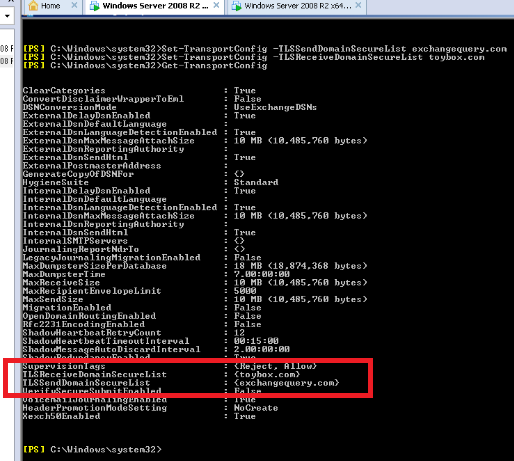
All we need to do is to look at below parameters

TLSReceiveDomainSecureList

TLSSendDomainSecureList

In our case we can see both the values are empty since we haven’t configured it yet.

Note: We can have multiple values i.e., multiple domains added in the TLSReceiveDomainSecureList and  TLSSendDomainSecureList since this commandlet accepts multivalued parameters.

In our case the following commands needs to be executed.

Set-TransportConfig -TLSSendDomainSecureList exchangequery.com –  for sending secure emails from Exchange query to toybox

Set-TransportConfig –TLSReceiveDomainSecureList toybox.com –  for receiving secure emails from toybox.com

Image


Now we need to run Get-TransportConfig once again and ensure that the domains are added.In our case we have toybox.com and exchangequery.com added respectively.
Image


After making the transport config changes globally now we need to configure CAS server to accept encrypted connections from the trusted partners.

Now we need to create a dedicated receive connectors for the same.

Open EAC – Click Receive Connectors – Select the appropriate CAS server.

Type desired name. Select the connector type as partner .

Image


Click next and In the IP address tab just leave all available.

Image


In the remote network settings remove the default value and specify only the public IP of the partner from which we are going to receive the encrypted email.

This is very important because if we leave the remote network as such then all the external emails might hit this connector and all unencrypted emails will not be delivered to the users.

Image


Ensure that TLS and enable domain security is enabled which is enabled by default.

Also ensure that partners is selected.


Image


Now we need to configure the send connector to send emails from exchangequery.com to toybox.com.A dedicated send connector for toybox.com from our end.

Click on new send connector and give desired name and select partner.

Image


Click on next and leave default option as MX record associated with recipient domain and don’t user smart host.

The reason why we are not using smart host is because if we are routing it to any spam filters these encrypted emails might be blocked thinking them to be suspicious.

Image


Click on next and then specify only the address space of the TLS domain. In our case we need to specify toybox.com as toybox.com is our trusted partner.

Select the source server in Exchange 2013 we have an option to select only CAS server since front end transport proxies all the requests.

Image


Click on finish.

Now we need to ensure that DomainSecureEnabled is set to True.

Run the following command to check it

Get-SendConnector –identity toybox | FL

We could see is enabled.

If it’s not enabled you can enable it by running below command

Set-SendConnector –identityConnectorName –DomainSecureEnabled: $true

Image


That’s all and we are done setting up Domain Security between Exchangequery.com and Toybox.com.

Now we are ready to send and receive secure emails between Exchangequery.com and toybox.com.

Cheers 🙂

Sathish Veerapandian

Exchange Evangelist.
Changes in OAB from Exchange 2013 CU5

We are eagerly waiting for the release date of Exchange 2013 CU5 which could fix transport agents not loaded  after Sp1 upgrade as mentioned in KB2938053, Shared mailboxes sent items  are not saved in the Sent Items folder of the shared mailbox and it gets stored in drafts folder of primary mailbox.

I just happened to read the latest Tech-net blog posted by Ross Smith which mentioned about Changes in OAB from Exchange 2013 CU5.

The main highlights are

1) Single OAB Generation Mailbox per site. Which stops multiple OAB download instances from multiple OAB generation mailboxes located in same site?

2) Having one OAB instance per site which stops multiple downloads of OAB files.

3)We can Specify  OAB generating Mailbox.

Read more from Source Tech-net Blog:

http://blogs.technet.com/b/exchange/archive/2014/05/13/oab-improvements-in-exchange-2013-cumulative-update-5.aspx

Hope this information will be helpful in planning for CU5 upgrade .

Cheers !!!

Secret about alphanumeric in Exchange Administrative Group and Exchange Routing Group

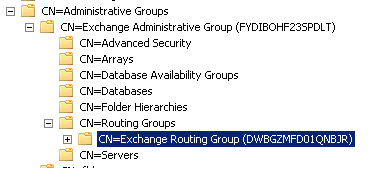
I was just wondering why there was always some alphanumeric (FYDIBOHF23SPDLT) written in brackets in the Exchange administrative Group folder whenever we navigate through ADSIEDIT console.

Also you can notice some similar kind of alphanumeric in Exchange Routing Group Folder as well (DWBGZMFD01QNBJR).

We could see this alphanumeric from Exchange 2007.

Image

No matter how many number of Exchange Servers we are deploying the alphanumeric remains the same.

What do these letters actually mean?

If we use the Caesar Cipher Code (old encryption technique) by shifting the letters we will be able to find the actual meaning of these letters.

The secret information is EXCHANGE12ROCKS. They both actually decode to the same message J

FYDIBOHF23SPDLT (EXCHANGE12ROCKS)

F = E

Y = X

D = C

I = H

B = A

O = N

H = G

F = E

2 = 1

3 = 2

S= R

P= O

D = C

L = K

T = S


DWBGZMFD01QNBJR (EXCHANGE12ROCKS)

D = E

W =X

B  = C

G  =H

Z  = A

M = N

F  = G

D = E

0  = 1

1 = 2

Q = R

N = O

B = C

J = K

R = S

The Exchange Coders while developing the product being passionate about Microsoft products especially Exchange versions they have made a secret note for all of the Exchange Administrator’s  J .

Microsoft Pelnet Tool

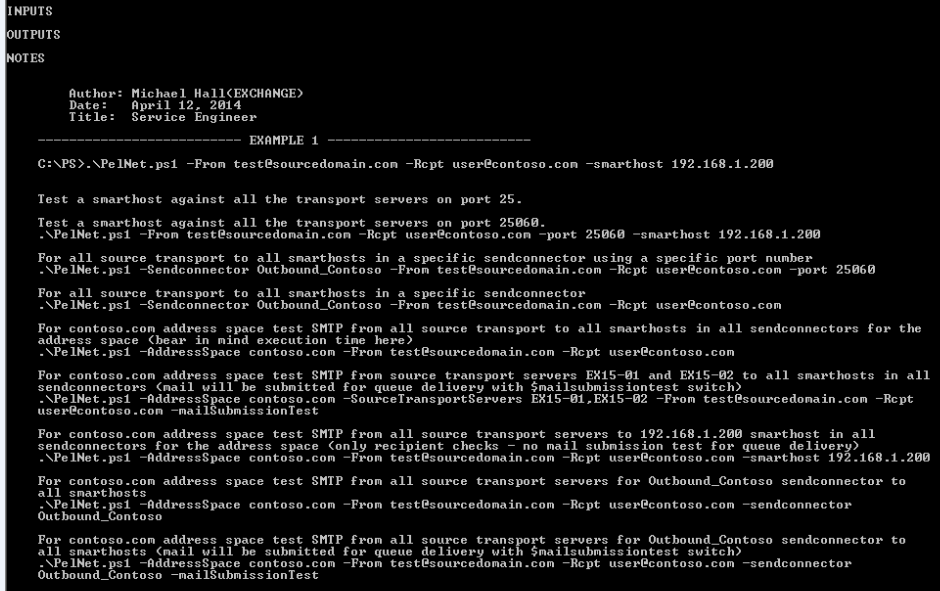
Microsoft has released an excellent tool called Pelnet created by MSFT Michael Hall. This tool can be used for validating the transport changes like changing config of send connectors and everything.

This tool can also be used for troubleshooting mail flow issues i.e., connectivity issues with transport servers as well.

Basically it’s a Power-Shell script which does this transport validation as well.

Few Advantages of using Pelnet

1) IT can be used in organization where the Telnet Functionality on member servers is disabled due to security reason.

2) Manual testing of Telnet and NSLOOKUP on each and every transport servers can be eliminated which consumes more time. 

Just download the script from the Tech-net Gallery

http://gallery.technet.microsoft.com/office/PelNetps1-1cb7b6d7

Open exchange management shell and navigate to the location where we have this script downloaded

You can run update-help for the list of parameters that can be included

Refer below Microsoft Team blog for few more examples.

http://blogs.technet.com/b/exchange/archive/2014/04/30/released-introducing-pelnet.aspx

Image

Below is the output of get-help with example

Image

Now as a part of testing in Exchange 2010 & 2013 mixed environment I just performed the following task

Disabled the transport services on Exchange 2013.

Created a test Send connector in Exchange 2010 .

Included only address space Toybox.com on the test send connector.

Now ran the script and below is the output

Image

It was able to identify the test send connector with the address space toybox.com.

Image

Also it throws an error connecting to Exchange2013 since we have stopped the transport services on the Exchange 2013 servers.

Additionally it creates associated txt files in the script location as well.

Image

This script can be used for daily monitoring the mail-flow for few parameters to check the source transport server’s functionality. It can be executed on a specified time by using the Windows Task Scheduler.

Things to consider before configuring Autodiscover in Exchange 2010/2013 coexistence scenarios

Based on my experience I have collected few guidelines before configuring autodiscover in Exchange 2010/2013 coexistence.

First and the foremost step that i would recommend is

Follow the steps from Exchange server deployment guide which is pretty simple and straightforward.

http://technet.microsoft.com/en-us/exdeploy2013/Checklist?state=2284-W-DQBEAgAAQAAICQEAAQAAAA~~

We need to consider below things before we proceed with the full fledged operation of autodiscover in Exchange 2010/2013 coexistence.

First we need to decide on using which internal and external url’s in Exchange 2013.

The following Steps needs to be configured in this order:
Configure Exchange 2013 external URLs.
Configure Exchange 2013 internal URLs.
Enable and configure Outlook Anywhere in Legacy i.e, (Exchange 2010 & 2013).
Configure service connection point,Change SCP of Exchange 2010 CAS VIP to Exchange 2013 CAS VIP.
Configure DNS records.
DNS entries should be pointed to Exchange 2013 CAS from Exchange 2010 CAS.

Note: To allow your Exchange 2013 Client Access server to redirect connections to your Exchange 2010 

servers, you must enable and configure Outlook anywhere on all of the Exchange 2010 servers.
You can probably run Get-Outlookanywhere on both Exchange 2010 and 2013 and see all the
internal and external url’s assigned and configured accordingly.

Note: We need to have legacy url for legacy users if they want to access outlook anywhere externally.

For Outlook Anywhere
Change authentication on Exchange 2010 CAS server client auth method to NTLM

Run the following commands on Exchange 2013 server to set outlook anywhere settings

Set-outlookanywhere -InternalHostname “hostname” -identity
“serverRpc (Default Web Site)”-InternalClientAuthenticationMethod ntlm -internalclientsrequiressl $True
Set-outlookanywhere –externalHostname “hostname “ –identity
“serverRpc (Default Web Site)” -ExternalClientAuthenticationMethod ntlm -externalclientsrequiressl $true
Set-outlookanywhere -iisauthenticationmethods basic,ntlm,negotiate -identity “Rpc (Default Web Site)”

Imp Note : Exchange 2013 supports Negotiate for Outlook Anywhere HTTP authentication,
this option should only be used when all the servers in the environment are running Exchange 2013.

To configure certificate based authentication we need to ensure following things

1. Please check if Certificate Mapping Authentication is installed on the server
2. Go to IIS manager and check if Active Directory Client Certificate Authentication is enabled.
3. Check if required Client certificate is enabled on ActiveSync VD. If not, enable it.
4. Check if basic authentication is disabled on ActiveSync VD. If not, disable it.
5. Check if the ClientCertificateMappingAuth is set true.

Apply a new certificate with all the required site names included in Exchange 2013 CAS.

For OWA –
Enable FBA authentication + windows Integrated authentication on OWA VD on exchange 2010 CAS server.
Users with mailboxes still on 2010 will be connecting to CAS 2013 and then proxy to CAS 2010.

Feel free to post your comments if any other things that needs to be taken into consideration .
Cheers

Installing and Configuring PST Capture 2.0 in Exchange 2013 Environment

In this article we will be discussing about installing and configuring PST capture agent in Exchange 2013 environment.

Since everyone will be familiar with the enhanced features which are available from the version 2.0 I’m not going to list down the improvements. For those who would need to know the enhancements you can refer this TechNet blog http://blogs.technet.com/b/exchange/archive/2013/02/22/time-to-go-pst-hunting-with-the-new-pst-capture-2-0.aspx

Installation in Exchange 2013 is the same procedure as we do it  for Exchange 2010. But only PST Capture version 2.0 supports Exchange 2013 and not the earlier version.

Now let’s go ahead with the prerequisites of installing this tool.

  1. Microsoft .NET Framework 3.5 or 3.5 Service Pack 1 (SP1).
  2. A Central Service account for managing the PST captures central service.
  3. Outlook 2010 to be installed on a PC where we have PST capture console and we are performing the export and import.


Download the setup from the below location.

http://www.microsoft.com/en-us/download/details.aspx?id=36789

We could see there will be 2 files which will be available in the setup.

PSTCapture.msi – This is the main installation file which should be installed on a PC where we require the PST capture console. All the PST capture in the organization and import happens through central service running in this PC.

PSTCaptureAgent.msi – It should be installed on the machines (client pc’s) where we need to scan for the PST files. This particular service running after the installation on the client pc’s will be sending the requested PST files to the PST capture console when requested for an import.


Note: If we do not install this agent on the client machines then we won’t be able to detect the PST files on those particular machines.

Image

Installation is pretty simple and just navigate through the setup one by one.

Image


Now specify the host name of the Central service computer you wish to select and click next. Also you can see the default port assigned for this function which can also be altered within the specified values.

Image


Once the installation is completed on the PC you can see the PST capture icon as below in that PC.


Image

When you open the wizard it has the following options.

Image

The PST search happens in 4 steps.


1st step

Select the computers that we need to perform the PST search.

Note: If we do not install the PST capture agent on the client machines then we won’t be able to detect the PST files on those particular machines.

Image


2nd Step

We have locations to search and locations to ignore as well as shown below.

Image

3rd step

We have an option to run the schedule manually as well as to run on a scheduled date.

Image


4th step

Finally we get the summary. Just click on finish.

Image

Finally we get the below screen while PST search is running.

Image

Once the search is completed it displays the below results with the list of PST files scanned.

Image

Now we need to select the scanned PST files and then create a new Import list.

Cloud Import list – For Importing PST files to an online account.

OnPrem Import List – For Importing PST files to an on premise Exchange account.

Now select the destination mailbox to which it needs to be imported.

Image

Image

You can see the import status in percent and once the import is complete you would be able to see the emails in the imported mailbox.

Image

Note: Outlook 2010 64 bit version is required on the host computer where we are performing this action through PST capture console. If Outlook is not installed then Import will be failure.

This tool is really useful in effectively managing the end users PST files during migration as well as in transition to BPOS/O365 from an on premise  setup.

SysTools – Exchange EDB Recovery Software

I just found  this amazing  exchange  database recovery software developed by SysTools and  I would like to share the functionality of this tool.

SysTools is a company  delivers innovative software applications to enhance the lives of millions of IT Admins and computer users around the globe.

About Exchange recovery software (SysTools)

By using this software the email contents of single user ,multiple users can be extracted from a corrupted  exchange database (edb,stm) file.

The emails can be extracted  in the form of PST’s (even split pst’s), message format, eml format and also emails from damaged edb files can be directly imported into an active Exchange mailbox.

Even though if we maintain a proper exchange  backup in a healthy environment there is a lean possibility in scenarios where the Exchange admin would be  totally running out of options if the backup is not healthy,and the edb files are no longer recoverable.This software can be used in those kind of scenarios.

Also this tool can also be used in   recovering the emails from a (older  edb file/older backup ) in scenarios where their  exchange environment is  no longer existing or they have transitioned to new version of exchange.

Below is the installation and functionality of this tool

This tool can be run on environments which has Exchange 2003,2007,2010 & 2013.

Prerequisites

We just need to have .net 2.0 installed on the member server where we are going to install this tool. However even though if we do not install .net 2.0 manually  this tool automatically detects ,downloads and installs during the installation.

IMP:  We need to have Outlook 2007/2010 installed on the PC  where we are installing this tool.

And of course we need to have the  edb files from which we need to extract the PST

Below is the installation procedure

1) Download the setup from the below link.

http://www.systoolsgroup.com/exchange-recovery.html

2) Open the setup and click install

Image

3) Installation is pretty simple and just navigate through the setup  one by one.

Image

4) There is an option to create desktop icon and quick launch as well.

Image

Image

Image

Once the installation is completed launch systools Exchange Recovery software.You might get  the below error if there is any of the following prerequisites missing.As I mentioned earlier  we need to have an Outlook profile configured on the PC where we are installing this tool.

Image

Also we need to have outlook component which needs to be registered. When you click on details you have an option to register the outlook component and you will get the below message once done.

Image

Now let’s explore the functionality of this tool.

Launch Systools.

Image

It opens a window and asks for the associated edb file which needs to be opened.

Image

Open the EDB file from associated location.

Image

Once the file is selected  we get the below screen if the scan of edb is successful.

Image

Now we get below option after we click on ok.

It displays all the mailboxes with sub-folders,calendars,contacts which are present in the edb file.

Image

Also we have an option to view all the emails on the right hand  preview side.

Image

You can click on the export option and it displays the below limitation for demo version.

Image

Click on ok and then it  displays the below screen with the following options.

Image

Option 1 :  Exports the emails into PST. There is an option for split pst’s as well.

Option 2 :  Exports emails in the MSG format. We can export  individual emails as well.

Option 3 : Exports emails in the EML format.

Option 4 : Directly exports email to an active Exchange mailbox.

Note : The user account running systools should be having full access to the mailbox where we are going to export the emails if we are choosing option 4.

Choose the required method of export and once the export is completed we get the below screen.

Image

As a final result we also get a report generated.

Image

When we open the report we get the list of mailboxes exported nothing much information.

Image

Though this report gives info about the list of mailboxes exported it could be better if there is few more additional information like number of mailbox items imported successfully and number of failed items as well.

This tool is available in 2 versions as demo as well as full version. The demo version is restricted to 25 items per folder in a mailbox. The full version does  not have any restrictions in exporting the emails as well as in the size of edb files.

Overall this tool will be  really useful  for scenarios where we do not have an option to  recover an edb file due to required log files missing, in-case of backup failure  and finally in recovering emails from a database for a environment which is no longer existing.

Changes in msexchangemailboxreplication.exe.config file from Exchange 2013 SP1

I just happened to check maximum active moves per server before starting the migration batch for one of our client who is running Exchange 2013 SP1 and was excited to see the values increased from the earlier versions.

The XML file is located in the same bin directory as it was in Exchange 2013 CU3

<Exchange Installation Path>\Program Files\Microsoft\Exchange Server\V14\Bin\


1111

The interesting part is that we don’t need to increase the values of these anymore. Because they have increased the numbers to more than sufficient value while comparing from Exchange 2013 CU3 . Also I don’t think there should be any problem  if we modify this XML file.

Values till Exchange 2013 CU3.

Image

Values in Exchange 2013 SP1.

MaxActiveMovesPerTargetServer=”100″

MaxActiveMovesPerSourceServer=”100″

MaxActiveMovesPerTargetMDB=”20″

MaxActiveMovesPerSourceMDB=”20″

MaxMoveHistoryLength=”5″ RetryDelay=”00:00:30

This is really a great stuff which has been modified from Exchange 2013 SP1 which reduces the time of modifying the config file during Batch Migrations.

Steps to Disable Managed Availability in Exchange 2013 for few Health Checks

Managed availability is one of the best feature which is been introduced and it’s an excellent feature from Exchange 2013.By using this feature it’s very easy for monitoring the Exchange servers without adding any monitoring software pack like SCOM and few more.

In addition to this it also has the capability to resolve the issues by its own if it finds something wrong on any of the Exchange Functionality. Also it drops an email to the Health mailbox and specified mailbox (administrators) if in case the solution is unidentified by Managed Availability.


In a real time scenario it’s very useful in monitoring the Exchange servers in all aspects and definitely reduces the impact of the exchange servers from any disaster by its own. There can be few scenarios where there can be additional monitoring software’s installed on the servers  and in those cases we can disable the Managed Availability if at all we do not need the report to be generated twice for the same alert.


Also in case for few servers in  environment which is running on low memory this feature can  be disabled since it queries, polls hundreds of health metrics as it could consume extra memory.

It collects few logs and data by default which is present in the below location which occupies some disk space  depending upon each environment which should be considered for low hard disk space servers as well.

Below is the location.

<Exchange Install Drive>program files\Microsoft\Exchange Server\V15\Logging\Diagnostics\DailyPerformanceLogs

Image


I just explored in this part and I found there is an option to disable this monitoring totally as well as for few parameters too for which we think we don’t need the monitoring to happen.

The reason why we need to consider disabling this for few parameters can be because it can generate alerts for some known errors that we are trying to rectify in the environment and it can generate the alerts and create associated logs in the event viewer as well.We can just disable only those parameters until we find solution for them.

The core service involved in this functionality is the Microsoft Exchange health Manager. You can disable this service if at all there is any SCOM pack installed on the server and you are satisfied with those reports.

 Note: By Disabling this service will stop the whole monitoring functionality of the Managed Availability.

Image

You can also disable the scheduled tasks Exchangediagonosticsdailyperformancelog   & Exchangediagonosticsperformancelog  which is running under the Task scheduler.

Open location \Microsoft\Windows\PLA in Task Scheduler  and disable both of them

Note: By Disabling this scheduled tasks will stop the whole monitoring functionality of the Managed Availability

Image

If you need Managed Availability to be working with few exceptional like not to monitor for few parameters we can also do that by setting those values to false so that monitoring will not happen for them.

Below is an example for disabling the probe monitors for Autodiscover probe

Navigate to the below location and select client access proxytest.xml file and open them with the notepad.

Image

We just need to set the value for Autodiscoverprobeenabled value to false from true

Image

Save the ClientAccessProxyTest.xml and close it.
Restart Microsoft Exchange Health Manager and you will not receive probe alerts for the value that you have set to false.


Note:

It’s not  recommended to disable the Managed Availability until and unless there is any specific reason to be done because we will be losing this excellent monitoring feature available in Exchange 2013 at no additional cost.

Exchange Server Mailbox Statistics Report Tool

Managing the Exchange Servers in  storage capacity is little bit difficult for administrators when the server gets older and older and  when new users keeps adding in the list.

Even if there is any  daily monitoring report for mail flow, databases, disk space monitoring and everything still it’s difficult for administrators to monitor the end users having lot of old emails still in their inbox,sent items,subfolders which occupies lot of space.


It could be better if there is any kind of statistics report that can pull out the number mailbox items, oldest messages for all user so that we can ask the users to move old items to their PST archives.

There are lot of scripts which are available in the internet which  can be run on the mailbox server,DB’s to pull out these information.

I just found this excellent Tool developed  by author  Srinath Sadda and its available in the TechNet gallery for download.

http://gallery.technet.microsoft.com/office/Exchange-Server-Mailbox-7dd53529


The interesting part about this tool is that it doesn’t need power shell or EMS.Its a GUI based tool which can be run manually whenever required.

Note: This  tool can be run for a single mailbox, particular database as well as for  all mailboxes in a server.

 I just tested in my lab and its working fine and below are the results.

Downloaded the tool from the TechNet gallery (source file link above ) and installed.


Image

Once the installation is completed open the tool and you will get the below screen.

Image

Now we need to specify the DC,Exchange server and DB’s .If we select retrieve it fetches  the above information automatically. Select the oldest and newest items accordingly and click on perform mailbox search.

Image

Finally once the report is completed you can click on the report viewer.

Below is the final report status.

Image

We have option to send this report through  email as well.

Image

Apart from this we have multiple options like searching for mailbox globally that are hidden from GAL, Number of Disabled mailboxes ,Mailbox Type few more options.

Image

This tool is very useful in terms of monitoring the Mailbox statistics for individual users as well as all users.