Monthly Archives: December 2016

Migration status of mailboxes movement in Exchange 2016

Mailbox replication service is the service responsible for moving the mailboxes,mailbox imports,mailbox exports  and restore requests.

This article focuses on the migration status of the migration batch in Exchange 2016.

The move request statistics can be viewed by running the below command

Get-MoveRequestStatistics | Select DisplayName,StatusDetail,PercentComplete

Below were the status reasons of the migration notified for delayed migration batches:

Stalledduetotarget_dataguaranteewait:
From Exchange 2010 there is an Data Guarantee API that is used by Mailbox Replication service (MRS) to check the health of the database copy architecture based on a defined setting of the database.
This API is called by the MRS to see the following information:
Check Replication Health – Confirm that the prerequisite number of database copies is available.
Check Replication Flush – Confirm that the required log files have been replayed against the prerequisite number of database copies.
After this message If a Satisfied response is returned within the 15 minute stalling period, MRS will automatically resume the move request.

This is usually triggered during the move request to determine the health of the target database copies to which the mailboxes are moving from the legacy servers.
If the Data Guarantee API returns a NotSatisfied or a Retry response, MRS will queue the move request and retry the query every 30 seconds.

The parameters controlling these values can be seen in “MSExchangeMailboxReplication.exe.config” file located at “C:\Program Files\Microsoft\Exchange Server\V15\Bin”

Parameter Name                                        Default         Min        Max
DataGuaranteeCheckPeriod                     00:00:05      00:00:01   02:00:00
DataGuaranteeTimeOut                         00:10:00      00:00:00   12:00:00
DataGuaranteeLogRollDelay                   00:1:00       00:00:00   12:00:00
DataGuaranteeRetryInterval                   00:15:00      00:00:00   12:00:00
DataGuaranteeMaxwait                         1.00:00:00    00:00:00   7:00:00
EnableDataGuaranteeCheck                 True                    False       True

Stalledduetotarget_mdbreplication:
This value is also returned from Data Guarantee API on checking the replication health of the target database copies if they are member of DAG and have database copies.
We might get this message if the MRS service is waiting to get this information from the target server about the replication status of the database copies.

So in this case the passive copy must be:
1)Healthy.
2)Must have a replay queue with 10 mins of replay lag time.
3)Have a copy queue length less than 10 logs.
4)Have an average copy queue length less than 10 logs.

Below are the parameters controlling in the msexchangemailboxreplication config file:
mdb latency health threshold
mdbfairunhealthylatencythreshold
mdbhealthyfairlatencythreshold
mdblatencymaxdelay

So at the end all the database copies must be healthy if we are randomly distributing mailboxes to the target destination.

Stalledduetohigherpriorityjobs:

We might get this status if the Exchange server Workload management introduced from Exchange 2013 is making  the exchange system resources busy on other exchange operations and hence the move requests are affected.

First preferred option is we can submit the new move requests by modifying the Priority to emergency or highest by running the below command.
New-MoveRequest -Identity Mailbox -TargetDatabase “DB Name” -BatchName Test -Priority Highest

StalledduetoCI:
This is caused due to Content Indexing on the database copies, so to solve this by turning it off on the Mailbox Database till the migration is complete for that DB where the mailbox resides.

To turn it off run the below command :
Set-MailboxDatabase “your mailbox database” -IndexEnabled:$False

Note: This should be re-enabled once the migration has completed
This error might not happen in Exchange 2016 environments since the indexing process has been completely changed from Exchange 2016.

Stalledtotarget_disklatency:

This might happen if there are any issues in the disk performance ,causes the disk latency ,the response time from the source is getting high and the migration batches are getting timed out. This delays the movement of the mailboxes.Should start checking the target exchange 2016 disk performance IOPS etc. If we get this then there is some serious problems in the exchange 2016 performance .And this depends on the designed storage architecture, how the database copies are distributed with how many mailboxes in each copies.

Relinquishedwlmstall:

We might get this because of large delays due to unfavorable server health or budget limitations.
In most practical cases we can notice this status when moving a large mailboxes batch of size more than 5GB.

These are the parameters controlling this:
WlmThrottlingJobTimeOut
WlmThrottlingJobRetryInterval

The best solution for this is to move the large mailboxes on batches so that the system resources are sufficient to handle the migration.

Below are the major parameters that is controlling the migration on the Exchange 2016 servers:

“MSExchangeMailboxReplication.exe.config” file located at “C:\Program Files\Microsoft\Exchange Server\V15\Bin”

MaxRetries – 60, 0, 1000
MaxCleanupRetries – 480, 0, 600
RetryDelay – 00:00:30, 00:00:10, 00:30:00
MaxMoveHistoryLength – 5, 0, 100
MaxActiveMovesPerSourceMDB – 20, 0, 100
MaxActiveMovesPerTargetMDB – 20, 0, 100
MaxActiveMovesPerSourceServer – 100, 0, 1000
MaxActiveMovesPerTargetServer – 100, 0, 1000
MaxActiveJobsPerSourceMailbox – 5, 0, 100
MaxActiveJobsPerTargetMailbox – 2, 0, 100
MaxTotalRequestsPerMRS – 100, 0, 1024

Important tips to note down before migration:
1)Ensure there is no file level antivirus running on the migrating target servers.
2)Copy a 1GB file from the source server to the target server and verify the copy speed to ensure there is no network issues.
3)Make sure there is no backup jobs running during the migration batch period.
4)Better to initiate a small migration batch first of say 500 users and then open the perfmon during this period and monitor the memory,cpu,storage to make sure the resources are sufficient.

Note: Do not modify any values in the MSExchangeMailboxReplication.exe.config for any reasons. Better to open a call with Microsoft if any issues is identified in the maibox migration batches.

Thanks & Regards
Sathish Veerapandian
MVP- Office servers and Services

Read MAC EMLX apple email from Windows and MAC devices

What is EMLX File?

Mac Operating System come configured with Apple Mail or the Mail.app since version 10.0. Like many OSs, Mac OSX includes Apple Mail as its default-messaging platform for desktop communication. The set of qualitative attributes in Apple Mac has already made it a standard messaging platform amongst users of Apple Mac system. The improvement adopted by Mac OS version has resulted in it gaining a great number of users, thus, making Apple Mail to become the most clear communication medium by Mac users, owing to its uncomplicated reachability. All these aspects have bring out Apple Mail in notice of investigators due to the fact that Mac supported applications confront complications during the procedure of investigation due to lack of a dedicated available.

Location of EMLX File

A file with the EMLX extension is an Apple Mail Email file created with Apple’s Mail program for Mac OSX.  EMLX files are plain text files which store just a single email message. They are normally found on a Mac in ~user/Library/Mail/ folder, available below the /Mailboxes/ [mailbox]/Messages/ subfolder or sometimes within the subfolder /[account]/INBOX.mbox/Messages/.

Why need arise to view EMLX file?

Many reasons are available, making it obligation for the users to search for an EMLX Viewer as per their requirements mentioned below:

  • EMLX file corruption or failed to open. And users have the urgency to view the crucial email messages, without waiting for the installation of the particular email client.
  • View EMLX email messages received as an attachment, which are damaged in between transit.
  • Need to open Apple Mail EMLX file in Windows OS, saved in any external storage device.

Free EMLX Viewer – Open EMLX Files from Apple Mail to read Messages

EMLX Viewer Windows is an easy to use program which provide the possibility to open and view EMLX files from Apple Mail on Windows. However, it also works with the regular EML file format. This is a portable and freeware solution which comes in a handy if you do not have the Apple Mail client installed to view EML messages, especially since it does not require you to set up the mail account. You only need to point to the file and open it.

1.png

Although EMLX File Reader does not require installation, you must know that it creates cache files in the same directory as itself when opening EMLX files. As far as Interface is concerned, the mail tool adopts clean window with a native structure, where you can get started by opening an EMLX file or the entire folder which contain multiple emails. The emails are neatly organized in a tree view structure on the left and can be accessed from the right. In addition to the message, you can view graphical content, attachments, and header information such as sender, receiver, subject and date.

If you need to deal with large amounts of text, you can make use of built-in search function to look up information across the whole raw messages or only in the shown headers. Search results can be restricted by specifying the start and the end date. Moreover, you can change the date format and refresh all the displayed messages if any modification were made in the meantime. EMLX files are automatically converted to EML format, so simply double click an entry present in the list to open the location in Windows Explorer and view the messages and attachments in EMLX.

There are no compatibility issues involved in the software as the utility can easily run on all the version of Windows operating system ranging from Windows NT to Windows 10.

Source URL – http://www.bitrecover.com/free/emlx-viewer/

Thanks & Regards
Rollins Duke
Technical Analyst

Skype for Business Unable to present Desktop – Call failed to establish due to a media connectivity Failure

All Skype for Business Clients from remote locations were unable to present the screen sharing through meet now ,peer to peer and conference.
This a new deployment and users were unable to present desktop.

Below were the test scenarios:

1st test – from remote users n/w to my home n/w – received error (we couldn’t connect to the presentation because of n/w issues. Please try again later)
2nd test – from remote users n/w to my office n/w – received error (we couldn’t connect to the presentation because of n/w issues. Please try again later)

Below troubleshooting were done :

1)Did a telnet to lyncdiscover.domain.com on port 80 and 443 – ( This was done just to make sure the clients when logging in gets all the updated info of the pool,SFB config etc..,)
2)Did a telnet to meet.domain.com on port  443 – successful
3)Did a telnet to join.domain.com on port  443 – successful
4)Did a telnet to av.domain.com on 443 successful

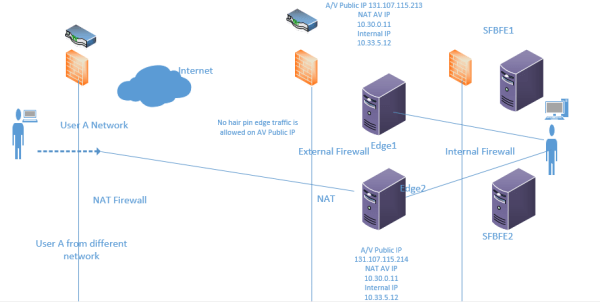
Assume the below scenario deployment:
1)The edges were in DNSLB and were in scaled consolidated topology using NAT.
2)UDP 3478 for AV service external IP.
3)TCP 443 for external IP’s.
4)Port 50k was blocked in my case since no legacy OCS clients.
5)No edge hair pin traffic is allowed for Audio and Video Public Ips.

DMZsc1.png

Did a Snooper trace from the affected remote client and got the following info on the snooper logs

Getting  error as call failed due to media connectivity failure when both the end points are remote.

snoop

Now this is the time for me to dig into the analysis of in which protocol fashion the SFB clients establishes the connection.So started to explore on STUN,TURN & ICE since ever i was having a glossy look on these topics.

So what kind of protocols they use:

SFB/Lync uses all these 3 protocols to establish a media connectivity:

ICE:
The stands for Interactive Connectivity Establishment protocol for communications. All Lync/SFB clients are ICE clients and use ICE to try and establish connectivity between itself and another ICE client.Remember this is the main protocol which functions as the core and wraps the other 2 to establish a path.

STUN:
The new name for this acronym is Session Traversal Utilities for NAT.
This will allow the SFB client to discover the available public IP for the SFB media path inorder to establish the connectivity.

TURN:
Traversal Using Relay around NAT.
This will establish a chain of connection between the external client and the client inside the network.By using this edge servers will create a chain and will offer ports on UDP and TCP for the media path. Once this chain is established it promises the remote client to send its media connection to the internal network client.

So now we can understand clearly that the External Corporate firewall requires a Hairpin traffic to be allowed for the A/V edge Public Ips for the STUN and TURN to work in the required  UDP  TCP path.

Since these are the most commonly used RFC standard protocols SFB clients also uses them. These all are IETF standards protocols and hence Microsoft also uses them.
Now the SFB clients will use the below process to establish a media connectivity with the remote client:

Candidate Discovery:
Where the clients discover their available public IP addresses for media connectivity. These include both STUN and TURN addresses of the Edge server.

Candidate Exchange:
This is the place where both the SFB clients sends each other list of addresses on which they can be communicated for this media path.
Remember this will happen bidirectional.

Connectivity Checks:
This is where both the candidates(clients) try to establish a connection on all these addresses simultaneously (not one by one).
Finally the result would be the SFB client will pick any one of the available route and establish a connection with the client whoever is responding first.

Candidate Promotion:
This is the Final stage of the SFB client and happens after the call is established and its running.
Here the clients if identify any path which is more optimum and quick they decide to change that route which gives the better experience to the user.

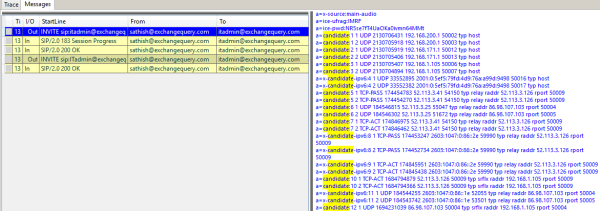
These candidate information can be seen in snooper logs

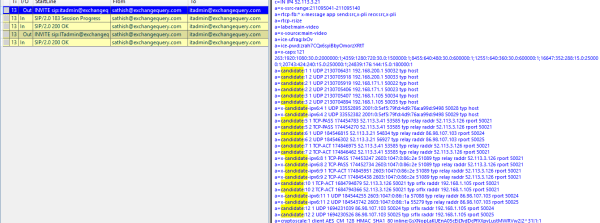
We can see 3 types of candidate information

The first one below is for port 50k and can be ignored if you are not having this option

DMZsc1.png

The second one is for audio and last one will be for video. We will have the same like one for audio with label main mentioned as audio.

DMZsc1.png

Lets say if we have only port 50k opened and not 443 for UDP then we can see only those  50k candidate lists.

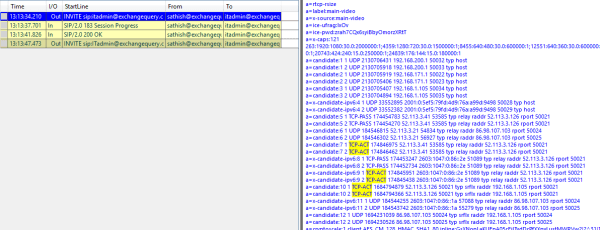
TCP-ACT indicates that with this candidate pair the client is able to send RTP and RTCP traffic

DMZsc.png

By having a look at it we can confirm that the candidate is a STUN pair. TCP-ACT and typ srfx raddr is the thing that indicates they are STUN pair.

In this case if the candidate discovery fails in all the cases we can find  BYE sip in the snooper logs and which mentions opaque=epid followed by guid

There are 2 solutions for this problem to work:

Allow Port 50k inbound:

We can  allow the media communications on this edge Audio/Video Ip only on port 50 K. But at real times when users connecting from different network for the media path they need to cross firewalls where they might have only the standard 80 & 443 allowed and these ports might be blocked.

Allow the hair pin edge traffic:

Allow the traffic on the edge server external firewall  to traverse the traffic between the two AV Edge servers public IP addresses. This will give the appropriate candidate lists for the clients connecting via different edge servers on UDP port 3478 through this hair pin traffic.

Note:

1)If we have only one edge server installed we do not need to follow this steps since all the clients will connect only to one edge server node and no issues will be identified. Just make sure the UDP 3478 is opened for this communication.

2)SFB  clients will always try to establish media path  via UDP as preffered if its available. If UDP isn’t available it tries to switch to TCP and establishes the connectivity.

Thanks & Regards
Sathish Veerapandian
MVP- Office Servers & Services.