Author Archives: Sathish Veerapandian

Microsoft forms Error – Sorry something went wrong

Recently while accessing Microsoft forms users were getting the error. Sorry, something went wrong.

The issue was reported by all the users even they have required licenses assigned to them.

Continue reading

Teams Upgrade- Important points to consider before teams only toggle mode

Microsoft is investing and focusing on Teams for the Collaboration platform, Skype for Business have become volatile. We can see every day new features and enhancements are coming on the way for Microsoft Teams. Moreover, Microsoft have provided all the requirements and materials available for transition from Skype for Business to Microsoft Teams. This makes much simpler for any customers to completely move to teams only mode.

On a comparison of the road map improvements in Microsoft Teams the features have been enhanced and loads of new functionalities are being added very often. Currently the default configuration of all the tenants will be on Island mode which will make the users to communicate on both Microsoft Teams and Skype for Business. This might create more confusion for the end users to choose which platform to communicate for their daily activities since they are provided with couple of options.

Continue reading

Delegate resetting azure MFA for helpdesk through azure automation run book and Microsoft Flow

When a user with MFA enabled loses his mobile phone then he wouldn’t be able to login to new devices or in the old devices where the token life time have expired. 

Currently in this scenario the user have to report to help desk team. Unfortunately only the global admins can perform  the force reset of MFA account for the user to reset his Strongauthenticationmethods value to null to clear the  old lost device.  

There is a work around which can be used until we get a delegated RBAC role for performing this action. With Azure Automation account, creating a flow, integrating with flow and delegating this action to helpdesk admins will reduce the load on global admins performing this action. 

Continue reading

Configure access panel in Azure Active directory

We can enable and provide self service application access to end users.If an organization is using Office 365 applications and the user is licensed for them, then the Office 365 applications will appear on the user’s Access Panel.Microsoft and third-party applications configured with Federation-based SSO can be added into this access panel.

We can create multiple groups example like HR,Marketing and required apps both internal corporate apps and social media apps can be published.

In order to logon access panel we must be authenticated using organizational account in Azure AD.We can be authenticated to azure AD directly or federated authentication and consume this service.

For organizations that have deployed Office 365, applications assigned to users through Azure AD will also appear in the Office 365 portal 

Continue reading

Product Review: Stellar Repair for MS SQL Database

According to Embarcadero Technologies’ Database Survey Report, 83% of respondents say that they have Microsoft SQL database environment. The widespread adoption of SQL database is attributed to its growing application scope and relevance in the modern enterprise IT setup. However, like other database applications, SQL Server also faces tuning and performance issues despite the Database Administrators’ (DBAs) efforts to maintain optimal performance.

Hardware and software issues turn SQL database inaccessible, which is due to the following reasons:

  • Network failure issue when database is accessed by a user
  • Storage media corruption leading to corrupt MDF files
  • Changes on SQL server account
  • Corruption in File Header and more
Continue reading

Configure Azure AD Terms of Use functionality within conditional access in Microsoft Intune

The Azure AD terms of use functionality have been recently upgraded. In this article we will have a look at configuring the Azure Azure AD terms of use functionality for Microsoft Intune while enrolling the devices.

Navigate to Terms of use at https://aka.ms/catou

Search for Conditional Access – Terms of Use – Click on terms of use – Select New Terms

Create a new terms of use. Here we have an option to upload our own company terms of use PDF. There is an option to choose the language format for the terms of use.

Continue reading

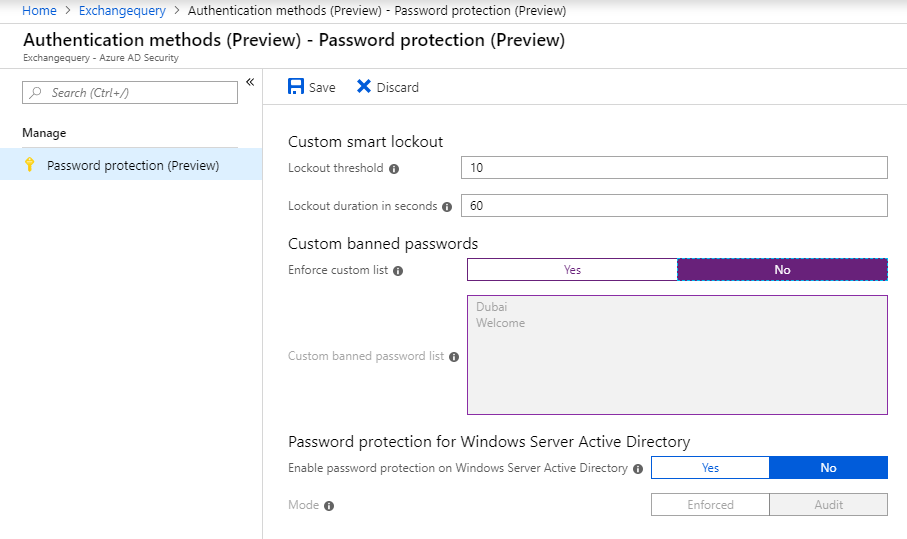
Enable Azure AD Password Protection for On Premise Windows server Active Directory

In this article we will have a look at enabling Azure AD password protection policy in On Premise Active Directory Server.

By Default this feature is enabled for cloud only users with a basic filter of Azure AD password protection with global banned password list.However if we still require Azure AD password protection with custom banned password list for Cloud only users then we would need to have at-least Azure AD Basic License the default value is below.

Continue reading

Exchange Mailbox audit in office 365

Post July 2018 the mailbox audit will be enabled by default for all mailboxes in the cloud.

In a hybrid setup ,Once after the mailboxes are moved to the cloud the mailbox audit will be enabled after they are converted to mailboxes from mail enabled users.

Earlier we have to run the Set-Mailbox -AuditEnabled $True every time we add a new mailbox or a mailbox is migrated to the cloud so that mailbox Audit is turned on.

Once the mailbox audit logging is enabled for owner actions we might see lots of items getting occupied for user actions in audit folder. This Audit logs is stored individually on users mailboxes itself in Hidden audit folder.

Get-MailboxFolderStatistics -Identity Helpdesk@exchangequery.com | select name,itemsinfolder,foldersize

Continue reading

Quick Tips – Search mailbox operation in office 365

In office 365 the search can be used to search in-place items from email, documents, Skype for business and Microsoft Teams.In this article we will look into the steps to search emails from  mailboxes present in office 365.

The search and delete operation can be executed when an important confidential  message is sent by mistake to unintended recipients, a suspicious message have been circulated to few users or it can be even a phishing email. Admin can run into any of the above scenario and can be requested to perform this action.

In office 365 we can use the native search-mailbox , compliance search or the content search available in the office 365 security and compliance center.

The search-mailbox is exactly similar to what we have in on premise.We have to be a member of Mailbox Search and Mailbox Import Export role group to execute the search and delete operation.

We need to establish PSSession to office 365 with below:

$Cred = Get-Credential
$Session = New-PSSession -ConfigurationName Microsoft.Exchange -ConnectionUri https://ps.outlook.com/powershell/ -Credential $Cred -Authentication Basic -AllowRedirection
Import-PSSession $Session

Search-Mailbox

SMBX0

Then we need to execute the search operation based on the search parameter , search query and operators as per our requirement to search the required data.

Example of basic search which allowed to log data to a target mailbox

Search-Mailbox -identity mbx@domain.com -SearchQuery ‘subject:test’ -Logonly -LogLevel full  -TargetMailbox mbx@domain.com -TargetFolder SearchResults

SMBX

SMBX1

The delete operation can be used to delete the content.

Search-Mailbox -Identity mbx@domain.com -SearchQuery ‘subject:test’ -DeleteContent

SMBX2

Compliance Search

We can use the compliance search operation to search and delete any emails from mailboxes present in office 365. We need to establish new pssession to compliance as below.

$Cred = Get-Credential
$Session = New-PSSession -ConfigurationName Microsoft.Exchange -ConnectionUri https://ps.compliance.protection.outlook.com/powershell-liveid/ -Credential $UserCredential -Authentication Basic -AllowRedirection

CS1

Once connected we can initiate new compliance search with New-Compliance search commandlet.

First New-Compliance search with required  parameter and content match query needs to be created.

New-ComplianceSearch -Description Marketing-Search -Name MarketingTeam -Exchangelocation alias@domain.com -ContentMatchQuery “‘Teach English in China'”

CS2

Then we need to start the compliance search with Start-ComplianceSearch

Start-ComplianceSearch -Identity searchname

Post this operation we have 3 options with New-ComplianceSearchAction report only mode , export the searched data also delete the search results as below example.

Report Mode

New-ComplianceSearchAction -SearchName SearchName -Report

CS3

Export Mode

New-ComplianceSearchAction  -SearchName SearchName -Export

CS11

After we run the command with export once export is completed it will be available in the security and compliance center in the export section ready for download.

Untitled24

We can also use the delete option

New-ComplianceSearchAction -SearchName SearchName Puirge -PurgeType softdelete

CS4

Get-ComplianceSearch can be run to check the existing executed compliance searches.

untitled41

Content Search

We can also use the content search option available in office 365 security and compliance center. Here we can specify the content locations from where it has to be searching the required content.

Here we have 3 options to search.

New Search – which is the default option and provides the search query parameters and conditions.

Untitled26

Guided Search –  Guided search  has the same options like new search except it has an addition guided wizard like below. Rest of the search query parameters and the conditions remains the same.

Untitled26

ID Search –  We can perform a targeted search based on providing a csv input file.

Untitled26

For ID search we need to provide a well formatted CSV input as mentioned in this Technet  format the document ID column and populate the selected column as mentioned in the article.

Once the CSV is prepared and imported it will be ready for  save and run as below.

Untitled26

After the save and run operation we get the results as below

Untitled26

We have options to choose the locations from where the data has to be fetched from modify location. This option is available only on New Search and Guided Search.

After specifying the location – add the search query keywords – date range – sender and other required parameters based on the search requirement.

Content


once the search query is completed we can see the search results in the searches tab like below

Content1


We have an option to download the search results

Content2

We have options  to export the report  like below.

Untitled25

Imp Notes:

  1. The ID search is limited and supported only for mailbox items.
  2. We need to be member of Organization Management or at least Compliance Administrator role group in-order to consume this service from Security & Compliance Center.

Continue reading

Configure DKIM in office 365 Environment

In this article we will go through the steps to enable DKIM in pure  office 365 cloud environment.

For understanding DKIM concepts and  Enabling DKIM in on premise environment you can follow my previous blog 

The main difference between enabling DKIM in on premise environment and office 365 is:

  1.  In on premise we keep the private keys in our outgoing Anti spam gateway or DKIM agent which will be responsible for signing every outbound emails with DKIM stamp. Later we publish the public key in the DNS record.
  2.  But office 365 requests the customers to publish the CNAME and point them to a public key in DNS which will delegate the corresponding name space to office 365.

With this office 365 CNAME option we can rotate the keys whenever required. Because in this case the private key is owned by Microsoft and the public key is maintained in their office365 DNS records. We just need to create CNAME in our DNS console only for the first time. Later we need to create CNAMES only for the new domains we are adding in office 365.

First we need to enable DKIM from the Exchange admin center from the office 365 portal – navigate to protection – click on DKIM tab

We can enable for the routable domains registered with office 365. But when we enable them without publishing the DNS records for DKIM then we will get the below error.

Untitled

We have to publish DKIM DNS records as below:

Create 2 CNAME records for 2 selector’s to sign the outgoing emails with DKIM.

In our case we need to create below records from the DNS hosting provider console.

Host name: selector1._domainkey.exchangequery.com
Points to address or value: selector1-exchangequery-com._domainkey.exchangequery.onmicrosoft.com
TTL: 3600

Host name: selector2._domainkey.exchangequery.com
Points to address or value: selector2-exchangequery-com._domainkey.exchangequery.onmicrosoft.com
TTL: 3600

Untitled1

Untitled2

Once we create these 2 CNAME records office 365  will take care of signing all the outgoing emails with DKIM with their signing agents.

Now if we go to office 365 portal and enable the DKIM it will get enabled. If we have a closer look we have an option to  rotate DKIM keys just in one radio button which is amazing option. Ideally its  not required to do this option from our side  since office 365 will do the rotation  of their keys once in a while as a part of their security checks.

Untitled3

To verify if the mail is signed by DKIM we can send one test email to gmail and if it says signed by your domain name then its DKIM enabled outbound email.

Untitled4

In the message headers we can see the DKIM status as passed.

Untitled8

Further if we look into the message headers we can see

Authenticated Received Chain (ARC)- New email security mechanism standard Which is currently used by office 365.
DomainKeys Identified Mail (DKIM)-  If the DKIM is enabled we see the DKIM value as pass.
Sender Policy FrameWork(SPF)-  SPF verification results.

Untitled6

Also in the DKIM signature we can see the selector and the domain name like below

Untitled5

Further we can look into the DKIM public keys by running the below command.

Get-DkimSigningConfig -Identity exchangequery.com | fl

Untitled9

Additional General Info:

Below can be the possible results as a part of DKIM test in the message header.

  • DKIM=Pass – Message was Signed.
  • DKIM=Fail – The message was signed and the signature or signatures were acceptable, but they failed the verification test(s).
  • DKIM=None – The messages were not signed.
  • DKIM=Policy – The messages were signed but the signatures were not acceptable.
  • DKIM=neutral = The message was signed, but it was not formed correctly. This is possibly a configuration error on the sending domain side.
  • DKIM=temperror – This is a temproary error where unable to verify the public key for the DKIM verification.
  • DKIM=permerror = The message could not be verified due to some error that is unrecoverable.

Continue reading