
In today’s enterprise landscape, most applications are accessed through modern browsers like Microsoft Edge and Google Chrome, especially on Windows devices. While these browsers come with built-in security features, organizations must go a step further to enforce consistent and robust browser security policies across all endpoints.
If your organization uses Microsoft Intune, you have powerful tools at your disposal to configure and enforce browser security settings. In this blog, we’ll walk through 10 essential browser security controls you can implement using Intune’s Settings Catalog to enhance protection against web-based threats.
1. Enable Windows Defender SmartScreen
SmartScreen helps protect users from phishing attacks and malicious websites or downloads.
Recommended Settings:
- Enable Windows Defender SmartScreen
- Don’t allow SmartScreen warning overrides for unverified files
- Don’t allow SmartScreen warning overrides
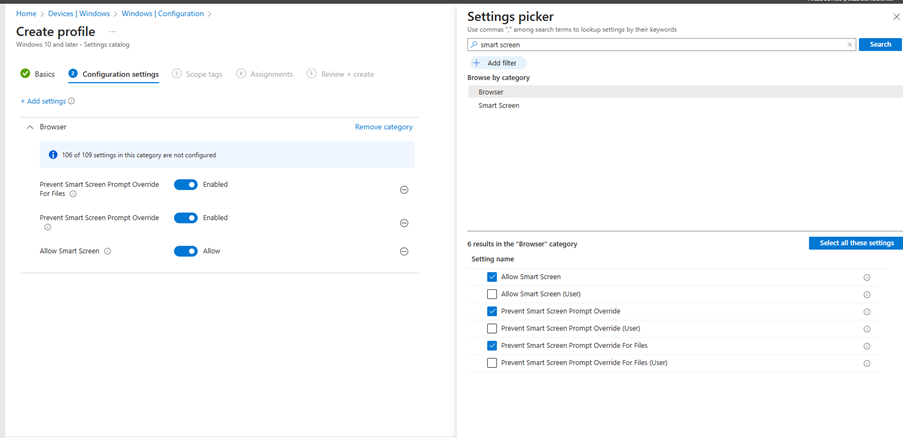
These settings ensure users are warned about potentially harmful content and are prevented from bypassing those warnings.
2. Enforce Enhanced Security Mode
Enhanced Security Mode provides additional protection against zero-day exploits and other advanced threats.
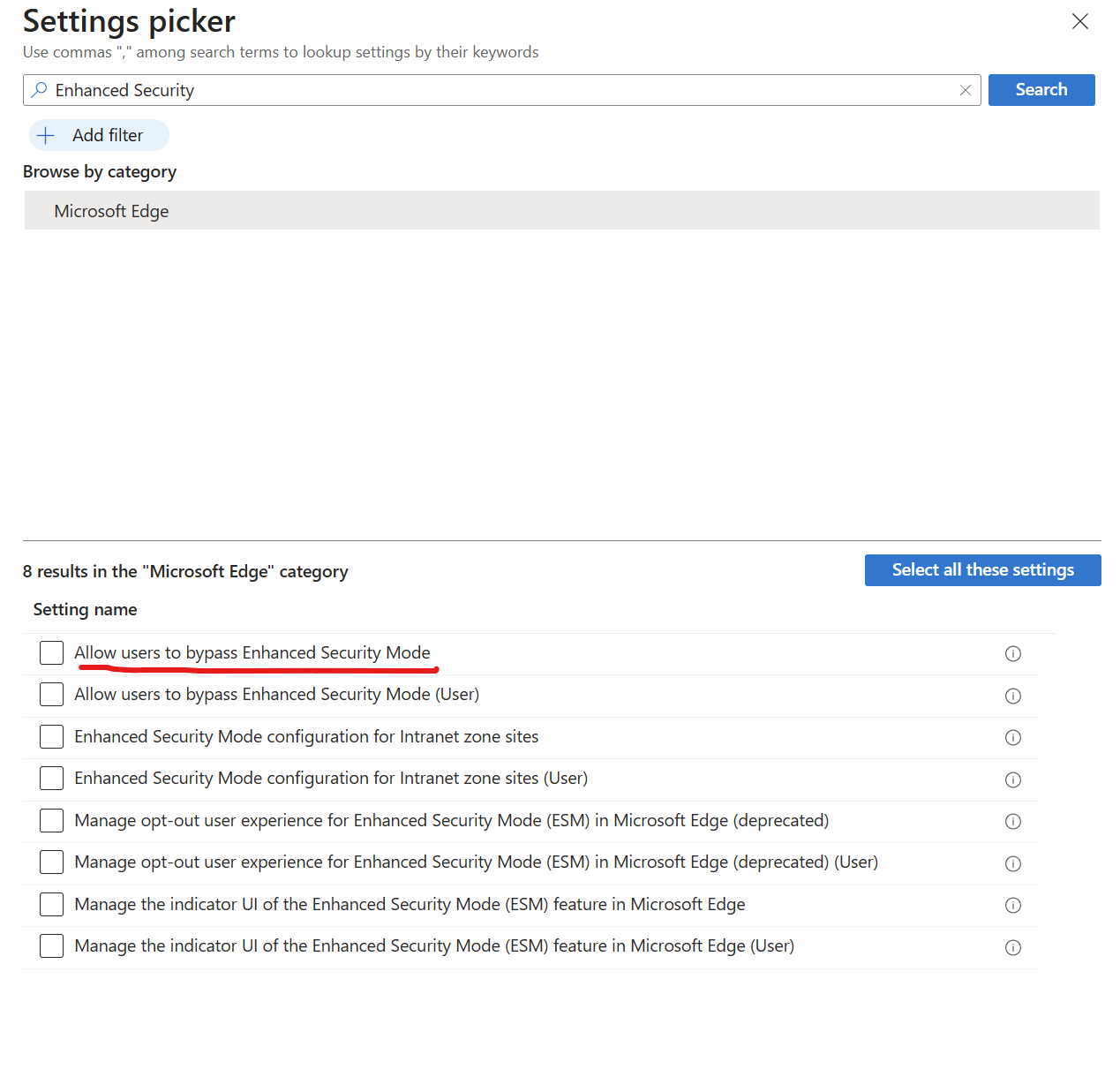
Recommended Setting:
- Allow users to bypass Enhanced Security Mode → Set to Disabled
This ensures users cannot disable enhanced protections, maintaining a higher security posture.

3. Enable TypoSquatting Checker
TypoSquatting Checker warns users when they attempt to visit domains that closely resemble popular websites, helping prevent phishing attacks.
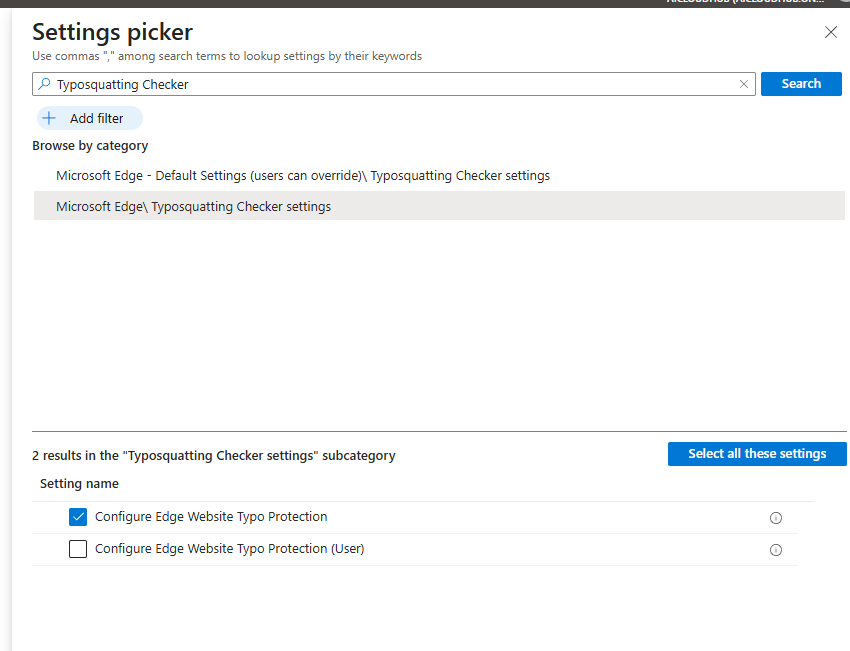
Why it matters: It reduces the risk of users being tricked into visiting malicious lookalike domains.

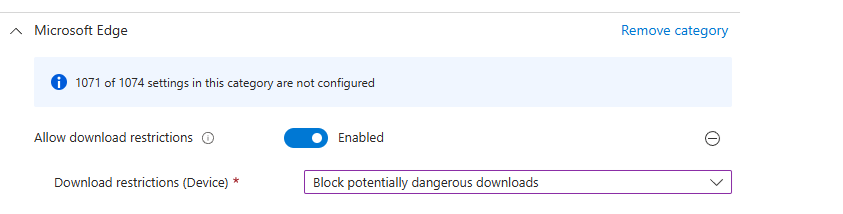
4. Warn on Insecure Downloads
This setting alerts users when they attempt to download potentially dangerous content over HTTP.
Recommended Setting:
- Enable insecure download warnings
This helps prevent accidental downloads of malware or other harmful files from unsecured sources.
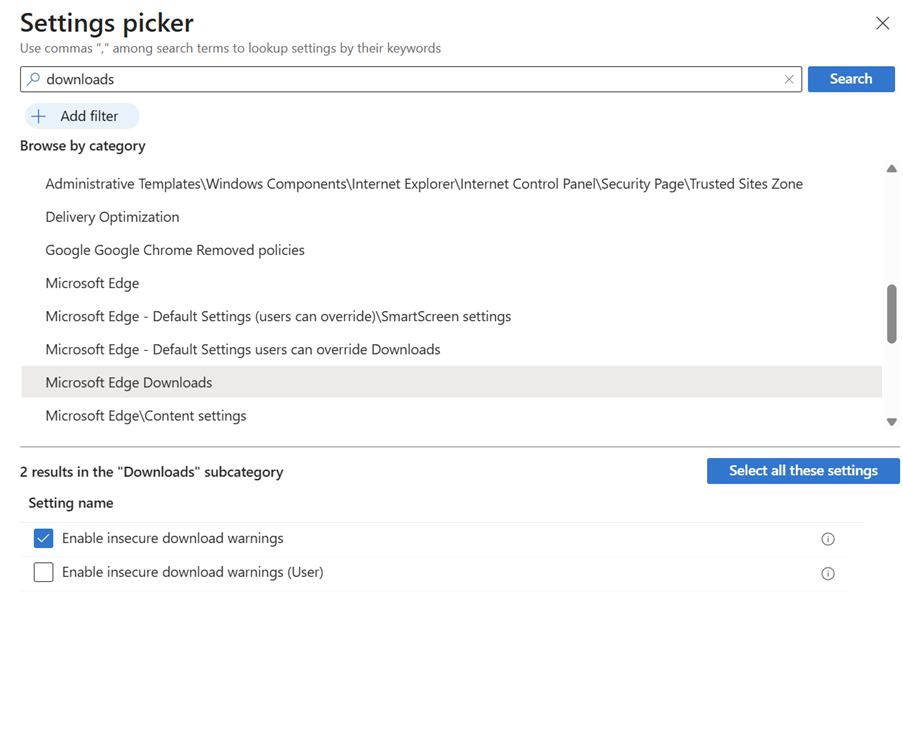
Enables warnings when potentially dangerous content is downloaded over HTTP. If you enable or don’t configure this policy, when a user tries to download potentially dangerous content from an HTTP site, the user will receive a UI warning, such as “Insecure download blocked.” The user will still have an option to proceed and download the item. If you disable this policy, the warnings for insecure downloads will be suppressed
5. Manage Browser Extensions
Extensions can be a major attack vector. With Intune, you can control which extensions are allowed or blocked.
Tip: Use extension management settings to allow only trusted extensions and block unknown or malicious ones.

For example you can choose block external extensions from being installed.


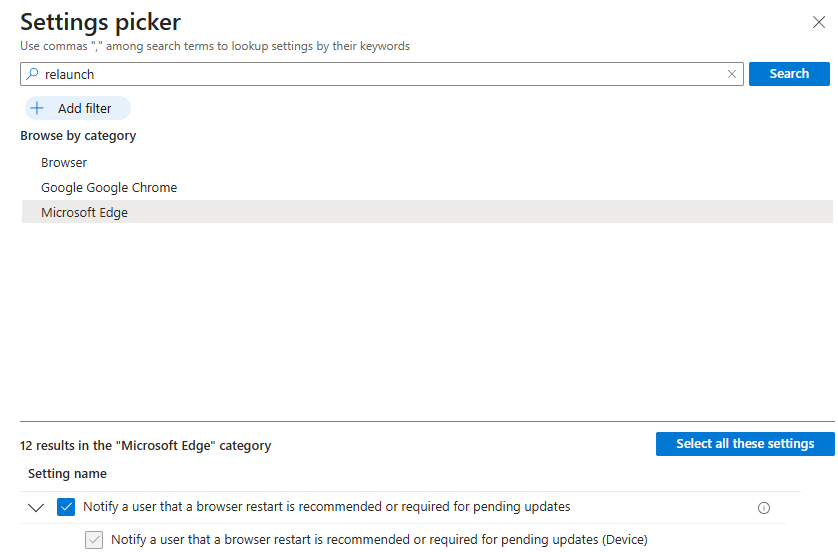
6. Force Browser Relaunch for Policy Updates
Ensure that policy changes take effect by configuring Edge to prompt users to relaunch the browser when necessary.
Why it matters: This ensures that security settings are applied without delay.

Make sure you apply this for Microsoft Edge as well
7. Enable Safe Browsing
Safe Browsing helps protect users from dangerous websites and downloads.
Recommendation: Enable this feature to provide real-time protection against known threats.

There are quite a lot of useful features here that could be enabled
Lets talk about password protection warning trigger

Setting the policy lets you control the triggering of password protection warning. Password protection alerts users when they reuse their protected password on potentially suspicious sites. Leaving the policy unset has the password protection service only protect Google passwords, but users can change this setting.
8. Restrict Downloads
Control what types of files can be downloaded and from where.
Use Case: Prevent users from downloading executables or files from untrusted sources.

9. Block Malicious Extensions
Prevent installation of extensions known to be harmful or that violate your organization’s policies.
How: Use the extension blocklist feature in Intune to define disallowed extensions.


This is present on the Edge as well
10. Use Intune’s Settings Catalog for Granular Control
All of the above settings can be configured using the Settings Catalog in Intune:
- Go to Intune Admin Center
- Navigate to Devices > Configuration profiles
- Create a new profile for Windows 10 and later
- Choose Settings Catalog as the profile type
- Add and configure the relevant browser security settings
For example you have option to disable incognito mode .This policy setting lets you decide whether employees can browse using InPrivate website browsing.
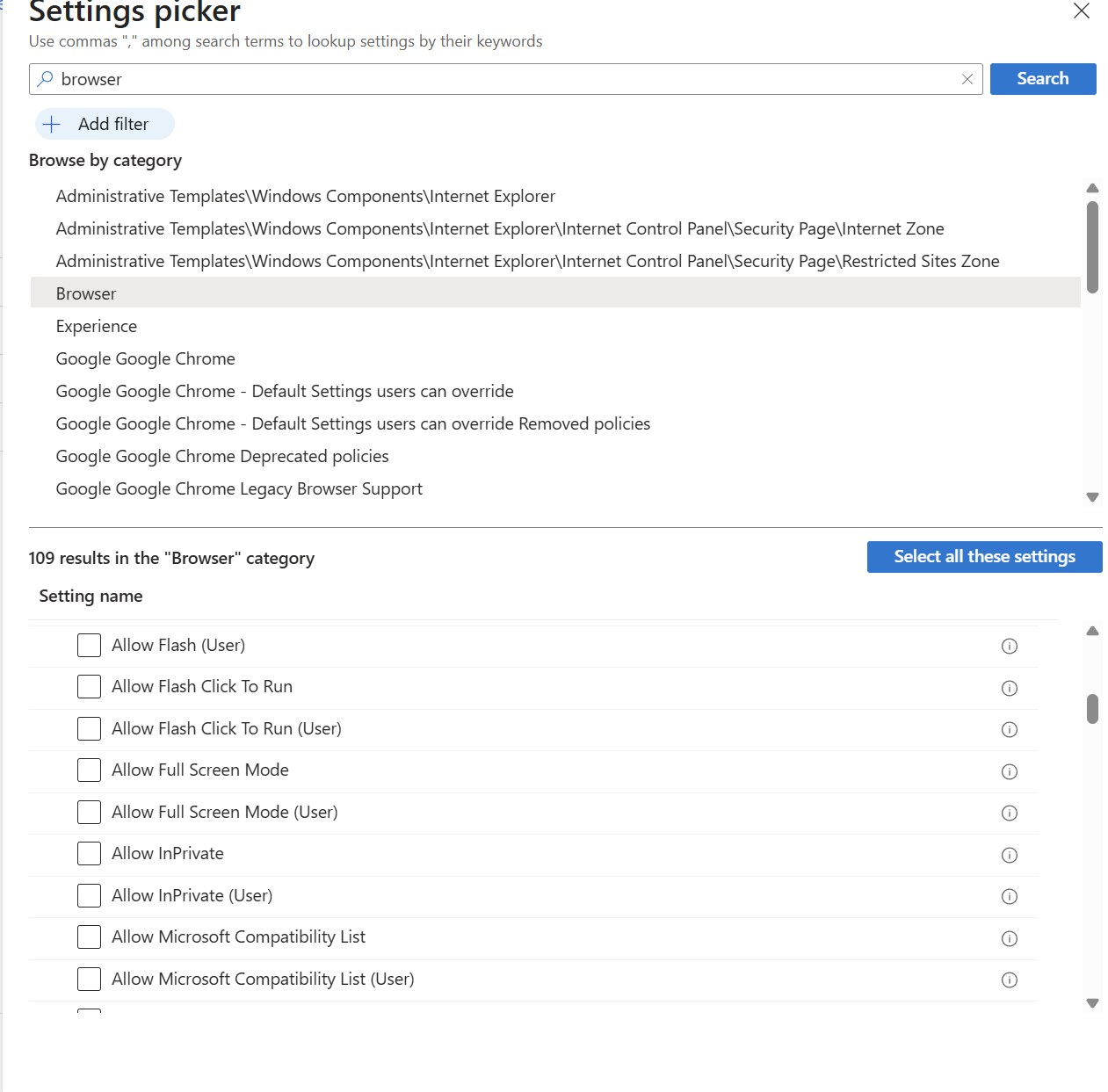
We also have for example prevent cert error overrides.With this policy, you can specify whether to prevent users from bypassing the security warning to sites that have SSL errors. If enabled, overriding certificate errors are not allowed.

What’s Next?
These 10 controls are a great starting point for securing browser activity in your organization. In the next blog, we’ll explore advanced browser controls and additional Intune settings that can further enhance your security posture.
Stay tuned, and feel free to share your feedback or questions in the comments!
Sathish Veerapandian
Tagged: cybersecurity, Intune, Microsoft, Security, technology

 Tej Pratap
 Ewald Hollestelle
 rsujiraja
 Sathish Veerapandian
 EzCloudInfo
Leave a comment