
Introduction
Microsoft Entra Verified ID transforms identity verification by enabling secure, privacy‑preserving, verifiable credentials. Whether you’re implementing Account Recovery (Preview) or integrating a trusted identity verification partner like AU10TIX, the onboarding process requires a few key steps: enabling the provider, provisioning resources, activating the integration, and validating the recovery flow.
This blog walks through the full, end‑to‑end Verified ID setup using AU10TIX as the identity verification provider. You’ll find prerequisites, detailed configuration steps, screenshots, and a summary to help you complete the setup smoothly
Prerequisites
Before you begin, ensure the following:
- Verified ID Setup :
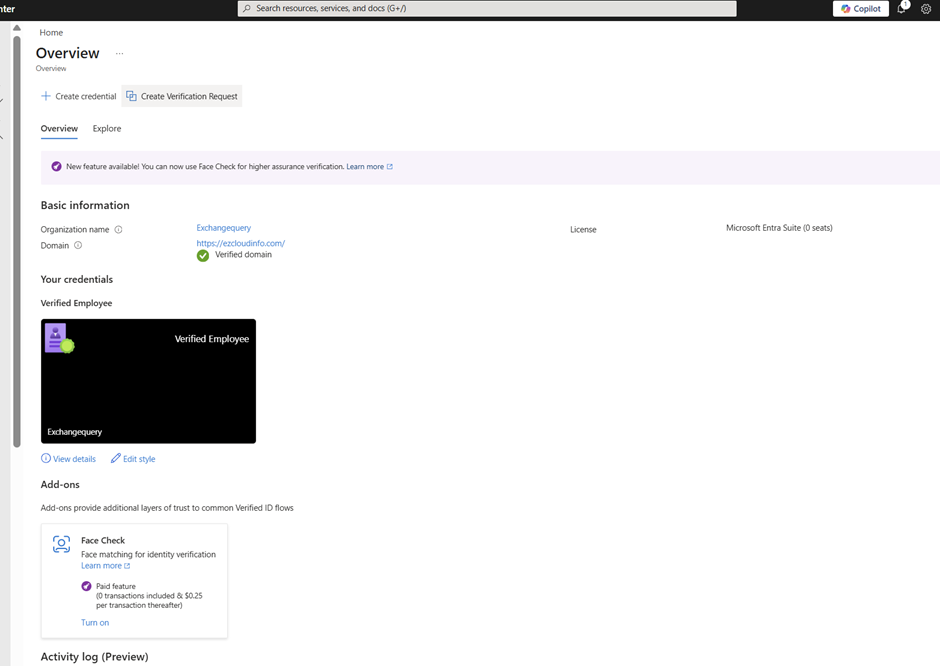
You need to have the Verified ID setup properly configured in your tenant first and the foremost thing to do before proceeding to any steps. If this one is not setup then the account recovery (Preview) is not going to work . Especially your domain needs to be a verified domain here.
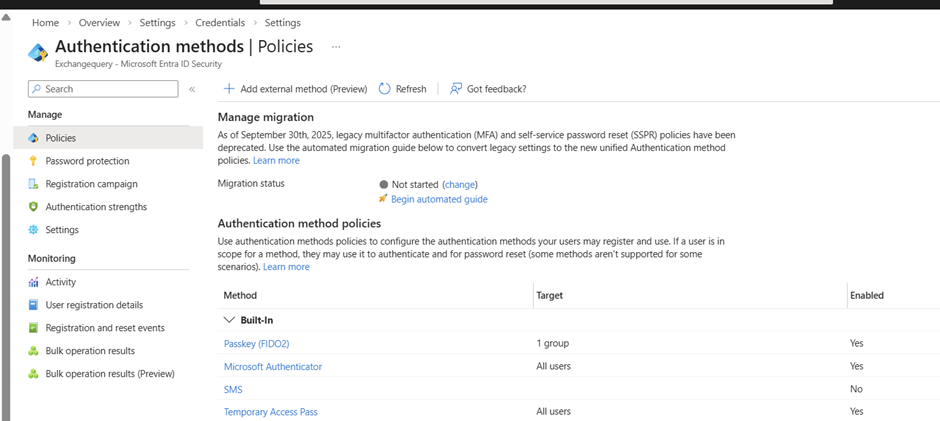
Also in the Authentication method you must have the Temproary Access Pass Enabled
- Azure Subscription
A valid Azure subscription is required. This allows Verified ID resources to be provisioned automatically within your tenant. - Microsoft Entra Permissions
You should be a Global Administrator or Authentication Policy Administrator. - Verified ID Provider Trial
You must choose and activate at least one Verified ID partner—in this case, AU10TIX—and start their 1 month trial subscription.
Time for Provisioning:
The initial deployment of Verified ID resources may take several minutes.
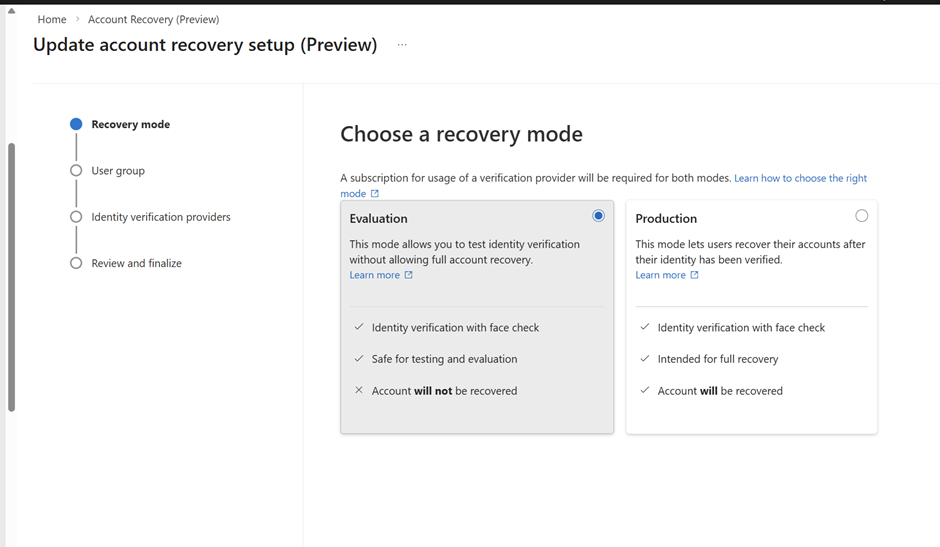
There are 2 options here Evaluation mode and Production mode. You can start with Evaluation mode in the beginning an later move to the production mode.
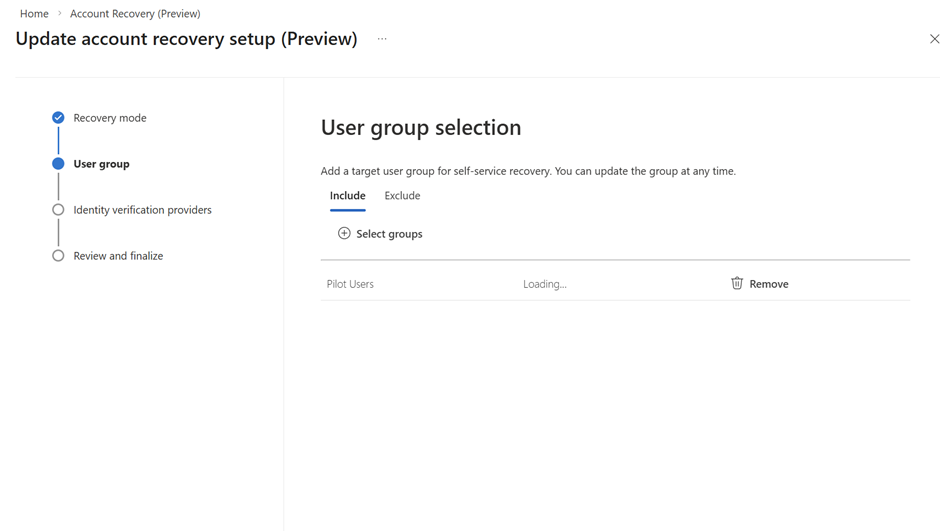
Here you can target the group eligible for this feature. Good idea to start with pilot and later move to the wider audience group.
Now here we need to select the identity verification providers. At this moment there are 3 of them which is recommended and supported by Microsoft as partners. All 3 of them offers a trial version for 30 days which you can evaluate and see the results. In my example I have chosen AUX10
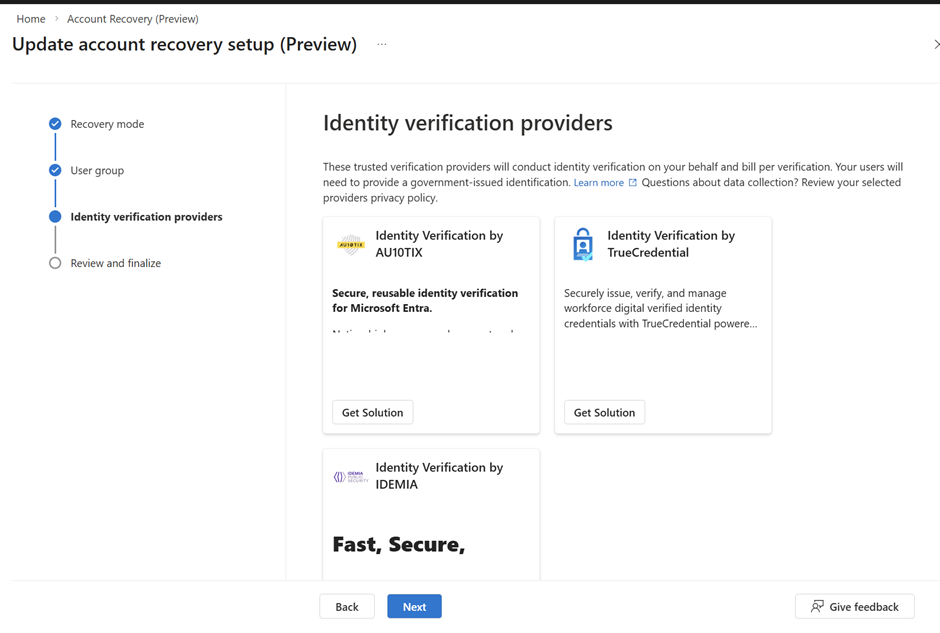
Choose one Verified ID provider
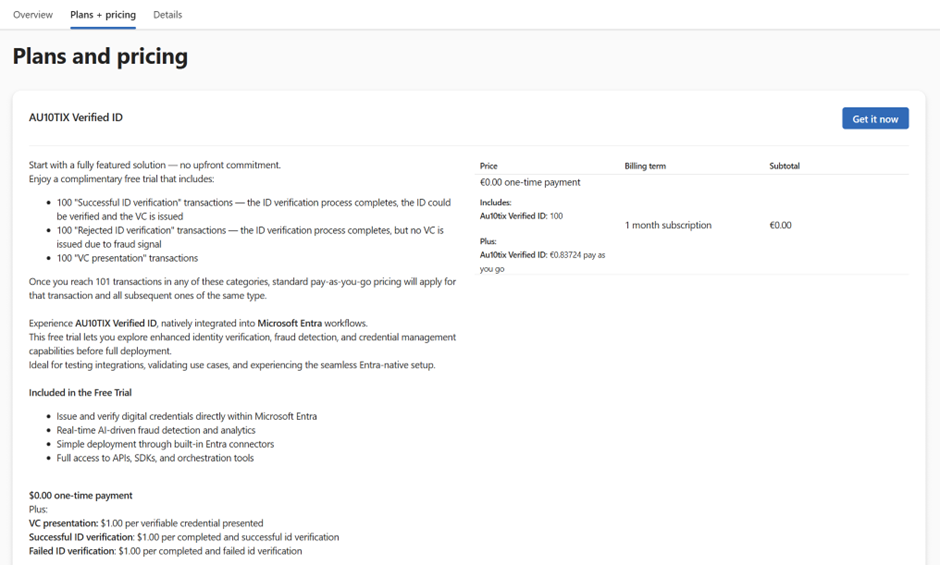
Choose 1 month subscription trial
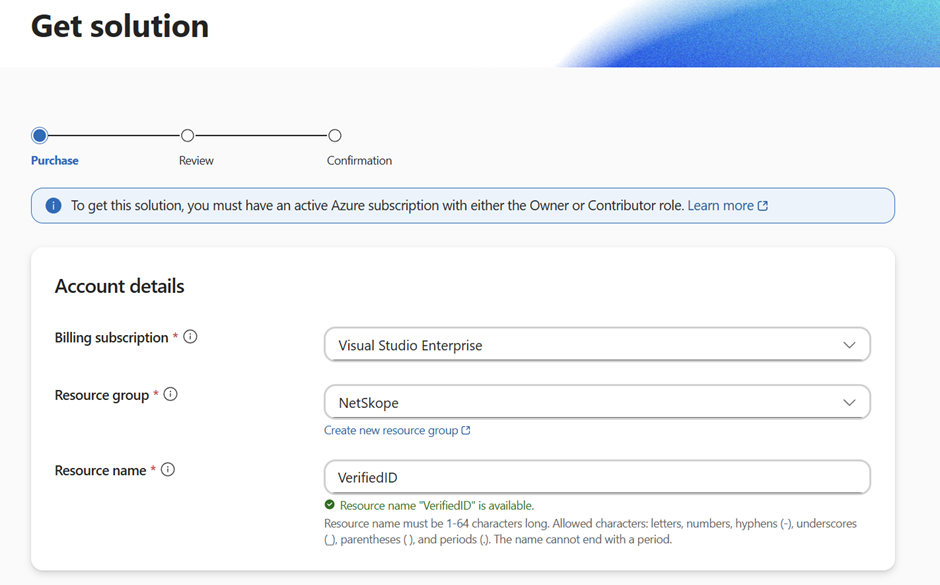
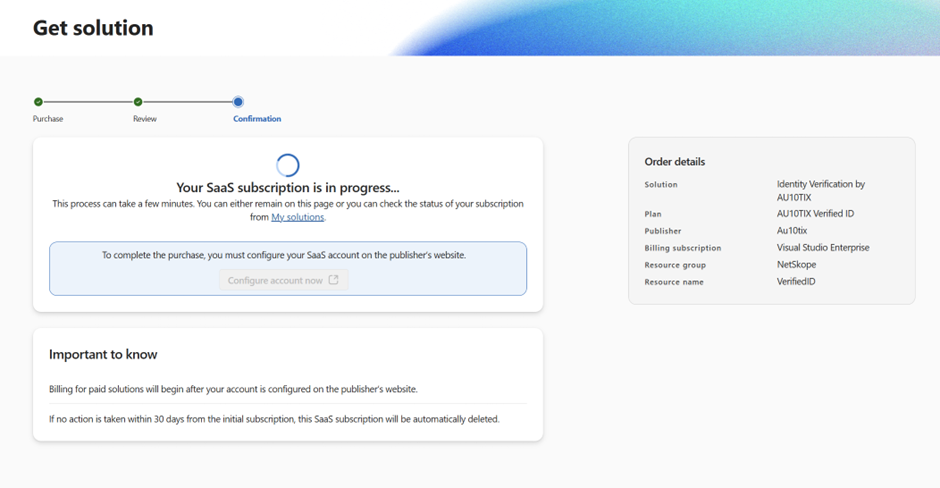
You need to have a valid Azure Subscription for the required resources to be provisioned in your tenant
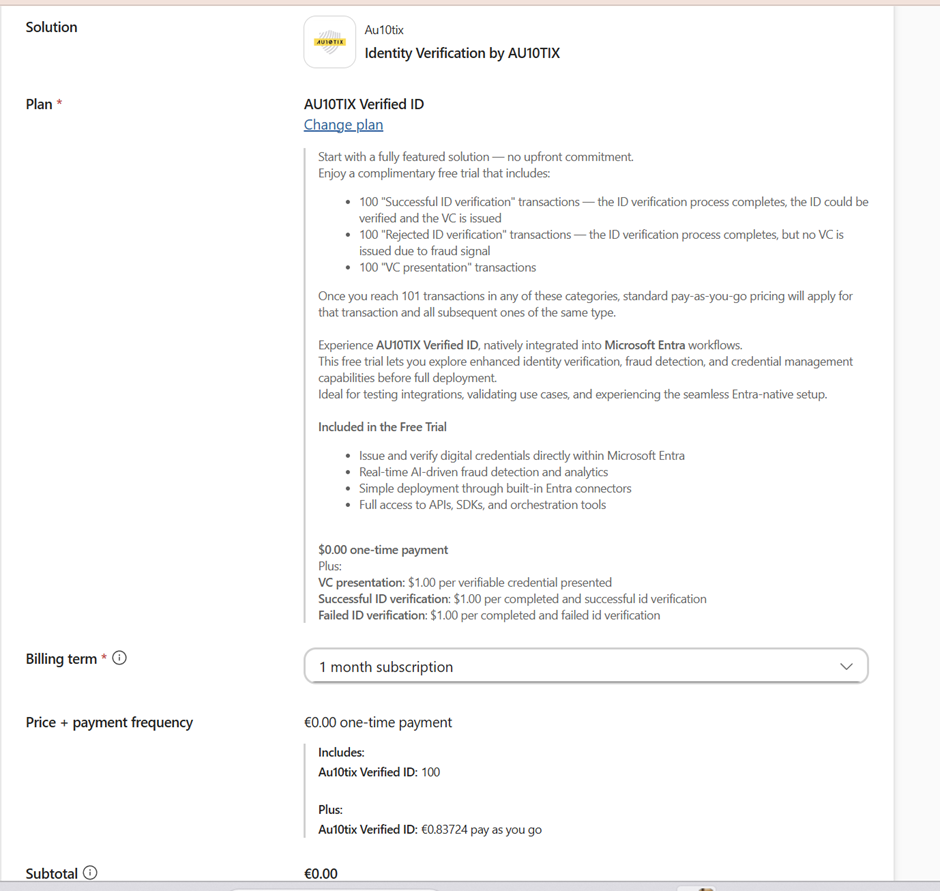
So it takes some time for the resource to be provisioned in your tenant
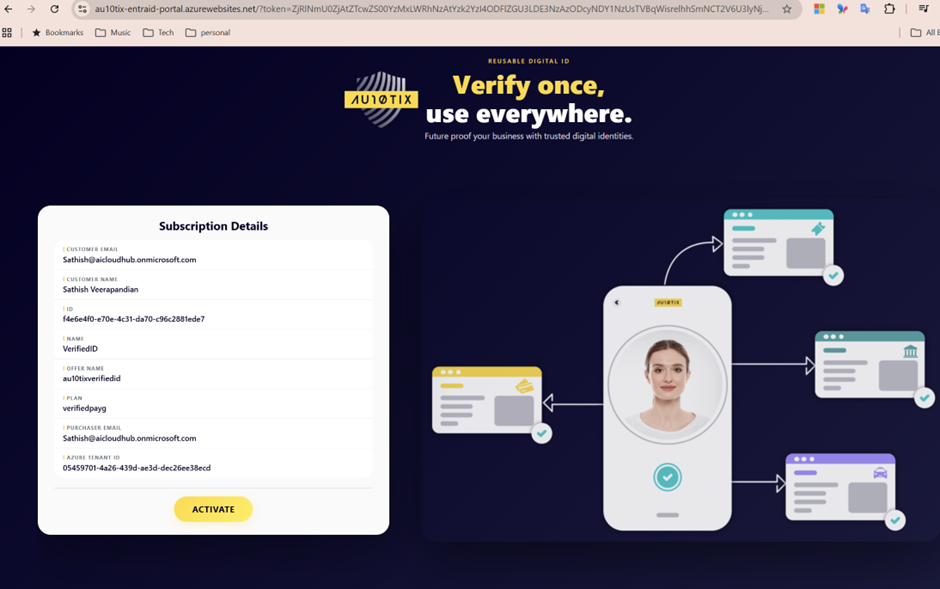
Then we need to activate them on the AU10X website
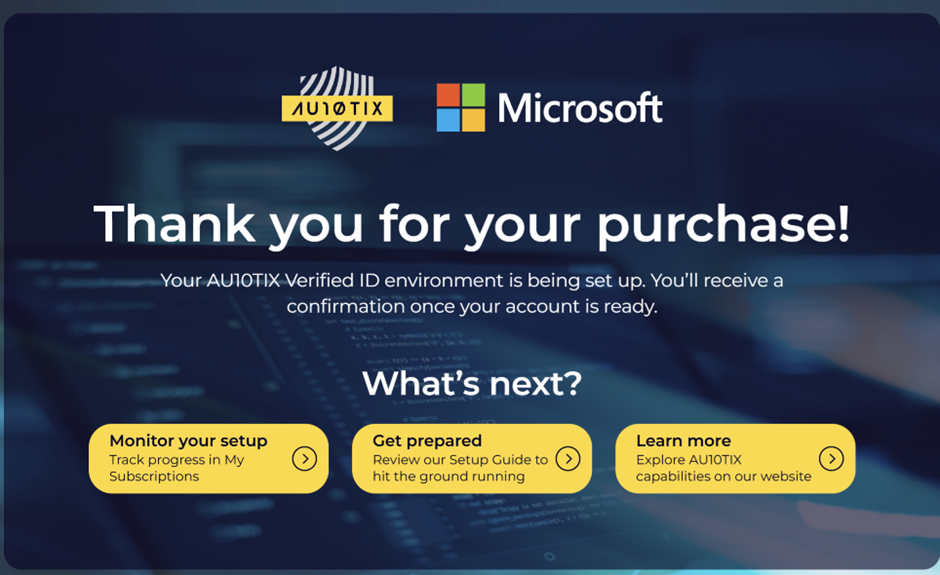
Post Activation we need to wait for sometime to successfully complete the initial step
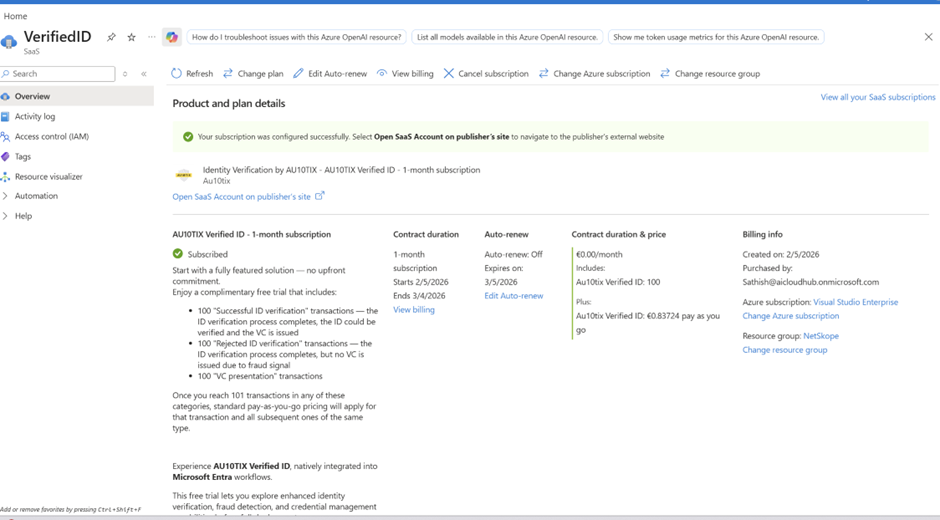
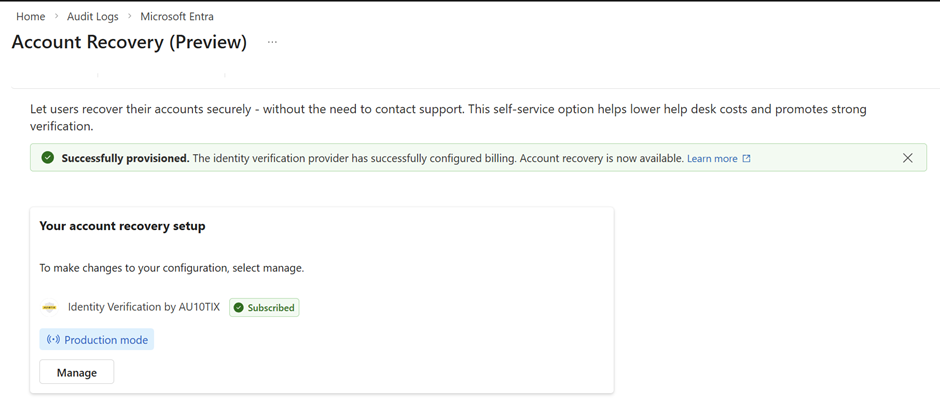
Finally in the subscription we have the resources deployed
we have to select the chosen Verified ID
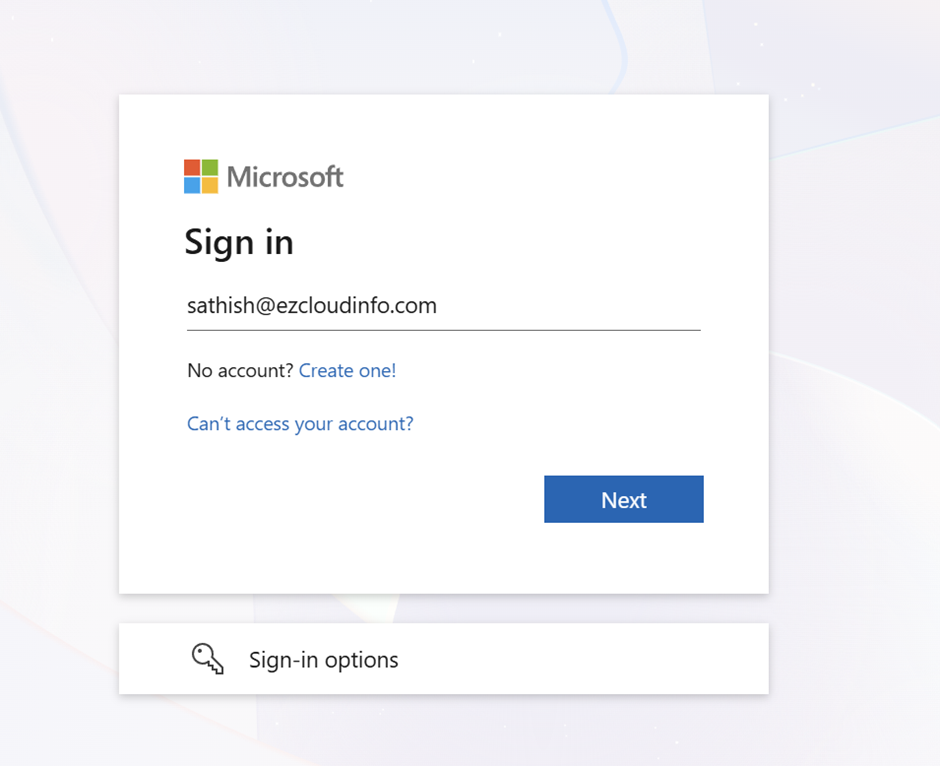
Now Testing login to common endpoint login.microsoftonline.com
Select the option can’t access your account
And choose the option sign in other way
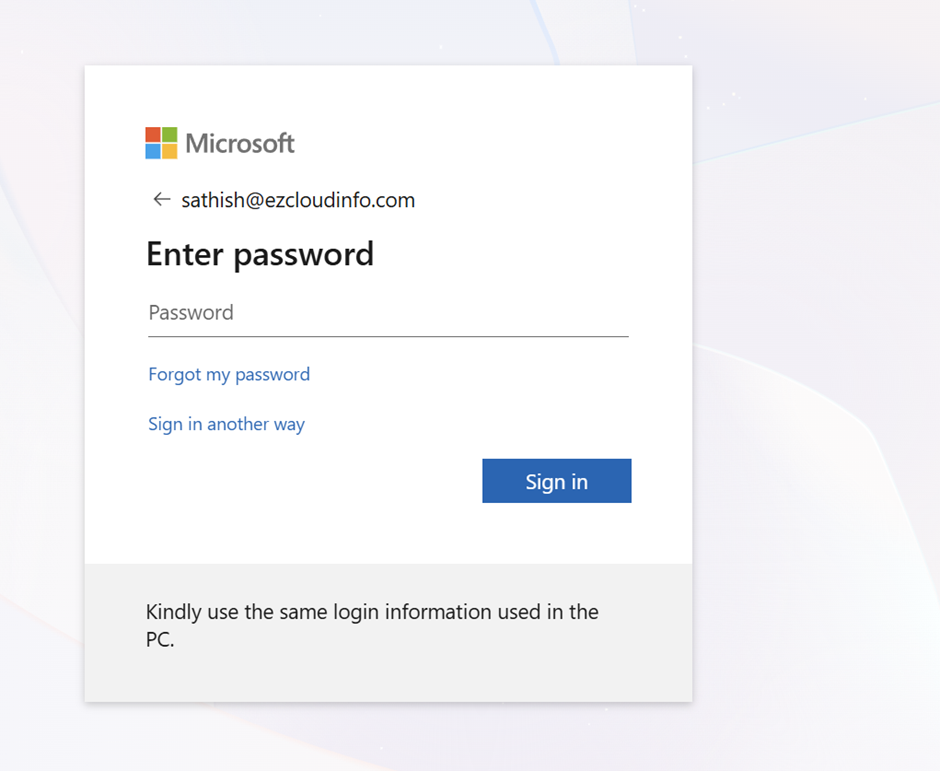
And then you see the option Recover your Account. Keep in mind you will not see recover your account option if you are testing this with an account that does not have Authenticator setup.
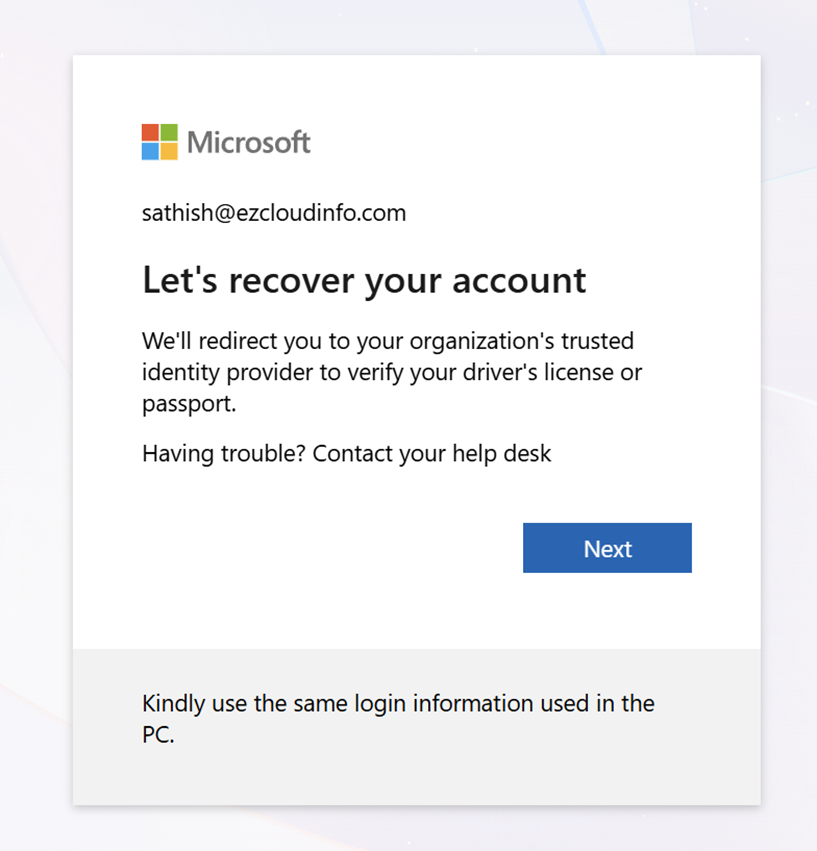
Now click on recover your account

So now you will be redirected to the verified ID provider in our case its AUX10

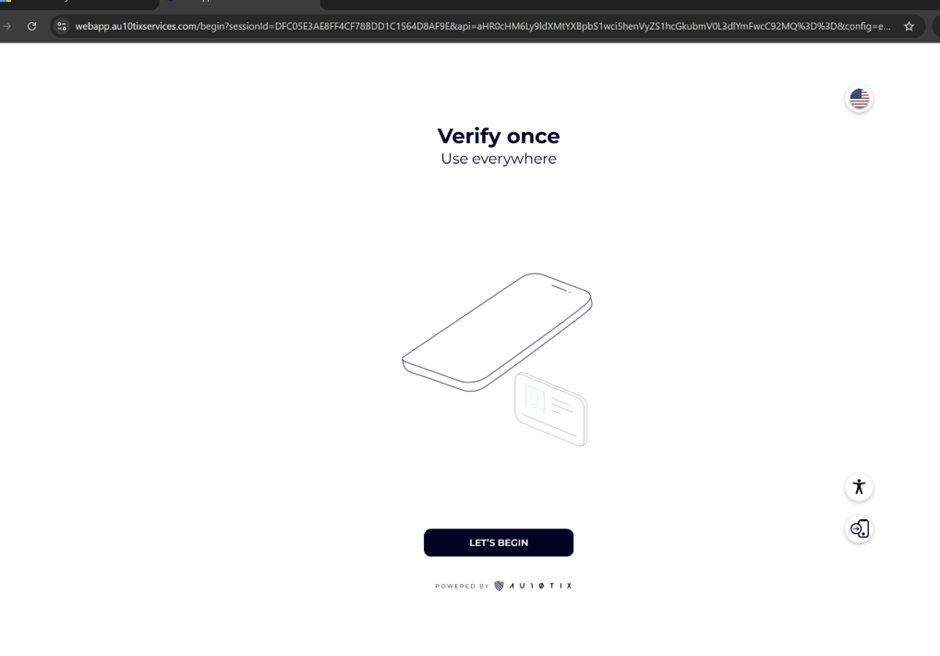
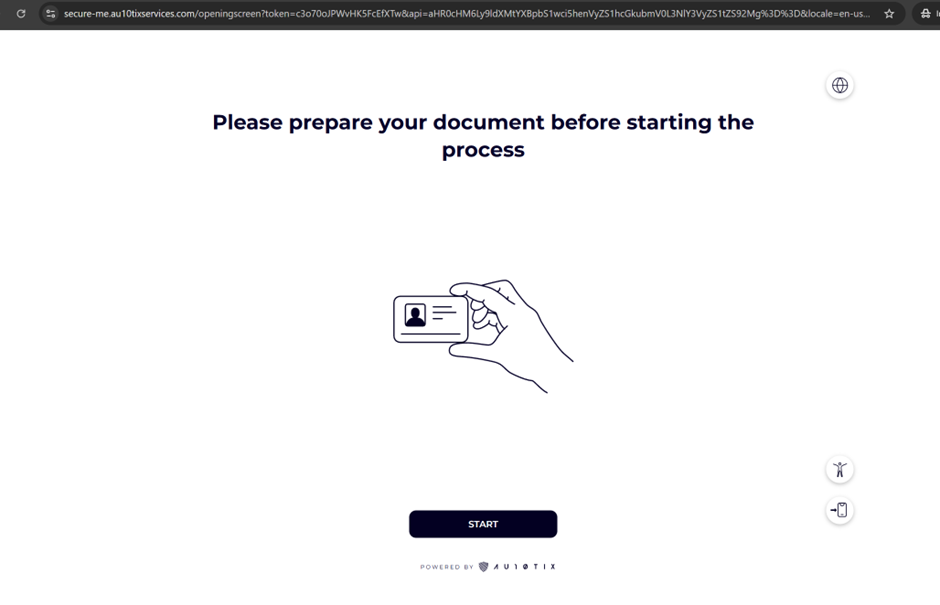
Now in the next screen it will ask you to prepare the document
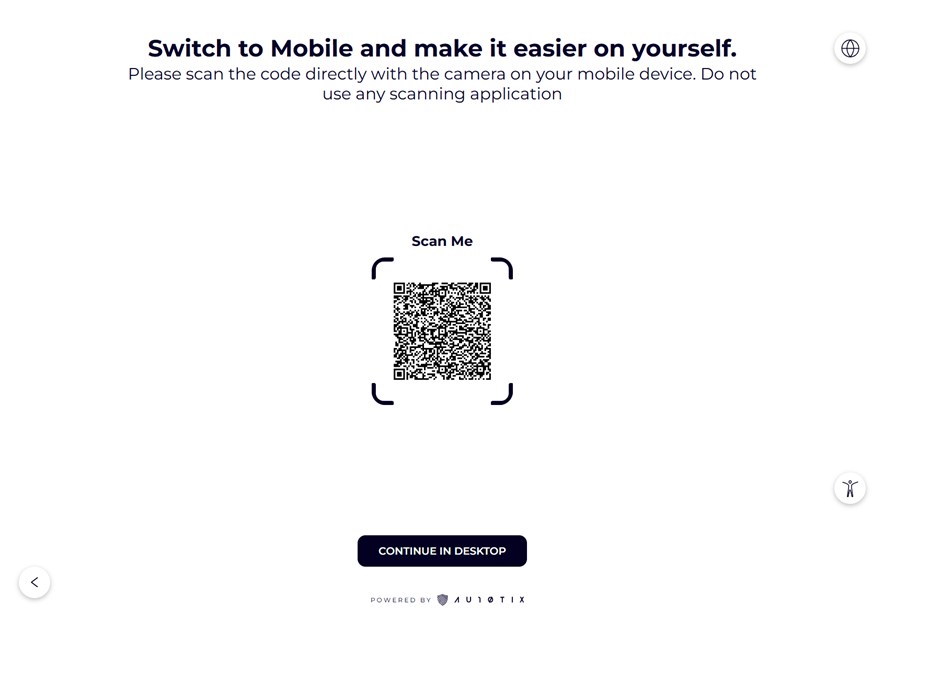
There will be an option presented to switch to mobile and make it easier or continue on desktop
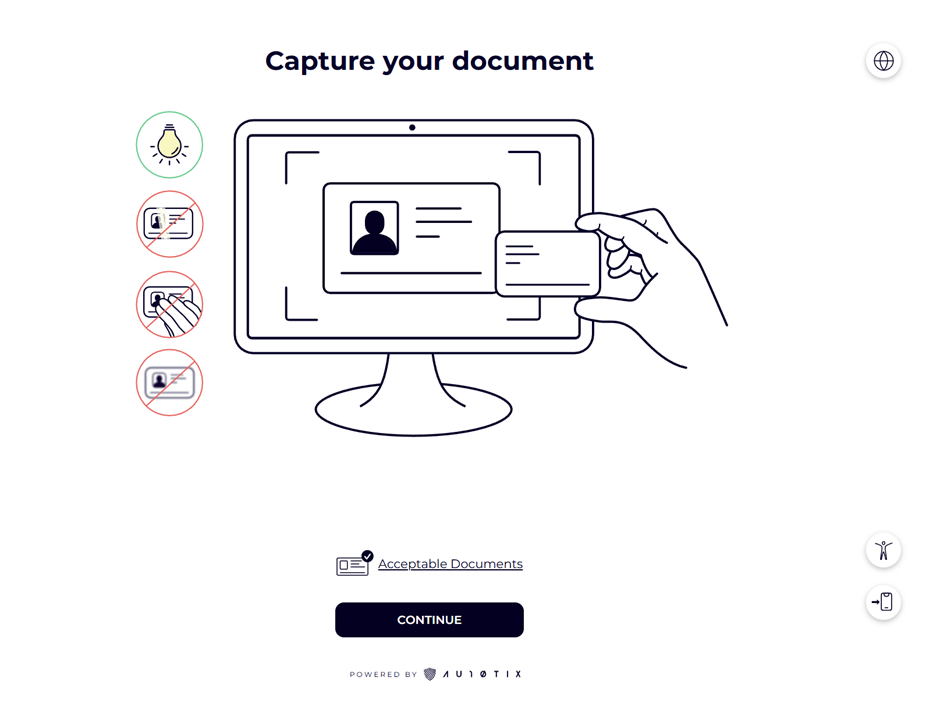
In the next screen we will be asked to capture your document that proves your identity
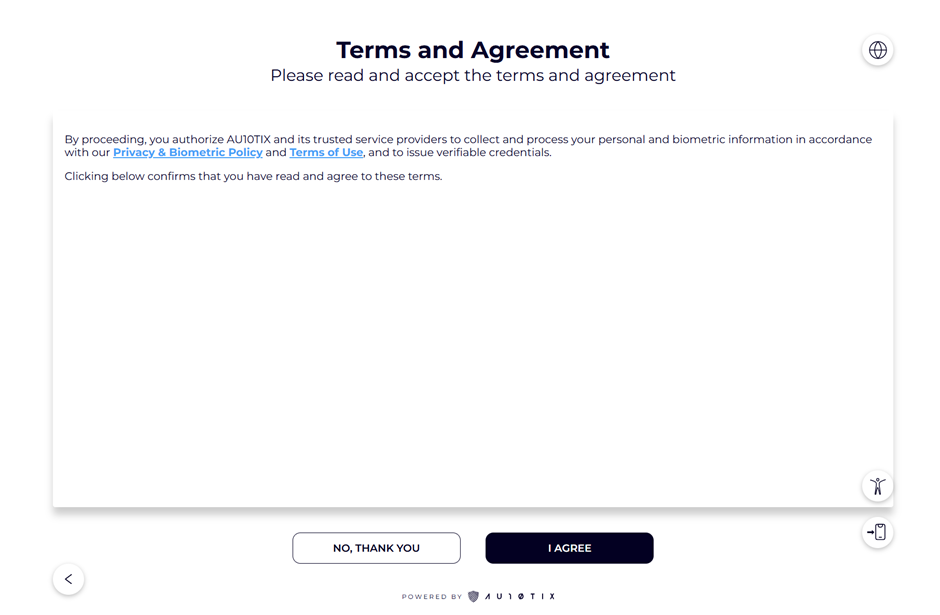
Before proceeding you need to accept the terms and agreements
Now Capture your document for verification
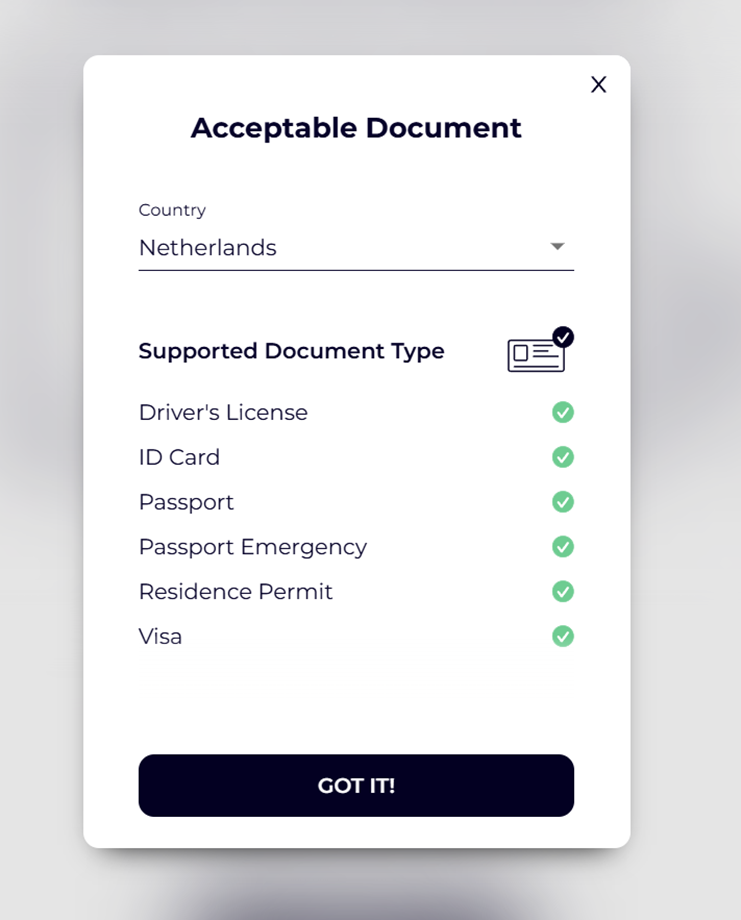
The acceptable documents are listed based on the issuance of the documents from that country
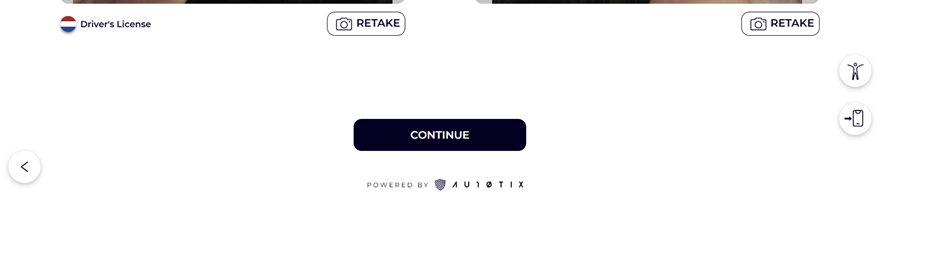
Post scanning the documents it automatically detects the type of the document
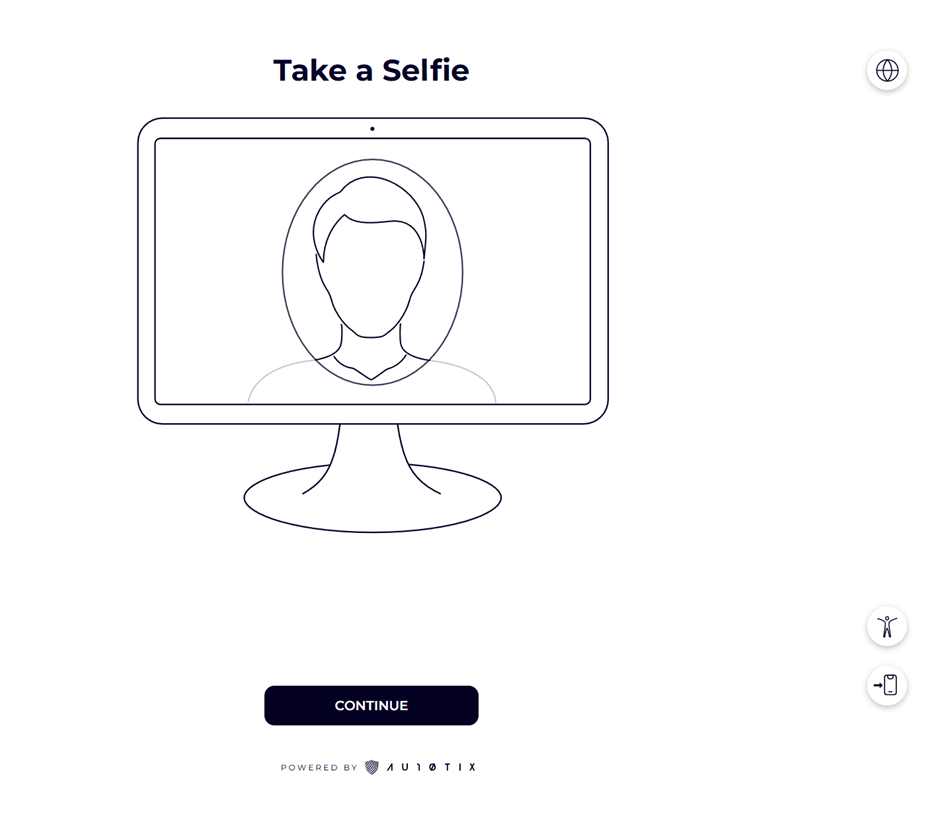
The final step it will ask to take a selfie
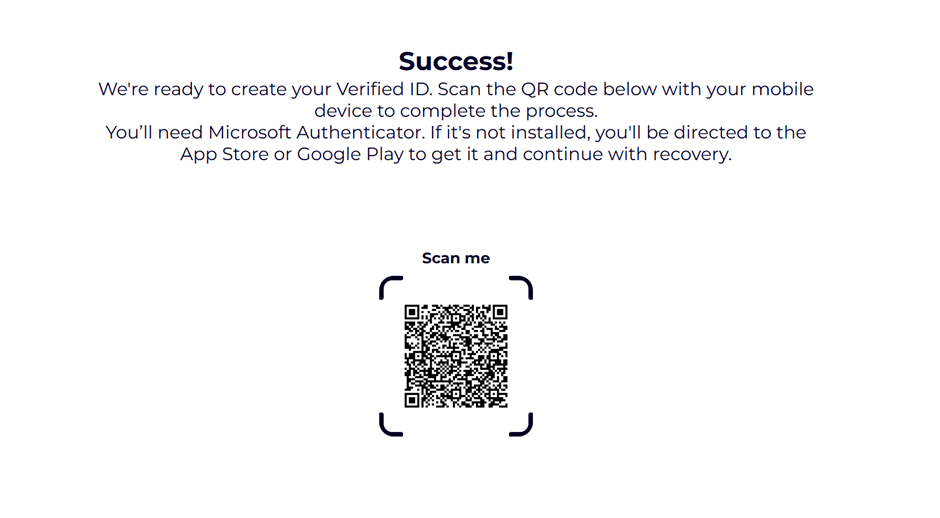
Now we need to complete the last step via the mobile phone & Authenticator App to create the Verified ID
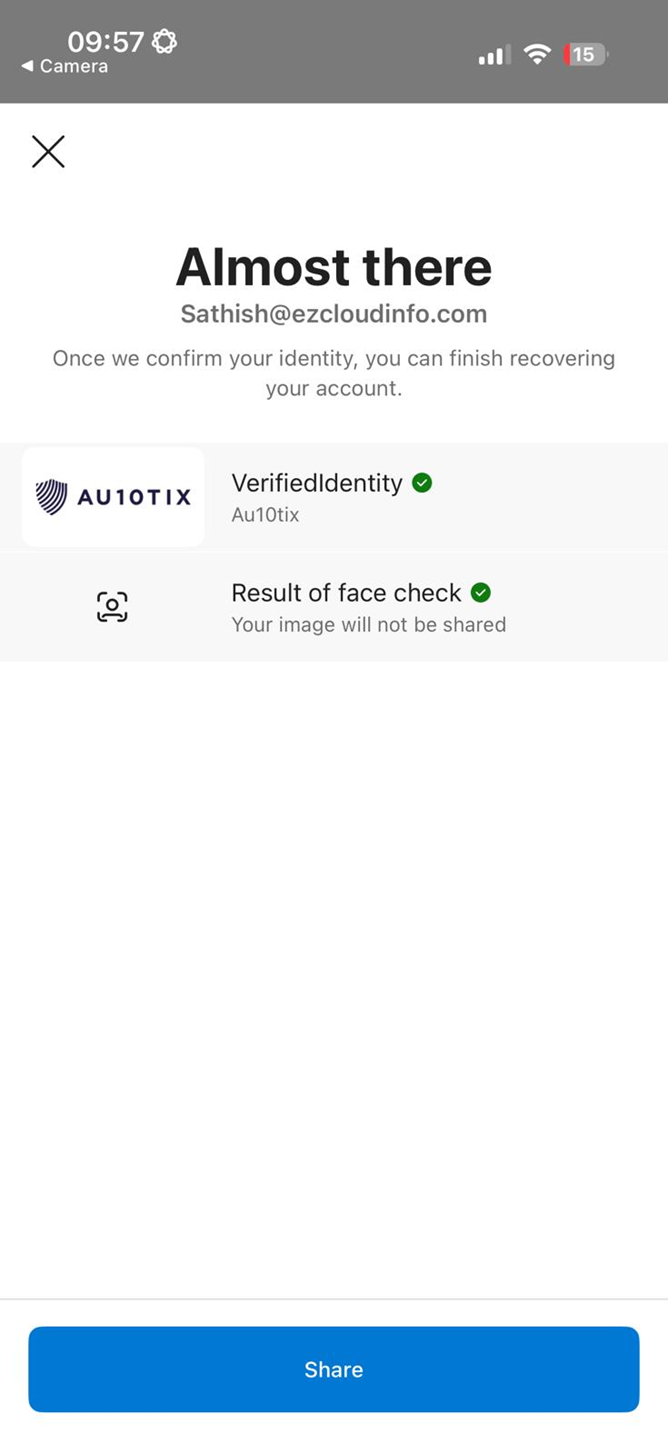
A successful verified ID will look like this in your mobile device in the Authenticator App
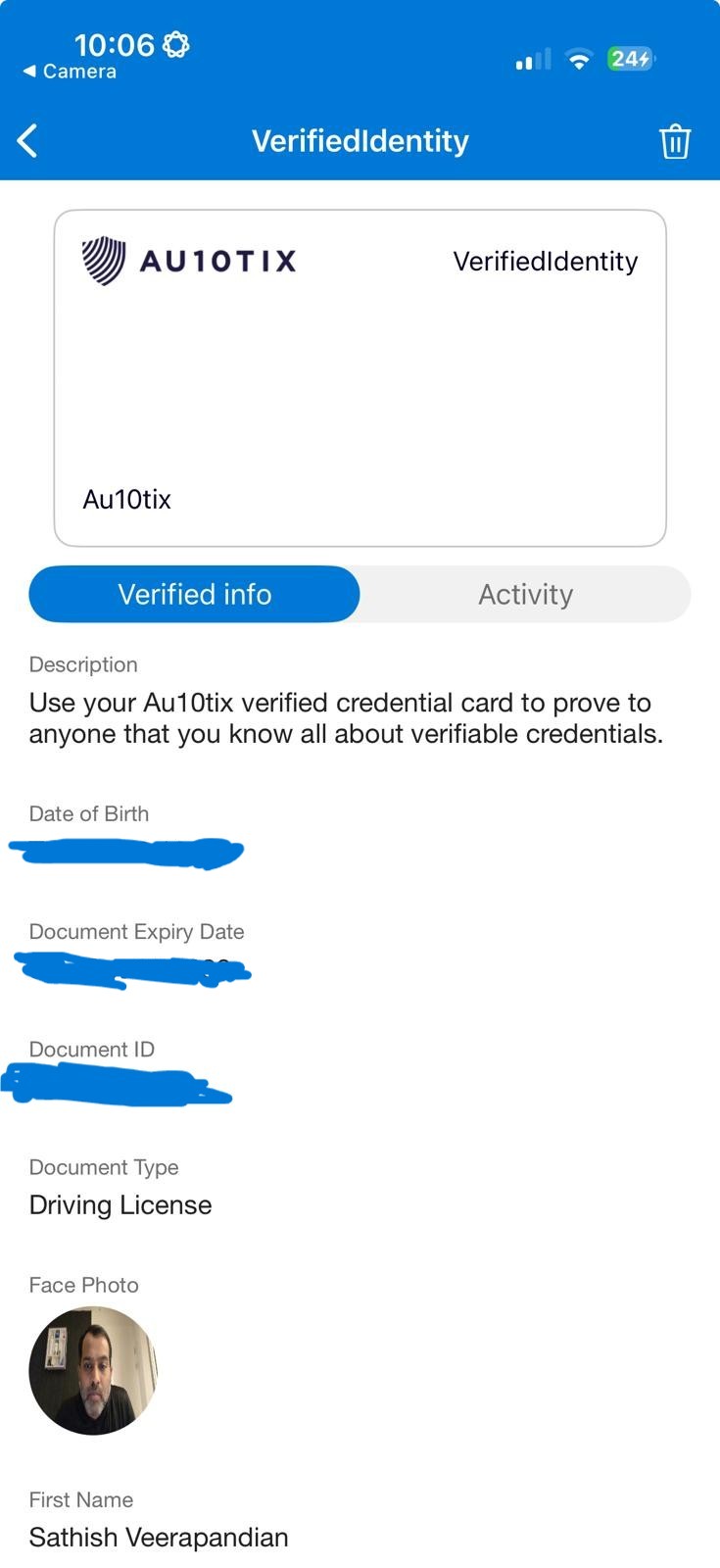
Last steps
- You’re asked to complete a quick Face Check before your account ownership can be validated.
- Once completed, you get a Temporary Access Pass. Copy this code and click Sign in.
- Finally, you’re redirected to Security info, where you can register a new authentication method and fully regain access.
Benefits of Enabling Microsoft Entra Verified ID in Every Organization
Implementing Microsoft Entra Verified ID offers significant security and operational advantages across organizations of all sizes. Key benefits include:
1. Stronger Identity Assurance
Verified ID uses trusted identity verification partners (such as AU10TIX) to validate government-issued documents and biometrics, ensuring that access is granted only to legitimate users.
2. Reduced Account Takeover Risks
By requiring verifiable credentials during sensitive flows such as account recovery, password reset, or high‑risk access attempts, organizations dramatically lower the chance of account compromise.
3. Improved Self‑Service Recovery
Users can securely recover their accounts without IT intervention, reducing help desk load and speeding up recovery during lockouts.
4. Compliance and Audit Readiness
Verified ID supports compliance frameworks by providing strong identity proofing aligned with global digital identity standards.
5. Better Onboarding & Offboarding
Organizations can issue verifiable credentials for employees, vendors, or contractors, enabling identity-proofed onboarding and secure deactivation upon exit.
6. Enhanced Zero Trust Posture
Identity verification becomes part of adaptive access policies, strengthening Zero Trust implementation by verifying who is behind the credentials.
7. Privacy‑Preserving Identity Model
Users control when and how their verifiable credentials are shared. Organizations benefit from strong verification without storing sensitive personal documents.
8. Seamless Integration with Microsoft Ecosystem
Verified ID integrates with Microsoft Entra ID, Conditional Access, and Account Recovery (Preview), enabling secure, unified, cloud‑native identity experiences.
Summary
Setting up Microsoft Entra Verified ID with AU10TIX involves:
- Choosing and activating the Verified ID provider
- Ensuring Azure subscription availability
- Waiting for backend resource provisioning
- Completing AU10TIX activation
- Selecting the provider in Entra
- Testing the Account Recovery flow end‑to‑end
Once configured, your tenant can leverage secure, document‑based identity verification for account recovery and other credential issuance scenarios.
If you encounter errors such as 401 Unauthorized or provisioning issues, ensure:
- The Verified ID resource is deployed successfully
- Marketplace access is enabled
- AU10TIX activation completed
Microsoft Entra Verified ID combined with AU10TIX delivers a powerful, secure, and user‑friendly identity verification framework ideal for modern identity protection. From onboarding to ongoing authentication to account recovery, Verified ID strengthens Zero Trust, enhances user autonomy, and simplifies compliance
This feature represents a major step forward in enterprise identity security, and every organization looking to modernize its identity systems should consider integrating Verified ID as part of its authentication strategy.
Sathish Veerapandian
Tagged: Azure, cloud, Microsoft, Security, technology

 Tej Pratap
 Ewald Hollestelle
 rsujiraja
 Sathish Veerapandian
 EzCloudInfo
Leave a comment