Author Archives: Sathish Veerapandian

Modify Connectors to Send/Receive Internet Mails on different port through your spam filtering/ISP provider

We can Modify Connectors for Receiving Internet Mail on different port apart from port 25 through your spam filtering/ISP provider.

This step applies to Exchange 2007/2010/2013. It is always a best practice to have this kind of setup so the spammers will not be able to intrude in our network and perform a directory harvest attack,reverse NDR attack etc.., and we can prevent spam emails circulating  in our environment.

Perform the  following thing to achieve this task.

1) Create a dedicated receive connector for your ISP/Spam filtering provider domain.

2) Add only to your (ISP/Spam filtering provider)   subnet and IP ranges. Note : You need to remove the default subnet range. Specify the ip ranges of only your Spam filtering provider or ISP provider

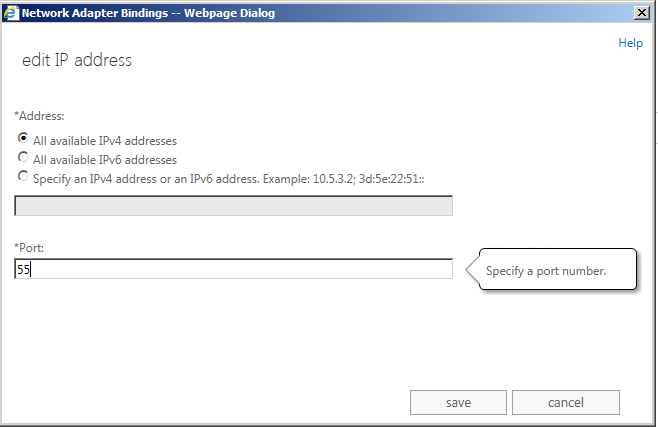
3) Change the port to your desired number on which you need to receive emails from them.

Hub1

4) Disable the default receive connector since it’s not required anymore.

So the mail-flow for inbound will be in the following type

Inbound

From Internet – Mails comes to your ISP/smart host – ISP delivers emails to your firewall on different port – then it comes to exchange server

For sending emails to the internet it would be very easy

Just create a send connector and smart host it to your (ISP/spam-filtering provider) IP address so that all the internet emails would be delivered to desired port to your (ISP/spam-filtering provider).

Outbound  From Exchange – Email goes to your (ISP/Spam filtering provider) on a different port – Mail gets delivered to the internet user on standard port 25

Make sure that all the port numbers that you have configured to send/receive emails through your Spam filtering provider have been opened both inbound and outbound on your corporate and perimeter firewall.

Also refer – http://social.technet.microsoft.com/wiki/contents/articles/29577.modifying-connectors-for-sendingreceiving-internet-mails-on-different-port-apart-from-port-25-through-your-spam-filteringisp-provider.aspx

Thanks 
Sathish Veerapandian

Error – “Something went wrong” in both OWA and ECP

After applying updates on Exchange 2013 environment we might come across the below symptom  from end users while accessing OWA

User can use outlook to send/receive emails normally, but when the user try to login OWA, a “something went wrong” screen with the following information appears:


owa

An unexpected error occurred and your request couldn’t be handled.

X-OWA-Error: System.NullReferenceException

X-OWA-Version: 15.0.775.32

X-FEServer: {2013 CAS server}

X-BEServer: {2013 Mailbox server}

Date: **

1) Rebuilding OWA/ECP virtual directories will not help

2) Playing with owa authentication settings will not help

3) Re-installing exchange server also will not help at times


While looking into the event logs you can find the below log with the description


ev

Description        :
Event code: 3005
Event message: An unhandled exception has occurred.
Event time: 8/30/2013 11:02:13 AM
Event time (UTC): 8/30/2013 4:02:13 PM
Event ID: f959d55d927a45f8b3b69051bbd62038
Event sequence: 2
Event occurrence: 1
Event detail code: 0

Application information:
Application domain: /LM/W3SVC/2/ROOT/owa-1-130223042171473642
Trust level: Full
Application Virtual Path: /owa
Application Path: C:\Program Files\Microsoft\Exchange Server\V15\ClientAccess\owa\
Machine name: EXC2013CAS

Process information:
Process ID: 13764
Process name: w3wp.exe
Account name: NT AUTHORITY\SYSTEM

Exception information:
Exception type: NullReferenceException
Exception message: Object reference not set to an instance of an object.
at Microsoft.Exchange.Clients.Common.Canary15.Init(Byte[] userContextIdBinary, Byte[] timeStampBinary, String logonUniqueKey, Byte[] hashBinary, String logData)
at Microsoft.Exchange.Clients.Common.Canary15..ctor(String logonUniqueKey)
at Microsoft.Exchange.Clients.Common.Canary15Cookie.TryCreateFromHttpCookie(HttpCookie cookie, String logonUniqueKey, Canary15Profile profile)
at Microsoft.Exchange.Clients.Common.Canary15Cookie.TryCreateFromHttpContext(HttpContext httpContext, String logOnUniqueKey, Canary15Profile profile)
at Microsoft.Exchange.Clients.Owa2.Server.Core.OwaRequestHandler.InternalOnPostAuthorizeRequest(Object sender)
at Microsoft.Exchange.Clients.Owa2.Server.Core.OwaRequestHandler.OnPostAuthorizeRequest(Object sender, EventArgs e)
at System.Web.HttpApplication.SyncEventExecutionStep.System.Web.HttpApplication.IExecutionStep.Execute()
at System.Web.HttpApplication.ExecuteStep(IExecutionStep step, Boolean& completedSynchronously)

Request information:
Request URL: https://localhost:444/owa/logoff.owa
Request path: /owa/logoff.owa
User host address: 127.0.0.1
User: CORJESU\SM_cab26786a5604c759
Is authenticated: True
Authentication Type: Kerberos
Thread account name: NT AUTHORITY\SYSTEM

Thread information:
Thread ID: 12
Thread account name: NT AUTHORITY\SYSTEM
Is impersonating: False
Stack trace:    at Microsoft.Exchange.Clients.Common.Canary15.Init(Byte[] userContextIdBinary, Byte[] timeStampBinary, String logonUniqueKey, Byte[] hashBinary, String logData)
at Microsoft.Exchange.Clients.Common.Canary15..ctor(String logonUniqueKey)
at Microsoft.Exchange.Clients.Common.Canary15Cookie.TryCreateFromHttpCookie(HttpCookie cookie, String logonUniqueKey, Canary15Profile profile)
at Microsoft.Exchange.Clients.Common.Canary15Cookie.TryCreateFromHttpContext(HttpContext httpContext, String logOnUniqueKey, Canary15Profile profile)
at Microsoft.Exchange.Clients.Owa2.Server.Core.OwaRequestHandler.InternalOnPostAuthorizeRequest(Object sender)
at Microsoft.Exchange.Clients.Owa2.Server.Core.OwaRequestHandler.OnPostAuthorizeRequest(Object sender, EventArgs e)
at System.Web.HttpApplication.SyncEventExecutionStep.System.Web.HttpApplication.IExecutionStep.Execute()
at System.Web.HttpApplication.ExecuteStep(IExecutionStep step, Boolean& completedSynchronously)


By looking into the event viewer we can see this is related to Active Directory Cache error related with CAS server for a value called Canary Data

What is this Canary Data ?
Basically Canary Data is an attribute that is created during the first exchange 2013 schema preparation.

It creates 4 attributes while schema preparation or it may be even just one attriubute

msExchCanaryData0
msExchCanaryData1
msExchCanaryData2
msExchCanaryData3

Why do we need this Canary Data ?

It is a secret token that exchanges between the clients and the server for services OWA,ECP and other exchange web services.

So these values gets stored in the cookie collection of the clients browser.

So for any owa,ECP,EWS requests from clients the browser sends the GUID value that is stored in the cache and compares it with the GUID that is in the URL (server).
If they dont match then the request from the client is considered as malicious and blocked
Also an event regarding the same is logged with the originating IP address.

Below is the solution to fix this type of issue :


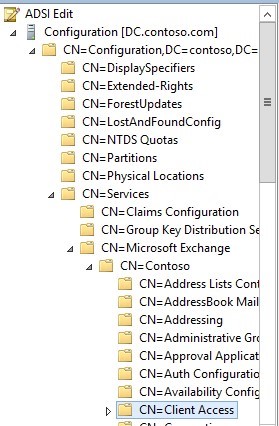
1) Open ADSI Edit

ADS

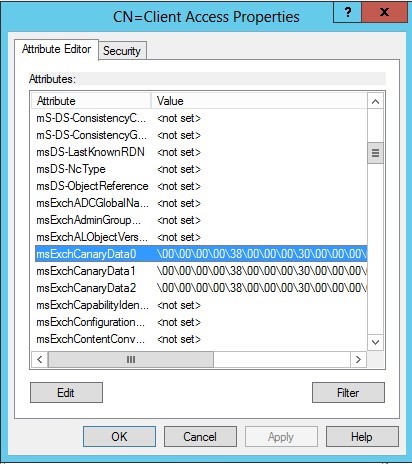
2) Right click 【CN=Client Access】and click properties, scroll down to look for values

【msExchCanaryData0】

【msExchCanaryData1】

【msExchCanaryData2】

【msExchCanaryData3】

parameter, as below:

ADS2


3) Take a backup to be safe and clear all these values to not set as shown below

ADS3

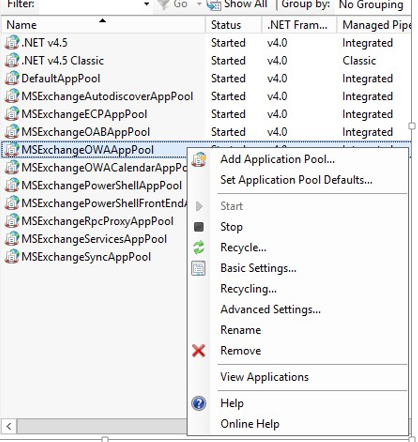
4.Open IIS Manager on your CAS server, go to 【Application Pools】, right click 【MSExchangeOWAAppPool】 and click Recycling


ADS4


After doing the above its better to restart Mailbox and CAS server and this issue will be resolved.

Also Refer –

http://social.technet.microsoft.com/wiki/contents/articles/29433.error-something-went-wrong-in-both-owa-and-ecp.aspx

Thanks

Sathish Veerapandian

MVP – Exchange Server

Trace emails sent with BCC option by end users

At times we might run into a situation where we need to track the emails for users sent in BCC field.

I have created few troubleshooting steps that can be helpful during these scenarios

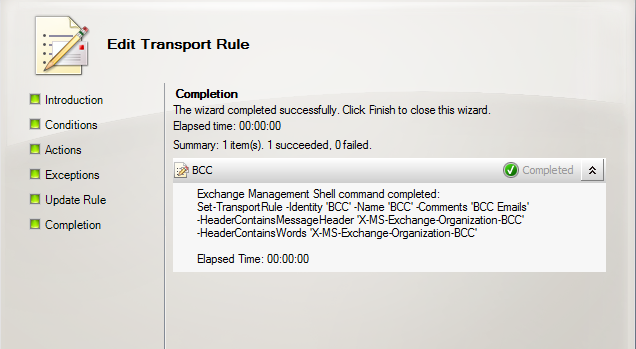
Below is the steps to create a transport rule for tracing emails with BCC option sent from users

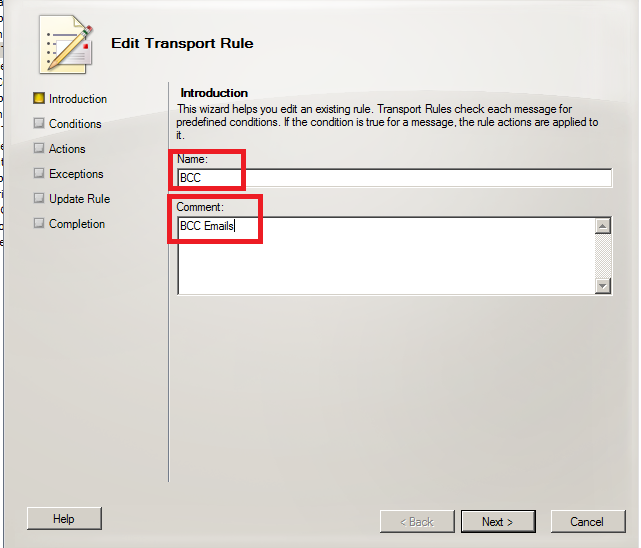
Create a new Transport Rule with Name and comment

BCC

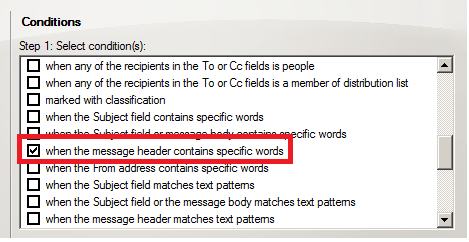
Choose the below option as shown below

bcc1

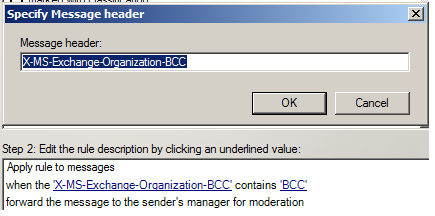
Specify header as

If the message:’X-MS-Exchange-Organization-BCC’ header matches the following patterns

bcc2

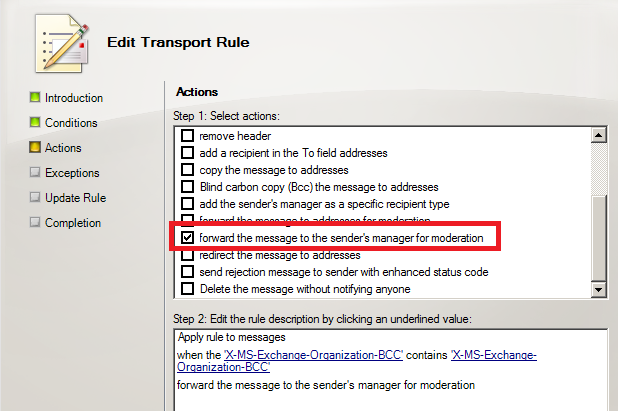
Take the following actions: Forward the message  to the sender’s manager for moderation

bcc4

Click on finish

bcc5

Also we can use the message tracking logs to track the emails sent by end users with BCC option

Below is an example for tracing the emails with BCC in Message Tracking logs

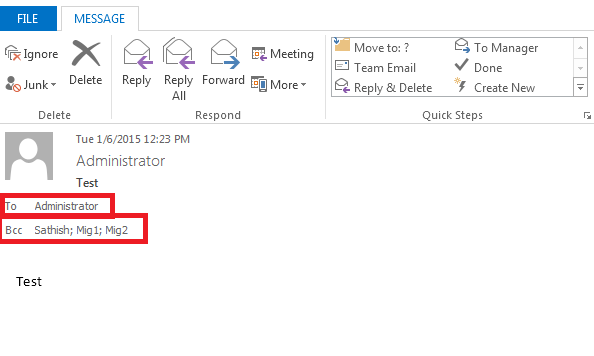
I have sent a test email with BCC with the below users as shown below

BCC6

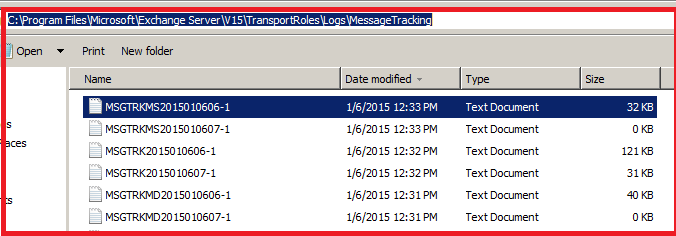
Navigate to the below location to get the message tracking logs.

bcc7

Copy the logs from the below location.  Possibly the logs during the time period when you want to trace the emails sent with BCC.

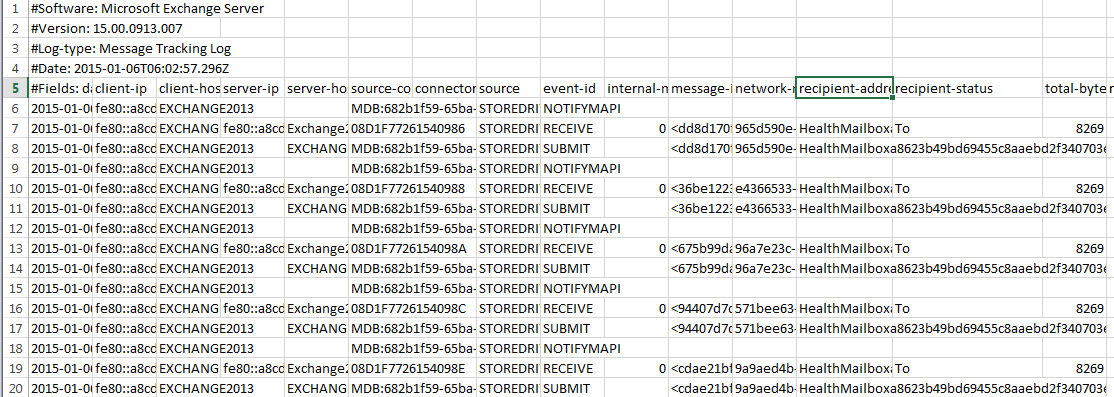
Now copy and paste them in a excel sheet as shown below

bcc8

Now we need to look into recipient address and recipient status value as shown below

bcc9

Now having a closer look into the 2 parameters recipient address and recipient status will give us the information of the user TO, BCC and CC information in the correct  order as shown below

bcc10

First user Administrator@exchangequery.com is in TO field which is mapped to To field in recipient status as shown above

Second user Sathish@exchangequery.com is in BB field which is mapped to BCC field in recipient status

Similarly it shows the corresponding users in the BCC field.

In addition to above 2 suggestions as well

You can collect information about BCC recipients if you implement message journaling in the environment

Look below technet article for Configuring Envelope Journaling in Exchange

http://technet.microsoft.com/en-us/library/gg191797.aspx

Also Refer –

http://social.technet.microsoft.com/wiki/contents/articles/29270.trace-emails-sent-with-bcc-option-by-end-users.aspx

Thanks 

Sathish Veerapandian

MVP – Exchange Server 

Configure site resiliency for Lync 2013

In Lync 2010 the site resiliency was given by stretching one FE pool across 2 sites, however this setup was much complicated during disasters and hence it is not supported and was discontinued from Lync 2013.

In Lync 2013 there is a new concept called pool pairing by which we can have datacenter resiliency by creating a second Enterprise pool and fail-over to that pool in an event of primary datacenter failure. So basically you will need to create two enterprise FE pool in your topology, one pool in primary site & second pool in DR site.

Below are the steps to configure pool pairing in Lync 2013

1. In Topology Builder, right-click one the pool you wish to configure site resiliency, and then click Edit Properties.

2. Click Resiliency in the left pane, and then select Associated Backup Pool in the right pane.

3. In the box below Associated Backup Pool, select the pool that you want to pair with this pool. Only the pools that are not paired with another pool will be available to select from.

4. Select Automatic fail-over and fail-back for Voice, and then click OK.
When you view the details about this pool, the associated pool now appears in the right pane under Resiliency.

5. Use Topology Builder to publish the topology.

6. Run Enable-CsTopology.

7. If the two pools were not yet deployed, deploy them now and the configuration will be completed without any issues.

However, if the pools were already deployed before you defined the paired relationship in the topology builder then you must complete the following two final steps.

8. On every Front End Server in both pools, run the following:

\Program Files\Microsoft Lync Server 2013\Deployment\Bootstrapper.exe
This configures other services required for backup pairing to work correctly.

9. From a Lync Server Management Shell command prompt, run the following to restart the lync backup services

Stop-CsWindowsService -name LyncBackup
Start-CsWindowsService -name LyncBackup

10. Force the user and conference data of both pools to be synchronized with each other, with the following cmdlets:

Invoke-CsBackupServiceSync -PoolFqdn

Synchronizing the data may take some time. You can use the following cmdlets to check the status. Make sure that the status in both directions is in steady state.

Get-CsBackupServiceStatus -PoolFqdn

SQL Lync Back End server resiliency setup

Since the CMS is located on the sql server planning for SQL server resiliency is also very much mandatory otherwise we wouldn’t be able to get a full fledged site resiliency in a enterprise edition setup.

How ever in the standard edition this is not applicable and if the number of users are less than 3000 you can have 2 standard edition each one of them on different sites.This will allow Lync site resiliency with less roles required and much cost effective  because no SQL servers are required here . Lync Front End standard edition is using SQL express installed locally.

Imp Note:

You should use the same Back End high availability solution (either  SQL Mirrioring or SQL Clustering) in both pools.i.e, You should not pair a pool using SQL mirroring with a pool using SQL clustering.

Below are the Reasons to use the same type of SQL high availability solution : 

SQL clustering requires a shared storage solution, but SQL mirroring does not require shared storage solution.
SQL mirroring requires SQL witness role (in addition to principal and mirror SQL servers) for the failover of the Back End Server to be automatic. Otherwise, an administrator must manually invoke failover.


More references : 

SQL clustering does not require any additional SQL servers to be able to fail over automatically-

http://technet.microsoft.com/en-us/library/jj204991.aspx

Back End Server High Availability –

http://technet.microsoft.com/en-us/library/jj205248.aspx

Lync 2013 high availability & disaster recovery –

http://technet.microsoft.com/en-us/library/jj204703.aspx

Branch-Site Resiliency Requirements –
http://technet.microsoft.com/en-us/library/gg412772.aspx

Lync Server 2010 Metropolitan Site Resiliency –
http://technet.microsoft.com/en-us/library/jj204715.aspx

http://social.technet.microsoft.com/wiki/contents/articles/29122.configure-site-resiliency-for-lync-2013.aspx

Thanks 

Sathish Veerapandian

MVP – Exchange Server 

Technology Evangelist

Steps to completely uninstall/remove an already existing lync 2010/2013 deployment

At times we might run into a situation where we would need to remove all the server roles , remove the features and front end roles in our lync environment  like a disaster recovery scenario, a lync server upgrade.

In this article we will have a look at the steps to decommission the lync servers in a existing deployment.

Based on my experience, i have gathered few steps which would be useful to troubleshoot in these kinds of scenarios.

1) Disable all users that are enabled for Lync Server and conferencing directories.

Probably you can run the below commands

Get-CSuser | Disable-CSuser

Get-CsConferenceDirectory | Remove-CsConferenceDirectory

2)  Remove Exchange Unified Messaging (UM) Contact Objects

Get-CsExUmContact -Filter {RegistrarPool -eq “LyncServerPoolFqdn”} | Remove-CsExUmContact

3) Remove Response Group Service Workflow Contact Objects

Get-CsRgsWorkflow -Identity:Service:ApplicationServer:LyncServerPoolFqdn | Remove-CsRgsWorkflow

4) Remove Dial-in Conferencing Access Number Contact Objects

Get-CsDialInConferencingAccessNumber | where {$_.Pool -eq “LyncServerPoolFqdn”} | Remove- CsDialInConferencingAccessNumber

5) Reassign the PSTN Gateway

Set-CsPstnGateway -Identity “PstnGateway:Xds Identity of PSTN Gateway” -MediationServer:”MediationServer: Name of Mediation Server Identity”

6) Confirm that a Front End Pool or Front End Server is Vacant

Get-CsVoiceRoute | select Identity,PstnGatewayList

7) Delete all the server roles in the topology, and then publish the final, empty topology.

Log on to the computer where Topology Builder is installed.
Start Topology Builder: Click Start, click All Programs, click Microsoft Lync Server 2010, and then click Lync Server Topology Builder.
In the Actions pane, click Remove Deployment.
Read the information regarding Remove Deployment
Click Next, and then click Finish.

Once the above is done you can open topology builder and publish the empty topology by choosing the option Download Topology from existing deployment.

8) Uninstall all Lync related SQL database.

Uninstall-CsDatabase -DatabaseType User -SqlServerFqdn sqlbe.contoso.net[-SqlInstanceName <instance name>]

9) Run “Remove-CsConfigurationStoreLocation” to remove the Central Management store service control point (SCP) for the existing Central Management store in Active Directory Domain Services (AD DS).

Remove the Central Management Store Service Control Point in Active Directory Domain Services (Optional)

10) Unprep the domain.

Example:

Disable-CsAdDomain -Domain domain1.contoso.net -GlobalSettingsDomainController dc01.domain1.contoso.net -Force

11) Unprep the forest.

Example:

Disable-CsAdForest -Force -GroupDomain contoso.net

After doing the above, you should be able to start a new deployment.

Thanks

Sathish Veerapandian

MVP – Exchange Server 

Lync 2010/2013 Trusted Application Pool, communication paths and firewalls ?

Integrating the Lync 2010/2013 server with a trusted application is one of the major task that an admin needs to do for integrating with 3rd party device.

In this article lets have a look at few things that we need to consider  to accomplish this task.

In-order to establish a signaling gateway between the Lync servers and these 3rd party medias we need to create a trusted application pool for them which will be acting as a gateway for to and fro communications.

This Trusted application pool must be created and defined in the Lync topology to represent the 3rd party application
New-CsTrustedApplication -ApplicationID VideoRouting -TrustedApplicationPoolFqdn video.domain.com -Port 5061

Next step is we need to define the end points for this Trusted application pool by creating Static Routes

Static route can be created for a SIP URI and then point that route to trusted application pool as next hop.
This static route can have a seperate SIP name space which points to the SIP URI used by the organization.

$route = New-CsStaticRoute -TLSRoute -Destination “appservername.domain.com” -Port 5061 -MatchUri “video.domain.com” -UseDefaultCertificate $True
Set-CsStaticRoutingConfiguration -Identity global -Route @{Add=$route}

Lync operates Exactly similar to Exchange’s Internal Relay method for an accepted domain with respect to a shared SIP domain. It first attempts to resolve a URI internally, and only if no match is found does it route the call to the third-party system.

Note :

The DMA certificate only needs to be installed on the DMA, there is no need to have it saved on the Lync servers

Codec Support :

The signaling between the Lync and third party device happens always via SIP but still the final end point hosts must have a IP connectivity and a type of codec to send the media stream between each others.

This integration is very basic and the type of integration between both the video end points should be only H.263 considering the facts that third party end points did not support Microsoft’s RTVideo codec at any point of time.
Namespace Considerations:

Though from Lync 2013 it is possible to have the same SIP name space but still its is better to have 2 separate name spaces to differentiate only for IM enabled users and Video end points

Gateways ( DMA – Distributed Media Applications)

Any signaling gateway product used to achieve this type of integration with Lync server is called the Distributed Media Application (DMA). This DMA’s can be a 3rd party Audio/Video communications server that integrates with lync servers.

An organization can have multiple DMA’s for redundancy even in different geographical locations with different static routes.

Port Requirements:

Recommendation is to use a unique port which is free within a pool ,  so that application can use it. If you have mutiple trusted application pool , you may need to add different port numbers. As it is not a standard application built inside Lync , there is no specific port reserved for it.

For reference : http://technet.microsoft.com/en-us/library/gg398259.aspx

http://social.technet.microsoft.com/wiki/contents/articles/29013.lync-20102013-trusted-application-pool-communication-paths-and-firewalls.aspx

Thanks

Sathish Veerapandian

MVP – Exchange Server 

AutodiscoverServiceInternalURI in Exchange 2013

In Exchange 2013 when we run the below can see AutoDiscoverServiceInternalUri

Get-ClientAccessServer | fl AutoDiscoverServiceInternalUri

Normally this should be something like below:

AutoDiscoverServiceInternalUrihttps://autodiscover.domain.com/Autodiscover/Autodiscover.xmlJump

Don’t touch the Autodiscover virtual directory for changing external and internal URI leave it as such.

Their values will be empty and can be checked by running the below command
Get-AutoDiscoverVirtualDirectory -Server servername | fl *url*

Actually there is no ExternalUri we need to specify.
Internally (so when the clients are on the domain and can see the domain) they will query the domain for that value and resolve to it.

Externally the clients go through a pre-set number of URLs:

https://example.com/Autodiscover/Autodiscover.xml Jump

https://Autodiscover.example.com/Autodiscover/Autodiscover.xml Jump

Then DNS SRV records and finally a redirect.

Therefore for Autodiscover to work correctly externally you need to have one of those URLs resolve and be on the SSL certificate – the most common method is to use Autodiscover.example.com as an additional URL on the UC certificate

Systools Outlook PST recovery software

We should have been facing issues whenever we try to restore big PST file requests. At times these kind of requests might come for VIP users which cannot be avoided and it can come for multiple Executive/VIP users as well.

By default, the overall size of .pst and .ost files has a preconfigured limit of 50 GB in Outlook 2010 and Outlook 2013. And the default .pst file size limit in Outlook 2007 and in Outlook 2003 is 20 GB.
Additionally, we can change the limit: http://support.microsoft.com/kb/832925

It is always recommended to size the PST file for end users so that the recovery of the PST files during any corruption and managing them would be easier.

There are few third party tools that can be used if we run out of options in these scenarios.

I just happened to explore Systools Outlook Recovery Software and found it to be useful.

Systools Outlook Recovery is a professional application designed to help you easily recover or restore emails from corrupt or damaged MS Outlook PST  files.

Let’s explore the functionality of this product and review its features.

The software can be downloaded from this location

http://www.systoolsgroup.com/outlook-recovery.html

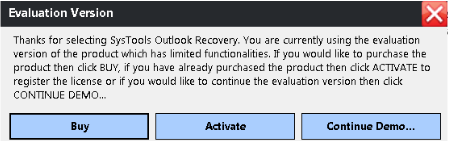
In my case i’m downloading the demo version of this product which restricts to 25 items per folder

re1

Once we continue with the demo it makes the prerequisite check  which  is nothing we  just need to have Outlook installed on the PC where we are going to recover the PST files.

Recommended version of outlook –  Outlook 2007/2010 and 2013

re2

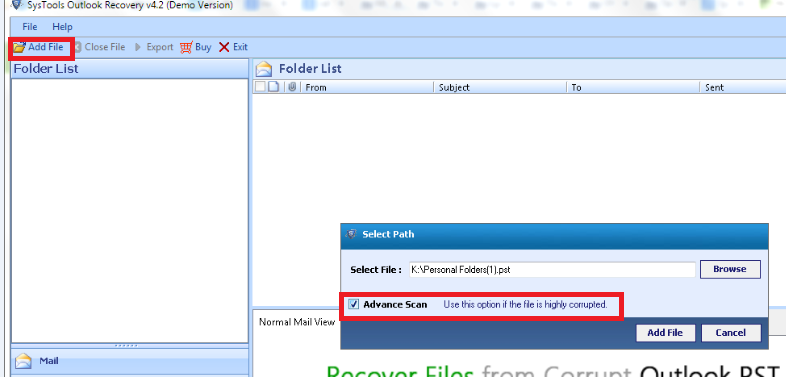
Once installed we have an option to select the file to recover Add file at the top

Also there is an Advanced scan option which can be used if the file is highly corrupted.

re3

Once we select the  corrupted PST file we have an option to view those files as shown below Normal View and Attachments

re5

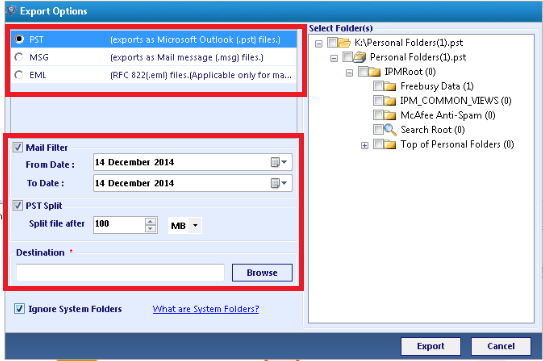
When we select export option we have an option to export the emails in 3 different formats as shown below, also we have option to filter emails on specific time period and Splitting the large PST’s  into our desired values which i find this option to be very useful especially for the help desk team members to handle corrupted and large pst file issues.

re4

We have an option for the naming convention available as well when we select  only MSG and EML type.

re7

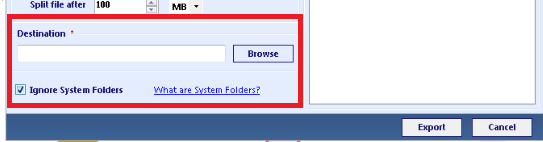
Finally it can be exported and saved to our desired destination.

dest

List of  features identified in this product :

  • Outlook file recovery is performed on the deleted emails of Outlook too.
  • The PST database which is broken can also be retrieved with the SysTools Outlook Recovery software application.
  • The tool is capable of recovering PST files that have acquired error messages like 0x80040119 or 0x80040600.
  • The entire Outlook mailbox recovery of the database of PST folder is performed along with the email folders, contacts, tasks, calendars etc.
  • We have an option to split a large PST files into multiple smaller ones.
  • Exporting and saving the PST files in different email formats.
  • All types of datas including calendar, Contacts, emails and tasks can be recovered
  • It can recover data from an encrypted PST file
  • Easy user friendly Graphical User Interface which can be understood by help desk team.

Pricing and Cost Factor:

Systools Outlook recovery software is available in 2 versions the demo and the full version.

Demo version is limited to 25 items per folder and the full version has no limitations on the number of items per folder , size of the PST/OST files and number of users.The cost of the full version is 49$ . I feel the full version will be definitely useful for help desk team which will be more beneficial and appropriate solution especially for large  PST corrupted cases in daily operations.

Thanks 

Sathish Veerapandian

MVP – Exchange Server 

Steps to perform SSl Certificate renewal in Exchange 2010/2013

In this article let’s have a look at things to consider during SSL certificate renewal in Exchange 2010 and 2013 environment.

First we need to confirm what type certificate we are using, i.e., the third-party certificate or self-signed certificate. And then we need to check the existing 3rd party certificate is associated with what all exchange services, number of SAN entries we have  and note down them.

Let’s see the procedure of renewing the certificates for third party and self-signed.

For Third party Certificate Renewal

For renewing the third-party certificate, we need to apply a new certificate request from the third-party CA, then import the certificate to the Exchange servers and enable the related service (IIS, IMAP, POP, and SMTP) on the Exchange servers.

Follow the below steps:

Step 1: Obtain an SSL certificate. Purchase an SSL certificate from a well-known certification authority (CA).

Step 2: Generate and submit the certificate request: create a new certificate request for Secure Sockets Layer (SSL) services.

  1. Open Exchange Management Shell
  2. Run the following command, replace domain name and friendly name with your domain name and display name, and then run below command:

New-ExchangeCertificate -GenerateRequest -SubjectName “C=US, S = Contoso, L = Toybox, O = Test, OU = IT, CN = mail.contoso.com” -domainname mail.contoso.com, Mail.ad.contoso.com, Webmail.contoso.com  -FriendlyName mail.contoso.com -privatekeyexportable:$true -path c:\cert.txt

IMP Note:

“DomainName” is used to populate one or more domain names (FQDNs) or server names in the resulting certificate request. We can replace ‘domainname’ according to our own environment.

“FriendlyName” is used to specify a display name for the resulting certificate. The display name must be lesser  than 64 characters.

In SubjectName property, we can use the proper subject name by our own environment: c for country/region name, o for organization name and cn for common name.

  1. Submit the request to the certification authority and have the CA generate the certificate

Step 3: Enable the certificate on the Default Web site after your certificate has been generated, you must import it and then enable the certificate on the Default Web site.

  1. From the computer where step 2 was run, import the certificate. To import the certificate, open EMS and run the below cmdlet:

Import-ExchangeCertificate -path c:\cert.cer

Note: “c:\cert.cer” is the location and name of our certificate in my example.

  1. Copy the thumbprint of the certificate, which is the digest of the certificate data.
  2. Enable the certificate on the Default Web site, run the cmdlet in EMS and paste the copied thumbprint to the following cmdlet:

Enable-ExchangeCertificate -thumbprint <copied thumbprint value> -services “IIS,IMAP,POP,SMTP”

Note: Using the “enable-ExchangeCertificate” cmdlet will update the certificate mapping and replace the existing certificate that is configured in IIS, IMAP4, POP3, SMTP.

Step 4: Require the Client Access server virtual directories to use SSL

Step 5: Perform an IIS reset. Try browsing OWA and see if you get any errors

For Self Signed Certificate Renewal

For renewing the self-signed certificate, we need to get the old Thumbprint property of the expiring self-signed certificate, and then use New-ExchangeCertificate to renew the certificate and then enable the related service to the new certificate.

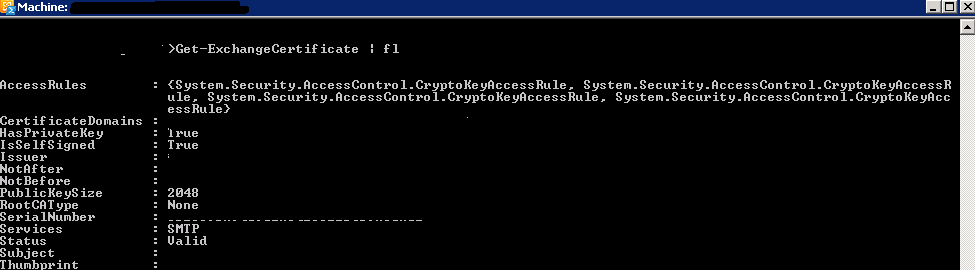
To get the existing thumbprint value

Run

Get-Exchangecertificate | fl
5

Important thing to note down the self-signed certificate should have a value True in the column IsSelfSigned

Then use the command remove-Exchangecertificate to remove the old expired certificate

Example

Remove-ExchangeCertificate -Thumbprint 5113ae0233a72fccb75b1d0198628675333d010e

You can use the command New-ExchangeCertificate to create a new certificate

Run the below command to perform the action

New-ExchangeCertificate -FriendlyName “SelfSigned Certificate” -KeySize 2048 -SubjectName “c=IN, s=, l=, o=CONTOSO, ou=IT, cn=CONTOSO.COM” -DomainName MAIL.CONTOSO.COM, AUTODISCOVER.CONTOSO.COM -PrivateKeyExportable $True


Below are the important things to keep in mind:

  • You can assign only one certificate to the Default Web site at a time. I would recommend deleting the old certificate as it is useless and will create confusions because it will not be used by any services once we assign the new certificate.
  • Ideally it should break or bring own any services while installing the new certificate. However, we may need to do an IISreset (not always but we may need it). So for few seconds till your IIS comes back we will experience a disconnection for few seconds
  • Certificates cannot be changed after they are signed, otherwise they would provide no security. Once issued, a certificate holds all SANs. This means that a certificate would have to be revoked and a new one has to be issued to add a new SAN.
  • You should first find out which names you want to register, because revoking and reissuing will most likely cost extra money. And also adding SAN entries will cost you extra money. If you have edge servers then the new certificate created must be imported on them and new edge subscription must be created.
  • When you order a Unified Communications Certificate from a third party you can secure all the SAN names you need with one easily manageable certificate. After your Multiple Domain (UCC) SSL certificate is issued, you can add or remove Subject Alternative Names (SANs) at any time. SANs are the additional, non-primary domain names secured by your UCC SSL certificate. However, keep in mind: Changing your SANs generates a new certificate, which you must install on your server. Your old certificate only remains valid only for 72 hours and has to be replaced with new entries.
  • Public trusted CA’s shall not issue a certificate with an Expiry Date later than 1 November 2015 with a SAN or Subject Common Name field containing a Reserved IP Address or Internal Server Name. As from 1 October 2016, CAs shall revoke all unexpired Certificates.
  • If you are a server admin using internal names, you need to either reconfigure those servers to use a public name, or switch to a certificate issued by an internal CA before the 2015 cutoff date. All internal connections that require a publicly-trusted certificate must be done through names that are public and verifiable (it does not matter if those services are publicly accessible).
    What things comes under internal name ?

    Any server name with a non-public domain name suffix. For example, http://www.contoso.local or server1.contoso.internal.
    NetBIOS names or short hostnames, anything without a public domain. For example, Web1, ExchCAS1, or Frodo.
    Any IPv4 address in the RFC 1918 range.
    Any IPv6 address in the RFC 4193 range.

Also Refer – http://social.technet.microsoft.com/wiki/contents/articles/28809.steps-to-perform-ssl-certificate-renewal-in-exchange-20102013.aspx

Thanks

Sathish Veerapandian

MVP – Exchange Server

Microsoft Exchange UPDATES Released

Microsoft Exchange UPDATES Released :

Microsoft has released Exchange 2013 CU7, Exchange 2010 SP3 RU8 and Exchange 2007 SP3 RU15.

Exchange 2013 Cumulative Update 7 can be downloaded –https://www.microsoft.com/en-us/download/details.aspx?id=45221
Issues that Exchange 2013 CU8 resolves –http://support.microsoft.com/kb/2986485

Exchange 2010 Update rollup 8 up can be downloaded =http://www.microsoft.com/en-us/download/details.aspx?id=45225
Issues that Exchange 2010 update rollup 8 resolves –http://support2.microsoft.com/default.aspx?kbid=2986475

Exchange 2007 Update rollup 15 up can be downloadedhttp://www.microsoft.com/en-us/download/details.aspx?id=45269
Issues that update rollup 15 resolves –http://support2.microsoft.com/default.aspx?kbid=2996150

Thanks

Sathish Veerapandian

MVP – Exchange Server