Author Archives: Sathish Veerapandian

From Home to Zero Trust: A Hands-On Guide to Microsoft Entra Private Access

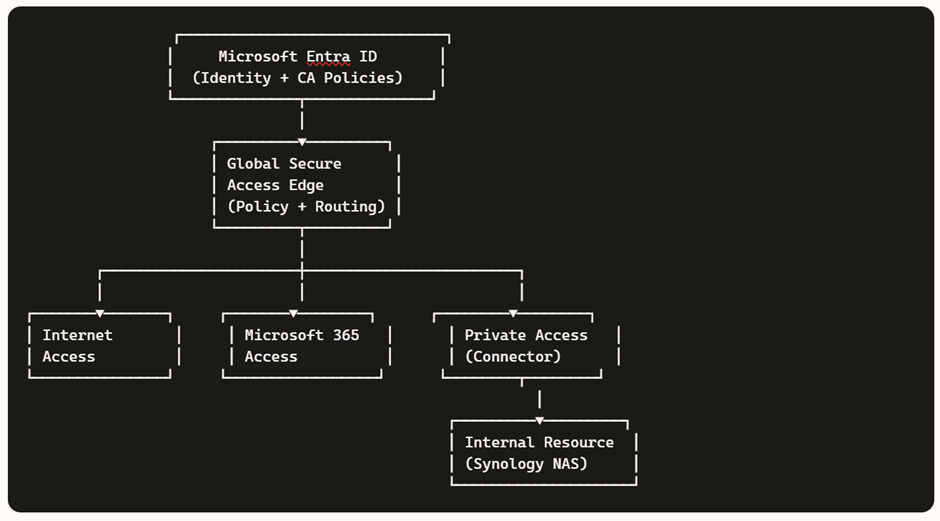
In today’s hybrid work environment, secure access to internal resources without relying on traditional VPNs is a key requirement. Microsoft Entra Private Access, part of the Global Secure Access suite, enables Zero Trust-based connectivity to private applications hosted on-premises or in private networks.

In this demo, we’ll walk through setting up a home lab using an Azure tenant, installing the Entra connector, and configuring access to a Synology NAS as a private application—all from a personal laptop and home network.

Before starting, make sure you have:

  • Microsoft Entra ID tenant with Global Secure Access enabled.
  • Microsoft Entra Global Secure Access license (Private Access feature).
  • Windows 11 Pro device (required for advanced networking and policy support).
  • Device joined to Microsoft Entra ID (Azure AD joined or Hybrid joined).
  • Intune-managed device for policy enforcement and NRPT configuration.
  • Administrative access to your Azure tenant and local machine.
  • Microsoft Entra Connector installer downloaded from the Entra Admin Center.
  • Global Secure Access Client installer for Windows.
  • Internal resource (Synology NAS or similar) reachable on your home network.
  • Internal IP address of the resource (e.g., 10.0.x.x).
  • Optional DNS setup:
    • Private DNS zone or hosts file entry for FQDN (e.g., demo.synology.me).
  • Self-signed certificate (optional) for HTTPS access.
  • Internet connectivity for connector registration and client sign-in.

.


Step 1: Prepare Your Internal Resource

For this demo, we’ll use a Synology DiskStation as the internal resource.

  • Ensure your Synology NAS is powered on and accessible on your home network.
  • Note its IP address (e.g., 10.0.0.8) and the services you want to expose (e.g., DSM web UI on port 443).

In my case this is the Synology NAS and accessible from the test laptop where im demoing the Microsoft Entra Private Access


Step 2: Install Microsoft Entra Connector

  • Download the connector from the Microsoft Entra Admin Center.
  • Install it on a device that can reach your Synology NAS (can be your laptop or another machine).
  • During setup, register it with your Azure tenant.

Verify Installation:

  • In the Entra Admin Center, go to Global Secure Access → Connectors.
  • Confirm your connector shows as Active.
  • Check logs in Event Viewer → Applications and Services Logs → Microsoft → AADApplicationProxyConnector for status messages.

Step 3: Create an Application Segment for Synology

  • Navigate to Global Secure Access → Application Segments → Add Segment.
  • Configure:
    • Name: SynologyNAS
    • Destination type: IP address
    • Destination: your nas IP
    • Ports: 443
    • Protocol: TCP
  • Save and verify the status shows Success.

Step 4: Link the Segment to Private Access Profile

  • Go to Global Secure Access → Connect → Traffic forwarding → Private access profile.
  • Under Private access policies, click Edit.
  • Add your SynologyNAS segment to the profile.
  • Assign users or groups (e.g., your account) to the profile.

In my example I have  selected 2 private apps and hence you see the number as 2 and have assigned to all users

Step 5: Configure Private Networks (Optional but Recommended)

  • Navigate to Global Secure Access → Connect → Private Networks (Preview).
  • Click Add Private Network.
  • Enter:
    • Name: Synology
    • DNS servers: 127.0.0.1 (or your internal DNS server IP)
    • Fully qualified domain name: Your Synology FQDN resolvable
    • Resolved to IP address type: IP address
    • Resolved to IP address value: (Your Synology NAS IP)
  • Save the configuration.

Why?
This ensures that when you access Synology the GSA client routes traffic correctly through the Private Access tunnel.

Step 6: Install the Global Secure Access Client

  • Download and install the Microsoft Entra Global Secure Access client on your laptop.
  • Sign in with your Azure AD account.
  • Verify the client is active and connected.

Very Imp you must have all the channels green tick so your GSA client routes all the traffic to the Global Secure Access


Step 7: Test Access

  • From your laptop, try accessing the Synology DSM web UI using its hostname or IP .
  • Check Advanced Diagnostics → Traffic in the GSA client to confirm traffic is tunneled.
  • Apply Conditional Access policies if needed for security. (Did not get time to explore this one will do it in the next blog)

Step 7: Validate in Insights & Analytics

  • Go to Global Secure Access → Insights and Analytics
  • Confirm your Synology NAS appears under Private Applications.
  • Monitor usage trends and transactions for visibility.

After a successful setup the first thing you would notice is that the Total Private Applications count will be showing as 1

There is also further drill down where we could look at the usage pattern via Graph

So now we are successfully able to route the private traffic via Global Secure Access.

In this demo, we successfully showcased how Microsoft Entra Private Access can securely connect users to internal resources without traditional VPNs, leveraging Zero Trust principles. By setting up a home lab with an Azure tenant, installing the Entra connector, and configuring Application Segments, we exposed a Synology NAS as a private application and validated access through the Global Secure Access client.

This approach demonstrates how organizations can modernize remote access, reduce attack surfaces, and improve user experience without relying on legacy VPN solutions.

Sathish Veerapandian

Exploring Microsoft Entra Agent ID (Preview): Identity, Governance & Zero‑Trust for AI Agents

Note: Features are in Preview and may change.

As organizations lean into AI assistants and autonomous workflows, one challenge keeps coming up in every SOC and IAM conversation: agent sprawl. Agents show up in multiple teams and builder platforms, and before you know it, you’ve got non‑human actors touching sensitive data without a clear inventory, lifecycle, or policy boundary.

Microsoft Entra Agent ID and the Agent Registry (Preview) are designed to solve exactly that bringing identities, governance, and Zero Trust controls to AI agents, so you can securely discover, organize, and manage them easily in your directory.


What Agent Registry Adds (and Why You’ll Care)

Agent Registry is an Microsoft Entra integrated metadata repository that gives you a unified view of agents built on Microsoft platforms (e.g., Copilot Studio, Azure AI Foundry) and those from other ecosystems. It separates operational records (Agent Instances) from discoverability metadata (Agent Card Manifests) and introduces Collections to govern which agents can discover and collaborate with each other. Think discovery before access a crucial shift for reducing exposure.


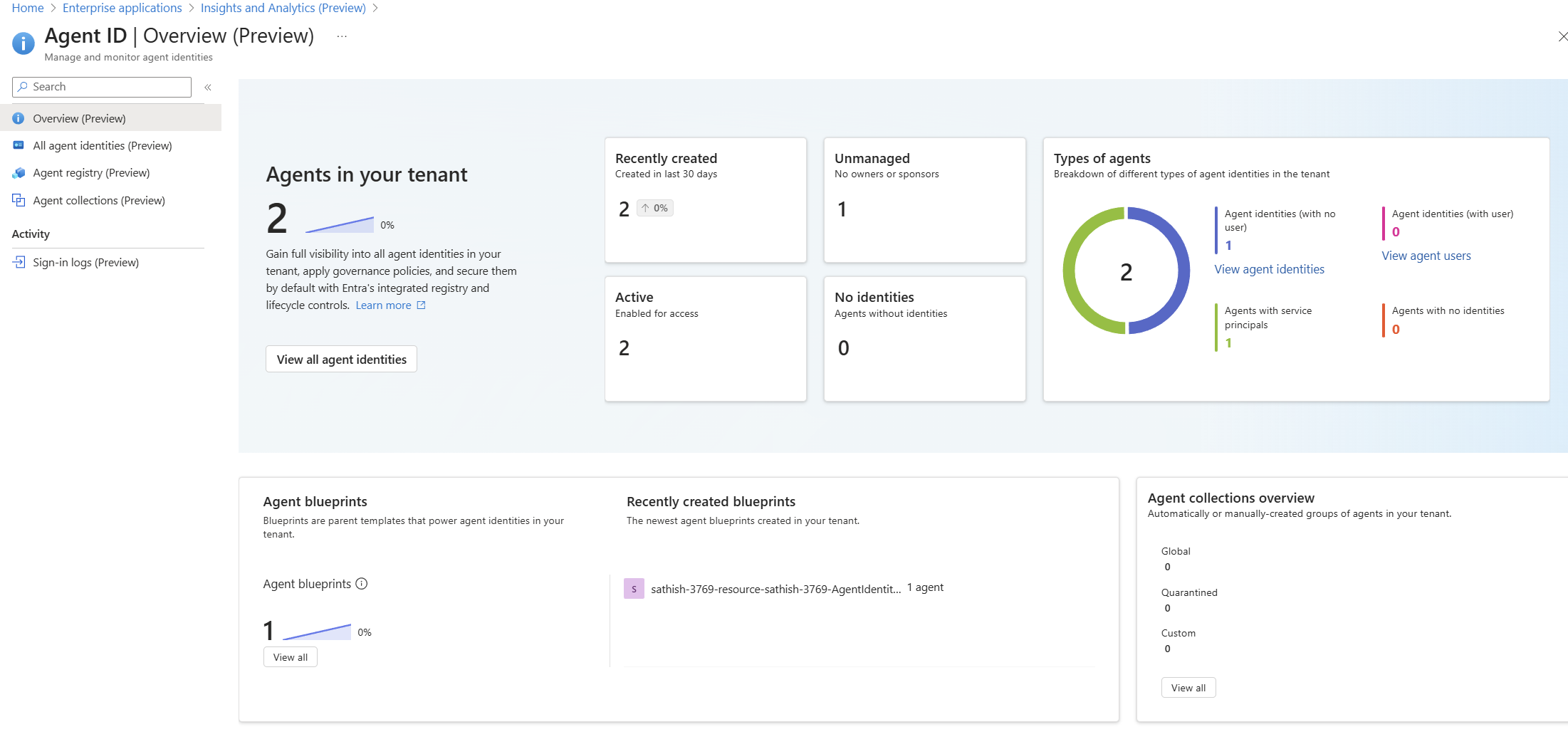
A Quick Look at the Tenant Experience

Agent ID Overview (Preview) dashboard showing agent counts, status, types, and blueprints: high-level posture of agents, identities, blueprints, and collections

Continue reading

Navigating DORA with Microsoft Purview: A compliance blueprint for Microsoft 365

Digital Operational Resilience Act (DORA) is reshaping how EU financial entities manage ICT risk, resilience testing, incident reporting, and third‑party risk. If you run Microsoft 365, Microsoft Purview Compliance Manager gives you a practical way to translate DORA requirements into actions, evidence, and measurable progress. This guide walks through a clean, step‑by‑step implementation flow from setting up a DORA assessment to assigning improvement actions and tracking your score, so you can be audit ready without drowning in spreadsheets.

Why use Microsoft Purview Compliance Manager for DORA ?

  • Prebuilt assessments: DORA assessment templates map regulatory articles to actionable controls you can assign and track.
  • Control mapping: Microsoft‑managed baselines and customer‑managed controls provide clarity on shared responsibility.
  • Improvement actions: Structured tasks with owners, due dates, and recommended steps create accountability.
  • Evidence management: Centralized artifacts (documents, links, screenshots) simplify audit preparation.
  • Real‑time scoring: Compliance scores help prioritize high‑risk gaps and demonstrate progress.

Prerequisites and approach

  • Access: Ensure you have appropriate roles in Microsoft Purview (e.g., Compliance Manager Admin or similar).
  • Scope: Decide which services to cover first; start with Microsoft 365 for a focused rollout.
  • Vanilla setup: Use a fresh assessment group to avoid inherited noise and control drift.

Quick Tip

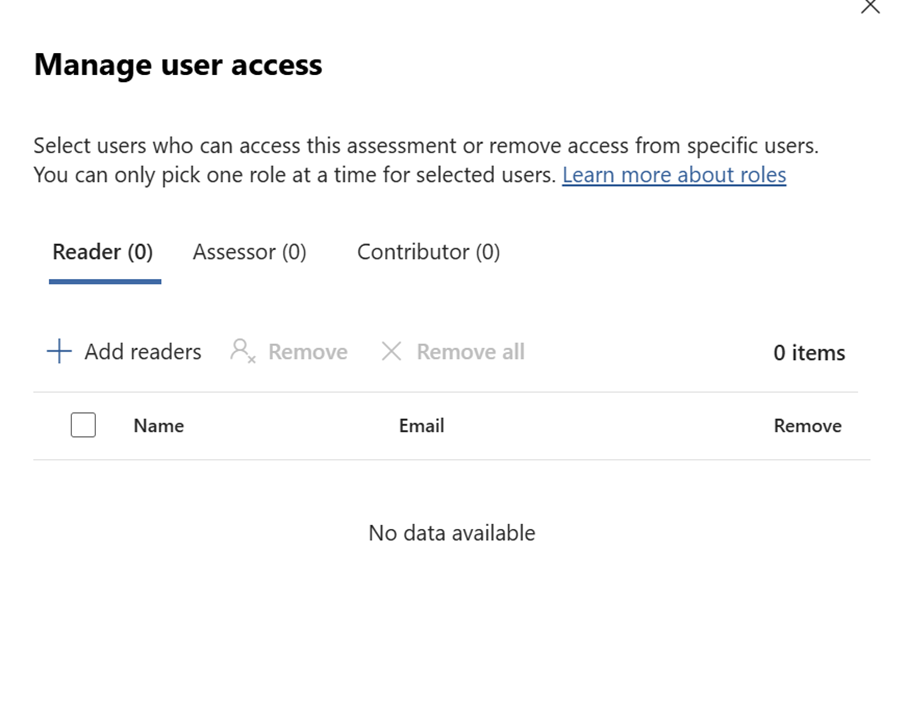
Can also use the default user access options available from the Assesment option in the Compliance Manager Portal

Step‑by‑step setup in Compliance Manager

Create and configure your DORA assessment

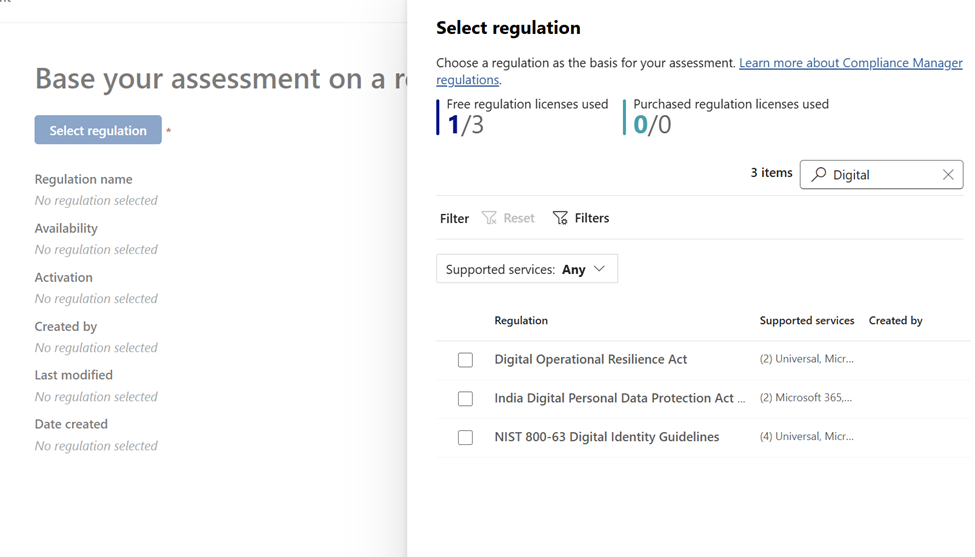
  • Open Purview: Go to Microsoft Purview portal → Compliance Manager – Navigate to assessment – Select Regulation
  • Find templates: Search for “Digital” under assessment templates. (I was not able to find with DORA :))
Continue reading

Top 10 Browser Security Controls that can be Enforced with Microsoft Intune

In today’s enterprise landscape, most applications are accessed through modern browsers like Microsoft Edge and Google Chrome, especially on Windows devices. While these browsers come with built-in security features, organizations must go a step further to enforce consistent and robust browser security policies across all endpoints.

If your organization uses Microsoft Intune, you have powerful tools at your disposal to configure and enforce browser security settings. In this blog, we’ll walk through 10 essential browser security controls you can implement using Intune’s Settings Catalog to enhance protection against web-based threats.

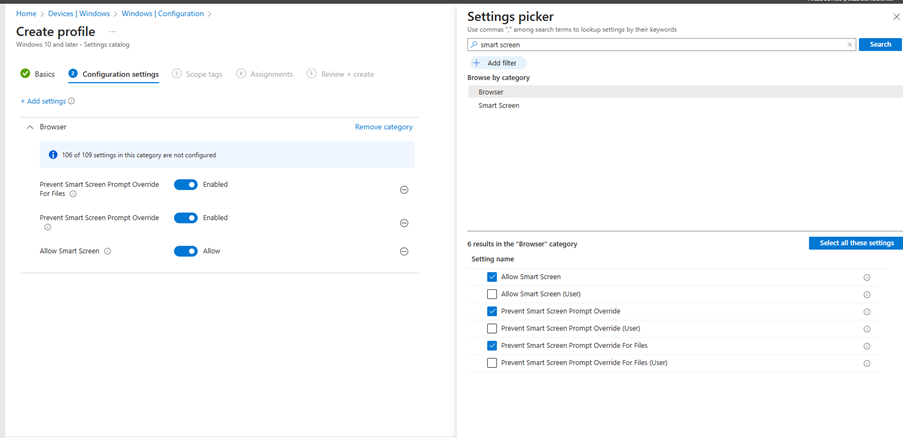
1. Enable Windows Defender SmartScreen

SmartScreen helps protect users from phishing attacks and malicious websites or downloads.

Recommended Settings:

  • Enable Windows Defender SmartScreen
  • Don’t allow SmartScreen warning overrides for unverified files
  • Don’t allow SmartScreen warning overrides
Continue reading

Deep Dive into Microsoft Purview Adaptive Protection: A SOC Team’s Guide to Investigating Insider Risk Alerts in Adaptive Protection

In today’s hybrid work environment, insider threats are becoming increasingly complex. Microsoft Purview’s Adaptive Protection and Insider Risk Management (IRM) offer a dynamic, risk-based approach to protecting sensitive data while enabling SOC teams to investigate and respond to alerts with precision.

This blog provides a step by step walkthrough of how SOC teams can leverage these tools to investigate alerts, assess user behavior, and take appropriate action.

Step 1: Understanding the Adaptive Protection Dashboard

The Adaptive Protection dashboard is the SOC team’s starting point. It provides a bird’s-eye view of user risk levels across the organization, helping analysts prioritize investigations.

Key Elements of the Dashboard:

  • User Risk Levels:
    • Elevated Risk: Users exhibiting high-risk behavior that may indicate potential data exfiltration or policy violations.
    • Moderate Risk: Users with concerning patterns but not yet critical.
    • Minor Risk: Users with low level anomalies or early warning signs.
  • Policy Integration:
    • Shows which Insider Risk policies are actively using these risk levels.
    • Helps correlate user behavior with policy triggers, such as data leakage,
    • Security violations, or unusual access patterns.
Continue reading

SOC Analyst Guide: Investigating Insider Risk Alerts in Microsoft Purview

This blog post provides a comprehensive guide for SOC analysts to investigate and respond to alerts generated by Microsoft Purview’s Insider Risk Management and Adaptive Protection. It outlines step-by-step workflows for accessing alerts, triaging incidents, analyzing user behavior, managing cases, and leveraging Microsoft Defender integration.

The guide also includes best practices and suggested screenshots to help SOC teams effectively mitigate insider threats and maintain organizational security.

Introduction

Microsoft Purview’s Insider Risk Management (IRM) and Adaptive Protection empower SOC teams to detect and respond to insider threats dynamically. This guide walks through how SOC analysts can triage, investigate, and respond to alerts generated by these systems.

Part 1: Investigating Insider Risk Management Alerts

1. Access the Alerts Dashboard

Go to: Microsoft Purview Portal > Insider Risk Management > Alerts

Continue reading

What’s New in Azure Firewall: Draft & Deploy, Selective Logging, Explicit Proxy, Security Copilot & More

Azure Firewall continues to evolve with powerful new features that enhance security, governance, and operational efficiency.

Whether you’re managing complex enterprise environments or hybrid architectures, these updates offer greater control, visibility, and automation.

Here’s an overview into the latest innovations:

Draft and Deploy – Azure Firewall Policy Changes (Preview)

Managing firewall policies just got smarter.

With the Draft and Deploy feature, administrators can now:

  • Clone active policies to create editable drafts.
  • Collaborate on bulk changes without impacting live environments.
  • Stage deployments to minimize disruption.
  • Apply all changes at once, improving governance and reducing human error.

This is a game changer for environments requiring frequent policy updates, such as dynamic cloud workloads or multi team operations.

Continue reading

Microsoft Purview Adaptive Protection – A Step-by-Step Guide to Setting It Up Effectively

We’ll walk through how to configure it effectively so your organization benefits from smarter, risk-based security controls. By the end, you’ll understand how to integrate it with tools like Defender, Intune, and Conditional Access. This session will cover the purpose of Adaptive Protection, its benefits, and the key steps involved in its implementation. Whether you’re a security architect or IT administrator, this guide will help you align Adaptive Protection with your existing infrastructure and security policies

Regards
Sathish Veerapandian

Getting started with Microsoft Purview Data Security Posture Management (DSPM)

In this video, we dive deep into Microsoft Purview Data Security Posture Management (DSPM)—what it is, why it matters, and how it works.

We’ll cover:

✔ Key data security challenges
✔ DSPM process and features
✔ Integration with DLP, Information Protection, and Insider Risk Management
✔ Live portal walkthrough
✔ DSPM vs Insider Risk Management comparison

Take a look at this video to know more about Data Security Posture Management

Regards
Sathish Veerapandian

Top Best Practices for Insider Risk Management Using Microsoft Purview to Strengthen Organizational Security

Discover how to protect your organization from internal threats with Microsoft Purview Insider Risk Management. In this video, we explore best practices for identifying, assessing, and mitigating insider risks such as data leaks, IP theft, and policy violations.

Learn how to:

✅ Plan and implement effective insider risk policies

✅ Collaborate with IT, HR, Legal, and Compliance teams

✅ Maintain privacy with pseudonymization and role-based access

✅ Align with regional compliance requirements

✅ Use Microsoft Purview tools to detect and respond to risky behavior

Take a look at this video to know more information about the same

Regards
Sathish Veerapandian