Author Archives: Sathish Veerapandian

IMAP connection error – UID corruption detected

Recently in one of the IMAP application were getting complaints on accessing the emails via IMAP.

So enabled the imap logging to see the results

Set-IMAPSettings -Server “MBXservname” -ProtocolLogEnabled $true

After going through the lots we were getting the below error message UidCorruptionDetected

imap

Reason for this error:
Don’t access a mailbox with outlook web access while Outlook has an open connection to that mailbox using the IMAP client protocol .
If you do leave Outlook with IMAP access to a mailbox and access that mailbox from an alternate client, you might have some UID errors to accept when you get back to Outlook.
Example when an application requires either POP/IMAP connection to retrive the emails from Exchange better to choose any one of the connection type and not to access from multiple locations with different protocols.

Also another reason is if the IMAP account is configured on a application and if the application is configured to receive thousands of emails  daily, each and every time when the connection is established the  client app will try to access the entire set of emails. This will make this user account to exceed all the IMAP connection types and will make this mailbox logical UID corruption. So if we have any application accessing using IMAP connection then we need to make sure that an automation job from the application is configured on the client  side to purge the older emails which will solve the problem.

Solution :

Since its mailbox corruption , repairing the IMAPID corruption type will solve this problem.

New-MailboxRepairRequest -Mailbox “mailboxname” -CorruptionType ImapID

Thanks & Regards
Sathish Veerapandian

Integrate Exchange 2016 in Cisco Unity Connection Manager for Voice Mail feature

The Cisco unified messaging feature provides voice mail feature for Cisco Unity Connection client users. When this single inbox feature is enabled on Unity Connection, to the user mailbox in Unity Connection and then the mails are replicated to the user mailbox on Exchange the mails are replicated to the user mailbox on Exchange.

With Cisco Unified Messaging service users can access their Voice Mail in 2 ways :

Access their Voicemail from the Exchange inbox and listen them via computer speaker.
Directly from the phone interface.

Though there are multiple other options like text to speech, integrating with calendar options  that can be done, but this topic focuses only on the voice mail part considering the article will become too lengthy if other components are explained.

Cisco Unified Messaging service supports the Following Exchange servers:

  1. Exchange on premise versions Exchange 2007, Exchange 2010, Exchange 2013 & Exchange 2016.
  2. Office 365.

Single Inbox :
Single inbox is the Feature Name in Cisco Unity Connection Manager
This supports the Synchronization of voice messages between the CUCM and Exchange/Office 365.Before we configure on Exchange the Single inbox feature in unity connection needs to be configured.

How it establishes connection with Exchange :

Unified Messaging Service is the component in CUCM which defines the connection and establishes the communication between exchange and CUCM for enabling this feature and delivering the voice mail to end user mailboxes.

Below is the High Level Architecture of how it works:

CiscoUnityHLA.png

Components involved in them are :

Unity Connection Publisher.
Unity Connection Subscriber.
ExpressWay-E.
ExpressWay-C.
Microsoft Exchange.
Active Directory.
DNS records.
SSL Certificate for EWS/AutoDiscover.

Prerequisites  from the Exchange Side :

The Unified Messaging service can connect to Exchange server in 2 ways:

1) We can select a specific Exchange server to communicate.

If we select a specific Exchange server, Unity Connection sometimes detects when we move mailboxes from one Exchange server to another, and automatically access the Exchange mailbox in new database and server. In scenarios ,When Unity Connection cannot detect the new mailbox, then we must manually update unified messaging services or unified messaging accounts. So its better not to go with this option.
2) We can make unity connection to search for Exchange Servers.

If we allow Unity Connection to search for Exchange servers automatically , then we  need to give permissions from the Exchange servers through RBAC for the unity service account.

  1. One Unified Messaging  Active Directory account needs to be created. This AD account  will be configured on the Cisco Unified Messaging service to perform this operation.
  2. A dedicated RBAC role ApplicationImpersonation role needs to be created and assigned only to this account.
  3.  Cisco Unified Messaging service uses Autodiscover and EWS protocol for this service to work. So all the end user clients needs to have access to this protocol
  4. Exchange server SSL certificate for EWS and Autodiscover needs to be installed on  Cisco Unified Messaging service if require SSL is enabled for these 2 protocols on exchange server.

Network Requirements:
1)The Outlook clients & Cisco Jabber Clients should have perfect connection to EWS and Autodiscover which will be present by default.
2)The EWS connection between Unity connection and Exchange should be present.
3)The Autodiscover connection between Unity connection and Exchange should be present.
The default Unity Connection configuration settings is sufficient for a maximum of 2000 users and 80 milliseconds of round-trip latency between Unity Connection and Exchange servers.For more than 2000 users and/or more than 80 milliseconds of latency, we can change the default configuration as per cisco guide.

4)Unity Connection should be  configured to use DNS,  its recommend to configure Unity Connection to use the same DNS environment in which the Active Directory/exchange environment is publishing its records. If Split DNS configuration is used then all the required entries for Unity Connection needs to be configured on both the places.

Configuring Unified Messaging Services Account:

  1. This account will be used for unified messaging services to make it look generic.
  2. Do not create a mailbox for this domain user account. There are known histories where the unified messaging services not functioning properly with the mailbox.
  3. Do not add this account to any administrator group.
  4. This account must be enabled , with complex password and password never expire.

Create RBAC role for the dedicated mailbox account:

Run the below command in Exchange management shell for the created service account to get permission on exchange for searching the mailboxes.
New-ManagementRoleAssignment -Name rolename -Role:ApplicationImpersonation -User useraccount

Confirm Exchange 2016 Authentication and SSL Settings :

This part is very much required because Unity manager looks for EWS and Autodiscover for the service to work.

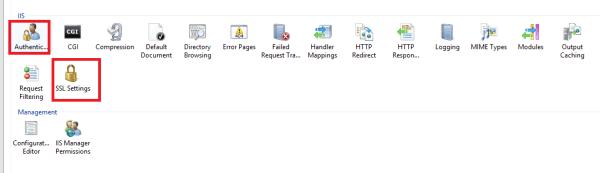
Authentication can be checked by logging into IIS manager in Exchange 2016 – Expand Sites – click Autodiscover and see the authentication and SSL settings

Cisco5

Check the same for EWS also.

Note: Unity Manager supports NTLM or Basic Authentication.
Depending upon the authentication setting we have on Exchange Autodiscover and EWS the same authentication must be used on the Unity manager.

If require SSL is enabled on both the protocols EWS and Autodiscover , then we need download SSL certificates from the Exchange server and install them on the Unity Connection server.

Below tasks needs to be completed in CUCM:

1) Create a new Unified Messaging Services in Unity Connection from Cisco Unity Connection Administration.
2) Upload the Exchange certificates to the Unity Connection server.
3) Enabled Unified Messaging for users in Cisco Unity Connection through Cisco Unity Connection Administration.
4) Users with Unity Connection mailboxes needs to have licenses assigned for this component through Cico Prime License Manager.

Rest detailed procedures on the above steps can be seen from the Cisco Articles for CUCM.

Thanks & Regards
Sathish Veerapandian

POP3 Error Msg=UserConnectionLimitReached

Recently in one of the Exchange 2013 environment POP3 clients started getting the problems in downloading the emails from the server.

The strange issue was users were unable to download the emails intermittently and it was not permanent for POP3 accounts.
When this issue occurs the POP3 accounts will stall for a while and later after some time it would start collecting the emails from the server without any issues.

This really looked strange and inorder to troubleshoot further enabled the POP3  protocol logging by the below command

Set-POPSettings -Server “CAS01” -ProtocolLogEnabled $true

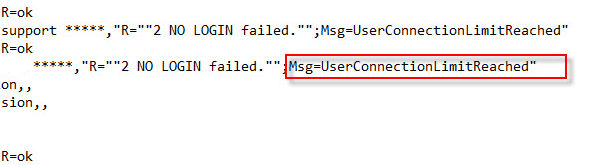
After a while looked into the POP3 logging and strange to see the below message

ADFS1

This issue is happening, because the POP3 connections are sending more requests to the server.

This  is the main reason for the application to intermittently drop the connection.

When the connection limit  per user exceeds the default allowed limit, the connection will be forcibly closed by the mail server. And then this connection reset will happen after 4 minutes after which the client can reestablish the connection , download the emails until it reaches the threshold limit of per user.

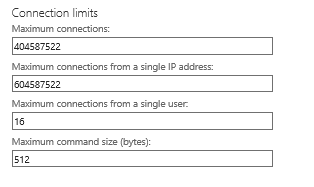
The default value for the single user is 16

Can be seen from EAC – Servers – Edit – POP3 

Also can be seen by  running Get-POPSettings | fl

ADFS1

So the POP3 Throttling policy allow the counter reset after 24000 milliseconds . So when the user connection limit exceeds the default value he wouldn’t be able to connect till the next counter reset happens.

Solution:

So the POP Connection limit can be increased by running the below command

Set-POPSettings -MaxConnectionsPerUser  “connectionvalue”

Its important to note that both the POP services POP& backend needs to be restarted after this change to take effect,so we can go ahead and run the below command for the restart of the services.

Get-Service *POP* | Restart-Service

Additional Info:

The POP3 throttling policy value can be seen by running the below command:

Get-ThrottlingPolicy -Identity Default* | fl POP*

POPMaxConCurrency – The PopMaxConcurrency parameter specifies how many concurrent connections a POP user can have against an Exchange server at one time. A connection is held from the moment a request is received until a response is sent in its entirety to the requestor.
POpMaxBurst-  The PopMaxBurst parameter specifies the amount of time that a user can consume an elevated amount of resources before being throttled.
POPRechargeRate – The PopRechargeRate parameter specifies the rate at which the user budget is charged back
POPCutoffBalance – The PopCutoffBalance parameter specifies the resource consumption limits for a user before that user is completely blocked from performing operations on a specific component.

There were Get-WorkloadPolicy IMAP,POP commandlets present before Exchange 2013 CU6 , but later now these commandlets have been removed post CU6 and replaced with Set-SettingsOverride but strictly this Set-SettingsOverride command should be used only under the supervision of Microsoft Support professional.

These values also can be modified based on the requirement , just in case if we have any applications which requires these values to be modified as per the requirement.

Thanks & Regards
Sathish Veerapandian

Skype for Business Meeting error – Application Sharing Server has reached moderate capacity

This might occur when multiple meetings with high number of participants is initiated the Skype for Business pool is unable to process this request.

We can also see the following logs recorded in the FE servers also:

Log Name: SFB Server
Source: LS ApplicationSharing Conferencing Server
Event ID: 32032
Task Category: (1304)
Level: Warning
Description:
Internal Application Sharing Server health monitoring has detected that Application Sharing Server is running at a moderate capacity.

Application Sharing Server Health State: Loaded
Cause: Application Sharing Server has reach moderate capacity.

This application sharing parameter is controlled by MaxBandwidthPerAppSharingServiceMb

What is MaxBandwidthPerAppSharingServiceMb parameter used for ?

This value Indicates the maximum amount of bandwidth (in megabytes) set aside(allocated) for the Application Sharing Conferencing service.
MaxBandwidthPerAppSharingServiceMb can be set to any integer value between 50 and 100000, inclusive. The default value is 375 megabytes.

This setting is applied and restricted to share the bandwidth within the pool at the org level and not in the server level.
Changing this value cannot be scoped only on specific servers.

Solution for this problem:

Run Get-CsConferencingConfiguration
Look for the value MaxBandwidthPerAppSharingServiceMb.

The default value is 375 MB . Increase them to some extra value and see the results.

The value can be increased by running the below command:

Set-CsConferencingConfiguration -Identity conferencingconfigurationname -MaxBandwidthPerAppSharingServiceMb “MBSizeValue”

But the strange thing is really hard to identify this actual consumed value from the default 375MB which should be sufficient for a conferencing type for the Application sharing like a powerpoint in the presentation using Remote Desktop Protocol (RDP) protocol.

Whenever a meeting is schedule in Skype for Business server will create an entry in the Conferencing database but it will not reserve any memory in prior for the meeting which is going to occur in future. It will use the built in load balancing logic which will dynamically/instantly allocate conferencing resources on the FE servers based on the load on all FE servers and number of meeting that is occurring at the moment.

So here the value is exceeding because the pool is already running at its peak threshold level of its allocated capacity.May be if more meeting is initiated with more than 300 participants the Pool might run out of resource and this issue might occur.

The Conferencing CDR tables has the below records:

Conferences table in Skype for Business Server 2015:
Stores information about all conferences that were archived or whose details were recorded, including ConferenceURI, and start and end time.
ConferenceSessionDetails table in Skype for Business Server 2015:
Stores information about every SIP-based conference session, including start and end time, user ID, response code, and diagnostic ID for each session.
FocusJoinsAndLeaves table in Skype for Business Server 2015:
Stores information about conference joins and leaves, including users’ role and client version.
McuJoinsAndLeaves table in Skype for Business Server 2015:
Stores information about the A/V Conferencing Servers that are involved in a conference and the user join and leave times.

If the  organization requires meetings with greater than 250 participants, we need to plan for a dedicated pool to support the load

We can use the capacity planning conferencing for meeting – https://technet.microsoft.com/EN-US/library/mt297718.aspx

Thanks & Regards
Sathish Veerapandian

Exchange log the real client IPs in the IIS hit logs for SNAT load Balancing

In most of the cases we would like to know the Email client authentication attempts from external sources along with their source IPs.

It can be in below scenarios:

1) Frequent account lockouts happening for an email user where we would like to know the source host causing the account lockout.
2) Security team would like to collect the logs with the real ip for any future investigation for a compromised account.

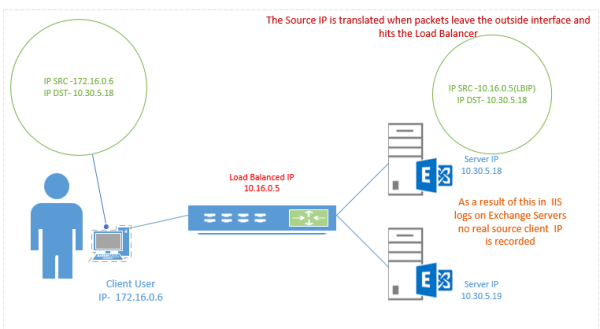
In most of the cases exchange services are published through load balancer and servers are behind the load balancers. When Exchange is load balanced at layer 7, it will become non-transparent. Due to this the the actual client source IP address is replaced by the load balancer’s own IP address, and therefore ONLY this address will be recorded in the IIS logs.
As a result of this the Microsoft IIS client logs in the Exchange  for each client connections will have the assigned load balanced IP recorded rather than the actual source IP.

For example if the exchange services are published via SNAT  through a load balancer like KEMP, F5 etc.., the IIS logs  cannot get the real source ip. Because in a SNAT, the destination IP address is maintained but the  actual source IP address is changed.

Example of SNAT :

SNAT

When a packet passes through a NAT device Either source or destination IP address is changed/modified according to the type of NAT it is using. However the information about these changes made to packets are maintained in NAT device’s connection table

There is an option in the most of load balancers like KEMP , F5 to create an X-Forwarded header and enable them.

Once done The X-Forwarded-For header option when enabled will capture the source address of the client and append it in the header.

After this we need to add an extra value in the advanced logging module on all exchange servers to enable to log this real IP on the IIS logs.

Enable Advanced Logging on all Exchange 2016 Servers perform the below:

The first task is to deploy the Custom Logging role service. If we do not deploy this role service, we may receive an error  “Feature not supported” error when trying to edit the custom log definition.

To enable the Custom Logging role service in Windows server   2012  R2 & 2016 :
1. Open Server Manager.
2. Click Add Roles and Features.
3. In the Add Roles and Features wizard navigate to Custom Logging Role which  is under the Web Server > Web Server > Health and Diagnostics category.
4. On the Confirmation page, click Install.

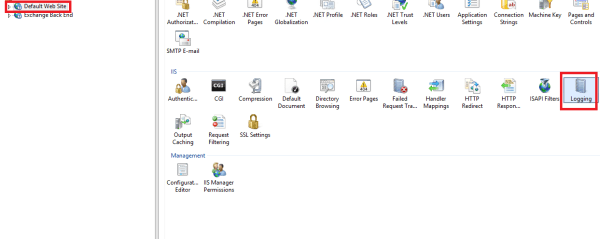
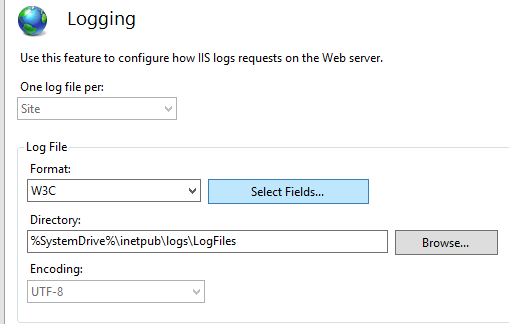
Now Open IIS Manager- Select Logging

Untitled.png


Select Fields

Untitled1


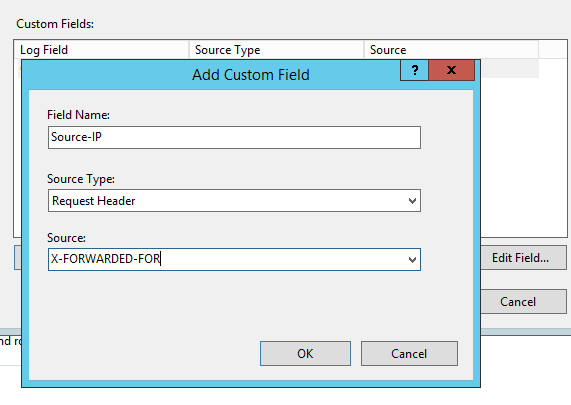
Create a new custom field-

Field Name – we can give any name so that it will reflect on the logs as new column

Source Type – Request Header

Source – X-FORWARDED-FOR

Untitled2
Perform an IIS reset after this.Now we will start seeing the IP address of the client PC’s in our IIS logs rather than the IP of the load balancer.


Compliance Search in Exchange 2016

Till Exchange 2013 we were using the Search-Mailbox to delete any suspicious spam emails circulated in the organization.

From Exchange 2016 there is a new component New-ComplianceSearch introducted for performing this action.
In exchange 2016, New-ComplianceSearch cmdlet was introduced to search and delete messages. There are no limits for the number of mailboxes in a single search when using New-ComplianceSearch. If you use Search-Mailbox, you can only search a maximum of 10,000 mailboxes in a single search.

Still the Search-Mailbox is applicable and working for Exchange 2016 servers as well.

Example to create compliance search:
New-ComplianceSearch -Name “New Phishing Message” -ExchangeLocation “All”

NCS

Allowed parameters are few of them but we require these two at-least for better search:

ContentMatchQuery – The ContentMatchQuery parameter specifies a content search filter and uses the KQL – keyword query language syntax

Example :

New-ComplianceSearch -Name “Remove Phishing Message” -ExchangeLocation “All” -ContentMatchQuery “‘virus’ AND ‘your account closure'”

ExchangeLocation – This parameter specifies the location to look for the search

Accepted values are:
Specific Mailbox can be mentioned.
A distribution group can be mentioned.
All – When we specify all it looks for All mailboxes.

Force – After specifying this parameter only the command executed . Not sure why this was the case.

Also there is an  option  to modify the created one by using Set-ComplianceSearch cmdlet

IMPNote:
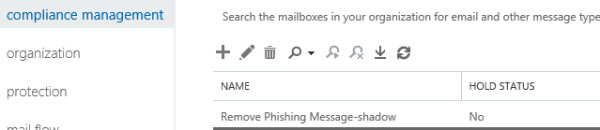
When a new compliance search is created a shadow in-place ediscovery search will be created in In-Place eDiscovery & Hold page in the EAC like below.

NCS1
But the status will not be started and we can see this by running Get-MailboxSearch as well.

Microsoft recommends to delete this autocreated shadow In-Place eDiscovery search.
Instead run the Microsoft provided script in New-ComplianceSearch page that will convert an existing compliance search to an In-Place eDiscovery search

So when we run Get-ComplianceSearch we need to see the Compliances that we created

But When we run  Get-MailboxSearch We should not see any shadow in-placediscovery which was created f0r them.

In short below will be the procedure:

  1. Create a new compliance search.
  2. Remove the shadow in-placediscovery created for the new compliance search.
  3. Run the script provided in step 3 in this technet article – Compliance Search
  4. Start the In-Place eDiscovery search – Start-MailboxSearch
  5. Create an In-Place Hold
  6. Copy the search results
  7. Export the search results
  8. Use New-ComplianceSearchAction -SearchName “Remove Phishing Message” -Purge -PurgeType SoftDelete and delete the message

Tips:

When we run the compliance search ps1 script provided by microsoft we should enter the value of the new compliance we created as below

NCS3

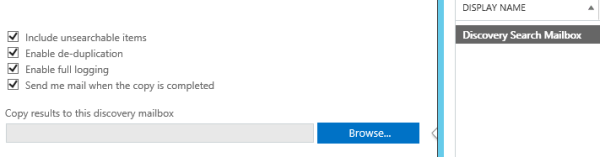
While creating the inplace hold better to enter the values of all the available fields

NCS5

Once the search completed there is an option to preview the search results through delegated admin account.


After that the data can be exported as PST.

NCS9

Post that the New-ComplianceSearchAction command should be used to remove the emails.

Note:

  1. New-ComplianceSearch limits to deleting 10 emails per mailbox at once on a single command, though there is no limits on number of mailboxes to search.
  2. Search-Mailbox limits to deleting 10000 emails per mailbox on at once on a single command.
  3. New-MailboxSearch will be depreciated soon on future updates most likely , since this command will no longer be available on Office 365 from July 2017 as per technet source.

Thanks & Regards
Sathish Veerapandian
MVP -Office Servers & Services

Expanding the Disks on Exchange Databases

This article outlines few tips of extending the storage of exchange servers where it hosts the database and log files.

For physical Server:

Add new disks in the RAID hard-drive bay and use array management utility to install the new disks to  the existing Raid.

Then expand Raid size (using Raid utility) for these disk which needs to be expanded. After this in the Raid config utility we see the extra space.Most of the SAN systems has the option to dynamically extend the disk space allocated for the servers.

So we can check the below thing using the storage management utility that we have based on the type of RAID and storage we have (eg. netapp)

• Checking initial status of the existing drives to make sure they are healthy.
• Inserting new Hard Drives in the available slots in the hard drive bay.
• Check the Status of the new drives in the storage array management utility.
• Initialize the new disks and make it available.
Then use Disk-part and extend the disk in the windows on the Exchange hosts.

Example for extending the presented disk :
Open command prompt, type: Diskpart.exe
In DISKPART prompt, type: Select Volume 1 (Selects the volume.)
In DISKPART prompt, type: Extend Size=50000 (If you do not set a size, in example like 50GB set it will use  all of the presented size).
In DISKPART prompt, type: Exit.

Using Disk Part does not affect the system accessing the data and can be done anytime.

For VMWare:

Expand the volume size of Exchange database partition from the vSphere client.
After this the additional space will be reflected immediately on the Exchange servers on diskmgmt.msc.

Expansion of the Exchange database or log drives  in VMWare is seamless however to be safe its always recommended to have a good backup in place before making this change.

Extend the database partition on the VMWare.
Extend the Presented disk in disk management.
If the disks are assigned for VM make sure they are thick provisioned.

Most of the hosted LUNs (eg like from netapp and others) can be grown and shrunk without a single problem on the application side and other vendors are the same.

Using Disk Part does not affect the system accessing the data and can be done anytime.

For hyper v :

Switch-over all databases to one server.
Shutdown the server.
In Hyper-V, increase the disk size of all database disks.
Start the server.
After this we need to Expand the Disk in the disk manager before you move the databases back.
Move the databases back to the activate on preferred node.
Repeat for the remaining servers.

Additional tips:

1) If the primary Mailbox database is increasing its better to have a de-duplication archival solution in place which will manage the storage increase efficiently.
2)Make sure all the new presented exchange drives are MBR formatted.
3)If we are extending the disks for DAG then we need to extend the disks for all DAG members hosting the copies.
4)In larger deployments where we host multiple copies in DAG its always better to have the database disks aligned in the Mount Points only.
5)Dynamic expansion of the VHDx files are supported. Older method of Dynamically expanding VHD’s not supported.
6)Always use the file system as REFS for Exchange 2016 only for Exchange DB’s & logs. Use NTFS for Exchange binaries.
7)Microsoft recommends to use the partition structure as GPT since GPT Is a newer standard  supporting up to 128 partitions in windows and is gradually replacing MBR. MBR type partitions are still supported. MBR only works with disks up to 2 TB in size
8)Better to have a healthy backup before starting these procedures.
9)For VMWare partition expansion ensure that these VM’s are not in snapshots before extending the VMDK files.
10)Better to perform this operation on a low I\O operations period on the array.
For DAG members better to expand the disks one by one on their copies see the results and then proceed.

Thanks & Regards
Sathish Veerapandian
MVP – Office Servers & Services

Quick Tip – Check Enterprise Vault Users

We can use the EV reports to see the active enterprise  vault users.

In addition to that we can use the  SQL  query to check the active users

Enterprise vault is tightly integrated with SQL databases. The Enterprise Vault Directory database will have the configuration information of the archive which will hold the number of exchange mailboxes it has enabled for archive and its details in Enterprise Vault.

But in the EV articles we see 2 values to check always which is :

1) MbxArchivingState –
The MbxArchivingState indicates whether or not the mailbox from Exchange server is enabled for archiving in Enterprise Vault. These are the values which the EV has about the details of the archives which is under its EV organization(directory).

2)MbxExchangeState –
The MbxExchangeState indicates the state of the mailboxes in our Exchange Environment.The EV determines the state of the mailboxes in Exchange servers by this value.

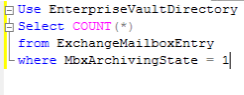
To see active users we can run the below query on SQL :

Use EnterpriseVaultDirectory
Select count(*)
from exchangemailboxentry
where MbxArchivingState = 1

EVL3

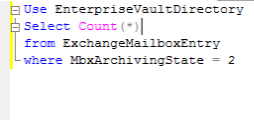
To see Disabled Mailboxes we can run the below query on SQL:

Use EnterpriseVaultDirectory
Select count(*)
from exchangemailboxentry
where MbxArchivingState = 2

EVL2

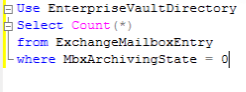
For new Mailboxes eligible for archive please run the below Query:

Use EnterpriseVaultDirectory
Select count(*)
from exchangemailboxentry
where MbxArchivingState = 0

EVL1

We can run the below query to check the mailbox archiving state:

SELECT count(MbxArchivingState) as ‘# Mailboxes’,
MbxArchivingState as ‘Archiving State’
FROM ExchangeMailboxEntry
GROUP BY MbxArchivingState

EVL4

The above Archiving State will display the results in below order:

0 = Not Enabled
2 = Disabled
1 = Enabled
3 = Re-Link

To view the Exchange State we can use the following:

SELECT count(MbxExchangeState) as ‘# Mailboxes’,
MbxExchangeState as ‘Exchange State’
FROM ExchangeMailboxEntry
GROUP BY MbxExchangeState

Untitled

The Exchange State will display the results  in below order:
0 = Normal
1 = Hidden
2 = Deleted

Note:

This MbxExchangeState value will be 0 for hidden mailboxes and they will not be enabled for archive.Inorder to enable them for archive we need to set the value to 2 on the EV by running the below query

USE EnterpriseVaultDirectory
UPDATE ExchangeMailboxEntry
SET MbxExchangeState = ‘0’ WHERE MbxExchangeState = ‘2’

Thanks & Regards
Sathish Veerapandian
MVP – Office Servers & Services

Easy Migration steps from ADFS 2.1 to 4.0

In this article we will have a look at steps to migrate from ADFS 2.1 to 4.0 which has been used for on-premise web based claim aware applications.

Things to perform on the ADFS 2.1 Server :
1) Export the Config Data

The config data can be exported with the scripts located in the \support\adfs folder on the Windows Server 2016 installation CD:

adfs1
Mount the Windows 2016 Media
Export and backup the AD FS configuration data with the below script on a safe folder location
export-federationconfiguration.ps1 -path c:\adfs2backup

2) Export the certificate with the private key from the ADFS 2.1 personal store.

There are few ways to export the certificate along with the private key.We can export the certificate through DigicertUtil along with the private key from the personal store from this ADFS 2.1 Server.
3) Make a note of the account on which the ADFS Windows service is running .
This is very important and required during the installation of ADFS 4.0.

Go to local services ADFS Windows Service – Make a note of the logon account name

4)  Make a note of the edit Federation Service properties

Open ADFS management – Edit Federation service properties – General – Organizational – Events. This is required in the configuration of the federation service on the new ADFS 4.0 farm.

Things to perform on the ADFS 4.0 new server:

1)Import the certificate along with the private key on the new ADFS 4.0 server.

We can use the MMC certificates snap in and import the PFX format certificate that was exported from the old ADFS server. This procedure should be done before installing the ADFS 4.0 role.
2)Install the ADFS services role on this new computer and click configure.

Note:
In AD FS 2.1, we had to download and install the AD FS 2.1 software to deploy the AD FS server infrastructure.
From Windows server 2012 this component is present as a role in the server manager which provided improved configuration wizard which will automatically list and install the services that required during the installation.

a) From the server manager choose ADFS role

b) Select Create the first federation server in a federation farm

adfs1

Select a domain admin account to install ADFS. Its not mandatory to provide the ADFS service account in this page.

adfs1

c) In the next page select the certificate just imported to the personal store

Enter the federation service display name as is it was present on the ADFS 2.1

adfs1

For the service account enter the exact service account name and the password present in ADFS 2.1

adfs1
e) In the database field specify the database either WID database or the new SQL database on this new server according to the configuration.

adfs1

After specifying the database we can click on next post which the ADFS4.0 will be configured successfully .

adfs1

3) Now import the federation data that was exported from the old ADFS 2.1
run import-federationconfiguration.ps1 -path  c:\adfs2backup

After the import configuration is completed we would be able to see the ADFS configuration as is it was present in the previous server.

4)  Enable IDP initiated sign on page by running the below command.

(get-adfsproperties).EnableIDInitiatedSignonPage

Verify the new ADFS Farm:

Verifying the new ADFS farm is very much important before we decommission the old farm.

Make a host entry directly to this  new ADFS 4.0 server which consumes the ADFS service and visit the IDP initiated sign on page and make sure the application is able to reach the IdpInitiatedSignOn.aspx page .

Example below :

https://adfs.exchangequery.com/adfs/ls/idpinitiatedsignon.aspx

Good to Know:

1) ADFS on Windows Server 2012 R2 uses the SNI (server name indication) extension of SSL. This means that we  need to reach the IdpInitiatedSignon.aspx page with the exact URL of the ADFS farm. So if the ADFS server is ADFS01.exchangequery.com with the IP address 10.34.42.11 and the name of the farm is adfs.exchangequery.com, the following apply:

https://adfs01.exchangequery.com/adfs/ls/idpinitiatedsignon.aspx does not work (TCP RST will be sent to terminate the TLS negotiation)

https://10.34.42.11/adfs/ls/idpinitiatedsignon.aspx does not work (TCP RST will be sent to terminate the TLS negotiation)

https://adfs.exchangequery.com/adfs/ls/idpinitiatedsignon.aspx works

2) ADFS 4.0 no longer uses IIS, so do not install IIS as a part of the prerequisite during the installation. ADFS 4.0 can be published via windows server web application proxy server.

3) Windows Server 2016 has the ability to perform an in-place upgrade of Active Directory Federation Services (ADFS) from 3.0 to 4.0. All we need to do is introduce the new ADFS 4.0 in the existing ADFS 3.0 farm (mixed farm) make them primary and then decommission the old 3.0 servers.But this option is not available if we are running ADFS 2.1 farm.

Thanks & Regards 
Sathish Veerapandian
MVP – Office Servers & Services

OWA Error – There are too many active sessions connected to this mailbox

Recently one of the shared mailbox which resides on Exchange 2016 while trying to access from web mail the users were getting the below error.

This was a shared mailbox accessed by multiple team members.

mm

This issue happened for only one mailbox and it was fine for rest of the users.

Looked into the IIS logs for the affected mailbox and there were multiple connections coming from different sources.

IIS logs location can be found on below location
C:\inetpub\logs\logfiles\W3SVC1

Further looked  into the Event Viewer and found the event id 9646 with the below message for source MSExchangeIS
Client Type OWA Exceeded the maximum objects of 16 per session
So looked into the default connection OWA limit of the mailbox to see default values

The Default value can be seen by running the below command

Get-ThrottlingPolicy

See the values of RcaMaxConcurrency and OwaMaxConcurrency for Global Throttling Policy and the Default Throttling Policy

What is RcaMaxConcurrency ?

The RcaMaxConcurrency is a parameter which controls how many Simultaneous parallel connections an RPC Client Access user can establish against an Exchange server at same time.

These connections are considered when the server receives the request from the user until the connection is closed(Eg: The connection is considered as terminated only when the User closes the browser,goes offline,sign outs)
If users attempt to make more concurrent requests than their policy allows, the new connection attempt fails. However, the existing connections remain valid.

A valid value is an integer from 0 to unlimited. The default value is 40.

What is OwaMaxConcurrency ?

The OwaMaxConcurrency is a  parameter specifies how many concurrent connections an Outlook on the web user can have against an Exchange server at one time. A connection is held from the moment a request is received until a response is sent in its entirety to the requester. If users attempt to make more concurrent requests than their policy allows, the new connection attempt fails. However, the existing connections remain valid.

The OwaMaxConcurrency parameter has a valid range from 0 through unlimited . The default value is 20. To indicate that the number of concurrent connections should be unthrottled (no limit), this value should be set to $null.

Solution:
Create a new policy with some more values for RcaMaxConcurrency and OwaMaxConcurrency and then assign some or all users to that rather than changing the default policy

Create a new Throttling Policy
New-ThrottlingPolicy -Name HighUsage -OwaMaxConcurrency 50 -RcaMaxConcurrency 100

Apply this policy only to the affected users
Set-Mailbox -Identity tonysmith -ThrottlingPolicy HighUsage

There is one more method which will override the default throttling policy which can be applied on the registry but this will be applicable for all mailboxes :

Locate and then click the following key in the registry:
HKEY_LOCAL_MACHINE\SYSTEM\CurrentControlSet\Services\MSExchangeIS\ParametersSystem
On the Edit menu, point to New, and then click DWORD Value.
Type Maximum Allowed Service Sessions Per User, and then press ENTER.
On the Edit menu, click Modify.
Type the decimal value that specifies the number of sessions that you want to use, and then click OK.
Exit Registry Editor.

Since this will be applicable for all mailboxes better to avoid this registry entry.

Note:
For the above behavior as a first step its always better to reach the affected end user , verify from how many devices and PC he has connected, Try to disable and re-enable the owa feature for a while and see the results. If still we keep getting the event id 9646 for the affected user then we can create a throttling policy and assign the user to the policy.

Thanks & Regards
Sathish Veerapandian
MVP – Office Servers & Services