Author Archives: Sathish Veerapandian

Load Balancing Edge services over internet for Skype for Business

In-order for the users to connect externally from the organization’s network we need to publish the Skype for business services.In this article we will have a look at best ways to publish the Skype for Business Edge servers over the internet.
By doing this the users can participate from external N\W in IM,AV ,web conferencing sessions.

There is lot of confusion in the architectural part of load balancing the Skype for Business Edge servers and cannot be taken as easy deployment. If the SFB deployment is extended to communicate with federated partners, remote connected users and Public Instant Messaging users then a real proper planning of the edge servers deployment needs to be carried over.

If we have 2 or more edge servers deployed in the DMZ they need to be load balanced to equally distribute the load in all the edge interfaces.
In general Microsoft recommends to use a DNS Load Balancer for Edge High Availability.

Load balancing distributes the traffic among the servers in a pool so that the services are provided without any delay.

Below are 3 types of load balancing solution that we can use based on our requirement:

DNS Load Balancer Using NAT :

This is the best recommended approach.
We are actually load balancing each edge services namespace over the internet with multiple A records NATTING them via firewall and then to Edge servers.
These Ip addresses are bound to each services seperately routed to internal individual Ip’s assigned to the external NIC.
Three private IP addresses are assigned to this network adapter, for example 131.107.155.10 for Access Edge service, 131.107.155.20 for Web Conferencing Edge service, 131.107.155.30 for A/V Edge service. These private Ip’s listen individual public IPs Natted from the f/w.
These Ips are not participated in the load balancer and used only for NATing.
They are basically behind a port forwarding firewall which is good.

Advantages of doing this:

1) We are assigning a separate public IP’s for each service and using standard ports. So the remote users will not have any issues on connecting behind their firewall since all are standard ports.
2) Its very good to troubleshoot in analyzing a particular service traffic statistics, Logging and easy to identify the issues with the logs packet capture etc..,

Disadvantages of doing this:

1) The edge services rely on multiple A records with the same name but different IP addresses. So its not service aware configuration and failure detection rate and routing to the available server is not possible.

But still i would go with this option considering the failure detection rate is very minimal in a well planned deployment and strong n/w considering very helpful and easy during any troubleshooting scenarios.

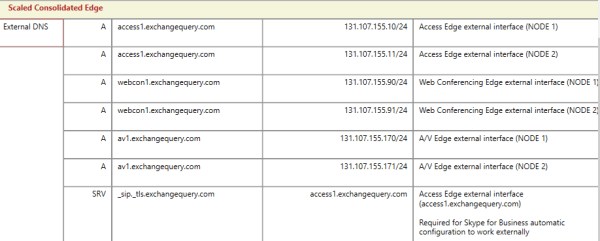
Below is the example of DNS load balancing using NAT

Lets assume i need to load balance 2 edge servers using DNS Load-balancing NAT as per below environment.

sfb

Below is the DNS configuration

sfb3

sfb2
DNS Load balancer using Public Ip Addresses:

By doing this we are using one public IP for all 3 services on each server and differentiate them by TCP/UDP port value.
We are directly assigning the public IP’s on the edge servers one of the 2 NIC’s which should be external NIC.
Three private IP addresses are assigned to this network adapter, for example 131.107.155.10 for Access Edge service, 131.107.155.20 for Web Conferencing Edge service, 131.107.155.30 for A/V Edge service.
The Access Edge service public IP address is primary in the NIC with default gateway set to the external Firewall.
Web Conferencing Edge service and A/V Edge service private IP addresses are additional IP addresses in the Advanced section of the properties of Internet Protocol Version 4 (TCP/IPv4)

Disadvantages of doing this:
It is not recommended, to use a single public IP address for all three Edge service interfaces.
Though this does save IP addresses, it requires different port numbers for each service.

Access Edge – 5061/TCP
Web Conferencing – 444/TCP
A/V Edge – 443/TCP

These might cause issues for remote users connecting externally from a n/w where their firewall doesn’t allow the traffic over TCP 5061 port.
Having three unique IP addresses will help us in easily doing a packet filtering to identify and resolve the issues.

Hardware load balancing using public Ip Address:

Load balancing is only need for old OCS clients and xmpp, but works fine if both edge server are up. From Lync 2010 Microsoft does not recommends to load balance the Edge services from internet.

We are creating a virtual Ip address for each services that edge serves (Access, WebConferencing, A/V) on the load balancer like F5, KEMP etc..,
Behind this Virtual Ip’s we need to add the edge servers associated for the services.
The main benefit of this is failure detection rate is very quicker since it detects the failure from the server side.

Disadvantages:

1) The A/V services will not see the client’s true IP ( for example in a peer to peer audio call for a user connected from external to internal)
2)Few challenges in configuring the outbound client connections going from the edge to internet (Routing & SNAT)

Thanks & Regards
Sathish Veerapandian
MVP – Office Servers & Services

Recertify expired Notes ID

Recently few of the lotus notes users were getting the below message on logging to their notes account.

One or more certificate in your notes ID have expired.
Contact your domino administrator.

notes

By looking into this error we really think that this is something to do with the certificate.
This occurs because user ID’s expiration dates are mentioned for each account on the domino server and after expiration these messages appear.
Usually the values are mentioned as 10 years period or values accordingly set by domino developer during the deployment.
This helps the administrators not to recertify the ID’s frequently.

So basically what we need to do is to extend the expiration dates for these users on their notes ID when we come across this issue.
Inorder to extend the expiration time we need to recertify those ID’s.

The below steps can be performed to recertify the notes ID

Launch the Domino Administrator :

Navigate to People and Groups

domino

Navigate to tools – Select people – and select recertify

notes1

The next step will be prompted for a certifier process.

Here we have 2 options:

1)Supply certifier ID and password
2)Use the CA process

Its better to use the CA process which will allow us to specify a certifier of our own without access to the certifier ID file or the password.

After choosing the above option we will get the below screen of the new certificate expiration date. There is an option to inspect each entry before submitting a request which is good to enable.

notes2

After a successful processing we get the below message which says the request statistics.

notes3

After this dialog box click ok and continue. After the replication interval the user can login and he will not get the certificate expiration message anymore.

Thanks & Regards 
Sathish Veerapandian
MVP- Office Servers & Services

Quick Bites- Known issue with Security Update for Exchange 2016 CU2 KB3184736

Its been more than a week that Microsoft released Security update for Exchange 2016 CU2

The Security update can be downloaded from the location https://support.microsoft.com/en-us/kb/3184736

Yesterday we installed the KB3184736 on Exchange Server 2016 CU2 production.

We have run into the below 2 issues:

Just posting them here so that people can look into these 2 issues after the update and rectify them if they  experience the same:

1) Microsoft Search Host Controller would go disabled – So started the service ran Update-MailboxDatabaseCopy -CatalogOnly for the indexes to reseed which resolved.

2) Got ASP.Net runtime error for ECP – But strange out of all installed servers only 3 servers ECP were affected and rest all was fine.
On comparing the web config found that the ECP BinSearchFolders were showing as %ExchangeInstallDir% instead of C:\Program Files\Microsoft\Exchange Server\V15\
Changed the path location to C:\Program Files\Microsoft\Exchange Server\V15\ which solved the issue.

3) Few OWA users were getting the below message bad request , unable to login to the OWA page and the message appeared as below with the blank white screen with bad request.

ev1

Ran the UpdateCAs.PS1 script on all mailbox servers found on the location  C:\Program Files\Microsoft\Exchange Server\v15\bin\UpdateCas.ps1 after which the issue was resolved.

ev2


Configure DKIM and DMARC in on premise Exchange Environment

Small history on DKIM:

Cisco’s Identified Internet Mail (IIM) and Yahoo’s DomainKeys were merged and formed the DomainKeys Identified Mail (DKIM) in the year 2004, an IETF standard described in RFC 6376.

IIM and Domain keys is no longer supported by any RFC standards and they are depreceated.
These both systems were combined together as DKIM which is widely being used currently.

By using SPF we are actually letting everyone know that these are the authorized IP’s for sending emails.
But but few suggest they aren’t as secure and there are chances these authorized servers on SPF list can be compromised and spoofed messages can be sent.
DKIM is a process through which the recipient domain can validate and ensure that the messages are originated from the actual domain sender and was not spoofed message.

How DKIM Works ?

DKIM involves 2 processes signing and verifying. Signing from the sender who has this feature enabled and can be from a module Mail Transfer Agent.
By default Exchange server does not have this option to sign for emails with DKIM.
We need to have a MTA agent to perform this job on the Exchange server or the best way is to enable this feature for signing out all emails through an SMTP gateway for an on premise setup.
Almost every SMTP gateway in the market is having this option to enable DKIM and DMARC.
When performing this operation on sender organization who has this feature enabled for outgoing emails it inserts hash tag of the DKIM signature content header fields , body fields for the author organization.

The verifying is done by the receiving part domain if the DKIM is configured in that recipient domain. If at all there is no DKIM configured no DKIM verification will be performed on the receiver and the mails will be routed normally to the recipient.
The receiving SMTP server uses the domain name and the selector to perform a DNS lookup

We can rotate the keys randomly from the smtp gateway or from the application which is doing the job if at all we have a doubt if the private key is compromised.
In this case we need to change the selector name accordingly in the DNS for DKIM to reflect the new selector having the new private key.

The above scenario is very very rare and if it happens anyone will be able to get a copy of your private keys, they will be able to sign messages on your behalf.

The private key will be present on the MTA agent with the domain owner itself which performs this job and the public key will be published as a DNS text records.
By using this DNS published text records it allows anyone to verify that the signature(hash tag) present in the received email is valid and no contents in the email have been tampered.


Below are the core components with which the DKIM will be functional :

Selector (S) – Its usually the SMTP server which has the key pair certificate (private key usually SMTP server)
We can have multiple selectors if we have multiple SMTP servers
Or we can use the same key pair on all the SMTP servers which is best because we don’t need to publish multiple DNS records for multiple selectors.

_domainkey – Static fixed part of the protocol itself and can’t be altered.

d(Signing Domain) – This part needs to be verified so it should be our domain name.

p(Public-key data) – This portion contains the public key of our generated cert request in base encoding.It should be definitely base64 encoding format.

Once the DKIM domain records is created we need to append the TXT record in the DNS records for the newly created subdomain with the public key generated from the DKIM responsible server(selector).

Below are the additional components which can be added if required:

v –  is the version.
a –  is the signing algorithm.
c – is the canonicalization algorithm(s) for header and body.
q –  is the default query method.
l  –  is the length of the canonicalized part of the body that has been signed.
t  –  is the signature timestamp.
x  – is its expire time.
h –  is the list of signed header fields, repeated for fields that occur multiple times.

Below is the overall steps:

1) Create your signing key in the agent or server responsible for this job in your environment.
2) Publish your DKIM DNS record for your domain.
3) Enable the DKIM signing and encrypting option for all outbound emails.

Below is the standard DKIM configuration through  SMTP server MTA Agent:

DKIMimage

Benefits of DKIM:

1) DKIM will add positive points to the antispam in terms of SCL rating for our internet emails.
2) There is no possibility of Spoofed emails going on behalf of our domain if we have SPF and DKIM together.

If we have multiple SMTP Gateways do we need to have multiple selectors ?

In this case we can use the same key and profile on all SMTP Gateways.So we create a domain profile on the first Gateway as well as the signing key and publish the TXT record. Its better to have only one TXT record for a domain. The same keys generated on one SMTP GW can be used on all of the Gw’s we have. Just we can import them on all gateways. By doing this we don’t need to create multiple txt entries for the respective selectors.

After this Export Public Key and add the TXT entries in the public DNS server.
So basically a DKIM enabled org will have all the sent emails stamped with a hash tag with the private key from the DKIM MTA agent or the SMTP Gateway.
The recipient domain will perform the DKIM validator if it does by querying the DKIM text records.
The recepient domain will consider this domain valid only when the sender email has the hash tag.Basically this is a key pair.

DMARC : Domain-based Messaging, Authentication, Reporting and Conformance (DMARC) standard

DMARC is a mechanism for domains to get reports on DKIM and SPF results for our domain if we have them configured.They let us know what to do if the SPF or DKIM fails for our domain.

A DMARC policy applies clear instructions for the message receiver to follow if an email does not pass SPF or DKIM authentication—for instance, reject or junk it which we  can configure according to our requirement.
DMARC sends a report back to the sender about messages that PASS and/or FAIL DMARC evaluation.

Through DMARC, we can receive all the forensic reports sent on behalf of our domain daily.

We need to Designate the email account(s) where we want to receive these reports and all the reports will be sent to this email address.

This DMARC again requires a DMARC tag that will be inserted on all outgoing emails which are with SPF and DKIM. So we are letting the receiver to verify this DMARC tag.
DMARC tags are the language of the DMARC standard.

Below are the important required tags for DMARC:

v: Version – This tag is used to identify the TXT record as a DMARC record and is static value as is.

p: Requested Mail Receiver Policy.
Again this P can be any of these 3 values

p=none: No specific action will be taken on emails that fails in DMARC validation.
p=quarantine: By doing this we are requesting the receiver end to place the email in the spam/junk folder and mark them as suspicious.
p=reject: By doing this the domain owner says strictly reject all emails that fails DMARC validation on the receiver end.
This is the best recommended way and it provides a highest level of protection.
rua: Indicates where aggregate DMARC reports should be sent to.
Senders designate the destination address in the following format: rua=mailto:domain@example.com.

fo: Dictates what type of authentication and/or alignment vulnerabilities are reported back to the Domain Owner.
pct:We are specifying this value to the percentage of messages to which the DMARC needs to be applied for all the outgoing messages.
This can be optional and can be used to test the impact of the DMARC policy at the initial stage and later can be removed or kept 100.

Below is an example of the DMARC record of how it should be created with the above required tags:

v=DMARC1; p=reject; fo=1; rua=mailto:domain@example.com; rf=afrf; pct=100

The above method of creating a txt record is the DMARC standard.
Also we need to specify the email address where the reports should be sent.
We also need to inform ISP’s to send all the messages to the specified email address and not to block as a spam or reject them for any reason.

Important points to be considered while enabling DKIM:

1) DKIM verification is automatically verified for all messages sent over IPv6 communications if the recipient domain has DKIM verifier enabled.
2) This DMARC is again configurable in on-premise only if your SMTP Gateway is having this feature.
3) DKIM performs Cryptographic checksums on every outbound messsages sent externally.This increases the protocol load overhead on the outgoing emails and more memory system resources will be consumed to perform this operation.
4)DKIM is an IETF Draft Standard, and it is free of cost no need to pay anything for your ISP because all we need is the DKIM public key text entries.
5) If the receiver domain does not have this DKIM verifier configured all the emails sent with DKIM enabled will be received normally and there will not be any issues.

Thanks & Regards
Sathish Veerapandian 
MVP – Office Servers & Services 
Disable external access to EAC in Exchange 2016

Right from Exchange 2013 Exchange Administrative Center is integrated with Exchange Control Panel (ECP) and is available practically from every location in network (LAN, Internet) Unless and until we disable them.

Right after the new Exchange deployment in any environment it is very important to disable the  external ECP access on the servers .

Below are the options available to disable the EAC :

1)  We can  install one more server for internal ECP access only and do not add them in the LB, Which will consume another server just for this functionality alone.

2) Install a second website with ECP and OWA virtual directories on the internet-faced CAS. We need to assign a second IP address to our server on the second network adapter installed in a CAS server.This is painful to maintain after the every CU updates.

3) Use IIS IP and domain restrictions in Windows server 2012 to limit access only to /ecp on internal IP’s.By doing this we can allow Only hosts in the required subnet range to access the ecp.

But in Exchange 2013 restricting ECP will stop the users to access the ecp features in owa ( OWA options) like they have manage out of office, delivery reports, manage mobile devices etc.., . All these end users OWA ecp features will be blocked.

If access is turned off in Exchange 2013,we will receive this below message

404 – website not found error

But from Exchange 2016 Disabling the EAC on the Exchange server 2016 will not disable the ECP end user level functionality completely. All the end user mailbox level OWA ECP functionality still remains available.
so which means the end user ECP design functionality has been changed from Exchange 2016 which is good for us :).

Having all the options above to restrict EAC from external network my  colleague came up with one good option which was nice and thought of sharing it in this post.

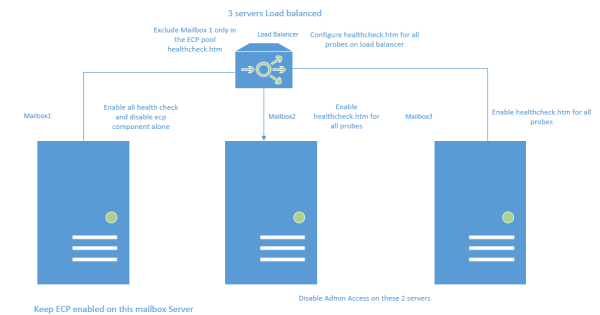
Lets take an example scenario where i have 3 Mailbox Exchange 2016 servers load balanced to accept all the external client connections.

Below is the diagram on which we can configure the probes for ECP access only on 2 servers to accept the ecp connections and the remaining one we keep them disabled.

EAC


Benefits of doing this :

1) External end user owa ecp requests will reach mailbox 2 and mailbox3 and will serve the owa ecp options along with all other client requests for the users.

We need to run this command on Mailbox 2 and Mailbox 3 so that the Admin EAC is disabled on them.
Set-ECPVirtualDirectory -Identity “mailbox2\ecp (default web site)” -AdminEnabled $false
Set-ECPVirtualDirectory -Identity “mailbox3\ecp (default web site)” -AdminEnabled $false

After running this command the load balancer will send only the owa ecp ( OWA options) requests to the mailbox2 and mailbox3. Mailbox1 will not participate in serving the owa ecp ( OWA options)  requests for the clients while it will serve all other requests like activesync,mapi, autodiscover,oab etc..,

2)  We are actually utilizing all the resources of the Exchange 2016 Mailbox 1 servers to accept all client connections except for ecp requests.

So on Mailbox 1 What we are doing is having the EAC admin access always enabled. But we are not including the ECP component participation in the load balancer  in serving the clients.

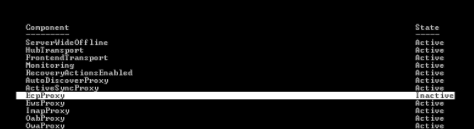
So we are disabling the  ecp healthcheck alone on the mailbox1 server in my example

EAC2

This component we are disabling because the load balancer should send all the other requests to this server to serve the clients while it will not send any ecp requests to this server.

Thanks & Regards
Sathish Veerapandian
MVP – Office Servers & Services
Disable RC4 and SSLV3 encryption for applications

Once any web application is deployed its always recommended to perform a thorough security testing to identify if there are any security risks.

In this article im just sharing my experience to disable RC4 and SSLV3 for applications hosted on Windows Servers.

We can use the below URL site to test the server configuration for HTTPS protocol
https://www.ssllabs.com/ – that will test your server’s configuration for the HTTPS protocol

Why RC4 needs to be disabled ?

RC4 should not be used, due to crypto-analytical attacks.
It’s been more than 25 years since Ron Rivest invented his RC4 stream cipher but still being used by legacy clients and browsers.

How RC4 Encryption Works:

A ciphersuite consists of a key exchange algorithm, an encryption method and an integrity protection method.
RC4 is a stream cipher, so it encrypts plaintext by mixing it with a series of random bytes used to encrypt it. But, the bytes used to encrypt the plaintext aren’t really as random as they should be, at least at the beginning of the process.

That makes it possible for an attacker to figure out the plaintext of an encrypted message with access to enough TLS requests. The problem is that there are biases in the keystream, making life easier for an attacker.

Why its not Disabled by default on Windows Server 2008 R2, 2012 R2 ?

Unfortunately, servers default configuration tends to support backward compatibility  as well over security.
They are enabled by default only for supporting older versions of browsers and operating systems.
Basically we need to disable this on apps running Windows Server 2008 R2 , 2012 R2 and IIS.

Preventive Measures for RC4 Attack:

As a security its always recommend to use TLS 1.2 or above. So its better to disable them and support only the latest type of encryption.

Disable Ciphers by adding the below registry entries on the server hosting the application.

[HKEY_LOCAL_MACHINE\SYSTEM\CurrentControlSet\Control\SecurityProviders\SCHANNEL\Ciphers]

[HKEY_LOCAL_MACHINE\SYSTEM\CurrentControlSet\Control\SecurityProviders\SCHANNEL\Ciphers\RC4 128/128]
“Enabled”=dword:00000000

[HKEY_LOCAL_MACHINE\SYSTEM\CurrentControlSet\Control\SecurityProviders\SCHANNEL\Ciphers\RC4 40/128]
“Enabled”=dword:00000000

[HKEY_LOCAL_MACHINE\SYSTEM\CurrentControlSet\Control\SecurityProviders\SCHANNEL\Ciphers\RC4 56/128]
“Enabled”=dword:00000000

Disable SSLv3:

A Small history on SSL

SSLv1 was never publicly released.
SSLv2 was quickly found to be insecure.
SSLv3 was created, and, together with the newer TLSv1/1.1/1.2, it is still currently being used to secure the transport layer of the Internet.

Weakness of SSL V3:

Last year Google Engineers found the major loophole in SSLV3 with an exploitation technique known as POODLE Attack.
This is a plaintext recovery attack that focuses on HTTP headers and exploits a weakness in the SSLv3 protocol when used with block ciphers.
Its a protocol vulnerability attack.
So now its recommended to disable the SSLV3 on server side.
Preventive Measures for SSLV3 Attack:
Disable SSL V3 by adding the below registry entries on the server hosting the application.

[HKEY_LOCAL_MACHINE\SYSTEM\CurrentControlSet\Control\SecurityProviders\SCHANNEL\Protocols\SSL 3.0]

[HKEY_LOCAL_MACHINE\SYSTEM\CurrentControlSet\Control\SecurityProviders\SCHANNEL\Protocols\SSL 3.0\Client]
“DisabledByDefault”=dword:00000001

[HKEY_LOCAL_MACHINE\SYSTEM\CurrentControlSet\Control\SecurityProviders\SCHANNEL\Protocols\SSL 3.0\Server]
“Enabled”=dword:0000000
Always advisable to have encryption of more than TLS 1.2.

Note:
1) If you have this security enabled on the reverse proxy application through which your services are published, then the session for those connections will be terminated there itself.
But still its better to have this disabled on all the applications which are serving the clients.
2) Its very important to note that before disabling this type of connections we need to make sure that the application is not serving any clients with this encryption.If at all its found we need to make that application to work on TLS1.2 or later.

Thanks & Regards
Sathish Veerapandian
MVP – Office Servers and Services

Configure SCOM 2012 to receive Exchange 2016 Alerts in Email and SMS

Its better if we receive alerts regarding Exchange service level unavailability during any outage.

Though the managed availability  self healing component is very much capable of self monitoring the Exchange services still few companies would request a display dashboard about the current Exchange services and to be notified via sms and email when there is any outage.

Below are the main prerequisites:

1) System Center Operations Manager 2012 R2 is in environment.
2) Exchange Server 2013 Management Pack is installed. Currently only Exchange 2013 management pack is present and it supports 2016.

Below are the high level steps that we need to perform in the SCOM 2012:

1) Create Channels – Basically a path through which the alert will be delivered to the destination (admins).
2) Create Subscribers – Persons who are supposed to be notified when an alert is identified in SCOM for Exchange.
3) Create Subscriptions – Selecting the components to be alerted when any Exchange services are unavailable.

This should be the case for any applications to be notified when there is an issue with their system.
To receive SCOM alerts in mobile as SMS we need to have an SMS routing agent configured.

Below work flow is the normal way of configuring to receive alerts in SMS :

SCOM – Mailbox Server Relay – Reaches Mail Contact local SMTP address domain.com – Finds the SMTP target address – Finds the appropriate send connector – Routes to the SMS routing Agent – Exchange Admin receives the SMS

To receive SCOM alerts in a Email:

Below work flow is the normal way of configuring to receive alerts in Email:

SCOM subscribers – Mailbox server relay – Finds Mail Group – Alerts Delivered to the Admin’s mailbox.

So we need to give relay permission to the SCOM 2012 server on the Exchange to send the alerts when any issue occurs.

First we need to create Channel :

To create a channel perform the below :

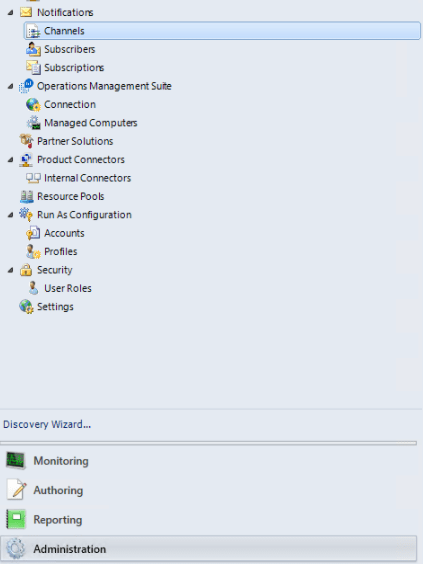
Navigate to Operations manager console – Click on Administration – Click on notifications- Select Channels

SCOm1.png

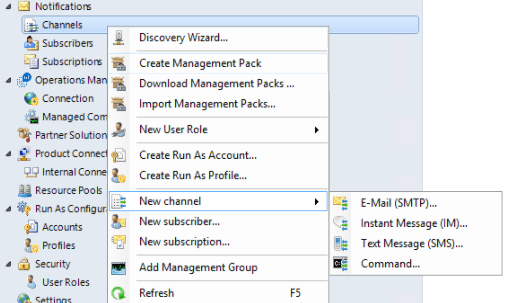
Right click on Channels – New Channel – Select the appropriate channel that we wish to route .

SCOm2.png
The best way always is to create only SMTP channels route them to exchange and from there deliver it to the appropriate destinations.
This will keep less complication.

Also we can create a DNS A record and point them to all mailbox servers to that record as well.

To create a Subscribers perform the below:

Navigate to Operations manager console – Click on Administration – Click on notifications- Select Channels

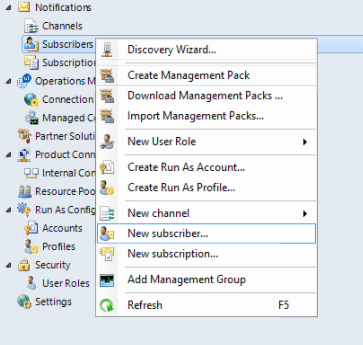
Right Click on Subscriptions – new Subscriber

SCOm3.png

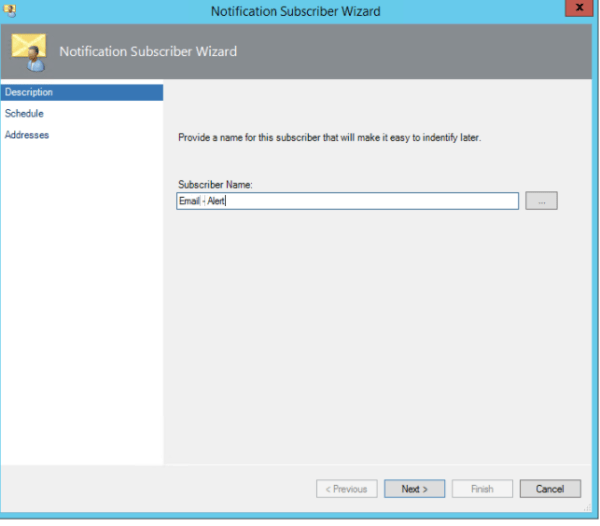
Create a new Subscriber

SCOm4.png

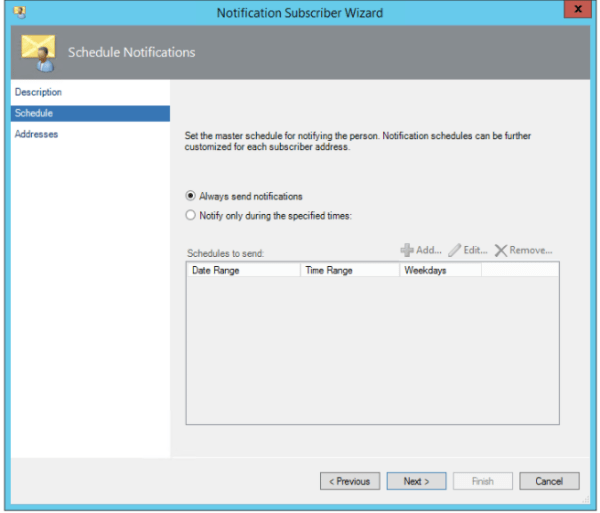
Select always send notifications

SCOm5.png

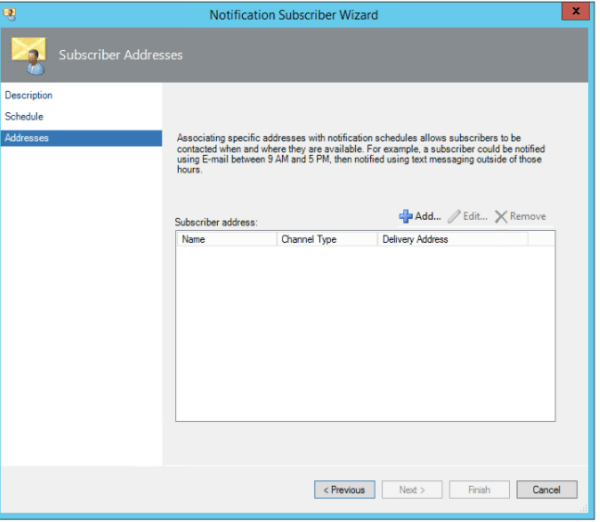
Add the delivery address – admin email address if it needs to be delivered to email or email contact if it needs to be routed to his mobile device

SCOm6.png

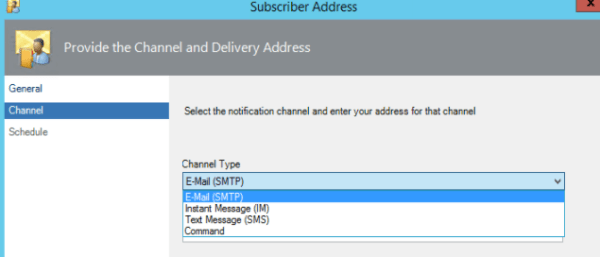
Select the channel type as Email(SMTP) – Its better if we route all the messages via Exchange and from there we can route to the appropriate destinations. I feel this will make less complication in creating the channels.

SCOm7.png

Now we need to create the Subscriptions

To create a Subscriptions perform the below:

Navigate to Operations manager console – Click on Administration – Click on notifications- Select Channels
Right Click on Subscriptions – new Subscriptions

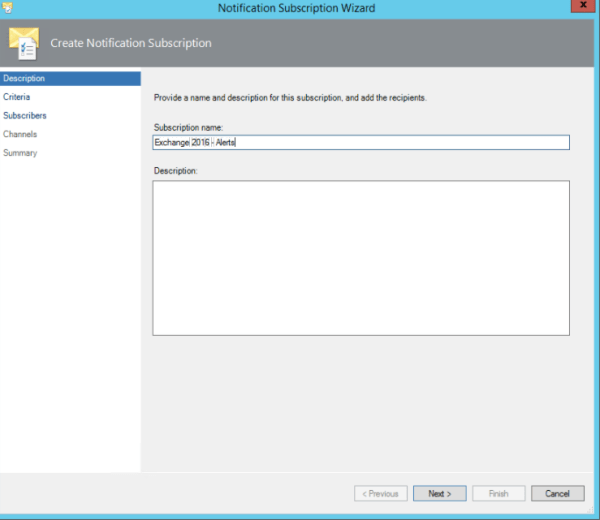
SCOm8.png


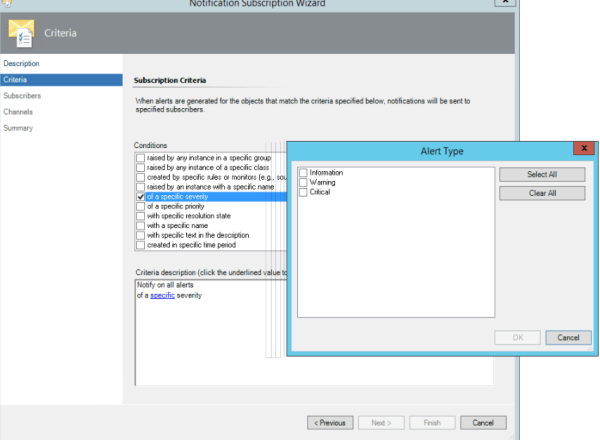
Now this part is very important. We further need to fine tune this based on the setup, issues. Here we are actually specifying and subscribing  the alerts which we will be notified on a application unavailability .

So you need to choose the alerts based on your request. For Exchange i can say if there is any issues with  Database copies unhealthy , Database dismounted we can specify them with specific name , description in this criteria section and get notified via SMS.

For the  exchange services EWS, Active Sync, MAPI we don’t need to configure here since we have the health probes configured on the load balancers and will be notified from them.

SCOm9.png


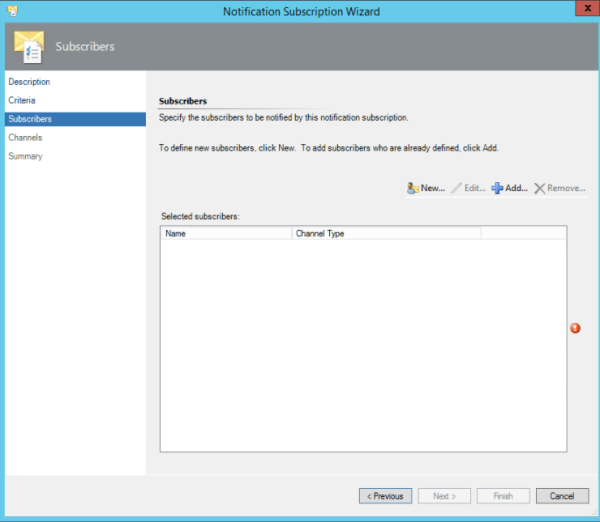
And in this part we specify the subscribers:

Usually the subscribers are the group of distribution that we created.

SCOm10.png

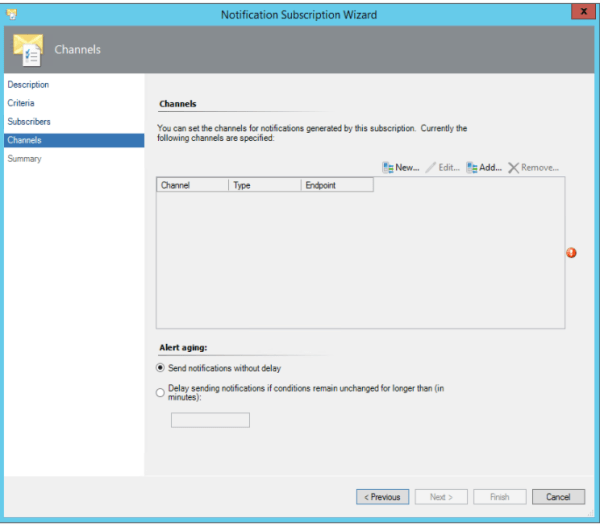
Now select the Channels  that was configured to route the alerts to Exchange servers.

SCOm11.png

After this is done we would be able to receive the Exchange 2016 alerts through email and SMS.

Thanks & Regards
Sathish Veerapandian
MVP – Office Server and Services

Resolve Frequent Account lockout of Notes ID

One of the notes user when trying to log in was getting the below message even though recovered and reset new notes ID was given to him from the server.

“Server error: Your password was expired and your account are locked; contact the system administrator to unlock it”
That message sounds more like a Windows lockout ,but the message is actually coming from Lotus Notes.
I was unaware that Notes would give a message like that and i’m seeing this for the first time . I haven’t worked much on  domino other than creating notes ID, recovering ID, creating routing mailboxes , creating new DB’s, copying /moving the DB’s and monitoring the services.

Posting this solution so it may help others if they face this issue.

Solution:

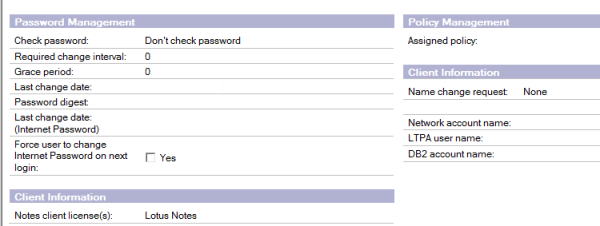
Open Domino Administrator – Go to the users person doc in the names.nsf – Go into edit mode – and then the administrator tab.

Go to Password management section in edit mode
Make sure check password is set to “don’t check password”
Set “Required Change Interval” to 0
Change the “Grace Period” to 0.
Clear the contents of the Password Digest field in the person document in the Domino Directory.

notes

Once above is done replicate notes topology ,replicate names.nsf through Notes Network.
Once after making the above change user is able to login to the notes.
Always make sure the password digest field is removed for any new ID creation as well as for recovered ID files , which will help the user to login in the first attempt itself by the provided recovered notes ID file.

Thanks & Regards
Sathish Veerapandian
MVP – Office Servers and Services

Offline Address Book Configuration in Exchange 2010 & 2016 Coexistence

In this article we will have a look at the OAB configuration in Exchange 2016 in coexistence.

Outlook will trigger an OAB download every 24 hours right from the time it received the last fully updated OAB files.

A small background functionality of OAB from Exchange 2016:
1)Outlook Queries OAB through Autodiscover URL.
2)Reaches the Exchange 2016 mailbox OAB Virtual Directory.
3)Exchange 2016 Mailbox  Client access service  queries Active Manager and finds out database hosting  organization  Arbitration mailbox.
4)Then OABGen Assistant from the Arbitration mailbox will provide the required information.
5)Like with Exchange Web Services, Autodiscover will provide the Offline Address Book URL.This request will then be proxies to OABGEN mailbox which had the OAB information and this information is served back to the client.
The OAB files are stored in the same place as we have in Exchange 2013 CAS server but now it will be on Exchange 2016 Mailbox server itself since we do not have the CAS role.

In Exchange 2016, the OAB files are generated and stored in the Organization arbitration Mailbox with persisted capability first and later copied to the location %ExchangeInstallPath%\ClientAccess\OAB\ folder in the Mailbox Server.

Below are the important things to perform:

1) When we introduce Exchange 2016 we need to create a new Offline Address Book
New-OfflineAddressBook –name “OAB NEW” –Addresslists “\Default Global Address List” -VirtualDirectories $null
2)Make sure 2016 OAB Virtual Directories URL’s are pointing to the Exchange 2016 Servers.
Run the below command to check the settings
Get-OabVirtualDirectory | ft identity,internalurl,externalurl -AutoSize

3)Change the default OAB on Exchange 2016 databases, to do so open Exchange 2016 Management Shell and run the following command:

Get-MailboxDatabase | Set-MailboxDatabase -OfflineAddressBook “\Default Offline Address Book (Ex2016)

Enable GlobalWebDistribution
The recommendation is to enable global web distribution for all OABs hosted on Exchange 2016.

What is the benefit of doing this?
The main benefit is all Exchange 2016 Mailbox servers can take part only in web distribution.
The OAB generation still remains with the mailbox server which hosts the active copy of the DB which has the Arbitration Mailbox with Persisted capability.

How to check if GlobalWebDistributionEnabled is set to true
Run the below command.
Get-OfflineAddressBook Select | Identity,Name,GLobal* |Fl

If it is set to false set it to True by running the below command.
Set-OfflineAddressBook <E16OAB> -GlobalWebDistributionEnabled $true

What is this GlobalWebDistributionEnabled parameter?
This parameter is used by Autodiscover to determine which mailbox OAB virtual directories are eligible candidates for distributing the OAB to the clients.
By doing the above action we are making all Mailbox Servers to distribute the address book automatically.

Enable Shadow Distribution:

By enabling this we can have a shadow copy of an OAB instance generated by an Arbitration Mailbox to another Arbitration Mailbox.
Prior to enabling shadow distribution, we should deploy an OAB generation mailbox in each AD site where Exchange 2016 infrastructure is deployed.

Benefits of Shadow Distribution:
1)Prevents the OAB download across WAN if the user is connecting from different site.
2)If we don’t have this Shadow distribution enabled then it will trigger a full instance of OAB download if the user logs in from another site .

We can enable Shadow distribution by running the below command.
Set-OfflineAddressBook “Redmond OAB” -ShadowMailboxDistributionEnabled $True

Again we can enable this option if the end users are travelling and connecting in multiple sites randomly.
Point new Exchange 2016 On-Premises DBs to the new default Offline Address Book that was created.
And make sure current Ex 2010 DBs are pointing to Ex 2010 OAB until the migration is completed.
After installing the 1st Ex 2016 new Ex 2016 DBs should point to new default OAB.

Do we need to move the Exchange 2010 OAB’s ?
No we don’t have to move, all OAB’s . They have already been created and stored in OABGEN mailbox and are Updating 12 times a day.
From Exchange 2013 all OABs have gone into <Default Offline Address Book>.

After the configuration try to browse the OAB end points and see if you are able to login
https://mail.domain.com/oab/07a8-6g35-7d30-36sh-84b5-15g4h/oab.xml

Below example of how it looks after successful authentication

OAB
OAB URL can be taken from Test Email AutoConfiguration Outlook results.
Download the OAB and see the results.

By default, a new OAB is generated every 8 hours in Exchange Server 2016, but we can change the interval by using the Exchange Management Shell by using a new-setting override.

New-SettingOverride -Name “OAB Generation Override” -Component MailboxAssistants -Section OABGeneratorAssistant -Parameters @(“WorkCycle=02:00:00”) -Reason “Generate OAB every 2 hours”

Note: It is better to leave the default work-cycle schedule and not modify them.

Thanks & Regards
Sathish Veerapandian
MVP – Office Servers & Services
Configure Enterprise Vault Office Mail App in Exchange 2016 Environment

The Enterprise Vault Office Mail App provides Enterprise Vault features in end users outlook and owa. This works in Integration with the Microsoft  Office Mail apps feature.
It is desired that users will try to  access  archived items via OWA as well when their older items are being archived by a  archive system.
The Enterprise Vault Office Mail App does not appear in Outlook or OWA by default.
It requires deployment to users  or organizational level and only then they will appear.

In this article i will explain quick steps to perform this action on a environment where we have the Archive enabled for Exchange 2016 users through Enterprise Vault

There are 3 possible methods to perform this action:

1)  We can deploy them to individual users.
2) We can deploy them to group of users.
3) We can deploy them to whole organization on the Mailbox Server Organization level.

The main methods are as below:

1)  We need to deploy the Office Mail App on the Newly introduced Exchange 2016 Server on the org level to EV server.
2) Setting up the Enterprise Vault Office Mail App
3) One important note that we need to make is that if we enable this feature on organizational level then this option will appear on all mailboxes including the one’s which has not EV enabled.
4) The same Enterprise Vault server is used for Office Mail App requests from
all users.

The high level steps are as follows :
1)We need to run the PowerShell command New-App in the Exchange Management
Shell on Exchange 2016 Server .
The command requires the following:
2)An Exchange 2016 Server  that is enabled for archiving and that you want to enable
for the Office Mail App.
3)The URL of the OfficeMailAppManifest.aspx page from the EV server.
The server that is specified in the URL can be any Enterprise Vault server
in your site can be http or https according to the IIS config on your EV server.
Office Mail Apps must only be served using Secure Sockets Layer (SSL). We need to  obtain a certificate from a certification authority.
4)The Exchange server sends a request to Enterprise Vault server EV1 to
configure a manifest file.


We need to run the below command to enable this feature on organizational level :

Add-Type -AssemblyName System.Web
$Mbx = get-mailbox “mailbox”
New-App -OrganizationApp -DefaultStateForUser:enabled -Url `
(“https://EV_server/EnterpriseVault/OfficeMailAppManifest.aspx?LegacyMbxDn=&#8221; +
[System.Web.HttpUtility]::UrlEncode($Mbx.LegacyExchangeDN))

Where:
■ mailbox is the name of a mailbox that is enabled for archiving.
■ EV_server is the name of Enterprise Vault server which has this manifest file in your organization.


When a user access the EV office mail app from the owa or Outlook following things happens:

EV
a) Basically this officeMailAppManifest.aspx page from EV server generates a manifest file
for Exchange and sends it to the Exchange 2016 server.
b) The manifest file contains the Office Mail App settings for Exchange.
c) The settings include the URL from which the Office Mail App will be loaded.
d) Later end user will be able to perform his archive action  from the Office Mail App.

Below are the steps to enable EV web app for individual users :

$mbx = Get-mailbox mailbox@domain.com | select LegacyExchangeDN
$url = “https://EVurl.com/EnterpriseVault/OfficeMailAppManifest.aspx?LegacyMbxDn=”+ $mbx.LegacyExchangeDN
New-App -Mailbox $mbx.LegacyExchangeDN -Url $url

Later we can verify the end user web app readiness by accessing the Manifest URL from his PC

https://evurl.com/EnterpriseVault/OfficeMailAppManifest.aspx?LegacyMbxDn=/o=MSG/ou=Exchange Administrative Group (FYDIBOHF23SPDLT)/cn=Recipients/cn=mailbox

On accessing the end user should be able to see the XML file an example below.

EV2

On a failure to see the XML file will not result in accessing this feature from end user level.

After its enabled this will how it will be displaying for end users on their OWA and Outlook when they open any emails.

EV1

Note:

1)  This office mail app  is not an mandatory feature to be enabled for all users . All users can see their archived items from the archive URL and the EV thick client on their desktops. This mail app gives more comfort for the end users to access, make operations on their archive from the owa and viewing their email on outlook itself.
2) Support for the Enterprise Vault Office Mail App is pending from Exchange 2016 CU1 and not in Symantec compatibility lists.At this moment the Office mail app is working only on owa in Exchange 2016 CU2. Symantec has confirmed that they will be soon releasing a patch which will support this feature on Outlook as well.
3) With Exchange 2016 CU2 Archive is working fine on the Outlook EV Client and the EV Web URL.
4) Enterprise vault to be compatible with Exchange 2016 Cu2 server version requires  Enterprise Vault 11.0.1 Cumulative Hotfix 4 or later.

Below are the following commands are available for managing Office
Mail Apps in Exchange 2016:

Get-App                  – Returns information about the installed Office Mail Apps.
New-App                  – Deploys an Office Mail App.
Remove-App               – Removes the specified Office Mail App.
Disable-App              – Disables a specific Office Mail App for a specific user.
Enable-App               – Enables an Office Mail App for a specific user.
Set-App                  – Sets configuration properties on an Office Mail App.

Thanks & Regards
Sathish Veerapandian
MVP – Office Servers and Services