Running large language models on Kubernetes usually means dealing with GPU infrastructure, model serving, scheduling, networking, and operational complexity.
Instead of calling a hosted LLM API, we will deploy an open source model directly on Azure Kubernetes Service (AKS), let KAITO provision the required GPU infrastructure, expose the model through an inference service, and send a real prompt to it.
Azure Kubernetes Service provides another approach through the AI Toolchain Operator add on, based on the open source Kubernetes AI Toolchain Operator (KAITO) project.
KAITO allows us to describe an AI workload through a Kubernetes Workspace resource. From there, the operator can coordinate the GPU compute, model deployment, inference runtime, and Kubernetes resources required to serve the model.
In this guide, we will walk through the steps required to deploy Microsoft Phi 4 mini-instruct on AKS using:
- Azure Kubernetes Service
- AI Toolchain Operator / KAITO
- NVIDIA A100 GPU compute
- Phi 4 mini instruct
- vLLM
- An OpenAI compatible inference API
Microsoft’s AKS documentation describes KAITO as a managed add on for deploying and operating open source LLM workloads on Kubernetes, with capabilities including vLLM integration, prompt formatting, streaming responses, and OpenAI compatible APIs.
The target architecture is:
Azure Subscription → AKS → KAITO → Workspace → GPU Node Pool → Phi-4-mini + vLLM → OpenAI-compatible API → Application

Why Use KAITO on AKS?
Without an AI operator, running an LLM on Kubernetes can require manually coordinating several components:
- GPU node pools
- GPU scheduling
- NVIDIA configuration
- Model containers
- Model downloads
- Inference servers
- Kubernetes Services
- Scaling
- Resource scheduling
KAITO provides a more declarative approach.Instead of manually building every part of the model serving infrastructure, we define a Kubernetes Workspace describing the model and compute requirements.
KAITO then works toward reconciling that desired state.The Phi 4 mini example used in Microsoft’s documentation combines AKS, KAITO, an NVIDIA A100 GPU, Phi4 mini, and vLLM.
Important Prerequisite: Check GPU Quota First
This is the most important step to perform before creating the AKS environment.
The Phi-4-mini KAITO example requests the following Azure VM size:
Standard_NC24ads_A100_v4
This VM belongs to the NVIDIA A100 GPU family and is significantly more expensive than a normal AKS worker node.
Your Azure subscription must therefore have sufficient GPU quota in the same Azure region where you plan to create the AKS cluster.
In my case, this became the first real-world blocker: the subscription did not initially have the required NCADS_A100_v4 quota, so I had to request a quota increase before proceeding with the GPU-backed portion of the deployment. You must have minimum 24 quotas.

Once requested need to wait a bit to approve from the MS Team

That is an important lesson worth checking early because otherwise the KAITO Workspace can remain waiting for compute.
Step 1 — Check Azure CLI and kubectl
Microsoft’s documentation referenced for this guide requires Azure CLI 2.76.0 or later.
Check your Azure CLI version:
az version

- If required, upgrade Azure CLI: az upgrade
- Check kubectl: kubectl version –client

You can also perform these steps from Azure Cloud Shell if you prefer not to configure the tools locally.
This guide uses Windows PowerShell syntax.
Step 2 — Sign In to Azure
Authenticate to Azure: az login
Confirm the selected subscription: az account show

If you manage multiple Azure subscriptions, always verify this before creating resources.
Step 3 — Check Whether the A100 VM SKU Is Available
In my case it was empty for all regions
az vm list-usage --location eastus
–output table | Select-String “NCADS_A100_v4”

For this guide, we will use eastus as the example region.
Check whether the required VM SKU is available:
az vm list-skus `
If no suitable result is returned, you may need to select another Azure region.
Microsoft specifically notes that GPU VM availability and GPU quota can prevent KAITO workloads from obtaining the compute they require.
A Real World GPU Quota Limitation
When I checked my Azure subscription, the required NCADS_A100_v4 GPU quota was not available, so I submitted a quota increase request.
Microsoft Support later confirmed that the request had been backlogged due to high demand for virtual machines in the requested region. The request was not rejected; instead, it remains pending while Microsoft brings additional capacity online.

Step 4 — Define the Environment Variables
Since we are using Windows PowerShell, create the environment variables like this:
$env:AZURE_SUBSCRIPTION_ID="<YOUR-SUBSCRIPTION-ID>"$env:AZURE_RESOURCE_GROUP="rg-kaito-guide"$env:AZURE_LOCATION="eastus"$env:CLUSTER_NAME="aks-kaito-guide"Verify them:$env:AZURE_SUBSCRIPTION_ID$env:AZURE_RESOURCE_GROUP$env:AZURE_LOCATION$env:CLUSTER_NAME

Replace eastus with the Azure region where your required GPU quota and VM SKU are available.
Step 5 — Create the Resource Group
Create a resource group:
az group create `--name $env:AZURE_RESOURCE_GROUP `--location $env:AZURE_LOCATION

Step 6 — Create AKS with the AI Toolchain Operator
Create the AKS cluster with the AI Toolchain Operator enabled:
az aks create `
–location “$env:AZURE_LOCATION” `
–resource-group “$env:AZURE_RESOURCE_GROUP” `
–name “$env:CLUSTER_NAME” `
–enable-ai-toolchain-operator `
–enable-oidc-issuer `
–generate-ssh-keys
The two important options are:
–enable-ai-toolchain-operator
–enable-oidc-issuer

Microsoft’s documented AKS configuration uses these options when enabling the AI Toolchain Operator.
If you already have an AKS cluster, you can enable the add-on instead of creating a new cluster:
az aks update `
–name $env:CLUSTER_NAME `
–resource-group $env:AZURE_RESOURCE_GROUP `
–enable-ai-toolchain-operator `
–enable-oidc-issuer
Step 7 — Connect kubectl to AKS
Download the cluster credentials:
az aks get-credentials `
–resource-group $env:AZURE_RESOURCE_GROUP `
–name $env:CLUSTER_NAME
Verify your Kubernetes: (Make sure the state becomes succeeded)

kubectl get nodes
A healthy cluster should return its current nodes.

Step 8 — Verify KAITO Resources
Check whether KAITO-related components are present.
In PowerShell:
kubectl get pods -A | Select-String “kaito”

Check the Custom Resource Definitions:
kubectl get crd | Select-String “kaito”

One of the most important KAITO concepts is the:
Workspace
A KAITO Workspace describes the AI workload that we want Kubernetes to run.
Conceptually, we are telling Kubernetes:
Run this model for inference using this type of compute. KAITO’s controllers then reconcile the infrastructure and Kubernetes resources required to reach that desired state.
Step 9 — Apply the Phi-4-mini Workspace
Once your GPU quota is available, apply Microsoft’s KAITO Phi-4-mini example:
kubectl apply -f https://raw.githubusercontent.com/kaito-project/kaito/refs/heads/main/examples/inference/kaito_workspace_phi_4_mini.yaml
IMP: You must get an IP here before running the above command. If its none then it will not succeed

If Kubernetes accepts the resource, you should see a response similar to:
workspace.kaito.sh/workspace-phi-4-mini created
Microsoft uses this Workspace example for Phi-4-mini in its AKS documentation.
Step 10 — Monitor KAITO Provisioning
Watch the Workspace:
kubectl get workspace workspace-phi-4-mini -w
In another PowerShell window, monitor the nodes:
kubectl get nodes -w
You can also watch the pods:
kubectl get pods -A -w
The expected provisioning flow is:
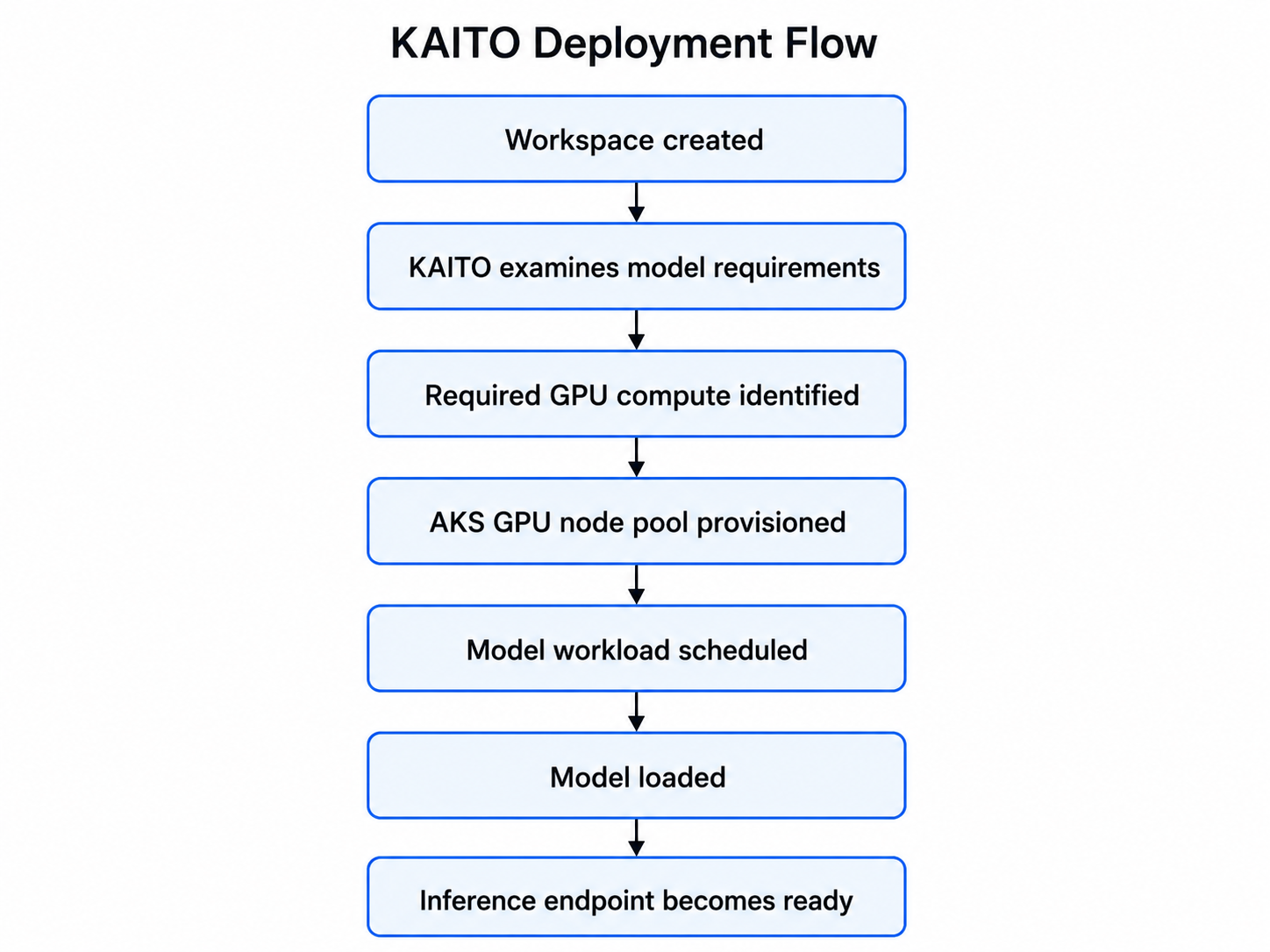
Note: Microsoft’s documentation notes that machine readiness and Workspace readiness can take several minutes depending on the model and infrastructure provisioning.
Step 11 — Find the Inference Service
KAITO exposes a Kubernetes Service associated with the Workspace.
List the services:
kubectl get svc
Capture the ClusterIP in PowerShell:
$env:SERVICE_IP = kubectl get svc workspace-phi-4-mini -o jsonpath='{.spec.clusterIP}’
Verify the value:
$env:SERVICE_IP
The service provides access to the model inference endpoint inside the Kubernetes cluster.
Step 12 — Send a Request to Phi-4-mini
Because the inference service is internal to Kubernetes, one simple way to test it is to launch a temporary curl pod.
Once the Workspace is ready, run:
kubectl run -it --rm ` --restart=Never ` curl ` --image=curlimages/curl ` -- ` curl -X POST ` "http://$env:SERVICE_IP/v1/completions" ` -H "Content-Type: application/json" ` -d '{ "model": "phi-4-mini-instruct", "prompt": "Explain Kubernetes in one sentence.", "max_tokens": 100 }'
If the deployment and inference service are healthy, the endpoint should return generated text.
The request path is essentially:
curl → Kubernetes Service → KAITO inference workload → vLLM → Phi-4-mini → GPU Microsoft documents KAITO’s endpoint using an OpenAI-compatible request format.
Step 13 — Try an AKS-Focused Prompt
Once basic inference works, try something more relevant to the platform:
kubectl run -it --rm `--restart=Never `curl2 `--image=curlimages/curl `-- `curl -X POST `"http://$env:SERVICE_IP/v1/completions" `-H "Content-Type: application/json" `-d '{"model": "phi-4-mini-instruct","prompt": "I am running a production application on Azure Kubernetes Service. Give me five recommendations for making the AKS workload highly available.","max_tokens": 300}'
The interesting difference here is that the inference workload is running inside your AKS environment rather than calling a separate hosted model endpoint.
Step 14 — Find the Inference Service
KAITO exposes a Kubernetes Service associated with the Workspace.
List the services:
kubectl get svc
Capture the ClusterIP in PowerShell:
$env:SERVICE_IP = kubectl get svc workspace-phi-4-mini -o jsonpath='{.spec.clusterIP}’
Verify the value:
$env:SERVICE_IP
The service provides access to the model inference endpoint inside the Kubernetes cluster.
Step 16 — Find the Inference Service
KAITO exposes a Kubernetes Service associated with the Workspace.
List the services:
kubectl get svc
Capture the ClusterIP in PowerShell:
$env:SERVICE_IP = kubectl get svc workspace-phi-4-mini -o jsonpath='{.spec.clusterIP}’
Verify the value:
$env:SERVICE_IP
The service provides access to the model inference endpoint inside the Kubernetes cluster.
Why Would an Organization Self-Host an LLM?
Self-hosting is not automatically the right solution for every workload, but there are several reasons organizations may consider it.
1. Infrastructure and Data Control
The inference environment runs within infrastructure controlled by the organization.
That can be useful for workloads involving:
- Internal documents
- Source code
- Customer information
- Research data
- Financial information
- Regulated workloads
2. Different Cost Model
Hosted AI APIs generally charge based on usage.
Self-hosted inference shifts more of the cost toward:
- GPU infrastructure
- Utilization
- Operations
This does not automatically mean self-hosting is cheaper.
An expensive GPU sitting idle can easily make self-hosting less economical.
So the over all workflow for PHI-4-Mini would look like below

Conclusion
The AKS AI Toolchain Operator provides a Kubernetes-native approach for deploying and serving open-source AI models.
Instead of manually coordinating GPU infrastructure, model servers, inference runtimes, and Kubernetes scheduling, KAITO introduces a declarative Workspace abstraction describing the AI workload.
References
Microsoft Learn: Deploy an AI model on Azure Kubernetes Service (AKS) with the AI Toolchain Operator add-on
https://learn.microsoft.com/en-us/azure/aks/ai-toolchain-operator
KAITO GitHub — Phi-4-mini Workspace example:
https://raw.githubusercontent.com/kaito-project/kaito/refs/heads/main/examples/inference/kaito_workspace_phi_4_mini.yaml


Leave a Reply