Tag: office 365

  • Enable Office 365 External Sharing

    In this article we will have a look at enabling the office 365 external sharing option

    Following services can be shared externally from your office 365 tenant.

    1) SharePoint Sites.

    2) Calendar free/busy sharing.

    3) Lync – You can add people outiside your organizations , skype and  can communicate provided the following conditions are met.

    Login to the office 365 portal with admin privilige

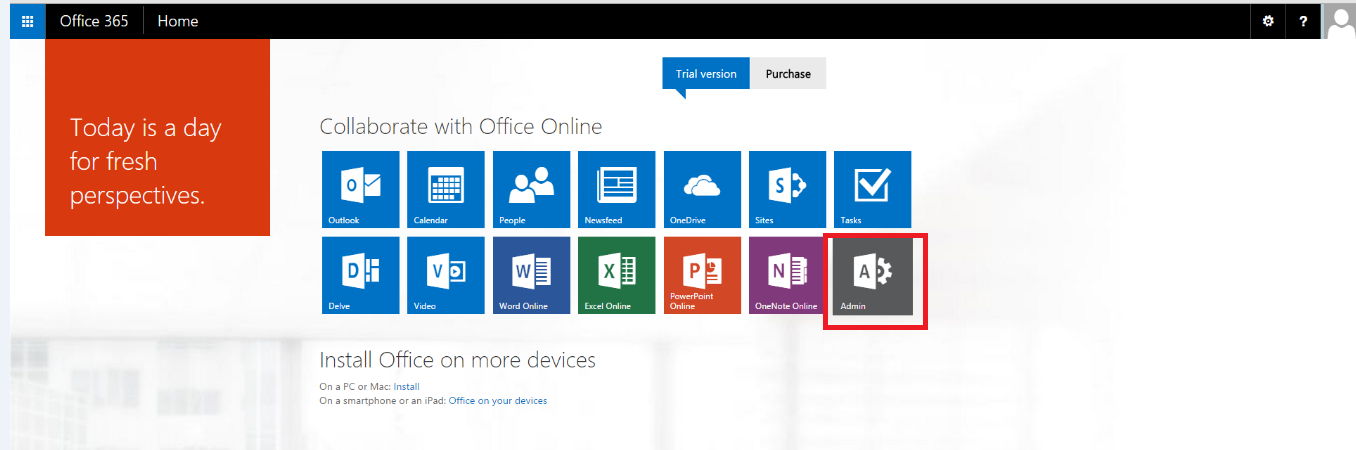
    Click on Admin and click on external sharing

    E1

    Now we have external sharing options for 3 of the services

    When we click on SharePoint we get the below option as shown below

    E2

    Also we have an option to share individual site by selecting them and then it gives us the same option.

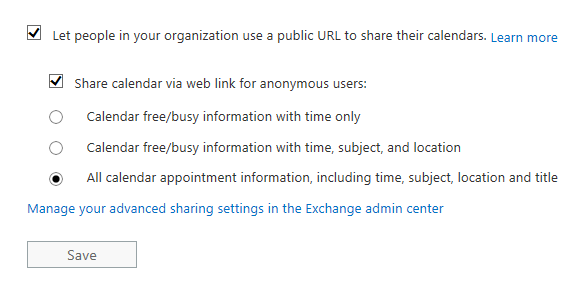
    When we click on the Calendar we have the below option

    C3

    C4

    Once sharing is enabled, users can use Outlook Web App to share their calendars with anyone inside or outside the organization. People inside the organization can view the shared calendar side-by-side with their own. People outside the organization will be sent a URL that they can use to view the calendar. Users decide when to share, how much to share, and when to keep their calendars private

    Note: If you want to share calendars with an organization that uses Exchange Server 2013 (an on-premises solution), the Exchange administrator will need to set up an authentication relationship with the cloud.

    Below is the option that we have for enabling external sharing for lync

    Online2

    The organization you’re communicating with must also allow communication with your domain. If the other organization has Lync Server on premises, refer them to the TechNet article Configuring Federation Support for a Lync Online Customer.

    When you’re communicating with someone in a federated domain, you can only use Lync features (for example, video conversations or desktop sharing) that are turned on in both organizations.

    If the external access setting is changed from “On only for allowed domain” to “On except for blocked domain”, the domains that are listed won’t be kept.

    Thanks 

    Sathish Veerapandian
  • Steps to perform a extended message trace in Office 365

    In this article we will look at the steps to perform a extended message trace in Office 365.

    What is Message Trace ?

    Message trace is same like  same message tracking in Exchange 2010 . By using this we would be able to track/trace an email which was already sent  through a mailbox which resides in the office 365 cloud.

    In-order to perform a message trace perform the following action.

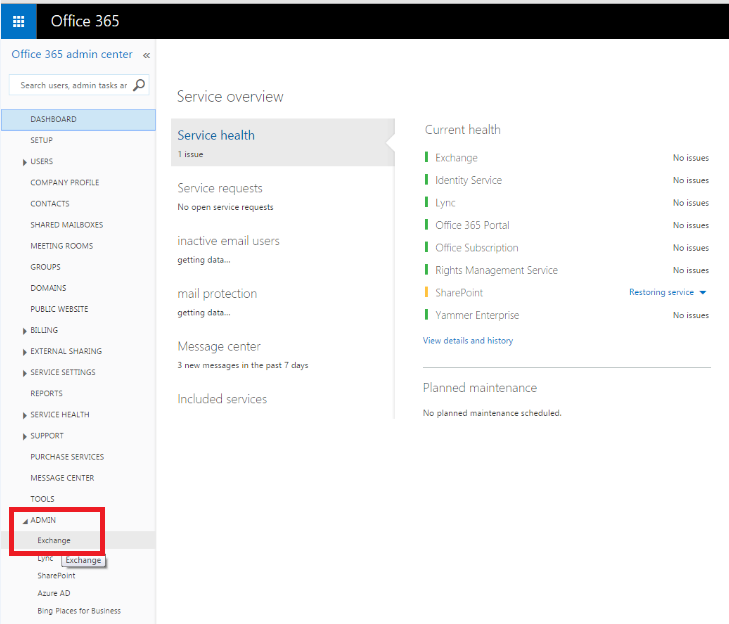
    Login to office 365 Admin portal and click on Admin Icon

    Track1


    Scroll down all the way down to  Admin and click on Exchange

    Track2


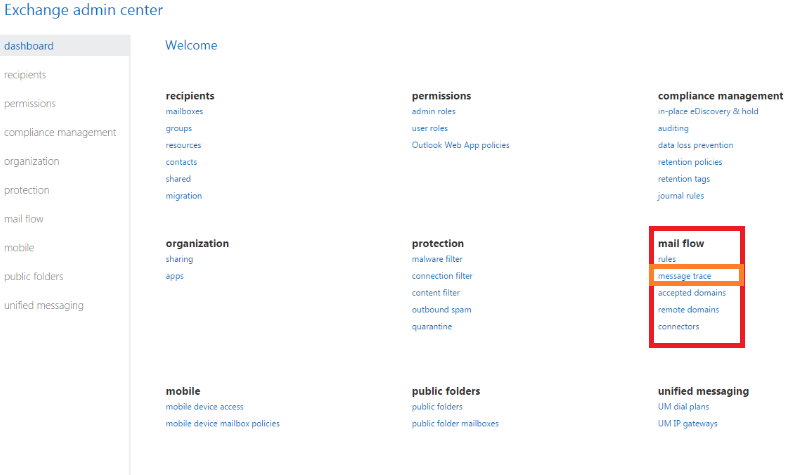
    Navigate to mail flow and select message center as shown below


    Track3


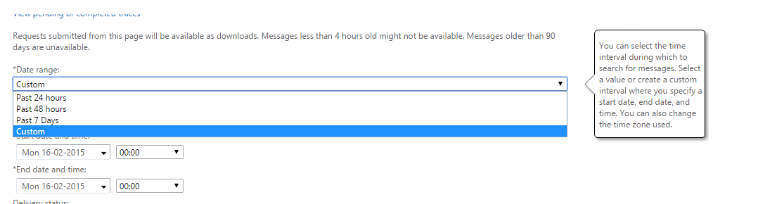
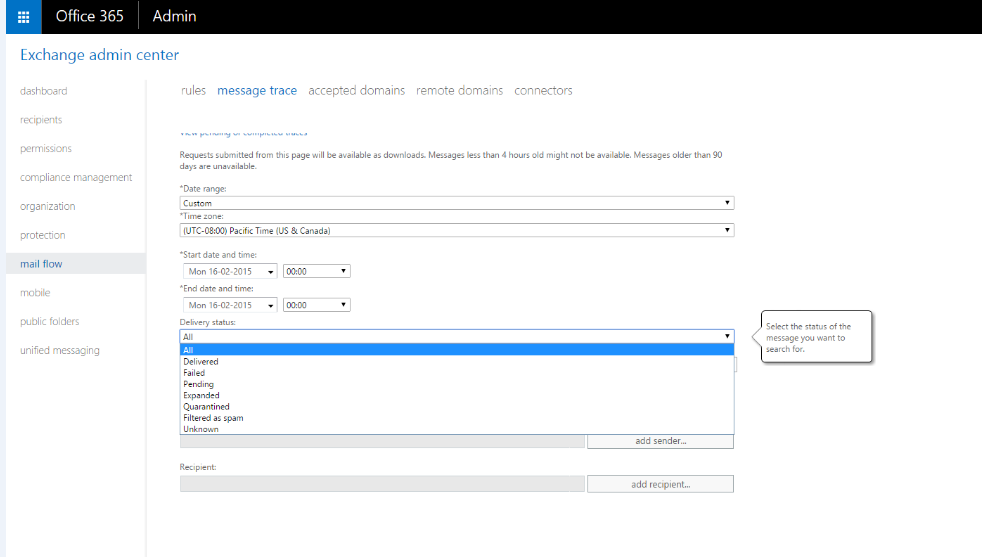
    Now it will take you to message tracking center.Now Specify the start date and end date

    Track4

    Select the date range.

    Note: The tracking results through EAC will be displayed only for the last 7 days.

    If you want to see the message tracking results for more than 7 days then we can export them in csv file and see the results.

    Track5


    Also we have an option to trace the emails based upon the message delivery  status which i find this to be very useful.

    Track6


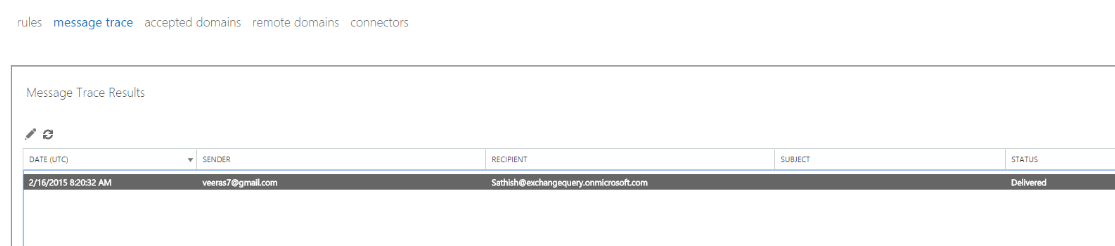
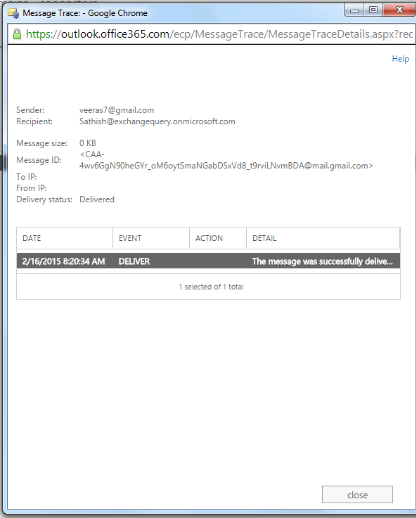
    The final result will be displayed as below

    Track7


    Track8


    Also we have an option to see the pending and already completed traces that can be viewed.

    Track9


    Note:

    By default the message tracking logs will be available only for the past 90 days. If at all your organization will like to extend this period then its better to open a case with Microsoft and extend the tracking period for the same.


    Thanks 

    Sathish Veerapandian

    MVP – Exchange Server

  • Office 365 app launcher navigation experience

    App launcher is the new feature introduced in office 365 by Microsoft.

    This feature gives option to the end users to easily navigate and gives a quick launch option which has the most recent used applications by users which needs to be used for day to day operations can be easily accessible.

    What is is APP Launcher ?

    App launcher is a single one point click where we can see all the default office 365 applications (Outlook,Excel,PowerPoint,One Note,Word,One Drive etc.,) all together in the same location. In addition to this  we can add few other applications which end users would like to see on this app launcher one point click.

    This gives a new navigation experience to the end user where all the applications are available on the top navigation bar.

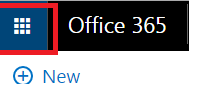
    Below is the icon which would be available once this App Launcher feature is available on office 365 tenants.

    Test


    Once we click on that we get the below option as shown

    Test2

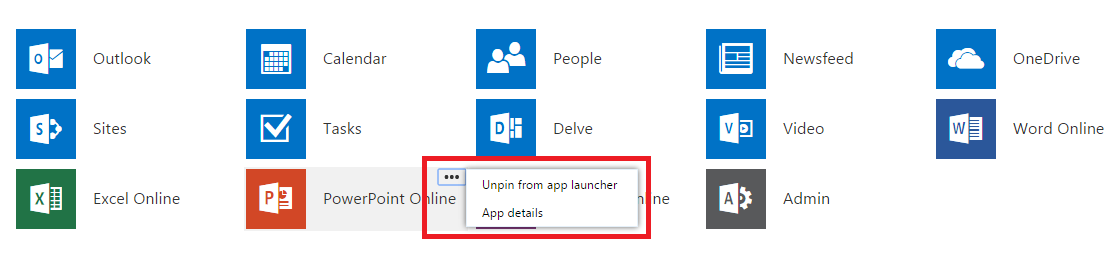
    We can see there are default office applications and we have an option My apps at the bottom which will navigate to a window where we can modify these applications as shown below.


    Test3


    We have an option to unpin any applications that we do not need in the list.

    There are additional apps which can be added from the below office store URL

    https://store.office.com/

    In addition to above feature there is a new customization feature that provides the option for users to pin up to three mostly used  applications to the right side of the top navigation bar.By doing this end users will get more direct access to the daily most frequently used applications.
    Only customers with Exchange on-premise will have this ability to pin and un-pin this option at this time.

    This feature will give end users a easy navigation and accessibility to their most frequent used applications on their daily operations.

    Thanks 

    Sathish Veerapandian
    MVP – Exchange Server 

  • Convert bulk mailbox users to mail enabled users after staged Exchange Migration to Office 365 from Exchange 2007

    The most important step that we need to do after a Exchange Migration from On-premise Exchange server to office 365 is to convert all the on premise Exchange mailboxes to Mail Enabled users.

    What happens if we decommission on-premise servers without converting them to MEU’s

    All the messaging related user information on the Cloud will be lost. Meaning which Dir-sync wont be able to find an associated target address for the users and users wont be able to connect to the cloud mailboxes which will result to an incomplete off-boarding to office 365.
    Dir-sync wont be able to connect to the cloud mailbox and the user account in the DC.
    Dir-sync wont be able to identify the target proxy address if we don’t have a MEU’s for the same and wont be able to locate the remote routing address.
    Initially these values were stamped and provided on the on-premise mailboxes but now since we have moved all the mailboxes now we need to disable all the on-premise mailboxes, create a associated MEU’s for the same and then decommission the on-premise servers

    There are scripts to help you convert mailboxes to MEUs which will make our job very easy.

    •ExportO365UserInfo.ps1    Collects information from your cloud mailboxes and saves it to a CSV file. The Exchange2007MBtoMEU.ps1 script uses the information in the CSV file to bulk-create the MEUs.

    •Exchange2007MBtoMEU.ps1   Conerts on-premises  mailboxes to MEUs

    Please follow the below link to download these scripts

    http://community.office365.com/en-us/w/exchange/845.convert-exchange-2007-mailboxes-to-mail-enabled-users-after-a-staged-exchange-migration.aspx


    If you want to change this value to single user you can use the below steps

    First run the below command to get these values

    $user = Get-ADUser username -IncludeAllProperties mail,department,ProxyAddresses

    Then disable the on-premise mailbox

    Get-Mailbox -identity $user | Disable-Mailbox -Confirm:$false

    Now enable MEU for the single user

    Enable-Mailuser -identity  username -PrimarySmtpAddress “give the value”  -externalemailaddress “give the value”

    Set the associated  proxy address for the single user

    $user.ProxyAddresses = “set the proxy address value”


    Imp Note : This article applies only for Exchange 2007 on premise and still if  you  bring any 2010/2013 into coexistence in onprem then  don’t need to follow since it  will convert the mail-enabled users to a MailUser after the remote move completes automatically.

    Thanks

    Sathish Veerapandian

    MVP – Exchange Server